カスタムツールバーレイアウトの作成 creating-custom-toolbar-layout
ツールバーレイアウト layout
アダプティブフォームを作成する際に、フォームのツールバーレイアウトを指定できます。 ツールバーレイアウトは、フォーム上のツールバーのコマンドとレイアウトを定義します。
ツールバーレイアウトは、複雑な JavaScript や CSS コードを利用したクライアント側の処理に大きく依存しています。 このコードの提供を編成および最適化することが厄介な問題となることがあります。この問題への対処に役立つように、AEM では、クライアント側ライブラリフォルダーが提供されています。これにより、クライアント側コードをリポジトリに格納し、カテゴリ別に整理して、それぞれのコードカテゴリをクライアントに保存するタイミングと方法を定義することができます。その後、クライアント側ライブラリシステムにより、最終的な web ページで、正しいコードを読み込むための正しいリンクが作成されます。詳細については、AEM におけるクライアントサイドライブラリの機能を参照してください。

図: ツールバーのサンプルレイアウト
アダプティブフォームには、次の一連の標準レイアウトが用意されています。
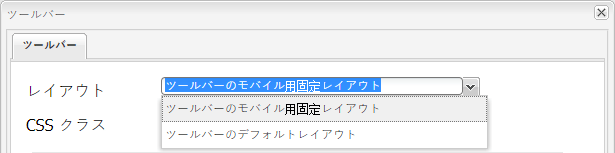
図: すぐに使用できるツールバーレイアウト
また、カスタムのツールバーレイアウトを作成できます。
次の手順では、3 つのアクションをツールバーに表示し、他のアクションをツールバーのドロップダウンリストに表示するカスタムツールバーを作成する手順を説明します。
添付されたコンテンツパッケージには、以下に説明するコード全体が含まれています。 コンテンツパッケージをインストールしたら、/content/forms/af/CustomLayoutDemo.html を開いてカスタムツールバーレイアウトのデモをご覧ください。
CustomToolbarLayoutDemo.zip
ファイルの取得
デモカスタムツールバーレイアウト
カスタムツールバーレイアウトを作成するには layout-1
-
カスタムツールバーレイアウトを維持するためのフォルダーを作成します。 例:
/apps/customlayout/toolbar。カスタムレイアウトを作成するには、次のフォルダーに用意されている既成のツールバーレイアウトの 1 つを使用(およびカスタマイズ)できます。
/libs/fd/af/layouts/toolbar例えば、
mobileFixedToolbarLayoutノードを/libs/fd/af/layouts/toolbarフォルダーから/apps/customlayout/toolbarフォルダーにコピーします。toolbarCommon.jsp も
/apps/customlayout/toolbarフォルダーにコピーします。note note NOTE カスタムレイアウトを保存するために作成したフォルダーは、 appsフォルダーで作成されたものでなければなりません。 -
コピーしたノード
mobileFixedToolbarLayoutの名前をcustomToolbarLayout.に変更します。また、ノードの関連する説明も入力します。 例えば、ノードの jcr:description をに変更します。 ツールバーのカスタムレイアウト.
ノードの
guideComponentTypeプロパティによりレイアウトタイプが決まります。この場合、レイアウトタイプはツールバーなので、ツールバーレイアウト選択ドロップダウンに表示されます。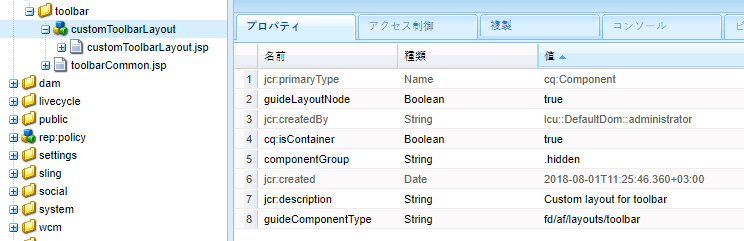
適切な説明を付けたノード
新しいカスタムツールバーレイアウトは、アダプティブフォームツールバー ダイアログ設定に表示されます。
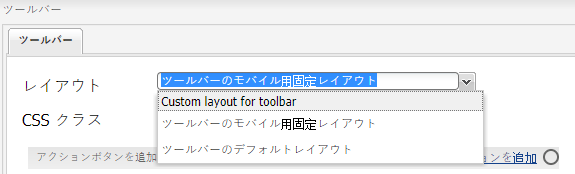
使用可能なツールバーレイアウトのリスト
note note NOTE 前の手順で更新された説明が、レイアウトドロップダウンリストに表示されます。 -
このカスタムツールバーレイアウトを選択し、「OK」をクリックします。
clientlib(javascript と css)を
/etc/customlayoutノードに追加し、clientlib の参照をcustomToolbarLayout.jspに含めます。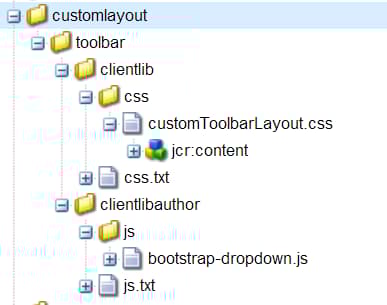
customToolbarLayout.css ファイルのパス
サンプル
customToolbarLayout.jsp:code language-php <%@include file="/libs/fd/af/components/guidesglobal.jsp" %> <cq:includeClientLib categories="customtoolbarlayout" /> <c:if test="${isEditMode}"> <cq:includeClientLib categories="customtoolbarlayoutauthor" /> </c:if> <div class="guidetoolbar mobileToolbar mobilecustomToolbar" data-guide-position-class="guide-element-hide"> <div data-guide-scroll-indicator="true"></div> <%@include file="../toolbarCommon.jsp" %> </div>note note NOTE レイアウトの guidetoolbar クラスを追加します。 ツールバーの標準のスタイル設定は、guidetoolbar クラスに基づいて定義されます。 サンプル
toolBarCommon.jsp:code language-php <%@taglib prefix="fn" uri="https://java.sun.com/jsp/jstl/functions"%> <%-------------------- This code iterates over all the tool bar items using the guideToolbar bean. If the number of toolbar items are more than 3, then we create a dropdown menu using bootstrap for other actions present in the toolbar. In both desktop and mobile devices, the layout is different. ---------------------------------%> <c:forEach items="${guideToolbar.items}" var="toolbarItem" varStatus="loop"> <c:choose> <c:when test="${loop.index gt 2}"> <c:choose> <c:when test="${loop.index eq 3}"> <div class="btn-group dropdown"> <button type="button" class="btn btn-primary dropdown-toggle label" data-toggle="dropdown">Actions <span class="caret"></span></button> <button type="button" class="btn btn-primary dropdown-toggle icon" data-toggle="dropdown"><span class="glyphicon glyphicon-th-list"></span></button> <ul class="dropdown-menu" role="menu"> <li> <div id="${toolbarItem.id}_guide-item"> <sling:include path="${toolbarItem.path}" resourceType="${toolbarItem.resourceType}"/> </div> </li> <c:if test="${loop.index eq (fn:length(guideToolbar.items)-1)}"> </ul> </div> </c:if> </c:when> <c:when test="${loop.index eq (fn:length(guideToolbar.items)-1)}"> <li> <div id="${toolbarItem.id}_guide-item"> <sling:include path="${toolbarItem.path}" resourceType="${toolbarItem.resourceType}"/> </div> </li> </ul> </div> </c:when> <c:otherwise> <li> <div id="${toolbarItem.id}_guide-item"> <sling:include path="${toolbarItem.path}" resourceType="${toolbarItem.resourceType}"/> </div> </li> </c:otherwise> </c:choose> </c:when> <c:otherwise> <div id="${toolbarItem.id}_guide-item"> <sling:include path="${toolbarItem.path}" resourceType="${toolbarItem.resourceType}"/> </div> </c:otherwise> </c:choose> </c:forEach>CSS は clientlib ノード内に存在します。
code language-css .mobilecustomToolbar .dropdown { display: inline-block; } .mobilecustomToolbar .dropdown { float: right; } .mobilecustomToolbar .dropdown > button { padding: 6px 12px; } .mobilecustomToolbar .dropdown .guideFieldWidget, .mobilecustomToolbar .dropdown .guideFieldWidget button { width: 100%; } .mobilecustomToolbar .dropdown .caret{ border-bottom: 6px solid; border-right: 6px solid transparent; border-left: 6px solid transparent; border-top: transparent; } .mobilecustomToolbar .dropdown-menu{ top: auto; bottom: 100%; } .mobilecustomToolbar .btn-group { vertical-align: super; } .mobilecustomToolbar .glyphicon { font-size: 24px; } @media (max-width: 767px){ .mobilecustomToolbar .dropdown .guideButton .iconButton-icon { display: none; } .mobilecustomToolbar .dropdown .guideButton .iconButton-label { display: inline-block; } .mobilecustomToolbar .dropdown .guideButton button { background-color: #013853; } .mobilecustomToolbar .btn-group { vertical-align: top; } }
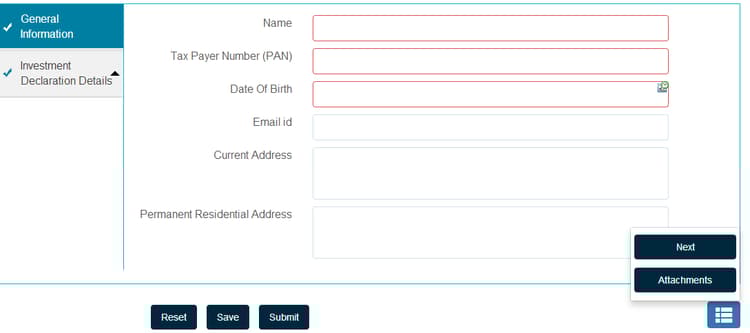
図: カスタムレイアウトツールバーのデスクトップ表示