Connexion et exécution de requêtes sur la base de données Adobe Commerce
Découvrez comment vous connecter à un projet Adobe Commerce sur le cloud, créer une image mémoire de base de données pour une utilisation hors site et masquer ou supprimer des informations d’identification personnelle (PII). Accédez aux données avec une image mémoire locale, une interface utilisateur graphique telle que MySQL Workbench ou TablePlus, ou l’interface de ligne de commande magento-cloud.
Contenus vidéo
- Connectez-vous à un projet Adobe Commerce Cloud distant avec un outil de gestion de base de données tel que MySQL Workbench ou TablePlus.
- Connectez-vous au projet et exécutez SQL à partir de la ligne de commande.
Vous pouvez accéder aux données Adobe Commerce à partir de votre projet cloud à l’aide de l’une des méthodes suivantes :
- Utilisez une image mémoire de base de données locale.
- Ouvrez une connexion de base de données à votre environnement cloud distant à l’aide d’une application telle que MySQL Workbench ou TablePlus.
- Connectez-vous directement à l’environnement cloud avec l’interface de ligne de commande
magento-cloudet exécutez des commandes sur le serveur distant.
Privilégiez une image mémoire de base de données que vous nettoyez pour supprimer les informations client. Supprimez entièrement les données client lorsque vous n’en avez pas besoin.
Utilisation de l’outil Adobe Commerce Cloud CLI
L’Adobe Commerce Cloud CLI doit être installée pour créer une image mémoire de la base de données. Sur votre ordinateur local, ouvrez un répertoire et exécutez la commande suivante. Remplacez your-project-id par votre ID de projet (similaire à asasdasd45q). Remplacez your-environment-name par le nom de votre environnement, par exemple master ou staging.
magento-cloud db:dump -p your-project-id -e your-environment-name
Si vous n’êtes pas sûr de l’identifiant du projet ou de l’environnement, vous pouvez l’omettre dans la commande :
magento-cloud db:dump
L’interface de ligne de commande vous demande de spécifier le projet et l’environnement appropriés. L’exemple suivant affiche cette boîte de dialogue. Cet exemple montre plusieurs projets affectés à votre compte, mais il est probable qu’un seul projet soit disponible.
Transformer en répertoire
cd ~/Downloads/db-tutorial
Exécutez maintenant la commande pour créer l’image mémoire de la base de données
magento-cloud db:dump
Comme vous n’avez pas spécifié de projet ou d’environnement, l’interface de ligne de commande d’Adobe Commerce Cloud vous pose quelques questions. L’exemple suivant illustre un exemple de boîte de dialogue.
Enter a number to choose a project:
  [0] demo-ralbin (ral32nryq4123)
  [1] adobe-commerce-demo (abc123zzkipexnqo)
  [2] DX Tutorials - Commerce (abasrpikfw4123)
 > 2

Enter a number to choose an environment:
Default: master
  [0] master (type: production)
  [1] remote-db (type: development)
 > 1

Creating SQL dump file: /Users/<username>/Downloads/db-tutorial/abasrpikfw4123--remote-db-ecpefky--mysql--main--dump.sql
Utilisation des outils Adobe Commerce ECE
Si vous ne disposez pas de l’outil d’interface de ligne de commande Adobe Commerce, vous pouvez vous ssh à votre projet et exécuter la vendor/bin/ece-tools db-dump de commande ece :
Exemple de réponse :
ssh abasrpikfw4123-remote-db-ecpefky--mymagento@ssh.us-4.magento.cloud

 __  __                   _          ___ _             _
|  \/  |__ _ __ _ ___ _ _| |_ ___   / __| |___ _  _ __| |
| |\/| / _` / _` / -_) ' \  _/ _ \ | (__| / _ \ || / _` |
|_|  |_\__,_\__, \___|_||_\__\___/  \___|_\___/\_,_\__,_|
            |___/

 Welcome to Magento Cloud.

 This is environment remote-db-ecpefky
 of project abasrpikfw4123.

web@mymagento.0:~$ vendor/bin/ece-tools db-dump
The db-dump operation switches the site to maintenance mode, stops all active cron jobs and consumer queue processes, and disables cron jobs before starting the dump process.
Your site will not receive any traffic until the operation completes.
Do you wish to proceed with this process? (y/N)?y
[2024-02-13T19:01:45.130999+00:00] INFO: Starting backup.
[2024-02-13T19:01:45.155039+00:00] NOTICE: Enabling Maintenance mode
[2024-02-13T19:01:46.404427+00:00] INFO: Trying to kill running cron jobs and consumers processes
[2024-02-13T19:01:46.420149+00:00] INFO: Running Magento cron and consumers processes were not found.
[2024-02-13T19:01:46.420434+00:00] INFO: Waiting for lock on db dump.
[2024-02-13T19:01:46.420499+00:00] INFO: Start creation DB dump for main database...
[2024-02-13T19:01:50.697886+00:00] INFO: Finished DB dump for main database, it can be found here: /app/var/dump-main-1707850906.sql.gz
[2024-02-13T19:01:51.628328+00:00] NOTICE: Maintenance mode is disabled.
[2024-02-13T19:01:51.628419+00:00] INFO: Backup completed.
web@mymagento.0:~$ exit
logout
Connection to ssh.us-4.magento.cloud closed.
Utilisez SFTP ou rsync pour extraire l’image mémoire de la base de données vers votre environnement local.
L’exemple suivant utilise rsync pour extraire le fichier dans le dossier ~/Downloads/db-tutorial .
rsync -avrp -e ssh abasrpikfw4123-remote-db-ecpefky--mymagento@ssh.us-4.magento.cloud:/app/var/dump-main-1707850906.sql.gz ~/Downloads/db-tutorial
La fenêtre du terminal génère des informations. Voici un exemple de sortie
rsync -avrp -e ssh abasrpikfw4123-remote-db-ecpefky--mymagento@ssh.us-4.magento.cloud:/app/var/dump-main-1707850906.sql.gz ~/Downloads/db-tutorial
receiving file list ... done
dump-main-1707850906.sql.gz

sent 38 bytes  received 2691041 bytes  358810.53 bytes/sec
total size is 2690241  speedup is 1.00
Affichez le contenu du fichier pour vérifier qu’il a bien été téléchargé.
ls -lah
total 29840
drwxr-xr-x    4 <username>  staff   128B Feb 13 13:02 .
drwx------@ 103 <username>   staff   3.2K Feb 13 12:52 ..
-rw-r--r--    1 <username>   staff    11M Feb 13 12:53 abasrpikfw4123--remote-db-ecpefky--mysql--main--dump.sql
-rw-r--r--    1 <username>   staff   2.6M Feb 13 13:01 dump-main-1707850906.sql.gz
Une fois que vous disposez des données, veillez à les nettoyer en supprimant ou en masquant les données du client. L’exemple de script suivant vous aidera à commencer.
Cet exemple transforme des données client en chaînes aléatoires, mais conserve tous les éléments. Cet exemple contient quelques tableaux supplémentaires pour démontrer que les informations d’identification personnelles du client se trouvent dans les tableaux tiers ainsi que dans les tableaux principaux. Examinez attentivement les données de chaque tableau et masquez ou supprimez toutes les données client.
En règle générale, l’architecte ou le développeur principal est la seule personne responsable du masquage et de l’assainissement des vidages de base de données. Disposer d’un désinfectant dédié réduit l’exposition des données brutes, ce qui réduit les possibilités de violation des règles et réglementations de conformité.
SET FOREIGN_KEY_CHECKS=0;
UPDATE customer_entity SET email = REPLACE(email, SUBSTRING(email, LOCATE('@', email) +1), CONCAT(UUID(), '.com'));
UPDATE email_contact SET email = REPLACE(email, SUBSTRING(email, LOCATE('@', email) +1), CONCAT(UUID(), '.com'));
UPDATE sales_invoice_grid SET customer_email = 'customer@example.com', customer_name  = 'Jack Smith';
UPDATE sales_order SET customer_email = 'customer@example.com', customer_firstname = 'Sally', customer_lastname = 'Smith', remote_ip = '127.0.0.1';
UPDATE sales_order_address SET region = 'Ohio', postcode = '12345-1234', lastname = 'Smith', street = '123 Main street', region_id = 44, city = 'Phoenix', telephone = NULL, firstname = 'Jane', company = NULL;
UPDATE sales_order_grid SET customer_email = 'customer@example.com', shipping_name = 'Jack', billing_name = 'Jack Smith', billing_address = '123 Main Street', shipping_address = '321 Pine Street', customer_name = 'Jane Smith';
UPDATE sales_shipment_grid SET customer_email = 'customer@example.com', customer_name = 'Jane Smith', billing_address = '123 Main street', billing_name = 'Jack Doe', shipping_name = 'Susie Smith';
UPDATE quote SET customer_email = 'customer@example.com', customer_firstname = 'Sally', customer_lastname = 'Jones', customer_dob = NULL, remote_ip = '127.0.0.1';
UPDATE quote_address SET email = 'customer@example.com', firstname = 'Jack', lastname = 'Smith', company = NULL, street = '123 Main st', city = 'AnyCity', region = 'Some State', region_id = 44, postcode = '12345-1234', telephone = NULL;
UPDATE magento_rma SET customer_custom_email = 'customer@example.com' WHERE customer_custom_email IS NOT NULL;
UPDATE customer_address_entity SET firstname = 'Jack', lastname = 'Smith', telephone = '909-555-1212', postcode = NULL,  region = NULL, street = '123 Main street', city = 'Anycity', company = NULL;
UPDATE customer_grid_flat SET name = 'Jane Doe', email = 'customer@example.com', dob = NULL, gender = NULL, taxvat = NULL, shipping_full = '', billing_full = '', billing_firstname = 'Jack', billing_lastname = 'Smith', billing_telephone = NULL, billing_postcode = NULL, billing_country_id = NULL, billing_region = NULL, billing_street = '123 Main street', billing_city = 'Anycity', billing_fax = NULL, billing_vat_id = NULL, billing_company = NULL;
UPDATE sales_creditmemo_grid SET billing_name = 'Sally', billing_address = '123 Main Street', customer_name = 'Jack Smith', customer_email = 'customer@example.com';
UPDATE magento_rma_grid SET customer_name = 'Jack Smith';
UPDATE newsletter_subscriber SET subscriber_email = 'customer@example.com';
UPDATE core_config_data SET value = '' WHERE path = 'orderexport/general/serial';
UPDATE core_config_data SET value = '' WHERE path = 'productexport/general/serial';
UPDATE core_config_data SET value = '' WHERE path = 'trackingimport/general/serial';
UPDATE core_config_data SET value = '' WHERE path = 'stockimport/general/serial';
UPDATE core_config_data SET value = '' WHERE path = 'remarketing/onescript/merchant_id';
UPDATE core_config_data SET value = '' WHERE path = 'remarketing/onescript/merchant_id';
UPDATE core_config_data SET value = '' WHERE path = 'algoliasearch_credentials/credentials/application_id';
UPDATE core_config_data SET value = '' WHERE path = 'algoliasearch_credentials/credentials/search_only_api_key';
UPDATE core_config_data SET value = '' WHERE path = 'tax/avatax/production_account_number';
UPDATE core_config_data SET value = '' WHERE path = 'tax/avatax/production_license_key';
UPDATE core_config_data SET value = '' WHERE path = 'design/head/includes';
UPDATE core_config_data SET value = '' WHERE path = 'payment/braintree/merchant_id';
UPDATE core_config_data SET value = '' WHERE path = 'payment/braintree/public_key';
UPDATE core_config_data SET value = '' WHERE path = 'payment/braintree/private_key';
UPDATE core_config_data SET value = '' WHERE path = 'system/full_page_cache/fastly/fastly_service_id';
UPDATE core_config_data SET value = '' WHERE path = 'system/full_page_cache/fastly/fastly_api_key';
UPDATE core_config_data SET value = '' WHERE path = 'google/analytics/container_id';
UPDATE core_config_data SET value = '' WHERE path = 'analytics/general/token';
UPDATE vault_payment_token SET public_hash = UUID(), details = '{"type":"VI","maskedCC":"1111","expirationDate":"01\/2019"}';
TRUNCATE customer_log;
TRUNCATE customer_visitor;
TRUNCATE magento_logging_event;
TRUNCATE oauth_consumer;
TRUNCATE oauth_nonce;
TRUNCATE oauth_token;
TRUNCATE password_reset_request_event;
TRUNCATE acknowledgement;
TRUNCATE acknowledgement_report;
TRUNCATE avatax_log;
TRUNCATE avatax_queue;
TRUNCATE cron_schedule;
SET FOREIGN_KEY_CHECKS=1;
Vous pouvez également supprimer les enregistrements au lieu de masquer les informations, ce qui réduit également la taille de la nouvelle base de données. Une fois les informations d’identification personnelle masquées ou supprimées, elles peuvent être fournies en toute sécurité à un collègue afin qu’il les utilise dans son environnement local.
Connexion de la base de données distante à un projet Adobe Commerce Cloud
Cette méthode permet de modifier et de supprimer accidentellement des données actives. Utilisez-le avec précaution. Préférez une sauvegarde de base de données et une révision hors ligne lorsque vous le pouvez. Parfois, vous devez accéder aux données directement sur Adobe Commerce Cloud ; ce workflow présente toujours un risque. Les GUI n’ajoutent pas d’invites de confirmation, vous pouvez donc modifier ou supprimer des données par erreur.
Une connexion à la base de données distante est pratique mais risquée. Vous pouvez facilement oublier que vous êtes connecté à la production et supprimer ou modifier des données. Vous pouvez vous connecter à un réplica en lecture seule, mais le SQL lourd affecte toujours le site. Adobe ne recommande pas les connexions distantes de routine à des bases de données accessibles en écriture ; suivez les étapes ci-dessous uniquement lorsque vous connaissez les risques.
Établissez un tunnel SSH :
magento-cloud tunnel:open
Une fois le projet choisi et l’environnement sélectionné, il y a une sortie de la commande qui est utilisée dans les paramètres de l’interface graphique mysql.
magento-cloud tunnel:open

Enter a number to choose a project:
  [0] demo-ralbin (ral32nryq4123)
  [1] adobe-commerce-demo (abc123zzkipexnqo)
  [2] DX Tutorials - Commerce (abasrpikfw4123)
 > 2

Enter a number to choose an environment:
Default: master
  [0] master (type: production)
  [1] remote-db (type: development)
 > 1

SSH tunnel opened to database at: mysql://user:@127.0.0.1:30000/main
SSH tunnel opened to redis at: redis://127.0.0.1:30001
SSH tunnel opened to opensearch at: http://127.0.0.1:30002
SSH tunnel opened to rabbitmq at: amqp://guest:guest@127.0.0.1:30003

Logs are written to: /Users/<user>/.magento-cloud/tunnels.log

List tunnels with: magento-cloud tunnels
View tunnel details with: magento-cloud tunnel:info
Close tunnels with: magento-cloud tunnel:close

Save encoded tunnel details to the MAGENTO_CLOUD_RELATIONSHIPS variable using:
  export MAGENTO_CLOUD_RELATIONSHIPS="$(magento-cloud tunnel:info --encode)"
Etablissez une connexion à l’aide d’une interface graphique MySQL en utilisant l’option de commande SSH tunnel opened to database at.
SSH tunnel opened to database at: mysql://user:@127.0.0.1:30000/main
Maintenant que vous disposez des informations appropriées, saisissez ces valeurs dans la console Cloud.
Le nom d’hôte et le nom d’utilisateur SSH figurent dans les informations d’identification cloud de la console cloud.
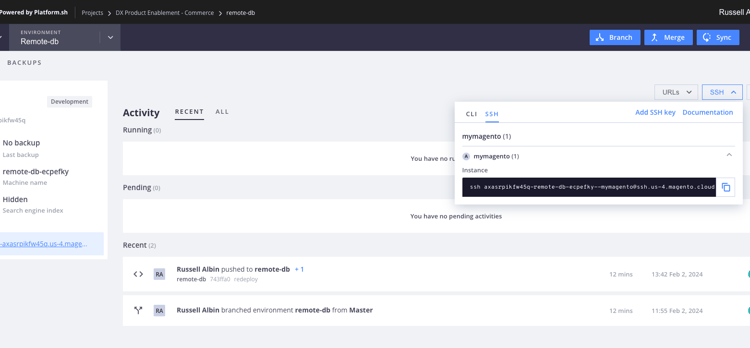
Voici un exemple : ssh abasrpikfw4123-remote-db-ecpefky--mymagento@ssh.us-4.magento.cloud
Le nom d’hôte SSH est tout ce qui suit le signe @ : ssh.us-4.magento.cloud dans cet exemple.
Le nom d’utilisateur SSH est tout ce qui se trouve avant le signe @ : abasrpikfw4123-remote-db-ecpefky--mymagento
Recherche des valeurs pour la connexion à la base de données
Pour accéder directement à la base de données MariaDB, utilisez SSH pour vous connecter à l’environnement cloud distant et vous connecter à la base de données.
-
Utilisez SSH pour vous connecter à l’environnement distant.
code language-bash magento-cloud ssh -
Récupérez les informations d’identification de connexion MySQL à partir des propriétés
databaseettypede la variable $MAGENTO_CLOUD_RELATIONSHIPS.code language-bash echo $MAGENTO_CLOUD_RELATIONSHIPS | base64 -d | json_ppou
code language-bash php -r 'print_r(json_decode(base64_decode($_ENV["MAGENTO_CLOUD_RELATIONSHIPS"])));'Dans la réponse, recherchez les informations MySQL. Par exemple :
code language-json "database" : [ { "password" : "", "rel" : "mysql", "hostname" : "nnnnnnnn.mysql.service._.magentosite.cloud", "service" : "mysql", "host" : "database.internal", "ip" : "###.###.###.###", "port" : 3306, "path" : "main", "cluster" : "projectid-integration-id", "query" : { "is_master" : true }, "type" : "mysql:10.3", "username" : "user", "scheme" : "mysql" } ],
Utilisez ensuite les valeurs de configuration dans l’interface utilisateur graphique de MySQL. L’exemple suivant utilise MySQL Workbench, mais toute application prenant en charge les connexions MySQL aura des champs similaires.
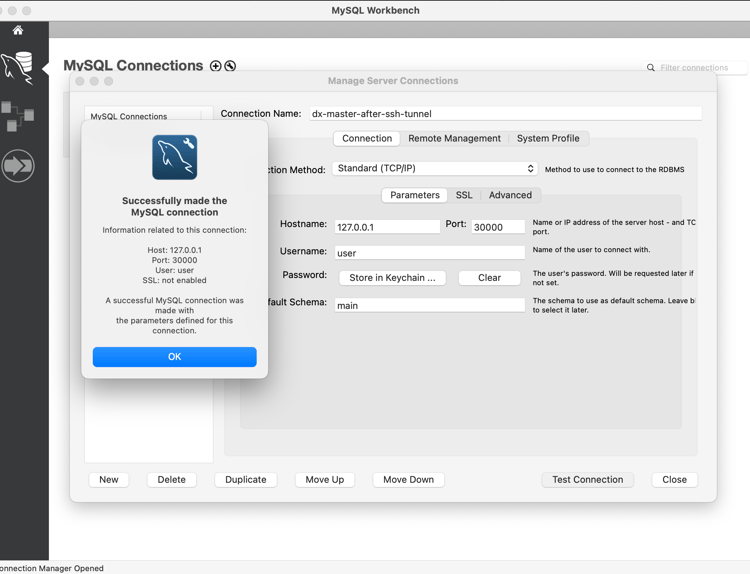
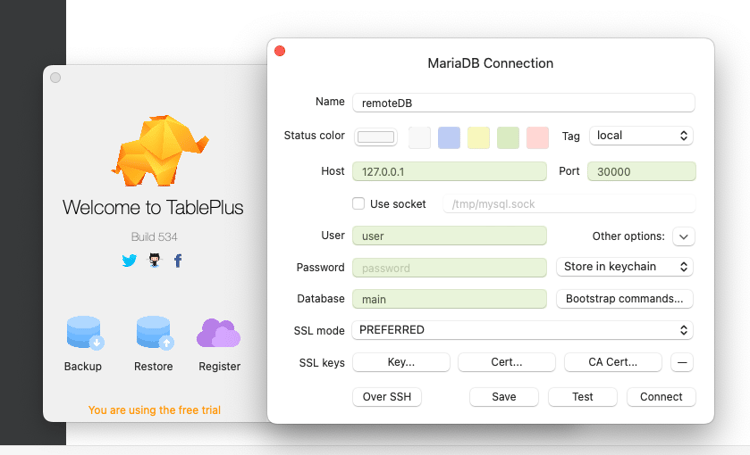
Une fois la connexion configurée, vous pouvez utiliser une interface utilisateur graphique MySQL pour exécuter des requêtes sur un projet Adobe Commerce Cloud distant.
Connexion directe à la base de données du projet cloud pour exécuter SQL
La méthode suivante utilise l’interface de ligne de commande magento-cloud pour se connecter directement à la base de données MySQL et exécuter SQL pour accélérer les requêtes. Si vous avez besoin d’une copie de cette base de données, utilisez l’une des méthodes alternatives suivantes pour créer une image mémoire de la base de données.
magento-cloud db:sql

Enter a number to choose a project:
  [0] demo-ralbin (ral32nryq4123)
  [1] adobe-commerce-demo (abc123zzkipexnqo)
  [2] DX Tutorials - Commerce (abasrpikfw4123)
 > 2

Enter a number to choose an environment:
Default: master
  [0] master (type: production)
  [1] remote-db (type: development)
 > 1

Welcome to the MariaDB monitor.  Commands end with ; or \g.
Your MariaDB connection id is 273454
Server version: 10.6.15-MariaDB-1:10.6.15+maria~deb10-log mariadb.org binary distribution

Copyright (c) 2000, 2018, Oracle, MariaDB Corporation Ab and others.

Type 'help;' or '\h' for help. Type '\c' to clear the current input statement.
Par exemple, vous pouvez trouver tous les enregistrements du tableau core_config_data qui contiennent le mot secure dans le path de colonne :
MariaDB [main]> SELECT * FROM core_config_data WHERE path LIKE '%secure%' \G;
*************************** 1. row ***************************
 config_id: 5
     scope: default
  scope_id: 0
      path: web/unsecure/base_url
     value: http://remote-db-ecpefky-abasrpikfw4123.us-4.magentosite.cloud/
updated_at: 2024-02-02 18:03:17
*************************** 2. row ***************************
 config_id: 6
     scope: default
  scope_id: 0
      path: web/secure/base_url
     value: https://remote-db-ecpefky-abasrpikfw4123.us-4.magentosite.cloud/
updated_at: 2024-02-02 18:03:17
*************************** 3. row ***************************
 config_id: 8
     scope: default
  scope_id: 0
      path: web/secure/use_in_adminhtml
     value: 1
updated_at: 2023-04-26 19:43:58
3 rows in set (0.001 sec)

ERROR: No query specified

MariaDB [main]>