This is the How-tos bundle for Adobe Commerce Storefront on Edge Delivery Services
# How-tos
> Step-by-step storefront tasks for authors and developers
> Generated: 2026-10-21T15:11:09.006Z
> Source: https://experienceleague.adobe.com/en/tools/commerce-storefront
---
# Render an additional wishlist
The Wishlist drop-in renders the shopper's active wishlist out of the box. Sometimes you want a **second, purpose-built list** somewhere else on the storefront: a "Save for Later" list in the cart, a "Buy again" list on an account page, or a curated list on a landing page. This how-to shows the general pattern for rendering an additional wishlist beside the main one, and uses **Save for Later in the cart** as the worked example.
The two mechanics that make this possible are:
- **`wishlistId`** identifies *which* list a container renders and mutates, instead of the active one.
- **`scope`** gives that container its own event channel, so its data never overwrites the active wishlist's.
> The active wishlist lives on a single shared channel. Without a `scope`, a second container would emit and listen on that same channel and the two lists would overwrite each other. Always pair a specific `wishlistId` with a `scope`.
## Before you begin
You should be familiar with:
- [Wishlist functions](https://experienceleague.adobe.com/en/tools/commerce-storefront/dropins/wishlist/functions/) — `getWishlists`, `createWishlist`, `getWishlistById`, `addProductsToWishlist`, `mergeWishlists`
- [Wishlist events](https://experienceleague.adobe.com/en/tools/commerce-storefront/dropins/wishlist/events/#wishlistdata-emits-and-listens) — the scoped `wishlist/data` event
- [Wishlist container](https://experienceleague.adobe.com/en/tools/commerce-storefront/dropins/wishlist/containers/wishlist/) — the `wishlistId` and `scope` props
This how-to shows the general approach. The snippets are a reference, not a drop-in-complete integration.
## The pattern
### 1. Choose a stable scope and resolve the list ID
Pick a constant `scope` string for your list. It is the event channel every call for this list shares, so keep it stable and unique on the page.
Resolving the `wishlistId` differs by authentication state, so wrap it in a helper. Authenticated shoppers have server lists you look up (or create) by name. Guests have no server lists, so you use a reserved local key that the drop-in persists in browser storage.
```js
const LIST_NAME = 'Save for Later'; // used to find/create the authenticated list
const GUEST_KEY = 'save-for-later'; // reserved local key for guests
const SCOPE = 'save-for-later'; // this list's event channel
async function resolveListId() {
const lists = await WishlistApi.getWishlists();
// getWishlists() returns an array for authenticated shoppers and a single
// object for guests.
if (!Array.isArray(lists)) return GUEST_KEY;
let list = lists.find((w) => w.name === LIST_NAME);
if (!list) {
list = await WishlistApi.createWishlist(LIST_NAME);
}
return list?.id ?? null;
}
```
> Using the same value as both the guest key and part of your scope keeps the rest of the code auth-agnostic: you pass one `listId` through every call regardless of who is signed in.
### 2. Render the container with `wishlistId` and `scope`
Render the `Wishlist` container into your own element, passing the resolved ID and the scope. Everything else (move-to-cart, routing, product data) is the same as the main wishlist.
```js
function renderList(listId, $container) {
wishlistRender.render(Wishlist, {
wishlistId: listId,
scope: SCOPE,
moveProdToCart: Cart.addProductsToCart,
routeProdDetailPage: (product) => getProductLink(product.urlKey, product.sku),
getProductData: pdpApi.getProductData,
getRefinedProduct: pdpApi.getRefinedProduct,
})($container);
}
```
Because the container is given a `wishlistId`, it loads and mutates only that list and never touches the active-list state.
### 3. Drive UI off the scoped `wishlist/data` event
Subscribe to `wishlist/data` on your scope to keep a count or heading in sync. With `{ eager: true }`, the handler also runs with the current value as soon as it subscribes. Because it is scoped, it only ever receives this list's data.
```js
events.on(
'wishlist/data',
(list) => setCount(list?.items_count ?? 0),
{ eager: true, scope: SCOPE },
);
```
### 4. Add items to the specific list
Pass the resolved `wishlistId` to `addProductsToWishlist` to target this list instead of the active one. In the Save for Later example, you add the cart line to the list and then remove it from the cart.
```js
await WishlistApi.addProductsToWishlist(
[{ sku: item.sku, quantity: item.quantity || 1 }],
listId,
);
await Cart.updateProductsFromCart([{ uid: item.uid, quantity: 0 }]);
```
> A targeted add to an authenticated list does not emit on the active channel, so no `wishlist/alert` toast fires automatically. Re-render the section (or show your own confirmation) after the add. For a guest list, pass `{ scope }` as the third argument if you want the updated list broadcast on your channel.
### 5. Merge the guest list on login
Guests build their list in browser storage. When a guest signs in, fold that local list into the server list so nothing is lost. Resolve the server list, fetch it on your scope, then hand it to `mergeWishlists` with the guest key. The drop-in owns reading the list, deduplicating items by SKU and selected options, and clearing it afterward.
```js
async function mergeGuestListIntoServer(serverListId) {
if (!serverListId || serverListId === GUEST_KEY) return;
const serverList = await WishlistApi.getWishlistById(serverListId, 200, 1, {
scope: SCOPE,
});
if (serverList) {
await WishlistApi.mergeWishlists(serverList, GUEST_KEY);
}
}
events.on('authenticated', async (authenticated) => {
if (!authenticated) return;
const serverListId = await resolveListId();
await mergeGuestListIntoServer(serverListId);
renderList(serverListId, $container);
});
```
### 6. Set a guest expiry (optional)
The default guest wishlist never expires, but a named guest list can. Configure a time to live, in days, in your wishlist initializer, keyed by the same list key you used above.
```js title="scripts/initializers/wishlist.js"
await initializers.mountImmediately(initialize, {
isGuestWishlistEnabled: true,
guestWishlistTtl: {
'save-for-later': 14, // the guest list expires 14 days after its last save
},
});
```
See [Guest list expiry](https://experienceleague.adobe.com/en/tools/commerce-storefront/dropins/wishlist/initialization/#guest-list-expiry) for details.
## Recap
To render an additional wishlist beside the active one:
- Resolve a `wishlistId` (server list for authenticated shoppers, reserved local key for guests) and pick a stable `scope`.
- Render the `Wishlist` container with both, and drive your UI from the scoped `wishlist/data` event.
- Target the list explicitly in `addProductsToWishlist` / `removeProductsFromWishlist`, and merge the guest list into the server list on login with `mergeWishlists`.
The same pattern works for any secondary list, not just Save for Later. Swap the list name, key, and scope for your use case.
---
# Show targeted content to selected shoppers
Add a targeted block to show a promotion, message, or content fragment to selected shoppers. Choose customer groups, segments, or cart rules to control who sees the content.
## Before you start
This guide assumes you are comfortable with how commerce block tables are laid out in a document. If you are new to block name rows, key-value settings, and merged full-width content rows, read [Block table structure](https://experienceleague.adobe.com/en/tools/commerce-storefront/merchants/blocks/block-tables/) first.
Ask your administrator to confirm the available customer groups, segments, or cart rules, and obtain the identifiers you need. Your storefront must already support the targeted block. Use the configuration example below when following [the authoring steps](#how-to-enable-and-configure-personalization).
## Configuration
Add this table to your document to configure a targeted block. A targeted block is a block configuration that conditionally shows content for selected customer groups, segments, or cart price rule contexts:
| targeted-block | |
| --- | --- |
| Customer Segments | 1, 2 (example) |
| Customer Groups | 1, 3 (example) |
| Cart Rules | 5 (example) |
| fragment | /path/to/fragment (example) |
| type | promotion-banner (example) |
In the `targeted-block` table, most settings use a key-value row: a two-column row where the first cell is the setting name and the second cell is the value (for example, `true`, a number, or a label). If you do not set a fragment path, you must add a final merged full-width row—one cell that spans the full table width so you can place rich page content in one place (for example, headings, text, and images). The `targeted-block` table uses that row for inline content when you do not load a separate fragment document.
- `Customer Segments` — A segment is a rule-based way to target experiences to qualifying shopper cohorts. This row holds a comma-separated list of customer segment IDs; the block only appears for shoppers who belong to those segments. Optional.
- `Customer Groups` — A customer group in Commerce is used to segment shoppers for pricing, permissions, or targeted content. This row holds a comma-separated list of customer group IDs; the block only appears for shoppers in those groups. Optional.
- `Cart Rules` — A cart price rule is a Commerce rule you can use as a condition for targeting content or promotions. This row holds a comma-separated list of cart rule IDs; the block only appears when those cart price rules are satisfied. Optional.
- `fragment` — An optional path to a separate content document. When you set a fragment, the `TargetedBlock` loads content from that document. When you omit it, add your content in the last merged full-width row in this `targeted-block` table, as described above. Optional.
- `type` — A value that groups `TargetedBlock` entries: when several blocks use the same type, only the first one whose conditions match a shopper is shown, which allows fallback-chain behavior. Set it to the type name to use in that chain. Only the first block that satisfies the conditions of each type is shown. Optional.
## How to enable and configure Personalization
Personalization blocks can be configured on each page through Document Authoring. Follow the step-by-step guide below to enable and configure Personalization:
### 1. Create customer segments, groups, or cart rules
You must first create the targeting criteria in Adobe Commerce Admin that will determine which customers see your personalized content.
1. Log in to the Adobe Commerce Admin.
1. Create customer segments, customer groups, or cart price rules as needed:
- **Customer Segments** - Go to **Customers** > **Segments** and follow the https://experienceleague.adobe.com/en/docs/commerce-admin/customers/segments/customer-segments to create segments.
- **Customer Groups** - Go to **Customers** > **Customer Groups** and follow the https://experienceleague.adobe.com/en/docs/commerce-admin/customers/customer-groups to create groups.
- **Cart Price Rules** - Go to **Marketing** > **Promotions** > **Cart Price Rules** and follow the https://experienceleague.adobe.com/en/docs/commerce-admin/marketing/promotions/cart-rules/price-rules-cart to create rules.
### 2. How to add and configure the Personalization block
You can configure each page to display personalized content by setting targeting criteria and optionally specifying a fragment path or block type.
1. Open the page where you want to display personalized content.
1. Create a new table in your document with the block name `targeted-block`.
1. Add configuration properties based on your targeting needs:
**Example: Target specific customer segments:**
| targeted-block | |
| --- | --- |
| Customer Segments | 1, 2 |
**Example: Load content from a fragment:**
| targeted-block | |
| --- | --- |
| fragment | /path/to/fragment |
**Example: Use fallback with block type:**
Create two blocks with the same `type` value. The first block (with conditions) displays when conditions are met, and the second block (fallback) displays otherwise:
| targeted-block | |
| --- | --- |
| Cart Rules | 5 |
| type | promotion-banner |
Then add a fallback block with the same type but no conditions:
| targeted-block | |
| --- | --- |
| type | promotion-banner |
> **Specify a fragment** If you don't specify a `fragment`, the content must be placed in the last merged full-width row, as described in the Configuration section.
## Check the result
Preview the page in the shopper context that should match your criteria, then check a context that should not match. Confirm that the targeted content appears only where intended before publishing. Ask your developer for help when you cannot reproduce the required customer or cart context.
## Section metadata
Control the section styling, spacing, and layout that wraps your commerce block. All properties are optional:
| section-metadata | |
| --- | --- |
| Style | light (optional) |
| Padding | medium (optional) |
| Margin | small (optional) |
| Column Width | 30% (optional) |
| Gap | small (optional) |
> **Learn more** See the [Section Metadata guide](https://experienceleague.adobe.com/en/tools/commerce-storefront/merchants/blocks/section-metadata/) for all available values and the [Page Metadata guide](https://experienceleague.adobe.com/en/tools/commerce-storefront/merchants/blocks/page-metadata/) for SEO and caching options.
---
# Add product recommendations to a page
Add a recommendation unit to a storefront page using a `product-recommendations` block. The unit you choose determines which products are recommended and whether the block needs product context.
## Before you begin
Ask your administrator to confirm that Product Recommendations is available for your Commerce backend and that you can create or use a recommendation unit. Your storefront must already support the recommendations block. Follow [the authoring steps](#how-to-enable-and-configure-product-recommendations), using the configuration examples below.
## Configuration
Add this table to your document to configure the block:
| product-recommendations | |
| --- | --- |
| recId | 2ed7ea09-d9bd-4691-91c3-2c0a6d4fd869 (example) |
| currentsku | crz-eco-tr-std-2017 (example) |
| currentprice | 49.99 (example) |
- **recId**: Recommendation unit ID from the Admin. Required for all pages.
- **currentsku**: Seed product SKU. Required on non-PDP pages for **anchor-based** recommendation unit types (for example, more-like-this, visual similarity, viewed-viewed, viewed-bought, bought-bought). On PDP pages, the boilerplate reads the seed SKU automatically from the Adobe Client Data Layer (ACDL).
- **currentprice**: Anchor product price (numeric). Required on non-PDP pages when the unit uses **dynamic or relative** price filter operators (Adobe Commerce Optimizer and Adobe Commerce as a Cloud Service only). Not required for static price filters—a fixed price range in the filter rule does not remove the need for a seed SKU on anchor-based types. On PDP pages, the boilerplate reads anchor price automatically from ACDL when needed.
### When product context is required
Whether a seed SKU or anchor price is required depends on the **recommendation unit type** and the **price filter operator**, not on each other:
| Unit type | Seed SKU | Anchor price |
| --- | --- | --- |
| **Anchor-based** (more-like-this, visual similarity, viewed-viewed, viewed-bought, bought-bought) | Required | Only for dynamic or relative price filter operators |
| **Context-free** (most-viewed, most-purchased, and similar popularity or behavioral types) | Not required | Not applicable |
A **static** price filter defines a fixed price range in the filter rule. It does not mean the unit can run without an anchor product. For example, a more-like-this unit with a static price filter returns no products when the seed SKU is missing, but returns results with the seed SKU alone—`currentprice` is not required.
### Storefront block configuration
How you configure the block depends on the page type and unit type:
- **PDP pages**: Set only `recId`. The boilerplate supplies the seed SKU from ACDL product context. On Adobe Commerce Optimizer and Adobe Commerce as a Cloud Service it also sends the ACDL anchor price automatically; the backend applies it only when the unit's filter uses a dynamic or relative operator.
- **Non-PDP pages (PLP, cart, home, and so on)**: There is no product context on these pages. For **anchor-based** unit types, you must set `currentsku` in block config. Add `currentprice` only when the unit uses dynamic or relative price filter operators (Adobe Commerce Optimizer and Adobe Commerce as a Cloud Service only).
- **Context-free unit types on any page**: Set only `recId`. These popularity and behavioral units do not use a seed product.
> **Important** - Do not assume `recId` alone is enough on non-PDP pages. That applies to **context-free** unit types only. **Anchor-based** units on non-PDP pages require `currentsku` or they return no products.
- Do not omit `currentprice` on non-PDP pages just because the unit uses a static price filter. Static filters still need a seed SKU for anchor-based types; they do not need anchor price.
- Add `currentprice` on non-PDP pages only when the unit's price filter uses dynamic or relative operators.
## How to enable and configure Product Recommendations
The Product Recommendations block can be configured on each page through Document Authoring. Follow the step-by-step guide below to enable and configure Product Recommendations:
### 1. Create a recommendation unit
You must first create recommendation units in the Adobe Commerce Admin (PaaS) or Adobe Commerce Optimizer Admin (SaaS).
#### Adobe Commerce Optimizer Admin (SaaS)
The following steps apply to merchants using Adobe Commerce Optimizer or Adobe Commerce as a Cloud Service.
1. Log in to the Adobe Commerce Optimizer Admin.
1. On the Admin sidebar, go to **Recommendations**.
1. Follow the steps in the https://experienceleague.adobe.com/en/docs/commerce/optimizer/merchandising/recommendations/create to create a recommendation unit.
> For Adobe Commerce Admin (PaaS), follow the steps in the https://experienceleague.adobe.com/en/docs/commerce/product-recommendations/admin/create to create a recommendation unit.
### 2. Get the recommendations unit ID
You can specify which recommendation unit to display on each page by using the recommendation unit ID.
1. Navigate to the Product Recommendations page in the Adobe Commerce Admin or Adobe Commerce Optimizer Admin.
1. Click the eye icon next to the recommendation unit that you'd like to display on your store.
1. Copy the **Recommendation ID** from the modal.
You will use this ID in the next step to configure the recommendations block.
### 3. Add and configure the recommendations block
You can configure each page to display a specific recommendation unit by setting its recommendation ID.
1. Open the page where you want to display the recommendation unit.
1. Create a new table in your document with the block name `product-recommendations`.
For product detail pages, set the `recId` to match the recommendation unit ID from the previous step. For example:
| product-recommendations | |
| --- | --- |
| recId | 2ed7ea09-d9bd-4691-91c3-2c0a6d4fd869 |
> **PDP pages** — set only `recId` for all unit types. The boilerplate reads seed SKU (and anchor price when needed) from ACDL.
**Non-PDP pages — anchor-based unit types** — set `recId` and `currentsku`. For example, a more-like-this unit on a category page:
| product-recommendations | |
| --- | --- |
| recId | 2ed7ea09-d9bd-4691-91c3-2c0a6d4fd869 |
| currentsku | crz-eco-tr-std-2017 |
This applies even when the unit uses a **static** price filter. The seed SKU is required; anchor price is not.
**Non-PDP pages — dynamic or relative price filters** — also set `currentprice` on Adobe Commerce Optimizer or Adobe Commerce as a Cloud Service:
| product-recommendations | |
| --- | --- |
| recId | 2ed7ea09-d9bd-4691-91c3-2c0a6d4fd869 |
| currentsku | crz-eco-tr-std-2017 |
| currentprice | 49.99 |
**Non-PDP pages — context-free unit types** (most-viewed, most-purchased, and similar) — set only `recId`, same as on PDP.
## Check the result
Preview the page and confirm that the selected recommendation unit appears. For a unit that needs a seed product, check the product context required by the examples above. Publish when the unit displays as expected; ask your administrator or developer to investigate an empty unit rather than changing its identifier at random.
## Section metadata
Control the section styling, spacing, and layout that wraps your commerce block. All properties are optional:
| section-metadata | |
| --- | --- |
| Style | light (optional) |
| Padding | medium (optional) |
| Margin | small (optional) |
| Column Width | 30% (optional) |
| Gap | small (optional) |
> **Learn more** See the [Section Metadata guide](https://experienceleague.adobe.com/en/tools/commerce-storefront/merchants/blocks/section-metadata/) for all available values and the [Page Metadata guide](https://experienceleague.adobe.com/en/tools/commerce-storefront/merchants/blocks/page-metadata/) for SEO and caching options.
---
# Add terms and conditions to checkout
Publish agreement documents and link them from the checkbox labels shoppers see at checkout. Work with your administrator and developer to confirm how your storefront defines its agreements before changing their configuration.
## Before you begin
- Obtain approved agreement text and the languages or store views that need it.
- Check that you can author and publish documents and update the storefront's placeholders sheet.
- Ask your developer whether the storefront uses its default agreement, custom agreements, or Admin-managed Commerce agreements, and which Admin settings apply.
> The default storefront defines a manually accepted agreement with the label key `Checkout.TermsAndConditions.label`. Adding agreement records in Admin does not automatically replace that code-defined agreement. Additional agreements or a different agreement source require developer configuration; see the [TermsAndConditions reference](https://experienceleague.adobe.com/en/tools/commerce-storefront/dropins/checkout/containers/terms-and-conditions/).
> **TermsAndConditions configurable on a per store-view basis** For a storefront configured to use store-view-specific agreements, prepare the corresponding documents and labels for each language. Ask your developer to confirm that checkout uses the intended agreement source for each store view.
Visit the [Multi-store setup](https://experienceleague.adobe.com/en/tools/commerce-storefront/setup/configuration/multistore-setup/) documentation for more information on how to build blocks and configure the storefront structure based on **Edge Delivery Services (EDS)**.
## How to enable and configure the Terms and Conditions
Confirm the applicable Admin configuration with your developer, publish the agreement documents, and update the labels for the agreement source your storefront uses.
### 1. Enable the component
If your developer confirms that your checkout requires the Commerce Admin setting, ask an administrator to enable it as follows:
1. Log in to the Admin Panel.
1. On the Admin sidebar, go to **Stores** > _Settings_ > **Configuration**.
1. In the left panel, expand **Sales** and choose **Checkout**.
1. Expand the **Checkout Options** section.
1. Set **Enable Terms and Conditions** to "Yes".
1. Click **Save Config**.
See https://experienceleague.adobe.com/en/docs/commerce-admin/stores-sales/point-of-purchase/checkout/terms-and-conditions documentation for more information on how to enable the terms and conditions using the Admin Panel.
### 2. Create the agreement document
For agreement labels that link to storefront documents, create the content in Document Authoring:
1. Create an agreement document at the intended path, such as `/terms-and-conditions` or a locale-specific path.
1. Add the approved agreement text and any required links.
1. Preview and publish the document.
1. Open its published URL and confirm that shoppers can read it without an authoring login. Keep this URL for the checkbox label.
### 3. Configure the agreement checkbox label
Use the **EDS placeholders** or the **Admin Panel** instructions in the following tabs to configure the agreement checkbox label.
### Using EDS placeholders
For the default storefront agreement, update the **`placeholders`** sheet using the existing label key and the following information. For additional agreements, ask your developer which label keys their configuration uses.
- An **_identifier_**:
It's the reference that identifies the label translated
- A **_label_**:
The text displayed next to the checkbox comes from the storefront placeholders for the shopper's language. It accepts HTML links to your published agreement documents.
Similarly, the merchant can configure the translation for the validation error that appears when the user clicks the `Place Order` button and an agreement is not checked, using the **"Checkout.TermsAndConditions.error"** identifier.
Sample of **placeholders** sheet:
```txt
"Checkout.TermsAndConditions.label", "I have read, understand, and accept the [Terms of Use, Terms of Sales, Privacy Policy, and Return Policy](/en/privacy-policy)."
"Checkout.TermsAndConditions.error", "Please accept the Terms and Conditions to continue."
```
Replace the example wording with approved text and the example link with the published URL of your agreement document. Follow [Change labels and placeholders](https://experienceleague.adobe.com/en/tools/commerce-storefront/how-tos/change-labels-and-placeholders/) to preview and publish the updated sheet.
These labels are used to render the `TermsAndConditions` container in the **commerce-checkout.js** block file.
Refer to the Adobe Commerce documentation for examples on how to use these labels.
### Using the Admin Panel
Use this option only when your developer has configured checkout to use Admin-managed Commerce agreements. It does not automatically change the default code-defined agreement.
The merchant has to configure the checkbox label for each agreement using the Admin Panel. As mentioned before, the Admin Panel allows merchants to create configurations per store-view level as follows:
1. Log in to the Admin Panel.
1. On the Admin sidebar, go to **Stores** > _Settings_ > **Terms and Conditions**.
1. In the upper-right corner, click the **Add New Condition** button.
1. Enter the following **Terms and Conditions** information:
- **`Condition Name`**
The agreement identifier
- **`Status`**
Attribute to indicate if it's available or not:
- 'Enabled'; the agreement will be retrieved by the GraphQL API query
- 'Disabled'; the agreement won't be retrieved by the GraphQL API query
- **`Applied`**
Specifies how the checkbox should appear:
- 'Manually': the user is required to manually check and accept the conditions to place an order
- 'Automatically': the checkbox will appear checked by default, conditions are automatically accepted upon checkout
- **`Store View`**
Defines the scope at store view level for this agreement where you want these Terms and Conditions to be used
- **`Checkbox Text`**
It contains directly the text to show; it accepts HTML with links to a specific page in EDS
> **Some attributes are not used** Although the following attributes are provided by the Admin Panel, they are not going to be utilized in the current solution because they will be handled in EDS. Merchants are able to work on their own solution if they want to use them:
- **`Content`**
As described above, the content for the agreements pages will be created **ONLY** using EDS
- **`Show Content as`** (Text, HTML)
Not really needed because EDS pages accept HTML code
- **`Content Height (css)`**
1. Click **Save Condition**.
These entries are used to render the `TermsAndConditions` container in the **commerce-checkout.js** block file.
Refer to the Adobe Commerce documentation for examples of this feature.
See the https://experienceleague.adobe.com/en/docs/commerce-admin/stores-sales/point-of-purchase/checkout/terms-and-conditions documentation to learn how to configure the terms and conditions using the Admin Panel.
> For storefront-authored agreement documents, the checkbox label must link to the relevant published document for the shopper's language or store view.
## Check the result
Preview checkout for each affected store view. Confirm that the intended agreement appears, its links open the published documents, and any required manual acceptance is enforced before an order can be placed. Use your team's test-order process rather than placing an unintended live order.
---
# Copy content between Document Authoring projects
To migrate content from one Document Authoring project to another, you use the Traverse, Import, and Bulk Operations apps. This page shows you how.
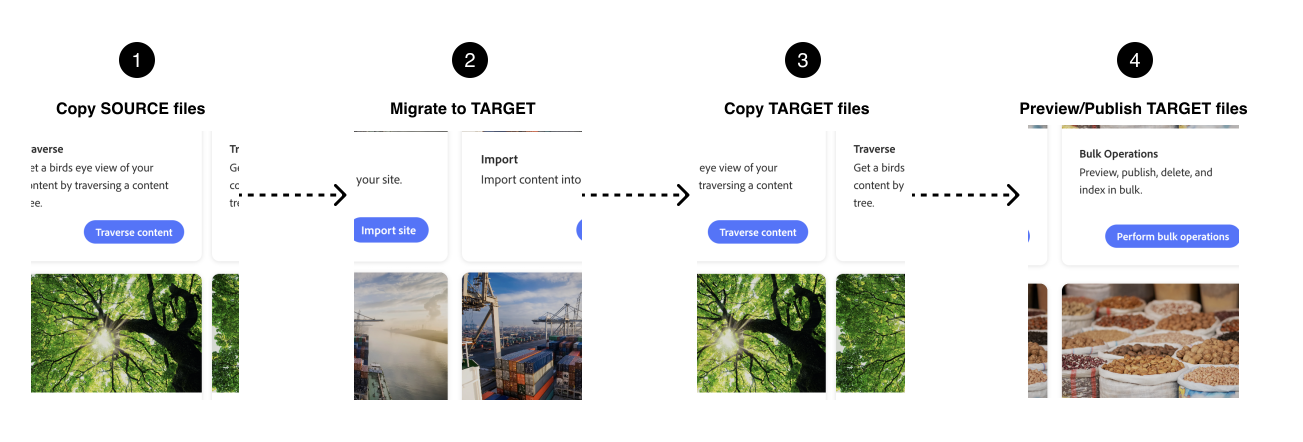
*Migrate content between Document Authoring projects.*
## Before you start
You'll need:
- Write access to both projects on DA.live
- The organization and site path for each project (for example, `/acme/storefront-staging` and `/acme/storefront`)
- A target project that already exists with the right GitHub repository and Commerce backend
- Permission to preview and publish on the target, or a developer who can run Bulk Operations for you
## Step-by-step
### 1. Traverse the source project
1. Open https://da.live, select **Apps**, and open **Traverse**.
1. Enter the source path `/organization/site` (for example, `/acme/storefront-staging`). Start with `/`.
1. Select **Crawl**, then **Copy list**.
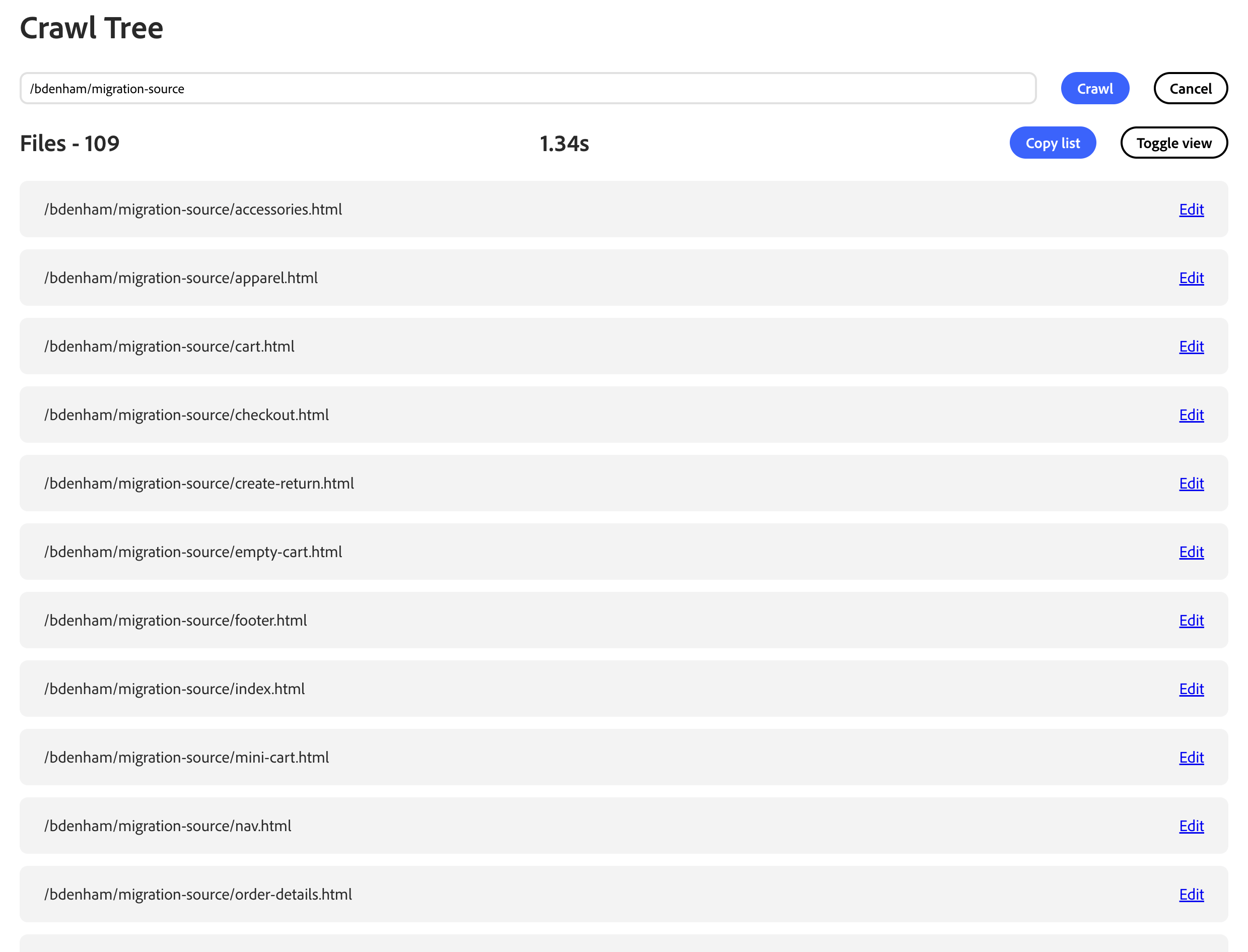
*Traverse your source project.*
### 2. Import into the target project
> Import overwrites any file in the target project that has the same name as a file in your list. Review your list before you run it and move any files you want to keep to a different folder in the target project so you can copy them back later as needed.
1. Open **Import** from **Apps** (https://da.live/apps/import).
1. Paste the file paths from the Traverse into **By Url**.
1. In the **Into** field, enter your organization and target site name (for example, `acme` and `storefront`).
1. Select the **Import** button.
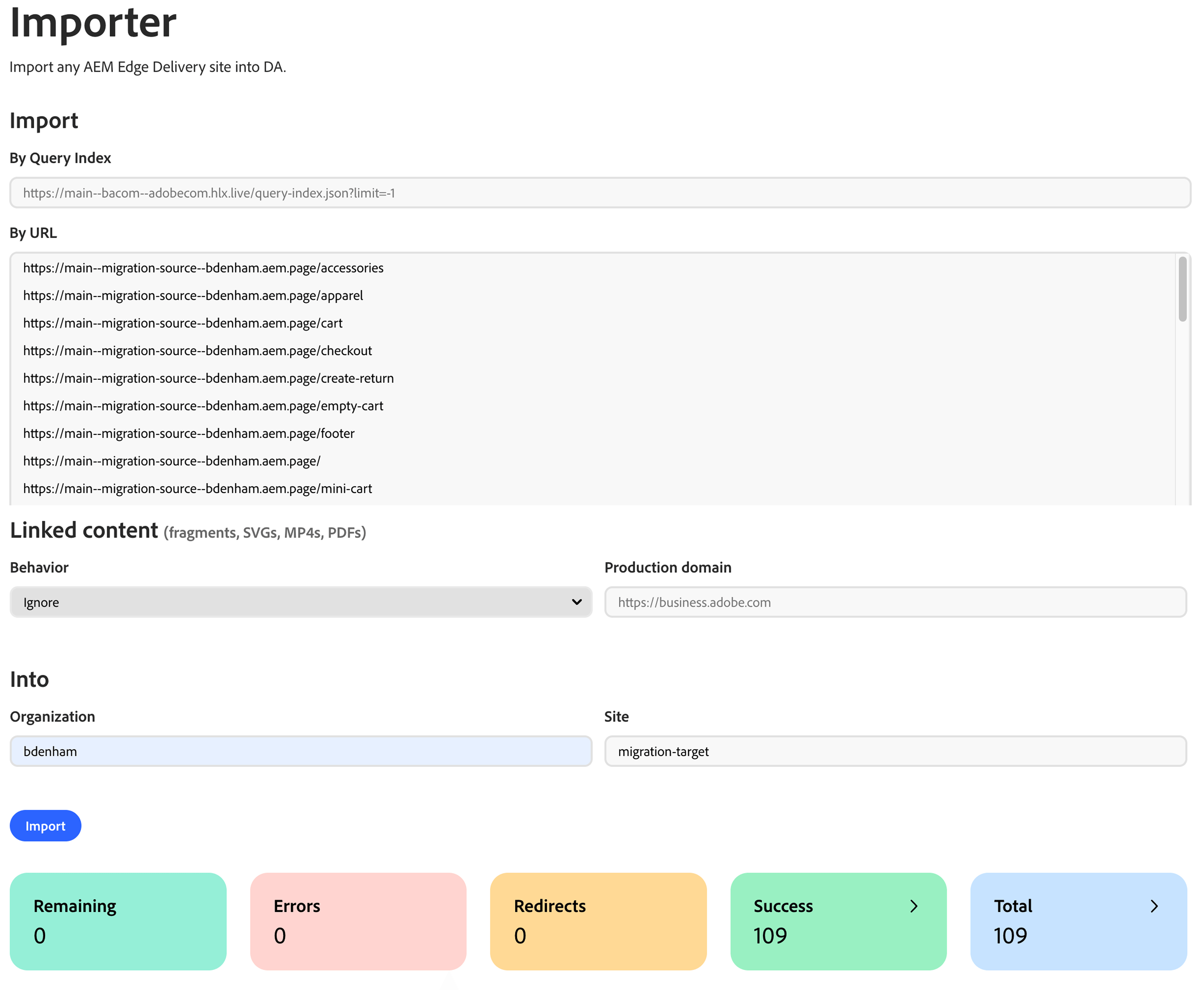
*Import into the target project.*
### 3. Traverse the target project
1. Open the **Traverse** app again.
1. Enter the target path (for example, `/acme/storefront`).
1. Select the **Crawl** button, then the **Copy list** button. Use this target list in Bulk Operations, not the source list.
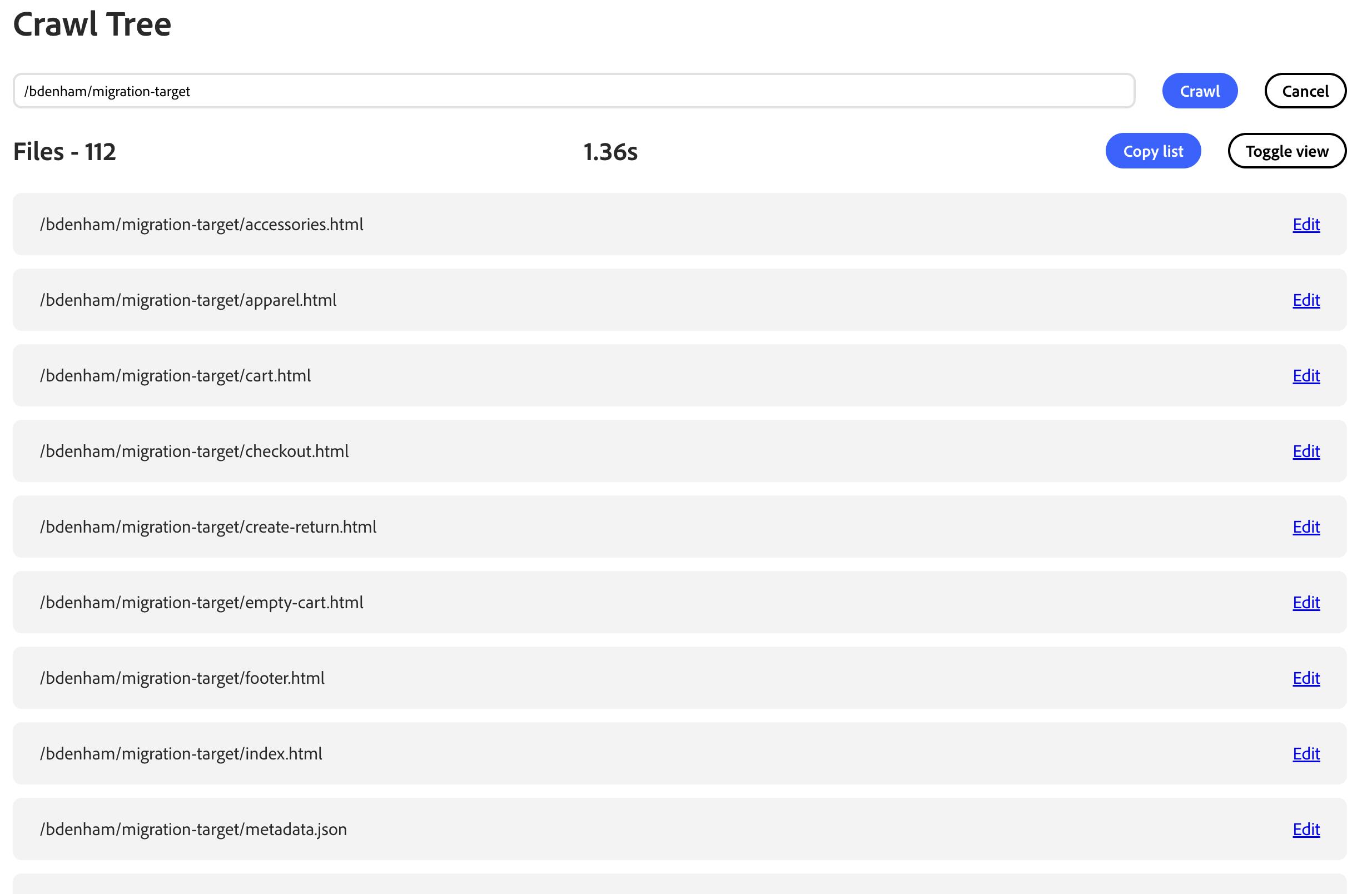
*Traverse the target project.*
### 4. Preview and publish
1. Open the **Bulk Operations** app from **Apps**.
1. Paste the target Traverse list into the **URLs** field.
1. Choose **Preview**, then select **Submit**. Spot-check home, product list, cart, and checkout on the preview site.
1. Choose **Publish**, then select **Submit**. Confirm the live site.
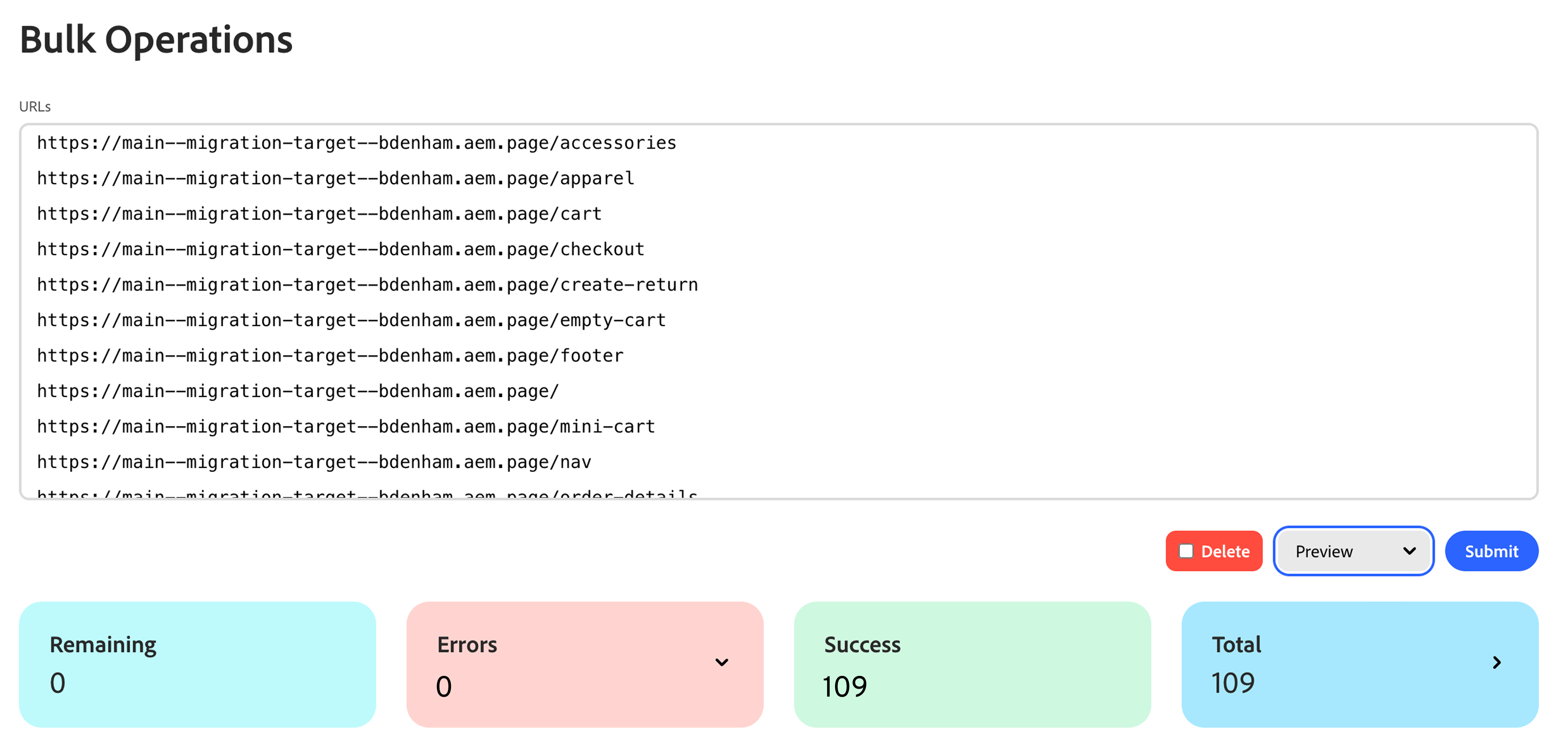
*Preview and publish on the target site.*
## Verify
- Open migrated content in https://da.live and on the preview site.
- Spot check the home (index) page, product list page, product detail page, cart page, and checkout page.
## Reference
### What Import copies
The **Traverse** app lists page paths in a project. The **Import** app copies only the paths you paste from that list. A typical crawl lists storefront documents such as `cart.html` and `checkout.html`, not every image or label sheet file.
Import does not copy storefront code, Commerce catalog data, or shopper cart session data in Commerce. After Import, you still run the **Bulk Operations** app so the preview and live sites show the update.
### Images and media
When you import a path, you copy the page content and the image references inside that page. Traverse does not list a top-level `media` folder or hidden asset folders. Add `media/...`, sheet, or JSON paths to your list when you need them.
If you see a broken image on the target preview site, the page references a media path (for example, `/media/hero.png`) that was not imported. Add that path to the Import list and run Import again, or upload the file in the target project on DA.live. See https://docs.da.live/authors/guides/adding-media on docs.da.live.
### If button labels or URLs look wrong
Review [placeholder sheets](https://experienceleague.adobe.com/en/tools/commerce-storefront/merchants/blocks/placeholder-sheets/) (label text for cart, checkout, and other blocks) and `redirects.json` for URL-forwarding rules.
### Troubleshooting
| Symptom | What to try |
| --- | --- |
| Crawl returns nothing | Start the path with `/`. Confirm you have access to the project folder. |
| Import fails | Confirm access to both projects. |
| Broken images on preview | Add missing `media/...` paths to the Import list and import again. |
| Live site unchanged | Run **Publish** after **Preview**. |
## Related topics
- https://docs.da.live/authors/guides/apps/content-tree (docs.da.live)
---
# Translate storefront content
Use the **Document Authoring Tool** (da.live) Translation app to translate your storefront content into multiple languages. After translation, ask your development team to complete the Commerce-specific tasks for placeholder files and store view verification (see [Commerce localization tasks](https://experienceleague.adobe.com/en/tools/commerce-storefront/dropins/all/commerce-tasks/)).
> **Before translating** Complete the [multistore setup](https://experienceleague.adobe.com/en/tools/commerce-storefront/setup/configuration/multistore-setup/) to create the folder structure, configure store views, and set up the currency and headers. This guide covers translating the content in those folders.
## Prerequisites
- You have a storefront project in the Document Authoring app (https://da.live).
- You know the basics of using the Document Authoring tool (https://da.live/docs).
## Overview
The following diagram provides the basic workflow for translating the Edge Delivery content of your storefront into multiple languages using the Document Authoring apps from https://da.live.

*Workflow for localizing your storefront*
## Step-by-step
These steps provide the details for the translation workflow shown in the diagram. The steps describe how to translate the default English store to another language. In this example, the default English store is translated to French (`fr`).
### 1. Navigate to the apps page for your storefront
1. Open your storefront project in the Document Authoring tool (https://da.live).
1. Select Apps from the left sidebar.
### 2. Use the Traverse app to get a list of site URLs
1. Open the **Traverse** app by selecting its *Go* button.
1. On the Crawl Tree page, enter the organization name and site name for your storefront. Example: `/acme/storefront`. Ensure that you enter a forward slash (`/`) at the beginning of the string or it will not work.
1. Select the **Crawl** button to start the crawl.
1. Select the **Copy list** button after the URLs for the site have been traversed. This puts all the URLs in your clipboard.
1. Return to the Apps page.
### 3. Use the Translation app to translate your storefront
1. Open the **Translate** app by selecting its *Go* button.
1. On the Localization page, enter the title for the translation project: `acme-storefront-fr`.
1. Paste the list of URLs from the **Traverse** app into the **URLs** field.
> Exclude configuration files such as `metadata.json`, `redirects.json`, and `sitemap.json` unless your developer has asked you to include them. These are not ordinary page content.
1. Select the **Next** button.
1. View the validated URLs to ensure that they are all correct.
1. Select the **Next** button.
1. Select one or more languages you want to translate to. In this example, the translation is to French (`fr`).
1. For the French language, select **Translate** from the selector, then select the **Create project** button.
1. From the project page, select the **Send all for translation** button.
> **Translation services** By default, the Translation app uses the Google Translate service to translate the content of the storefront into the selected language. Your organization can also connect other translation services for a more robust translation experience. For more information on translation services and configuration, see https://www.aem.live/docs/translation-and-localization.
### 4. View the translated site
1. Navigate back to the main (root) folder for your English storefront.
1. Scroll the site files and folders to find the `fr` folder and open it.
1. Select a document to view the translated content. For example, select the `index` document to view the translated home page.
## Check the result
Open representative documents in the translated folder and review their text and links. Ask your development team to complete [Commerce localization tasks](https://experienceleague.adobe.com/en/tools/commerce-storefront/dropins/all/commerce-tasks/) and confirm that the translated pages use the intended store view, currency, and storefront labels before publishing them.
## Additional resources
### Edge Delivery Services documentation
- https://experienceleague.adobe.com/en/docs/experience-manager-cloud-service/content/edge-delivery/overview - Adobe Experience League
- https://experienceleague.adobe.com/en/docs/experience-manager-cloud-service/content/edge-delivery/document-authoring/authoring - Adobe Experience League
- https://www.aem.live/docs/ - aem.live
### Translation and localization
- https://www.aem.live/docs/translation-and-localization - aem.live
- https://da.live/docs/administration/translation - da.live
## Next steps
After translating your content with the da.live Translation app:
1. **Hand off Commerce tasks**: Ask your development team to follow [Commerce localization tasks](https://experienceleague.adobe.com/en/tools/commerce-storefront/dropins/all/commerce-tasks/) to:
- Translate drop-in placeholder files (`cart.json`, `checkout.json`, `pdp.json`)
- Verify store view configuration aligns with your multistore setup
- Test Commerce functionality (product data, pricing, currency, store switcher)
2. **Review best practices**: See Commerce-specific best practices in [Commerce localization tasks](https://experienceleague.adobe.com/en/tools/commerce-storefront/dropins/all/commerce-tasks/).
3. **Troubleshooting**: For Commerce-specific issues, refer to the troubleshooting section in [Commerce localization tasks](https://experienceleague.adobe.com/en/tools/commerce-storefront/dropins/all/commerce-tasks/).
## Troubleshooting
For da.live Translation app issues, see:
- https://www.aem.live/docs/translation-and-localization - aem.live
- https://da.live/docs/administration/translation - da.live
- https://experienceleague.adobe.com/en/docs/experience-manager-cloud-service/content/edge-delivery/document-authoring/authoring - Adobe Experience League
For Adobe Commerce store view configuration issues, see:
- https://experienceleague.adobe.com/en/docs/commerce-admin/stores-sales/site-store/store-views - Adobe Experience League
- https://experienceleague.adobe.com/en/docs/commerce-admin/config/scope-change - Adobe Experience League
---
# Add a block to a page
Add a block table to a document to place a shopping feature or content element on your page. Your storefront must already support the block you choose; adding a new block implementation requires a developer.
## Before you begin
- Open the page in [Document Authoring](https://experienceleague.adobe.com/en/tools/commerce-storefront/merchants/quick-start/document-authoring/).
- Find the block name and required settings in the [Commerce block reference](https://experienceleague.adobe.com/en/tools/commerce-storefront/merchants/blocks/), or use a content block supported by your storefront.
- Make sure you have permission to preview and publish the page.
## Add the block
1. Insert a table where you want the block to appear in the document.
1. Enter the block name in the first row, for example, `commerce-cart`. If the table has two columns, merge the cells in this row.
1. Add the settings required by the block's reference page. Put the setting name in the first column and its value in the second column. Some blocks need only the name row.
1. Preview the page and confirm that the block appears where you placed it.
1. Publish the page when the result looks right.
For examples of settings and merged content rows, see [Block table structure](https://experienceleague.adobe.com/en/tools/commerce-storefront/merchants/blocks/block-tables/).
## Check the result
Open the published page and confirm that the block appears with the settings you chose. If it does not appear, check the block name and required rows against its reference page.
For an example that also includes page metadata and section styling, follow [Create your first commerce page](https://experienceleague.adobe.com/en/tools/commerce-storefront/how-tos/create-commerce-page/).
---
# Enable Payment Services payment buttons in checkout
The Commerce boilerplate's checkout page already includes the Payment Services credit card form, so shoppers can pay by card out-of-the-box. To enable payment with PayPal, Apple Pay, or Google Pay, additional frontend code is required to render those buttons on the checkout page. This how-to shows you how.
## What you'll build
By the end of this how-to, you'll have updated the `commerce-checkout` block so that selecting PayPal, Apple Pay, or Google Pay as a payment method:
- Shows a short instructional notice, for example, "Complete your purchase using the PayPal button below."
- Replaces the "Place order" button at the bottom of the page with the matching branded button.
Here's the result for each payment method:


## Prerequisites
Before you begin, make sure you have:
- A working [Commerce storefront](https://experienceleague.adobe.com/en/tools/commerce-storefront/get-started/create-storefront/) on Edge Delivery Services
- Familiarity with [customizing blocks](https://experienceleague.adobe.com/en/tools/commerce-storefront/blocks/customize-blocks/) in your code repository
- Completed the onboarding steps described in [Payment Services installation](https://experienceleague.adobe.com/en/tools/commerce-storefront/dropins/payment-services/installation/)
- [@dropins/storefront-payment-services](https://www.npmjs.com/package/@dropins/storefront-payment-services) at version [4.2.1](https://www.npmjs.com/package/@dropins/storefront-payment-services/v/4.2.1) or higher in `package.json`
## Step-by-step
The following steps describe how to add PayPal, Apple Pay, and Google Pay buttons to the `commerce-checkout` block.
> **Express payment methods** The code snippets in this how-to call PayPal, Apple Pay, and Google Pay _express payment methods_. This code uses the term for a payment method that skips the credit card form and renders its own branded button in place of "Place order,".
### 1. Prepare "place order" action slot
In the boilerplate's default checkout, the "Place order" button sits at the bottom of the page, the last action after shipping, payment, billing, terms and conditions, and promo codes on mobile. When a shopper selects PayPal, Apple Pay, or Google Pay, that same spot needs to hold the branded button instead, so both buttons need to share one dynamic slot.
> **Why not render it inline?** An alternative would be to render the selected method's branded button below the payment options (in the same spot where the credit card form appears), hiding the default "Place order" button while that payment method stays selected.
On smaller mobile screens, everything that follows (the billing address form, terms and conditions, and promo code inputs) can push the branded payment button out of view, leaving shoppers with no visible way to continue. Rendering the button in the same slot as "Place order" keeps the final action at the bottom, visible no matter what renders above it.
To add that shared slot, adapt your `blocks/commerce-checkout` block as follows:
1. Navigate to the `blocks/commerce-checkout/containers.js` file and find the `renderPlaceOrder` function.
```js
/**
* Renders place order button with handler functions - follows multi-step pattern
* @param {HTMLElement} container - DOM element to render the place order button in
* @param {Object} options - Configuration object with handler functions
* @param {Function} options.handleValidation - Validation handler function
* @param {Function} options.handlePlaceOrder - Place order handler function
* @returns {Promise} - The rendered place order component
*/
export const renderPlaceOrder = async (container, options = {}) => renderContainer(
CONTAINERS.PLACE_ORDER_BUTTON,
async () => CheckoutProvider.render(PlaceOrder, {
handleValidation: options.handleValidation,
handlePlaceOrder: options.handlePlaceOrder,
})(container),
);
```
1. Replace it with the following code.
```js
// Serializes every mount/unmount of the Place Order slot's occupant, so a new occupant is
// never rendered while the previous one is still being removed
let placeOrderSlotQueue = Promise.resolve();
let placeOrderSlotMount = null; // Promise | null
/**
* Mounts a new occupant into the Place Order slot, unmounting the previous one, if there is any.
* @param {(container: HTMLElement) => Promise} mount - Starts the dropin render.
* @param {HTMLElement} container - The Place Order slot container element.
* @returns {Promise}
*/
const mountPlaceOrderSlot = (mount, container) => {
placeOrderSlotQueue = unmountPlaceOrderSlot().then(async () => {
try {
placeOrderSlotMount = mount(container);
await placeOrderSlotMount;
} catch (error) {
console.error('Failed to mount Place Order slot occupant:', error);
placeOrderSlotMount = null;
}
});
return placeOrderSlotQueue;
};
/**
* Unmounts whatever currently occupies the Place Order slot, if anything.
* @returns {Promise}
*/
const unmountPlaceOrderSlot = () => {
placeOrderSlotQueue = placeOrderSlotQueue.then(async () => {
if (placeOrderSlotMount) {
try {
const api = await placeOrderSlotMount;
api.remove();
} catch (error) {
console.error('Failed to unmount Place Order slot occupant:', error);
} finally {
placeOrderSlotMount = null;
}
}
});
return placeOrderSlotQueue;
};
/**
* Renders place order button with handler functions - follows multi-step pattern
* @param {HTMLElement} container - DOM element to render the place order button in
* @param {Object} options - Configuration object with handler functions
* @param {Function} options.handleValidation - Validation handler function
* @param {Function} options.handlePlaceOrder - Place order handler function
* @returns {Promise}
*/
export const renderPlaceOrder = async (container, options = {}) => mountPlaceOrderSlot(
(el) => CheckoutProvider.render(PlaceOrder, {
handleValidation: options.handleValidation,
handlePlaceOrder: options.handlePlaceOrder,
})(el),
container,
);
/**
* Checks whether the standard Place Order button currently occupies the Place Order slot,
* as opposed to an express payment method's own button (or nothing, if unmounted).
* @param {HTMLElement} container - The Place Order slot element.
* @returns {boolean}
*/
export const isPlaceOrderRendered = (container) => (
!!container.querySelector('.checkout-place-order')
);
```
1. In `blocks/commerce-checkout/commerce-checkout.css`, find the `.checkout__place-order` rule inside the mobile media query block:
```css
@media only screen and (min-width: 320px) and (max-width: 768px) {
/* ...your other existing rules */
.checkout__place-order {
order: 4;
}
}
```
1. Replace it with the following, keeping it inside that same media query:
```css
@media only screen and (min-width: 320px) and (max-width: 768px) {
/* ...your other existing rules */
/* Style place order slot so it applies to both the place order button and the payment buttons. */
.checkout__place-order {
order: 4;
background-color: var(--color-neutral-200);
padding: 0 var(--spacing-medium) var(--spacing-big) var(--spacing-medium);
}
/* Neutralize the checkout dropin's own background/padding so it doesn't stack with the rule above */
.checkout__place-order .checkout-place-order {
background-color: transparent;
padding: 0;
}
}
```
### 2. Render payment buttons in the "place order" slot
This step adds PayPal, Apple Pay, and Google Pay support to `renderPaymentMethods`, each rendering its branded button into the "place order" slot added in the previous step.
1. Navigate to the `blocks/commerce-checkout/containers.js` file and make sure you have the following imports.
```js
// Payment Services Dropin
import { PaymentMethodCode, PaymentLocation } from '@dropins/storefront-payment-services/api.js';
import ApplePay from '@dropins/storefront-payment-services/containers/ApplePay.js';
import CreditCard from '@dropins/storefront-payment-services/containers/CreditCard.js';
import GooglePay from '@dropins/storefront-payment-services/containers/GooglePay.js';
import PayPalButtons from '@dropins/storefront-payment-services/containers/PayPalButtons.js';
import { render as PaymentServices } from '@dropins/storefront-payment-services/render.js';
// Order Dropin
import * as orderApi from '@dropins/storefront-order/api.js';
```
1. In the same file, find the `renderPaymentMethods` function.
```js
/**
* Renders payment methods with credit card integration - original regular checkout functionality
* @param {HTMLElement} container - DOM element to render payment methods in
* @returns {Promise} - The rendered payment methods component
*/
export const renderPaymentMethods = async (container) => renderContainer(
CONTAINERS.PAYMENT_METHODS,
async () => CheckoutProvider.render(PaymentMethods, {
slots: {
Methods: {
[PaymentMethodCode.CREDIT_CARD]: {
render: (ctx) => {
const $creditCard = document.createElement('div');
PaymentServices.render(CreditCard)($creditCard);
ctx.replaceHTML($creditCard);
},
},
[PaymentMethodCode.SMART_BUTTONS]: {
enabled: false,
},
[PaymentMethodCode.APPLE_PAY]: {
enabled: false,
},
[PaymentMethodCode.APM]: {
enabled: false,
},
[PaymentMethodCode.GOOGLE_PAY]: {
enabled: false,
},
[PaymentMethodCode.VAULT]: {
enabled: false,
},
[PaymentMethodCode.FASTLANE]: {
enabled: false,
},
},
},
})(container),
);
```
1. Replace it with the code below, which adds PayPal, Apple Pay, and Google Pay. Don't need all three? Leave any you don't need as `enabled: false` and skip its render handler.
```js
/**
* Resolves with the payment method codes Payment Services has confirmed are available
* for checkout, waiting for its initialization event if it hasn't fired yet.
* @returns {Promise}
*/
const getAvailablePaymentServicesMethods = () => new Promise((resolve) => {
const subscription = events.on('payment-services/initialized/checkout', ({ availablePaymentMethods }) => {
subscription?.off();
resolve(availablePaymentMethods);
}, { eager: true });
});
/**
* Creates a short notice explaining that the given express payment method's button renders in
* the Place Order slot instead of inline in the Payment section.
* @param {string} label - Display label of the express payment method (e.g. "Apple Pay")
* @returns {HTMLElement} - The notice element
*/
const createExpressPaymentNotice = (label) => {
const $notice = document.createElement('p');
$notice.textContent = `Complete your purchase using the ${label} button below.`;
return $notice;
};
/**
* Renders payment method options, showing a credit card form inline, and PayPal, Apple Pay,
* and Google Pay as branded checkout buttons in the Place Order slot.
* @param {HTMLElement} paymentMethodsContainer - DOM element to render payment methods in
* @param {HTMLElement} placeOrderButtonContainer - DOM element express payment buttons mount into,
* in place of the standard Place Order button
* @param {Function} validateCheckoutForms - Function that returns true if all Checkout forms are valid
* @returns {Promise} - The rendered payment methods component
*/
export const renderPaymentMethods = async (
paymentMethodsContainer,
placeOrderButtonContainer,
validateCheckoutForms,
) => renderContainer(
CONTAINERS.PAYMENT_METHODS,
async () => {
const availablePaymentServicesMethods = await getAvailablePaymentServicesMethods();
return CheckoutProvider.render(PaymentMethods, {
slots: {
Methods: {
[PaymentMethodCode.CREDIT_CARD]: {
render: (ctx) => {
const $creditCard = document.createElement('div');
PaymentServices.render(CreditCard)($creditCard);
ctx.replaceHTML($creditCard);
},
enabled: availablePaymentServicesMethods.includes(PaymentMethodCode.CREDIT_CARD),
},
[PaymentMethodCode.PAYPAL_BUTTONS]: {
render: (ctx) => {
mountPlaceOrderSlot((el) => PaymentServices.render(PayPalButtons, {
onButtonClick: (showPaymentSheet) => {
if (validateCheckoutForms()) {
showPaymentSheet();
}
},
onSuccess: ({ cartId }) => {
orderApi.placeOrder(cartId);
},
onError: (localizedError) => {
events.emit('checkout/error', {
message: localizedError.message,
});
},
})(el), placeOrderButtonContainer);
ctx.replaceHTML(createExpressPaymentNotice('PayPal'));
},
enabled: availablePaymentServicesMethods.includes(PaymentMethodCode.PAYPAL_BUTTONS),
},
[PaymentMethodCode.APPLE_PAY]: {
render: (ctx) => {
const checkoutData = events.lastPayload('checkout/updated')
|| events.lastPayload('checkout/initialized')
|| null;
if (checkoutData === null) {
console.error('Cannot render apple pay button without checkout data.');
unmountPlaceOrderSlot();
ctx.replaceHTML(document.createElement('div'));
return;
}
mountPlaceOrderSlot((el) => PaymentServices.render(ApplePay, {
location: PaymentLocation.CHECKOUT,
getCartId: () => ctx.cartId,
isVirtualCart: checkoutData.isVirtual,
onButtonClick: (showPaymentSheet) => {
if (validateCheckoutForms()) {
showPaymentSheet();
}
},
onSuccess: ({ cartId }) => orderApi.placeOrder(cartId),
onError: (localizedError) => {
events.emit('checkout/error', {
message: localizedError.message,
});
},
})(el), placeOrderButtonContainer);
ctx.replaceHTML(createExpressPaymentNotice('Apple Pay'));
},
enabled: availablePaymentServicesMethods.includes(PaymentMethodCode.APPLE_PAY),
},
[PaymentMethodCode.APM]: {
enabled: false,
},
[PaymentMethodCode.GOOGLE_PAY]: {
render: (ctx) => {
mountPlaceOrderSlot((el) => PaymentServices.render(GooglePay, {
onButtonClick: (showPaymentSheet) => {
if (validateCheckoutForms()) {
showPaymentSheet();
}
},
onSuccess: ({ cartId }) => orderApi.placeOrder(cartId),
onError: (localizedError) => {
events.emit('checkout/error', {
message: localizedError.message,
});
},
})(el), placeOrderButtonContainer);
ctx.replaceHTML(createExpressPaymentNotice('Google Pay'));
},
enabled: availablePaymentServicesMethods.includes(PaymentMethodCode.GOOGLE_PAY),
},
[PaymentMethodCode.VAULT]: {
enabled: false,
},
[PaymentMethodCode.FASTLANE]: {
enabled: false,
},
},
},
})(paymentMethodsContainer);
},
);
```
1. In `blocks/commerce-checkout/commerce-checkout.js`, find the call to `renderPaymentMethods` and add the `$placeOrder` and `handleValidation` arguments.
> **Method not showing up?** Each method's `enabled` flag depends on `availablePaymentServicesMethods`, which mirrors its checkout visibility toggle in Commerce Admin:
- Credit Card: "Show on checkout page"
- Apple Pay: "Show Apple Pay on checkout page"
- Google Pay: "Show Google Pay on checkout page"
- PayPal buttons: "Show buttons on checkout page"
If a method doesn't appear after adding this code, check its toggle first. (See https://experienceleague.adobe.com/en/docs/commerce/payment-services/configure/configure-admin for details). Even with the toggle on, its own browser, device, country, or account requirements can still keep it from appearing, as indicated in https://experienceleague.adobe.com/en/docs/commerce/payment-services/payments-checkout/payments-options.
```js
renderPaymentMethods($paymentMethods, $placeOrder, handleValidation),
```
1. In the same file, find the `trySubmitPaymentServicesCreditCard` function.
```js
const trySubmitPaymentServicesCreditCard = async () => {
try {
await paymentsApi.submitCreditCard();
return true;
} catch (error) {
switch (error.code) {
case 'payment-services/credit-card-form-not-rendered':
console.error('Credit card form not rendered.');
return false;
case 'payment-services/credit-card-form-invalid':
// Credit card form invalid; abort order placement
return false;
default:
throw error;
}
}
};
```
1. Replace it with the code below so credit card errors go through the same error-messaging path as the new payment buttons.
```js
const trySubmitPaymentServicesCreditCard = async () => {
try {
await paymentsApi.submitCreditCard();
return true;
} catch (error) {
if (error.localized) {
events.emit('checkout/error', {
message: error.message,
});
return false;
}
switch (error.code) {
case 'payment-services/credit-card-form-not-rendered':
console.error('Credit card form not rendered.');
return false;
case 'payment-services/credit-card-form-invalid':
// Credit card form invalid; abort order placement
return false;
default:
throw error;
}
}
};
```
### 3. Restore place order button on method switch
This step restores the "Place order" button whenever a shopper switches from an express payment method back to one without a branded button. The check lives in `initializeCheckout` which, despite the name, runs on every checkout update, not just once at load.
1. Navigate to the `blocks/commerce-checkout/commerce-checkout.js` file and import the new `isPlaceOrderRendered` function added to `containers.js` in the first step.
```js
import {
isPlaceOrderRendered, // new
// ...your other existing container imports
} from './containers.js';
```
1. In the same file, find the `initializeCheckout` function.
```js
async function initializeCheckout(data) {
await initReCaptcha(0);
if (data.isGuest) await displayGuestAddressForms(data);
else {
removeOverlaySpinner(loaderRef, $loader, $loaderStatus);
await displayCustomerAddressForms(data);
}
}
```
1. Replace it with the following code.
```js
const EXPRESS_PAYMENT_METHODS = [
paymentsApi.PaymentMethodCode.PAYPAL_BUTTONS,
paymentsApi.PaymentMethodCode.APPLE_PAY,
paymentsApi.PaymentMethodCode.GOOGLE_PAY,
];
const isExpressPaymentMethod = (method) => (
method && EXPRESS_PAYMENT_METHODS.includes(method.code)
);
async function initializeCheckout(data) {
await initReCaptcha(0);
if (data.isGuest) await displayGuestAddressForms(data);
else {
removeOverlaySpinner(loaderRef, $loader, $loaderStatus);
await displayCustomerAddressForms(data);
}
// Express payment methods replace the place order button; restore it for non-express methods
if (data.selectedPaymentMethod?.code
&& !isExpressPaymentMethod(data.selectedPaymentMethod)
&& !isPlaceOrderRendered($placeOrder)) {
await renderPlaceOrder($placeOrder, { handleValidation, handlePlaceOrder });
}
}
```
## Example
See https://github.com/hlxsites/aem-boilerplate-commerce/tree/payment-services/blocks/commerce-checkout in the `payment-services` branch of the boilerplate repository for a reference implementation of the PayPal, Apple Pay, and Google Pay integration. This branch may also include other Payment Services features, such as stored cards, covered in a separate how-to.
---
# Add messages to mini cart
The mini cart block already includes inline feedback messages by default: a brief message flashes at the top of the mini cart when a shopper adds or updates a product, then disappears automatically. This how-to explains how those default messages work, then shows you how to build a custom overlay-style alternative that displays the same feedback centered over the mini cart with a semi-transparent background.
## What you'll edit or create
- Edit the mini cart block — `blocks/commerce-mini-cart/commerce-mini-cart.js` (to add the overlay variant)
- Edit the mini cart styles — `blocks/commerce-mini-cart/commerce-mini-cart.css` (to add overlay styles)
- Create an overlay version of the `showMessage()` function
- Reuse the existing message placeholders — `Global.MiniCartAddedMessage` / `Global.MiniCartUpdatedMessage`
## What you'll build
By the end of this how-to, you'll have:
- An understanding of the inline messages that already ship by default in `commerce-mini-cart.js`, flashing at the top of the mini cart for a few seconds after a cart update.
- A custom overlay variant of the same messages, styled through `commerce-mini-cart.css`, that appears centered over the mini cart instead of inline.
- Message text and display duration driven by the content placeholders sheet and the `cart/product/added` and `cart/product/updated` events, for either variant.
Inline messages already appear at the top of the mini cart by default for a brief period (three seconds) and then automatically disappear, providing immediate feedback to users about their cart actions.
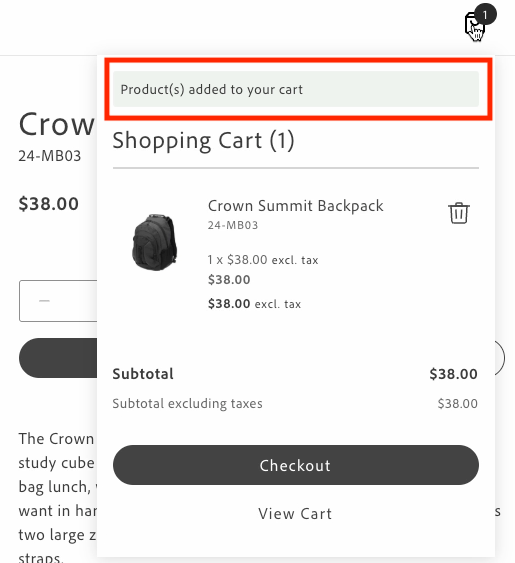
*Minicart inline message*
If you'd rather show that same feedback as an overlay, build a custom variant that displays a message at the top center of the mini cart with a semi-transparent background instead:
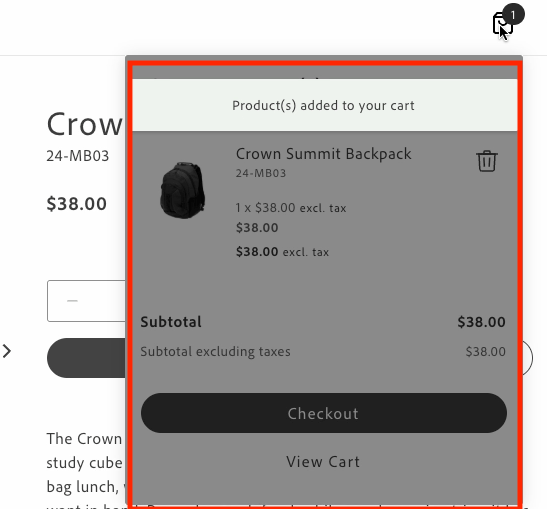
*Minicart overlay message*
You can customize the appearance and behavior of either variant by modifying the following:
- **Message text**: Update the translations in the content placeholders sheet under the `Global.MiniCartAddedMessage` and `Global.MiniCartUpdatedMessage` keys.
- **Message styling**: Modify the CSS classes in `commerce-mini-cart.css`. The styles use design tokens (prefixed with `--`) to maintain consistency with the design system. The overlay variant can be customized as follows:
- Background opacity using the alpha value in the overlay's `background-color` (the sample below uses 50%)
- Message position using the `top`, `left`, and `transform` properties
- Colors, spacing, shadows, and other visual properties using design tokens
- **Message position**: For inline messages, change where the message appears in the mini cart by modifying the insertion point in the DOM.
- **Display duration**: Change the timeout value in the `showMessage` function (default is 3000ms).
## Prerequisites
Before implementing inline messages, ensure you have:
- Access to the content folder to manage message localization through placeholders.
- Understanding of the design system tokens used in the Commerce boilerplate template.
- The `commerce-mini-cart.css` file in your `blocks/commerce-mini-cart/` directory.
## Events
The inline and overlay messages respond to two cart events:
- `cart/product/added`: Triggered when products are added to the cart
- `cart/product/updated`: Triggered when products in the cart are updated
## Implementation
To add inline or overlay messages to your mini cart, follow these steps:
> The **Inline messages** tab below walks through the mini cart's existing default implementation, included here for reference and comparison — if you're using the boilerplate as-is, this code is already in `commerce-mini-cart.js`. The **Overlay messages** tab is the new code you add as a custom alternative.
### 1. Retrieve translations for message texts using placeholders
Get translations for custom messages from the content folder.
```javascript
const placeholders = await fetchPlaceholders();
// Access the message texts from the Global placeholders sheet
const MESSAGES = {
ADDED: placeholders?.Global?.MiniCartAddedMessage,
UPDATED: placeholders?.Global?.MiniCartUpdatedMessage,
};
```
### 2. Create the appropriate message containers
Inline messages require a container for the update message and a shadow wrapper to display the message. Overlay messages require an overlay container and a message container.
### Inline messages
```javascript
// Create a container for the update message
const updateMessage = document.createElement('div');
updateMessage.className = 'commerce-mini-cart__update-message';
// Create a shadow wrapper
const shadowWrapper = document.createElement('div');
shadowWrapper.className = 'commerce-mini-cart__message-wrapper';
shadowWrapper.appendChild(updateMessage);
```
### Overlay messages
```javascript
// Create an overlay container
const overlay = document.createElement('div');
overlay.className = 'commerce-mini-cart__overlay';
// Create a message container
const messageContainer = document.createElement('div');
messageContainer.className = 'commerce-mini-cart__message';
overlay.appendChild(messageContainer);
```
### 3. Create a function to show and hide messages
Create a function that displays the message in the container and then hides it after a specified duration, such as three seconds.
### Inline messages
```javascript
const showMessage = (message) => {
updateMessage.textContent = message;
updateMessage.classList.add('commerce-mini-cart__update-message--visible');
shadowWrapper.classList.add('commerce-mini-cart__message-wrapper--visible');
setTimeout(() => {
updateMessage.classList.remove('commerce-mini-cart__update-message--visible');
shadowWrapper.classList.remove('commerce-mini-cart__message-wrapper--visible');
}, 3000);
};
```
### Overlay messages
```javascript
const showMessage = (message) => {
messageContainer.textContent = message;
overlay.classList.add('commerce-mini-cart__overlay--visible');
setTimeout(() => {
overlay.classList.remove('commerce-mini-cart__overlay--visible');
}, 3000);
};
```
### 4. Add event listeners for cart updates
Listen for the `cart/product/added` and `cart/product/updated` events and display the appropriate message.
```javascript
events.on('cart/product/added', () => showMessage(MESSAGES.ADDED), {
eager: true,
});
events.on('cart/product/updated', () => showMessage(MESSAGES.UPDATED), {
eager: true,
});
```
### 5. Insert the message container into the mini cart block
Add the message container to the mini cart block to display the messages.
### Inline messages
```javascript
// Find the products container and add the message div at the top
const productsContainer = block.querySelector('.cart-mini-cart__products');
if (productsContainer) {
productsContainer.insertBefore(shadowWrapper, productsContainer.firstChild);
} else {
console.info('Products container not found, appending message to block');
block.appendChild(shadowWrapper);
}
```
### Overlay messages
```javascript
block.appendChild(overlay);
```
### 6. Update the CSS styles
Add styles to your `commerce-mini-cart.css` file.
### Inline messages
```css
.commerce-mini-cart__update-message {
display: none;
font: var(--type-body-2-default-font);
letter-spacing: var(--type-body-2-default-letter-spacing);
}
.commerce-mini-cart__message-wrapper {
background-color: var(--color-positive-200);
border-radius: var(--shape-border-radius-1);
padding: var(--spacing-xsmall);
display: none;
margin-bottom: var(--spacing-small);
}
.commerce-mini-cart__message-wrapper--visible,
.commerce-mini-cart__update-message--visible {
display: block;
}
```
### Overlay messages
```css
.commerce-mini-cart__overlay {
background-color: rgb(0 0 0 / 50%);
display: none;
position: absolute;
inset: 0;
z-index: 1000;
border-radius: var(--shape-border-radius-1);
}
.commerce-mini-cart__message {
background-color: var(--color-positive-200);
border-radius: var(--shape-border-radius-1);
padding: var(--spacing-small);
position: absolute;
top: var(--spacing-medium);
left: 50%;
transform: translateX(-50%);
font: var(--type-body-2-default-font);
letter-spacing: var(--type-body-2-default-letter-spacing);
box-shadow: var(--shape-shadow-3);
width: 90%;
max-width: 400px;
text-align: center;
}
.commerce-mini-cart__overlay--visible {
display: block;
}
```
## Complete example
Here's a complete example of implementing inline and overlay messages in your `commerce-mini-cart.js` block file:
### Inline messages
```javascript
// Initializers
export default async function decorate(block) {
const {
'start-shopping-url': startShoppingURL = '',
'cart-url': cartURL = '',
'checkout-url': checkoutURL = '',
} = readBlockConfig(block);
// Get translations for custom messages
const placeholders = await fetchPlaceholders();
const MESSAGES = {
ADDED: placeholders?.Global?.MiniCartAddedMessage,
UPDATED: placeholders?.Global?.MiniCartUpdatedMessage,
};
// Create a container for the update message
const updateMessage = document.createElement('div');
updateMessage.className = 'commerce-mini-cart__update-message';
// Create shadow wrapper
const shadowWrapper = document.createElement('div');
shadowWrapper.className = 'commerce-mini-cart__message-wrapper';
shadowWrapper.appendChild(updateMessage);
const showMessage = (message) => {
updateMessage.textContent = message;
updateMessage.classList.add('commerce-mini-cart__update-message--visible');
shadowWrapper.classList.add('commerce-mini-cart__message-wrapper--visible');
setTimeout(() => {
updateMessage.classList.remove('commerce-mini-cart__update-message--visible');
shadowWrapper.classList.remove('commerce-mini-cart__message-wrapper--visible');
}, 3000);
};
// Add event listeners for cart updates
events.on('cart/product/added', () => showMessage(MESSAGES.ADDED), {
eager: true,
});
events.on('cart/product/updated', () => showMessage(MESSAGES.UPDATED), {
eager: true,
});
block.innerHTML = '';
// Render MiniCart first
await provider.render(MiniCart, {
routeEmptyCartCTA: startShoppingURL ? () => rootLink(startShoppingURL) : undefined,
routeCart: cartURL ? () => rootLink(cartURL) : undefined,
routeCheckout: checkoutURL ? () => rootLink(checkoutURL) : undefined,
routeProduct: (product) => rootLink(`/products/${product.url.urlKey}/${product.topLevelSku}`),
})(block);
// Find the products container and add the message div at the top
const productsContainer = block.querySelector('.cart-mini-cart__products');
if (productsContainer) {
productsContainer.insertBefore(shadowWrapper, productsContainer.firstChild);
} else {
console.info('Products container not found, appending message to block');
block.appendChild(shadowWrapper);
}
return block;
}
```
### Overlay messages
```javascript
// Initializers
export default async function decorate(block) {
const {
'start-shopping-url': startShoppingURL = '',
'cart-url': cartURL = '',
'checkout-url': checkoutURL = '',
} = readBlockConfig(block);
// Get translations for custom messages
const placeholders = await fetchPlaceholders();
const MESSAGES = {
ADDED: placeholders?.Global?.MiniCartAddedMessage,
UPDATED: placeholders?.Global?.MiniCartUpdatedMessage,
};
block.innerHTML = '';
// Render MiniCart first
await provider.render(MiniCart, {
routeEmptyCartCTA: startShoppingURL ? () => rootLink(startShoppingURL) : undefined,
routeCart: cartURL ? () => rootLink(cartURL) : undefined,
routeCheckout: checkoutURL ? () => rootLink(checkoutURL) : undefined,
routeProduct: (product) => rootLink(`/products/${product.url.urlKey}/${product.topLevelSku}`),
})(block);
// Create overlay container
const overlay = document.createElement('div');
overlay.className = 'commerce-mini-cart__overlay';
// Create message container
const messageContainer = document.createElement('div');
messageContainer.className = 'commerce-mini-cart__message';
overlay.appendChild(messageContainer);
block.appendChild(overlay);
const showMessage = (message) => {
messageContainer.textContent = message;
overlay.classList.add('commerce-mini-cart__overlay--visible');
setTimeout(() => {
overlay.classList.remove('commerce-mini-cart__overlay--visible');
}, 3000);
};
// Add event listeners for cart updates
events.on('cart/product/added', () => showMessage(MESSAGES.ADDED), {
eager: true,
});
events.on('cart/product/updated', () => showMessage(MESSAGES.UPDATED), {
eager: true,
});
return block;
}
```
And here's the accompanying CSS file (`commerce-mini-cart.css`):
### Inline messages
```css
.commerce-mini-cart__update-message {
display: none;
font: var(--type-body-2-default-font);
letter-spacing: var(--type-body-2-default-letter-spacing);
}
.commerce-mini-cart__message-wrapper {
background-color: var(--color-positive-200);
border-radius: var(--shape-border-radius-1);
padding: var(--spacing-xsmall);
display: none;
margin-bottom: var(--spacing-small);
}
.commerce-mini-cart__message-wrapper--visible,
.commerce-mini-cart__update-message--visible {
display: block;
}
```
### Overlay messages
```css
.commerce-mini-cart__overlay {
background-color: rgb(0 0 0 / 50%);
display: none;
position: absolute;
inset: 0;
z-index: 1000;
border-radius: var(--shape-border-radius-1);
}
.commerce-mini-cart__message {
background-color: var(--color-positive-200);
border-radius: var(--shape-border-radius-1);
padding: var(--spacing-small);
position: absolute;
top: var(--spacing-medium);
left: 50%;
transform: translateX(-50%);
font: var(--type-body-2-default-font);
letter-spacing: var(--type-body-2-default-letter-spacing);
box-shadow: var(--shape-shadow-3);
width: 90%;
max-width: 400px;
text-align: center;
}
.commerce-mini-cart__overlay--visible {
display: block;
}
```
## Related
- [MiniCart container](https://experienceleague.adobe.com/en/tools/commerce-storefront/dropins/cart/containers/mini-cart/) — reference for the mini cart you extended.
- [Slots](https://experienceleague.adobe.com/en/tools/commerce-storefront/dropins/cart/slots/) — the slot used to inject messages.
---
# Add page metadata
Set a page's title, description, or Commerce properties by adding a metadata table to its document. These settings apply to the page, rather than to one block or section.
## Before you begin
Open your page in [Document Authoring](https://experienceleague.adobe.com/en/tools/commerce-storefront/merchants/quick-start/document-authoring/). Choose the properties you need from the [Page metadata reference](https://experienceleague.adobe.com/en/tools/commerce-storefront/merchants/blocks/page-metadata/), and check that you can preview and publish the page.
## Add the metadata table
1. Find the existing metadata table in your document. If there is none, insert a table with two columns above your Commerce blocks.
1. Merge the cells in the first row and enter `metadata`.
1. Add a row for each property. For example, enter `Title` in the first cell and your page title in the second cell.
1. Add a `Description` row with a short description of the page. Keep any existing properties the page needs, such as `sku` or `template`.
1. Save your changes, then preview the page and check its browser-tab title.
1. Publish the page when the title and page content look right.
## Check the result
Open the published page and confirm that its browser-tab title matches the value you entered. Use the [metadata examples](https://experienceleague.adobe.com/en/tools/commerce-storefront/merchants/blocks/page-metadata/#examples) when you need social-sharing settings, Commerce properties, or a custom template.
---
# Add a custom payment method
## What you'll edit or create
- Edit the checkout block — `blocks/commerce-checkout/commerce-checkout.js`
- Edit the `Methods` slot on the `PaymentMethods` container
- Edit the `handlePlaceOrder` callback on the `PlaceOrder` container
## What you'll build
By the end of this how-to, you'll have:
- A Braintree handler added to the `Methods` slot of the [`PaymentMethods`](https://experienceleague.adobe.com/en/tools/commerce-storefront/dropins/checkout/containers/payment-methods/) container in `commerce-checkout.js`, with `autoSync` set to `false`.
- The Braintree drop-in UI rendered inline when a shopper selects Braintree during checkout.
- Braintree payment processing wired into the `handlePlaceOrder` callback of the [`PlaceOrder`](https://experienceleague.adobe.com/en/tools/commerce-storefront/dropins/checkout/containers/place-order/) container, so orders complete using the Braintree payment nonce.
The Checkout drop-in component provides extensibility features for integrating third-party payment providers. Use slots to customize the list of payment methods shown during the checkout process.
> **Supported payment providers** The Checkout drop-in supports Adyen payment methods (including Bancontact) and payment extensions in addition to the Braintree example below. See the [release notes](https://experienceleague.adobe.com/en/tools/commerce-storefront/releases/) for the latest supported providers.
## Step-by-step
This how-to walks you through integrating Braintree as a payment provider with the Commerce boilerplate template. While we use Braintree as an example, you can adapt these same steps for other payment providers.
### 1. Prerequisites
For this how-to, you must configure the Braintree extension on your Adobe Commerce backend before integrating it with the Commerce boilerplate template. The Braintree extension is bundled with Adobe Commerce and can be https://experienceleague.adobe.com/en/docs/commerce-admin/stores-sales/payments/braintree in the Admin.
If you choose to integrate with a different payment provider, consider the following:
- The provider must be supported by Adobe Commerce.
- The provider likely offers an extension that you must install and configure on your Adobe Commerce backend.
### 2. Add the Braintree client SDK
To integrate the Braintree payment provider with the Commerce boilerplate template, you must add the Braintree client SDK to your project.
### HTML element
Use the following `script` tag to add the Braintree client SDK to an HTML file.
```html
```
### Import declaration
Use the following `import` declaration to add the Braintree client SDK directly to the `commerce-checkout.js` block file.
```js
import 'https://js.braintreegateway.com/web/dropin/1.43.0/js/dropin.min.js';
```
### 3. Define a custom handler
1. Create a `braintreeInstance` variable to manage the Braintree drop-in instance.
```js
let braintreeInstance;
```
1. Update the [`PaymentMethods`](https://experienceleague.adobe.com/en/tools/commerce-storefront/dropins/checkout/containers/payment-methods/) container to include a custom handler for the Braintree payment method. Set `autoSync` to `false` to prevent automatic calls to the [`setPaymentMethod`](https://experienceleague.adobe.com/en/tools/commerce-storefront/dropins/checkout/functions/#setpaymentmethod) function when the payment method changes.
```js
CheckoutProvider.render(PaymentMethods, {
slots: {
Methods: {
braintree: {
autoSync: false,
render: async (ctx) => {
const container = document.createElement('div');
window.braintree.dropin.create({
authorization: 'sandbox_cstz6tw9_sbj9bzvx2ngq77n4',
container,
}, (err, dropinInstance) => {
if (err) {
console.error(err);
}
braintreeInstance = dropinInstance;
});
ctx.replaceHTML(container);
},
},
},
},
})($paymentMethods),
```
### 4. Handle the payment method
Implement the Braintree payment logic within the `handlePlaceOrder` handler of the [`PlaceOrder`](https://experienceleague.adobe.com/en/tools/commerce-storefront/dropins/checkout/containers/place-order/) container. This involves processing the payment using the Braintree https://developer.paypal.com/braintree/docs/guides/payment-method-nonces.
```js
CheckoutProvider.render(PlaceOrder, {
handlePlaceOrder: async ({ cartId, code }) => {
await displayOverlaySpinner();
try {
switch (code) {
case 'braintree': {
braintreeInstance.requestPaymentMethod(async (err, payload) => {
if (err) {
removeOverlaySpinner();
console.error(err);
return;
}
await checkoutApi.setPaymentMethod({
code: 'braintree',
braintree: {
is_active_payment_token_enabler: false,
payment_method_nonce: payload.nonce,
},
});
await orderApi.placeOrder(cartId);
});
break;
}
default: {
// Place order
await orderApi.placeOrder(cartId);
}
}
} catch (error) {
console.error(error);
throw error;
} finally {
await removeOverlaySpinner();
}
},
})($placeOrder),
```
## Related
- [Checkout overview](https://experienceleague.adobe.com/en/tools/commerce-storefront/dropins/checkout/) — where payment methods fit in the flow.
- [Add a stored payment method](https://experienceleague.adobe.com/en/tools/commerce-storefront/how-tos/payment-services-my-account/) — a related payment task in the account area.
---
# Add custom product lines to cart summary
## What you'll edit or create
- Edit the cart block — `blocks/commerce-cart/commerce-cart.js`
- Edit the `ProductAttributes` slot on the `CartSummaryList` container
- Edit the `Footer` slot on the `CartSummaryList` container
## What you'll build
By the end of this how-to, you'll have:
- A `ProductAttributes` slot added to the `CartSummaryList` container in `blocks/commerce-cart/commerce-cart.js` that shows a custom product attribute, like shipping notes, on cart items that have it.
- A `Footer` slot in the same container that displays promotional text from a cart price rule beneath qualifying items.
## Prerequisites
This how-to requires that you create the following entities in the Adobe Commerce Admin:
- A custom product attribute. Here, the product attribute is assigned the label `Shipping Notes`, and the **Catalog Input Type for Store Owner* is set to **Text Field**. You can optionally set the **Used for Sorting in Product Listing** option to **Yes** to increase the visibility of products using the product attribute in the Products grid. https://experienceleague.adobe.com/en/docs/commerce-admin/catalog/product-attributes/product-attributes describes how to create a custom product attribute.
In addition, you must assign the product attribute to one or more products. In this how-to, the text fields will contain the strings "These item(s) are available to ship on Nov 1, 2024" and "FINAL SALE: This item ships separately and is ineligible for return.".
- A custom cart price rule. In this how-to, a cart price rule named `25% Off $75+ with Code BOO24` has been created. Its definition defines the coupon code, the discount amount, and the conditions that must be met to apply the discount. https://experienceleague.adobe.com/en/docs/commerce-admin/marketing/promotions/cart-rules/price-rules-cart describes how to create a cart price rule.
## Step-by-step
The following steps describe how to modify the https://github.com/hlxsites/aem-boilerplate-commerce/blob/main/blocks/commerce-cart/commerce-cart.js block file in the boilerplate template to add custom content to the `CartSummaryList` container.
### 1. Add text from a custom product attribute
In this task, we'll add text that provides shipping information when certain conditions apply. For example, an item might be out of stock, and therefore cannot be shipped immediately. Or maybe the product is on clearance and cannot be returned. The `CartSummaryList` component is extended to display text defined by a merchant in the Admin using a custom product attribute. If the custom product attribute is not assigned to a product, then no additional information is displayed.
The following images show how these custom lines can be rendered:
**
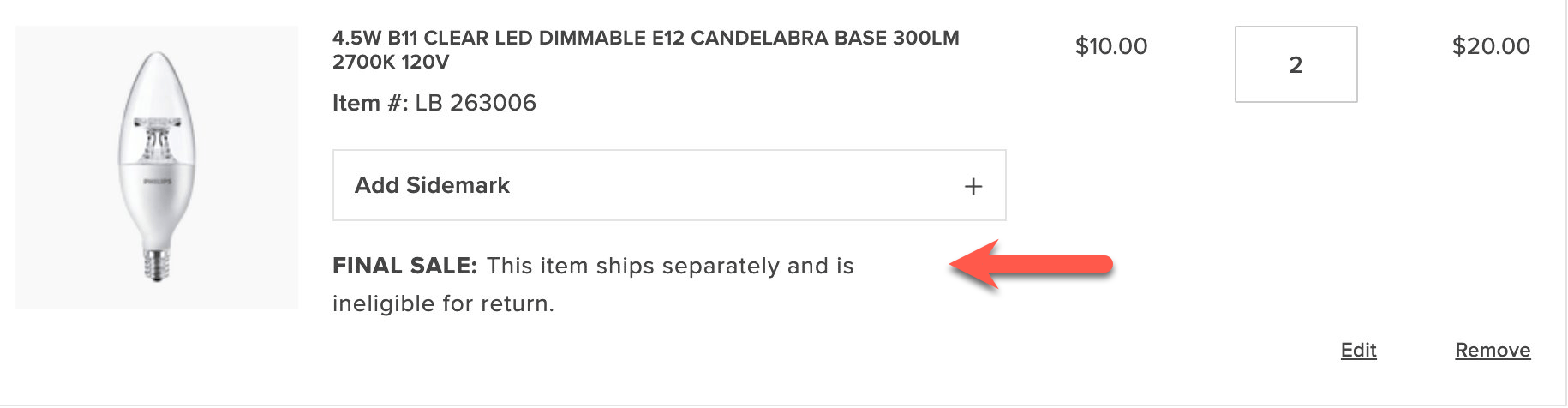
**
1. Open the `blocks/commerce-cart/commerce-cart.js` boilerplate file. This file imports the `CartSummaryList` container, and we want to use a slot to display the custom product attribute. Find the `provider.render(CartSummaryList, {` line in the file and insert a `ProductAttributes` slot with the following code:
```javascript
slots: {
ProductAttributes: (ctx) => {
// Prepend Product Attributes
const ProductAttributes = ctx.item?.productAttributes;
ProductAttributes?.forEach((attr) => {
if(attr.code === "shipping_notes") {
if(attr.selected_options) {
const selectedOptions = attr.selected_options
.filter((option) => option.label.trim() !== '')
.map((option) => option.label)
.join(', ');
if(selectedOptions) {
const productAttribute = document.createElement('div');
productAttribute.innerText = `${attr.code}: ${selectedOptions}`;
ctx.appendChild(productAttribute);
}
} else if (attr.value) {
const productAttribute = document.createElement('div');
productAttribute.innerText = `${attr.code}: ${attr.value}`;
ctx.appendChild(productAttribute);
}
}
})
},
```
This code creates a slot named `ProductAttributes` that displays the custom product attribute `Shipping Notes`, if it is assigned to a product. If the corresponding attribute is found, the slot creates a new `div` element and appends the attribute code and value to the element. The element is then appended to the `ctx` element, which is the product line in the cart summary.
1. Save the file and generate the page to see the changes.
### 2. Display promotional information in the footer of a cart item
Now we'll add information defined in a custom cart price rule to the footer of the `CartSummaryList` container. If the conditions set in the cart price rules are not met, then no additional information is displayed. For example, if a specific coupon has not been applied or if the subtotal threshold has not been met, then this information is not displayed.
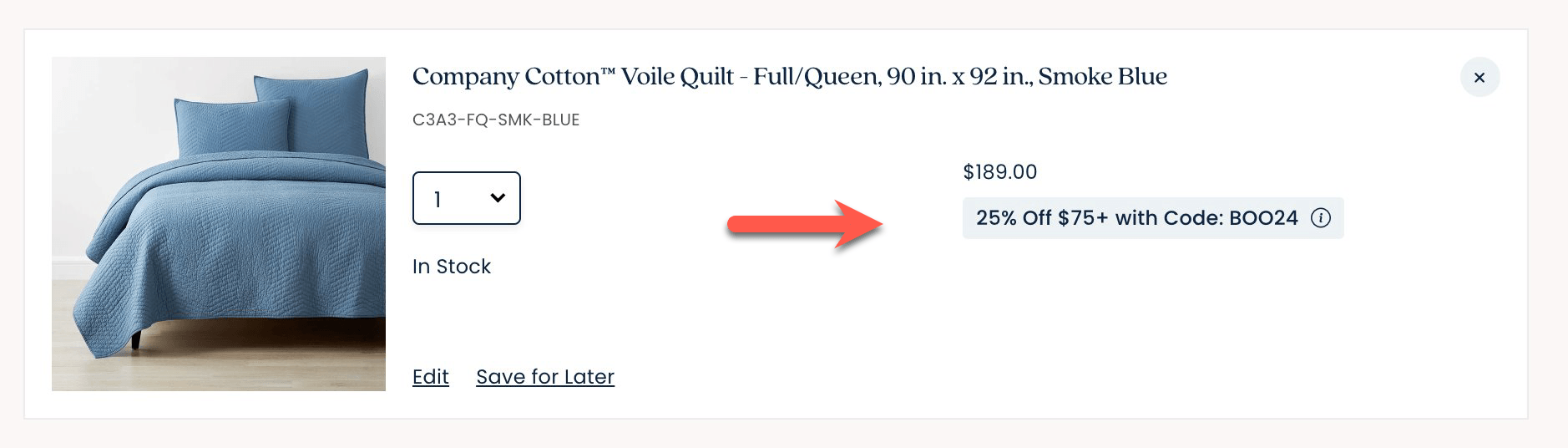
*Display coupon information*
1. The `Footer` slot only receives the current item in its context — cart-level information like the applied cart price rule's label lives on the cart itself, not on the item. Track the cart's `appliedDiscounts` in a variable your block updates whenever the cart changes:
```javascript
import { events } from '@dropins/tools/event-bus.js';
let appliedDiscounts = [];
events.on('cart/data', (data) => {
appliedDiscounts = data?.appliedDiscounts ?? [];
}, { eager: true });
```
1. Add a `Footer` slot beneath the `ProductAttributes` slot.
```javascript
slots: {
ProductAttributes: (ctx) => {
...
}
Footer: (ctx) => {
// Runs on mount
const wrapper = document.createElement('div');
ctx.appendChild(wrapper);
// Append the cart's applied discount labels on every update, for items that qualify
ctx.onChange((next) => {
wrapper.innerHTML = '';
const itemQualifies = next.item?.discountPercentage || next.item?.savingsAmount;
if (!itemQualifies) return;
appliedDiscounts.forEach(({ label }) => {
const discount = document.createElement('div');
discount.style.color = '#3d3d3d';
discount.innerText = label;
wrapper.appendChild(discount);
});
});
},
```
This code creates a slot named `Footer`, which displays the promotional information defined in the custom cart price rule beneath items that received a discount. The `next.item?.discountPercentage` and `next.item?.savingsAmount` checks identify items the discount applied to; the label text itself comes from the cart's `appliedDiscounts`, not from the item.
1. Save the file. Add products that total at least $75 and apply the BOO24 coupon code to the cart. The page displays the rule name beneath each item in the cart.
## Related
- [Slots](https://experienceleague.adobe.com/en/tools/commerce-storefront/dropins/cart/slots/) — the slot mechanism this how-to builds on.
- [Customize order summary lines](https://experienceleague.adobe.com/en/tools/commerce-storefront/how-tos/order-summary-lines/) — apply the same approach to the order summary.
---
# Add supporting content to product pages
Add a campaign banner, carousel, headings, or other supporting content above or below the shopping controls on your product pages.
## Before you begin
Open `/products/default` in Document Authoring and choose a content block supported by your storefront. Use [Preview a product](https://experienceleague.adobe.com/en/tools/commerce-storefront/how-tos/preview-product/) to select a real product for the inline preview.
> This document is shared by product pages. Content you add here appears on all pages that use this template. To show content only for selected products or categories, use [Show enrichment content for selected products or categories](https://experienceleague.adobe.com/en/tools/commerce-storefront/how-tos/show-enrichment-content/) instead.
## Add the supporting content
1. Find the `product-details` table in `/products/default`.
1. Place your content above or below that table, in the order shoppers should see it. You can insert ordinary text or images, or [add a supported block table](https://experienceleague.adobe.com/en/tools/commerce-storefront/how-tos/add-block-to-page/).
For example, insert a carousel table above the product details:
| carousel | |
| --- | --- |
| Your first campaign image | First slide caption |
| Your second campaign image | Second slide caption |
Merge the first-row cells in the document. Replace the image labels with actual images, and replace the captions with your text. Each row below the header is one slide.
1. Open the inline live-preview pane and confirm that the content appears in the intended position relative to the product details.
1. Preview another product to check that the content is appropriate for the shared template.
1. Publish the updated document when the layout looks right.
## Check the result
Open a real product URL on the published storefront. Confirm that the supporting content appears in the expected order and that the product's shopping controls remain available.
For recommendation units, follow [Add product recommendations to a page](https://experienceleague.adobe.com/en/tools/commerce-storefront/how-tos/add-product-recommendations/).
---
# Integrate address verification
## What you'll edit or create
- Create the autocomplete script from the sample — `blocks/commerce-checkout/address-autocomplete.js`
- Edit the checkout block — `blocks/commerce-checkout/commerce-checkout.js`
- Edit the `initializeCheckout()` function
## What you'll build
By the end of this how-to, you'll have:
- A copy of the `address-autocomplete.js` sample script (from `/public/samples/address-autocomplete.js`) added to your project and configured with your Google API key.
- Google Places autocomplete wired into the shipping form in `commerce-checkout.js`, triggering suggestions as the shopper types a street address.
- Selected suggestions that automatically fill in the street, city, country, and postal code fields.
You might want to enhance the shopper experience by streamlining the process of populating and verifying the shipping address, thereby reducing the risk of user error. You can achieve this by implementing a third-party address lookup and autocomplete APIs, such as those provided by https://mapsplatform.google.com/maps-products/#places.
This how-to describes how to override any field in a checkout address form and extend it to integrate with this service. The implementation supports backend-configurable validation and full form submission integration.
Upon successful completion of this how-to, a form similar to the following will be displayed:
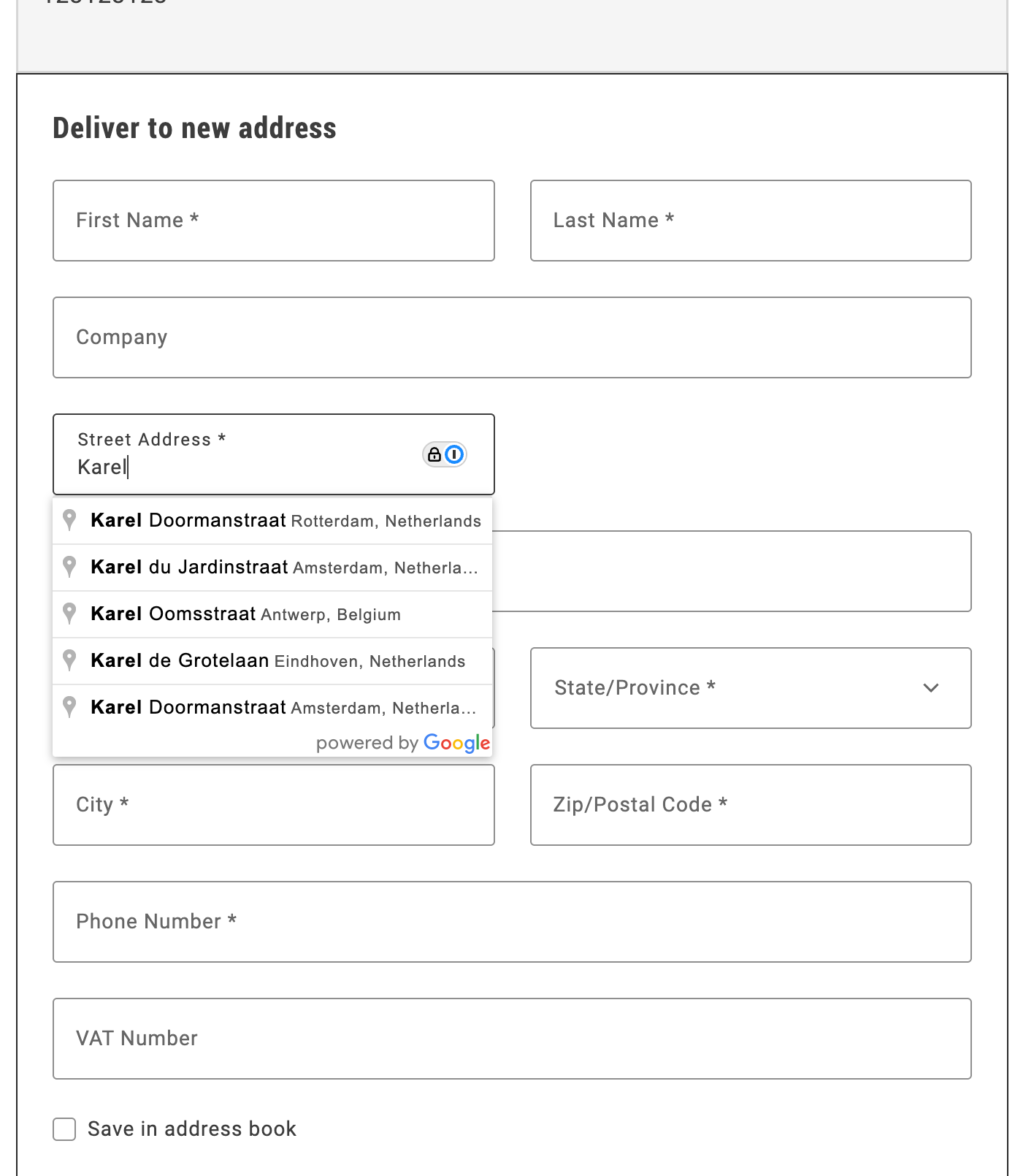
*Autocomplete shipping address*
## Step-by-step
The following steps describe how to integrate the Google Address Validation API with the Commerce boilerplate template using the provided address autocomplete implementation.
### 1. Prerequisites
For this how-to, you must have a valid Google API key. https://developers.google.com/maps/documentation/javascript/get-api-key describes the process to obtain and set up this key.
### 2. Download and configure the address autocomplete implementation
1. **Download the implementation:**
Copy the `address-autocomplete.js` file from `/public/samples/address-autocomplete.js` in this documentation repository to your project directory.
2. **Replace the API key placeholder:**
Open the `address-autocomplete.js` file and replace `ADD-YOUR-GOOGLE-API-KEY-HERE` with your actual Google API key:
```javascript
const CONFIG = {
googleApiKey: 'YOUR_ACTUAL_GOOGLE_API_KEY',
// ... rest of configuration
};
```
### 3. Import and initialize the autocomplete service
In your `commerce-checkout.js` file, make the following changes to enable address autocomplete:
1. **Import the autocomplete service:**
```javascript
import { initializeAutocompleteWhenReady } from './address-autocomplete.js';
```
2. **Initialize the autocomplete in the `initializeCheckout` function:**
```javascript
const initializeCheckout = async () => {
// ... existing checkout initialization code ...
// Initialize address autocomplete for shipping form
const shippingContainer = document.querySelector('[data-commerce-checkout-shipping]');
if (shippingContainer) {
initializeAutocompleteWhenReady(shippingContainer, 'input[name="street"]');
}
// ... rest of initialization code ...
};
```
The `initializeAutocompleteWhenReady` function automatically:
- Waits for the address form to be rendered
- Attaches autocomplete functionality to the street input field
- Handles form field population when an address is selected
- Manages Google Maps API loading and initialization
## Example
The complete address autocomplete implementation is available in `/public/samples/address-autocomplete.js`. This implementation includes:
- **AddressAutocompleteService class**: Handles Google Places API integration
- **initializeAutocompleteWhenReady function**: Utility function for easy integration
- **Automatic form field population**: Populates street, city, country, and postal code fields
- **Keyboard navigation**: Arrow keys, Enter, and Escape support
- **Error handling**: Graceful fallback when Google Maps API is unavailable
For additional customization options and advanced usage, see the implementation comments in the sample file.
## Related
- [AddressValidation container](https://experienceleague.adobe.com/en/tools/commerce-storefront/dropins/checkout/containers/address-validation/) — reference for the validation UI.
- [Validate a shipping address](https://experienceleague.adobe.com/en/tools/commerce-storefront/how-tos/validate-shipping-address/) — a related address task.
---
# Apply section styling
Apply a supported style to the section around your content or Commerce blocks. Section metadata changes the section's presentation; it does not change an individual block's settings.
## Before you begin
Open the page in [Document Authoring](https://experienceleague.adobe.com/en/tools/commerce-storefront/merchants/quick-start/document-authoring/) and choose a style supported by your storefront. See [Section metadata](https://experienceleague.adobe.com/en/tools/commerce-storefront/merchants/blocks/section-metadata/) for the table format and supported property types.
> Your developer defines the available styles. Adding a style name to a document does not create its styling. Ask your developer before using a new style.
## Add section metadata
1. Find the section containing the blocks you want to style.
1. Insert a two-column table below those blocks, within the same section. If a section-metadata table already exists, update it instead.
1. Merge the cells in the first row and enter `section-metadata`.
1. Add a row with `Style` in the first cell and the supported style name in the second cell. For example, use `highlight` only if your storefront supports that style.
1. Save your changes and preview the page. Confirm that the intended section has changed, not an adjacent section.
1. Publish the page when the result looks right.
## Check the result
Open the published page and confirm that the style applies to the intended section. If nothing changes, check the style name with your developer and confirm that the metadata table is in the same section as the content.
---
# Generate category pages programmatically
## What you'll edit or create
- Create a Node.js generation script
- Create the `product-list-page` block
- Create the `metadata` block
When you need more category pages than are practical to create with the [manual how-to](https://experienceleague.adobe.com/en/tools/commerce-storefront/how-tos/manual-category-page/), but the automated [AEM Commerce Prerender](https://experienceleague.adobe.com/en/tools/commerce-storefront/setup/configuration/aem-prerender/) solution doesn't fit your catalog's scale or requirements, you can generate the pages with a script. You produce the same category document — a `product-list-page` block plus a `metadata` block — but instead of authoring it in [Document Authoring](https://docs.da.live/), you build it from a template, push it to Document Authoring through its Source API, and publish the path through the Edge Delivery Services pipeline.
This is a developer workflow: you write and run the script, and you own when it runs again.
> **How this differs from prerendering** The [prerender solution](https://experienceleague.adobe.com/en/tools/commerce-storefront/setup/configuration/aem-prerender/) publishes category HTML as a [Bring Your Own Markup](https://www.aem.live/developer/byom) overlay and detects catalog changes for you. This approach instead creates a real, editable Document Authoring document, and there is no change detection — you re-run the script (or schedule it) to refresh a page. That trade is what lets you sidestep the prerender limits: you control the catalog query, the pagination, and the content that goes on each page.
## What you'll build
By the end of this how-to, you'll have:
- A Node.js script that fetches category data from Adobe Commerce and builds a Document Authoring source document containing a `product-list-page` block and a `metadata` block.
- A call to the Document Authoring Source API that creates the document at your chosen path.
- A call to the AEM Admin API that previews and publishes that path, making the category page live.
## Prerequisites
Before starting this how-to, make sure you have:
- A working [Commerce storefront](https://experienceleague.adobe.com/en/tools/commerce-storefront/get-started/create-storefront/) on Edge Delivery Services
- Comfort writing and running a JavaScript (Node.js) script
- Access to your Commerce catalog's GraphQL endpoint — Catalog Service (Adobe Commerce as a Cloud Service or PaaS) or the Merchandising Services API (Adobe Commerce Optimizer)
- An Adobe IMS bearer token for the Document Authoring Source API and one for the AEM Admin API (see Step 4 for how to generate these)
## How it works
Your script fetches category data from Adobe Commerce, builds a Document Authoring document from a template containing the `product-list-page` and `metadata` blocks, then publishes it through the Document Authoring and Edge Delivery Services APIs — the same preview/publish pipeline the rest of your site uses. The tasks below walk through each part in detail.
Re-run the script whenever the category or its metadata changes. The output is a normal Document Authoring document, so an author can still open and edit it afterward.
### 1. Step 1: Fetch category data from Commerce
Query your Commerce backend for the category and the products you want to list. Use your own query — `YOUR_CATALOG_QUERY` below stands in for it.
```js
// Adobe Commerce as a Cloud Service / PaaS + Catalog Service: post to your Catalog Service GraphQL endpoint.
// Adobe Commerce Optimizer: post to your Merchandising GraphQL endpoint with your Optimizer headers.
const response = await fetch(CATALOG_ENDPOINT, {
method: 'POST',
headers: {
'Content-Type': 'application/json',
// ...your store/context headers...
},
body: JSON.stringify({
query: YOUR_CATALOG_QUERY,
variables: { categoryPath },
}),
});
const { data } = await response.json();
```
For ready-made category queries — fetching categories, the category tree, and product listing data by category path — see the queries in the https://github.com/adobe-rnd/aem-commerce-prerender/blob/main/actions/queries.js (`actions/queries.js` on `main`), such as `CategoriesQuery`, `CategoryTreeQuery`, `CategoryTreeBySlugsQuery`, and `PlpProductSearchQuery`. For the schema each backend exposes, see the https://developer.adobe.com/commerce/webapi/graphql/schema/catalog-service/ (Adobe Commerce as a Cloud Service and PaaS) or the https://developer.adobe.com/commerce/services/optimizer/merchandising-services/ (Adobe Commerce Optimizer).
### 2. Step 2: Build the document from a template
Render the category data into a Document Authoring source document. A DA source document is HTML with a specific shape: a `` holding ``, ``, and ``, where `` contains one or more sections (each a ``). A block is a `` whose class is the block name, with one `` per row and one `` per cell. This markup is the same as what Edge Delivery Services serves, so you can confirm the exact structure for any page by appending `.plain.html` to its URL.
Produce the same two blocks the [manual how-to](https://experienceleague.adobe.com/en/tools/commerce-storefront/how-tos/manual-category-page/) describes — a `product-list-page` block bound to the category through `urlPath`, and a `metadata` block for SEO.
```html
urlPath
apparel
title
Apparel
description
Shop the apparel collection.
json-ld
{ "@context": "https://schema.org", ... }
```
Fill the values from the data you fetched in Step 1 — the category's `urlPath`, title, description, and structured data. For the full list of metadata properties, see [Page metadata](https://experienceleague.adobe.com/en/tools/commerce-storefront/merchants/blocks/page-metadata/). Generate one canonical document per category.
{/* TODO: Add link to SSR and Crawlability document when published.*/}
### 3. Step 3: Create the document in Document Authoring
Post the document to the https://docs.da.live/developers/api/source. The path you post to becomes the document location in your content tree and the page URL — a document at `/foo/apparel.html` is served at `/foo/apparel`.
```js
const form = new FormData();
form.append('data', new Blob([documentHtml], { type: 'text/html' }));
// path must include the file extension, e.g. apparel.html
await fetch(`https://admin.da.live/source/${org}/${repo}/${path}.html`, {
method: 'POST',
headers: { Authorization: `Bearer ${DA_TOKEN}` },
body: form,
});
```
### 4. Step 4: Publish the path through Edge Delivery Services
Creating the source document in DA doesn't make it live. Publish it the same way the rest of your site publishes: call the https://www.aem.live/docs/admin.html to preview the path first, then publish it.
```js
const base = `https://admin.hlx.page`;
const opts = {
method: 'POST',
// The AEM Admin API expects the token in both headers.
headers: {
Authorization: `Bearer ${AEM_TOKEN}`,
'x-content-source-authorization': `Bearer ${AEM_TOKEN}`,
},
};
// Preview, then publish. ref is your branch, typically "main".
await fetch(`${base}/preview/${org}/${site}/${ref}/${path}`, opts);
await fetch(`${base}/live/${org}/${site}/${ref}/${path}`, opts);
```
The preview call pulls your new document into the preview environment, and the live call copies it to production and purges the CDN. After the live call succeeds, the category page is served at its path.
> **Getting DA_TOKEN and AEM_TOKEN** Both are Adobe IMS bearer tokens — the same kind of credential, but authorized separately in each system.
For a one-off script, generate a token quickly with https://github.com/adobe-rnd/da-auth-helper: `npx github:adobe-rnd/da-auth-helper token` opens a browser to sign in once, then prints a token you can reuse until it expires.
For a scheduled script — a cron job or a scheduled App Builder action — use a dedicated system-to-system credential instead of a personal login. Create an Adobe Developer Console project with the Edge Delivery Services API card, using an OAuth Server-to-Server credential, then exchange it for a token with the IMS `client_credentials` grant. Before the token works, authorize the technical account's email in the DA Permissions App for Document Authoring and the AEM User Admin Tool for the AEM Admin API. See https://main--aem-website--adobe.aem.page/examples/how-to-edge-delivery-services-api-card for the full setup.
Treat both tokens like passwords: keep them out of source control.
### 5. Step 5: Refresh when the catalog changes
Because there's no change detection, re-run the script to refresh a page after the category or its metadata changes. Run it on demand, or schedule it (for example, a cron job or a scheduled App Builder action) at whatever cadence your catalog needs. Re-posting to the same path overwrites the existing document, so manually authored changes do not persist. If authors change the pages manually, add a read/merge mechanism to this flow.
## Change a category page's URL
When you change the path your script generates for a category — for example, from `/apparel` to `/clothing` — publishing the new path is only part of the process. The old path keeps serving the old document until you remove it, and once removed it returns a 404 unless you redirect it. This error is the easiest one to make when you regenerate pages at new paths: the old URL gets orphaned, and you lose the inbound links and search equity pointing at it.
Whenever your generation logic changes a category's output path:
1. Generate and publish the document at the new path, following Steps 2–4.
2. Remove the old page: delete the old document from Document Authoring and unpublish its path through the AEM Admin API, so it's no longer served at the old URL.
3. Add a 301 redirect from the old path to the new one — for example, `/apparel` → `/clothing`.
You can automate the redirect in the same script: the `redirects` sheet is itself a Document Authoring resource, so append the old-to-new row and republish it. See [Redirects](https://experienceleague.adobe.com/en/tools/commerce-storefront/merchants/edge-delivery-services/redirects/) and https://www.aem.live/docs/redirects for the sheet format, then update your [sitemap](https://experienceleague.adobe.com/en/tools/commerce-storefront/merchants/edge-delivery-services/sitemaps/).
> **Never orphan the old URL** Every path your script stops generating should either still resolve or 301-redirect to its replacement. If you change a category's URL key without adding a redirect for the old path, shoppers and crawlers that follow existing links hit a 404. Make the redirect part of the same run that publishes the new path, not a manual afterthought.
## Which approach should you use?
| Approach | Best for | Change handling |
|---|---|---|
| [Prerender](https://experienceleague.adobe.com/en/tools/commerce-storefront/setup/configuration/aem-prerender/) | Most catalogs; hands-off category and product pages | Automatic, on a fixed cadence |
| [Manually authored page](https://experienceleague.adobe.com/en/tools/commerce-storefront/how-tos/manual-category-page/) | One or a few categories, or a page that needs custom content | You edit the document |
| Generate programmatically (this how-to) | Many category pages, or requirements the prerender limits block | You re-run the script |
---
# Add breadcrumbs for PLP and PDP
In this how-to, you'll create a `commerce-breadcrumbs` block that helps shoppers navigate your catalog. On a product listing page (PLP), your breadcrumb block shows your catalog hierarchy. On a product details page (PDP), it reflects the path the shopper took. You'll use the `Breadcrumbs` component from the SDK.
## What you'll edit or create
- Create the breadcrumbs block — `blocks/commerce-breadcrumbs/commerce-breadcrumbs.js`
- Create the breadcrumbs styles — `blocks/commerce-breadcrumbs/commerce-breadcrumbs.css`
- Create the authored `` on the PLP and PDP
## What you'll build
By the end of this how-to, you'll have:
- A `commerce-breadcrumbs` block in `blocks/commerce-breadcrumbs/commerce-breadcrumbs.js` and `blocks/commerce-breadcrumbs/commerce-breadcrumbs.css` that renders authored breadcrumbs on PLPs and PDPs.
- An authored `` on each page type. The block stores the PLP trail in `sessionStorage` and restores it on the matching PDP.
## Prerequisites
Before you begin, make sure you have:
- A working [Commerce storefront](https://experienceleague.adobe.com/en/tools/commerce-storefront/get-started/create-storefront/) on Edge Delivery Services
- A product listing page (PLP) powered by the [Product Discovery drop-in](https://experienceleague.adobe.com/en/tools/commerce-storefront/dropins/product-discovery/)
- A product details page (PDP) powered by the [Product Details drop-in](https://experienceleague.adobe.com/en/tools/commerce-storefront/dropins/product-details/)
- Familiarity with [customizing blocks](https://experienceleague.adobe.com/en/tools/commerce-storefront/blocks/customize-blocks/) in your code repository
## The PLP-to-PDP trail
Shoppers reach a PDP via categories, but the PDP is usually authored with a fixed breadcrumb. `commerce-breadcrumbs.js` preserves the navigation path in `sessionStorage` and restores it on the matching PDP.
| What the shopper does | What the block should do |
|---|---|
| Browses the Apparel category, sees `Home / Apparel` | Nothing — it only acts on product-link clicks and PDP loads |
| Clicks through to the Adobe pattern hoodie product | Write `{ path, trail }` to `sessionStorage`, keyed to `/products/adobe-pattern-hoodie/ADB127` |
| Lands on the PDP, authored as `Home / Placeholder` | Check whether the stored `path` matches the URL. It matches, so swap in the stored trail and, once the drop-in loads catalog data, replace the leaf — the shopper now sees `Home / Apparel / Adobe pattern hoodie` |
> **Anchors inside the PLP subtree** The click listener matches any `` inside `main .product-list-page` — the CSS selector for your storefront's PLP container — so non-product links inside it get stored too. See [Extra links appear in session storage](#extra-links-appear-in-session-storage) for why this is safe to leave as-is.
The stored entry:
```json
{
"path": "/products/adobe-pattern-hoodie/ADB127",
"trail": [
{ "label": "Home", "url": "/" },
{ "label": "Apparel", "url": "/apparel" }
]
}
```
If the path doesn't match a different product or a bookmarked PDP, the block leaves the authored breadcrumb alone. This approach records the path the shopper took and uses the authored breadcrumb in all other cases.
### 1. Step 1: Create the block files
Create a `commerce-breadcrumbs` directory in the `blocks/` directory of your storefront project. Add two empty files: `commerce-breadcrumbs.js` and `commerce-breadcrumbs.css`. Add the code examples to those files. The next section explains the JavaScript.
```js title="blocks/commerce-breadcrumbs/commerce-breadcrumbs.js" {7} {17} {29} {38} {52} {71}
const SESSION_KEY = 'commerce.breadcrumbs';
/**
* Parses the authored `` / `
` into a flat list of `{ label, url }`.
* `url` is the `` pathname when present, otherwise `null`.
*
* Position determines the leaf: the last `- ` is always rendered as the
* current page (plain text). The author provides every crumb (including
* `Home`).
*/
function parseCrumbs(block) {
const list = block.querySelector('ol, ul');
if (!list) return [];
return [...list.querySelectorAll(':scope > li')].map((li) => {
const anchor = li.querySelector('a');
return {
label: (anchor || li).textContent.trim(),
url: anchor ? new URL(anchor.href).pathname : null,
};
});
}
export default function decorate(block) {
const crumbs = parseCrumbs(block);
block.innerHTML = '';
if (crumbs.length === 0) return;
const currentPath = window.location.pathname;
const leaf = crumbs[crumbs.length - 1];
let ancestors = crumbs.slice(0, -1);
// Session override: when arriving from a PLP, use the propagated trail
// instead of whatever the author put in the HTML.
const raw = sessionStorage.getItem(SESSION_KEY);
if (raw) {
try {
const session = JSON.parse(raw);
if (session.path === currentPath) ancestors = session.trail;
} catch (error) {
sessionStorage.removeItem(SESSION_KEY);
// Log and recover instead of breaking the page.
console.error(`Malformed ${SESSION_KEY} in sessionStorage: ${error.message}`);
}
}
const renderCrumbs = (leafLabel) =>
UI.render(Breadcrumbs, {
categories: [
...ancestors.map((item) =>
item.url ? h('a', { href: rootLink(item.url) }, item.label) : h('span', null, item.label)
),
h('span', null, leafLabel),
],
})(block);
// Update the leaf once the drop-in provides the catalog product name.
renderCrumbs(leaf.label);
events.on(
'pdp/data',
(product) => {
if (product?.name) renderCrumbs(product.name);
},
{ eager: true }
);
// Propagate the full breadcrumb (ancestors + current page) on product link
// clicks so the destination PDP can render the user's actual path.
const propagatedTrail = [...ancestors, { label: leaf.label, url: currentPath }];
document.querySelector('main .product-list-page')?.addEventListener('click', (event) => {
const anchor = event.target.closest('a');
if (!anchor) return;
const targetPath = new URL(anchor.href).pathname;
sessionStorage.setItem(
SESSION_KEY,
JSON.stringify({ path: targetPath, trail: propagatedTrail })
);
});
}
```
```css title="blocks/commerce-breadcrumbs/commerce-breadcrumbs.css"
.commerce-breadcrumbs {
padding: var(--spacing-small) 0;
}
```
#### How the code works
- **`SESSION_KEY` (line 7)** — Both the read and the write paths share this one constant, so there's only one `sessionStorage` entry to keep track of.
- **`parseCrumbs()` (line 17)** — Selects `:scope > li` rather than every `` in the block, so nested lists (for example, inside a link's icon markup) don't get parsed as extra crumbs.
- **`decorate()` (line 29)** — Exits immediately when `parseCrumbs()` returns nothing, so an empty block renders nothing instead of throwing an error.
- **Session override (line 38 onward)** — This logic is the `sessionStorage` check from [The PLP-to-PDP trail](#the-plp-to-pdp-trail): it reads the stored entry and, if `session.path` matches `window.location.pathname`, replaces `ancestors` with the stored trail. The entry is never cleared after use, so revisiting the same PDP directly later in the same session can still show the propagated trail.
- **`renderCrumbs()` (line 52)** — Renders the breadcrumb once with the authored leaf label, then again whenever the `pdp/data` event fires with the product's catalog name. This function is what lets the current page breadcrumb update after the block first renders.
- **The click listener (line 71)** — Writes the `sessionStorage` entry for clicks inside `main .product-list-page`, matching the caution above about non-product links in that subtree.
### 2. Step 2: Add breadcrumbs to a PLP and a PDP
Edge Delivery Services renders block tables in the order they appear, so place the breadcrumb before the page's main block: the `product-list-page` table on the PLP or the `product-details` table on the PDP. In [DA.live](https://experienceleague.adobe.com/en/tools/commerce-storefront/merchants/quick-start/document-authoring/), insert a new table before that block table.

Set the table's first row to `commerce-breadcrumbs`. This [block name row](https://experienceleague.adobe.com/en/tools/commerce-storefront/merchants/blocks/block-tables/#add-a-block-to-your-document) tells Edge Delivery Services which block to render. In the next row, add a numbered or bulleted list with one item per breadcrumb. Link each breadcrumb page except the last, which represents the current page and remains plain text.
DA.live and Edge Delivery Services generate this HTML from what you author. It's shown here so you can confirm it matches what the Step 1 code expects. For example, the published HTML for `/apparel` looks like this:
```html
[Home](/)
- Apparel
```
The PLP breadcrumb renders as:
```text
Home / Apparel
```
Author the PDP the same way, but since `/products/default` is a shared template rendered for every product, use a generic placeholder for the leaf ` ` instead of a real product name.
On a direct visit, it initially renders as:
```text
Home / Placeholder
```
After the Product Details drop-in loads catalog data for the selected product, such as the Adobe pattern hoodie at `/products/adobe-pattern-hoodie/ADB127`, the `commerce-breadcrumbs` block replaces the leaf with the product name:
```text
Home / Adobe pattern hoodie
```
### 3. Step 3: Deploy and verify
Commit the `blocks/commerce-breadcrumbs/` directory and push the changes to your branch. After Code Sync deploys the update to your preview URL, verify the following scenarios:
- **Direct PLP load** — Open `/apparel` (or any PLP with an authored breadcrumb). Confirm the rendered breadcrumb matches the authored ``.
- **Direct PDP load** — Open a product URL directly (for example, in an incognito window). Confirm the rendered breadcrumb matches the authored trail, with the product as the final breadcrumb.
- **PLP-to-PDP navigation** — On the PLP, open **DevTools** > **Application** > **Session Storage**, then click a product card. Confirm `commerce.breadcrumbs` contains an entry for the destination pathname and the current breadcrumb trail. On the PDP, confirm the ancestor breadcrumbs match the PLP path (see [Troubleshooting](#the-pdp-shows-the-wrong-trail)) and the current page breadcrumb displays the product's catalog name.
- **PLP-to-PDP, different PDP** — From the same PLP, click product A. Then open product B directly in a new tab. Confirm product B displays the authored breadcrumb trail because `sessionStorage` is scoped to the tab and the stored entry applies only to product A's pathname.
- **Malformed session data** — On a PDP, open the console and run `sessionStorage.setItem('commerce.breadcrumbs', '{bad json}'); location.reload();`. Confirm the authored ancestor breadcrumbs render (see [The session storage value is malformed](#the-session-storage-value-is-malformed)) and the console logs an error instead of breaking the page.
## PDP breadcrumbs at scale
Manual authoring is suitable for a demo or a small number of pages, but it is not practical for a product-rich catalog. Someone has to add the correct ancestor `` to every product document and keep it synchronized as categories change. For storefronts with deep category hierarchies, generate the PDP breadcrumb in the experience layer instead of hand-authoring it.
If your storefront uses [AEM Commerce Prerender](https://experienceleague.adobe.com/en/tools/commerce-storefront/setup/configuration/aem-prerender/) to generate product page HTML, you still need a source for the PDP ancestor trail. The default product query does not return a product's category hierarchy from Catalog Service, so it cannot build PDP breadcrumbs from product data alone. PLP rendering is different: the prerender can use category data to build the category ancestor trail.
A product's assigned categories may not match the breadcrumb path a shopper took. For example, a product assigned to `Comfort` can appear in a breadcrumb path of `Shoes / Comfort`. The assigned category alone does not provide the full path or the URLs for each crumb. The experience layer that assembles the page must provide that information. This how-to does not define an automated PDP breadcrumb solution. It focuses on manual breadcrumb management in DA.live and a PLP-to-PDP session approach that preserves the shopper's category context.
> **PLP breadcrumbs and prerendering** [AEM Commerce Prerender](https://experienceleague.adobe.com/en/tools/commerce-storefront/setup/configuration/aem-prerender/) can also render category listing pages. The generated category HTML includes a breadcrumb `` and `BreadcrumbList` structured data built from the category's ancestors, so you don't need to author it by hand for those pages.
If your https://www.aem.live/developer/byom solution doesn't render category listing pages, continue authoring the PLP's `` by hand (see [Step 2](#step-2-add-breadcrumbs-to-a-plp-and-a-pdp)), or generate it with your own tooling.
## Troubleshooting
### The breadcrumb is empty
Make sure the `commerce-breadcrumbs` block contains an `` or `
` with at least one ``. An empty list renders nothing.
### The PDP shows the wrong trail
Check `commerce.breadcrumbs` in DevTools > Application > Session Storage. Its `path` must match `window.location.pathname` exactly, including any trailing slash or base path.
### The session storage value is malformed
If the session key contains invalid JSON, the block logs a console error, removes the bad value, and falls back to the authored ancestor breadcrumbs so the page still renders correctly. In this example, `commerce-breadcrumbs.js` is the only code that writes to `commerce.breadcrumbs`. Check your storefront for other code that might overwrite the key.
### Extra links appear in session storage
This happens because the click listener in `commerce-breadcrumbs.js` fires on every `` inside `main .product-list-page`, including non-product links in that subtree (see [The PLP-to-PDP trail](#the-plp-to-pdp-trail)). This does not affect the breadcrumb: only pages that host the block read the entry, and the path check keeps a stored trail from applying to the wrong page. To avoid storing non-product links, narrow the listener to the product-link selector used by your storefront.
---
# Buy online, pickup in store
Buy online, pickup in store (BOPIS) lets shoppers buy items on your storefront and pick them up in person. The Commerce boilerplate doesn't include a BOPIS checkout flow by default, but this how-to shows you how to add one with Adobe's drop-in components.
## What you'll edit or create
- Edit the checkout block — `blocks/commerce-checkout/commerce-checkout.js`
- Edit the `ToggleButton` component
- Edit the `RadioButton` component
- Create the `fetchPickupLocations()` function
## What you'll build
By the end of this how-to, you'll have:
- Delivery and in-store pickup toggle buttons added to the `commerce-checkout.js` block file using the `ToggleButton` component.
- A list of pickup locations fetched from Adobe Commerce and rendered as `RadioButton` options.
- The shipping address updated with the selected pickup location code when a shopper chooses in-store pickup.
## Step-by-step
The following steps describe how to modify the https://github.com/hlxsites/aem-boilerplate-commerce/blob/main/blocks/commerce-checkout/commerce-checkout.js block file in the boilerplate template to allow users to choose between delivery and in-store pickup during the checkout process.
### 1. Prerequisites
Before you start, you must configure https://experienceleague.adobe.com/en/docs/commerce-admin/stores-sales/delivery/basic-methods/shipping-in-store-delivery options in the Adobe Commerce Admin to define pickup locations. The [`fetchPickupLocations`](#fetch-pickup-locations) function retrieves the list of available pickup locations using a GraphQL query.
### 2. Update content fragment
1. To create a new section for the delivery options, additional DOM elements are required. You can add these elements by modifying the content fragment.
```html
Delivery Method
```
1. You must also add new selectors to render the required components and content.
```javascript
const $deliveryButton = checkoutFragment.querySelector('.checkout-delivery-method__delivery-button');
const $inStorePickupButton = checkoutFragment.querySelector('. checkout-delivery-method__in-store-pickup-button');
const $inStorePickup = checkoutFragment.querySelector('.checkout__in-store-pickup');
```
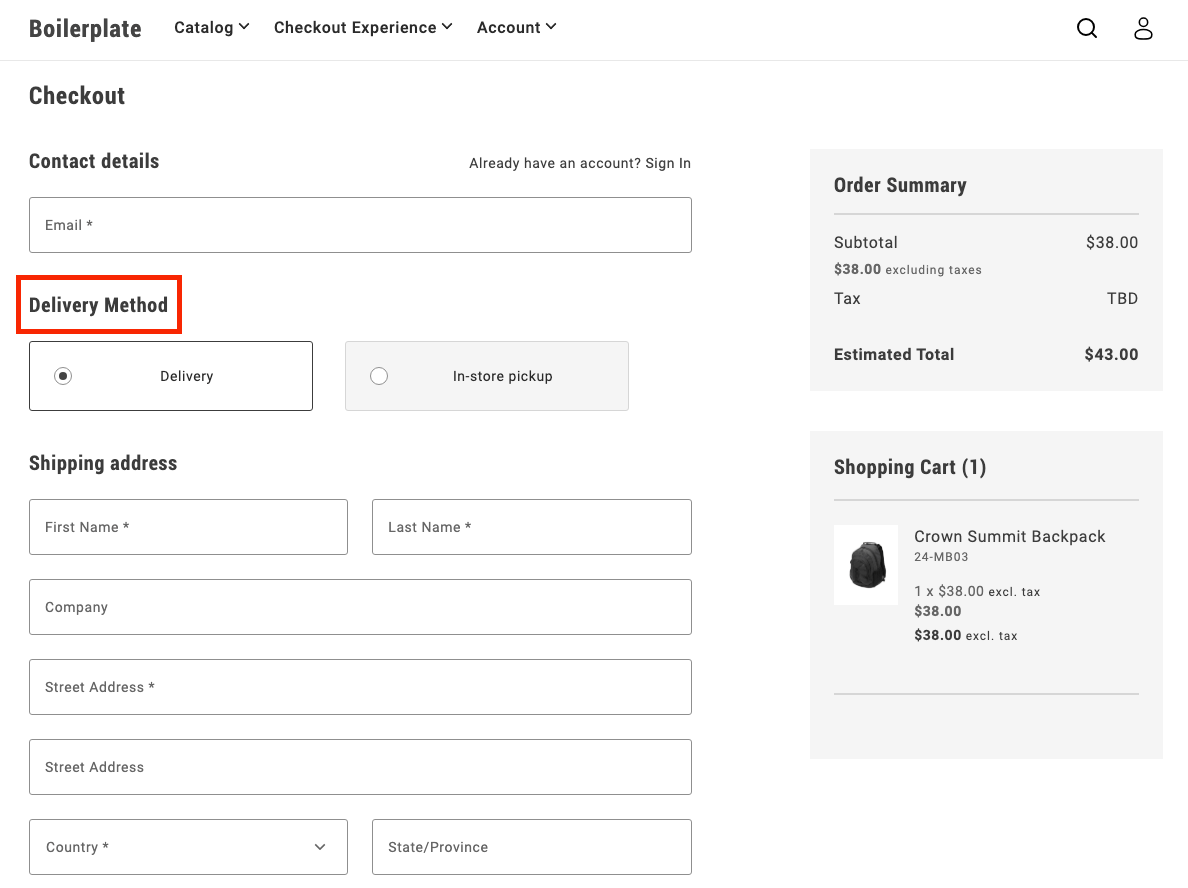
### 3. Add toggle buttons
During initialization, the code renders two buttons:
- Delivery
- In-store pickup
These buttons allow users to toggle between the two options.
```js
UI.render(ToggleButton, {
label: 'Delivery',
onChange: () => onToggle('delivery'),
})($deliveryButton),
UI.render(ToggleButton, {
label: 'In-store Pickup',
onChange: () => onToggle('in-store-pickup'),
})($inStorePickupButton),
```
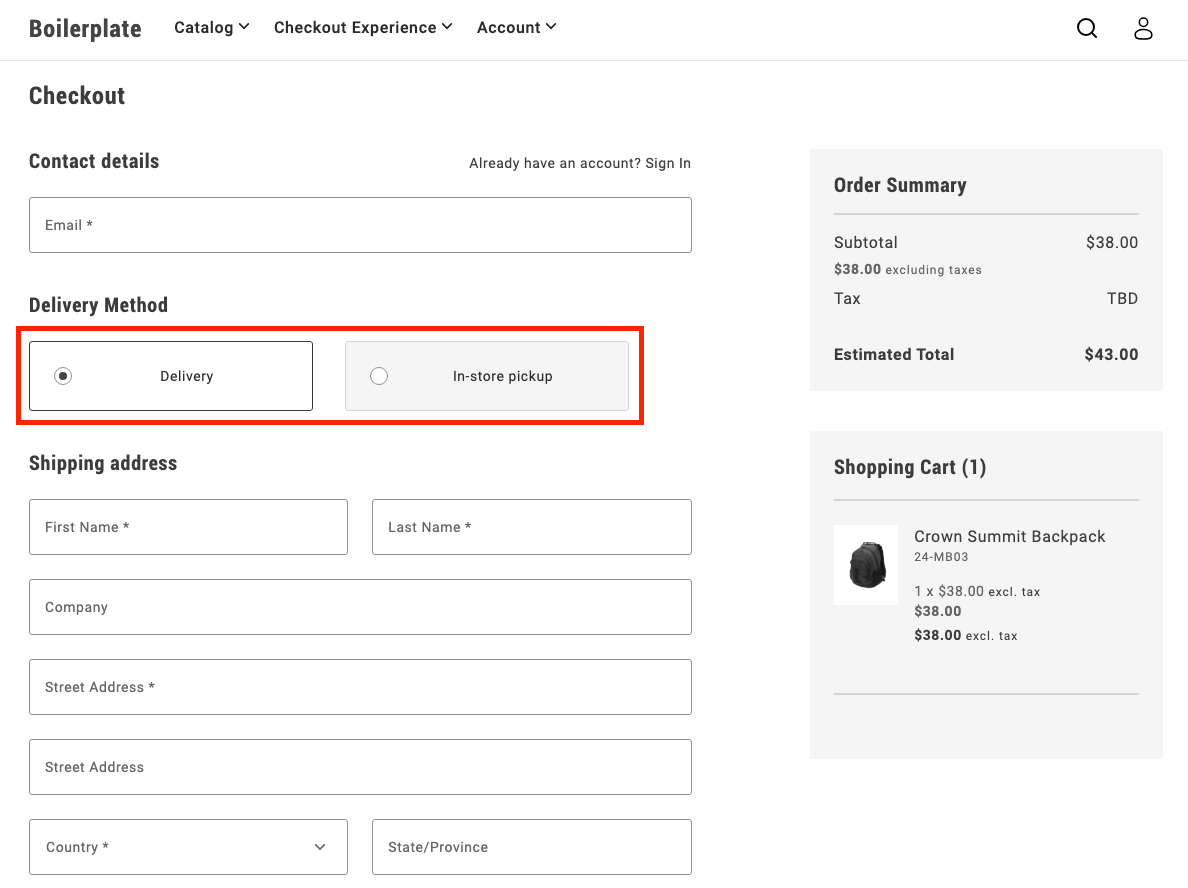
### 4. Toggle between options
The `onToggle` function manages switching between the delivery and in-store pickup options. It updates the selected state of the buttons and toggles the visibility of the corresponding forms.
```js
async function onToggle(type) {
if (type === 'delivery') {
deliveryButton.setProps((prev) => ({ ...prev, selected: true }));
inStorePickupButton.setProps((prev) => ({ ...prev, selected: false }));
$shippingForm.removeAttribute('hidden');
$delivery.removeAttribute('hidden');
$inStorePickup.setAttribute('hidden', '');
} else {
inStorePickupButton.setProps((prev) => ({ ...prev, selected: true }));
deliveryButton.setProps((prev) => ({ ...prev, selected: false }));
$shippingForm.setAttribute('hidden', '');
$delivery.setAttribute('hidden', '');
$inStorePickup.removeAttribute('hidden');
}
}
```
### 5. Fetch pickup locations
The `fetchPickupLocations` function retrieves the list of available pickup locations using a GraphQL query. Users can choose a location where they'd like to pick up their order.
```js
async function fetchPickupLocations() {
return checkoutApi
.fetchGraphQl(
`query pickupLocations {
pickupLocations {
items {
name
pickup_location_code
}
total_count
}
}`,
{ method: 'GET', cache: 'no-cache' }
)
.then((res) => res.data.pickupLocations.items);
}
```
### 6. Render location options
After the code fetches the pickup locations, it renders options as radio buttons. The user can select a location, which updates the shipping address with the corresponding pickup location code.
```js
const pickupLocations = await fetchPickupLocations();
pickupLocations.forEach((location) => {
const { name, pickup_location_code } = location;
const locationRadiobutton = document.createElement('div');
UI.render(RadioButton, {
label: name,
name: 'pickup-location',
value: name,
onChange: () => {
checkoutApi.setShippingAddress({
address: {},
pickupLocationCode: pickup_location_code,
});
},
})(locationRadiobutton);
$inStorePickup.appendChild(locationRadiobutton);
});
```
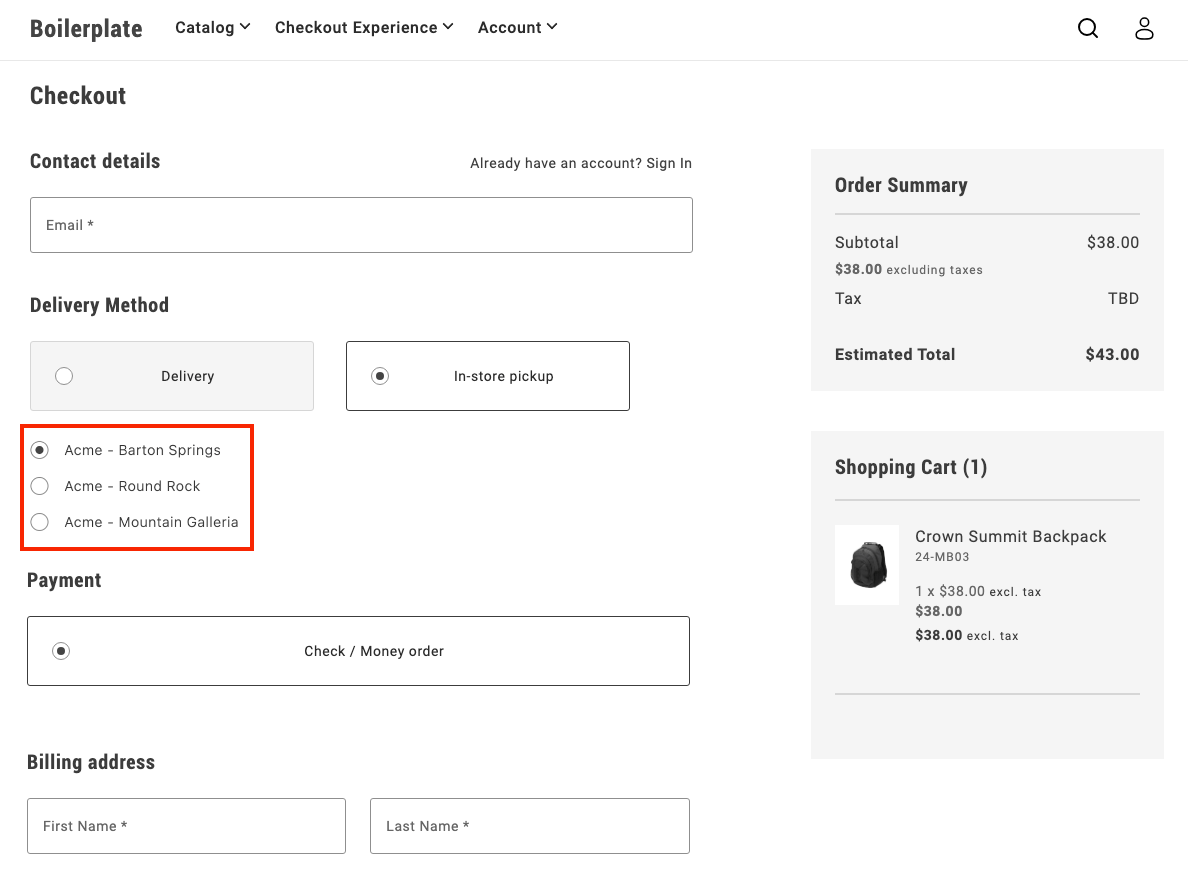
### 7. Finalize the flow
After a user selects **In-store pickup** and chooses a location, the pickup form is shown, while the shipping form is hidden. This provides a clear and seamless way for users to choose how they want to receive their order.
## Related
- [Checkout overview](https://experienceleague.adobe.com/en/tools/commerce-storefront/dropins/checkout/) — where in-store pickup fits in the flow.
- [ShippingMethods container](https://experienceleague.adobe.com/en/tools/commerce-storefront/dropins/checkout/containers/shipping-methods/) — reference for the delivery options you extended.
---
# Change labels and placeholders
Changing a label on a Commerce block means editing a value in a placeholders sheet in Document Authoring (The tooling for creating storefront pages as documents in Google Docs, SharePoint, or DA.live without writing code. Tables in documents define the blocks that appear on each page.) and then publishing the sheet to the live site. The edit itself is quick. The step most people miss is **Publish**. Without it, the live storefront keeps serving the previous label.
1. Find the placeholders sheet for your block.
1. Edit the value of the label you want to change.
1. Preview the sheet to push your change to the preview site.
1. Publish the sheet to push your change to the live site.
1. Hard-refresh the storefront page (press Cmd+Shift+R or Ctrl+Shift+R) to see the new label.
## How labels work in Commerce blocks
A placeholder is a named text value that the storefront looks up at page load and displays on the page. The text for every button, heading, and message in a Commerce block comes from a placeholders sheet stored in your content folder. Each drop-in (NPM packages that provide core Commerce storefront features such as cart, checkout, product details, and account flows.) has its own sheet.
Each sheet has two columns: Key and Value. The Key is a fixed label name such as `Cart.MiniCart.heading` that the drop-in uses to find the right text. The Value is the text shoppers see. You change the values, but the drop-in code defines the keys. Do not rename them.
Most sheets are named after the block they serve, so `cart`, `checkout`, and `wishlist` hold the labels for their matching blocks. A few sheets group related blocks: `auth` covers login and account-creation blocks, `account` covers signed-in customer pages, `order` covers orders and returns, and `search` covers product listing and search. `pdp` (the product detail page sheet) is the one name that doesn't match its block (`product-details`). `global` holds labels reused across blocks, such as header buttons.
If your storefront uses business-to-business (B2B) drop-ins, you'll also see B2B-specific sheets such as `company`, `purchase-order`, and `quick-order`. The workflow for editing B2B sheets is identical. Only the sheet names differ. For the full list and what each sheet controls, see [Placeholder sheets](https://experienceleague.adobe.com/en/tools/commerce-storefront/merchants/blocks/placeholder-sheets/).
Your storefront already has placeholders sheets set up and connected, so you do not add the sheet or change any code to start using it.
## Change a label step by step
### 1. Open the right placeholders sheet
In Document Authoring (da.live), navigate to the `placeholders` folder. Open the sheet for the drop-in that owns the label you want to change. If you're not sure which sheet to pick, [Placeholder sheets](https://experienceleague.adobe.com/en/tools/commerce-storefront/merchants/blocks/placeholder-sheets/) lists every sheet and what it controls.
The sheet opens in a spreadsheet view. If your site supports multiple languages, edit the sheet in the locale folder that matches the storefront URL you preview — for example, `/fr/placeholders/cart` for a French storefront.
### 2. Edit the value, not the key
Find the row whose key matches the label you want to change. Edit only the Value cell. Keep the Key spelled exactly as it is, because the drop-in uses the key to look the value up. Renaming a key disconnects the value from the drop-in and the label disappears.
{/* SCREENSHOT: A placeholders sheet open in Document Authoring, with the Key and Value columns clearly visible and one row about to be edited. Anchors steps 2 and 3 of the procedure. Ideally also shows the data and dnt tabs at the top so the next paragraph is actionable. */}
If the sheet shows more than one tab at the top (for example, `data` and `dnt`), edit the `data` tab. The `dnt` tab is for do-not-translate values and does not control the shopper-visible label.
### 3. Preview and publish the sheet
With the sheet open in Document Authoring, select **Preview** to save your changes and push them to the preview site. Confirm the new label looks right. When you're satisfied, select **Publish** to push the change to the live site.
{/* SCREENSHOT: Close-up of the Preview and Publish buttons in the Document Authoring toolbar for a sheet. This is the most-skipped step, so a screenshot makes the buttons concrete. */}
> **Preview is not enough** Until you publish the sheet, the live storefront keeps serving the previous version of the labels, and your change does not appear for shoppers. This is the most common reason a label change looks like it did nothing: you previewed the storefront page but did not publish the placeholders sheet.
### 4. See your change on the storefront
Open the storefront page that uses the block (for example, your product detail page or cart page). Press Cmd+Shift+R on macOS, or Ctrl+Shift+R on Windows or Linux, to bypass the browser cache. The new label appears on the next load.
The drop-in reads the placeholders sheet once when the page loads, so there is no live update when you edit the sheet. A regular reload may not clear the browser's cached copy of the sheet, so use a hard-refresh to be sure.
## Troubleshooting
If your label change isn't showing up, a missing publish step on the sheet is the most common cause.
### My change doesn't appear on the storefront
[Check what the sheet actually saved](#how-to-check-what-the-sheet-actually-saved) to narrow down the cause, then look for your key in the JSON output:
- If you see the old value: you did not preview or publish the sheet. Return to the sheet in Document Authoring and select **Preview** or **Publish**.
- If you see the new value but the storefront page still shows the old one: hard-refresh the page, and confirm the page URL is in the same locale folder as the sheet you edited.
### My change shows in preview but not on the live site
**Preview** and **Publish** are separate actions. **Preview** updates the preview site only. After you confirm the label looks right in preview, select **Publish** to push the change to the live site.
### One language is right, another is wrong
You may be editing one locale sheet while previewing a different locale page. Edit the sheet whose folder matches the URL you preview. If translations still look wrong after that, ask your developer to check store view and multistore configuration — see [Commerce localization tasks](https://experienceleague.adobe.com/en/tools/commerce-storefront/dropins/all/commerce-tasks/).
### The key I need isn't in the sheet
If a key isn't in the sheet, the drop-in uses its built-in default text. To change that text, add a new row with the exact key (for example, `Cart.MiniCart.heading`) and the value you want. A wrong key fails silently — the drop-in shows its default with no error — so copy the key exactly from the JSON source. [Placeholder sheets](https://experienceleague.adobe.com/en/tools/commerce-storefront/merchants/blocks/placeholder-sheets/) links to each sheet's live JSON so you can find the keys each drop-in supports.
### How to check what the sheet actually saved
Each placeholders sheet is available as a JSON file (a text file your browser can open). Opening this file shows the saved value directly, without going through the storefront page. If the URL was already cached in your browser from an earlier check, hard-refresh the tab (Cmd+Shift+R or Ctrl+Shift+R) to fetch the latest version.
{/* SCREENSHOT: A placeholders JSON file open in a browser tab, showing one key and value highlighted. Helps the reader recognize success when they see it. */}
The URL pattern is:
```text
https://----.aem.page/placeholders/.json
https:///placeholders/.json
```
A real preview URL looks like `https://main--my-storefront--acme.aem.page/placeholders/cart.json`, where `main` is your branch, `my-storefront` is your repository, `acme` is your organization, and `cart` is the sheet name. You can find your organization and repository in the Document Authoring URL, where they appear after `da.live/#/` as `org/repo`. The branch is `main` unless your team uses a different default. The live URL uses `.aem.live` instead of `.aem.page`, or your custom storefront domain if one is configured.
Use the preview URL right after **Preview**, or the live URL after **Publish**. Search the JSON for your key and check that the value matches what you typed.
If the URL returns nothing or a 404, you haven't previewed or published the sheet yet. Go back to the sheet and run **Preview** or **Publish** first.
## Related authoring tools
Labels and placeholders work alongside two other authoring tools that control how a Commerce block appears on a page:
- [Page metadata](https://experienceleague.adobe.com/en/tools/commerce-storefront/merchants/blocks/page-metadata/) — page-level settings (title, description, caching, social sharing).
- [Section metadata](https://experienceleague.adobe.com/en/tools/commerce-storefront/merchants/blocks/section-metadata/) — visual styling for the section around a block.
Page metadata and section metadata change how the page looks around a block. Labels and placeholders change the words inside the block.
For the developer-side multi-locale checklist, see [Commerce localization tasks](https://experienceleague.adobe.com/en/tools/commerce-storefront/dropins/all/commerce-tasks/). For details on how drop-ins use placeholders, see [Labeling and localizing drop-in components](https://experienceleague.adobe.com/en/tools/commerce-storefront/dropins/all/labeling/).
---
# Configure cart summary
By default, the `CartSummaryList` container shows a stepper for the quantity selector and hides savings. This how-to shows you how to change the quantity selector to a dropdown menu and configure how the cart summary displays savings.
## What you'll edit or create
- Edit the cart block — `blocks/commerce-cart/commerce-cart.js`
- Edit the `CartSummaryList` container
- Create the `dropdownOptions` constant
- Edit the Cart content document
## What you'll build
By the end of this how-to, you'll have:
- A dropdown quantity selector in the `CartSummaryList` container, replacing the default stepper.
- Cart summary savings displayed the way you configure them.
- A savings display driven by the Cart content document.
## Step-by-step
### 1. Change the product quantity selector to a dropdown menu
By default, the product quantity selector is a stepper, as shown below:
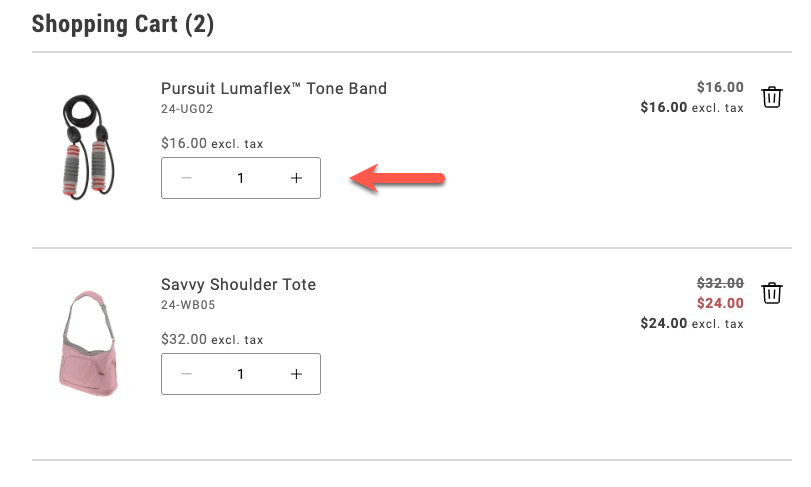
*Stepper quantity selector*
In this task, you'll change the quantity selector to a dropdown menu. The dropdown allows shoppers to select a maximum of 20 items.
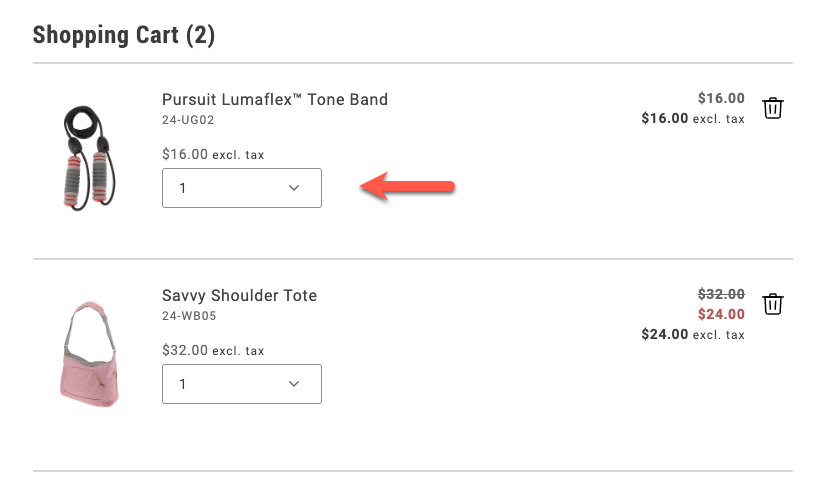
*Dropdown quantity selector*
1. Navigate to the `blocks/commerce-cart/commerce-cart.js` file and enable the dropdown selector by adding the following lines to the `provider.render(CartSummaryList)` method:
```js
quantityType: 'dropdown',
dropdownOptions,
```
The `quantityType` property specifies the type of quantity selector to use. The `dropdownOptions` property specifies the values to display in the dropdown. It is defined in the next step.
1. Define the `dropdownOptions` constant at the top of the file, in the `export default async function decorate(block){}` statement.
```js
const DROPDOWN_MAX_QUANTITY = 20;
const dropdownOptions = Array.from(
{ length: parseInt(DROPDOWN_MAX_QUANTITY, 10) },
(_, i) => {
const quantityOption = i + 1;
return {
value: `${quantityOption}`,
text: `${quantityOption}`,
};
}
);
```
This code creates an array of objects with `value` and `text` properties. The `value` property is the quantity value, and the `text` property is the text displayed in the dropdown.
1. Save the file and generate the page to see the changes.
### 2. Display savings as a percentage or a fixed amount
In order to encourage shoppers to buy more, you can display the savings they'll get by purchasing more items. You can display the savings on an item that's on sale as a percentage or as a fixed amount.
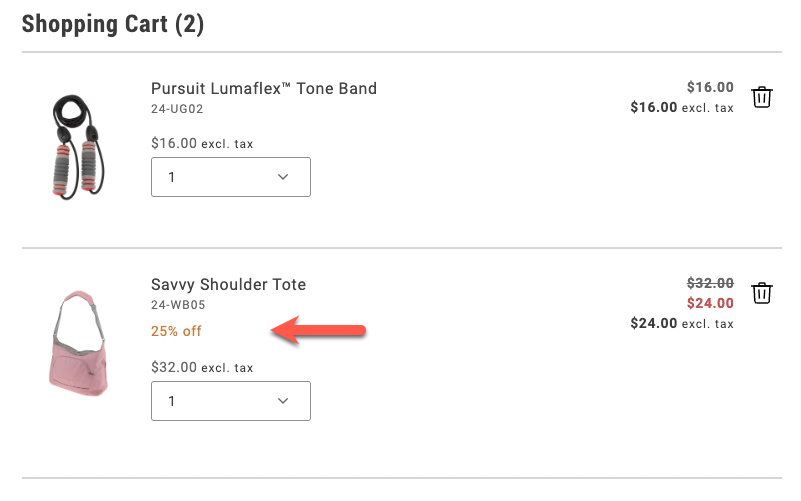
*Savings expressed as a percentage*
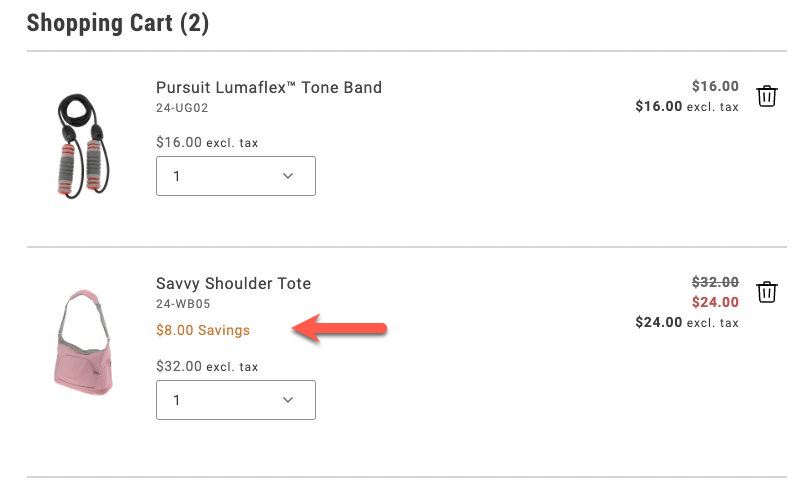
*Savings expressed as a total*
1. Add the following lines to the `provider.render(CartSummaryList)` method, below the `dropdownOptions,` line:
```js
showDiscount: true,
//showSavings: true
```
Comment out one of the lines to choose between displaying the discount as a percentage or a fixed amount.
1. Save the file and generate the page to see the changes.
### 3. Configure the savings display from the Cart content document
To allow a merchandiser or other non-developer to configure how to display savings values, you need to make more changes to the `commerce-cart.js` file and the relevant content documents. For guidance on starter content and the Sidekick browser extension, review /get-started/.
1. Comment out the savings properties from the `provider.render(CartSummaryList)` method.
```js
//showDiscount: true,
//showSavings: true
```
1. Add the following lines to the constant definitions in the `export default async function decorate(block){}` statement:
```js
'show-discount': showDiscount = 'false',
'show-savings': showSavings = 'false',
```
1. Add new lines in the `provider.render(CartSummaryList)` method to check whether `showDiscount` or `showSavings` is set to `true`:
```js
showDiscount: showDiscount === 'true',
showSavings: showSavings === 'true',
```
1. Save the file. When you generate the page, discounts are not displayed because the default values are `false`.
1. Find the `cart` content document in your site's content folder, and add two rows to the Commerce Cart table that set the visibility values for these properties.
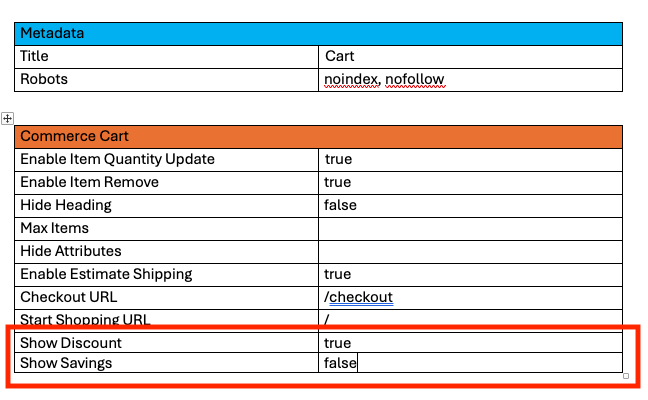
*Commerce Cart table*
Set the values of the Show Discount and Show Savings rows to either `true` or `false`.
1. Preview the changes with the Sidekick browser extension. Then publish the changes to your staging or production environment.
## Related
- [Cart containers](https://experienceleague.adobe.com/en/tools/commerce-storefront/dropins/cart/containers/) — reference for the cart summary containers you configured.
- [Slots](https://experienceleague.adobe.com/en/tools/commerce-storefront/dropins/cart/slots/) — extend these containers with custom UI.
---
# Create your first commerce page
Create a complete commerce page in minutes by building a category page. This hands-on how-to introduces you to the three essential building blocks—page metadata, commerce blocks, and section styling—by using them to build a real page.
## How-to: Create a category page
### 1. Create a new document
In the Document Authoring tool, create a new document named `dresses`.
### 2. Add page metadata
**Page metadata** controls page-level settings like the browser tab title, SEO rules, and caching behavior. You configure it using a special table at the top of your document. (See [all page metadata options](https://experienceleague.adobe.com/en/tools/commerce-storefront/merchants/blocks/page-metadata/) for advanced configuration.)
Create a metadata table at the top of your document:
| metadata | |
| --- | --- |
| Title | Dresses |
| Description | Shop women's dresses in the latest styles, from casual to formal. |
| Cache Control | max-age=3600 |
These settings give the page a clear title and description for search results, and let it stay cached since a category listing doesn't change on every request.
### 3. Add the Product List Page block
**Commerce blocks** are pre-built components that add shopping functionality to your pages (like product listings, carts, and checkout). You add them using tables where the table name identifies the block and the rows configure its behavior. (See [all commerce blocks](https://experienceleague.adobe.com/en/tools/commerce-storefront/merchants/blocks/) for the complete list.)
Create a table with the Product List Page block and the category it should display:
| product-list-page | |
| --- | --- |
| urlPath | /women/dresses |
This tells the block which category from your catalog to show on this page. Replace `/women/dresses` with a real category path from your own catalog — the block still renders with the placeholder path, but shows zero results if it doesn't match a category you actually have.
### 4. Add section metadata
**Section metadata** controls the visual styling of page sections (like background colors and layouts). You add a section metadata table after the content you want to style. (See [all section metadata styles](https://experienceleague.adobe.com/en/tools/commerce-storefront/merchants/blocks/section-metadata/) for layout options.)
Below the Product List Page block, add a section metadata table:
| section-metadata | |
| --- | --- |
| Style | light |
This applies a light background to the category listing section.
### 5. Preview and publish
Preview your page to verify everything looks correct, then publish it to make it live.
## Complete page structure
Your document contains three tables in this order:
1. **metadata** table (Title, Description, Cache Control)
2. **product-list-page** block table (urlPath)
3. **section-metadata** table (Style: light)
## Troubleshooting
**Block not appearing?** Verify the block name is `product-list-page` (kebab-case).
**Page loads but shows zero results?** Check that `urlPath` matches a real category path in your catalog — the block renders normally either way, but has nothing to display if the path doesn't match.
**Changes not visible?** Wait a moment for cache to clear, then hard refresh the page (Cmd+Shift+R on Mac, Ctrl+Shift+R on Windows).
---
# Create a page experiment
Create an alternate version of a storefront page so your team can compare it with the original in an A/B experiment.
## Before you begin
- Choose the original page and one change to test.
- Ask your developer to confirm that the Experimentation plugin is configured for your storefront, including preview controls, measurement, and any consent requirements.
- Agree with your team on the experiment name, success measure, and launch process.
> This procedure prepares and previews page variants. It does not configure the plugin, define your measurement strategy, or launch an experiment automatically. Your team's implementation controls those details.
## Create and connect the variant
1. Duplicate the original page in Document Authoring and give the copy a distinct path, such as `/campaigns/hero-variant`.
1. Make the content change you want to test on the copied page.
1. Preview the variant and confirm that it works on its own.
1. Open the original page and add the experiment properties to its existing metadata table.
| metadata | |
| --- | --- |
| Experiment | hero-test |
| Experiment Variants | /campaigns/hero-variant |
Replace `hero-test` with your agreed experiment name and `/campaigns/hero-variant` with your variant's path. Merge the first-row cells in the document. For multiple variants, use the comma-separated paths required by your plugin configuration.
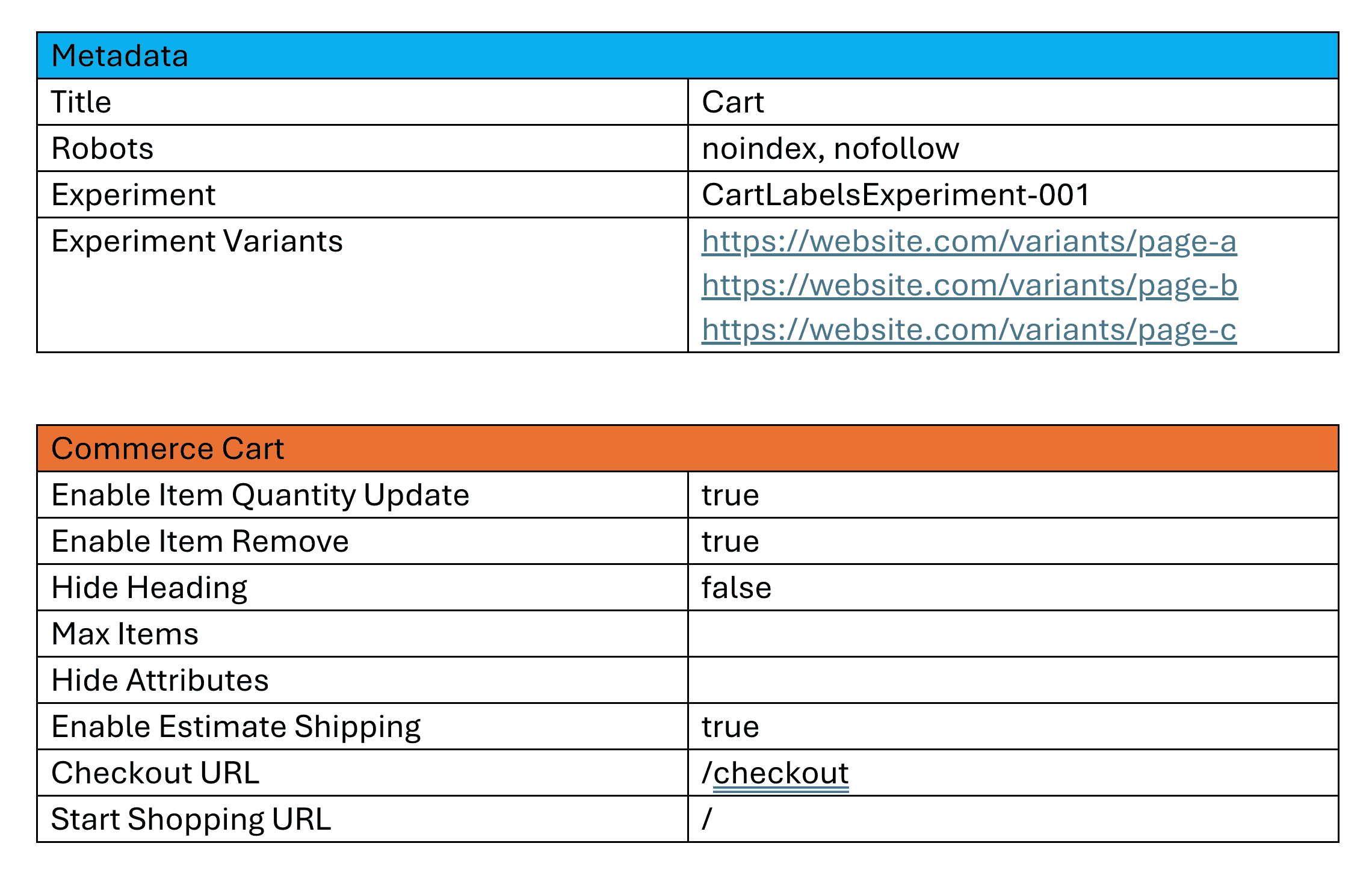
*Experiment properties in a page*
1. Preview the original page using AEM Sidekick and use your site's experimentation preview controls to compare the original and variant.
## Check the result
Confirm that each version shows its intended content and that shopping controls still work. If you cannot select variants in preview, ask your developer to check the preview integration before continuing.
Follow your team's launch and measurement process before publishing an active experiment. For plugin configuration, see https://github.com/adobe/aem-experimentation. To change labels in a variant, follow [Test alternate storefront labels](https://experienceleague.adobe.com/en/tools/commerce-storefront/how-tos/test-alternate-storefront-labels/).
---
# Customize AddressForm layout
The AddressForm container provides a highly configurable and customizable layout for seamless integration. The sorting of address attributes is managed through the Adobe Commerce Admin settings, giving flexibility in how data fields are displayed.
## What you'll edit or create
- Edit the address styles — `blocks/commerce-addresses/commerce-addresses.css`
- Edit the `.account-address-form` grid rules
- Edit the `grid-template-columns` property
### Layout Customization Example
The following examples show how to adjust the https://github.com/hlxsites/aem-boilerplate-commerce/blob/main/blocks/commerce-addresses/commerce-addresses.css block CSS in a boilerplate environment to customize the address form layout.
In the default layout, some fields are half width, while others take up the whole width.
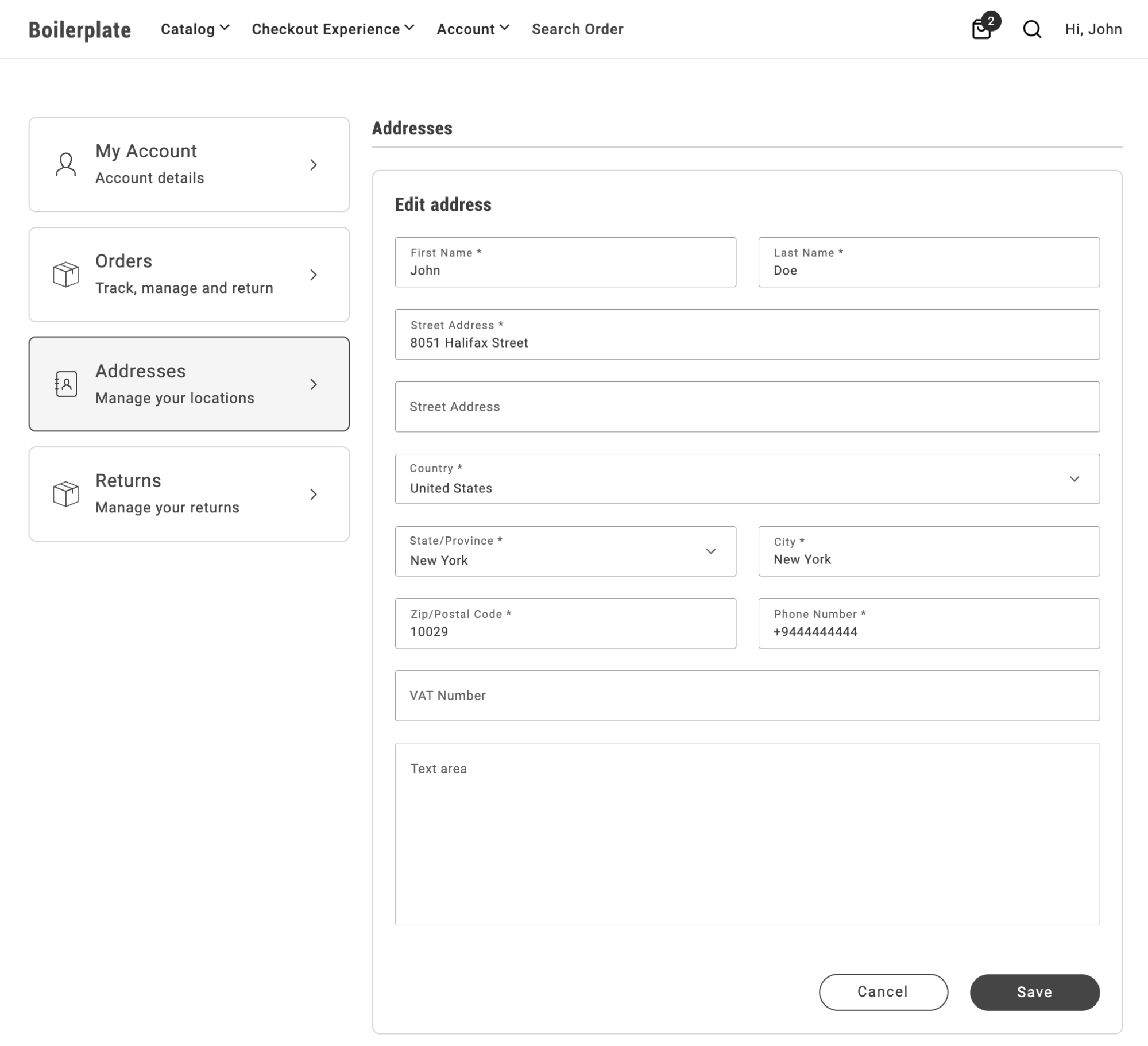
*Default layout of the AddressForm container*
To set all fields to half width, add the following CSS rule to the `storefront-addresses` block:
```css
.commerce-addresses .account-address-form {
grid-template-columns: repeat(2,1fr);
}
```
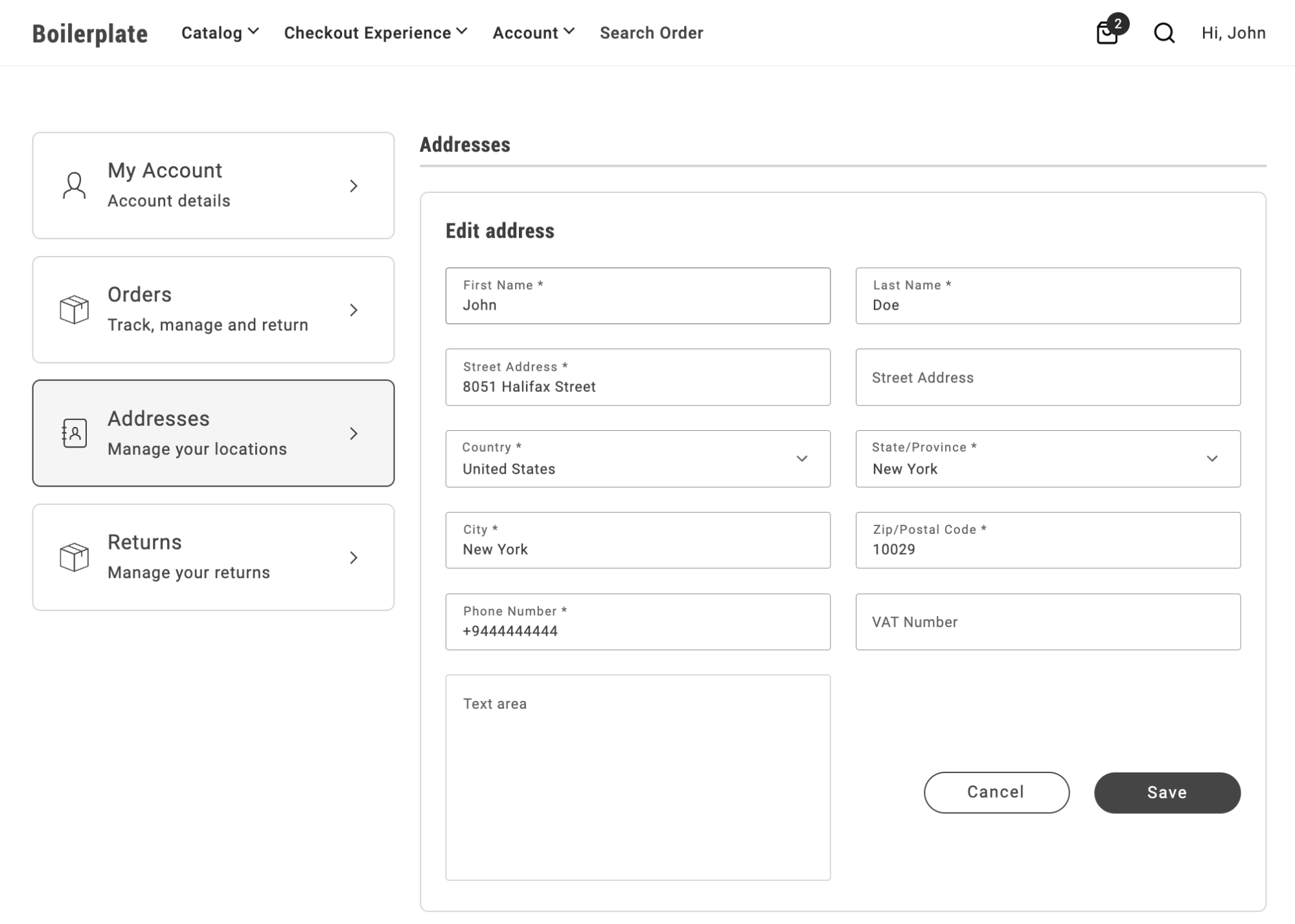
*Two column layout of the AddressForm container*
To set the text area and button group to 100% width while keeping the other fields at half width:
```css
.commerce-addresses .account-address-form div.account-address-form__field--test_text_area,
.commerce-addresses .account-address-form div.account-address-form-wrapper__buttons {
grid-column: span 2;
}
```
Notice that the CSS selector includes the modifier `--test_text_area`, allowing you to target a specific field by attribute code.
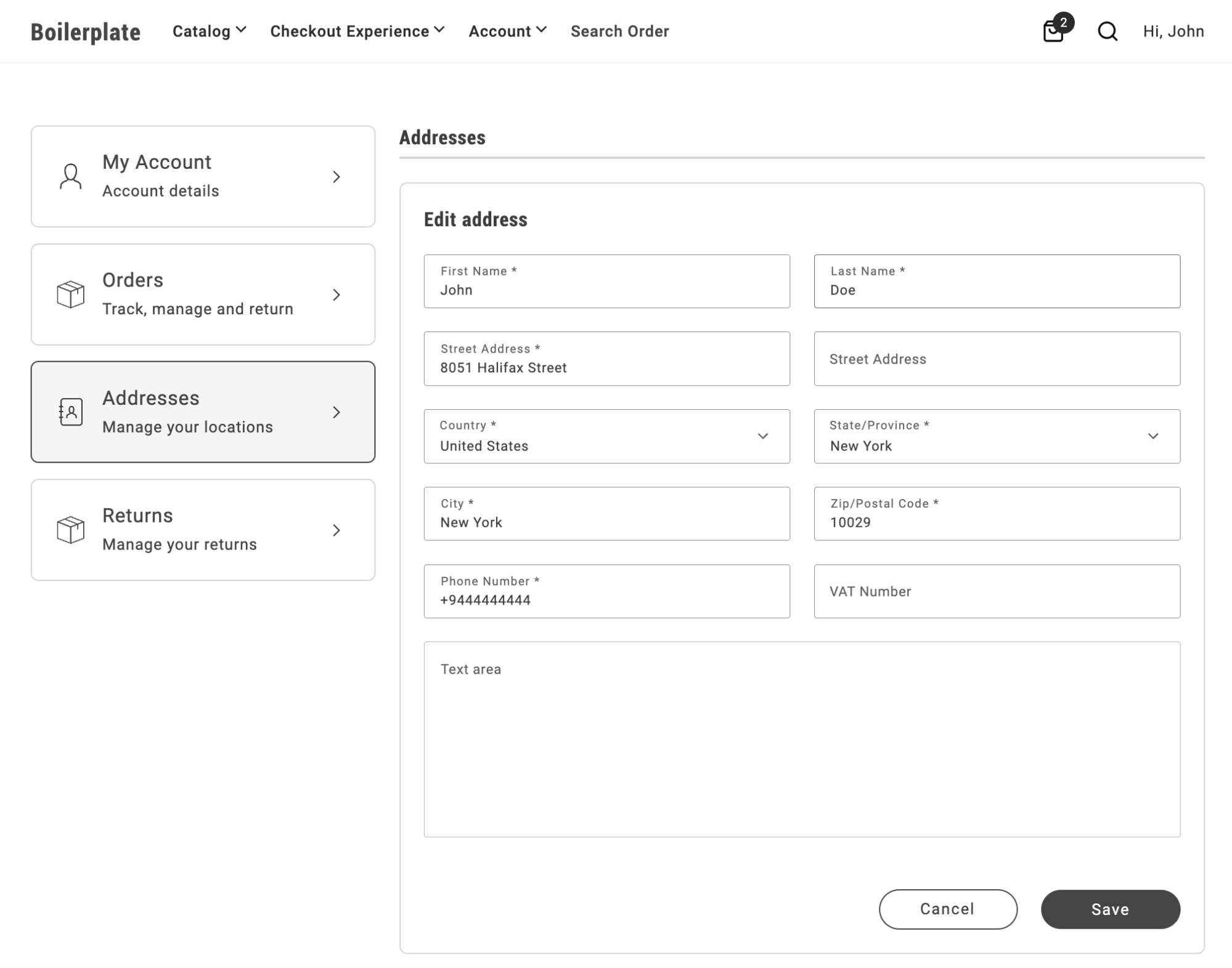
*Two column layout with full width text area*
To create a three-column layout with a full-size text area and button area, set the grid template columns to `repeat(3,1fr)`:
```css
.commerce-addresses .account-address-form {
grid-template-columns: repeat(3,1fr);
}
.commerce-addresses .account-address-form div.dropin-field {
grid-column: span 1;
}
.commerce-addresses .account-address-form div.account-address-form__field--test_text_area,
.commerce-addresses .account-address-form div.account-address-form-wrapper__buttons {
grid-column: span 3;
}
```
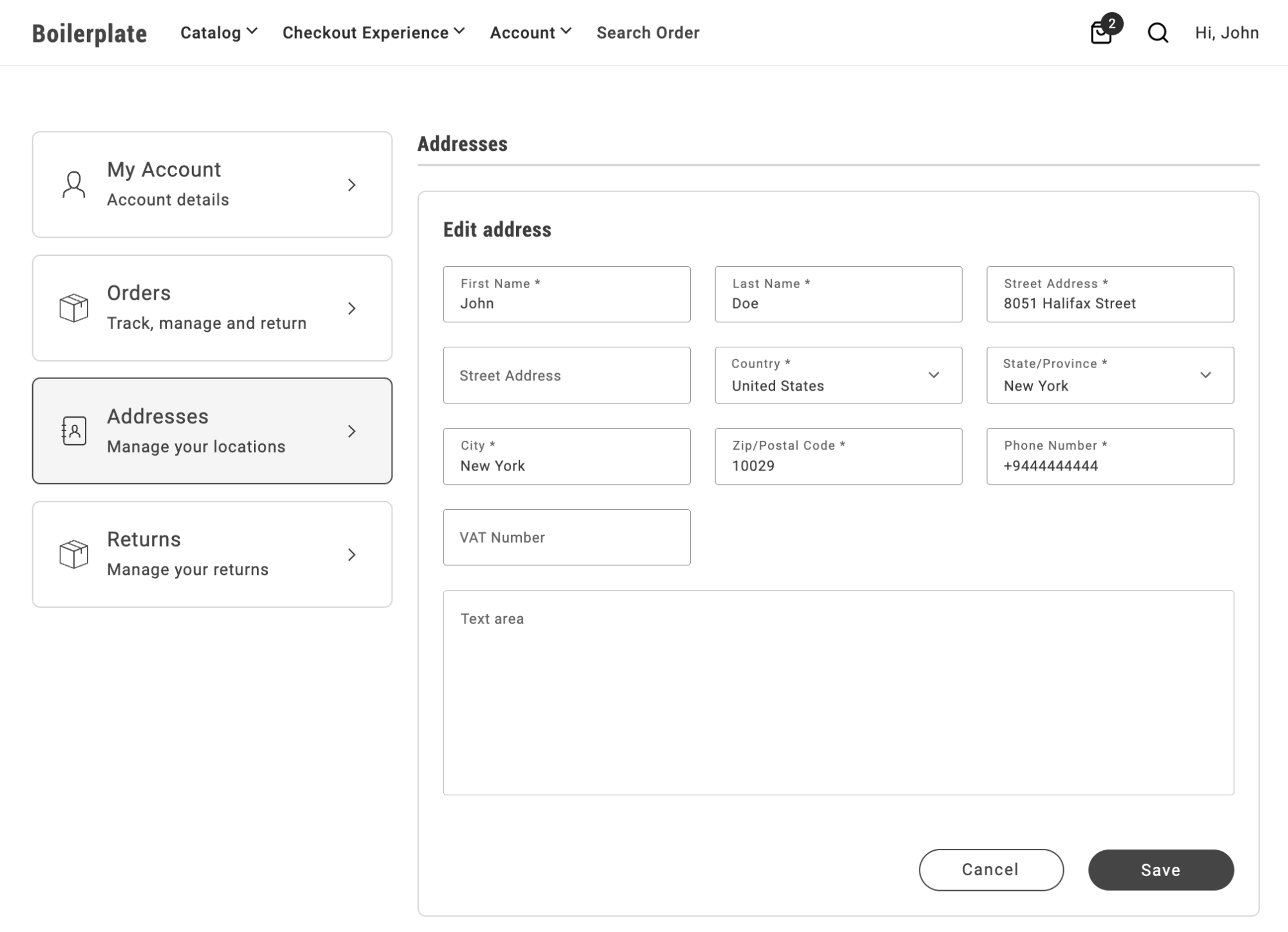
*Three column layout with full width text area*
## What you'll build
By the end of this how-to, you'll have:
- A one-column AddressForm layout for the fields that default to 50% width, using a CSS override you add to the `commerce-addresses` block.
- A two-column AddressForm layout with the text area and button row spanning the full width, using `grid-template-columns` and the `account-address-form-wrapper__buttons` class.
- A three-column AddressForm layout using the same technique, for storefronts that want more fields per row.
The visual layout of the form, including input widths (such as 50% or 100% to position multiple inputs on the same line), is controlled by CSS. This enables integrators to tailor the form's appearance by applying custom CSS rules.
By default, the first name and last name fields in the address form are set to 50% width. The display is controlled through CSS, as the form is implemented using a grid layout:
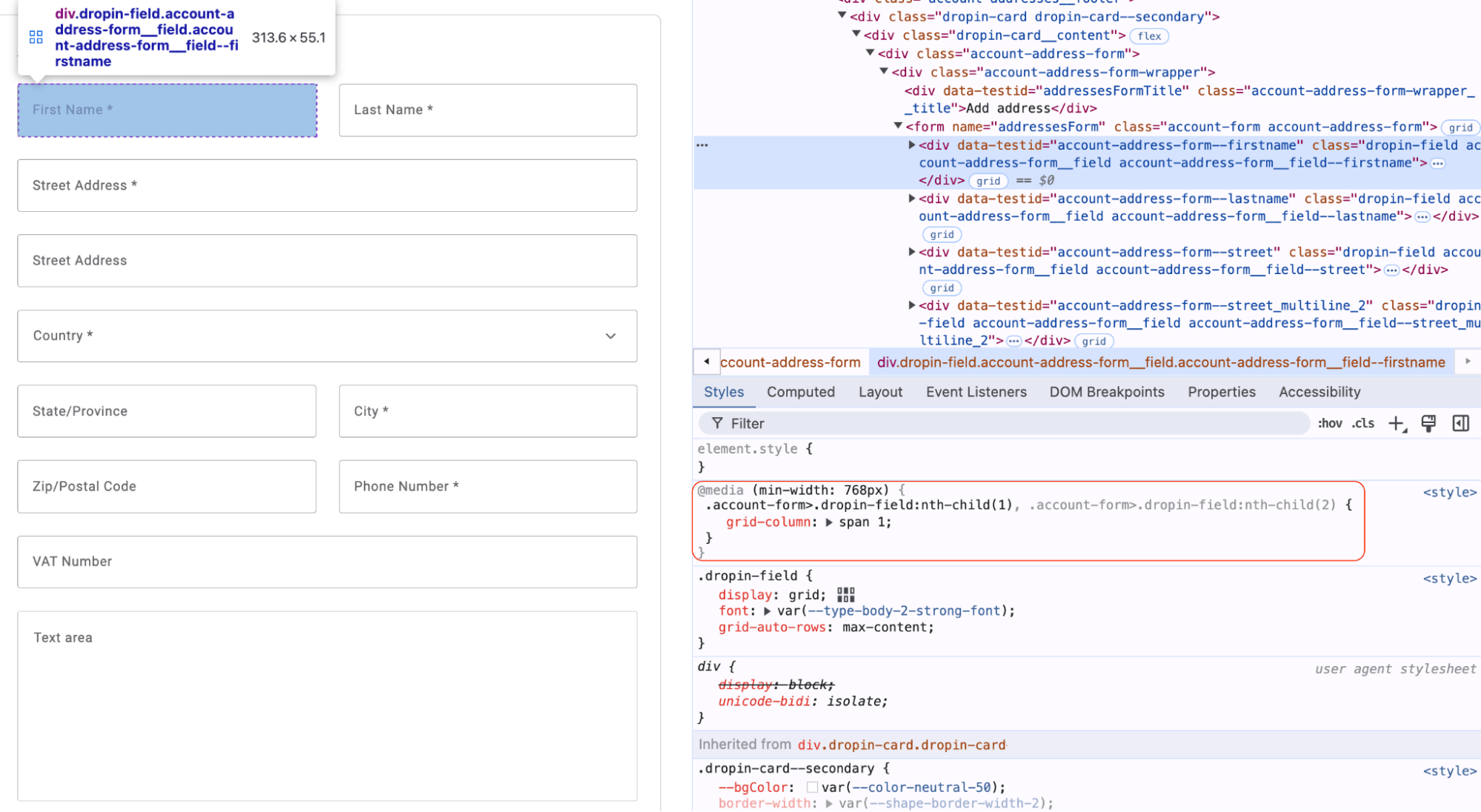
*Default AddressForm container*
To modify the layout and render these fields as full-width, create custom CSS rules at the boilerplate level and use them to override default container CSS:
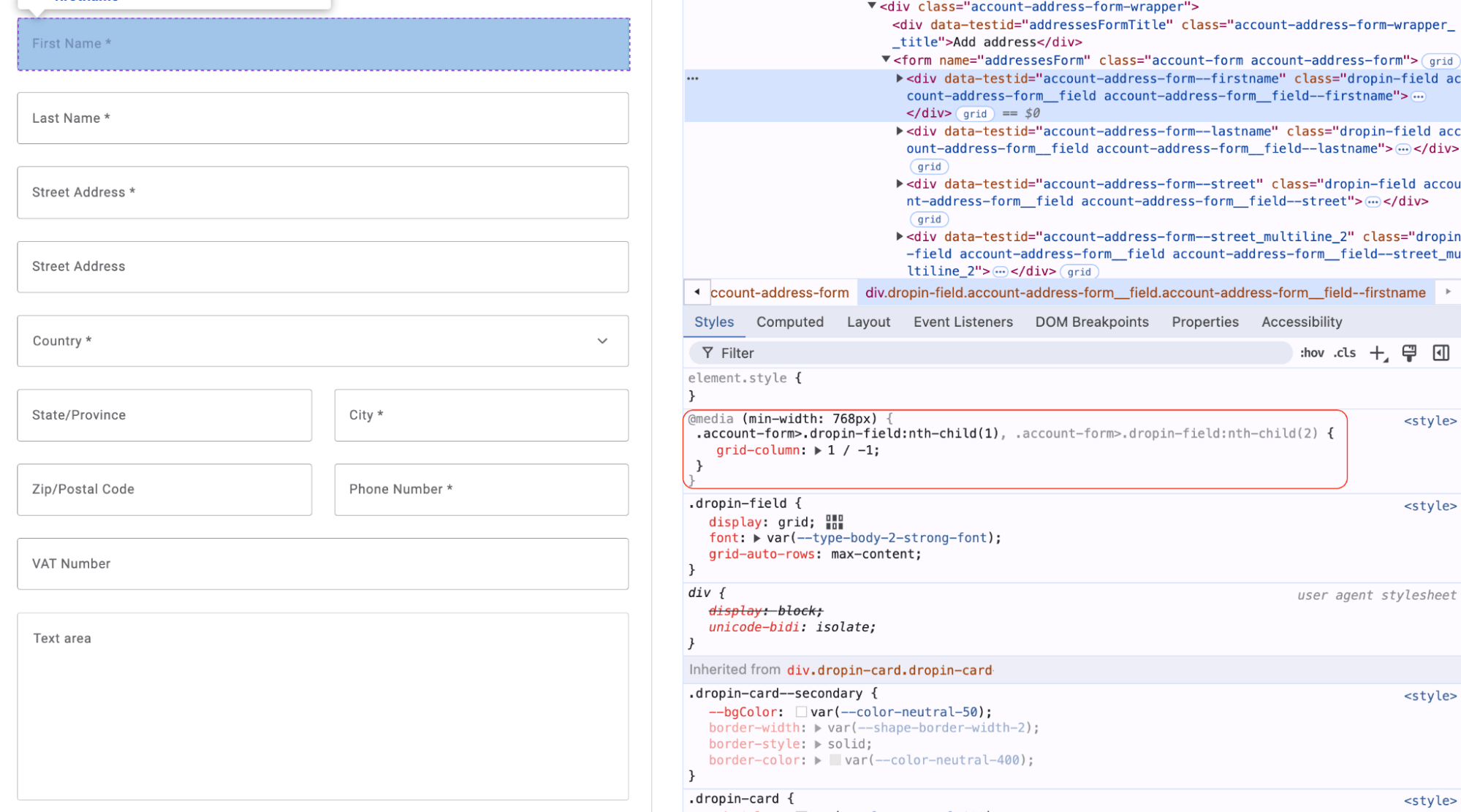
*One column AddressForm container*
Using this approach, you can easily customize the address form layout during the integration process, such as implementing a three-column layout to display three fields in a row. These adjustments require only basic CSS knowledge for effective customization.
This approach is fully applicable to address forms in all views of the Addresses container, as it utilizes the AddressForm container internally.
## Related
- [AddressForm container](https://experienceleague.adobe.com/en/tools/commerce-storefront/dropins/user-account/containers/address-form/) — reference for the form you customized.
- [Slots](https://experienceleague.adobe.com/en/tools/commerce-storefront/dropins/user-account/slots/) — the slot system used for layout changes.
---
# Enable product variation updates in cart
The cart and mini cart drop-ins already include an **Edit** button that lets shoppers change a product's size, color, or other variation options without leaving the cart. This how-to shows you how to turn that feature on or off through AEM block configuration.
## What you'll edit or create
- Edit the `enable-updating-product` block property
- Edit the `commerce-cart` block
- Edit the `commerce-mini-cart` block
## What you'll build
By the end of this how-to, you'll have:
- An `enable-updating-product` toggle set on the `commerce-cart` and `commerce-mini-cart` AEM blocks that turns the Edit button on cart items on or off.
- An Edit button that opens a mini Product Detail Page modal, letting shoppers change size, color, or other variation options without leaving the cart.
- Confirmation messages that appear in both the cart and mini cart notification areas after a successful update.
## How it Works
The **Edit** button feature is controlled by a configuration flag (`enable-updating-product`) that can be set on both the `commerce-cart` and `commerce-mini-cart` blocks in AEM. When activated, it opens a modal interface with a mini Product Detail Page (PDP) that allows shoppers to modify their selected options contextually.
### Cart
In the `commerce-cart.js` implementation, the code checks for this flag and conditionally renders an **Edit** button in the `Footer` slot for configurable products:
```javascript
// First, the configuration is read from the block with a default of 'false'
const {
'hide-heading': hideHeading = 'false',
'max-items': maxItems,
// ... other config properties ...
'checkout-url': checkoutURL = '',
'enable-updating-product': enableUpdatingProduct = 'false',
} = readBlockConfig(block);
// Later in the code, inside the Footer slot
if (ctx.item?.itemType === 'ConfigurableCartItem' && enableUpdatingProduct === 'true') {
const editLink = document.createElement('div');
editLink.className = 'cart-item-edit-link';
UI.render(Button, {
children: placeholders?.Global?.CartEditButton,
variant: 'tertiary',
size: 'medium',
icon: h(Icon, { source: 'Edit' }),
onClick: () => handleEditButtonClick(ctx.item),
})(editLink);
ctx.appendChild(editLink);
}
```
When a shopper clicks the **Edit** button, a modal opens with a mini-PDP interface that allows them to modify their product options. An auto-dismissing notification appears after a successful update.
### Mini Cart
Similarly, in the `commerce-mini-cart.js` implementation, the code uses the same configuration flag to determine whether to display an **Edit** button for each configurable product in the mini-cart, implementing it in the `Thumbnail` slot:
```javascript
// First, the configuration is read from the block with a default of 'false'
const {
'start-shopping-url': startShoppingURL = '',
'cart-url': cartURL = '',
'checkout-url': checkoutURL = '',
'enable-updating-product': enableUpdatingProduct = 'false',
} = readBlockConfig(block);
// Later in the code, inside the Thumbnail slot
if (item?.itemType === 'ConfigurableCartItem' && enableUpdatingProduct === 'true') {
const editLinkContainer = document.createElement('div');
editLinkContainer.className = 'cart-item-edit-container';
const editLink = document.createElement('div');
editLink.className = 'cart-item-edit-link';
UI.render(Button, {
children: placeholders?.Global?.CartEditButton,
variant: 'tertiary',
size: 'medium',
icon: h(Icon, { source: 'Edit' }),
onClick: () => handleEditButtonClick(item),
})(editLink);
editLinkContainer.appendChild(editLink);
ctx.appendChild(editLinkContainer);
}
```
When enabled, this provides a convenient modal-based editing experience. Success messages appear in both the mini-cart and main cart notification areas simultaneously, ensuring consistent user feedback across all cart interfaces.
## Configuration Steps
To modify this feature's configuration, follow these steps:
### 1. Configure the Cart Summary Block
The `enable-updating-product` property is *set to `false` by default* in the cart block, the same as in the mini-cart block. If you want to enable the **Edit** button:
1. In your AEM authoring environment, navigate to the page containing your `commerce-cart` block.
2. Select the `commerce-cart` block and open its properties dialog.
3. Locate the existing property with the *Key* `Enable Updating Product`.
4. Change its *Value* to `true` to enable the feature.
5. Save the changes.
6. Preview the changes by clicking the **Preview** button.
7. Publish the changes by clicking the **Publish** button.
> The configuration is already provided in the content block, so you don't need to add a new property - just modify the existing one as needed.
### 2. Configure the Mini Cart Block
The `enable-updating-product` property is *also set to `false` by default* in the mini-cart block. If you want to enable it:
1. In your AEM authoring environment, navigate to the page or header that contains your `commerce-mini-cart` block.
2. Select the `commerce-mini-cart` block and open its properties dialog.
3. Locate the existing property with the *Key* `Enable Updating Product`.
4. Change its *Value* to `true` to enable the feature.
5. Save the changes.
6. Preview the changes by clicking the **Preview** button.
7. Publish the changes by clicking the **Publish** button.
### 3. Example Block Configurations
Here's how your block configuration should look like:
**Cart Block (with Edit button enabled):**
| Key | Value |
| :------------------------ | :---- |
| `Enable Updating Product` | `true`|
| `Checkout URL` | `/checkout` | *(Example of another common property)*
**Mini Cart Block (Disabled by Default):**
| Key | Value |
| :------------------------ | :---- |
| `Enable Updating Product` | `false`|
| `Checkout URL` | `/checkout` | *(Example of another common property)*
> The property appears as `Enable Updating Product` (with spaces) in the AEM properties dialog, but is converted to kebab-case (`enable-updating-product`) when processed by the code.
## Testing the Configuration
After configuring the feature, you should test it to ensure it's working as expected:
1. Add a configurable product to your cart.
2. View your cart page:
- If enabled, you should see an **Edit** button for each configurable product.
- If disabled, no **Edit** button should appear.
3. Open the mini cart:
- If enabled, you should see an `Edit` option for configurable products.
- If disabled, no `Edit` option should be visible.
## Feature Behavior
When the **Edit** button is clicked, the following happens:
1. **Modal Interface**: A mini-PDP modal opens directly over the current page, maintaining user context.
2. **Pre-populated Options**: The modal displays the product with current selections already chosen.
3. **In-place Updates**: Changes are applied to the existing cart item.
4. **Comprehensive Messaging**: Success notifications appear in:
- The main cart notification area (if present)
- The mini-cart message system
- Both locations simultaneously for consistent feedback
5. **Auto-dismissing Notifications**: Messages automatically disappear for better UX.
> Using modals ensures users don't lose their shopping context when making product modifications.
With this simple configuration, you can provide your shoppers with a more convenient shopping experience by allowing them to modify product variations directly from the cart.
## Related
- [Cart overview](https://experienceleague.adobe.com/en/tools/commerce-storefront/dropins/cart/) — other cart configuration options.
- [Product Details Page](https://experienceleague.adobe.com/en/tools/commerce-storefront/dropins/product-details/) — the drop-in behind the in-cart edit modal.
---
# Feature a product on a campaign page
Display one product's shopping controls directly on a campaign page by adding the Product Details block and the product's stock keeping unit (SKU).
## Before you begin
Choose an existing product from the catalog available to your storefront. Find its SKU under **Catalog > Products** in Admin, or ask your developer. Your storefront must already support the Product Details block.
> Prefer linking to the product's existing page when that meets your campaign's needs. Use this procedure when shoppers need the product's purchasing controls on the campaign page itself.
## Add the product
1. Create or open your campaign document in Document Authoring, for example, `/campaigns/new-arrivals`.
1. Insert a table where the product should appear. Enter `product-details` in its first row. No settings rows are needed in this block table.
1. Find the page's metadata table and add a `sku` row. If there is no metadata table, follow [Add page metadata](https://experienceleague.adobe.com/en/tools/commerce-storefront/how-tos/add-page-metadata/) to create one.
| metadata | |
| --- | --- |
| sku | HOODIE-001 |
Replace `HOODIE-001` with your product's SKU. Merge the cells in the first row of the metadata table in your document, and retain its other properties.
1. Select the paper-plane button, then **Preview**, to open the campaign page.
1. Check the product's image, name, price, and options. Publish the page when the result looks right.
## Check the result
Open the published campaign page and confirm that it displays the selected product with purchasing controls. If the wrong product appears, check the `sku` metadata value against your catalog.
For changes to the product page shared by your catalog, use [Add supporting content to product pages](https://experienceleague.adobe.com/en/tools/commerce-storefront/how-tos/add-supporting-content-to-product-pages/) instead.
---
# Federated search
A common requirement for storefronts is to provide a unified search experience that returns both content (blog posts, articles, pages) and commerce (products) results from a single search input. This how-to shows you how to implement a federated search approach that performs parallel searches against a content index and the Adobe Commerce GraphQL API.
## What you'll edit or create
- Create the content index config — `helix-query.yaml`
- Create the combined-search block — `blocks/combined-search/combined-search.js`
- Create the combined-search styles — `blocks/combined-search/combined-search.css`
- Create the `/search` page
## What you'll build
By the end of this how-to, you'll have:
- A `helix-query.yaml` content index configuration that indexes your site's blog posts and pages for search.
- A `combined-search` block (`blocks/combined-search/combined-search.js`) that runs parallel content and product searches using the Product Discovery drop-in's `search()` function, and displays the results in a tabbed interface.
- A `/search` page that hosts the `combined-search` block.
## Prerequisites
Before starting this how-to, make sure you have:
- A working [Commerce storefront](https://experienceleague.adobe.com/en/tools/commerce-storefront/get-started/create-storefront/) on Edge Delivery Services
- Basic understanding of JavaScript and asynchronous operations
- Familiarity with [customizing blocks](https://experienceleague.adobe.com/en/tools/commerce-storefront/blocks/customize-blocks/) in your code repository
- Access to configure content indexing for your site (similar to [enrichment configuration](https://experienceleague.adobe.com/en/tools/commerce-storefront/setup/configuration/enrichment/))
- Adobe Commerce backend configured with product catalog
## Overview
Developing this federated search solution involves:
1. Creating an index for the pages and content of your site
2. Building a custom search block that fetches both content and commerce data
3. Implementing a tabbed UI to display results separately
4. Processing search queries in parallel for optimal performance
This method keeps content and commerce searches distinct while delivering a unified experience to the user.
> **When to use this strategy** This federated search strategy is ideal for scenarios where you need quick implementation, have straightforward search requirements, or want to maintain separate control over content and commerce search logic.
### 1. Step 1: Create the Content Index Configuration
Create a `helix-query.yaml` file in the root of your repository with this configuration:
```yaml title="helix-query.yaml"
version: 1
indices:
content:
target: /content-index.json
exclude:
- '/blog/index'
include:
- /blog/**
- /pages/**
properties:
title:
select: head > meta[property="og:title"]
value: |
attribute(el, 'content')
description:
select: head > meta[name="description"]
value: |
attribute(el, 'content')
lastModified:
select: none
value: |
parseTimestamp(headers['last-modified'], 'ddd, DD MMM YYYY hh:mm:ss GMT')
content:
select: main
value: |
textContent(el)
```
**What this configuration does:**
This configuration tells Edge Delivery Services to index your site's content pages automatically. When you publish pages, the system:
- Crawls pages matching `/blog/**` and `/pages/**` (excludes `/blog/index`)
- Extracts metadata (`title`, `description`, `content`) from each page
- Generates a searchable JSON index at `/content-index.json`
**Key fields:**
- `select`: CSS selector or metadata to extract
- `value`: Extraction method (for example, `attribute()`, `textContent()`)
- See the https://www.aem.live/developer/indexing for advanced property configurations
Commit and push `helix-query.yaml`. The index generates automatically when you publish pages.
> **Alternative: Configuration Service**
Instead of a GitHub file, you can use the Configuration Service API to manage the configuration remotely at:
```
https://admin.hlx.page/config/[ORG]/sites/[SITE]/content/query.yaml
```
Replace `[ORG]` with your GitHub organization and `[SITE]` with your repository name. See the https://www.aem.live/docs/config-service-setup for authentication details.
If you have already configured [enrichment](https://experienceleague.adobe.com/en/tools/commerce-storefront/setup/configuration/enrichment/), add the `content` index to your existing `query.yaml` file.
**Verify:** After publishing pages, access `https://[your-domain]/content-index.json` to see the indexed pages as JSON.

### 2. Step 2: Create Sample Content Pages
To validate your federated search setup, publish content pages that can be indexed. For example, create and publish blog posts in a `/blog` directory.
Create a few pages such as:
- `/blog/winter-collection`
- `/blog/summer-sale`
- `/blog/holiday-shopping-guide`
Here's an example of what your content page might look like:

> **Content tip** Include relevant keywords in your content that shoppers might search for. Since the content index stores the full text of your pages, well-written and relevant descriptions can significantly improve search results.
### 3. Step 3: Create the Combined Search Block
Next, create a custom block to perform the federated search. This block processes both the content and commerce searches using the [Product Discovery drop-in](https://experienceleague.adobe.com/en/tools/commerce-storefront/dropins/product-discovery/).
Create a new directory: `blocks/combined-search/`
Create `blocks/combined-search/combined-search.js`:
> **Full implementation** The code below shows the key concepts. For a complete working example with full rendering logic, see the https://gist.github.com/sirugh/6690b7ded67868f3b17d3c1b5a29dc76.
```javascript title="blocks/combined-search/combined-search.js"
/**
* Combined Search Block
* Performs parallel searches against content index and commerce search API
*/
// Import the search function from the Product Discovery drop-in
let contentIndex = null;
/**
* 1. Fetch and cache the content index
*/
async function getContentIndex() {
if (contentIndex) return contentIndex;
const response = await fetch('/content-index.json');
const data = await response.json();
contentIndex = data.data;
return contentIndex;
}
/**
* 2. Search the content index (client-side filtering)
*/
function searchContent(query, index) {
const searchTerm = query.toLowerCase();
return index.filter((item) => {
return item.title?.toLowerCase().includes(searchTerm)
|| item.description?.toLowerCase().includes(searchTerm)
|| item.content?.toLowerCase().includes(searchTerm);
});
}
/**
* 3. Search commerce products using the Product Discovery drop-in
*/
async function searchProducts(query) {
try {
const results = await search({
phrase: query || '',
currentPage: 1,
pageSize: 12,
filter: [
{ attribute: 'visibility', in: ['Search', 'Catalog, Search'] }
]
});
return results?.items || [];
} catch (error) {
console.error('Error searching for products:', error);
return [];
}
}
/**
* 4. Perform parallel searches and render results
*/
async function performSearch(query, block) {
// Perform both searches in parallel for optimal performance
const [contentIndex, products] = await Promise.all([
getContentIndex(),
searchProducts(query)
]);
// Filter content results client-side
const contentResults = searchContent(query, contentIndex);
// Render results (implementation details omitted - see reference link)
renderContentResults(contentResults, block.querySelector('.content-results'));
renderProductResults(products, block.querySelector('.product-results'));
}
/**
* 5. Initialize the block
*/
export default async function decorate(block) {
// Get search query from URL
const urlParams = new URLSearchParams(window.location.search);
const query = urlParams.get('q') || '';
// Build the UI with tabs for Products and Content
block.innerHTML = `
🔍
Products
Content
`;
// Safely set the search input value to prevent XSS
const searchInput = block.querySelector('.search-input');
searchInput.value = query;
// Setup event listeners for search and tabs (implementation details omitted)
setupSearchHandlers(block, performSearch);
setupTabs(block);
// Pre-fetch content index for faster subsequent searches
getContentIndex();
// If there's a query in URL, perform the search
if (query) {
performSearch(query, block);
}
}
// Helper functions: renderContentResults(), renderProductResults(), setupTabs(), setupSearchHandlers()
// See reference implementation for complete rendering and UI logic
```
**Key concepts:**
1. **Content index caching** (`getContentIndex`): The content index is fetched once and cached in memory for subsequent searches, improving performance.
2. **Client-side content search** (`searchContent`): Because the content index is a JSON file, it can be filtered client-side using the JavaScript `filter()` method. This search is fast and doesn't require additional API calls.
3. **Product search** (`searchProducts`): Products are searched using the Commerce [`search()` function](https://experienceleague.adobe.com/en/tools/commerce-storefront/dropins/product-discovery/functions/#search) from the Product Discovery drop-in, which handles the GraphQL query to Adobe Commerce. The `visibility` filter ensures only searchable products are returned.
4. **Parallel execution** (`performSearch`): Both searches execute in parallel using `Promise.all()`, ensuring that the slower query doesn’t delay the faster one.
5. **Tabbed UI**: Results are organized in separate tabs (Products and Content) for a clean user experience.
> **Customize search behavior** - Add additional filters (like category or price range)
- Adjust pagination with `pageSize`
- Add sorting options
- Customize the content search algorithm in `searchContent()`
- Modify the UI structure to display results differently (for example, in a single list instead of tabs).
### 4. Step 4: Add Styling for the Search Block
Create `blocks/combined-search/combined-search.css` and add the styles from the https://gist.github.com/sirugh/6690b7ded67868f3b17d3c1b5a29dc76.
### 5. Step 5: Create the Search Results Page
To host the combined search block, create a dedicated page in your project. Using your content authoring tool (for example, [DA.live](https://experienceleague.adobe.com/en/tools/commerce-storefront/merchants/quick-start/document-authoring/), Google Docs, SharePoint), add a new page at `/search`.

This addition creates a page that uses your `combined-search` block.
### 6. Step 6: Test Your Implementation
**Quick verification:**
1. **Content index**: Visit `https://[your-domain]/content-index.json` and verify that pages are indexed with metadata.
2. **Product search**: Navigate to `/search?q=winter` and check that the Products tab shows results with images, titles, and prices.
3. **Content search**: Try `/search?q=blog` and verify that the Content tab displays titles and descriptions.
4. **Search UI**: Type a query, press Enter, and confirm the URL updates with the `?q=` parameter and the tabs refresh.
5. **Edge cases**: Test empty results, special characters, and short queries (one to two characters).
**Expected result:**

## Complete Example
Here's a complete example of how the federated search works in practice:
**User Journey:**
1. Shopper types "winter" in the search box
2. System performs parallel searches:
- Content search finds blog posts about "Winter Collection 2024"
- Product search finds products tagged with "winter"
3. Results display in separate tabs:
- **Products Tab**: Displays winter jackets, boots, accessories
- **Content Tab**: Displays blog posts, buying guides, seasonal content


## Performance Considerations
> **Optimization tips** - The content index is fetched once and cached in memory
- Both searches run in parallel using `Promise.all()` for optimal speed
- Consider implementing debouncing for search-as-you-type functionality
- For large content indexes (>1MB), consider pagination or lazy loading
## Troubleshooting
### Common Issues
* **Content index returns 404 error**
> Verify that you've correctly configured the `query.yaml` file and that you've published pages that match your include patterns. The index is only generated after the configuration is in place and pages are published.
* **No products appear in search results**
> Check that your GraphQL endpoint is correctly configured. In the browser console, verify that the GraphQL query is executing without errors. Ensure your Adobe Commerce instance has products with the searched terms.
* **Content search returns too many irrelevant results**
> Improve the search algorithm in the `searchContent()` function. Consider implementing:
> - Ranking by relevance (title matches weighted higher than content matches)
> - Fuzzy matching for better results
> - Filtering out pages with `robots: noindex`
* **Search is slow or times out**
> - Check the size of your content index (should be under 5MB for good performance)
> - Ensure you're caching the content index properly (see `getContentIndex()` function)
> - Consider using a CDN to cache the content-index.json file
### Getting Help
If you encounter issues not covered here:
- Check the [FAQ section](https://experienceleague.adobe.com/en/tools/commerce-storefront/troubleshooting/faq/) for common storefront issues
- Review the [Blocks Reference](https://experienceleague.adobe.com/en/tools/commerce-storefront/blocks/) for block development patterns
- Consult the https://developer.adobe.com/commerce/webapi/graphql/ for query troubleshooting
## Summary
In this how-to, you learned how to:
- ✅ Configure a content index (for example, `helix-query.yaml`) to index pages for your site
- ✅ Create a custom combined search block that queries both content and commerce
- ✅ Implement parallel async searches for optimal performance
- ✅ Build a tabbed interface to organize and display federated search results
- ✅ Handle edge cases and provide a smooth user experience
You now have a fully functional federated search solution that combines content and commerce search in your storefront. This approach provides a simple yet effective way to help shoppers discover both products and content across your entire site.
The implementation is maintainable, performant, and can be extended with additional features like filtering, sorting, and advanced ranking algorithms as your requirements grow.
---
# Add gift options to PDP
The [`GiftOptions` container](https://experienceleague.adobe.com/en/tools/commerce-storefront/dropins/cart/containers/gift-options/) lets shoppers add gift wrapping or a personalized message from the product detail page. This how-to shows you how to render the container on a product details page (PDP) and carry the shopper's selections into the cart.
## What you'll edit or create
- Edit the `GiftOptions` container
- Edit the `onGiftOptionsChange` callback
- Edit the `addProductsToCart()` and `updateProductsFromCart()` calls
## What you'll build
By the end of this how-to, you'll have:
- The `GiftOptions` container rendered on the product detail page, using either cart item data or a manually composed configuration.
- Gift wrapping and message selections captured through the `onGiftOptionsChange` callback and stored until the shopper adds the item to the cart.
- The **Add to Cart** button extended to call `addProductsToCart` and then `updateProductsFromCart`, applying the saved gift options to the new cart item.
> This how-to is not a fully functional integration and should only be used as a reference.
## Step-by-step
The following steps describe how to render the `GiftOptions` container on the PDP page and apply the selected gift options to the cart when the product is added.
### 1. Import required modules
Import the `GiftOptions` container and `CartProvider`.
```js
```
### 2. Define gift options configuration for an item
In this step, we will define the gift options configuration for a specific item. This can be done in different ways, such as by fetching configurations from the backend using API methods or retrieving them from product data.
#### Example 1: Use `cartItem` data
Use this technique when the product has already been added to the cart, such as on the cart page:
```js
const cartItem = JSON.parse(
sessionStorage.getItem('DROPIN__CART__CART__DATA'),
)?.items?.find((el) => el.sku === product.sku);
```
#### Example 2: Use a custom integration configuration
This configuration can be composed using product data available on the PDP and a store configuration query.
:::tip
It is crucial that the manually-composed configuration matches the actual backend configurations. For example, the available gift wrappings must be fetched from the backend. Otherwise, they will not be applied correctly. The [`GiftOptions` container](https://experienceleague.adobe.com/en/tools/commerce-storefront/dropins/cart/containers/gift-options/) lists the relevant configuration screens in the Admin.
:::
```js
type ProductGiftOptionsConfig = {
giftWrappingAvailable: boolean;
giftMessageAvailable: boolean;
giftWrappingPrice?: Price;
giftMessage?: {
recipientName?: string;
senderName?: string;
message?: string;
};
productGiftWrapping: GiftWrappingConfigProps[];
};
const predefinedConfig = {
giftWrappingAvailable: true,
giftMessageAvailable: true,
productGiftWrapping: [
{
design: 'Glossy Print Paper',
uid: 'Mg==',
selected: false,
image: {
url: 'https://aemshop.example.com/media/wrapping/glossy.png',
design: 'Glossy Print Paper',
},
price: {
currency: 'USD',
value: 25,
},
},
{
design: 'Foil Finish Paper',
uid: 'NQ==',
selected: false,
image: {
url: 'https://aemshop.example.com/media/wrapping/random-grid.jpg',
design: 'Foil Finish Paper',
},
price: {
currency: 'USD',
value: 30,
},
},
{
design: 'Kraft Brown Paper',
uid: 'OA==',
selected: false,
image: {
url: 'https://mcstaging.aemshop.net/media/wrapping/brown-paper.jpg',
design: 'Kraft Brown Paper',
},
price: {
currency: 'USD',
value: 45,
},
},
],
};
```
### 3. Render the GiftOptions container
For custom integration, we must pass an item prop, which can be either a `cartItem` or a manually-composed gift options configuration. In addition, we need to pass the `onGiftOptionsChange` callback. When provided, the container will not automatically save the gift options. Instead, the integration layer must handle this. The callback receives the updated gift options whenever they change.
```js
CartProvider.render(GiftOptions, {
item: cartItem ?? predefinedConfig,
view: 'product',
onGiftOptionsChange: async (data) => {
console.info('onGiftOptionsChange :>> ', data);
if (data) {
sessionStorage.setItem('updatedGiftOptions', JSON.stringify(data));
}
},
})($giftOptions);
```
### 4. Update the Add to Cart button
At this stage, we extend the **Add to Cart** button functionality by calling the `updateProductsFromCart` API method provided by the cart drop-in component to apply gift options after adding the product to the cart.
> Gift options must be applied after adding the product to the cart. Adobe Commerce does not support applying gift options before adding the product.
```js
// Configuration - Button - Add to Cart
UI.render(Button, {
children: labels.PDP?.Product?.AddToCart?.label,
icon: Icon({ source: 'Cart' }),
onClick: async () => {
try {
addToCart.setProps((prev) => ({
...prev,
children: labels.Custom?.AddingToCart?.label,
disabled: true,
}));
// get the current selection values
const values = pdpApi.getProductConfigurationValues();
const valid = pdpApi.isProductConfigurationValid();
// add the product to the cart
if (valid) {
const { addProductsToCart, updateProductsFromCart } = await import(
'@dropins/storefront-cart/api.js'
);
await addProductsToCart([{ ...values }]).then(async (response) => {
const updatedGiftOptions = JSON.parse(
sessionStorage.getItem('updatedGiftOptions'),
);
if (!updatedGiftOptions) return;
const { items } = response;
const dropinCartData = items.find((el) => el.sku === values.sku);
const {
recipientName,
senderName,
message,
giftWrappingId,
isGiftWrappingSelected,
} = updatedGiftOptions;
const giftOptions = {
gift_message: {
to: recipientName,
from: senderName,
message,
},
gift_wrapping_id: isGiftWrappingSelected
? giftWrappingId
: null,
};
await updateProductsFromCart([
{
uid: dropinCartData.uid,
quantity: dropinCartData.quantity,
giftOptions,
},
]);
});
}
// reset any previous alerts if successful
inlineAlert?.remove();
} catch (error) {
// add alert message
inlineAlert = await UI.render(InLineAlert, {
heading: 'Error',
description: error.message,
icon: Icon({ source: 'Warning' }),
'aria-live': 'assertive',
role: 'alert',
onDismiss: () => {
inlineAlert.remove();
},
})($alert);
// Scroll the alertWrapper into view
$alert.scrollIntoView({
behavior: 'smooth',
block: 'center',
});
} finally {
addToCart.setProps((prev) => ({
...prev,
children: labels.PDP?.Product?.AddToCart?.label,
disabled: false,
}));
}
},
})($addToCart);
```
As a result of these customizations, the default `GiftOption` container is rendered as follows:
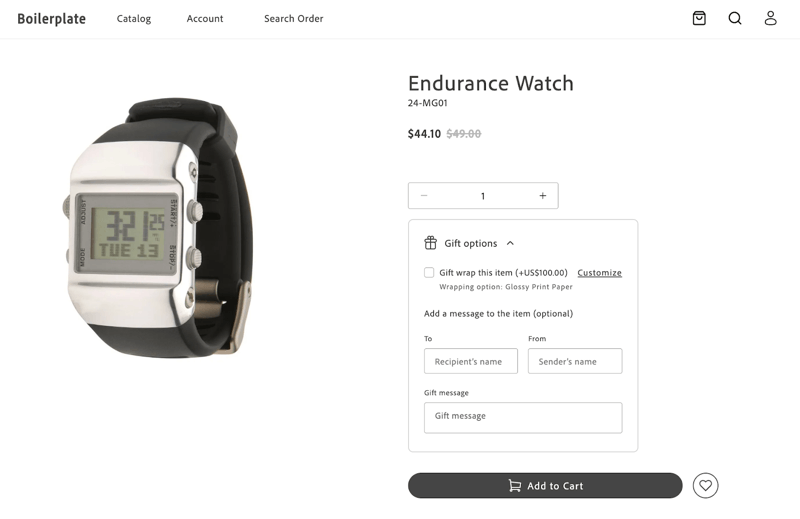
*Default GiftOption container*
When the shopper makes a selection, the container is rendered as follows:
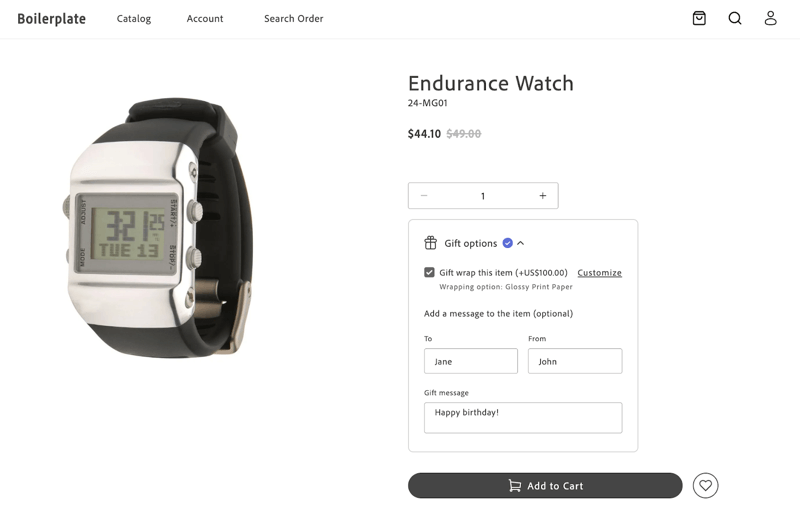
*Default GiftOption container*
After clicking **Add to Cart**, the product is added to the cart, and the selected gift options are applied. The cart page displays the applied gift options.
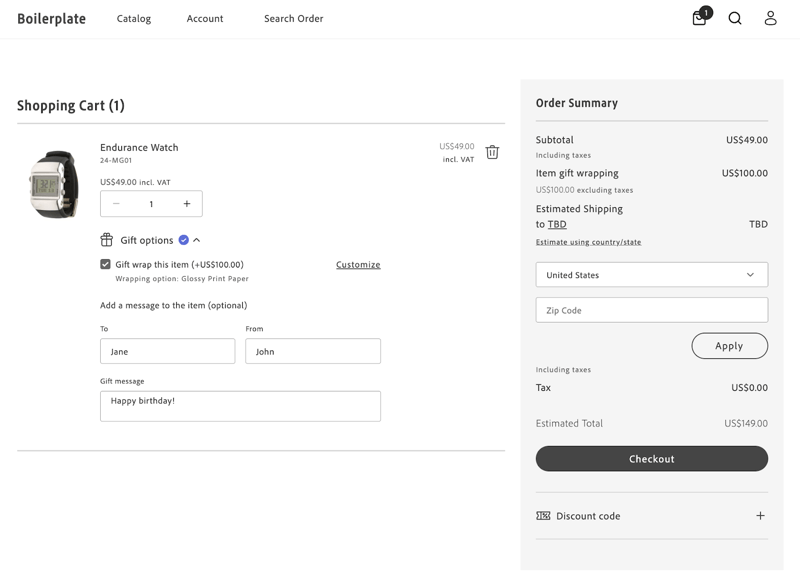
*Default GiftOption container*
## Related
- [Product Details slots](https://experienceleague.adobe.com/en/tools/commerce-storefront/dropins/product-details/slots/) — where the gift options mount on the PDP.
- [Cart overview](https://experienceleague.adobe.com/en/tools/commerce-storefront/dropins/cart/) — how gift selections flow into the cart.
---
# How-tos for authors and developers
Create commerce pages, update storefront content, or customize shopper features. Choose an author task to work with content and settings, or a developer task to change storefront code.
## For authors
Start here when your task involves authoring storefront content rather than changing code.
### Pages and blocks
| How-to | Result |
|--------|--------|
| [Create a commerce page](https://experienceleague.adobe.com/en/tools/commerce-storefront/how-tos/create-commerce-page/) | Build a category page with commerce blocks and metadata. |
| [Build a category page manually](https://experienceleague.adobe.com/en/tools/commerce-storefront/how-tos/manual-category-page/) | Author a category page and its search engine optimization metadata. |
| [Add a block to a page](https://experienceleague.adobe.com/en/tools/commerce-storefront/how-tos/add-block-to-page/) | Place and configure a supported Commerce or content block. |
| [Add page metadata](https://experienceleague.adobe.com/en/tools/commerce-storefront/how-tos/add-page-metadata/) | Set the page's title, description, and other page-level properties. |
| [Apply section styling](https://experienceleague.adobe.com/en/tools/commerce-storefront/how-tos/apply-section-styling/) | Apply a supported style to the section around your blocks. |
### Products and campaigns
| How-to | Result |
|--------|--------|
| [Preview a product](https://experienceleague.adobe.com/en/tools/commerce-storefront/how-tos/preview-product/) | View live product data in the shared template and check a real product URL. |
| [Feature a product on a campaign page](https://experienceleague.adobe.com/en/tools/commerce-storefront/how-tos/feature-product-on-campaign-page/) | Display one product's shopping controls on a campaign page. |
| [Add supporting content to product pages](https://experienceleague.adobe.com/en/tools/commerce-storefront/how-tos/add-supporting-content-to-product-pages/) | Place headings, images, or companion blocks around the shared product template. |
| [Show enrichment content](https://experienceleague.adobe.com/en/tools/commerce-storefront/how-tos/show-enrichment-content/) | Show supporting content only for selected products or categories. |
| [Show targeted content](https://experienceleague.adobe.com/en/tools/commerce-storefront/how-tos/show-targeted-content/) | Show content to selected customer groups, segments, or cart-rule audiences. |
| [Add product recommendations](https://experienceleague.adobe.com/en/tools/commerce-storefront/how-tos/add-product-recommendations/) | Display a recommendation unit on a storefront page. |
### Labels and experiments
| How-to | Result |
|--------|--------|
| [Change labels and placeholders](https://experienceleague.adobe.com/en/tools/commerce-storefront/how-tos/change-labels-and-placeholders/) | Update the words shoppers see in commerce blocks. |
| [Create a page experiment](https://experienceleague.adobe.com/en/tools/commerce-storefront/how-tos/create-page-experiment/) | Connect an alternate page to the original and compare versions in preview. |
| [Test alternate storefront labels](https://experienceleague.adobe.com/en/tools/commerce-storefront/how-tos/test-alternate-storefront-labels/) | Give one experiment variant different labels without changing the original. |
### Publishing and translation
| How-to | Result |
|--------|--------|
| [Copy content between projects](https://experienceleague.adobe.com/en/tools/commerce-storefront/how-tos/copy-content-between-projects/) | Copy storefront content to another Document Authoring project, then preview and publish it. |
| [Translate storefront content](https://experienceleague.adobe.com/en/tools/commerce-storefront/how-tos/translate-storefront-content/) | Translate documents into another language and hand off Commerce-specific checks. |
| [Submit a storefront sitemap](https://experienceleague.adobe.com/en/tools/commerce-storefront/how-tos/submit-storefront-sitemap/) | Submit your sitemap to Google Search Console and check its processing status. |
### Checkout agreements
| How-to | Result |
|--------|--------|
| [Add terms and conditions](https://experienceleague.adobe.com/en/tools/commerce-storefront/how-tos/add-terms-and-conditions/) | Add agreement documents and checkbox labels to checkout. |
For authoring concepts and block settings, see the [authoring guide](https://experienceleague.adobe.com/en/tools/commerce-storefront/merchants/authoring/) and [commerce block reference](https://experienceleague.adobe.com/en/tools/commerce-storefront/merchants/blocks/).
Use the [page metadata](https://experienceleague.adobe.com/en/tools/commerce-storefront/merchants/blocks/page-metadata/) and [section metadata](https://experienceleague.adobe.com/en/tools/commerce-storefront/merchants/blocks/section-metadata/) references when configuring page and section settings.
## For developers
Start here when your task involves changing storefront code. Each how-to describes the result you'll build. Check its requirements before you begin.
- [Product and category pages](#product-and-category-pages)
- [Cart and checkout](#cart-and-checkout)
- [Accounts and wishlist](#accounts-and-wishlist)
- [Orders](#orders)
- [Search](#search)
- [Analytics](#analytics)
### Product and category pages
| How-to | What you'll build |
|--------|-------------------|
| [Add breadcrumbs to product and category pages](https://experienceleague.adobe.com/en/tools/commerce-storefront/how-tos/breadcrumbs-plp-pdp/) | Show a breadcrumb trail on category and product pages. |
| [Add gift options to a product page](https://experienceleague.adobe.com/en/tools/commerce-storefront/how-tos/gift-options/) | Add gift options to the product page and save them to the cart. |
| [Add a Notify Me button](https://experienceleague.adobe.com/en/tools/commerce-storefront/how-tos/notify-me-cta/) | Replace Add to Cart with a Notify Me button when an item is out of stock. |
| [Generate category pages programmatically](https://experienceleague.adobe.com/en/tools/commerce-storefront/how-tos/automatic-category-page/) | Create category-page documents with a script and publish them in bulk. |
### Cart and checkout
| How-to | What you'll build |
|--------|-------------------|
| [Add a custom payment method](https://experienceleague.adobe.com/en/tools/commerce-storefront/how-tos/add-payment-method/) | Integrate a third-party payment provider. |
| [Add custom product lines to the cart summary](https://experienceleague.adobe.com/en/tools/commerce-storefront/how-tos/add-product-lines-to-cart-summary/) | Add custom lines tied to products in the cart summary. |
| [Add messages to the mini cart](https://experienceleague.adobe.com/en/tools/commerce-storefront/how-tos/add-messages-to-mini-cart/) | Show inline feedback when items are added or updated in the mini cart. |
| [Add payment buttons to checkout](https://experienceleague.adobe.com/en/tools/commerce-storefront/how-tos/add-buttons-to-checkout/) | Show PayPal, Apple Pay, or Google Pay buttons for the selected payment method. |
| [Configure buy online, pick up in store](https://experienceleague.adobe.com/en/tools/commerce-storefront/how-tos/buy-online-pickup-in-store/) | Build a flow that lets shoppers buy online and collect their order in a store. |
| [Configure the cart summary](https://experienceleague.adobe.com/en/tools/commerce-storefront/how-tos/configure-cart-summary/) | Restyle the cart summary layout and savings display. |
| [Customize order summary lines](https://experienceleague.adobe.com/en/tools/commerce-storefront/how-tos/order-summary-lines/) | Change the lines shown in the cart's order summary. |
| [Enable product variation updates in the cart](https://experienceleague.adobe.com/en/tools/commerce-storefront/how-tos/enable-product-variation-updates-in-cart/) | Let shoppers change product variations from the cart and mini cart. |
| [Implement multi-step checkout](https://experienceleague.adobe.com/en/tools/commerce-storefront/how-tos/multi-step/) | Replace the default checkout with a multi-step flow. |
| [Integrate address verification](https://experienceleague.adobe.com/en/tools/commerce-storefront/how-tos/address-integration/) | Connect a third-party address verification service. |
| [Use saved cards in checkout](https://experienceleague.adobe.com/en/tools/commerce-storefront/how-tos/vaulted-cards-in-checkout/) | Let shoppers pay with a saved card, using the pre-release versions required by this how-to. |
| [Validate a shipping address](https://experienceleague.adobe.com/en/tools/commerce-storefront/how-tos/validate-shipping-address/) | Confirm a suggested address before the order is placed. |
### Accounts and wishlist
| How-to | What you'll build |
|--------|-------------------|
| [Add stored payment methods to My Account](https://experienceleague.adobe.com/en/tools/commerce-storefront/how-tos/payment-services-my-account/) | Show saved Payment Services cards on the My Account page. |
| [Customize the address form layout](https://experienceleague.adobe.com/en/tools/commerce-storefront/how-tos/customize-layout/) | Rearrange the fields in the account address form. |
| [Display an additional wishlist](https://experienceleague.adobe.com/en/tools/commerce-storefront/how-tos/render-additional-wishlist/) | Use a reference pattern for a separate list alongside the shopper's main wishlist, with Save for Later as the example. |
| [Validate a saved address](https://experienceleague.adobe.com/en/tools/commerce-storefront/how-tos/validate-address/) | Confirm a suggested address when a shopper saves it. |
### Orders
| How-to | What you'll build |
|--------|-------------------|
| [Implement order cancellation](https://experienceleague.adobe.com/en/tools/commerce-storefront/how-tos/order-cancellation/) | Let shoppers cancel an order after placing it. |
### Search
| How-to | What you'll build |
|--------|-------------------|
| [Combine content and product search results](https://experienceleague.adobe.com/en/tools/commerce-storefront/how-tos/federated-search/) | Show content and product results in one search experience. |
| [Configure search redirects](https://experienceleague.adobe.com/en/tools/commerce-storefront/how-tos/search-redirects/) | Send specific search terms straight to a target page. |
### Analytics
| How-to | What you'll build |
|--------|-------------------|
| [Instrument analytics events](https://experienceleague.adobe.com/en/tools/commerce-storefront/how-tos/instrument-analytics-events/) | Publish Adobe Client Data Layer events when you bypass or replace the drop-ins. |
| [Publish an add-to-cart event](https://experienceleague.adobe.com/en/tools/commerce-storefront/how-tos/instrument-add-to-cart-event/) | Publish an add-to-cart event from a custom add-to-cart action. |
| [Publish a product page view event](https://experienceleague.adobe.com/en/tools/commerce-storefront/how-tos/instrument-product-page-view-event/) | Publish a product-page-view event from a custom product page. |
---
# Publish an add-to-cart event
An `add-to-cart` event lets your analytics tools track when a shopper adds a product to the cart from a custom interaction that doesn't use the Cart drop-in. This how-to shows you how to publish that event, building on the shared helper script from [Instrument analytics events without drop-ins](https://experienceleague.adobe.com/en/tools/commerce-storefront/how-tos/instrument-analytics-events/).
> This example doesn't depend on [Instrument analytics product page view event](https://experienceleague.adobe.com/en/tools/commerce-storefront/how-tos/instrument-product-page-view-event/). Instrument only the events your custom implementation needs.
## What you'll edit or create
- Edit the product details block — `blocks/product-details/product-details.js`
- Create the `setShoppingCartContext()` function
- Create the `publishAddToCartEvent()` function
- Edit the `add-to-cart` event
## What you'll build
By the end of this how-to, you'll have:
- An `add-to-cart` event pushed to `window.adobeDataLayer` by a `publishAddToCartEvent` function you add to `blocks/product-details/product-details.js`.
- A `shoppingCartContext` entry set by `setShoppingCartContext` with the full updated cart, built on the shared `setContext` and `pushEvent` primitives from `scripts/acdlHelper.js`.
## Prerequisites
- Completed [Instrument analytics events without drop-ins](https://experienceleague.adobe.com/en/tools/commerce-storefront/how-tos/instrument-analytics-events/), so `scripts/acdlHelper.js` exists in your project
- A custom add-to-cart interaction that doesn't use the Cart drop-in
### 1. Define the cart context and publish function
**Suggested file:** `blocks/product-details/product-details.js` _(the appropriate location depends on your project's structure)_
Because this event is specific to the cart, `setShoppingCartContext` and `publishAddToCartEvent` are defined here rather than in the shared `scripts/acdlHelper.js` — this file only imports the low-level `setContext` and `pushEvent` primitives it actually needs.
Call `publishAddToCartEvent` after a successful response from your add-to-cart API, passing the full updated cart — not just the item that was added:
```js title="blocks/product-details/product-details.js"
const SHOPPING_CART_CONTEXT = 'shoppingCartContext';
const ADD_TO_CART = 'add-to-cart';
/**
* Sets the shopping cart context in the Adobe Client Data Layer (ACDL).
*
* @param {Array<{
* id: string, - Unique cart line item identifier
* quantity: number, - Quantity in cart (min 1)
* prices: {
* price: {
* value: number, - Numeric price value
* currency?: string, - ISO 4217 currency code
* }
* },
* product: {
* productId: number, - Numeric product ID
* name: string, - Product display name
* sku: string, - Product SKU
* topLevelSku: string, - Parent/base product SKU
* mainImageUrl?: string|null
* },
* }>} items - Line items currently in the cart
*
* @param {{
* id?: string|null, - Cart identifier
* totalQuantity?: number, - Total item quantity (derived from items if omitted)
* prices?: {
* subtotalExcludingTax?: { value: number, currency?: string },
* subtotalIncludingTax?: { value: number, currency?: string }
* },
* possibleOnepageCheckout?: boolean,
* giftMessageSelected?: boolean,
* giftWrappingSelected?: boolean,
* source?: string, - UI component or page that triggered the cart action
* }} [cartDetails={}] - Cart-level metadata
*/
function setShoppingCartContext(items, cartDetails = {}) {
if (!Array.isArray(items)) {
throw new TypeError('items must be an array');
}
for (const [index, item] of items.entries()) {
const missingFields = ['id', 'prices', 'product', 'quantity']
.filter((field) => item[field] === undefined);
if (missingFields.length) {
throw new Error(`Cart item [${index}] is missing required fields: ${missingFields.join(', ')}`);
}
if (item.quantity < 1) {
throw new Error(`Cart item [${index}]: quantity must be at least 1`);
}
const missingProductFields = ['productId', 'name', 'sku'].filter((field) => item.product[field] === undefined);
if (missingProductFields.length) {
throw new Error(`Cart item [${index}].product is missing required fields: ${missingProductFields.join(', ')}`);
}
}
const totalQuantity = cartDetails.totalQuantity ?? items.reduce((sum, item) => sum + item.quantity, 0);
setContext(SHOPPING_CART_CONTEXT, {
...cartDetails,
totalQuantity,
items,
});
}
function publishAddToCartEvent(items, cartDetails = {}) {
setShoppingCartContext(items, cartDetails);
pushEvent(ADD_TO_CART);
}
const sampleCartItem = {
id: 'SNK-001-WHT-cart-1',
quantity: 1,
prices: {
price: { value: 129.99, currency: 'USD' },
},
product: {
productId: 1001,
name: 'Classic Leather Sneaker',
sku: 'SNK-001-WHT',
topLevelSku: 'SNK-001-WHT',
mainImageUrl: 'https://example.com/images/snk-001-wht.jpg',
},
};
// Called on button click — in production this fires after your add-to-cart API responds
publishAddToCartEvent([sampleCartItem]);
```
> The second argument to `publishAddToCartEvent` is an optional `cartDetails` object for cart-level metadata (cart ID, subtotals, gift options, and so on). See the `setShoppingCartContext` JSDoc above for the full field reference.
### 2. Test the event
1. Open your browser's developer tools and check the Console tab.
2. Confirm `window.adobeDataLayer` exists and contains a `shoppingCartContext` entry and an `add-to-cart` event.
3. If Adobe Experience Platform (AEP) forwarding is configured, use the AEP Debugger Events view to confirm the event arrives — see [Analytics instrumentation](https://experienceleague.adobe.com/en/tools/commerce-storefront/setup/analytics/instrumentation/#manual-testing-steps).
## Summary
In this how-to, you learned how to publish an `add-to-cart` event with the full updated cart from a custom add-to-cart interaction.
- Continue with [Instrument analytics product page view event](https://experienceleague.adobe.com/en/tools/commerce-storefront/how-tos/instrument-product-page-view-event/) if you haven't instrumented it yet
- See the [Analytics events reference](https://experienceleague.adobe.com/en/tools/commerce-storefront/dropins/all/analytics-events/) for the full list of events and the contexts each one sets
---
# Instrument analytics events
If your storefront doesn't use the Adobe Commerce drop-ins, or replaces one with a custom block, you lose the automatic [Adobe Client Data Layer (ACDL)](https://experienceleague.adobe.com/en/tools/commerce-storefront/setup/analytics/instrumentation/#adobe-client-data-layer-acdl) instrumentation that the drop-ins provide. This how-to shows you how to publish some of those ACDL events yourself with a small helper script, so your storefront keeps sending analytics data to Commerce tooling.
## What you'll edit or create
- Create the ACDL helper module — `scripts/acdlHelper.js`
- Create the `getAdobeDataLayer()` function
- Create the `setContext()` function
- Create the `pushEvent()` function
> For the full event lifecycle and the list of events drop-ins emit, see the [Analytics events reference](https://experienceleague.adobe.com/en/tools/commerce-storefront/dropins/all/analytics-events/).
## What you'll build
By the end of this how-to, you'll have:
- A reusable `scripts/acdlHelper.js` file exporting `getAdobeDataLayer`, `setContext`, and `pushEvent` — the shared primitives every ACDL event needs.
- A `setContext` function that clears and re-pushes a named context to `window.adobeDataLayer` before each event.
- A `pushEvent` function that publishes an event to `window.adobeDataLayer`, merged with the current ACDL state.
## Prerequisites
Before starting this how-to, make sure you have:
- A working [Commerce storefront](https://experienceleague.adobe.com/en/tools/commerce-storefront/get-started/create-storefront/) on Edge Delivery Services
- Basic understanding of JavaScript and asynchronous operations
- The following packages at version `1.17.0` or later in `package.json`:
```json title="package.json"
"@adobe/magento-storefront-event-collector": "^1.17.0",
"@adobe/magento-storefront-events-sdk": "^1.17.0"
```
These packages are included by default in the AEM Commerce boilerplate, but the versions in an existing project may be outdated. Confirm the versions in `package.json`, then run `npm install`. If the packages are missing entirely, add them manually to `package.json` before running `npm install`.
> `storefrontInstanceContext` and `pageContext` should already be set in the ACDL before any of the publish functions in this how-to are called. These contexts are typically seeded once during page initialization — see [Scripts](https://experienceleague.adobe.com/en/tools/commerce-storefront/dropins/all/analytics-events/#scripts) in the Analytics events reference. Events fired before these contexts are set still push successfully, but their `eventInfo` snapshot won't include storefront or page data.
### 1. Add the ACDL helper script
Create `scripts/acdlHelper.js` in your storefront project:
```text
your-project/
└── scripts/
└── acdlHelper.js (create this file)
```
This file centralizes access to the ACDL - getting the data layer, setting a context, and pushing an event - so each event-specific example can build on shared logic instead of duplicating it. It doesn't contain any event-specific code: each focused example defines its own context and publish functions on top of these primitives, and imports only what it needs from here.
```js title="scripts/acdlHelper.js"
export function getAdobeDataLayer() {
window.adobeDataLayer = window.adobeDataLayer || [];
return window.adobeDataLayer;
}
/**
* Sets a context in the Adobe Client Data Layer (ACDL).
* Logic based on: https://github.com/adobe/commerce-events/blob/main/packages/storefront-events-sdk/src/Base.ts#L6
*/
export function setContext(name, data) {
const adobeDataLayer = getAdobeDataLayer();
// Clear existing context
adobeDataLayer.push({
[name]: null,
});
// Set new context
adobeDataLayer.push({
[name]: data,
});
}
/**
* Pushes an event to the Adobe Client Data Layer (ACDL).
* Logic based on: https://github.com/adobe/commerce-events/blob/main/packages/storefront-events-sdk/src/Base.ts#L35
*/
export function pushEvent(event, additionalContext) {
const adobeDataLayer = getAdobeDataLayer();
adobeDataLayer.push((acdl) => {
const state = acdl.getState ? acdl.getState() : {};
acdl.push({
event,
eventInfo: {
...state,
...additionalContext,
},
});
});
}
```
## Instrument specific events
The helper script exposes the shared primitives (`getAdobeDataLayer`, `setContext`, `pushEvent`) used to build event-specific publish functions. Each example below is a short, independent how-to that defines its own context and publish functions on top of these primitives. Instrument only the events your custom implementation needs, in any order:
- **[Instrument analytics product page view event](https://experienceleague.adobe.com/en/tools/commerce-storefront/how-tos/instrument-product-page-view-event/)** - publish a `product-page-view` event with a complete product context
- **[Instrument analytics add to cart event](https://experienceleague.adobe.com/en/tools/commerce-storefront/how-tos/instrument-add-to-cart-event/)** - publish an `add-to-cart` event with the full updated cart
## Implementation checklist
When adding ACDL tracking to a new page or interaction:
1. Copy `scripts/acdlHelper.js` into your project's `scripts/` directory.
1. Ensure `storefrontInstanceContext` and `pageContext` are set before any publish call.
1. On product page load, call the `publishProductPageViewEvent` function from [Instrument analytics product page view event](https://experienceleague.adobe.com/en/tools/commerce-storefront/how-tos/instrument-product-page-view-event/) with the resolved product data.
1. On successful add-to-cart, call the `publishAddToCartEvent` function from [Instrument analytics add to cart event](https://experienceleague.adobe.com/en/tools/commerce-storefront/how-tos/instrument-add-to-cart-event/) with the **full updated cart**, not just the item that was added.
1. On cart update (quantity change, removal), call `setShoppingCartContext` directly to keep the context in sync without firing an event.
1. On variant or option selection change, call `setProductContext` so the context always reflects the currently selected variant.
## Troubleshooting
### Common issues
* **Events push successfully but `eventInfo` is missing storefront or page data**
> Confirm `storefrontInstanceContext` and `pageContext` are pushed to the ACDL before any `publish*` call runs. See [Scripts](https://experienceleague.adobe.com/en/tools/commerce-storefront/dropins/all/analytics-events/#scripts) in the Analytics events reference for when these are normally seeded.
* **`setShoppingCartContext` or `setProductContext` throws a missing field error**
> Check the JSDoc on `setShoppingCartContext` in [Instrument analytics add to cart event](https://experienceleague.adobe.com/en/tools/commerce-storefront/how-tos/instrument-add-to-cart-event/), or on `setProductContext` in [Instrument analytics product page view event](https://experienceleague.adobe.com/en/tools/commerce-storefront/how-tos/instrument-product-page-view-event/), for the required fields on `items`, `product`, and `pricing`. Each function validates its input and throws before pushing an incomplete context.
* **Events aren't appearing in Adobe Experience Platform (AEP)**
> Verify AEP forwarding is configured — see [Adobe Experience Platform](https://experienceleague.adobe.com/en/tools/commerce-storefront/setup/analytics/adobe-experience-platform/). Events still push to `window.adobeDataLayer` even if AEP forwarding isn't enabled, so check the browser console first before assuming the helper script is broken.
### Getting help
If you encounter issues not covered here:
- Review the [Analytics events reference](https://experienceleague.adobe.com/en/tools/commerce-storefront/dropins/all/analytics-events/) for the full list of events and the contexts each one sets
- Review [Analytics instrumentation](https://experienceleague.adobe.com/en/tools/commerce-storefront/setup/analytics/instrumentation/) for ACDL validation and debugging steps
- Consult the https://github.com/adobe/commerce-events for the underlying SDK source
## Summary
In this how-to, you learned how to:
- Add a reusable `scripts/acdlHelper.js` file with the shared primitives for reading and writing to the ACDL
- Identify where to go next to instrument specific analytics events
Continue with [Instrument analytics product page view event](https://experienceleague.adobe.com/en/tools/commerce-storefront/how-tos/instrument-product-page-view-event/) or [Instrument analytics add to cart event](https://experienceleague.adobe.com/en/tools/commerce-storefront/how-tos/instrument-add-to-cart-event/) to see the helper script in action.
---
# Publish a product page view event
A `product-page-view` event lets your analytics tools track when a shopper views a product from a custom product detail page that doesn't use the PDP drop-in. This how-to shows you how to publish that event, building on the shared helper script from [Instrument analytics events without drop-ins](https://experienceleague.adobe.com/en/tools/commerce-storefront/how-tos/instrument-analytics-events/).
> This example doesn't depend on [Instrument analytics add to cart event](https://experienceleague.adobe.com/en/tools/commerce-storefront/how-tos/instrument-add-to-cart-event/). Instrument only the events your custom implementation needs.
## What you'll edit or create
- Edit the PDP initializer — `scripts/initializers/pdp.js`
- Create the `setProductContext()` function
- Create the `publishProductPageViewEvent()` function
- Edit the `product-page-view` event
## What you'll build
By the end of this how-to, you'll have:
- A `product-page-view` event pushed to `window.adobeDataLayer` by a `publishProductPageViewEvent` function you add to `scripts/initializers/pdp.js`.
- A `productContext` entry set by `setProductContext` with the current product's name, SKU, and pricing, built on the shared `setContext` and `pushEvent` primitives from `scripts/acdlHelper.js`.
## Prerequisites
- Completed [Instrument analytics events without drop-ins](https://experienceleague.adobe.com/en/tools/commerce-storefront/how-tos/instrument-analytics-events/), so `scripts/acdlHelper.js` exists in your project
- A custom product detail page that doesn't use the PDP drop-in
### 1. Define the product context and publish function
**Suggested file:** `scripts/initializers/pdp.js` _(the appropriate location depends on your project's structure)_
When you use the standard boilerplate, the PDP drop-in calls its own `publishProductPageViewEvent` during initialization. This ensures the event fires with a complete product context, only once the page reaches a stable state.
Because this event is specific to the product page, `setProductContext` and `publishProductPageViewEvent` are defined here rather than in the shared `scripts/acdlHelper.js` — this file only imports the low-level `setContext` and `pushEvent` primitives it actually needs.
If you're not using the drop-in, call `publishProductPageViewEvent` anywhere product data is available and the page view should be recorded. For example, call it after a successful product API response, after a client-side route change, or at the end of your own page initialization flow. The placement is up to you.
This example defines the product context and publish function, then shows a custom PDP page publishing a page view event for each of several products:
```js title="scripts/initializers/pdp.js"
const PRODUCT_CONTEXT = 'productContext';
const PRODUCT_PAGE_VIEW = 'product-page-view';
/**
* Sets the product context in the Adobe Client Data Layer (ACDL).
*
* @param {{
* name: string, - Product display name (max 256 chars)
* sku: string, - Variant SKU (1-256 chars)
* topLevelSku: string, - Parent/base product SKU (1-256 chars)
* productId?: number, - Numeric product ID
* productType?: string|null, - Product type (e.g. 'simple', 'configurable')
* categories?: string[], - Category names (max 256 chars each)
* canonicalUrl?: string|null, - Canonical product URL (max 2083 chars)
* mainImageUrl?: string|null, - Main product image URL (max 2083 chars)
* pricing?: {
* regularPrice: number, - Standard list price
* currencyCode: string|null, - ISO 4217 currency code (max 3 chars)
* minimalPrice?: number, - Lowest possible price
* maximalPrice?: number, - Highest possible price
* specialPrice?: number, - Promotional/sale price
* tierPricing?: Array<{
* customerGroupId: number|null,
* qty: number,
* value: number
* }>
* }
* }} product - Product data matching the ACDL product schema
*/
function setProductContext(product) {
const requiredFields = ['name', 'sku', 'topLevelSku'];
const missingFields = requiredFields.filter((field) => product[field] === undefined);
if (missingFields.length) {
throw new Error(`Product is missing required fields: ${missingFields.join(', ')}`);
}
if (product.pricing !== undefined) {
const requiredPricingFields = ['regularPrice', 'currencyCode'];
const missingPricingFields = requiredPricingFields.filter((field) => product.pricing[field] === undefined);
if (missingPricingFields.length) {
throw new Error(`Product pricing is missing required fields: ${missingPricingFields.join(', ')}`);
}
}
setContext(PRODUCT_CONTEXT, product);
}
function publishProductPageViewEvent(product) {
setProductContext(product);
pushEvent(PRODUCT_PAGE_VIEW);
}
// Sample products — replace with real product data from your API or drop-in
const products = [
{
name: 'Classic Leather Sneaker',
sku: 'SNK-001-WHT',
topLevelSku: 'SNK-001-WHT',
pricing: { regularPrice: 129.99, currencyCode: 'USD' },
},
{
name: 'Running Shoe Pro',
sku: 'RSP-042-BLK',
topLevelSku: 'RSP-042-BLK',
pricing: { regularPrice: 159.99, specialPrice: 119.99, currencyCode: 'USD' },
},
{
name: 'Canvas High-Top',
sku: 'CHT-007-NVY',
topLevelSku: 'CHT-007-NVY',
pricing: { regularPrice: 89.99, currencyCode: 'USD' },
},
{
name: 'Slip-On Loafer',
sku: 'SOL-019-TAN',
topLevelSku: 'SOL-019-TAN',
pricing: { regularPrice: 109.99, specialPrice: 79.99, currencyCode: 'USD' },
},
];
products.forEach((product) => publishProductPageViewEvent(product));
```
### 2. Test the event
1. Open your browser's developer tools and check the Console tab.
2. Confirm `window.adobeDataLayer` exists and contains a `productContext` entry and a `product-page-view` event.
3. If Adobe Experience Platform (AEP) forwarding is configured, use the AEP Debugger Events view to confirm the event arrives — see [Analytics instrumentation](https://experienceleague.adobe.com/en/tools/commerce-storefront/setup/analytics/instrumentation/#manual-testing-steps).
## Summary
In this how-to, you learned how to publish a `product-page-view` event with a complete product context from a custom product detail page.
- Continue with [Instrument analytics add to cart event](https://experienceleague.adobe.com/en/tools/commerce-storefront/how-tos/instrument-add-to-cart-event/) to instrument the next event
- See the [Analytics events reference](https://experienceleague.adobe.com/en/tools/commerce-storefront/dropins/all/analytics-events/) for the full list of events and the contexts each one sets
---
# Luma Bridge
This section provides guidance on how to implement the Luma Bridge for your Adobe Commerce on Edge Delivery Services project.
PaaS only
> **Supported Configuration** Luma Bridge is intended for Adobe Commerce Platform as a Service (PaaS) instances with complex cart, checkout, and account page implementations that need to be migrated progressively to Edge Delivery Services. It is only supported for the following configuration: **Edge Delivery Services (EDS) + Adobe Commerce Optimizer (ACO) + PaaS**.
If you need access to the Luma Bridge package, please reach out to us at `commerce-storefront-luma-bridge@adobe.com`.
## What is Luma Bridge?
Luma Bridge is a session management mechanism between two storefronts:
- The main storefront (headless storefront) that is built using the https://github.com/hlxsites/aem-boilerplate-commerce on Edge Delivery Services
- The default, theme-based PHP storefront that is built using Adobe Commerce (Luma theme or another base theme)
It allows you to reuse complex parts of your storefront (for example, cart, checkout, and account pages). This approach provides a path for Adobe customers currently using default, theme-based storefronts to migrate to a highly performant shopping experience in a phased manner. Using Luma Bridge, you can progressively migrate your theme-based storefront to Edge Delivery Services.
:::note
If you already have a headless storefront implementation (for example, https://github.com/magento/pwa-studio or https://vuestorefront.io/), Luma Bridge is not a suitable solution to share session and other context between Edge Delivery Services and your storefront.
:::
## Demo site
The following demo site was built with Luma Bridge. You can access the full demo site at https://mcprod.eds.ecg.magento.com/.
[](https://mcprod.eds.ecg.magento.com/)
## Requirements for implementation
You must meet the following requirements to implement Luma Bridge:
- Both the Edge Delivery Services storefront and the theme-based Adobe Commerce storefront must operate on the same top-level domain.
- You must use the user authentication and cart drop-in components to manage your storefront authentication and cart context. This ensures that Luma Bridge works with the correct set of cookies.
## How does session management work?
Luma Bridge relies on cookies generated by the [user authentication](https://experienceleague.adobe.com/en/tools/commerce-storefront/dropins/user-auth/) and [cart](https://experienceleague.adobe.com/en/tools/commerce-storefront/dropins/cart/) drop-in components. These components are part of your Commerce boilerplate template-based storefront on Edge Delivery Services.
Luma Bridge is a PHP module installed in Adobe Commerce, as noted above. When you enable the Luma Bridge module, Adobe Commerce can recognize and create the same cookies that your storefront drop-in components generate. This enables both applications to share the same session cookies, whether the user has a guest session or a logged-in session.
The cookies include:
- A JWT token that represents the customer session when the user is logged in, generated as a response to the `generateCustomerToken` GraphQL mutation.
- A cart ID that represents a masked quote ID, generated as a response to the `createGuestCart` GraphQL mutation.
No changes are required on your Edge Delivery Services storefront when you use the user authentication and cart drop-in components.
## Implementation considerations
Before starting an implementation, clarify the following information:
- Architecture of cart, checkout, and account pages
- Complexity of implementation
- Customization requirements
This information will help you decide whether to use Luma Bridge or a headless implementation for the cart, checkout, and account pages.
:::tip
When implementing Luma Bridge, ensure that you have engineers on the project with backend PHP knowledge on Adobe Commerce.
:::
## Installation
To install the Luma Bridge, use the following steps:
1. Fetch the package via Composer:
```bash
composer require adobe-commerce/luma-bridge
```
1. Enable the module and complete the standard CLI procedure:
```bash
bin/magento module:enable Magento_LumaBridge
bin/magento setup:upgrade
bin/magento setup:di:compile
bin/magento cache:flush
```
After completing the installation, Luma Bridge will automatically recognize and share session cookies between your Edge Delivery Services storefront and Adobe Commerce. Test that user authentication and cart state persist correctly as customers navigate between both storefronts.
---
# Build a category page manually
The [AEM Commerce Prerender](https://experienceleague.adobe.com/en/tools/commerce-storefront/setup/configuration/aem-prerender/) solution generates category pages automatically, but it has [documented limits](https://experienceleague.adobe.com/en/tools/commerce-storefront/setup/configuration/aem-prerender/#limitations) that some catalogs hit. This how-to shows you how to author a category page by hand instead, with SEO metadata and a redirect for when the page's URL changes.
## What you'll edit or create
- Create a category document in Document Authoring
- Create the `product-list-page` block with `urlPath`
- Create the `metadata` block with SEO fields
- Create the `redirects` sheet entry
## What you'll build
By the end of this how-to, you'll have:
- A category page authored as a single document, published at a URL you choose (for example, `/apparel`)
- A `product-list-page` block on that document, bound to a Commerce category through its `urlPath`
- SEO metadata on the page (title, description, structured data, and more), applied per page or in bulk
- A redirect entry in your `redirects` sheet that keeps existing links working after you change a category page's URL
## Prerequisites
Before starting this how-to, make sure you have:
- A working [Commerce storefront](https://experienceleague.adobe.com/en/tools/commerce-storefront/get-started/create-storefront/) on Edge Delivery Services
- Category pages powered by the [Product Discovery drop-in](https://experienceleague.adobe.com/en/tools/commerce-storefront/dropins/product-discovery/) `product-list-page` block (the default in the storefront)
- Access to author and publish content in [Document Authoring (DA.live)](https://experienceleague.adobe.com/en/tools/commerce-storefront/merchants/quick-start/document-authoring/)
- The **URL key** (also called the URL path) of the Commerce category you want to display
> **When to prefer automation** Author category pages by hand only for one or a few categories, or a page that needs custom
content the prerender solution can't produce. For most catalogs, the [prerender
solution](https://experienceleague.adobe.com/en/tools/commerce-storefront/setup/configuration/aem-prerender/) keeps category pages in sync with your catalog
without per-page maintenance. If you need many category pages at once, [generate them
programmatically](https://experienceleague.adobe.com/en/tools/commerce-storefront/how-tos/automatic-category-page/) instead of authoring each by hand. A
hand-authored page does not update itself when the catalog changes.
## How a category page works
A category page is a document with two tables:
- A **`product-list-page`** block that renders the category's product grid. Its `urlPath` value tells the block which Commerce category to load; the block fetches that category's products in the browser using the URL key.
- A **`metadata`** block that sets the page's SEO fields — title, description, and structured data.
The document's location in your content tree becomes the page URL. A document at `/apparel` is served at `https:///apparel`. That path is independent of the `urlPath` value inside the block: the path is where shoppers go, and `urlPath` is which category loads there.
### 1. Step 1: Create the document at your chosen path
In Document Authoring, create a document at the path where you want the category to live — for example, `apparel` for a page served at `/apparel`. The document's path in the content tree becomes the page URL, so choose it to match the URL you want shoppers to use.
### 2. Step 2: Add the product-list-page block
Add a table whose header row (both cells merged) reads `product-list-page`. In the next row, add a `urlPath` cell in the first column and the category's URL key in the second column — for example, `apparel`.

This single value binds the page to the Commerce category. When the page loads, the `product-list-page` block reads `urlPath` and fetches that category's products. This block is the same one the storefront uses for its automatically generated category pages, so the layout, filters, and pagination match the rest of your site.
> **Find the category URL key** The `urlPath` value must match the category's URL key in Commerce. If you're unsure of the exact
value, check the category in the Commerce Admin, or open an existing (prerendered) category page
and note the path segment it uses.
### 3. Step 3: Add SEO metadata to the page
To set the page's title, description, and structured data, add a `metadata` table to the document. At minimum, add a `title` and `description` for search results.

The example above sets a `description` and a `json-ld` value carrying `ItemList` structured data for the category. For the full list of supported properties — `Title`, `Description`, `Keywords`, `Robots`, `og:` tags, `json-ld`, and more — and how the table is structured, see [Page metadata](https://experienceleague.adobe.com/en/tools/commerce-storefront/merchants/blocks/page-metadata/). For catalog SEO guidance specific to product and category pages, see [SEO metadata](https://experienceleague.adobe.com/en/tools/commerce-storefront/setup/seo/metadata/).
> **Add structured data, and breadcrumbs if you need them** Add `BreadcrumbList` and `ItemList` (or `CollectionPage`) JSON-LD so search engines and AI
crawlers can read the category, and validate it with the https://search.google.com/test/rich-results.
There's no metadata property that puts breadcrumbs on the page — for on-page breadcrumbs, build
the [Add breadcrumbs for PLP and PDP](https://experienceleague.adobe.com/en/tools/commerce-storefront/how-tos/breadcrumbs-plp-pdp/) block.
### 4. Step 4: Apply metadata in bulk (optional)
If you're authoring several category pages, or want to keep SEO values in one place, define them in a bulk metadata sheet instead of on each document. A `metadata` sheet matches pages by URL pattern (for example, a row for `/apparel` or a wildcard such as `/categories/**`) and applies properties to every matching page. Per-page metadata still takes precedence where both are set.
See https://www.aem.live/docs/bulk-metadata for the sheet format and matching rules, and [SEO metadata](https://experienceleague.adobe.com/en/tools/commerce-storefront/setup/seo/metadata/#generate-metadata) for a tool that generates a bulk metadata sheet from your catalog.
### 5. Step 5: Preview and publish
Preview the document with the [AEM Sidekick](https://experienceleague.adobe.com/en/tools/commerce-storefront/merchants/quick-start/), confirm the product grid and metadata render as expected, then publish. The category page is now live at the path you chose in Step 1.
> Verify the page loads the right category by checking that the expected products appear, and
confirm the metadata by viewing the page source for your `title`, `description`, and JSON-LD.
## Change a category page's URL
When a category's URL changes — you're moving the page from one path to another, for example `/apparel` to `/clothing` — you can't rename it in place. Create the page at the new path, remove the old one, and redirect so existing links and search rankings follow to the new URL.
1. Create the category document at the new path, following Steps 1–5 above, and publish it.
2. Unpublish and delete the old category document so it's no longer served at the old URL.
3. Add a redirect from the old path to the new one in your `redirects` sheet (for example, `/apparel` → `/clothing`), so shoppers and crawlers that hit the old URL land on the new page.
Add the redirect rather than only deleting the old page: a redirect preserves inbound links and search equity, while a deleted page with no redirect returns a 404, and the old URL is disconnected. Edge Delivery Services redirects are permanent (301) redirects managed in a spreadsheet — see [Redirects](https://experienceleague.adobe.com/en/tools/commerce-storefront/merchants/edge-delivery-services/redirects/) for how the sheet works in this storefront, and https://www.aem.live/docs/redirects for the sheet columns and behavior. After the redirect is live, update your [sitemap](https://experienceleague.adobe.com/en/tools/commerce-storefront/merchants/edge-delivery-services/sitemaps/) so search engines discover the new URL.
> **Redirects override pages** A redirect for a URL takes precedence over any published page at that URL. Add the old-to-new
redirect only after the new page is live, and don't add a redirect that points at a path you still
serve a page from.
## What you built
| Artifact | Purpose |
| ------------------------------------------- | ------------------------------------------------------------------------ |
| Category document (for example, `/apparel`) | The page shoppers visit; its path is the page URL |
| `product-list-page` block with `urlPath` | Binds the page to a Commerce category and renders its product grid |
| `metadata` block (or bulk metadata sheet) | Sets the page's SEO: title, description, structured data |
| `redirects` sheet entry | Keeps old links working after a page URL change |
---
# Implement multi-step checkout
The Commerce boilerplate ships a single-page checkout, but some storefronts need a step-by-step flow instead, with separate steps for shipping, payment, and billing. This how-to shows you how to build a multi-step checkout that supports guest and logged-in shoppers, as well as virtual-only carts.
## What you'll edit or create
- Create the block entry point — `blocks/commerce-checkout-multi-step/commerce-checkout-multi-step.js`
- Create the step coordinator — `blocks/commerce-checkout-multi-step/steps.js`
- Create the per-step modules — `steps/`
- Create the fragment builder — `blocks/commerce-checkout-multi-step/fragments.js`
- Edit the `LoginForm`, `ShippingMethods`, `PaymentMethods` containers
## What you'll build
By the end of this how-to, you'll have:
- A `commerce-checkout-multi-step.js` block entry point that replaces the boilerplate's single-page checkout with a step-by-step flow, coordinated by `steps.js`.
- Individual step modules in `steps/shipping.js`, `steps/shipping-methods.js`, `steps/payment-methods.js`, and `steps/billing-address.js`, each rendering its own container and validating before advancing.
- The `LoginForm`, `ShippingMethods`, `PaymentMethods`, and `BillToShippingAddress` containers rendered with `autoSync` set to `false`, so each step saves to the cart only when the shopper continues.
- Virtual-only carts that skip the shipping step automatically.
## Implementation Features
| Feature | Status |
|---------|--------|
| Guest users | ✅ |
| Logged-in customers | ✅ |
| Virtual products | ✅ |
| Mixed carts (physical + virtual products) | ✅ |
| Custom payment/shipping methods | 🔧 |
## Multi-step Customization
Key areas specific to multi-step checkout customization:
- **Step progression logic** - Modify `steps.js` for custom user flows and step transitions
- **Individual step modules** - Customize step behavior in `steps/` folder
- **Step validation** - Control when users can advance between steps
- **Fragment management** - Adapt step-specific HTML fragments in `fragments.js`
- **Step visibility** - Customize CSS classes for active/inactive step states
- **Manual synchronization** - Control when data is saved to the cart
## Architecture
### File Structure
The multi-step checkout implementation follows a modular architecture:
| File | Purpose | Key Features |
|------|---------|--------------|
| `commerce-checkout-multi-step.js` | Entry point and block decorator | Initializes the checkout system |
| `commerce-checkout-multi-step.css` | Step styling and visibility controls | Step progression, visual states, responsive design |
| `steps.js` | Main implementation | Step coordination and state management |
| `steps/shipping.js` | Shipping/contact step logic | Login detection, address forms, email validation |
| `steps/shipping-methods.js` | Delivery method selection | Shipping options, cost calculation |
| `steps/payment-methods.js` | Payment method selection | Payment provider integration |
| `steps/billing-address.js` | Billing address step | Conditional billing form rendering |
| `fragments.js` | HTML fragment creation | Step-specific DOM structure generation |
| `containers.js` | Container rendering functions | Drop-in container management |
| `components.js` | UI component functions | Reusable UI elements |
| `utils.js` | Utility functions and helpers | Virtual cart detection, validation |
| `constants.js` | Shared constants and configuration | CSS classes, form names, storage keys |
### Manual Synchronization Control
In multi-step checkout, containers use **`autoSync: false`** to disable automatic backend synchronization, allowing manual control over when data is saved:
```javascript
// Containers with manual sync control
const containers = [
'LoginForm', // Manual email/authentication handling
'ShippingMethods', // Manual shipping method selection
'PaymentMethods', // Manual payment method selection
'BillToShippingAddress' // Manual billing address control
];
// Example: ShippingMethods with manual sync
CheckoutProvider.render(ShippingMethods, {
UIComponentType: 'ToggleButton',
autoSync: false, // Disable automatic cart updates
})(container);
```
**AutoSync behavior:**
- **`autoSync: true` (default)** - Local changes automatically sync with backend via GraphQL mutations
- **`autoSync: false`** - Changes maintained locally only, no automatic API calls
**Why disable autoSync in multi-step:**
- **Controlled timing** - Save data only when step is completed and validated
- **Better UX** - Prevent partial/invalid data from being sent to cart
- **Step coordination** - Parent step manager controls when to persist data
- **Validation first** - Ensure all step requirements met before saving
**Manual sync example:**
```javascript
// Step completion with manual sync (triggered by continue button)
const continueFromStep = async () => {
if (!validateStepData()) return;
// Manual API call with error handling
try {
await checkoutApi.setShippingMethods([{
carrier_code: selectedMethod.carrier.code,
method_code: selectedMethod.code,
}]);
} catch (error) {
console.error('Failed to save step data:', error);
return; // Don't proceed if API call fails
}
// Only continue if API call succeeded
await displayStepSummary(selectedMethod);
await continueToNextStep();
events.emit('checkout/step/completed', null);
};
```
**Key patterns:**
- **Continue button trigger** - API calls happen when user clicks continue, not on selection
- **Try-catch wrapping** - All API calls must be wrapped for error handling
- **Early return on error** - If API fails, don't proceed to next step
- **Success-only progression** - Only move forward if data successfully saved
This approach ensures data integrity and provides smooth step transitions without premature backend updates.
### API Reference
Step modules rely on the checkout drop-in's API functions for cart management. The complete API reference is available in the [Checkout functions](https://experienceleague.adobe.com/en/tools/commerce-storefront/dropins/checkout/functions/) documentation.
**Key APIs for multi-step implementation:**
| Function | Purpose | Used In Step |
|----------|---------|--------------|
| `setGuestEmailOnCart()` | Set guest user email | Shipping (email capture) |
| `setShippingAddress()` | Set shipping address on cart | Shipping (address collection) |
| `setShippingMethods()` | Set shipping methods on cart | Shipping Methods |
| `setPaymentMethod()` | Set payment method on cart | Payment Methods |
| `setBillingAddress()` | Set billing address on cart | Payment Methods, Billing Address |
| `isEmailAvailable()` | Check email availability | Order Header (account creation) |
| `getStoreConfigCache()` | Get cached store configuration | Address forms (default country) |
| `estimateShippingMethods()` | Estimate shipping costs | Address forms (cost calculation) |
All step completion logic should use these APIs with proper error handling as shown in the manual sync examples above.
**Note:** The implementation uses event-driven data (`events.lastPayload()`) instead of direct `getCart()` or `getCustomer()` calls for performance optimization and real-time state management.
### Component Registry Pattern
The `components.js` file implements a registry system specifically for **SDK components and external UI library components**:
```javascript
// components.js - Component registry (separate from containers)
const registry = new Map();
// Component IDs for UI elements
export const COMPONENT_IDS = {
CHECKOUT_HEADER: 'checkoutHeader',
SHIPPING_STEP_CONTINUE_BTN: 'shippingStepContinueBtn',
PAYMENT_STEP_TITLE: 'paymentStepTitle',
// ... more component IDs
};
// Core component methods
export const hasComponent = (id) => registry.has(id);
export const removeComponent = (id) => {
const component = registry.get(id);
if (component) {
component.remove();
registry.delete(id);
}
};
// Render SDK components
export const renderCheckoutHeader = (container) => renderComponent(
COMPONENT_IDS.CHECKOUT_HEADER,
async () => UI.render(Header, {
className: 'checkout-header',
level: 1,
size: 'large',
title: 'Checkout',
})(container)
);
export const renderStepContinueBtn = async (container, stepId, onClick) =>
renderPrimaryButton(container, stepId, { children: 'Continue', onClick });
```
**Key distinction from containers:**
- **`containers.js`** - Manages **drop-in containers** (LoginForm, AddressForm, ShippingMethods, etc.)
- **`components.js`** - Manages **SDK/UI library components** (Button, Header, ProgressSpinner, etc.)
**Usage guidelines:**
- **Use `components.js` for:** Headers, buttons, spinners, modals, and other UI elements from the SDK
- **Use `containers.js` for:** Checkout drop-ins, account drop-ins, cart drop-ins, and other business logic containers
- **Recommended approach:** Keep drop-in containers and UI components in separate registries for better organization
This ensures clean architecture where `components.js` handles pure UI elements while `containers.js` manages complex business logic containers.
### Container Management
The `containers.js` file provides a complete system for managing **drop-in containers** (LoginForm, AddressForm, ShippingMethods, etc.) with registry-based lifecycle management.
**Registry System:**
```javascript
// containers.js - Registry system for drop-in containers
const registry = new Map();
// Core registry methods
export const hasContainer = (id) => registry.has(id);
export const getContainer = (id) => registry.get(id);
export const unmountContainer = (id) => {
if (!registry.has(id)) return;
const containerApi = registry.get(id);
containerApi.remove();
registry.delete(id);
};
// Helper to render or get existing container
const renderContainer = async (id, renderFn) => {
if (registry.has(id)) {
return registry.get(id); // Return existing
}
const container = await renderFn(); // Render new
registry.set(id, container);
return container;
};
```
**Container IDs and render functions:**
Each container is identified by a unique string ID and has a corresponding render function that handles the registry logic:
```javascript
// Predefined container identifiers
export const CONTAINERS = Object.freeze({
LOGIN_FORM: 'loginForm',
SHIPPING_ADDRESS_FORM: 'shippingAddressForm',
SHIPPING_METHODS: 'shippingMethods',
PAYMENT_METHODS: 'paymentMethods',
// ... more containers
});
// Usage in container functions
export const renderLoginForm = async (container) => renderContainer(
CONTAINERS.LOGIN_FORM,
async () => CheckoutProvider.render(LoginForm, { /* config */ })(container)
);
```
**Key benefits of the container system:**
- **Centralized logic** - Complex container configuration in one place
- **Prevents duplicates** - Registry ensures same container isn't rendered multiple times
- **Memory management** - Automatic cleanup prevents memory leaks
- **State preservation** - Containers maintain state across step transitions
**Registry lifecycle:**
1. **Check existing** - `hasContainer()` / `getContainer()` to find existing instances
2. **Render once** - `renderContainer()` creates new containers only if needed
3. **Cleanup** - `unmountContainer()` removes containers and clears references
This comprehensive container management approach ensures efficient resource usage and prevents common issues like duplicate event listeners or memory leaks.
### Step Modules
The `steps/` folder contains individual step modules that handle specific checkout phases. Each step module implements a consistent interface and manages its own domain logic, UI rendering, and data validation.
**Step module structure:**
Each step file in the `steps/` folder follows the same architectural pattern:
```javascript
// steps/shipping.js - Example step module
export const createShippingStep = ({ getElement, api, events, ui }) => {
return {
async display(data) {
// Render step UI using containers (LoginForm, AddressForm)
// Handle different user types (guest vs logged-in)
// Use manual sync patterns for form data
},
async displaySummary(data) {
// Show completed step summary using fragment functions
// Create edit functionality for step modifications
},
async continue() {
// Validate step data and make API calls
// Handle step progression logic
// Emit completion events
},
isComplete(data) {
// Validate step completion based on cart data
// Handle virtual product logic
},
isActive() {
// Check if step is currently active
}
};
};
```
**Available step modules:**
- **`shipping.js`** - Handles email capture (LoginForm) and shipping address collection (AddressForm)
- **`shipping-methods.js`** - Manages delivery method selection and shipping cost calculation
- **`payment-methods.js`** - Handles payment provider integration and method selection
- **`billing-address.js`** - Manages conditional billing address form rendering
**Step module responsibilities:**
- **UI rendering** - Uses container functions to render drop-ins
- **Data validation** - Validates step completion
- **API integration** - Makes manual API calls with error handling
- **Event handling** - Responds to checkout events
- **Summary creation** - Generates read-only summaries with edit functionality
### Fragment Management
The `fragments.js` file is responsible for creating all DOM structure in the multi-step checkout. It provides a centralized system for generating HTML fragments, managing selectors, and creating reusable summary components.
**Core responsibilities:**
- **DOM Structure Creation** - Generates HTML fragments for each step and the main checkout layout
- **Selector Management** - Centralizes all CSS selectors in a frozen object for consistency
- **Summary Components** - Provides reusable functions for creating step summaries with edit functionality
- **Utility Functions** - Helper functions for fragment creation and DOM querying
**Fragment Creation Pattern:**
```javascript
// Step-specific fragment creation
function createShippingStepFragment() {
return createFragment(`
`);
}
// Main checkout structure
export function createCheckoutFragment() {
const checkoutFragment = createFragment(`
`);
// Append step fragments to main structure
return checkoutFragment;
}
```
**Centralized Selector System:**
```javascript
// All selectors defined in one place
export const selectors = Object.freeze({
checkout: {
loginForm: '.checkout__login',
shippingAddressForm: '.checkout__shipping-form',
shippingStepContinueBtn: '.checkout__continue-to-shipping-methods',
// ... more selectors
}
});
```
**Summary Creation Functions:**
```javascript
// Reusable summary components with edit functionality
export const createLoginFormSummary = (email, onEditClick) => {
const content = document.createElement('div');
content.textContent = email;
return createSummary(content, onEditClick);
};
export const createAddressSummary = (data, onEditClick) => {
// Format address data into summary display
return createSummary(formattedContent, onEditClick);
};
```
**Key benefits of fragment management:**
- **Consistent DOM structure** - All HTML is generated through standardized functions
- **CSS class coordination** - Selectors and fragments use the same class names
- **Reusable components** - Summary functions can be used across different steps
- **Maintainable markup** - All HTML structure defined in one centralized location
### Element Access Pattern
Step modules access DOM elements using the centralized selector system from `fragments.js`. Here's how step modules import and use those selectors:
```javascript
// steps/shipping.js - Element access in step modules
const { checkout } = selectors;
const elements = {
$loginForm: getElement(checkout.loginForm),
$loginFormSummary: getElement(checkout.loginFormSummary),
$shippingAddressForm: getElement(checkout.shippingAddressForm),
$shippingAddressFormSummary: getElement(checkout.shippingAddressFormSummary),
$shippingStep: getElement(checkout.shippingStep),
$shippingStepContinueBtn: getElement(checkout.shippingStepContinueBtn),
};
```
**Key benefits of this pattern:**
- **Centralized selectors** - All CSS classes defined in one location
- **Type safety** - Object structure prevents typos and missing selectors
- **Maintainability** - Easy to update selectors across the entire system
- **Consistency** - All step modules follow the same element access pattern
- **Fragment coordination** - Selectors match the structure created by fragments
This ensures that fragments create the DOM structure and steps access it through a consistent, maintainable selector system.
### Summary and Edit Pattern
When users complete a step by clicking the continue button and validation succeeds, the step transitions to **summary mode**:
```javascript
// Step completion flow
async function continueFromStep() {
// 1. Validate step data
if (!validateStep()) return;
// 2. Save data to cart
await api.setStepData(formData);
// 3. Hide step content, show summary
await displayStepSummary(data);
// 4. Move to next step
await displayNextStep();
}
```
**Summary features:**
- **Read-only display** - Shows completed step information in condensed format
- **Edit functionality** - "Edit" link allows users to return and modify data
- **Visual state** - Different styling indicates step completion
- **Persistent data** - Summary reflects the actual saved cart data
**Edit flow:**
```javascript
// Edit button functionality
const handleEdit = async () => {
await displayStep(true); // Reactivate step
// Previous data automatically pre-fills forms
};
```
This pattern ensures users can review their choices and make changes at any point without losing progress.
### Place Order Button Enablement
The **Place Order** button is disabled by default and only becomes enabled when all required steps are completed:
```javascript
// Place order button management
async function updatePlaceOrderButton(data) {
const allStepsComplete = steps.shipping.isComplete(data) &&
(!isVirtualCart(data) ? steps.shippingMethods.isComplete(data) : true) &&
steps.paymentMethods.isComplete(data) &&
steps.billingAddress.isComplete(data);
if (allStepsComplete) {
placeOrderButton.setProps({ disabled: false });
} else {
placeOrderButton.setProps({ disabled: true });
}
}
```
**Progressive enablement features:**
- **Disabled by default** - Prevents incomplete order submissions
- **Step validation** - Checks each step's completion status
- **Virtual product logic** - Skips shipping validation for virtual carts
- **Real-time updates** - Button state updates as users complete steps
- **Visual feedback** - Users can see their progress toward completion
## Implementation Guide
The following sections demonstrate how to build a **production-ready multi-step checkout** using Adobe's drop-in components. This implementation replaces the regular one-step checkout in the boilerplate template with a sophisticated, modular system.
### 1. Create the entry point and main structure
Create the main block file `commerce-checkout.js` and set up the modular architecture:
```javascript
// Initializers
// Block-level utils
// Fragments
export default async function decorate(block) {
setMetaTags('Checkout');
document.title = 'Checkout';
block.replaceChildren(createCheckoutFragment());
const stepsManager = createStepsManager(block);
await stepsManager.init();
}
```
Create `fragments.js` for the main HTML structure:
```javascript
export function createCheckoutFragment() {
return document.createRange().createContextualFragment(`
`);
}
```
This modular approach separates concerns: the entry point coordinates everything, fragments handle HTML creation, and the steps manager handles step logic.
### 2. Step fragments and HTML structure
Create the step-specific fragments in `fragments.js`. Each checkout step gets its own fragment with specific containers and CSS classes:
```javascript
/**
* Creates the shipping address fragment for the checkout.
* Includes login form and address form containers.
*/
function createShippingStepFragment() {
return document.createRange().createContextualFragment(`
`);
}
/**
* Creates the shipping methods fragment for the checkout.
*/
function createShippingMethodsStepFragment() {
return document.createRange().createContextualFragment(`
`);
}
```
**Key fragment concepts:**
- **CHECKOUT_STEP_CONTENT** - Shows containers when step is active (editable mode)
- **CHECKOUT_STEP_SUMMARY** - Shows completed step information (read-only mode)
- **CHECKOUT_STEP_BUTTON** - Continue buttons for step progression
- **Multiple containers per step** - Each fragment can contain multiple containers with their own summary versions
- **CSS-driven visibility** - No DOM manipulation, just class-based show/hide
The shipping step includes **both login and address containers** because guests need both email capture (via LoginForm) and shipping address entry (via AddressForm).
### 3. Create step modules
Create individual step modules that implement the universal step interface. Each step module follows the pattern described in the [Step Modules architecture section](#step-modules).
**Required step files:**
- **`steps/shipping.js`** - Email capture (LoginForm) and shipping address collection (AddressForm)
- **`steps/shipping-methods.js`** - Delivery method selection and cost calculation
- **`steps/payment-methods.js`** - Payment provider integration and method selection
- **`steps/billing-address.js`** - Conditional billing address form rendering
**Implementation reference:**
Implement each step module following the same interface pattern described in the [Step Modules architecture section](#step-modules) above, with proper error handling, user flow logic, and integration with containers and APIs.
### 4. Implement the steps manager
Create `steps.js` to coordinate all step logic and manage the checkout flow. Build this step by step:
1. **Set up the basic structure** with imports and function signature:
```javascript
import { createShippingStep } from './steps/shipping.js';
import { createShippingMethodsStep } from './steps/shipping-methods.js';
import { createPaymentMethodsStep } from './steps/payment-methods.js';
import { createBillingAddressStep } from './steps/billing-address.js';
export default function createStepsManager(block) {
// Implementation will go here
}
```
2. **Create step instances** by gathering dependencies and instantiating each step module:
```javascript
export default function createStepsManager(block) {
const elements = getElements(block);
const dependencies = { elements, api, events, ui };
const steps = {
shipping: createShippingStep(dependencies),
shippingMethods: createShippingMethodsStep(dependencies),
paymentMethods: createPaymentMethodsStep(dependencies),
billingAddress: createBillingAddressStep(dependencies)
};
}
```
3. **Implement step coordination logic** that determines which step to show based on completion status:
```javascript
async function handleCheckoutUpdated(data) {
// Step 1: Shipping - always required
if (!steps.shipping.isComplete(data)) {
await steps.shipping.display(data);
return;
}
await steps.shipping.displaySummary(data);
// Step 2: Shipping Methods (skip for virtual products)
if (!isVirtualCart(data)) {
if (!steps.shippingMethods.isComplete(data)) {
await steps.shippingMethods.display(data);
return;
}
await steps.shippingMethods.displaySummary(data);
}
// Step 3: Payment Methods
if (!steps.paymentMethods.isComplete(data)) {
await steps.paymentMethods.display(data);
return;
}
await steps.paymentMethods.displaySummary(data);
// Step 4: Billing Address (if needed)
if (!steps.billingAddress.isComplete(data)) {
await steps.billingAddress.display(data);
return;
}
await steps.billingAddress.displaySummary(data);
}
```
4. **Wire up event handling** to respond to checkout state changes:
```javascript
return {
async init() {
events.on('checkout/initialized', handleCheckoutUpdated);
events.on('checkout/updated', handleCheckoutUpdated);
}
};
```
The steps manager uses the **early return pattern** - if a step is incomplete, it displays that step and exits. Only when all previous steps are complete does it move to the next step. This ensures proper linear progression through the checkout flow.
### 5. Add CSS styling for step controls
Create the CSS that controls step visibility and progression. Add this to your `commerce-checkout-multi-step.css` file:
1. **Step visibility controls** - Define the core classes that show/hide step content:
```css
/* Hide all step content by default */
.checkout-step-content {
display: none;
}
/* Show content when step is active */
.checkout-step-active .checkout-step-content {
display: block;
}
/* Hide summaries by default */
.checkout-step-summary {
display: none;
}
/* Show summaries when step is completed (not active) */
.checkout-step:not(.checkout-step-active) .checkout-step-summary {
display: block;
}
/* Hide continue buttons when step is completed */
.checkout-step:not(.checkout-step-active) .checkout-step-button {
display: none;
}
```
2. **Step progression styling** - Add complete visual styling (borders, colors, animations, and so on) to `commerce-checkout-multi-step.css`, following the visibility rules above as the foundation.
These CSS rules create the core multi-step behavior: **content shows when active**, **summaries show when completed**, and **step progression controls** guide users through the checkout flow.
## Related
- [Checkout overview](https://experienceleague.adobe.com/en/tools/commerce-storefront/dropins/checkout/) — the default single-page flow you restructured.
- [Slots](https://experienceleague.adobe.com/en/tools/commerce-storefront/dropins/checkout/slots/) — reorganize checkout UI across steps.
---
# Add a Notify Me CTA to the PDP
When a product or variant is out of stock, the Product Detail Page's (PDP) primary Call to Action (CTA) button can show **Notify Me** instead of **Add to Cart**. This how-to shows you how to switch between the two using the event bus and CTA updates, for both simple and configurable products.
## What you'll edit or create
- Edit the `addToCart` button (SDK Button component)
- Create the `updatePrimaryCTA()` function
- Edit the `pdp/data`, `pdp/valid`, `cart/data` subscriptions
> **Notify Me as customization** "Notify Me" is a frequently requested customization. This how-to shows how to wire and update the CTA using the event bus, and how to subscribe the shopper by calling the Commerce Core `subscribeProductAlertStock` mutation. The CTA wiring stays in your block, and the mutation is sent through your Commerce Core GraphQL fetch, which carries the customer token.
## What you'll build
By the end of this how-to, you'll have:
- A primary CTA button built with the SDK's [Button component](https://experienceleague.adobe.com/en/tools/commerce-storefront/sdk/components/button/), switching its label between "Add to Cart" and "Notify Me" based on stock status.
- A `pdp/data` event subscription that updates the CTA whenever the shopper loads the page or selects a different variant.
- A `pdp/valid` event subscription that disables the CTA until required options are selected, except when the product is out of stock.
- A `cart/data` event subscription that switches the CTA to "Update in Cart" when the item is already in the shopper's cart.
## Prerequisites
Before following these steps, you should understand:
- [Events](https://experienceleague.adobe.com/en/tools/commerce-storefront/dropins/product-details/events/) — `pdp/data`, `pdp/valid`, and subscription patterns
- [Functions](https://experienceleague.adobe.com/en/tools/commerce-storefront/dropins/product-details/functions/) — `getProductConfigurationValues` for reading selected options
- [Cart Events](https://experienceleague.adobe.com/en/tools/commerce-storefront/dropins/cart/events/) — `cart/data` for detecting when the product is already in the cart
- **Add to Cart button** — Your block must include an Add to Cart button. This can be a standard HTML `` element or any other button implementation. Step 1 shows how to create one using the SDK's [Button component](https://experienceleague.adobe.com/en/tools/commerce-storefront/sdk/components/button/), which supports `setProps` for the CTA updates in this how-to. If you already have an Add to Cart button, start at Step 2.
This how-to uses the basic tools exposed by the Product Details drop-in: the [event bus](https://experienceleague.adobe.com/en/tools/commerce-storefront/sdk/reference/events/) and a CTA element in your block. For a full implementation reference example in the Commerce boilerplate, see https://github.com/hlxsites/aem-boilerplate-commerce/pull/1116.
## Implementation steps
All code below runs inside your block's `decorate(block)` function.
### 1. Create the Add to Cart button
Create the primary CTA button using the [Button component](https://experienceleague.adobe.com/en/tools/commerce-storefront/sdk/components/button/) from the SDK. The `render` call returns a Promise that resolves to the button instance—store it so you can call `setProps` on it later.
If your block already has this button, skip to the next step.
In the boilerplate, the element comes from the layout fragment (see [layouts](https://experienceleague.adobe.com/en/tools/commerce-storefront/blocks/arrange-block-layouts/) for the full structure). After creating the fragment and calling `block.replaceChildren(fragment)`, get the element and render the button. The `onClick` body is expanded in Steps 6 and 7.
```js
// Inside decorate(block): product, labels, fragment already created (see layouts)
const $addToCart = fragment.querySelector('.product-details__buttons__add-to-cart');
block.replaceChildren(fragment);
const addToCart = await UI.render(Button, {
children: labels.Global?.AddProductToCart,
icon: h(Icon, { source: 'Cart' }),
onClick: async () => {
// Step 6: out-of-stock guard (top of handler)
// Step 7: try-catch-finally with Add to Cart / Update in Cart logic
},
})($addToCart);
```
### 2. Implement a CTA update function
Create a function that updates the CTA element based on stock status, update mode (item in cart), and labels. When out of stock, set the button text to **"Notify Me"**, remove the cart icon, and keep the button enabled. When in stock, show **"Add to Cart"** or **"Update in Cart"** with the cart icon based on cart context.
Define this at module level (before `decorate`). It uses `h` and `Icon` from the Step 1 imports.
```js
function updatePrimaryCTA(buttonInstance, { isOutOfStock, isUpdateMode, labels }) {
if (!buttonInstance) return;
if (isOutOfStock) {
buttonInstance.setProps((prev) => ({
...prev,
children: labels.Global?.NotifyMe || 'Notify Me',
icon: null,
disabled: false,
}));
} else {
const buttonText = isUpdateMode
? labels.Global?.UpdateProductInCart
: labels.Global?.AddProductToCart;
buttonInstance.setProps((prev) => ({
...prev,
children: buttonText,
icon: h(Icon, { source: 'Cart' }),
}));
}
}
```
> If your block uses a placeholders spreadsheet, add a `NotifyMe` entry. Otherwise the code falls back to the hardcoded string `"Notify Me"`.
### 3. Track stock and update mode state
Define these state variables at the start of `decorate`. They drive the CTA update logic.
```js
let isUpdateMode = false;
let isOutOfStock = false;
```
### 4. Subscribe to `pdp/data` for stock status
Subscribe to `pdp/data` with `{ eager: true }` so the handler runs on initial load and whenever the product or variant changes. Read `inStock` from the payload and update the CTA accordingly.
**Why:** Product data (including stock) changes when the page loads or when the shopper selects a different variant. You need to react to both.
```js
events.on('pdp/data', (data) => {
isOutOfStock = data?.inStock === false;
updatePrimaryCTA(addToCart, { isOutOfStock, isUpdateMode, labels });
}, { eager: true });
```
See the [`pdp/data` event reference](https://experienceleague.adobe.com/en/tools/commerce-storefront/dropins/product-details/events/#pdpdata-emits-and-listens) for the full event payload.
### 5. Subscribe to `pdp/valid` for configuration validity
Subscribe to `pdp/valid` with `{ eager: true }`. When the product is **in stock**, disable the button if the configuration is invalid (for example, required options not selected). When **out of stock**, keep the **"Notify Me"** button enabled regardless of configuration validity.
**Why:** For Add to Cart, the button should be disabled until the shopper completes required selections. For Notify Me, the button can stay enabled so the shopper can request notification even before selecting options.
```js
events.on('pdp/valid', (valid) => {
if (!isOutOfStock) {
addToCart.setProps((prev) => ({ ...prev, disabled: !valid }));
}
}, { eager: true });
```
### 6. Handle out-of-stock clicks in the button handler
Add this at the **top** of the `onClick` handler you created in Step 1. When `isOutOfStock` is `true`, subscribe the shopper to a back-in-stock alert and return early so no cart logic executes.
Back-in-stock alerts are handled by the Commerce Core `subscribeProductAlertStock` mutation. Call it through your Commerce Core GraphQL fetch (in the boilerplate, `CORE_FETCH_GRAPHQL`), which already carries the customer token.
```js
const SUBSCRIBE_PRODUCT_ALERT_STOCK = `
mutation SubscribeProductAlertStock($input: ProductAlertStockInput!) {
subscribeProductAlertStock(input: $input) {
success
message
}
}
`;
// Inside the onClick from Step 1:
if (isOutOfStock) {
try {
const { data, errors } = await CORE_FETCH_GRAPHQL.fetchGraphQl(
SUBSCRIBE_PRODUCT_ALERT_STOCK,
{ variables: { input: { sku: product.sku } } },
);
const result = data?.subscribeProductAlertStock;
if (errors?.length || !result?.success) {
throw new Error(result?.message || 'Unable to subscribe to stock alert.');
}
// Show your own confirmation (toast, inline message, etc.)
console.log(result.message);
} catch (error) {
// Surface the failure to the shopper
console.error(error);
}
return;
}
// ... existing Add to Cart / Update in Cart logic (try block)
```
> `subscribeProductAlertStock` is a customer-scoped Commerce Core mutation: the shopper must be authenticated, and product alerts must be enabled in the Commerce backend (`catalog/productalert/allow_stock`), exposed through `storeConfig.product_alert_allow_stock`.
To reflect an existing subscription in the CTA when the page loads, query `isSubscribedProductAlertStock(input: { sku })` using the same conditions, then update the button label based on the returned subscription state.
### 7. Subscribe to `cart/data` for update mode
Subscribe to `cart/data` with `{ eager: true }`. When the cart data changes, determine whether the current product is already in the cart. If so, set `isUpdateMode` and call `updatePrimaryCTA` so the button shows **"Update in Cart"** instead of **"Add to Cart"**.
**Why:** The CTA text and behavior differ when the item is already in the cart. Cart data changes when items are added, updated, or removed.
```js
events.on(
'cart/data',
(data) => {
// Determine if current product/variant is in cart...
isUpdateMode = itemIsInCart;
updatePrimaryCTA(addToCart, { isOutOfStock, isUpdateMode, labels });
},
{ eager: true },
);
```
### 8. Reset the CTA after cart actions
After an add-to-cart or update-in-cart action completes (for example, in the `finally` block of your click handler), call `updatePrimaryCTA` to restore the correct button state.
```js
// Inside the onClick from Step 1, in the finally block:
} finally {
updatePrimaryCTA(addToCart, { isOutOfStock, isUpdateMode, labels });
addToCart.setProps((prev) => ({
...prev,
disabled: false,
}));
}
```
---
# Implement order cancellation
The order drop-in lets both logged-in shoppers and guests cancel an order, but guests must locate their order through a search form instead of order history. This how-to shows you how to implement that cancellation workflow, including the guest confirmation email step.
## What you'll edit or create
- Edit the `OrderCancelForm` container
- Edit the `OrderSearch` container
- Edit the `OrderStatus` container
## What you'll build
By the end of this how-to, you'll have:
- A cancellation reason picker and submit button rendered by the `OrderCancelForm` container.
- An order search form built on the `OrderSearchForm` component, so guest shoppers without order history access can locate an order to cancel.
- An order status page that updates through the `OrderStatusContent` component, showing `Canceled` immediately for logged-in shoppers or `Cancellation requested` until a guest confirms by email.
## Big picture
The order cancellation workflow is as follows:
1. The shopper selects an order to cancel. Guest users must use the order search form to locate the order. Logged-in customers can select an order from their order history or use the search form.
1. The shopper submits the cancellation form after selecting a cancellation reason.
1. If the shopper is a logged-in customer, the order is `Canceled` immediately. Otherwise, the order status shows `Cancellation requested` until the guest clicks a link in a confirmation email.
## Prerequisites
Adobe Commerce must be configured to allow order cancellations. In the Admin, go to **Stores** > Configuration > **Sales** > **Sales** > **Order Cancellation** and set the following options:
```text
[
['Configuration', 'Description'],
['Order cancellation through GraphQL', 'Set to Yes to enable order cancellations.'],
[
'Order cancellation reasons',
'A list of reasons that the shopper can choose from to explain why they want to cancel the order. You can customize the default options to provide a list that is applicable to your business.',
],
]
```
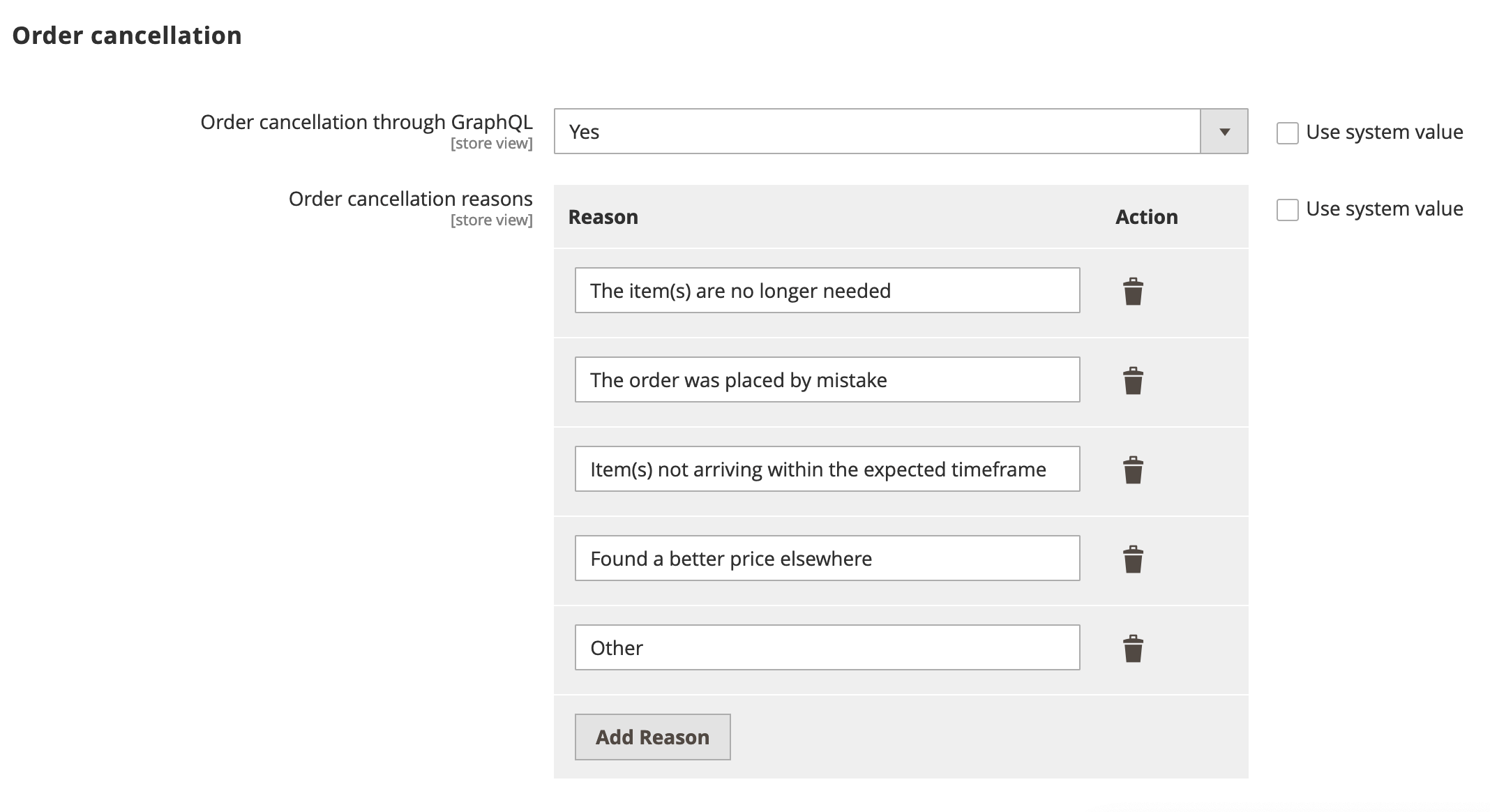
*Order cancellation configuration options*
## Step-by-step
The following steps describe how to implement the order cancellation workflow for both logged in customers and guests.
### 1. Display the order history (logged-in customers only)
The workflow for logged-in customers is straightforward. An order can be canceled only if it has a status of `Received`, `Pending`, or `Processing`.
> The logged-in customer can also use the order search form to locate the order. See [Search for the order](#search-for-the-order) for this use case.
The customer selects an active order from their order history to cancel.
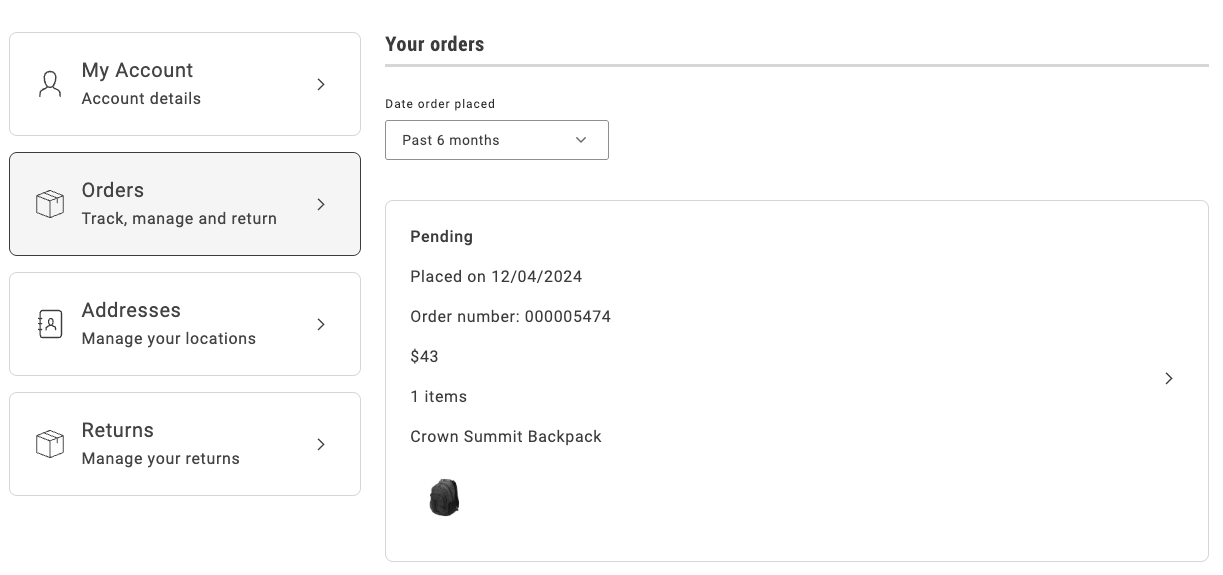
*Order history*
The order history page uses the `OrderProductListContent` component to render the list of orders that the customer previously placed. It iterates over the list of orders and uses the `CartSummaryItem` component to render each order item. The order item is an instance of the `OrderItemModel`, which contains all the necessary properties of an order item.
The following example shows an implementation of the `OrderProductListContent` component:
```jsx
...
{item.list?.map((product: OrderItemModel) => (
))}
...
```
### 2. Search for the order
A guest user does not have access to the order history page. Therefore, the only way to access an order is by using the Order Search form. The search order form retrieves the order that matches the specified email address, last name, and order name, as shown below:
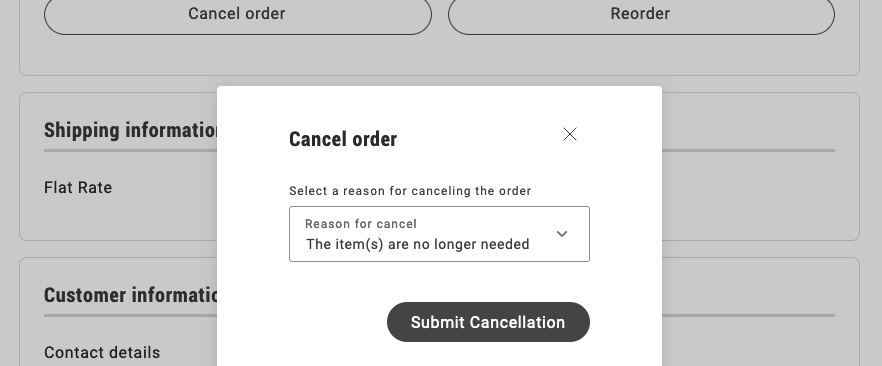
*Order cancellation form*
The `OrderSearchForm` component is responsible for rendering the form to search for an order.
It receives the following parameters:
```text
[
['Configuration', 'Description'],
['fieldsConfig', 'An array of fields to be rendered in the form.'],
['loading', 'A boolean to indicate whether the form is loading.'],
[
'inLineAlert',
'After submitting the form, an inline alert is shown with the result of the operation (success, warning, error) with its respective message.',
],
[
'onSubmit',
'A function to be called when the form is submitted and a flag to indicate if the form is valid.',
],
]
```
See the following code for an example of the implementation:
```jsx
...
{inLineAlert.text ? (
...
```
### 3. Render and submit the cancellation form
The cancellation form allows the customer to select a cancellation reason and submit the form.

*Order cancellation form*
The `OrderCancel` component renders the `OrderCancelForm` container inside a modal.
This modal receives two parameters:
```text
[
['Parameter', 'Description'],
['orderRef', 'Identifies the order.'],
['cancelReasons', 'Contains all the configured cancellation reasons.'],
]
```
For example:
```jsx
...
...
```
The `OrderCancelForm` component is responsible for:
- Rendering the form with multiple cancellation reasons and a submission button.
- Handling the form submission.
- Showing the appropriate error messages if a failure occurs after submitting the form.
```jsx
...
{isErrorVisible && (
...
```
### 4. Display the confirmation notice
When a logged-in customer submits the cancellation form, Commerce immediately sets the status of the order to `Canceled` and the drop-in displays a confirmation notice.
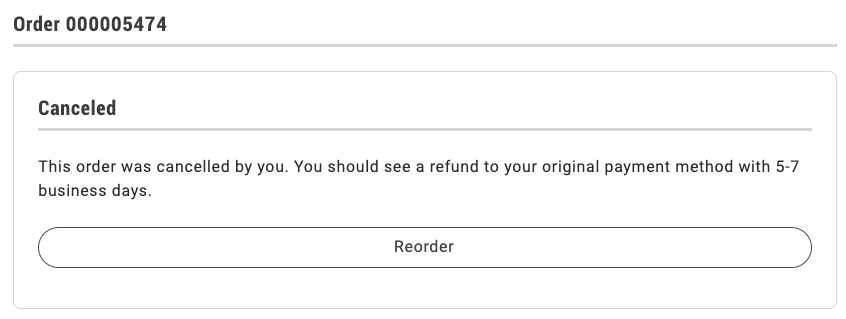
*Confirmation for logged-in users.*
If the shopper is a guest user, the drop-in displays the following dialog:
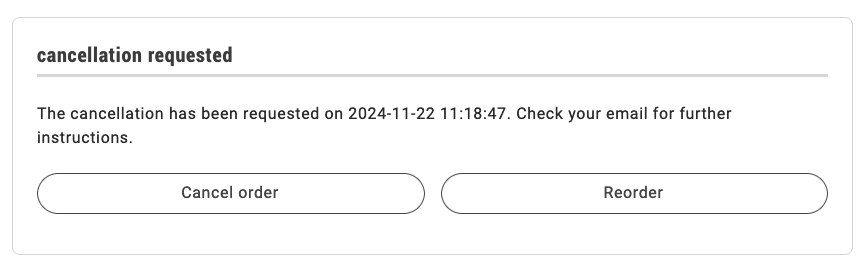
*Guest user is notified that cancellation has been requested.*
The order status shows `Cancellation requested` until the shopper clicks the link in an email similar to the following to confirm the cancellation.
> **Confirm Your Main Website Store Order Cancellation** It seems that you'd like to cancel your order #000000001. If this is correct, please click here to confirm your cancellation request.
If you have questions about your order, you can email us at support@example.com .
Once clicked, the order becomes `Canceled` and the order status page is updated accordingly.
The order status page uses the `OrderStatusContent` component to render the order with all its properties and the available actions.
See the following code for an example of the `OrderStatusContent` implementation below:
```jsx
...
{isReturnPage ? returnMessage : orderMessage}
...
```
After performing any action, the order status page is re-rendered, so that it reflects the new status and the available actions. The appropriate message is shown to the user, depending on the action performed.
## Related
- [Order overview](https://experienceleague.adobe.com/en/tools/commerce-storefront/dropins/order/) — the order drop-in.
- [OrderCancelForm container](https://experienceleague.adobe.com/en/tools/commerce-storefront/dropins/order/containers/order-cancel-form/) — reference for the cancel UI.
---
# Customize order summary lines
The Cart drop-in's `OrderSummary` container renders a fixed set of lines by default, such as subtotal, discounts, and tax. This how-to shows you how to customize those lines: reorder, remove, or add your own, using the `updateLineItems` prop.
## What you'll edit or create
- Edit the `OrderSummary` container
- Edit the `updateLineItems` prop
- Edit the `OrderSummaryLine` container
## What you'll build
By the end of this how-to, you'll have:
- Order summary lines customized through the `updateLineItems` prop on the `OrderSummary` container — reordering, removing, or adding lines like the fixed product tax (FPT) example.
- Subtotal and tax lines grouped into a collapsible section using the Storefront SDK's Accordion component.
- A new order summary line rendered with the `OrderSummaryLine` container, showing a custom label and price.
## Customize the lines of the Order Summary to meet your needs
This customization is possible thanks to the attribute `updateLineItems` from the `OrderSummary` container. This attribute allows you to modify the order summary lines before they are rendered.
```typescript
export const OrderSummary: Container = ({
...
updateLineItems = (lineItems) => lineItems,
...
});
```
It doesn't matter if you want to customize the existing order summary lines, add new ones, or skip some of them.
The `OrderSummary` container passes the `updateLineItems` to the `OrderSummary` component, which performs the appropriate actions.
`updateLineItems` is an optional function that receives the line items as an argument and returns the updated line items. In both cases, `lineItems` are an array of `OrderSummaryLineItem` object.
```typescript
export interface OrderSummaryLineItem {
key: string;
title?: string;
className?: string;
sortOrder: number;
content:
| string
| JSXInternal.Element
| VNode>
| OrderSummaryLineItem[]
| undefined;
}
```
There are default order summary lines in the `OrderSummary` component (including several not shown here, such as shipping and gift wrapping). If no customization is needed, and therefore nothing is passed using the `updateLineItems` attribute, the default order summary lines will be rendered.
Let's imagine that `lineItems` contains the following subset of those lines:
```typescript
const lineItems: Array = [
{
key: 'subTotalContent',
sortOrder: 100,
content: subTotalContent,
},
{
key: 'discountsContent',
sortOrder: 600,
content: discountsContent,
},
{
key: 'taxContent',
sortOrder: 800,
content: taxContent,
},
];
```
In the example above, the `OrderSummary` component renders the sub-total, discounts, and tax lines, in that order.
The value of the `sortOrder` attribute determines the order in which the lines are rendered.
The larger the `sortOrder` value, the lower the line will be rendered in the order summary.
The `content` attribute can be a string, a JSX element, or an array of `OrderSummaryLineItem` objects (whenever is not `undefined`).
For instance, you could choose to render a JSX element in a form of a `OrderSummaryLine` container.
This `OrderSummaryLine` container it is defined as follows:
```typescript
export interface OrderSummaryLineProps extends HTMLAttributes {
label: VNode | string;
price: VNode>;
classSuffixes?: Array;
labelClassSuffix?: string;
testId?: string;
children?: any;
}
```
See an example of how to use the `OrderSummaryLine` container below, where only the mandatory props are passed:
```html
{children}
);
```
Note that the `OrderSummaryLine` container behaves like a wrapper for the `OrderSummaryLine` component.
The component ultimately decides how to render the line item based on the `children` attribute.
```typescript
export interface OrderSummaryLineComponentProps
extends HTMLAttributes {
label: VNode | string;
price: VNode>;
classSuffixes?: Array;
labelClassSuffix?: string;
testId?: string;
children?: any;
}
```
### Where to perform the customizations
To customize the order summary lines, you need to render the `Cart` component passing the `OrderSummary` component as a slot.
When rendering the `OrderSummary` component, you can pass the `updateLineItems` attribute to customize the order summary lines as needed.
```typescript
// Cart
provider.render(Cart, {
slots: {
OrderSummary: (ctx) => {
const orderSummary = document.createElement('div');
provider.render(OrderSummary, {
updateLineItems: (lineItems) => {
// Customize the order summary lines here
return lineItems;
}
}
}
}
});
```
## Examples
For the examples shown below, assume that this is how `Order Summary` looks originally:
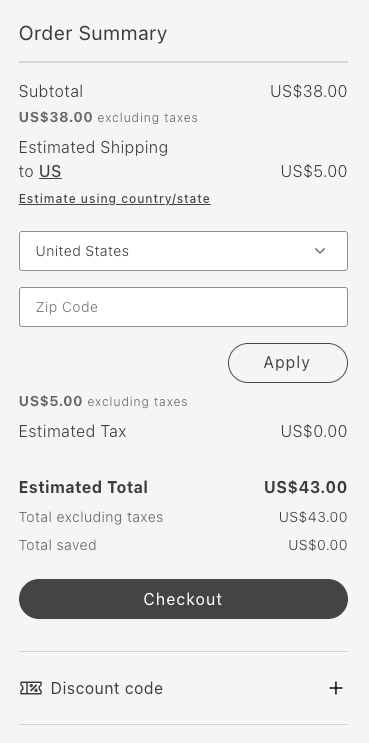
*Cart without any customization*
### Remove Item: Remove total saved
The following example removes the Total saved line:
```typescript
updateLineItems: (lineItems) => {
const index = lineItems.map(item => item.key).indexOf('totalSavedContent');
lineItems.splice(index, 1);
return lineItems;
}
```
*Cart after removing Total Saved line*
### Reorder items: Move primary action to the beginning
The following example moves the Checkout button to the top:
```typescript
updateLineItems: (lineItems) => {
lineItems.map(lineItem => {
if (lineItem.key === 'primaryActionContent') {
lineItem.sortOrder = 50;
}
return lineItem;
});
return lineItems;
};
```
*Cart after moving primary action to the beginning*
### Group items: Group subtotal and tax in an accordion
You can group and sort order summary lines into sections using the Accordion component from the /sdk/components/accordion/. For the full set of UI primitives, see the /sdk/components/overview/.
The following example groups the subtotal and tax in an accordion:
```typescript
updateLineItems: (lineItems) => {
const totalsIndex = lineItems.map(item => item.key).indexOf('taxContent');
const taxContent = lineItems.splice(totalsIndex, 1)[0];
const subtotalIndex = lineItems.map(item => item.key).indexOf('subTotalContent');
const subTotalContent = lineItems.splice(subtotalIndex, 1)[0];
lineItems.push({
key: 'subtotalTaxGrouped',
sortOrder: 50,
title: 'Subtotal and Tax',
content: [
taxContent,
subTotalContent,
],
});
return lineItems;
}
```
*Cart after grouping subtotal and tax in an accordion*
### Add item: Add a new order summary line
The following example adds the FPT line:
```typescript
updateLineItems: (lineItems) => {
const totalFpt = ctx.data.items.reduce((allItemsFpt, item) => {
const itemFpt = item.fixedProductTaxes.reduce((accumulator, fpt) => {
accumulator.labels.push(fpt.label);
accumulator.total += fpt.amount.value;
return accumulator;
}, {
labels: [],
total: 0
});
allItemsFpt.labels = [...allItemsFpt.labels, ...itemFpt.labels];
allItemsFpt.total += itemFpt.total;
return allItemsFpt;
}, {
labels: [],
total: 0
});
lineItems.push({
key: 'fpt',
sortOrder: 350,
title: 'Fixed Product Tax',
content: OrderSummaryLine({label: "FPT(" + totalFpt.labels.join(',') + ')', price: Price({amount: totalFpt.total}), classSuffix: 'fpt'})
})
return lineItems;
};
```
*Cart after adding a new order summary line*
## Related
- [OrderSummary container](https://experienceleague.adobe.com/en/tools/commerce-storefront/dropins/cart/containers/order-summary/) — reference for the summary you customized.
- [Add custom product lines to cart summary](https://experienceleague.adobe.com/en/tools/commerce-storefront/how-tos/add-product-lines-to-cart-summary/) — a related cart summary customization.
---
# Add stored payment methods to My Account
Shoppers who save a card with Payment Services during checkout can view and remove those vaulted methods on a **My Account** page. The Commerce boilerplate doesn't include this by default, so this how-to shows you how to add it.
## What you'll edit or create
- Create the `commerce-payment-methods` block
- Edit the `PaymentMethods` container
- Create the block config — `blocks/your-block-name/_your-block-name.json`
## What you'll build
By the end of this how-to, you'll have:
- A `commerce-payment-methods` block that redirects guests to login and renders the User Account `PaymentMethods` container for signed-in shoppers.
- A `with-header` and `minified-view` block configuration that controls the container's title and compact layout.
- An optional `filterPaymentMethodCodes` prop that limits the list to Payment Services-vaulted tokens.
## Prerequisites
- **Payment Services** is https://experienceleague.adobe.com/en/docs/commerce/payment-services/get-started/onboard and the /dropins/payment-services/installation/ meets version requirements for your storefront.
- **Save / vault** is available for your payment flow (see Adobe's https://developer.adobe.com/commerce/webapi/graphql/payment-services-extension/workflows/vaulted-card for how tokens are created at checkout).
- Checkout (or another flow) already initializes Payment Services where shoppers vault cards. For example, the boilerplate https://github.com/hlxsites/aem-boilerplate-commerce/blob/main/blocks/commerce-checkout/commerce-checkout.js loads https://github.com/hlxsites/aem-boilerplate-commerce/blob/main/scripts/initializers/payment-services.js.
- Account pages run the **account** initializer so GraphQL calls use the customer token. Import https://github.com/hlxsites/aem-boilerplate-commerce/blob/main/scripts/initializers/account.js (or your equivalent) before rendering the container.
## Add a payment methods block
Create a block. The naming is up to you, but `commerce-payment-methods` is a clear convention. This block should:
1. Redirect **guests** to login (same pattern as other account blocks).
2. Initialize the **User Account** drop-in via `account.js`.
3. Render **PaymentMethods** with optional **with header** and **minified view** from the block configuration.
Example `decorate` implementation:
```javascript
export default async function decorate(block) {
const {
'minified-view': minifiedViewConfig = 'false',
'with-header': withHeaderConfig = 'true',
} = readBlockConfig(block);
if (!checkIsAuthenticated()) {
window.location.href = rootLink(CUSTOMER_LOGIN_PATH);
} else {
await accountRenderer.render(PaymentMethods, {
withHeader: withHeaderConfig === 'true',
minifiedView: minifiedViewConfig === 'true',
})(block);
}
}
```
Place the block on the account page (or desired section) where the list should appear. Use the same section metadata, block registration, and readBlockConfig patterns as other commerce blocks (for example, customer info or orders).
## Block configuration (authoring)
Expose authoring keys in `decorate` that map to `readBlockConfig`. For example:
- `with-header` — Controls whether a section title and divider are shown for the payments area (full account pages often omit this).
- **`minified-view`** — Enables a compact layout with condensed rows and a simplified empty state, ideal for dashboards alongside other widgets.
Add a `_your-block-name.json` (and optional README) next to the block source so authors get defaults and labels consistent with the rest of your project.
## Limit the list to Payment Services tokens (optional)
Vault tokens include a `payment_method_code`. Payment Services methods typically use codes that start with `payment_services` (for example, hosted-field variants). The PaymentMethods container accepts `filterPaymentMethodCodes`: an array of strings. A token is shown if its code equals or starts with any entry.
The example decorate above doesn’t include this prop. To display only Payment Services–vaulted methods (and hide saved methods from other gateways), add it to the render call. For example:
```javascript
await accountRenderer.render(PaymentMethods, {
withHeader: withHeaderConfig === 'true',
minifiedView: minifiedViewConfig === 'true',
filterPaymentMethodCodes: ['payment_services'],
})(block);
```
Adjust the prefix list if your Admin or integration uses a different payment method code pattern.
## How data reaches the UI
- By default, the container calls `getCustomerPaymentTokens`, which executes the `customerPaymentTokens` query and transforms the returned vault details (JSON) into rows for the PaymentCard component. The details include Payment Services fields like brand and last four digits.
- If another part of the page already has token rows on the client, you can emit **`account/customerPaymentTokens`** on the event bus so the container **shows that list** without an extra **`getCustomerPaymentTokens`** round trip (see [Events](https://experienceleague.adobe.com/en/tools/commerce-storefront/dropins/user-account/events/#accountcustomerpaymenttokens-listens) and [TypeScript declaration](https://experienceleague.adobe.com/en/tools/commerce-storefront/dropins/user-account/events/#typescript-declaration)). That is optional injection only; **Remove** still calls **`deletePaymentToken`** on the GraphQL API, not the bus. Payment Services + GraphQL alone is the usual path for My Account.
- Removal uses a confirmation step before the token is deleted. See [Remove confirmation](https://experienceleague.adobe.com/en/tools/commerce-storefront/dropins/user-account/containers/payment-methods/#remove-confirmation) for how that flow works.
## Related documentation
- [PaymentMethods container](https://experienceleague.adobe.com/en/tools/commerce-storefront/dropins/user-account/containers/payment-methods/) — props, GraphQL vs bus, and errors.
- [User Account functions](https://experienceleague.adobe.com/en/tools/commerce-storefront/dropins/user-account/functions/) — **`getCustomerPaymentTokens`**, **`deletePaymentToken`**.
- [Payment Services installation](https://experienceleague.adobe.com/en/tools/commerce-storefront/dropins/payment-services/installation/) and [initialization](https://experienceleague.adobe.com/en/tools/commerce-storefront/dropins/payment-services/initialization/).
- Checkout: [Add a custom payment method](https://experienceleague.adobe.com/en/tools/commerce-storefront/how-tos/add-payment-method/) when customizing how cards are vaulted at purchase time.
> **PCI and SDK UI** Payment card entry at checkout remains within the Payment Services drop-in/SDK to maintain PCI compliance. My Account only lists and removes existing saved tokens—it does not replace the hosted card form used during checkout.
---
# Preview a product
Preview a product's images, price, options, and purchasing controls while editing the shared product-page document in Document Authoring.
## Before you begin
- Your content project must contain the `/products/default` document and its `product-details` block.
- Choose an existing product's stock keeping unit (SKU) from your catalog. Find it under **Catalog > Products** in Admin, or ask your developer.
> The `/products/default` document is shared by product pages. Changes to its layout affect all product pages that use this template, not just the product you preview.
## Preview the shared template
1. Open `/products/default` in Document Authoring.
1. Add or update the `defaultSku` row in the `product-details` table with the SKU you chose.
| product-details | |
| --- | --- |
| defaultSku | HOODIE-001 |
Replace `HOODIE-001` with your product's SKU. The first row is the block name; merge its cells in the document.
1. Select the split-screen icon in the right sidebar to open the inline live-preview pane.
1. Confirm that the pane displays the product you chose, including its image, price, and available options.
> Use the inline live-preview pane for `/products/default`. Opening that template path in a normal browser tab does not supply a product SKU. The `defaultSku` row is for the editor preview; real product pages normally get their SKU from the URL.
## Check a real product page
1. Open a category or search-results page on your storefront and select the product you want to check.
1. Confirm that the resulting URL follows `/products//`, such as `/products/cool-hoodie/HOODIE-001`. The URL key and SKU must belong to a real product in your catalog.
1. Confirm that the product page loads the expected catalog data in a normal browser tab.
If the editor preview is empty, check that the `defaultSku` value exists in the catalog available to your storefront. See [Product Details](https://experienceleague.adobe.com/en/tools/commerce-storefront/merchants/blocks/product-details/) for the block's role and [Add supporting content to product pages](https://experienceleague.adobe.com/en/tools/commerce-storefront/how-tos/add-supporting-content-to-product-pages/) for changing the shared layout.
---
# Search redirects
When a shopper types an exact match for a configured term, the storefront can send them directly to a destination URL instead of showing search results. This how-to shows you how to configure these search redirects, so your merchandising team can manage them without code changes.
## What you'll edit or create
- Create the redirects spreadsheet — `/search-redirects`
- Create the utility module — `scripts/search-redirects.js`
- Edit the product list page block — `blocks/product-list-page/product-list-page.js`
- Edit the header block (optional) — `blocks/header/header.js`
## What you'll build
By the end of this how-to, you'll have:
- A content spreadsheet (`/search-redirects`) that maps search terms to destination URLs, managed by business users.
- A JavaScript utility module (`scripts/search-redirects.js`) that loads and caches the redirect map.
- An integration in `blocks/product-list-page/product-list-page.js` that intercepts matching queries before any Live Search API call is made.
- An optional integration in `blocks/header/header.js` that redirects from the header search input without navigating to `/search` first.
## Prerequisites
Before starting this how-to, make sure you have:
- A working [Commerce storefront](https://experienceleague.adobe.com/en/tools/commerce-storefront/get-started/create-storefront/) on Edge Delivery Services
- A search results page powered by the [Product Discovery drop-in](https://experienceleague.adobe.com/en/tools/commerce-storefront/dropins/product-discovery/)
- Access to author and publish content (Document Authoring (DA.live), Google Docs, or SharePoint)
- Familiarity with [customizing blocks](https://experienceleague.adobe.com/en/tools/commerce-storefront/blocks/customize-blocks/) in your code repository
## Overview
The implementation has two layers:
1. **Content layer** — A spreadsheet at the root of your site defines the redirect rules. Business users add, edit, or remove rows without touching code.
2. **Code layer** — JavaScript in your search block fetches the spreadsheet, then checks the active query against it on every search page load.
Two entry paths can bring a shopper to a search URL, and both need to be handled:
- **Case A** — Shopper types a term in the header search box and submits. The browser navigates to `/search?q=`.
- **Case B** — Shopper opens a bookmarked or shared URL such as `/search?q=running`.
Step 3 (required, in your search page block) covers both cases. Step 4 (optional, in your header block) improves the experience for Case A by redirecting before the browser ever navigates to `/search`.
> **Why not the Edge Delivery Services redirect sheet?** The https://www.aem.live/docs/redirects (`/redirects` spreadsheet) matches only URL paths. It strips query strings before matching, so every URL that starts with `/search` collapses to the same path regardless of the `?q=` value, which makes it impossible to target individual search terms. Search term redirects must be handled client-side, in the browser, where the typed query is available.
### 1. Step 1: Create the search-redirects spreadsheet
Create a new spreadsheet named `search-redirects` at the root of your content folder (the same level as your homepage). Add two column headers in the first row: **Search Term** and **Destination URL**.
| Search Term | Destination URL |
|---|---|
| login | /customer/login |
| clothes | /apparel |
| inexpensive clothes | /apparel?page=1&sort=position_DESC&filter=price%3A0-10 |
| adobe | https://adobe.com |
#### Rules for the spreadsheet
- **Search Term** — The exact term to match. Matches are case-insensitive and ignore leading and trailing spaces, so `"Running Shoes"`, `"running shoes"`, and `" running shoes "` all match the same row.
- **Destination URL** — The full destination path, URL with query parameters, or external URL. It is stored verbatim with no transformation applied. Use root-relative paths (`/page`) for internal pages, paths with query parameters for pre-filtered pages, or full URLs (`https://…`) for external destinations.
Publish the spreadsheet. After publishing, it becomes available at `/search-redirects.json`. Each time you add or change rows, publish the spreadsheet again to update the file. Previewing the spreadsheet does not update the live file.
> Verify the published output by opening `/search-redirects.json` in your browser. You should see your rows in the `data` array with `"Search Term"` and `"Destination URL"` keys.
### 2. Step 2: Create the redirect utility module
Create `scripts/search-redirects.js` in your repository. This module fetches the spreadsheet once, caches the result, and exposes two functions to the rest of your code.
```javascript title="scripts/search-redirects.js"
let redirectsPromise = null;
function normalize(term) {
return term.trim().toLowerCase().replace(/\s+/g, ' ');
}
/**
* Fetches and caches the redirect map from /search-redirects.json.
* Safe to call multiple times — only one network request is made.
* Returns an empty Map (and does not throw) if the file is missing or malformed.
*/
export function preloadSearchRedirects() {
if (!redirectsPromise) {
redirectsPromise = fetch('/search-redirects.json')
.then((res) => {
if (!res.ok) return new Map();
return res.json();
})
.then((json) => {
if (!Array.isArray(json?.data)) return new Map();
return new Map(
json.data
.filter((row) => row['Search Term'] && row['Destination URL'])
.map((row) => [normalize(row['Search Term']), row['Destination URL']]),
);
})
.catch(() => new Map());
}
return redirectsPromise;
}
/**
* Returns the configured destination for a search term, or null if no match.
* @param {string} term
* @returns {Promise}
*/
export async function getSearchRedirectDestination(term) {
if (!term) return null;
const map = await preloadSearchRedirects();
return map.get(normalize(term)) ?? null;
}
```
#### Key design decisions
- **Single fetch, cached promise** — `preloadSearchRedirects()` is safe to call from multiple places. Only one network request is made for the lifetime of the page.
- **Graceful failure** — If `/search-redirects.json` returns a non-200 status or is malformed, the module returns an empty `Map`. Search continues working normally with no JavaScript errors.
- **Normalization** — Both the stored terms and the incoming query are lowercased and whitespace-collapsed before comparison, so casing and extra spaces never cause a miss.
### 3. Step 3: Integrate into the product-list-page block (required)
Open `blocks/product-list-page/product-list-page.js`. This block powers both your `/search` page and your category pages. The `config.urlpath` value tells it which role it is in: category pages set `config.urlpath`, and the search page does not. The redirect check uses the same signal to run only on the search page.
Add the import and the redirect check at the top of `decorate()`, after the `config` and `searchState` variables are initialized. The check must happen before the `search()` call so that a matching query never triggers a Live Search API request.
```javascript title="blocks/product-list-page/product-list-page.js"
// ... existing imports ...
export default async function decorate(block) {
const config = readBlockConfig(block);
const searchState = getSearchStateFromUrl(new URL(window.location.href));
// Only apply redirects on the search page, not category pages.
// config.urlpath is set on category pages; its absence means this is the /search page.
if (!config.urlpath) {
preloadSearchRedirects(); // warm the cache immediately
if (searchState.phrase) {
const destination = await getSearchRedirectDestination(searchState.phrase);
if (destination) {
window.location.replace(destination);
return; // stop — Live Search is never called
}
}
}
// ... rest of your existing decorate() logic unchanged ...
}
```
> **Category pages** The `if (!config.urlpath)` guard prevents the redirect logic from running on category pages. Without it, every category page that uses this block would fetch `search-redirects.json` on load.
### 4. Step 4: Integrate into the header block (optional)
This step improves the shopper experience for Case A. When the shopper submits a redirectable term from the header search box, they go directly to the destination without an intermediate visit to `/search`.
Without this step, Case A still works correctly via Step 3. The shopper briefly visits `/search` before being redirected. This step eliminates that extra navigation.
Open `blocks/header/header.js` and make three edits.
#### Edit 1: Add the import
Add the import near the top of the file with the other imports:
```javascript title="blocks/header/header.js"
```
#### Edit 2: Warm the cache when the panel opens
Inside `toggleSearch()`, find the line that calls `withLoadingState()`. Add `preloadSearchRedirects()` on the line immediately before it so the redirect data is fetched as soon as the shopper opens the search panel — before they submit anything.
Find this line:
```javascript title="blocks/header/header.js"
await withLoadingState(searchPanel, searchButton, async () => {
```
Add the new line directly above it:
```javascript title="blocks/header/header.js"
preloadSearchRedirects(); // fetch redirect data as soon as the panel opens
await withLoadingState(searchPanel, searchButton, async () => {
```
#### Edit 3: Replace the submit handler
Inside the `withLoadingState()` callback, find the existing `searchForm` submit handler:
```javascript title="blocks/header/header.js"
searchForm.addEventListener('submit', (e) => {
e.preventDefault();
const query = e.target.search.value;
if (query.length) {
window.location.href = `${rootLink('/search')}?q=${encodeURIComponent(query)}`;
}
});
```
Replace it with this async version that checks for a redirect first:
```javascript title="blocks/header/header.js"
searchForm.addEventListener('submit', async (e) => {
e.preventDefault();
// At the time the `submit` event fires, `window.location.search` still reflects the current
// page's URL, not the term the shopper just typed. Reading from `e.target.search.value`
// gives you the actual input value.
const query = e.target.search.value.trim();
if (!query.length) return;
const destination = await getSearchRedirectDestination(query);
window.location.href = destination ?? `${rootLink('/search')}?q=${encodeURIComponent(query)}`;
});
```
### 5. Step 5: Commit and push your changes
Commit the files you created or edited in Steps 2 through 4 and push them to your GitHub repository.
After the push, the Code Sync app picks up the changes and makes them available on your preview URL — the address that follows the pattern `https://main----.aem.page`. You do not need to publish the site to test.
To confirm the deployment worked, navigate to your `/search` page (for example, `https://main----.aem.page/search?q=test`) and open the Network tab in your browser's developer tools. Because `scripts/search-redirects.js` is imported by `product-list-page.js`, it only loads on the search page — not the homepage. If it shows a 200 status, the file loaded correctly. A 404 status means the file was not found — double-check the file path in your commit.
If you completed Step 4, the header block imports `search-redirects.js` as well, so opening the search panel on any page will also trigger it in the Network tab.
Once the files are available, you can test the redirect two ways: type a term from your spreadsheet into the header search bar and press Enter, or navigate directly to `/search?q=` in the address bar. Either way, the browser should go straight to the destination you configured. Step 6 walks through both scenarios and a few others.
### 6. Step 6: Test your implementation
Use any of the following scenarios to verify the implementation.
- **Direct URL — matching term:** Navigate to `/search?q=login` (assuming "login" is in your spreadsheet). Confirm you are immediately redirected to the configured destination without search results loading.
- **Case-insensitive match:** Navigate to `/search?q=Login` (capitalized). Confirm you reach the same destination as lowercase.
- **Direct URL — non-matching term:** Navigate to `/search?q=running+shoes`. Confirm search results load normally with no redirect.
- **Header search — matching term:** Open the search panel, type a redirectable term, and press Enter. Confirm you go directly to the destination without a `/search` URL appearing in the address bar (only applies if you completed Step 4).
- **Header search — non-matching term:** Type a term not in the spreadsheet and press Enter. Confirm the browser navigates to `/search?q=` normally.
- **Prefetch:** Open browser DevTools → Network, then open the search panel. Confirm that `search-redirects.json` is fetched at that point rather than waiting for a form submit.
- **Graceful failure:** Temporarily rename or 404 your `/search-redirects.json`. Confirm that search still works without JavaScript errors.
## User journey walkthrough
When a shopper types "inexpensive clothes" and submits the search form, `getSearchRedirectDestination` returns the configured destination and the browser navigates directly to the pre-filtered apparel page. Live Search is never called. When the same shopper types "running shoes" — a term with no matching rule — the browser navigates to `/search?q=running+shoes` as normal.
The https://github.com/hlxsites/aem-boilerplate-commerce/pull/1252 shows the full integration in the Commerce storefront. Use it as a working reference when adapting this pattern to your storefront.
> **Zero-results variant** If you only want to redirect when Live Search returns zero results (rather than always redirecting on a term match), call `getSearchRedirectDestination` inside your results handler instead, and only redirect when `totalCount === 0`. The same utility function works for both modes.
## Troubleshooting
### Redirect not firing
Open `/search-redirects.json` and confirm your row is present. The column headers must match exactly: `Search Term` and `Destination URL`. Any extra characters, including spaces, will break the lookup.
### All searches redirect to the same page
You are likely using the Edge Delivery Services redirect system instead of this client-side implementation. The Edge Delivery Services system strips query strings before matching, so every `/search` path maps to the same rule. Use the client-side approach from this how-to for search-term routing.
### Redirect fires on category pages
Ensure the `if (!config.urlpath)` guard is in place in your search block. Category pages populate `config.urlpath`; the search page does not. If your shared block does not have this guard, add one that fits your block.
### `search-redirects.json` returns 404
The file is only generated after you publish the spreadsheet. Confirm the spreadsheet is published (not just previewed) and located at the root of your content tree. If you want to test the redirect functionality without publishing, you can create a local copy of the spreadsheet and place it in the root of your code repository.
## What you built
| File | Purpose |
|---|---|
| `/search-redirects` spreadsheet | Redirect rules, managed by business users |
| `scripts/search-redirects.js` | Fetches and caches the redirect map |
| `blocks/product-list-page/product-list-page.js` | Intercepts queries before Live Search fires |
| `blocks/header/header.js` | Optional: redirects from the search input directly |
---
# Show enrichment content for selected products or categories
Use an enrichment document to show supporting content only for selected products or categories, rather than adding the same content to every page.
## Before you begin
- Ask your developer to complete [Enrichment configuration](https://experienceleague.adobe.com/en/tools/commerce-storefront/setup/configuration/enrichment/).
- Open your project's `enrichment` folder and identify a working example, such as `product-banner`.
- Choose the product SKUs or category identifiers you want to match. Your developer can confirm which values your project's enrichment configuration accepts.
> Enrichment matching depends on your project's configuration. Use the [Enrichment metadata reference](https://experienceleague.adobe.com/en/tools/commerce-storefront/merchants/content-customizations/enrichment/#enrichment-metadata-structure) and a working document as your guide; do not assume a new metadata property will work without developer setup.
## Create matching enrichment content
1. Duplicate the working document in the `enrichment` folder and give the copy a name for your content.
1. Replace the example content with your own headings, text, images, or supported blocks.
1. Update the document's matching metadata with your chosen product SKUs or category identifiers. Retain the placement and other properties required by your project's configuration.
1. Preview and publish the enrichment document using your project's authoring tools.
1. Preview a matching product or category page and confirm that the content appears above or below the Commerce block as configured.
1. Check a page that should not match and confirm that it does not show this content.
## Check the result
Open the matching and nonmatching pages on the published storefront. If the content does not appear as expected, use the [Enrichment troubleshooting guidance](https://experienceleague.adobe.com/en/tools/commerce-storefront/merchants/content-customizations/enrichment/#troubleshooting) with your developer to check metadata, indexing, and configuration.
To show the same content on every product page using the shared template, follow [Add supporting content to product pages](https://experienceleague.adobe.com/en/tools/commerce-storefront/how-tos/add-supporting-content-to-product-pages/).
---
# Submit a storefront sitemap to Google Search Console
Tell Google where to find your storefront's sitemap, then check whether it can read the file. A sitemap lists page URLs for search engines to discover.
## Before you begin
- Your storefront must be published on its production domain.
- You need owner permissions for the correct property in https://search.google.com/search-console.
- Confirm your sitemap URL with your developer. It is usually `/sitemap.xml` on the production domain. For coverage and additional files, see [Sitemaps](https://experienceleague.adobe.com/en/tools/commerce-storefront/merchants/edge-delivery-services/sitemaps/).
## Submit the sitemap
1. Open the confirmed production sitemap URL in a browser and check that it returns an XML sitemap without requiring a login.
1. Open Google Search Console and select the property for that production domain.
1. Open **Sitemaps** and enter the confirmed sitemap URL under **Add a new sitemap**. If the field already shows your site's URL prefix, enter the remaining path.
1. Select **Submit**.
1. Open the submitted sitemap's row and check its status. If it is not **Success**, review the reported error with your developer.
1. Repeat the submission for any additional sitemap URLs your developer provided.
## Check the result
The sitemap report should show that Google successfully fetched and processed the file. Check the page-indexing report separately to see which pages have been indexed.
> Successful submission does not guarantee that Google will crawl or index every listed URL, or do so within a particular time. Check Search Console periodically for processing and indexing errors.
For permissions, status meanings, and troubleshooting, see https://support.google.com/webmasters/answer/7451001?hl=en.
---
# Test alternate storefront labels
Give an experiment variant different storefront labels without changing the labels on the original page.
## Before you begin
- Follow [Create a page experiment](https://experienceleague.adobe.com/en/tools/commerce-storefront/how-tos/create-page-experiment/) to prepare the original and variant pages.
- Review [Change labels and placeholders](https://experienceleague.adobe.com/en/tools/commerce-storefront/how-tos/change-labels-and-placeholders/) to find the existing keys for the labels you want to test.
- Ask your developer to confirm that the page's `Placeholders` metadata supports overrides in your storefront.
## Add the variant labels
1. Create a variant placeholders sheet using your project's existing placeholders format. Give it a distinct path, such as `/experiments/cart-labels`.
1. Add only the labels you want to override. Use the existing label key in the **Key** column and your alternate wording in the **Value** column.
*Existing placeholder keys with alternate label values.*
1. Preview the placeholders sheet and confirm its JSON URL using your project's authoring workflow. For the example path, that URL is `/experiments/cart-labels.json`.
1. Open the variant page and add a `Placeholders` row to its metadata table.
| metadata | |
| --- | --- |
| Placeholders | /experiments/cart-labels.json |
Replace the example path with your variant file's JSON URL. Merge the first-row cells in the document. Do not add this override to the original page.
1. Preview the experiment and compare the labels on the original and variant pages.
## Check the result
Confirm that the variant displays your alternate wording, the original retains its labels, and labels you did not override still appear normally. If a label does not change, check its key and the placeholders URL.
Follow your team's experiment launch and measurement process when both versions are ready. For a permanent label change without an experiment, use [Change labels and placeholders](https://experienceleague.adobe.com/en/tools/commerce-storefront/how-tos/change-labels-and-placeholders/) instead.
---
# Validate a saved address
When your address verification service returns a suggested address that differs from what a shopper entered, you can let them choose between the two before saving. This how-to shows you how to add that confirmation step using the `AddressValidation` container.
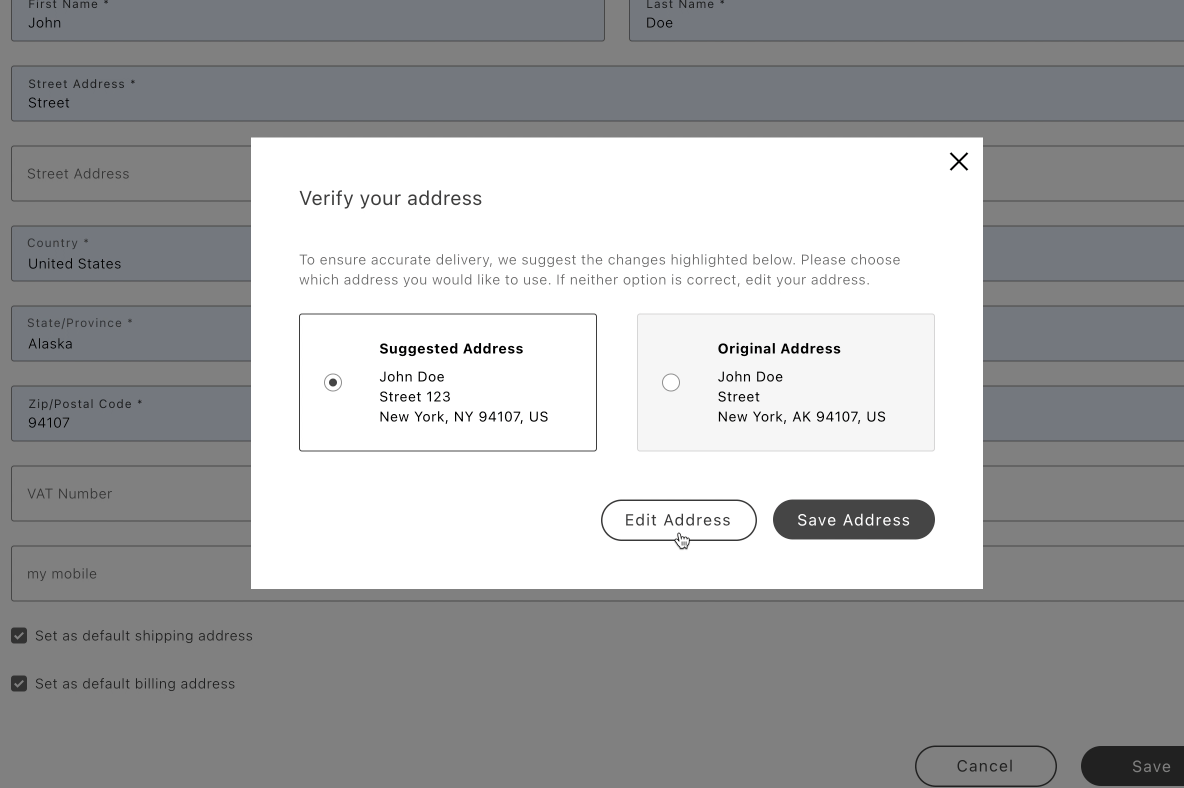
*AddressValidation displayed in a modal*
## What you'll edit or create
- Edit the addresses block — `blocks/commerce-addresses/commerce-addresses.js`
- Edit the `AddressValidation` container
- Edit the `Addresses` container
- Create the modal helper — `blocks/commerce-addresses/modal-utils.js`
## What you'll build
By the end of this how-to, you'll have:
- A modal in your `commerce-addresses` block that renders the `AddressValidation` container when your verification service returns a suggested address.
- An `onSubmit` handler on the `Addresses` container that calls your verification service before saving, using `forwardFormRef` and `onAddressData` to read the submitted form values.
- A `modal-utils.js` helper that opens and closes the validation modal.
## Integration in commerce-addresses block
Update your `blocks/commerce-addresses/commerce-addresses.js` to:
- Import `AddressValidation`
- Pass `forwardFormRef`, `onAddressData`, and `onSubmit` to `Addresses`
- When a suggestion exists, show a modal with `AddressValidation` and two actions: Edit Address and Save Address
```javascript
// blocks/commerce-addresses/commerce-addresses.js
const validateAddress = async (address) => {
// Call your service with the form data
// const result = await fetch(...)
// return result.suggestedAddress || null
// Example mocked suggestion
return {
city: 'Bainbridge Island',
countryCode: 'US',
postcode: '98110-2450',
region: { regionCode: 'WA', regionId: 1 },
street: ['123 Winslow Way E'],
telephone: '555-123-4567',
};
};
const finalizeSubmission = (setContainerProps, formRef, updates = {}) => {
setContainerProps({ onSubmit: null, ...updates });
setTimeout(() => formRef.current?.requestSubmit(), 1);
};
const renderAddressValidation = async ({
originalAddress,
suggestedAddress,
onEdit,
onSave,
}) => {
const container = document.createElement('div');
const addressValidation = document.createElement('div');
const actionsContainer = document.createElement('div');
const editAddressButton = document.createElement('div');
const saveAddressButton = document.createElement('div');
actionsContainer.appendChild(editAddressButton);
actionsContainer.appendChild(saveAddressButton);
container.appendChild(addressValidation);
container.appendChild(actionsContainer);
actionsContainer.classList.add('actions-container');
await showModal(container);
let selectedAddress, currentSelection;
provider.render(AddressValidation, {
selectedAddress: 'suggested',
originalAddress,
suggestedAddress,
handleSelectedAddress: async ({ address, selection }) => {
selectedAddress = address;
currentSelection = selection;
},
})(addressValidation);
UI.render(Button, {
children: 'Edit Address',
size: 'medium',
variant: 'secondary',
onClick: () => {
if (currentSelection === 'suggested') {
onEdit(selectedAddress);
}
removeModal();
},
})(editAddressButton);
UI.render(Button, {
children: 'Save Address',
size: 'medium',
variant: 'primary',
onClick: () => {
const updates = {};
if (currentSelection === 'suggested') {
updates.inputsDefaultValueSet = selectedAddress;
}
removeModal();
onSave(updates);
},
})(saveAddressButton);
};
export default async function decorate(block) {
const { 'minified-view': minifiedViewConfig = 'false' } = readBlockConfig(block);
if (!checkIsAuthenticated()) {
window.location.href = rootLink(CUSTOMER_LOGIN_PATH);
return;
}
let originalAddress;
const formRef = { current: null };
const addressesContainer = await accountRenderer.render(Addresses, {
minifiedView: minifiedViewConfig === 'true',
withActionsInMinifiedView: false,
withActionsInFullSizeView: true,
routeAddressesPage: () => rootLink(CUSTOMER_ADDRESS_PATH),
forwardFormRef: formRef,
onAddressData: (values) => {
originalAddress = values?.data;
},
onSubmit: async (event, formValid) => {
if (!formValid) return;
const setContainerProps = (updates) => {
addressesContainer.setProps((prev) => ({ ...prev, ...updates }));
};
const suggestedAddress = await validateAddress(originalAddress);
if (!suggestedAddress) {
finalizeSubmission(setContainerProps, formRef);
return;
}
await renderAddressValidation({
originalAddress,
suggestedAddress,
onEdit: (selectedAddress) => {
setContainerProps({ inputsDefaultValueSet: selectedAddress });
},
onSave: (updates) => {
finalizeSubmission(setContainerProps, formRef, updates);
},
});
},
})(block);
}
```
```javascript
// modal-utils.js
let modal;
export const showModal = async (content) => {
modal = await createModal([content]);
modal.showModal();
};
export const removeModal = () => {
if (!modal) return;
modal.removeModal();
modal = null;
};
```
### Optional styles
```css
/* Minimal layout for the modal */
.modal-content {
padding: 32px;
}
.actions-container {
display: flex;
gap: 16px;
margin-top: 48px;
justify-content: flex-end;
}
```
## Next steps
- See the [`AddressValidation` container](https://experienceleague.adobe.com/en/tools/commerce-storefront/dropins/user-account/containers/address-validation/) container for props and behaviors.
- Ensure your suggestion matches the `CustomerAddressInput` shape expected by the Addresses container.
- See [Validate a shipping address](https://experienceleague.adobe.com/en/tools/commerce-storefront/how-tos/validate-shipping-address/) to add the same confirmation step before a shopper places an order at checkout.
---
# Validate a shipping address
When your address verification service returns a suggested shipping address that differs from what a shopper entered, you can let them choose between the two before placing the order. This how-to shows you how to add that confirmation step to the `commerce-checkout` block using the `AddressValidation` container.
## What you'll edit or create
- Edit the checkout block — `blocks/commerce-checkout/commerce-checkout.js`
- Edit the `AddressValidation` container
- Edit the `PlaceOrder` container
- Create the validation stub — `blocks/commerce-checkout/utils.js`
## What you'll build
By the end of this how-to, you'll have:
- A modal that renders the [`AddressValidation`](https://experienceleague.adobe.com/en/tools/commerce-storefront/dropins/checkout/containers/address-validation/) container, showing the shopper's original and suggested shipping addresses.
- Address verification wired into the `handlePlaceOrder` callback of the [`PlaceOrder`](https://experienceleague.adobe.com/en/tools/commerce-storefront/dropins/checkout/containers/place-order/) container, running before the order places.
- The shipping form updated automatically when the shopper selects the suggested address.
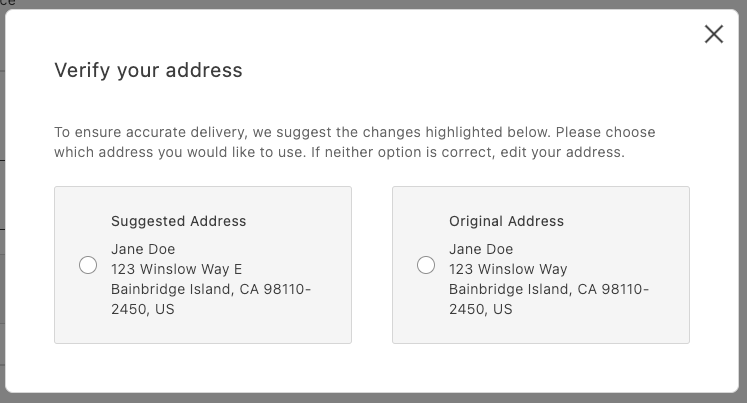
*AddressValidation displayed in a modal*
## Integration
```javascript
// in commerce-checkout.js block
// Handler passed to the PlaceOrder container
const handlePlaceOrder = async ({ cartId, code }) => {
await displayOverlaySpinner(loaderRef, $loader);
try {
// Payment Services credit card
if (code === PaymentMethodCode.CREDIT_CARD) {
if (!creditCardFormRef.current) {
console.error('Credit card form not rendered.');
return;
}
if (!creditCardFormRef.current.validate()) {
// Credit card form invalid; abort order placement
return;
}
// Submit Payment Services credit card form
await creditCardFormRef.current.submit();
}
// Address validation
const suggestion = await validateAddress();
if (suggestion) {
const container = document.createElement('div');
await showModal(container);
await renderAddressValidation(container, {
suggestedAddress: suggestion,
handleSelectedAddress: async ({ selection, address }) => {
if (selection === 'suggested') {
// Update the shipping form using the suggested address
sessionStorage.removeItem(SHIPPING_ADDRESS_DATA_KEY);
shippingForm.setProps((prevProps) => ({
...prevProps,
inputsDefaultValueSet: address,
}));
} else {
// Place order
await orderApi.placeOrder(cartId);
}
removeModal();
},
});
} else {
// Place order
await orderApi.placeOrder(cartId);
}
} catch (error) {
console.error(error);
throw error;
} finally {
removeOverlaySpinner(loaderRef, $loader);
}
};
```
```javascript
// in containers.js
/**
* Renders the AddressValidation container in its own host element
* @param {HTMLElement} container - DOM element to render into
*/
export const renderAddressValidation = async (
container,
{ suggestedAddress, handleSelectedAddress }
) =>
CheckoutProvider.render(AddressValidation, {
suggestedAddress,
handleSelectedAddress,
})(container);
```
```javascript
// in utils.js (example stub)
export const validateAddress = async () => {
// Here’s where your API call goes
return {
city: 'Bainbridge Island',
countryCode: 'US',
postcode: '98110-2450',
region: 'CA',
street: ['123 Winslow Way E'],
};
};
```
Finally, add some padding for better appearance:
```css
/* commerce-checkout.css */
.modal-content .checkout-address-validation {
padding: var(--spacing-big);
}
```
## Next steps
- See the [`AddressValidation` container](https://experienceleague.adobe.com/en/tools/commerce-storefront/dropins/checkout/containers/address-validation/) for props and behaviors.
- Ensure your suggestion matches the `CartAddressInput` format.
- See [Validate a saved address](https://experienceleague.adobe.com/en/tools/commerce-storefront/how-tos/validate-address/) to add the same confirmation step when shoppers save an address in their account.
---
# Enable Payment Services vaulted cards in checkout
This how-to shows how to let shoppers vault a card during checkout and pay with it during a later purchase. Reusing a saved card requires modifying your `commerce-checkout` block.
> **Depends on pre-release drop-in versions** This how-to requires installing pre-release versions of `@dropins/storefront-checkout` and `@dropins/storefront-payment-services`, not the default dependencies that the boilerplate ships with today. Vaulting functionality is provided in this version of the Payment Services drop-in.
## What you'll build
By the end of this how-to, you'll have updated the `commerce-checkout` block so that shoppers can check out using a card they've already saved.


## Prerequisites
Before you begin, make sure you have:
- A working [Commerce storefront](https://experienceleague.adobe.com/en/tools/commerce-storefront/get-started/create-storefront/) on Edge Delivery Services
- Familiarity with [customizing blocks](https://experienceleague.adobe.com/en/tools/commerce-storefront/blocks/customize-blocks/) in your code repository
- Completed the onboarding steps described in [Payment Services installation](https://experienceleague.adobe.com/en/tools/commerce-storefront/dropins/payment-services/installation/)
- [@dropins/storefront-checkout](https://www.npmjs.com/package/@dropins/storefront-checkout) at version [3.3.2-alpha-20260818085815](https://www.npmjs.com/package/@dropins/storefront-checkout/v/3.3.2-alpha-20260818085815) in `package.json`
- [@dropins/storefront-payment-services](https://www.npmjs.com/package/@dropins/storefront-payment-services) at version [4.3.0-beta2](https://www.npmjs.com/package/@dropins/storefront-payment-services/v/4.3.0-beta2) in `package.json`
## Step-by-step
The following steps describe how to update the `commerce-checkout` block so shoppers can pay with a vaulted card.
### 1. Render vaulted card options
This step adds a `StoredMethods` slot to `renderPaymentMethods`, rendering each saved card as its own selectable option.
1. Navigate to the `blocks/commerce-checkout/containers.js` file and import the `VaultedCreditCard` container from the Payment Services drop-in.
```js
import VaultedCreditCard from '@dropins/storefront-payment-services/containers/VaultedCreditCard.js';
```
1. In the same file, find the `PaymentMethods` container rendered in the `renderPaymentMethods` function.
```js
CheckoutProvider.render(PaymentMethods, {
slots: {
Methods: {
// ...your existing entries
},
},
})
```
1. Add a `StoredMethods` slot as a sibling of `Methods`, which renders each saved card.
> **Vaulted cards not showing up?** If no saved cards appear after this step, check that "Vault Enabled" is set to Yes in the Payment Services configuration in Commerce Admin. See https://experienceleague.adobe.com/en/docs/commerce/payment-services/configure/configure-admin#configuration-options-1 for where to find it.
```js
CheckoutProvider.render(PaymentMethods, {
slots: {
Methods: {
// ...your existing entries
},
StoredMethods: {
[PaymentMethodCode.VAULT]: {
tokenCode: PaymentMethodCode.CREDIT_CARD,
render: (ctx) => {
const $storedOption = document.createElement('div');
PaymentServices.render(VaultedCreditCard, {
tokenDetails: ctx.details,
})($storedOption);
ctx.replaceHTML($storedOption);
},
},
},
},
})
```
1. Remove the following entry from `Methods`, if you have one. `StoredMethods` already excludes registered codes from the live method list, making the explicit `enabled: false` now redundant.
```js
[PaymentMethodCode.VAULT]: {
enabled: false,
},
```
### 2. Place order with vaulted card
This step updates `handlePlaceOrder` so an order can actually be placed with a vaulted card.
1. Navigate to the `blocks/commerce-checkout/commerce-checkout.js` file and find the `handlePlaceOrder` function.
```js
const handlePlaceOrder = async ({ cartId, code }) => {
await displayOverlaySpinner(loaderRef, $loader, $loaderStatus);
try {
// Payment Services credit card
if (code === paymentsApi.PaymentMethodCode.CREDIT_CARD) {
const success = await trySubmitPaymentServicesCreditCard();
if (!success) {
return;
}
}
await orderApi.placeOrder(cartId);
} catch (error) {
console.error(error);
throw error;
} finally {
removeOverlaySpinner(loaderRef, $loader, $loaderStatus);
}
};
```
1. Extend the `if` condition that guards the call to `trySubmitPaymentServicesCreditCard()` so it also matches vaulted cards.
```js
const handlePlaceOrder = async ({ cartId, code }) => {
await displayOverlaySpinner(loaderRef, $loader, $loaderStatus);
try {
// Payment Services credit card
if (code === paymentsApi.PaymentMethodCode.CREDIT_CARD
|| code === paymentsApi.PaymentMethodCode.VAULT) {
const success = await trySubmitPaymentServicesCreditCard();
if (!success) {
return;
}
}
await orderApi.placeOrder(cartId);
} catch (error) {
console.error(error);
throw error;
} finally {
removeOverlaySpinner(loaderRef, $loader, $loaderStatus);
}
};
```
### 3. Adjust billing address options
The boilerplate's default checkout layout locates the "Bill to shipping" checkbox above the payment options and the billing address form below them. Since a stored card's billing address is fixed to the card and already rendered inline with it, the checkbox and the form need to be hidden while one is selected. Also, the checkbox needs to move below the payment options, so shoppers are guaranteed to see it on their way to "Place order" if they switch to a method with customizable billing.
> **Already rendering Apple Pay, Google Pay, or PayPal buttons?** If you're rendering them inline in the payment section instead of in the "Place order" slot, follow /how-tos/add-buttons-to-checkout/ first. Rendering them inline usually requires moving the billing address form above the payment section, which conflicts with placing it below in this task.
To make these changes, adapt your `blocks/commerce-checkout` block as follows:
1. Navigate to the `blocks/commerce-checkout/commerce-checkout.js` file and locate the `handleCheckoutValues` function.
```js
function handleCheckoutValues(payload) {
const { isBillToShipping } = payload;
$billingForm.style.display = isBillToShipping ? 'none' : 'block';
}
```
1. Replace it with the following code to dynamically hide the billing checkbox and form while a stored card is selected.
```js
function handleCheckoutValues(payload) {
const { isBillToShipping, selectedPaymentMethod } = payload;
const isStoredPaymentMethodSelected = !!selectedPaymentMethod?.additionalData?.publicHash;
$billToShipping.style.display = isStoredPaymentMethodSelected ? 'none' : 'block';
$billingForm.style.display = (isBillToShipping || isStoredPaymentMethodSelected) ? 'none' : 'block';
}
```
1. In `blocks/commerce-checkout/fragments.js`, find the `createCheckoutFragment` function and ensure both `checkout__bill-to-shipping` and `checkout__billing-form` render after `checkout__payment-methods`, adjusting your layout if needed. In the default layout, only the checkbox needs to move.
> **Why relocate the bill-to-shipping checkbox?** Left in its default position above payment options, the checkbox could reappear out of view if a shopper switches from a stored card to a fresh card. By then they've already scrolled down to payment options and may never scroll back up to see it. Moving it below payment guarantees it spawns in their path to "Place order" instead.
```html
```
1. Finally, add the following style rule to `blocks/commerce-checkout/commerce-checkout.css` to hide the horizontal divisor when the shopper has stored cards.
> **Why hide the divisor?** When a shopper has stored cards, they render inside their own bordered box, so the section's own divisor becomes a redundant second horizontal line right below it.
```css
/* No billing section divisor needed when payment methods shown inside separate box */
.checkout__payment-methods:has(.checkout-payment-methods__stored-methods) {
padding-bottom: 0;
border-bottom: none;
}
```
## Example
See https://github.com/hlxsites/aem-boilerplate-commerce/tree/payment-services/blocks/commerce-checkout in the `payment-services` branch of the boilerplate repository for a reference implementation of the vaulted cards integration. This branch also includes the PayPal, Apple Pay, and Google Pay integration covered in a separate how-to.