
- :callout[]{type="rectangle" x1="11.67" y1="4.22" x2="15.83" y2="8.42"}
- :callout[]{type="rectangle" x1="0.77" y1="53.42" x2="9.99" y2="58.02"}
How to protect PDFs in Acrobat on the desktop
Open a file, select All tools from the toolbar and choose Protect a PDF.
Note: You cannot add passwords to a signed or certified document.

- :callout[]{type="rectangle" x1="0.66" y1="16.82" x2="12.57" y2="21.02"}
How to set an open password
Select Protect with password from the left-hand pane.
- :callout[]{type="rectangle" x1="32.12" y1="33.62" x2="34.14" y2="38.02"}
Create a password to open a PDF
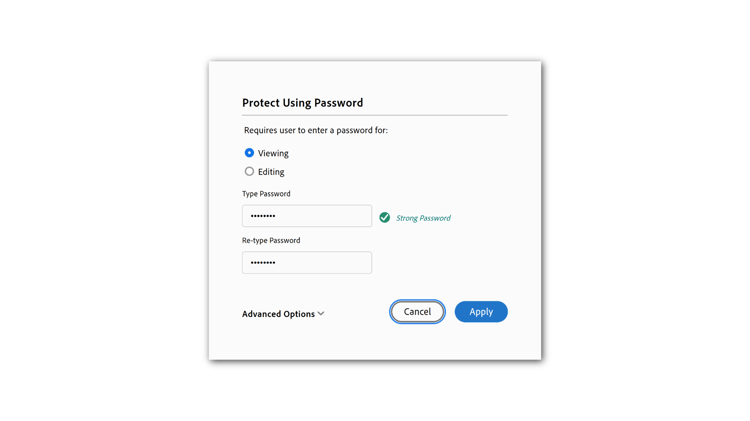
In the dialog box, select Viewing.

- :callout[]{type="rectangle" x1="12.91" y1="48.62" x2="29.76" y2="53.22"}
- :callout[]{type="rectangle" x1="12.8" y1="59.62" x2="29.76" y2="64.42"}
- :callout[]{type="rectangle" x1="40.34" y1="69.8" x2="48.43" y2="77.2"}
Add a strong password
Enter a password and re-type to verify, then select Apply. A confirmation message appears that the file has successfully been protected.
Note: Your password is not stored anywhere and cannot be retrieved if lost or forgotten. Please choose a memorable password or use a password management app to store it.
- :callout[]{type="rectangle" x1="0.77" y1="42.82" x2="13.36" y2="47.22"}
- :callout[]{type="rectangle" x1="54.14" y1="53.02" x2="59.65" y2="56.42"}
How to restrict printing, editing, and copying
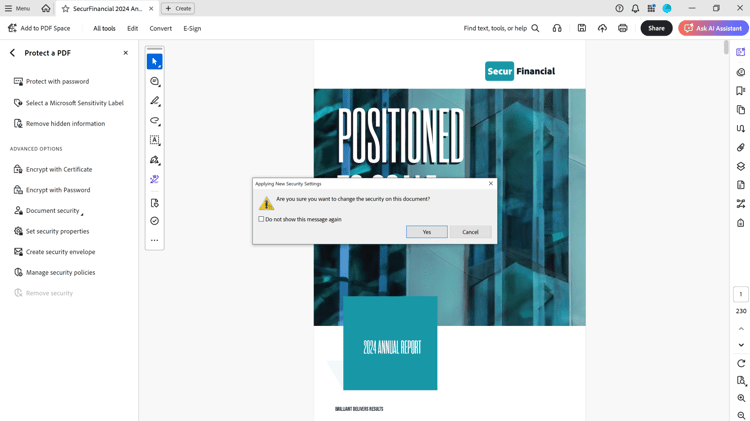
Select Encrypt with Password from the left-hand pane. Select Yes to confirm the change to the document's security.
- :callout[]{type="rectangle" x1="25.15" y1="34.22" x2="27.06" y2="37.62"}
- :callout[]{type="rectangle" x1="38.75" y1="38.62" x2="69.42" y2="40.62"}
- :callout[]{type="rectangle" x1="38.86" y1="42.82" x2="69.65" y2="45.22"}
Set the level of security
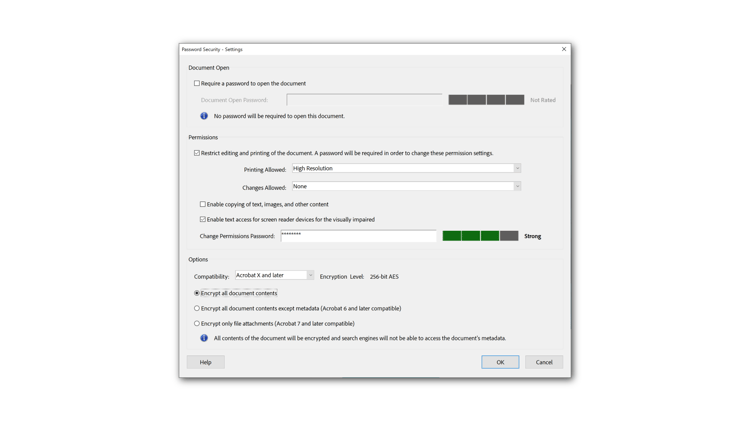
In the password security settings dialog box, select Restrict editing and printing of the document.
In the Printing Allowed: dropdown select High Resolution to allow printing. In the Changes Allowed: dropdown select None to prevent editing.
- :callout[]{type="rectangle" x1="37.19" y1="54.6" x2="57.87" y2="57.2"}
- :callout[]{type="rectangle" x1="64.14" y1="83.82" x2="69.09" y2="87.42"}
Enter a strong password
Type your password in the corresponding field. Acrobat indicates the strength of your password with the boxes to the right.
Select a compatibility and an encryption option, then select OK.
- :callout[]{type="rectangle" x1="28.98" y1="38.42" x2="48.08" y2="42.22"}
- :callout[]{type="rectangle" x1="37.96" y1="44.62" x2="44.93" y2="48.42"}
- :callout[]{type="rectangle" x1="87.96" y1="81.42" x2="95.49" y2="85.42"}
Confirm password and save
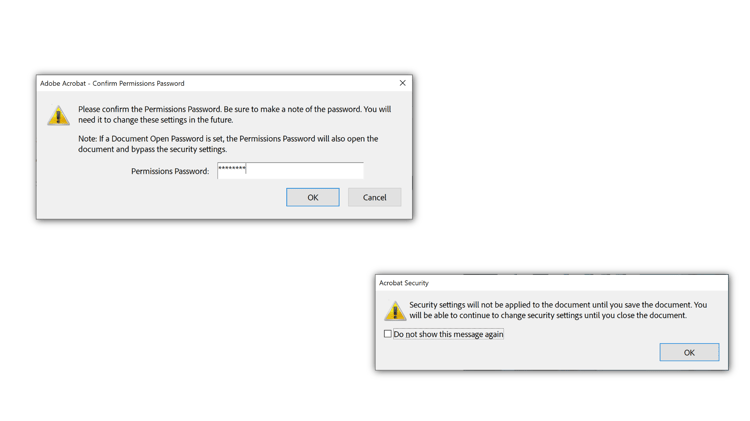
Re-enter your password to confirm and select OK. Save the file.
- :callout[]{type="rectangle" x1="1.11" y1="62.22" x2="8.75" y2="66.02"}
- :callout[]{type="rectangle" x1="85.6" y1="67.42" x2="91.22" y2="70.42"}
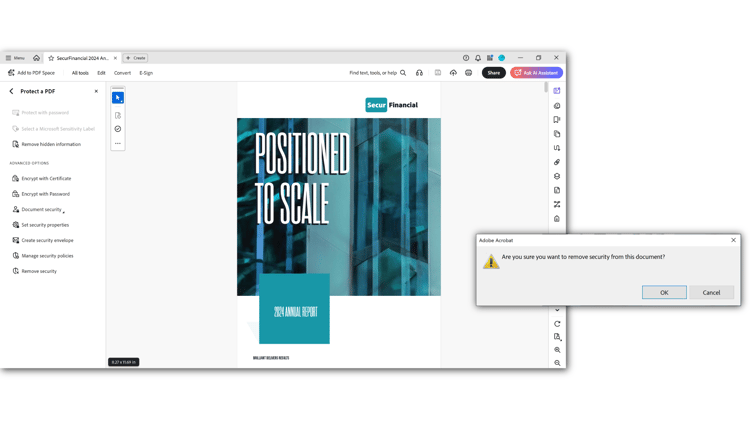
Remove password security
Select Remove security from the left-hand pane. Select OK to confirm.
- :callout[]{type="rectangle" x1="33.47" y1="7.42" x2="37.18" y2="9.62"}
- :callout[]{type="rectangle" x1="58.98" y1="92.22" x2="64.71" y2="95.42"}
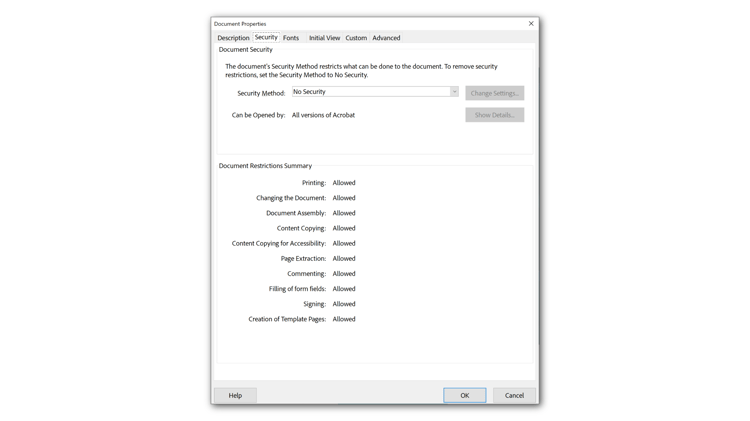
Check security
Open the Document Properties using the keyboard shortcut Ctrl + D on Windows or Cmd + D on the Mac to check the security. Select the Security tab to view the settings.

- :callout[]{type="rectangle" x1="33.47" y1="1.62" x2="38.19" y2="6.02"}
- :callout[]{type="rectangle" x1="79.76" y1="17.62" x2="93.47" y2="24.62"}
How to set an open password in Acrobat on the web
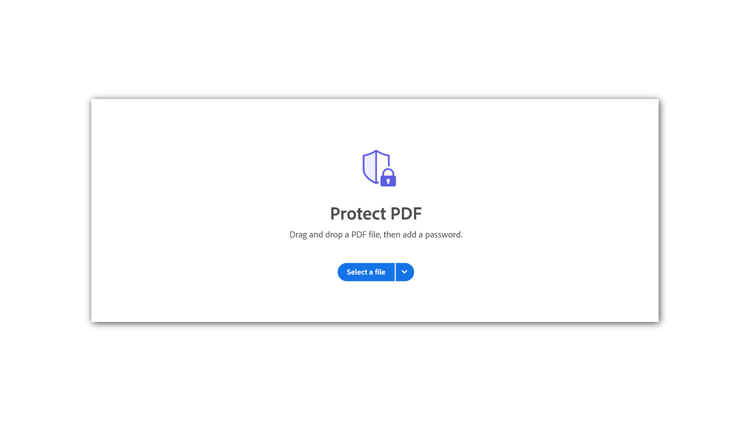
Sign in to acrobat.adobe.com in a browser. Select Edit > Protect a PDF from the top menu.
Note: You can only set a view password in Acrobat on the web.
- :callout[]{type="rectangle" x1="44.26" y1="60.82" x2="55.49" y2="68.02"}
Add a file(s)
Choose Select a file, add your file, and choose Open.
- :callout[]{type="rectangle" x1="9.2" y1="57.42" x2="37.96" y2="62.02"}
- :callout[]{type="rectangle" x1="40.44" y1="57.22" x2="69.2" y2="61.82"}
- :callout[]{type="rectangle" x1="59.76" y1="79.42" x2="69.65" y2="86.62"}
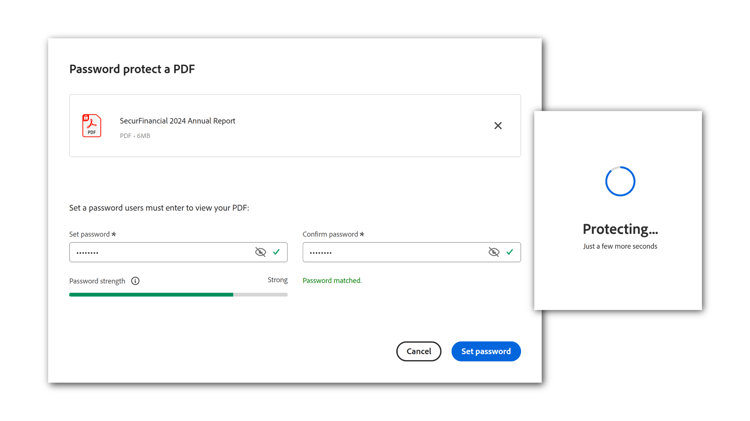
Enter a strong password
Type your password and confirm the password in the corresponding fields. Select Set password.

Test the open password
Open the PDF file. When prompted, enter the password to open the PDF.