Provision Dynamic Media for AEM Assets as a Cloud Service Content Hub
This tutorial guides you through provisioning Dynamic Media OpenAPI capabilities for AEM Assets as a Cloud Service Content Hub. You learn how to enable Dynamic Media, create a Dynamic Media company, and configure AEM Author to connect to the company. Following these steps ensures your organization can generate, manage, and deliver fast, responsive, multi-channel renditions while maintaining brand consistency and centralizing asset publishing.
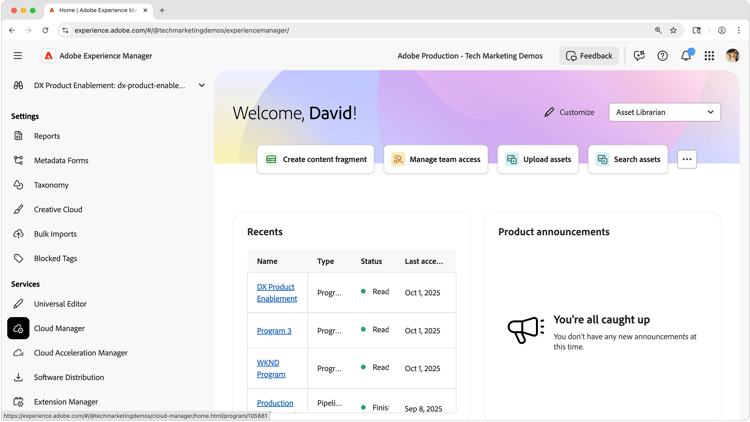
- :callout[Open Cloud Manager]{type="rectangle" x1="0.34" y1="73.48" x2="12.48" y2="81.08"}
Provisioning process overview
This tutorial explains how to provision Dynamic Media OpenAPI capabilities so your organization can generate and deliver Dynamic Media renditions with AEM Assets as a Cloud Service Content Hub. This setup ensures you serve fast, responsive, multi-channel assets, maintain brand consistency, and centralize how your teams create and publish renditions.
The provisioning process uses three main steps:
-
Enable Dynamic Media and OpenAPI capabilities for AEM Assets as a Cloud Service. This step activates Dynamic Media in your environment.
-
Create a Dynamic Media Company. This step defines the container that owns your Dynamic Media assets and settings.
-
Create a Dynamic Media Cloud Services configuration in AEM Author. This step links AEM Author to your Dynamic Media company and controls how assets publish.
Log in to AEM Experience Hub and open Cloud Manager to begin the provisioning process.
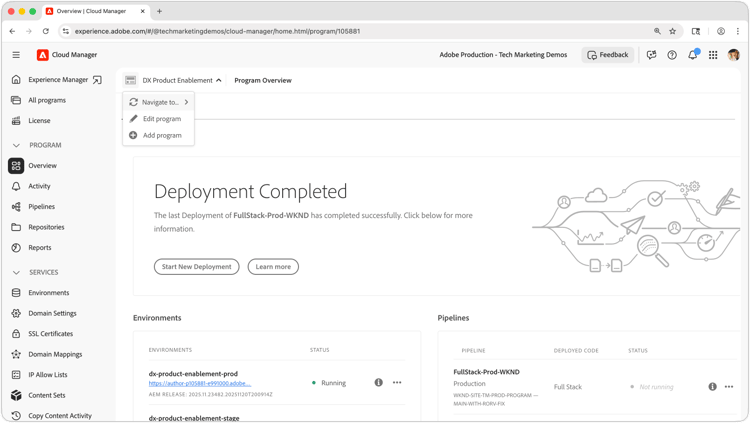
- :callout[Select "Edit program" to review its Solution & Add-ons.]{type="rectangle" x1="15.73" y1="25.2" x2="25.96" y2="30.4"}
- :callout[Ensure the correct program is selected and active in Cloud Manager.]{type="rectangle" x1="15.16" y1="16.08" x2="30.44" y2="20.88"}
Verify the program and open program settings
You first confirm that you work in the correct AEM Assets as a Cloud Service program. Each program includes its own solution assignments and add-ons, so selecting the right one ensures that Dynamic Media applies to the environment that Content Hub uses.
In Cloud Manager, use the program switcher to select the correct program. Then click Edit Program to review and adjust its solutions and add-ons.
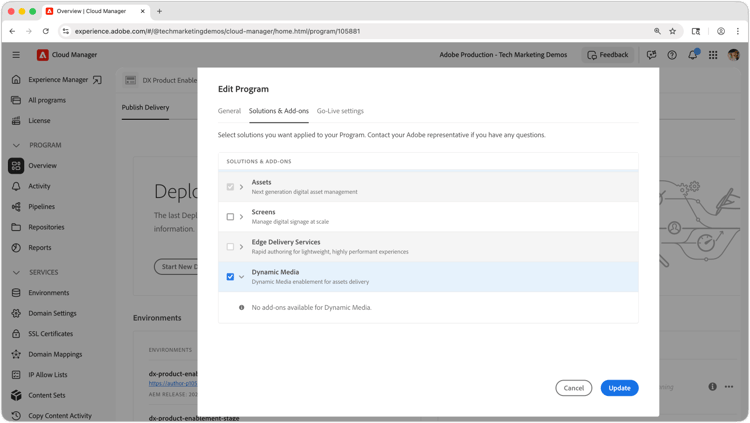
- :callout[]{type="rectangle" x1="32.7" y1="23.28" x2="41.92" y2="29.48"}
- :callout[Ensure "Dynamic Media" is assigned to the Program.]{type="rectangle" x1="28.2" y1="60.6" x2="86.18" y2="68.8"}
- :callout[Ensure either "Assets" or "Assets Ultimate" is assigned to the Program.]{type="rectangle" x1="28.65" y1="39" x2="85.28" y2="47.4"}
- :callout[Select Update to save any new assignments.]{type="rectangle" x1="79.33" y1="88.2" x2="85.39" y2="94.4"}
Confirm solutions and add-ons
Open the Solutions & Add-ons tab and confirm the program includes the required capabilities:
- Assets or Assets Ultimate
- Dynamic Media
The program must include both items. If either one does not appear or you cannot assign it, you likely do not hold a license or you have no remaining licenses. To review your available licenses, click Licenses in Cloud Manager’s left navigation.
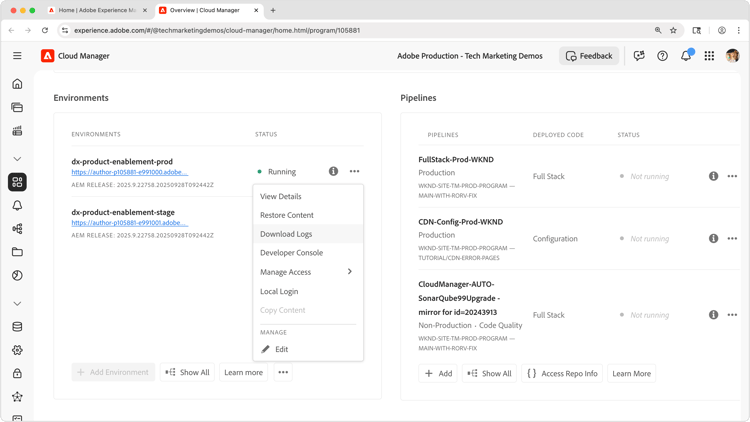
- :callout[Click the "..." and "View Details" to open the Environment details.]{type="rectangle" x1="32.93" y1="42.88" x2="48.43" y2="48.68"}
- :callout[Select the "..." to open the menu containing "View Details"]{type="rectangle" x1="45.94" y1="38.48" x2="48.3" y2="41.68"}
Open your AEM as a Cloud Service environment
Next, locate the AEM as a Cloud Service environment that supports your Assets deployment, and select View Details to open its configuration.
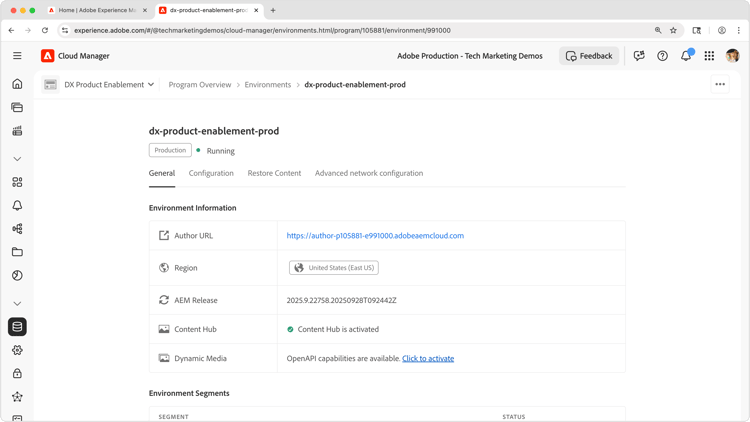
- :callout[Ensure Dynamic Media OpenAPI capabilities are activated. If they are not, select "Click to activate".]{type="rectangle" x1="18.76" y1="80.6" x2="84.04" y2="88.6"}
Verify and activate Dynamic Media OpenAPI capabilities
In the environment details, under Environment Information, locate Dynamic Media and confirm that OpenAPI capabilities appear as activated.
If the capabilities do not appear, select Click to activate and confirm the selection. Provisioning may take several minutes to complete.
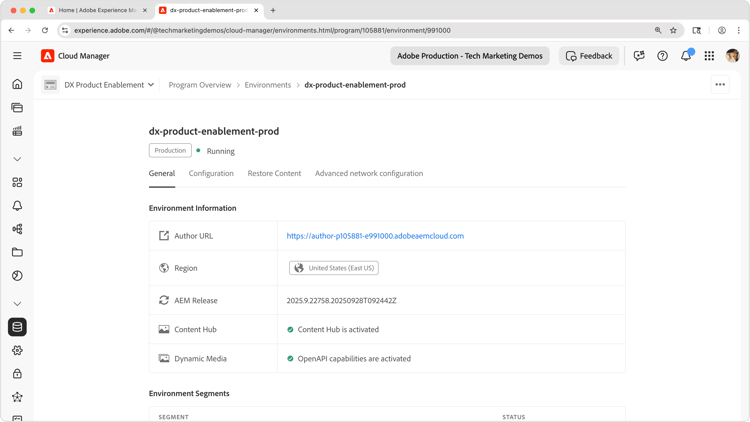
- :callout[]{type="rectangle" x1="18.76" y1="80.8" x2="84.61" y2="88.2"}
Confirm Dynamic Media OpenAPI activation
After the OpenAPI capabilities activate, the Dynamic Media entry under environment information displays "OpenAPI capabilities are active". This confirmation indicates that your environment is ready for the next configuration steps.
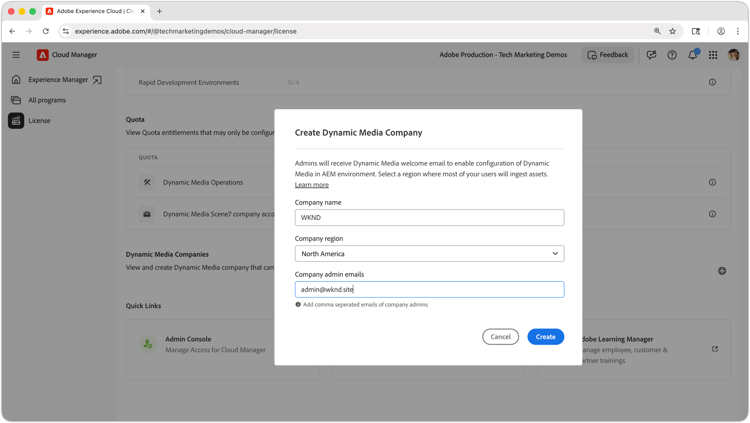
- :callout[Select "License" in Cloud manager]{type="rectangle" x1="0.34" y1="25.4" x2="14.38" y2="31"}
- :callout[Create a new Dynamic Media company that your AEM Assets environment will publish assets and presets to.]{type="rectangle" x1="35.39" y1="24" x2="78.09" y2="87"}
- :callout[Under "Dynamic Media Companies", press the add button.]{type="circle" x="96.12" y="63.5" r="3.7"}
Create or select a Dynamic Media company
In Cloud Manager, select License from the left navigation and locate the Dynamic Media Companies section.
If you do not have a Dynamic Media company to use, create a new one. Click the Add company button (plus sign) and complete the company details. Enter accurate information, because company details cannot be easily changed and companies cannot be easily deleted.

- :callout[]{type="rectangle" x1="8.99" y1="53.2" x2="93.48" y2="66"}
- :callout[Select "License" in Cloud manager]{type="rectangle" x1="0.34" y1="25.4" x2="14.38" y2="31"}
Create or select a Dynamic Media company
In Cloud Manager, select License from the left navigation and locate the Dynamic Media Companies section.
If you do not have a Dynamic Media company to use, create a new one. Click the Add company button (plus sign) and complete the company details. Enter accurate information, because company details cannot be easily changed and companies cannot be easily deleted.
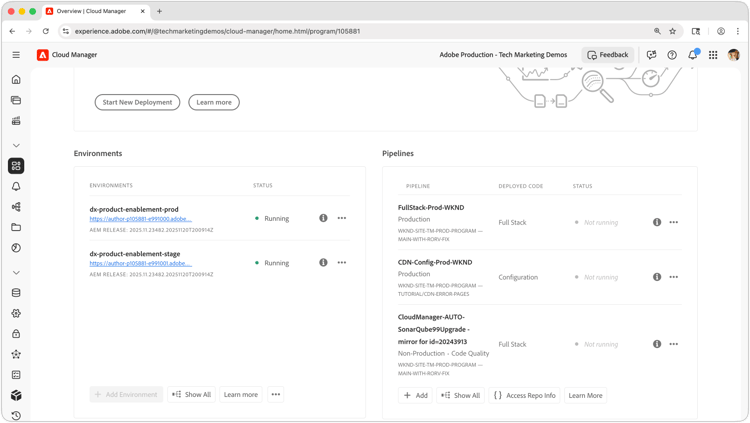
- :callout[]{type="rectangle" x1="10.67" y1="48.8" x2="27.3" y2="54"}
Create a Dynamic Media cloud configuration in AEM Author
Next, create a Dynamic Media cloud configuration in your AEM Author service and bind it to the Dynamic Media company.
Return to Cloud Manager and select the AEM Author service that has activated Dynamic Media OpenAPI capabilities.
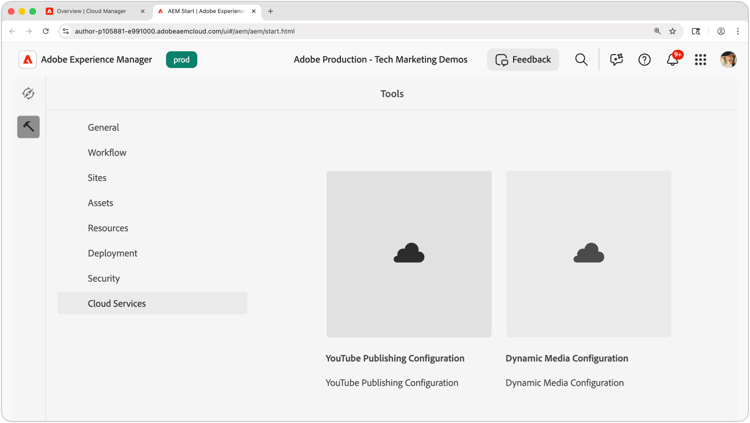
Open Dynamic Media configuration in AEM Author
In AEM Author, select Tools in the left navigation, then choose Cloud Services, and select Dynamic Media Configuration to open the configuration interface.
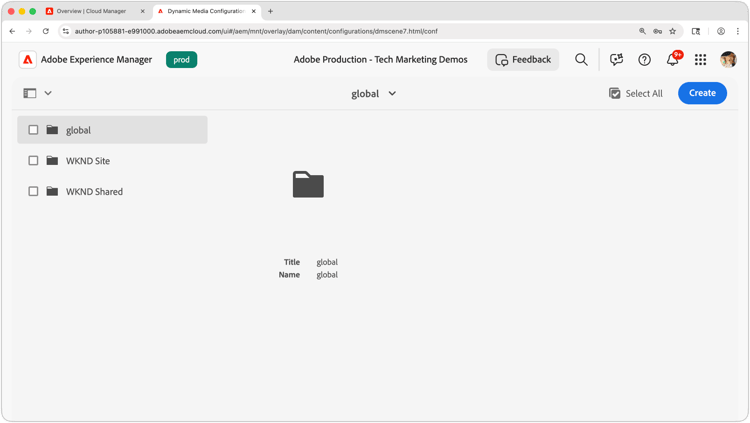
- :callout[Select the appropriate configuration under which to create the Dynamic Media configuration.]{type="rectangle" x1="1.98" y1="24.68" x2="27.71" y2="50.68"}
- :callout[Select Create to create a new Dynamic Media configuration.]{type="rectangle" x1="89.21" y1="17" x2="98.2" y2="25.2"}
Assign the Dynamic Media configuration
Select the configuration where you want to assign the Dynamic Media setup. The choice depends on how your AEM Assets environment is organized and configured.
If a single organizational entity uses AEM Assets, create the Dynamic Media configuration under the global configuration. This ensures the configuration applies to all assets in AEM Assets.
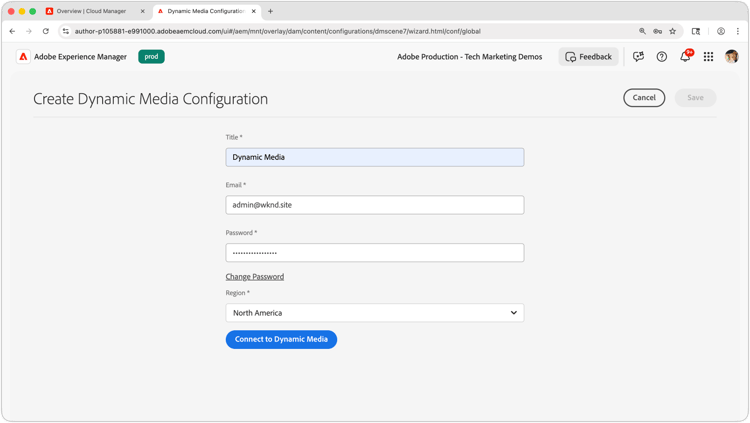
- :callout[]{type="rectangle" x1="29.44" y1="28.4" x2="70.45" y2="83.6"}
Authenticate to Dynamic Media
The Dynamic Media configuration has two steps. The first step requires authentication to Dynamic Media to pull the correct settings.
Use the login information sent to the Dynamic Media company admin email. If you do not know the password, reset it using the Forgot password feature in the Adobe Dynamic Media Classic desktop app.
After entering the login information, select Connect to Dynamic Media.
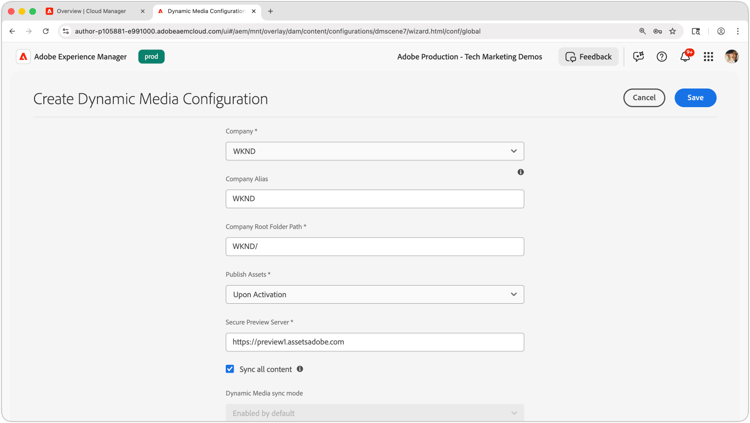
- :callout[]{type="rectangle" x1="28.61" y1="29.08" x2="70.52" y2="98.08"}
- :callout[]{type="rectangle" x1="89.17" y1="19.68" x2="95.92" y2="25.88"}
Complete the Dynamic Media configuration
After authenticating to Dynamic Media, the rest of the configuration form becomes available.
For detailed descriptions of each field, see the documentation Create a Dynamic Media Configuration in Cloud Services.
- In the Company field, select the company you created under Dynamic Media Companies in Cloud Manager Licenses.
- Optionally, set an alias.
- Leave Company Root Folder as is.
- Adjust Publish Assets to Dynamic Media as needed.
- Keep Secure Preview Server unchanged.
- Adjust Sync all content and Dynamic Media sync mode according to your requirements.
Select Save to complete the configuration.
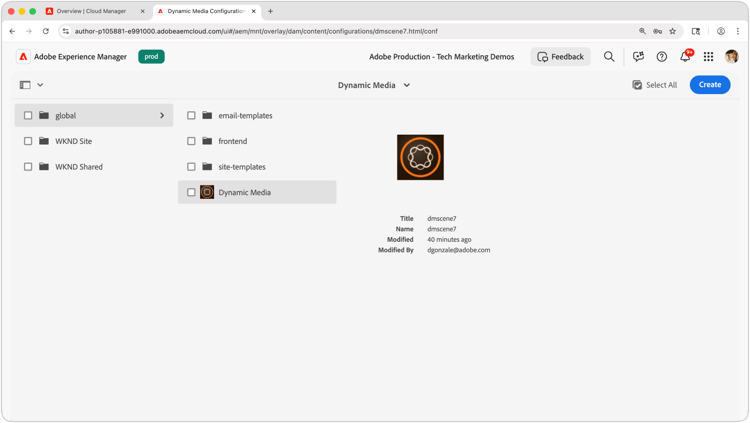
Complete setup and use Dynamic Media features
After creating the Dynamic Media configuration, AEM Author runs background setup, which may take several minutes. AEM notifies you when the setup finishes.
Once the setup completes, create Image Presets, Smart Crops, and other Dynamic Media features for your assets. These renditions appear in AEM Assets Content Hub for download, provided Content Hub is configured to allow rendition downloads.