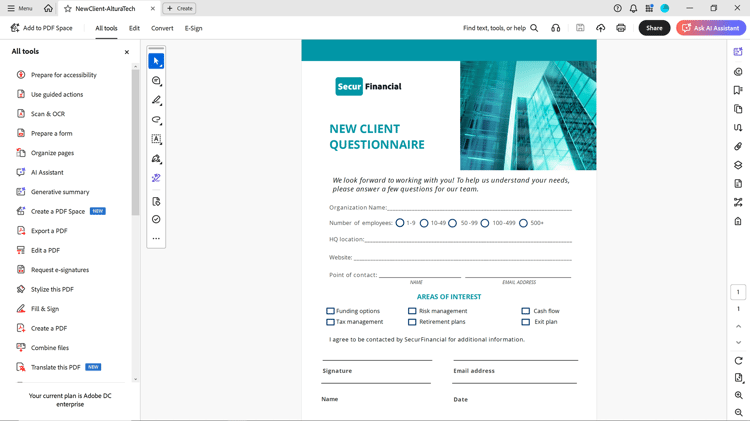
- :callout[Select All Tools]{type="rectangle" x1="12.01" y1="5.02" x2="16.17" y2="8.02"}
- :callout[Select Prepare a form]{type="rectangle" x1="1.33" y1="28.82" x2="11.78" y2="33.82"}
Create a fillable form
Select All tools from the toolbar and choose Prepare a form.
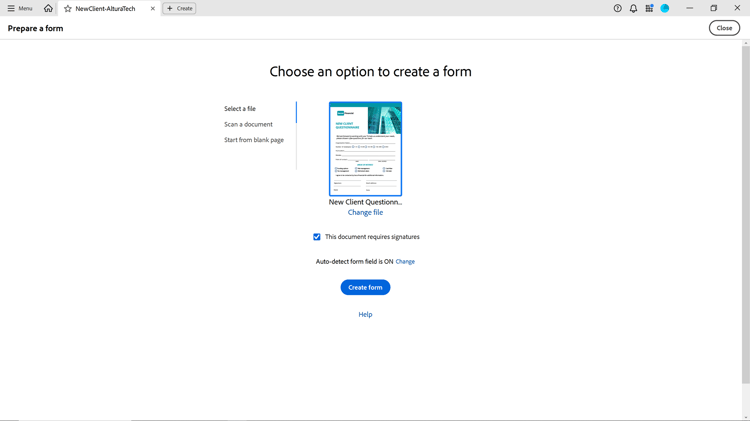
- :callout[Make sure Auto-detect form field in ON.]{type="rectangle" x1="41.11" y1="59.82" x2="52.68" y2="63.42"}
- :callout[Select Create form.]{type="rectangle" x1="44.4" y1="64.82" x2="52.71" y2="71.02"}
Get your form ready
Select an existing file to begin (for example, a Word, Excel, InDesign, or PDF file). Make sure Auto-detect form field is ON so that Acrobat automatically detects form fields in the PDF. Select Create form.
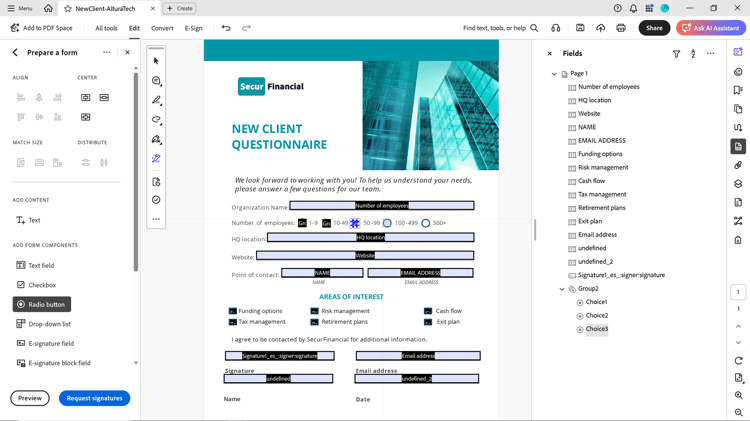
- :callout[Drag and drop new form fields here.]{type="rectangle" x1="0.67" y1="59.4" x2="13.6" y2="90.2"}
- :callout[Change the properties of existing form fields here.]{type="rectangle" x1="73.15" y1="19.2" x2="91.91" y2="85"}
Add or change form fields
Drag and drop fields from the left-hand pane to add new fields or edit existing form field details in the right-hand pane.
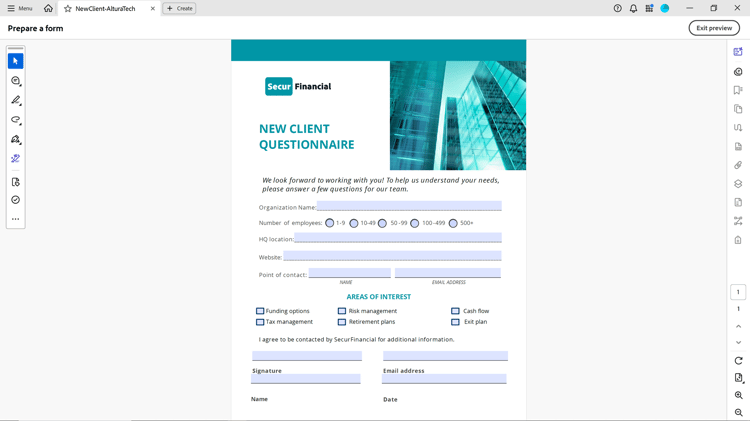
- :callout[Exit preview]{type="rectangle" x1="90.88" y1="3.62" x2="99.09" y2="8.82"}
Preview form fields
Once your fields are added, select Preview to see your form. Select Exit preview to continue work, or select Save to save the PDF form.