Onboard users
This guide provides steps for administrators to onboard users to Adobe Experience Manager Sites Optimizer by provisioning them in Adobe Admin Console.
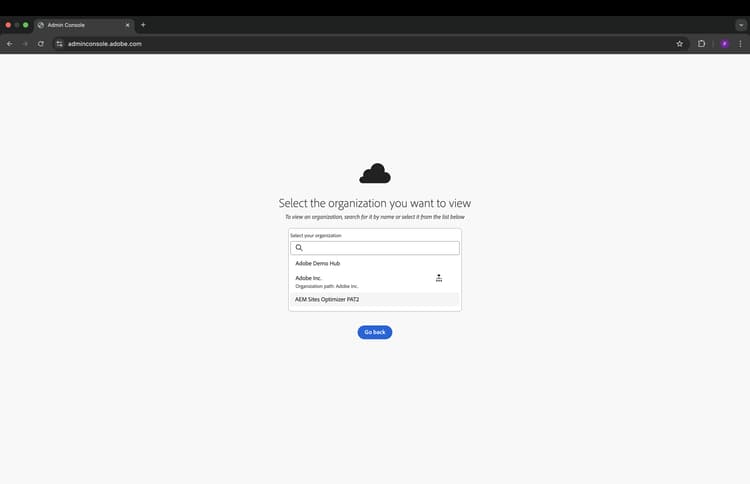
- :callout[Choose the organization that includes your AEM Sites Optimizer.]{type="rectangle" x1="37.8" y1="59.28" x2="61.96" y2="64.48"}
Select your organization
First, log in to the Adobe Admin Console. Then, select the organization that includes AEM Sites Optimizer.
If you belong to only one organization, you will be taken directly to that organization's Admin Console.
Choosing the correct organization ensures you are managing the right users and product profiles.
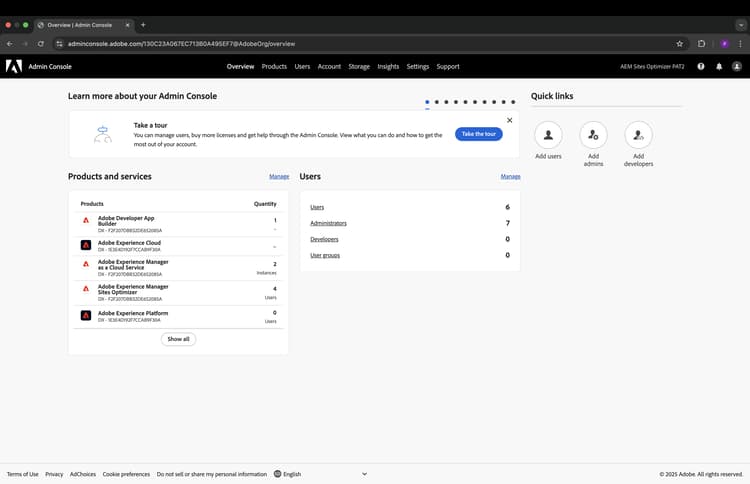
- :callout[Select Adobe Experience Manager Sites Optimizer product from Products and services, or select Products in the top action bar if it is not listed here.]{type="rectangle" x1="8.54" y1="56.6" x2="38.54" y2="63.2"}
- :callout[Click Products to view the full list of products available in this organization.]{type="rectangle" x1="34.21" y1="11.48" x2="38.82" y2="15.48"}
Navigate to the AEM Sites Optimizer product
In the Admin Console, select the AEM Sites Optimizer product to open its configuration.
If you don't see it listed, click Products in the top action bar to view the full product listing.
This ensures you are managing the correct product and accessing all its configuration options.
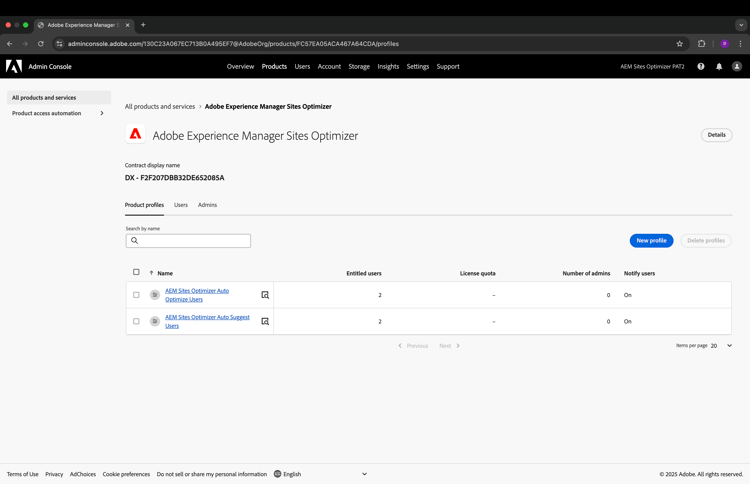
- :callout[Make sure the Product profiles tab is active to manage product profiles.]{type="rectangle" x1="15.62" y1="40" x2="22.25" y2="44.4"}
- :callout[]{type="rectangle" x1="16.4" y1="57.2" x2="98.09" y2="69.8"}
Review the product profiles
In the AEM Sites Optimizer product within the Admin Console, select the Product Profiles tab. Here, you'll see all available product profiles.
Product profiles determine which features users can access in Sites Optimizer, so it's important to assign users to the correct profile.
Sites Optimizer Ultimate subscribers have two product profiles:
- AEM Sites Optimizer Auto Optimizer Users
- AEM Sites Optimizer Auto Suggest Users
Sites Optimizer Prime subscribers have a single product profile:
- AEM Sites Optimizer Auto Suggest Users
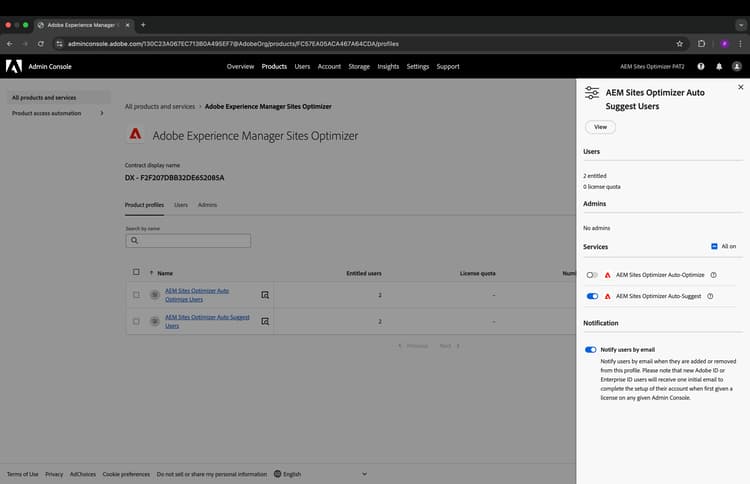
- :callout[View which services are included with this product profile]{type="rectangle" x1="77.08" y1="49.2" x2="99.55" y2="64.2"}
- :callout[Click a product profile to see its details on the right.]{type="rectangle" x1="16.18" y1="63.4" x2="37.08" y2="69"}
Review product profile details
Product profiles control access to features in Sites Optimizer based on the services they include.
By selecting a product profile, you can view its details and see which services are enabled for that profile.
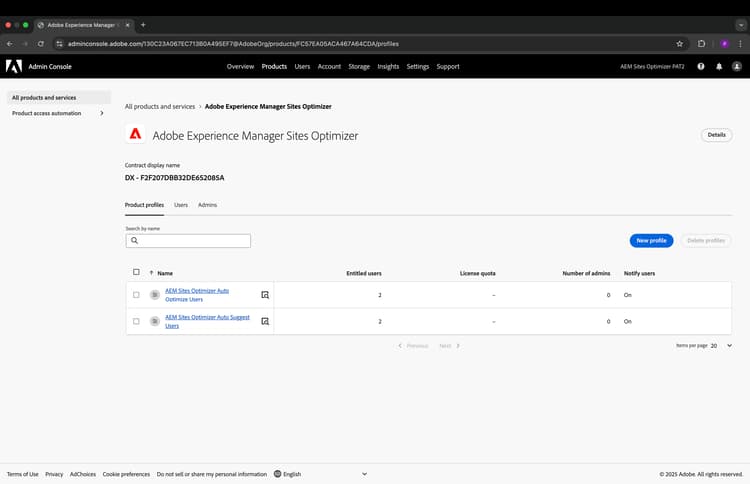
- :callout[Select the product profile to manage its users.]{type="rectangle" x1="16.2" y1="57.08" x2="36.76" y2="63.68"}
Add users to product profiles
To give users access to Sites Optimizer, you need to assign them to the correct product profile.
Each profile controls access to specific features, so selecting the right one ensures users can perform the tasks they need.
Click on a product profile to view and manage its users.
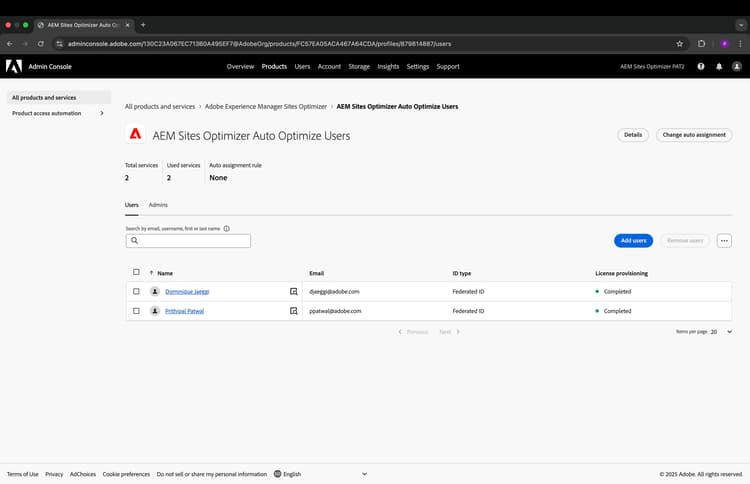
- :callout[Make sure the Users tab is active to manage users.]{type="rectangle" x1="15.73" y1="40.4" x2="18.99" y2="44.6"}
- :callout[Click the Add users button to add a new member to this product profile.]{type="rectangle" x1="81.01" y1="46.4" x2="87.64" y2="52"}
Add user to product profile
Within the product profile, ensure the Users tab is selected, then click the Add users button.
This step grants users the correct access to Sites Optimizer features. Product profiles work like permission sets, so assigning a user to the right profile controls exactly what they can do within the tool.
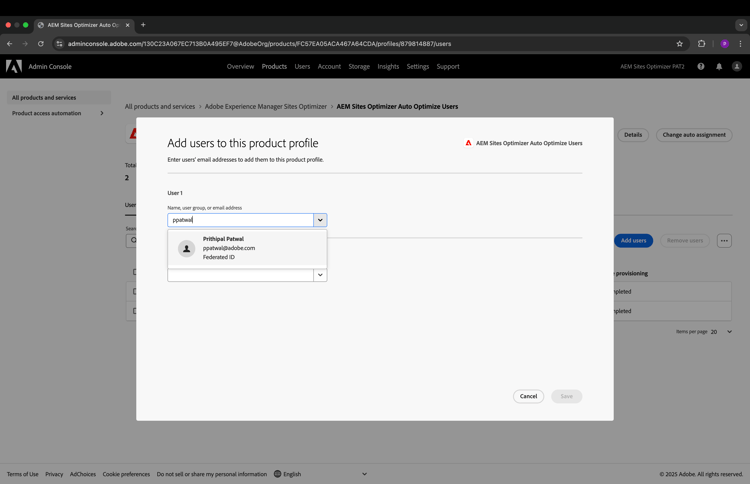
- :callout[Search and select user to add to the product profile.]{type="rectangle" x1="21.48" y1="41.48" x2="44.74" y2="59.48"}
Assign users to the product profile
Search for and select users from your organization to add them to this product profile.
When you're done, click the Save button in the bottom right.
The users you selected will now have access to AEM Sites Optimizer.
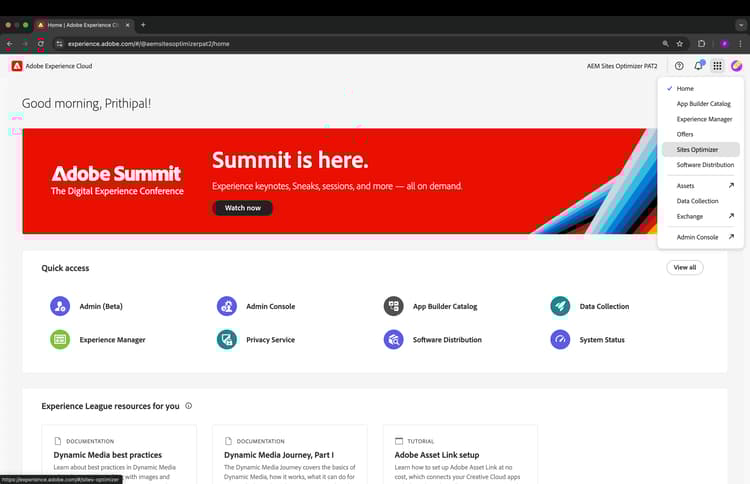
- :callout[Make sure the organization where you have permissions is selected and active.]{type="rectangle" x1="76.85" y1="11.2" x2="88.88" y2="15"}
- :callout[Click Sites Optimizer to open the app.]{type="rectangle" x1="87.53" y1="27.6" x2="98.88" y2="33.2"}
Navigate to AEM Sites Optimizer
Users with the proper permissions can now access AEM Sites Optimizer.
Log in to Adobe Experience Cloud, select the organization where you have been granted access (if you belong to more than one), and then choose Sites Optimizer from the product selector.
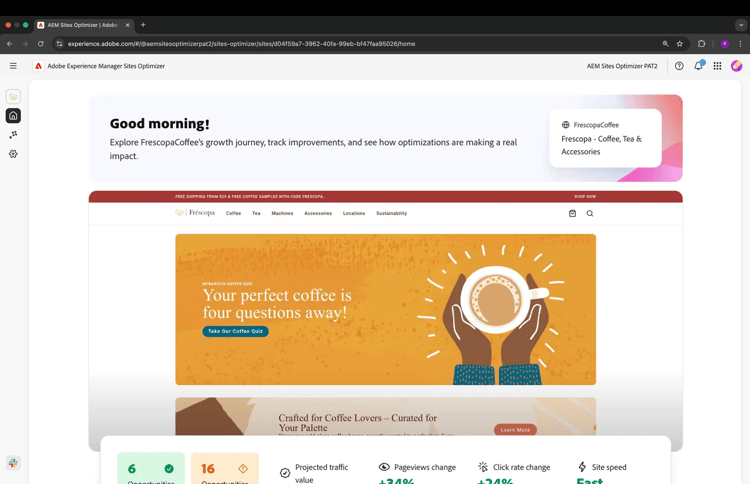
AEM Sites Optimizer
Users will be taken directly to AEM Sites Optimizer, with access determined by the permissions assigned in the Adobe Admin Console.
This ensures they can use the features available to their product profile.