Rerun a Data Feed job
The data feed UI in Adobe Analytics makes data feed management much easier. If you have access to manage data feeds, you can rerun a data feed job on your own right in the data feed UI, without having the customer support team resend the data feed files.

Rerun a Data Feed job
Hi everybody, it's Gary. The data feed UI in Adobe Analytics makes data feed management much easier. If you have access to manage data feeds, you can rerun a data feed job on your own, right in the data feed UI, without having the customer support team resend the data feed files for you.
- :callout[]{type="rectangle" x1="27.76" y1="37.2" x2="42.93" y2="42.4"}
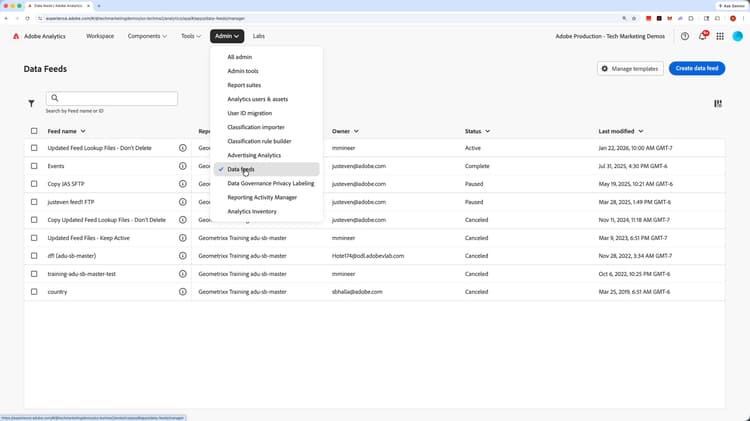
Open the Data Feeds interface
After logging into Adobe Analytics from the Experience Cloud site, click on the Admin menu and select Data feeds. If you don't have this option available to you, please contact and Adobe Analytics administrator at your company.
- :callout[]{type="rectangle" x1="3.04" y1="36.89" x2="5.52" y2="41.29"}
- :callout[]{type="rectangle" x1="60.91" y1="91.29" x2="67.99" y2="96.09"}
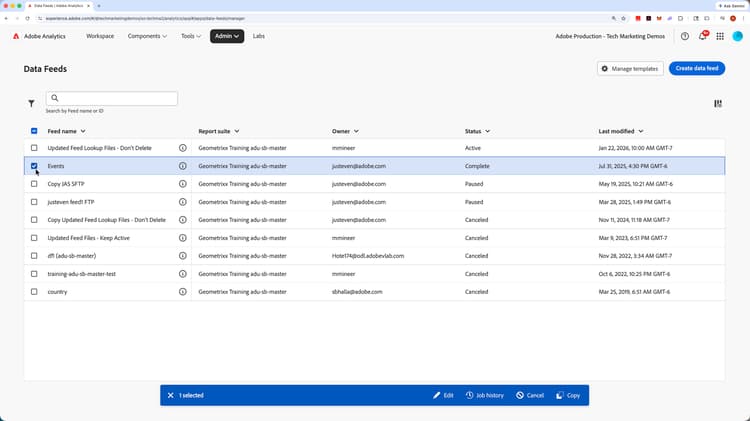
Select the feed and click into the job history
When you come into the Data Feeds UI, you should see a list of your current data feeds. Instead of clicking the data feed name, which would take you into the data feed details and setup, select the checkbox next to the data feed you want to rerun. Then click "Job history" in the action bar at the bottom.
- :callout[]{type="rectangle" x1="3.04" y1="45.4" x2="5.52" y2="49.6"}
- :callout[]{type="rectangle" x1="82.81" y1="21" x2="94.61" y2="27.4"}
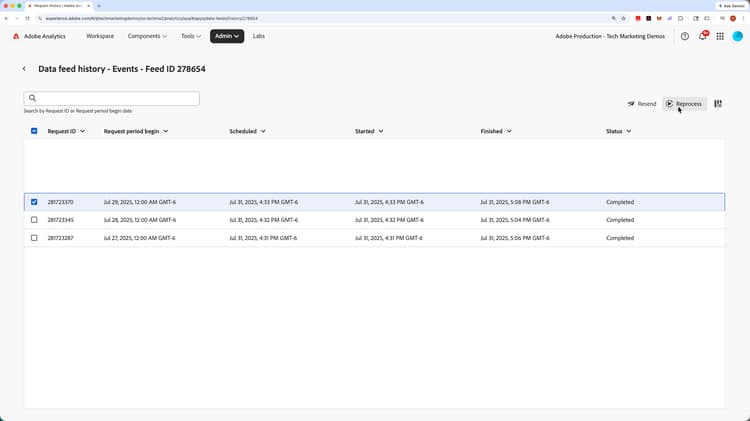
Reprocess the desired job
Now you will see a list of the different jobs that have been run or attempted. Select the checkbox next to the job you would like to rerun, or reprocess. Clicking "Resend" in the top right will simply send the same file that was created last time you ran the job. However, to rerun, or reprocess the job, click the "Reprocess" link. I hope that helps. Good luck!