When data disappears between AEP and a CJA report, it rarely vanishes at random — it gets dropped, transformed, or misconfigured at one of five distinct pipeline stages. This guide walks practitioners through each stage, the failure modes to watch for, and the diagnostic tools to find and fix missing data.
You built the connection. You configured the Data View. You opened Analysis Workspace — and the numbers are wrong. A dimension is blank. A metric is lower than it should be. You know the data is there. So where did it go?
This is one of the most common and frustrating experiences for Adobe Experience Platform and Customer Journey Analytics practitioners. The pipeline from data source to Customer Journey Analytics report passes through multiple stages, and data can quietly disappear — or be silently transformed — at any one of them.
This article walks you through each stage of the Adobe Experience Platform → Customer Journey Analytics pipeline, explains what can go wrong at each layer, and gives you the diagnostic questions and actions to find your data and fix your implementation. Think of it as a practitioner’s field guide for data forensics.
The Adobe Experience Platform → Customer Journey Analytics pipeline at a glance
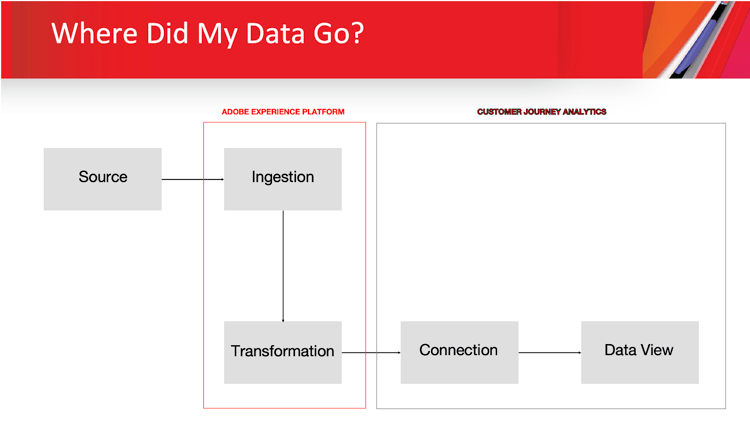
Before diagnosing a problem, it helps to hold the full architecture in your head. Data travels through five distinct stages before appearing in a Customer Journey Analytics Workspace report:
-
Source — where data originates (web, mobile, customer relationship management software (CRM), offline, etc.)
-
Ingestion — how data enters Adobe Experience Platform (batch upload, streaming, source connectors)
-
Transformation — how data is shaped and enriched inside Adobe Experience Platform (Data Prep, Data Distiller)
-
Connection — how Adobe Experience Platform datasets are joined and stitched in Customer Journey Analytics
-
Data View — how Customer Journey Analytics exposes fields as dimensions, metrics, and derived components
At each stage, data can be filtered, dropped, mismatched, or misconfigured. The good news: every stage leaves diagnostic signals. Let’s go through them one by one.
Stage 1: Source
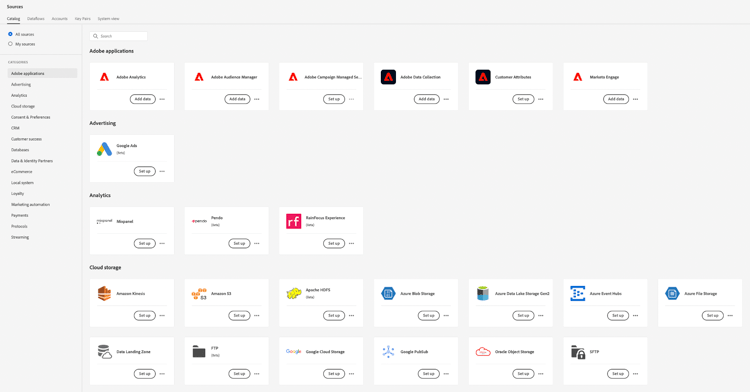
The source is everything upstream of Adobe Experience Platform — your web or mobile SDKs, CRM, marketing automation platform (MAP), point of sale software (POS), ad platforms, call center records, etc. Adobe Experience Platform comes with data connectors to most major platforms that you can find in the Source Catalog:
Source of truth
Data originating from the source system is considered the authoritative “source of truth” for any downstream analytics or reporting.
By referencing the raw payloads and original records, you can make sure that what appears in Customer Journey Analytics Workspace reports accurately reflects all key events and attributes as captured at the source. This practice allows you to validate report accuracy and trace discrepancies back to their origin, helping maintain data integrity throughout the architecture.
Stage 2: Ingestion
Once you know the source data you need for reporting, it’s time to setup dataflows to ingest in the data into data lake as queryable datasets.
How ingestion works
Adobe Experience Platform supports two ingestion modes:
-
Batch ingestion — data is uploaded as files (CSV, JSON, Parquet) or sourced via connector on a schedule. Each upload creates a “batch,” which can succeed, partially succeed, or fail.
-
Streaming ingestion — data flows in real time via the Edge Network, HTTP API, or streaming connectors. Errors surface as failed records in the monitoring dashboard.
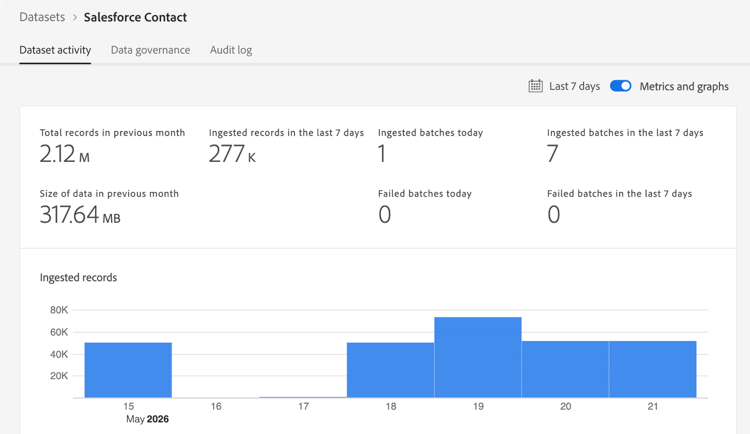
Ingestion errors are the most common cause of missing records — and they are frequently overlooked because they don’t surface as loud alerts.
Adobe Experience Platform validates every record against its XDM schema at ingestion time. Records that don’t conform are either rejected or have offending fields nullified and silently dropped. This means your dataset may contain far fewer records than your source system — without any obvious error message at the dataset level.
Things to look for
Ingestion errors in the dataset UI
Navigate to the Datasets section in the Adobe Experience Platform UI and click into your dataset. Scroll down to the batch list. Each batch shows a status (Success, Failed, or Partial) and a record count. If you see failures:
-
Click into the failed batch to view error details.
-
Look for ERROR, DCVS, and MAPPER error codes.
-
ERROR codes indicate data corruption or complete schema non-conformance — the entire batch fails.
-
DCVS codes (data constraint violations) indicate records that were skipped due to missing required fields. These records are not in your dataset and must be corrected at the source and re-ingested.
-
MAPPER codes indicate rows that were ingested but with fields nullified due to type mismatches. The row made it into the dataset, but specific attributes may be NULL.
Calculated fields in Data Prep
Adobe Experience Platform Data Prep is the mapping and transformation layer applied during ingestion. When you configure a source connector, you define field mappings from your source schema to your XDM target schema. Data Prep also supports calculated fields — inline transformations applied during ingestion, such as string concatenation, date format conversion, or conditional logic.
Calculated fields are powerful but fragile. If a transformation function encounters unexpected input (a null value, a malformed string, a type mismatch), the resulting attribute is set to NULL rather than throwing an error — and the record is still ingested with a missing field.
-
Review your calculated fields in the Sources → Mappings UI.
-
Use the “Preview” function when defining a calculated field to validate it against real sample data.
-
When debugging null values in Customer Journey Analytics, trace the field back through Data Prep to check whether a transformation is silently failing.
The ANALYZE TABLE query in dataset statistics
One of the most underused diagnostic tools in Adobe Experience Platform is the Query Service “ANALYZE TABLE” command (also accessible as Dataset Statistics in the Query Service UI). Running this against a dataset gives you column-level statistics: record counts, null rates, distinct value counts, and min/max values.

This is invaluable for post-ingestion validation:
-
A column with a null rate of 80% when you expected it to be fully populated signals an upstream ingestion problem.
-
Distinct value counts wildly different from expected cardinality can reveal mapping issues.
-
Min/max timestamps that don’t match expected date ranges confirm whether backfill or recent data is missing.
Stage 3: Transformation
Transformation refers to work done on your data inside Adobe Experience Platform after ingestion — reshaping, enriching, aggregating, or deriving new datasets before they flow into Customer Journey Analytics. This stage is where many B2B teams and advanced implementations do a lot of work, and it’s also where subtle data modeling decisions can create unexpected downstream effects.
Transformation use cases
Customer Journey Analytics B2B Edition
If your organization uses Customer Journey Analytics B2B Edition, you may need to transform data in Adobe Experience Platform due to its B2B model with accounts, opportunities, buying groups, and person-level events. At a minimum, you need to stitch account IDs onto all profile and event datasets you intend to use.
Manual stitching
If your team is not on Graph-Based Stitching, sometimes you will need to handle the stitching of Person ID onto all profile and event datasets using SQL queries.
Record-level filtering
In some cases, you don’t need all dataset records inside of Customer Journey Analytics. This could be due to BU or department isolation, governance requirements, brand-specific reporting needs, etc.
Calculated fields
You may need to create calculated fields using case statement logic. Marketing Channels, EmailHash, and Custom Unique Identifiers are examples of these.
Data Distiller
The majority of Adobe Experience Platform data transformation happens with Data Distiller, allowing organizations to clean, enrich, aggregate, and model data directly within the platform before it is activated or analyzed in downstream applications like Real-Time CDP and Customer Journey Analytics.
Scheduled Data Distiller templates
Adobe Data Distiller is the licensed add-on to Adobe Experience Platform Query Service that enables scheduled, persistent SQL-based transformations. Where Data Prep handles transformation at ingestion time, Data Distiller handles transformation after data is in the lake — creating derived datasets, enriching profiles, building aggregated tables, and preparing curated datasets specifically for Customer Journey Analytics.
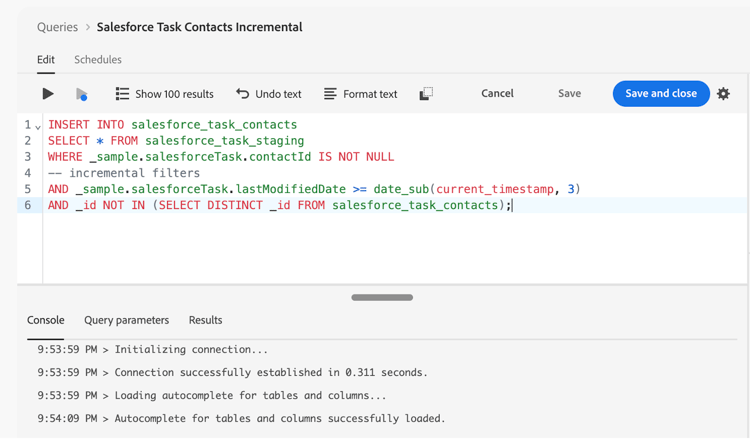
Scheduled Data Distiller queries are powerful but require ongoing maintenance. Common failure modes include:
-
A query referencing a field that was renamed or removed upstream, causing silent NULL output
-
A schedule that failed silently (check the Query Service → Schedules tab for run history and error logs)
-
Incremental queries that missed a date window due to late-arriving data, creating gaps in the derived dataset
-
INNER JOIN and WHERE filters that inadvertently filter out data
If Customer Journey Analytics data looks complete for some time periods but empty for others — especially when the data comes from a derived dataset — a failed or stale Data Distiller schedule, or bad SQL logic is often the culprit.
Stage 4: Connection
The Customer Journey Analytics Connection is where Adobe Experience Platform datasets are assembled into a unified data model for analysis. The Connection defines which datasets are included, how they are typed (event, profile, or lookup), which field serves as the Person ID, and how data is stitched across datasets. This stage is where some of the most counterintuitive data loss can occur.
The “inner join” behavior
This is one of the most important concepts to understand about Customer Journey Analytics Connections, and the one that most frequently surprises practitioners.
When a profile dataset and an event dataset share the same Person ID field, Customer Journey Analytics applies what is effectively an inner join: only Person IDs that appear in both the event dataset AND the profile dataset are counted as persons in reports. If a Person ID exists in your profile dataset but has no corresponding events in your event dataset, that person will not appear in Customer Journey Analytics reports at all.
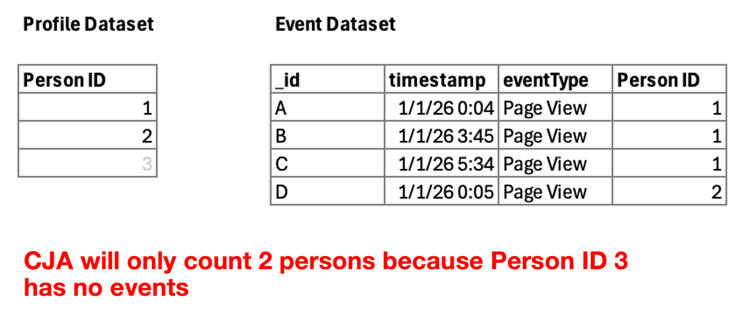
To illustrate: if your Connection contains three Person IDs (1, 2, and 3) in your profile dataset, but Person ID 3 has no events in the event dataset, Customer Journey Analytics will only count 2 persons. Person ID 3’s profile attributes exist in Adobe Experience Platform — you can see them in dataset preview — but they will return “No value” in Analysis Workspace.
This behavior is by design, not a bug. Customer Journey Analytics is an event-driven analytics platform. Profile data enriches events — it does not surface independently without an associated event. The practical implication: if you’re expecting to report on “all customers in your CRM,” including those with zero activity, Customer Journey Analytics is not the right tool for that query without engineering a synthetic event for each person.
Other things to look for
Consistent Person ID across profile and event datasets
The Person ID field in your Connection must use the same identity namespace and the same value format across all datasets. This sounds obvious, but in practice it breaks frequently:
-
Email addresses that are lowercase in the CRM export but mixed-case in web SDK events will not stitch. Identity resolution in Adobe Experience Platform is case-sensitive.
-
RM IDs stored as integers in one dataset and strings in another will fail to join.
-
identityMap fields (commonly used in Web SDK implementations) are designed for identity resolution and stitching, not as reportable dimensions. If a CRM ID needs to be used in reporting, filtering, or derived fields, store it in a dedicated XDM field (for example, _tenant.crmId) in addition to identityMap.
Know your data model
Customer Journey Analytics supports three dataset types in a Connection: event, profile, and lookup. Understanding the differences is critical:
-
Event datasets contain time-stamped behavioral data and are the primary source of metrics and session-level analysis. Each row requires a timestamp and a Person ID.
-
Profile datasets contain attributes about persons (CRM data, customer segments, propensity scores). They enrich event data but only surface when events exist for that person.
-
Lookup datasets enrich events with reference data (product catalogs, campaign metadata, geographic lookups). They join on a key field rather than a Person ID.
Putting data in the wrong dataset type is a common mistake. CRM enrichment data belongs in a profile dataset. Campaign metadata belongs in a lookup dataset. Putting lookup data in a profile dataset (or vice versa) will produce unexpected join behavior.
Stage 5: Data View
The Data View is Customer Journey Analytics’s reporting configuration layer — the lens through which your Connection data is interpreted. It defines which fields are exposed as dimensions and metrics, how persistence is configured, what attribution models are applied, and which derived fields or calculated fields exist. If your data made it through ingestion, transformation, and the Connection correctly but still doesn’t appear in a report, the Data View is where to look next.
Things to look for
Did you include the component? The correct one?
The Data View does not automatically expose every field from your Connection. You must explicitly add dimensions and metrics as components. If a field doesn’t appear in Analysis Workspace, the most common reason is simply that it hasn’t been added to the Data View.
Check:
-
Is the field included in the Data View components list?
-
Is the correct schema field selected? Connections with multiple datasets sometimes have identically named fields from different schemas. Choosing the wrong one (e.g., a field from a lookup dataset when you intended the event dataset version) will return unexpected results.
-
Is the component set to the correct data type? A numeric field accidentally configured as a string dimension won’t aggregate as a metric.
Component configurations
Customer Journey Analytics Data View component settings are significantly more flexible than Adobe Analytics, and that flexibility introduces new ways for data to look wrong:
-
Persistence (allocation and expiry): For dimension persistence, verify that the allocation model and expiry window match your business intent. A dimension set to “Most Recent” allocation will overwrite previous values; one set to “Original Value” will hold the first-touch value. Neither is inherently correct — it depends on the use case.
-
Value include/exclude filters: Data View components support include/exclude rules that filter values at query time. If a dimension returns fewer values than expected, check whether a filter is inadvertently hiding legitimate values.
-
Metric attribution models: A metric configured with a non-default attribution model (e.g., Linear, Participation) will produce different numbers than the default Last Touch. If a metric doesn’t match what stakeholders expect, verify the attribution model on the component.
-
No value behavior: By default, Customer Journey Analytics shows “No value” for records where a dimension field is null or empty. You can customize this label and choose whether to include or exclude these records in totals.
Derived fields and calculated field logic
Derived Fields are one of Customer Journey Analytics’s most powerful features — and one of the most common sources of unexpected data behavior. A derived field applies a rule-based transformation to raw schema data retroactively, without modifying the underlying dataset. This is incredibly useful for standardizing values, mapping codes to friendly labels, or building complex classification logic.
However, derived fields apply their logic at query time, which means:
-
A condition that doesn’t match any values will return null for all rows — and there’s no error message to tell you.
-
Case-sensitive matching in a CASE WHEN rule can silently fail if your data values have inconsistent capitalization.
-
Derived fields are shared within the same Connection but not across Connections. If you need the same logic in multiple Connections, you must recreate it.
-
The function “preview” in the derived field builder only shows a sample of values — always test against real report dates after deployment.
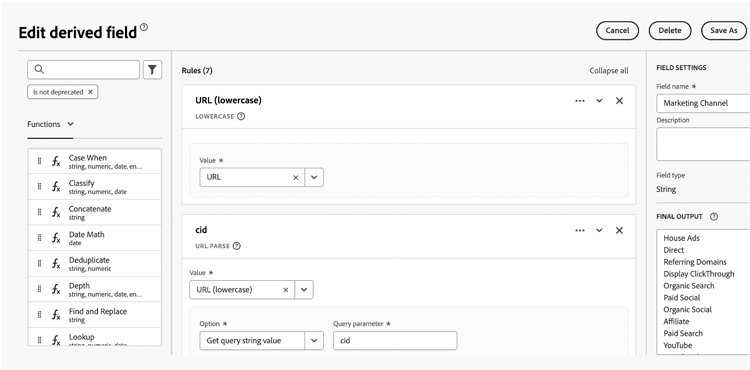
When a derived field returns unexpected nulls or incorrect values, work backwards through the rule logic in the derived field builder. Test each condition individually using the preview function and compare against values you can verify in the underlying dataset via Query Service.
Putting it together: a diagnostic framework
When data is missing or wrong in a Customer Journey Analytics report, work through the pipeline in order. Start at the source and move downstream. Jumping straight to the Data View when the issue is actually in ingestion wastes time.
-
Step 1 — Source: Confirm the data was actually sent. Use Adobe Experience Platform Debugger or Assurance. Check source connector dataflow status in the Adobe Experience Platform Sources UI.
-
Step 2 — Ingestion: Check the Dataset UI for batch errors. Review ERROR, DCVS, and MAPPER error codes. Run ANALYZE TABLE in Query Service to check null rates and record counts.
-
Step 3 — Transformation: If using Data Distiller scheduled queries, verify the last successful run in the Query Service Schedules tab. Check for schema changes in upstream datasets that could break query logic.
-
Step 4 — Connection: Verify Person ID consistency across datasets (case, type, format). Confirm dataset types are correct (event vs. profile vs. lookup). Remember the inner join behavior: profile attributes won’t appear without matching events.
-
Step 5 — Data View: Confirm the component is included and the correct schema field is selected. Review persistence settings, include/exclude filters, and attribution models. Test derived field logic in preview mode and validate against Query Service.
Conclusion
The Adobe Experience Platform → Customer Journey Analytics pipeline is powerful precisely because it is layered. Each stage — Source, Ingestion, Transformation, Connection, Data View — adds flexibility, but also adds a place where data can silently disappear or be unexpectedly altered.
The practitioners who debug fastest are the ones who resist the urge to assume. They don’t assume the source is correct. They don’t assume ingestion succeeded. They don’t assume the Connection is joined the way they think it is. They move through the pipeline stage by stage, using the diagnostic tools at each layer, until they find the gap.
Build that discipline into your team’s standard operating procedure — post-ingestion validation checklists, scheduled query monitoring, Data View QA before publishing to stakeholders — and you’ll spend far less time answering “where did my data go?”
The pipeline is only as strong as your understanding of each layer. Know the stages, know the failure modes, and you’ll find your data every time.