The Adobe Analytics Data Dictionary is a built-in Workspace tool that helps teams document, understand, and govern dimensions, metrics, segments, and other components. This guide explains how to access, navigate, maintain, and use the Data Dictionary to improve reporting accuracy, onboarding, and long-term implementation health.
When building your implementation, one of the most important steps is to keep good documentation so that when you (or those who come after you) want to understand what data is being captured, you have a solid reference. In the past, this would typically be done in an SDR (solution design reference) external to Adobe. There still are some benefits to having external documentation, but now Adobe has made it possible to keep some of your documentation within the workspace platform using the Data Dictionary.
What is the Data Dictionary?
The Data Dictionary is a built-in tool in Workspace, available for both Adobe Analytics and Customer Journey Analytics, that lets you track all your components, including dimensions, metrics, segments, and date ranges. This also includes all the custom components that you have created, like calculated metrics. Here you can view all the information pertaining to your components, including adding descriptions, tags, and setting ‘frequently used with’ or ‘similar to’ components. Individuals who have admin access can update and maintain this information for their organization.
There are several benefits to using the Data Dictionary. For users, this helps them better understand the available components. In addition to updating a description, admins can also provide information about how a component should be used, which other components it should be used with, similar components, and whether or not it is approved. For administrators, this helps them identify duplicate components, components that are no longer collecting data, and unapproved components. Admins can also update component descriptions.
Accessing the Data Dictionary
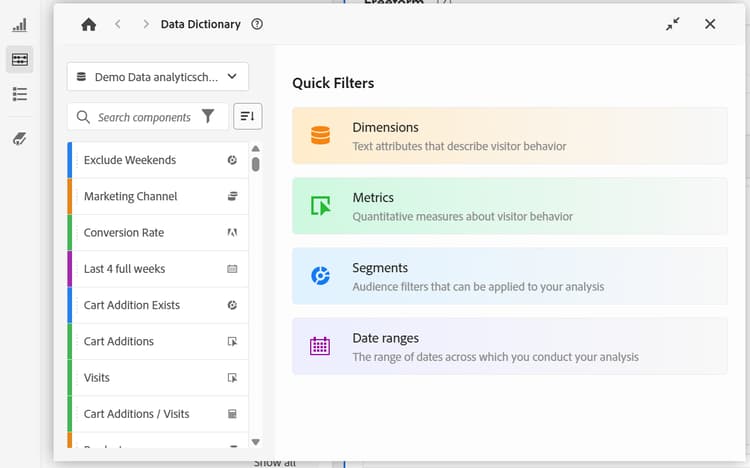
The Data Dictionary is available in several locations. The main place that you can find it is on the left-hand rail. It can be identified by the book with a bookmark icon. Clicking this opens the Data Dictionary to the main page, from which you can navigate to individual components. The other way to access it is from the pop-up of a particular component. If you hover over any component, an info icon appears. When you click the info icon, you get a summary of that component. In the top right-hand corner, there will be the same book icon. Clicking on this will also open the Data Dictionary. When accessed by clicking on the icon for a specific component, rather than opening to the landing page, the Data Dictionary opens directly to the selected component.
Once you have the Data Dictionary open, you can move it around on your screen by clicking on and dragging the header. While you can’t resize it, you can minimize it by clicking the two arrows pointing at each other in the top right corner. This shrinks it down to the bottom of your screen. You can click the blue bar to maximize it again or click the ‘x’ to close it.
Navigating the Data Dictionary
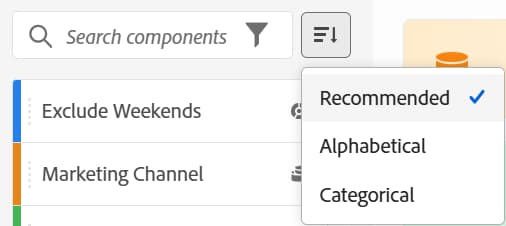
When you first open the Data Dictionary, you see a landing page with your report suite and component on the left, and some quick filters on the right. First, make sure that you have the correct report suite selected from the dropdown menu. If you are looking for a specific component, you can scroll through the list. There are also options to sort and filter the list. This works the same way as the main component list. You can search for a keyword or click the filter icon to search by approved status, tags, or component type. The resulting list can also be sorted by recommended (the default), alphabetical, or categorical.
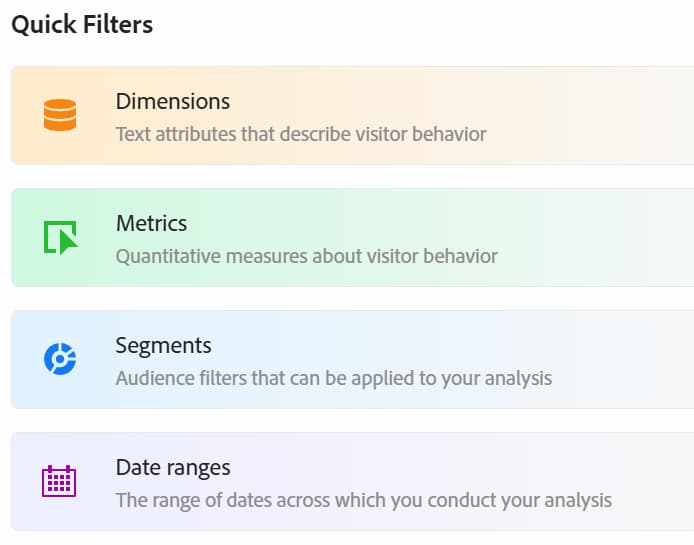
If you want to quickly limit the list to a single component type, use the quick filters on the right. These filters give you a brief description of each component type, then filter the list to just those components.
Once you’ve identified the component that you want to learn more about, select the component. This replaces the quick filters screen with a view specific to the component that you have selected. Although you can select multiple components with Ctrl or Shift, the Data Dictionary only shows details for the first one selected.
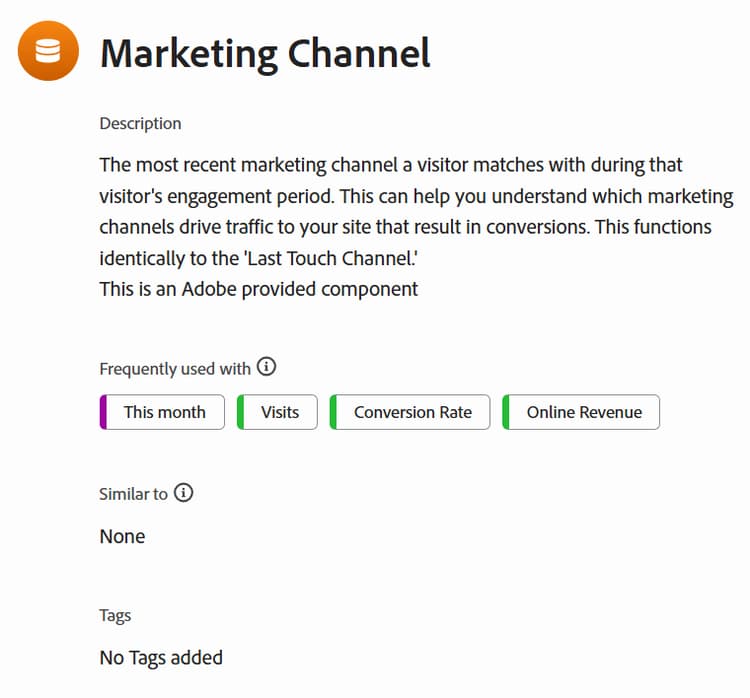
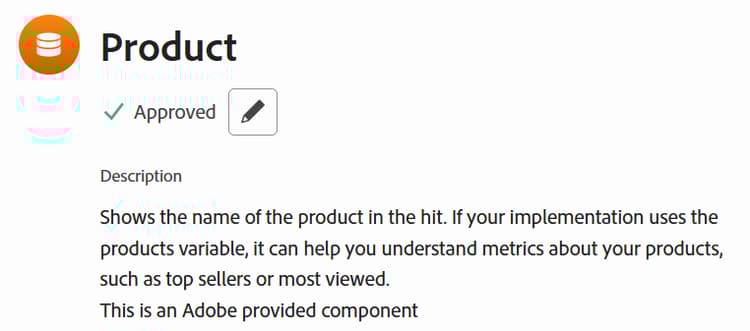
Description: This is a summary of the component. For any components that are not Adobe defaults, your organization’s administrators can edit them. They can choose to include any information they want, such as how the data is captured, what type of data it is, how to use it, and so on. For components that are Adobe defaults, the description says, “This is an Adobe-provided component.”
Frequently used with: This field shows what other components most commonly appeared in the same table as the one that you have selected. This data is based on the past 30 days. Administrators can also curate the components shown here.
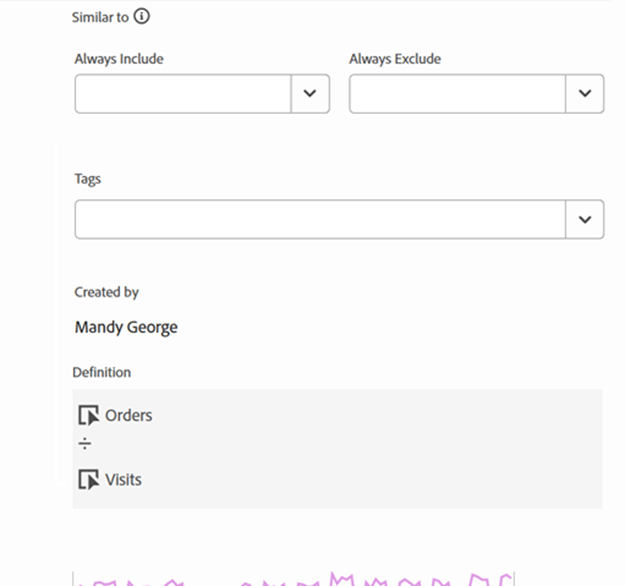
Similar to: This field identifies other components with labels or definitions that are like the one that you have selected. Administrators can also curate this field.
Tags: This displays any tags that have been applied to the selected component.
Custom components, such as calculated metrics, segments, and date ranges, also have some additional fields.
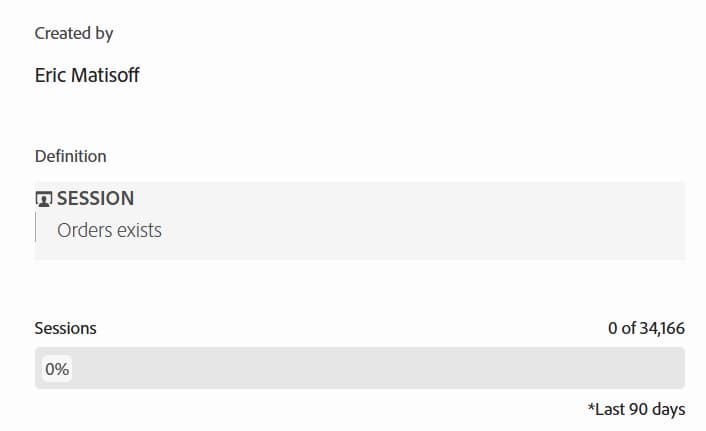
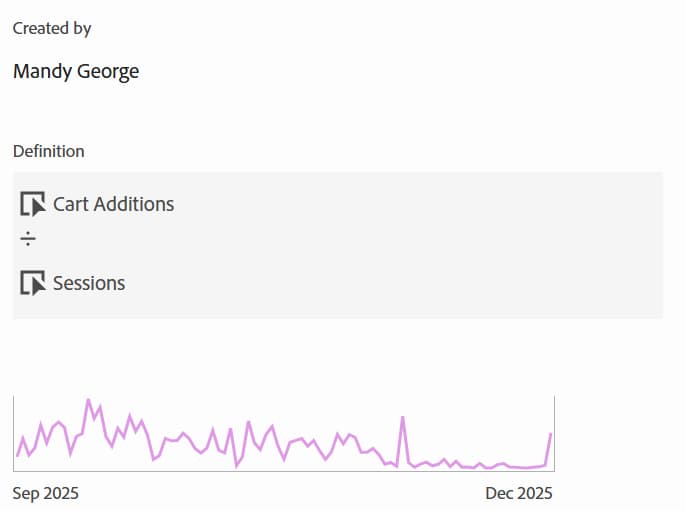
Created by: This identifies those who created the custom component.
Definition: This shows how the metric, segment, or date range is built. For date ranges, it includes the dates that are returned based on the current date, and whether the date range is static or rolling. Metrics and segments display all the components used in their creation, including different levels of containers and functions.
Data preview: This last section is only available for metrics and segments. It provides a preview of the amount of data returned. For segments, it includes a bar with what % of visits/sessions are returned. For metrics, it will show a line graph for the past 90 days that summarizes how the metric has fluctuated over time.
At any point, you can click the home icon in the top left to navigate back to the quick filters landing page.

Maintaining the Data Dictionary
The ability to update information in the Data Dictionary is restricted to those who have admin access for the organization. Adobe has some excellent documentation available for monitoring your Data Dictionary and auditing your Data Dictionary. Administrators see a different landing page for the Data Dictionary than general users. The left side still contains the full list of components, but the right-hand side, in addition to a tab for quick filters, displays the dictionary health. This includes four different actions.
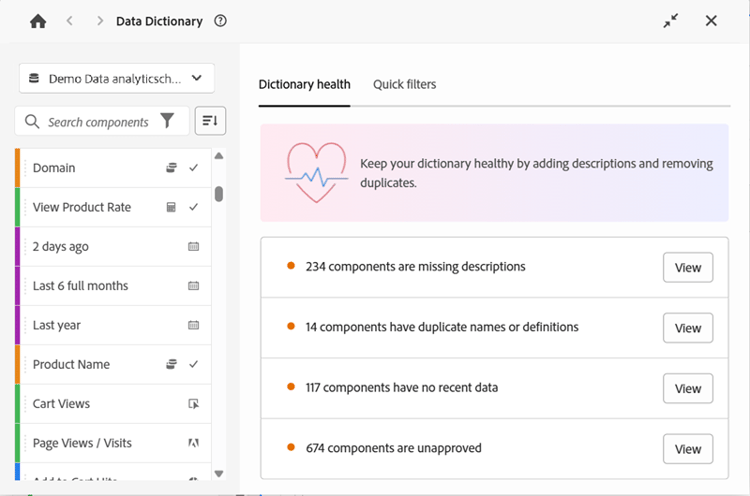
Components missing descriptions: This lists all components without descriptions. This makes it easy to identify which components need updates. Having a description for each component helps users determine whether it is the right component for their report.
Duplicate names or definitions: This provides a list of all components that have the same name or definition (for segments or metrics) as another component. When using this, it groups duplicate components to make cleanup easier. However, some components are Adobe defaults that cannot be removed. For example, Adobe has both “conversion rate” and “average orders per visit,” which have the same definition.
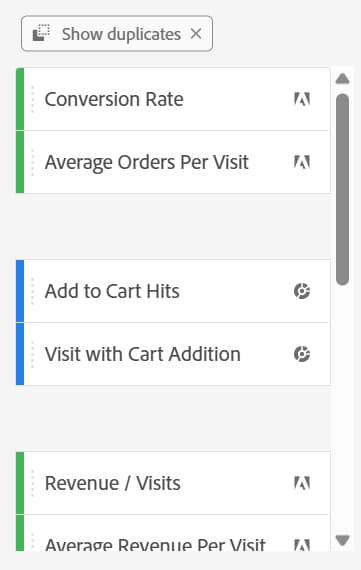
No recent data: This shows components that are no longer collecting data. This can help you identify broken dimensions or metrics that are no longer capturing data. Removing broken components can make it easier for users to find usable components for their report, providing accurate information.
Unapproved: This lists the components that have not been approved. Approving a component adds a special tag indicating that an administrator has approved it. This can help users identify components they should use in their reports.
Editing the Data Dictionary
In the Data Dictionary, each component needs to be edited one at a time. Once you select a component, you see a pencil icon below the name. Clicking this lets you edit all the information for that component. Once you’ve made the necessary changes, you can click save, or you can click cancel to discard your changes. Upon saving the information, all the data is visible to all users in your organization who have access to that particular component.
Each component in the Data Dictionary must be updated manually. There is currently no automated method to update the data in the Data Dictionary. One recommendation is to do one component type at a time and work your way through the list. The components can be sorted alphabetically to make sure that none are missed. Other options could be creating a master list in a spreadsheet to keep track of all the component information and working your way through the list to update the components.
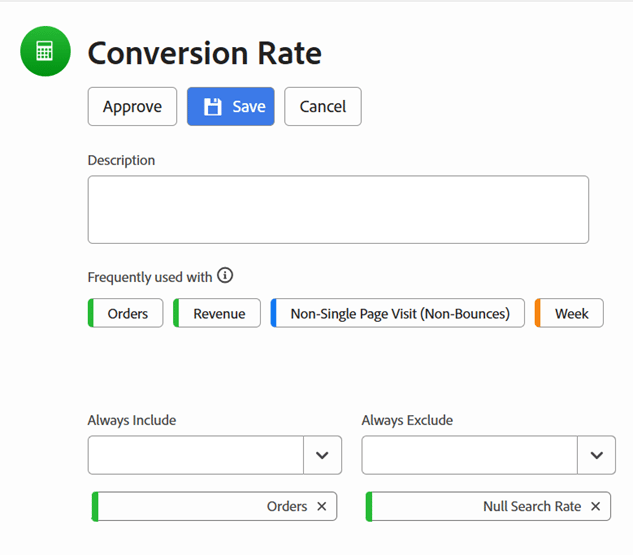
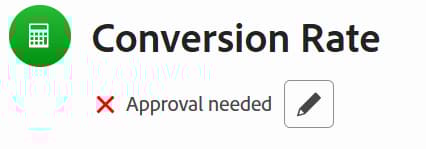
Approve: Clicking this button allows you to approve the selected component. For approved components, users see “Approved” just below the component name. If a component is not approved, general users will not see anything below the component name, but admins will see an “Approval needed” message.
Description: When updating the description, admins can add any information that they want. Although there is no character limit, keeping the definition succinct benefits users. Some helpful information could include the type of data, a brief summary of how/where it comes from, how to use it, or other pertinent details.
Frequently used with: This is auto-populated with other components that are most commonly used together within the past 30 days. Admins can edit this by adding “always include” or “always exclude” components. Any components added to one of these fields will be listed below the dropdown. When general users view the selected component, the “always include” components will always be shown, while the “always exclude” components will not be visible.
Similar to: This is also auto-populated with identical components. It has the same options as Frequently Used With for always including or excluding specific components.
Tags: This allows you to review and edit what tags are assigned to the component. Admins can search for and add desired tags to the component. Added tags will be listed below the dropdown. If a tag needs to be removed, admins can click the “x” next to it.
Benefits of the Data Dictionary
Updating the Data Dictionary for the first time can seem like a daunting task, especially if you have a large number of components. Even after the initial setup, maintaining it requires significant effort. However, it is very worthwhile for your organization to keep this information up to date.
New users
Ease of use
Large organizations
Having a solid Data Dictionary helps all users in your organization understand the components and their functions, which components they should use for different types of reports, and which other components they should use with them. This is a powerful tool that can help you keep your implementation clean and well-documented for everyone's benefit.