Learn how analytics teams can use a reusable Analysis Workspace dashboard template to help Project Managers understand performance trends, user behavior, and content effectiveness without building their own reports. Explore practical Workspace features such as intra-linking, Text Visualizations, Key Metric Summaries, and right-click analysis techniques to create more actionable stakeholder reporting.
Turn analytics dashboards into decision-making tools
One of the most common challenges in digital analytics isn’t pulling the data, making the data actionable for people who don’t live in Adobe Analytics every day. In my role, I manage a team of analysts supporting a large enterprise website. Our stakeholders are Project Managers, each responsible for a specific section of the site. They need to understand how their pages are performing, where users are going next, and what content is resonating without having to build their own reports.
Over time, my team developed a monthly performance dashboard template in Analysis Workspace that we replicate for each Project Manager. It’s become our go-to framework for stakeholder reporting, and I want to walk you through how we built it—and more importantly, why each component is there.
If you manage analytics for a team of non-analysts, this template might save you a lot of back-and-forth. I’ll cover the six key components we use: Intra-Linking, Text Visualization, Key Metric Summary, Visits Trend and Breakdown, Right Click Visualization techniques, and the Next Page Report.
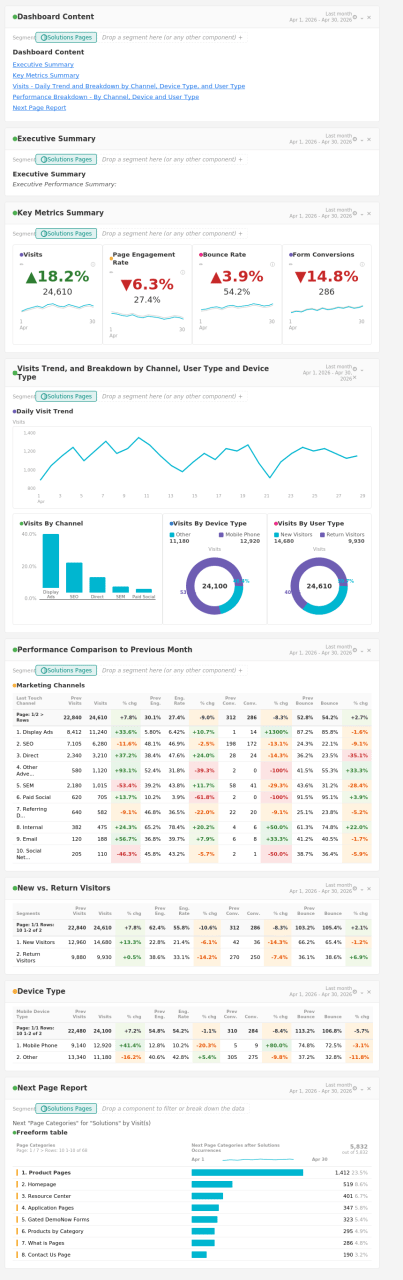
The dashboard framework
Before diving into each feature, here’s the big picture. Each Project Manager gets their own Workspace project, filtered to their section of the site. The dashboard is structured to answer three questions:
-
How is my section performing overall?
-
Where are users going after they land on my pages?
-
What should I investigate further?
We refresh these monthly and walk through them in our stakeholder review meetings. The consistency across dashboards means Project Managers can compare notes with each other, which has been an unexpected benefit—they’ve started having data conversations with each other without our team being in the room.
Component 1: Intra-linking — building a navigation layer inside your dashboard
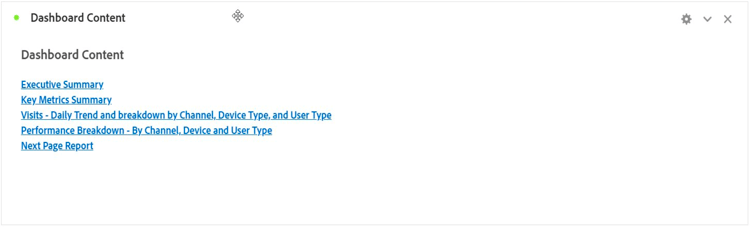
The very first thing at the top of every dashboard is a navigation panel. As our dashboards grew in complexity, we realized that asking Project Managers to scroll through multiple panels wasn’t a great experience. That’s when we started using intra-linking—the ability to create hyperlinks within an Analysis Workspace project that jump to specific panels or sections.
We built a simple table of contents at the top of each dashboard using a Text Visualization with hyperlinks to each section. The structure includes a linked title for each section (Executive Summary, Key Metrics Summary, Visits Trend and Breakdown, Performance Comparison, and Next Page Report) that jumps the user directly to that panel.
Set up panel navigation links
In Analysis Workspace, you can create a link to any panel by right clicking the panel header and selecting “Get panel link.” This copies a URL that, when clicked within the same project, scrolls the user directly to that panel. Paste these links into a Text Visualization at the top of your project, and you’ve got a clickable navigation bar.
Component 2: Text Visualization — adding context your data can’t show
This one might seem basic, but it’s the component that gets the most positive feedback from our stakeholders. The Text Visualization lets you add rich-text annotations directly inside an Analysis Workspace project. We use it to add context that the numbers alone can’t convey.
Every month, before we share the dashboards, our team adds a short analyst commentary at the top of each project using the Text Visualization. It typically includes three things: a plain-language summary of what happened that month, any known external factors (a campaign launch, a site redesign, a seasonal trend), and one or two questions the Project Manager should think about based on the data.
Provide context for stakeholder reporting
Data without context is just noise. I’ve seen too many dashboards where the stakeholder looks at a metric, sees a spike or a drop, and either panics or celebrates—without understanding the “why.” The Text Visualization gives our team a space to provide that narrative layer. It also saves time in meetings because stakeholders come in already understanding the headline.
Component 3: Key Metric Summary — the executive snapshot
The first thing every Project Manager sees when they open their dashboard is the Key Metric Summary visualization. This is intentional. Before we added this, stakeholders would open the project, see a wall of freeform tables, and immediately ask us, “So… is this good or bad?”
The Key Metric Summary solves that by showing a single metric with its trend line and a comparison period all in one compact visualization. We typically set it to show the current month compared to the previous month, so the Project Manager can immediately see the direction of the trend.
How we use Key Metric Summary panels
We place four Key Metric Summary panels side by side at the top of the dashboard: Visits, Page Engagement Rate, Bounce Rate, and Form Conversions. Each one is filtered to the Project Manager’s site section using a segment. This gives them a quick health check without scrolling. At a glance, they can see that visits are up 24% but engagement rate dropped 9%—which immediately tells them the story is more nuanced than “more traffic = good.”
Component 4: Visits trend and breakdown — the traffic deep dive
Once the Key Metric Summary gives stakeholders the headline, the next question is always: “Where is this traffic coming from, and what does the daily pattern look like?” That’s exactly what this section answers. We break it into four visualizations that sit together as a cohesive traffic story: a daily visit trend line, a channel breakdown bar chart, a device type donut chart, and a new vs. return visitor donut chart.
Daily visit trend
This is a simple line chart showing visits by day for the reporting period. It’s the first thing our Project Managers scan after the summary numbers, because it immediately reveals whether a monthly increase was steady growth or a one-day spike that inflated the average. We’ve caught several data anomalies this way—a bot traffic spike on a single day, a campaign launch that drove traffic for 48 hours then dropped off, or a weekend pattern that suggests the audience behaves differently during off-hours.
Visits By channel
We use a horizontal bar chart to show the marketing channel mix. This quickly answers which channels are driving the most traffic to the Project Manager’s section. What makes this powerful is the comparison it enables across monthly dashboards—if Display Ads suddenly becomes the dominant channel after months of SEO leading, that’s a conversation starter about whether the traffic quality is holding up (spoiler: it often isn’t).
Device type and user type
The two donut charts round out the picture. Device Type shows the desktop vs. mobile split—critical for understanding whether your content experience is meeting users where they are. If mobile traffic is growing but your pages aren’t optimized for smaller screens, that’s a gap the Project Manager needs to flag. The New vs. Return Visitors chart tells you whether you’re attracting fresh audiences or relying on the same returning base. When you pair this with the conversion data from the Key Metric Summary, patterns emerge—like discovering that return visitors drive the vast majority of form conversions, which has major implications for retargeting and content strategy.
Component 5: Right click visualization — enabling self-service analysis
This is less of a dashboard component and more of a capability we actively train our Project Managers to use. One of our goals is to reduce the number of ad hoc requests that come to our analytics team. The right-click menu in Analysis Workspace is one of the most powerful—and underused—tools for enabling self-service exploration.
Our dashboard includes a detailed Performance Comparison table that breaks down every marketing channel by four key metrics: Visits, Page Engagement Rate, Form Conversions, and Bounce Rate—each shown with the previous month’s values and percent change. The table uses conditional formatting (color-coded cells) so Project Managers can immediately spot which channels improved and which declined. When a Project Manager right-clicks on any row in this table—say, a specific marketing channel like Display Ads or SEO—they get options to create a visualization from that selection, break it down by another dimension, or trend it over time.
The visualizations we highlight for them
From the right-click menu, we teach Project Managers to use “Visualize” to quickly generate bar charts or line graphs from a selected data row, “Trend” to see how a specific channel’s performance has changed over the dashboard period, and “Breakdown” to slice a channel’s traffic by device type, geography, or landing page. For example, if a Project Manager sees that SEO is their top converting channel, they can right-click on that row and trend it to see whether that performance is consistent or driven by a specific week’s spike.
Why this is a game-changer
Before we started training on right-click features, our team would get requests like “Can you show me the trend for this channel?” or “What does this look like broken down by device?” Now, most of our Project Managers can answer those questions themselves within the dashboard we’ve already built. It’s shifted our team from report builders to strategic advisors—which is where we should be spending our time.
Component 6: Next Page Report — tracking user journeys
The final piece of our dashboard template is the Next Page Report, and it’s often the section that sparks the most conversation in our stakeholder meetings. For each Project Manager’s site section, we include a freeform table showing the top next page categories users navigate to after viewing that content.
This is incredibly valuable for content strategy. When our Solutions section Project Manager sees that nearly a quarter of users navigate to Product Pages next, that’s a strong signal that the content is doing its job—moving users down the funnel toward deeper product exploration. The Resource Center at 7.5% and gated demo forms at 3.4% reinforce that picture. On the other hand, Homepage at 10% as the second-highest destination suggests some users aren’t finding what they need and are resetting their journey—that’s a content or navigation gap worth investigating.
Build a next page analysis workflow
We use a freeform table with the Next Page Categories dimension, filtered to the Project Manager’s site section using a segment. We pair this with a horizontal bar chart for visual clarity. For stakeholders who want more detail, we add a Flow visualization below the table that shows the full path: entry page → next page → page after that. This gives them a richer picture of the user journey through their section.
Putting it all together
The beauty of this template is that it’s replicable. Once you’ve built the first version, spinning up a new dashboard for an additional Project Manager is just a matter of duplicating the project and swapping out the segment to reflect their site section. Our team of six analysts manages dashboards for over a dozen Project Managers using this approach, and the consistency has dramatically reduced ad hoc reporting requests.
More importantly, it’s changed the nature of our conversations with stakeholders. Instead of spending meetings explaining what the data says, we spend that time discussing what to do about it. The dashboard gives them the “what” and the “where”; our team provides the “why” and the “what’s next.”
If you’re building dashboards for non-analyst stakeholders, I’d encourage you to think beyond just showing data. Think about the experience of using the dashboard. Add navigation. Add context. Teach your stakeholders how to explore. The goal isn’t to make them analysts—it’s to make them data-informed decision makers.
This approach not only helps stakeholders interpret data more confidently, but also builds long-term analytics maturity by empowering teams to ask smarter questions and make more informed decisions independently.