What if a workflow that takes nearly an hour today could become a governed, repeatable process inside Adobe CX Enterprise— with a single click? This guide shows how Adobe App Builder turns manual operational effort into scalable automation, and walks through the exact steps to move from concept to a published enterprise app."
Not long ago, I was helping a major fintech organization streamline their Adobe Target workflows. Their team was spending nearly 45 minutes configuring impression-capping logic for each activity - a careful dance of settings, audiences, rules, and validations. Watching it happen, I kept thinking there has to be a better way. What if all of this could happen in just a few minutes - or even one click?
That led me straight into Adobe App Builder.
In large enterprise environments, teams often rely on a mix of tools, scripts, and tribal knowledge to get routine work done. Nothing is really “broken,” but everything feels like it takes more steps than it should. App Builder offers a different path: instead of working around the platform, you build the workflow into it.
A custom interface. Inside Adobe CX Enterprise. Powered by your logic, your APIs, and your automation.
That’s exactly what I built - a lightweight internal app that handles the entire impression-capping setup automatically. What used to be dozens of manual actions became a clean dashboard embedded directly within Adobe’s UI.
In this article, I’ll share how App Builder works, why it’s such a valuable tool for enterprise teams, and walk through the commands and configuration needed to get your own app up and running. Whether you're automating a niche workflow or building a full internal product, this guide should give you a solid starting point.
What is Adobe App Builder?
Adobe App Builder is a complete application and runtime framework for building custom cloud-native applications that run on Adobe infrastructure. It allows developers to extend the functionality of Adobe CX Enterprise, Adobe Experience Platform, and other Adobe products. With App Builder, teams can create custom integrations between Adobe and third-party systems to streamline operations and improve workflow efficiency.
App Builder provides several templates that serve as starting points for different types of integrations. In this article, I focus on the excshell extension, which enables your application to run directly inside the Adobe CX Enterprise shell.
Each app is:
-
Authenticated with Adobe IMS
-
Deployed serverlessly using Adobe I/O Runtime
-
Integrated with your organization’s Adobe CX Enterprise environment
-
Managed with a unified developer console and project workspace model
In short: it's your custom extension framework for Adobe CX Enterprise.
Consulting perspective
As a consultant, I often encounter enterprise teams that want to:
-
Streamline internal marketing or content review workflows
-
Provide controlled visibility into complex Target or AEM configurations
-
Automate repetitive API tasks like campaign synchronization or audience creation
App Builder solves this elegantly. It combines secure runtime actions, Spectrum-based UI components, and governed access control, enabling rapid development without managing infrastructure or credentials.
Real world example overview
One of my clients was facing a complex activity setup in Adobe Target that involved multiple steps of technical nature and was time-consuming. I offered to build an app that handles the complex 45-minute setup to a one click of a button. This app would be integrated with Adobe Target Admin API to manage activities, offers, and audiences. Key features:
-
Searchable, sortable list of Target activities
-
Workspace filter that persists user selection
-
Details modal with per-experience actions
-
One-click Offer update (injects metadata)
-
Optional Audience creation with configurable values
-
Spectrum-styled UI (Spectrum CSS) for a native Adobe look
Quick start (new environment)
1) Prerequisites
-
Adobe Developer Console access (project with App Builder)
-
Node.js 18+ and npm
-
Adobe I/O CLI: npm install -g @adobe/aio-cli
-
Logged in to Adobe: aio login
2) Initialization
If starting from scratch:
3) Configure app.config.yaml
The app.config.yaml file defines how your app integrates with Adobe CX Enterprise. It tells App Builder what kind of extension you’re building, where your front-end files are located, and what backend actions should run in Adobe I/O Runtime.
At a high level, you’ll specify:
-
Extension type — In this case, the CX Enterprise Shell extension (dx/excshell/1), which allows the app to appear directly inside the Adobe CX Enterprise interface.
-
Front-end implementation — A reference to your main HTML entry point (for example, index.html) along with metadata such as the app’s name, description, and icon.
-
Web assets folder — Typically a web-src directory containing your Spectrum-styled front-end.
-
Runtime actions — A set of Node.js functions (for example, “getTargetActivities,” “updateOffer,” etc.) that are deployed to Adobe’s serverless infrastructure. Each action includes details like:
-
The path to the JavaScript function file
-
Whether it’s web-accessible
-
The Node.js runtime version
-
Any annotations (such as requiring Adobe authentication)
-
In short, this configuration connects your user interface to your backend logic and makes the app discoverable to CX Enterprise once deployed.
4) Local development
The app serves at http://localhost:9080 with live reload and IMS auth (when launched in CX Enterprise shell).
5) Deploy to a Workspace
Switch workspace when needed (e.g., Stage, Production):
6) Publish to Catalog (Production)
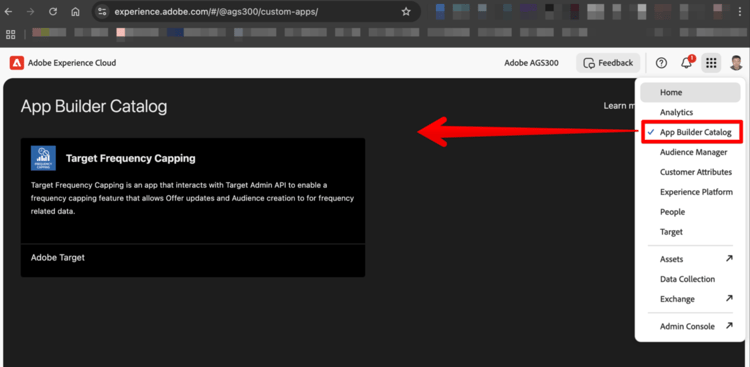
After Exchange approval, the app appears in the App Builder Catalog for your org.
Actions (Serverless APIs)
Examples used in this app (Node.js, @adobe/aio-sdk + node-fetch):
-
getTargetActivities — Lists Target activities for the org/tenant
-
getActivity — Fetches details for a specific activity (/target/activities/{type}/{id})
-
getOffer — Reads a JSON offer (/target/offers/json/{offerId})
-
updateOffer — Updates an offer (PUT /target/offers/content/{offerId})
-
createAudience — Creates a Target audience with rule logic
Each action retrieves an IMS access token from the cached State store (populated by getAccessToken action), and calls Adobe Target APIs with Authorization: Bearer <token> and X-Api-Key: <clientId> headers.
Front-end (Spectrum UI)
The UI is plain HTML/JS using Spectrum CSS:
-
Search input with clear button
-
Workspace picker (quiet picker)
-
Table with status chips and formatted timestamps
-
Modal dialog with Update Offer and optional Create Audience controls
The UI stores the selected workspace in localStorage so your filter persists across sessions.
Command reference
Command
Description
Best practices & notes
-
Use runtime.done() (via @adobe/exc-app Runtime) when running inside CX Enterprise shell to avoid shell timeout UI (for SPA setups).
-
Avoid long-running actions; return quickly and stream or poll if needed.
-
Prefer quiet Spectrum components for shell consistency.
-
Keep auth logic in actions; front-end calls your actions, not Adobe APIs directly.
-
Persist user filters (e.g., workspace) in localStorage for better UX.
-
For Exchange publishing, ensure proper metadata (name, icon) and include extension block in app.config.yaml.