Adobe Customer Journey Analytics enables teams to answer new business questions instantly by creating metrics retroactively, without waiting on new implementations or data collection. By using Derived Fields to measure time-to-action across historical data, organizations can quickly uncover friction, compare performance across experiences, and make faster, more confident optimization decisions using data they already have
One of the most transformative shifts in moving to Adobe Customer Journey Analytics (CJA) isn’t just connecting channels. It’s the ability to instantly and retroactively conjure metrics that didn’t exist before.
For years, analysts have lived by a strict rule: If you didn't tag it, you can't measure it. But CJA is rewriting that rule.
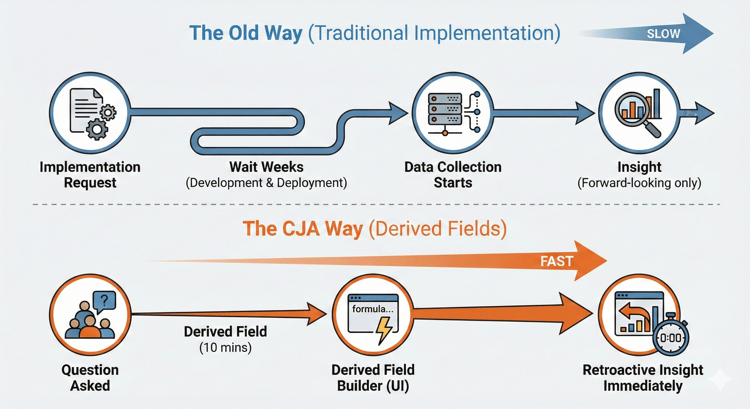
The familiar roadblock
Consider a scenario that feels all too familiar to anyone with experience in traditional web analytics.
Your Product Team completes an analysis revealing that the "First Product View" is a critical tipping point in the customer journey. Users who reach a product page quickly are significantly more likely to convert.
Naturally, the team wants to capitalize on this, asking: "What is the average time (in seconds) from Session Start to First Product View? Does it vary by category? How can we optimize our landing pages to speed this up?"
In the traditional analytics world, this simple question hits a hard wall.
-
The implementation route: You could lean on the classic getTimeToComplete plug-in. While this is the standard method for measuring the duration between events in Adobe Analytics, it still demands a deployment cycle. You need to install the plug-in code, configure the start/stop logic in Data Collection (Tags), and map the output to a dedicated eVar. Worst of all, you are still bound by the laws of implementation: the metric only exists from the moment you publish, meaning you have to wait weeks for meaningful data to accumulate.
-
The data science route: Alternatively, you could ask a data engineering team to write complex SQL queries in a data lake to stitch these timestamps together. But that requires specialized resources and time that most agile teams don't have.
In both cases, the Product Team is left waiting, blind to the insights they need now.
The CJA breakthrough: answers in minutes, not months
This is where CJA fundamentally changes the game. By moving data processing from collection-time to report-time, we can solve this problem in less than 10 minutes.
Using Derived Fields, an analyst or admin can build this logic directly in the UI without touching a single line of website code.
For the "Time to Product View" use case, the solution is the Date Math function.
-
We simply define a new field that subtracts the Session Start timestamp from the First Product View timestamp.
-
We can bucket the results (for example, "<10 seconds," "10–19 seconds") to view the distribution as a dimension.
-
We can also use the raw values as a metric to calculate exact averages (for example, "Avg Time: 26.1s").
The magic: Because CJA processes this on the fly, this new metric applies immediately to all historic data.
The result: velocity by category. Suddenly, the "impossible" metric is available. We can drag Product Category into a Freeform table, using a specific "First Value" derived field to capture the user's landing category, and apply our new time metric against it.
Pro tip: In the screenshot below, I used a specific "First Value" derived field to isolate the category of the first product seen in a session. However, you can start simple by using your standard "Entry Page" or "Product Category" dimension to see similar trends
By applying conditional formatting, the insights jump off the screen:
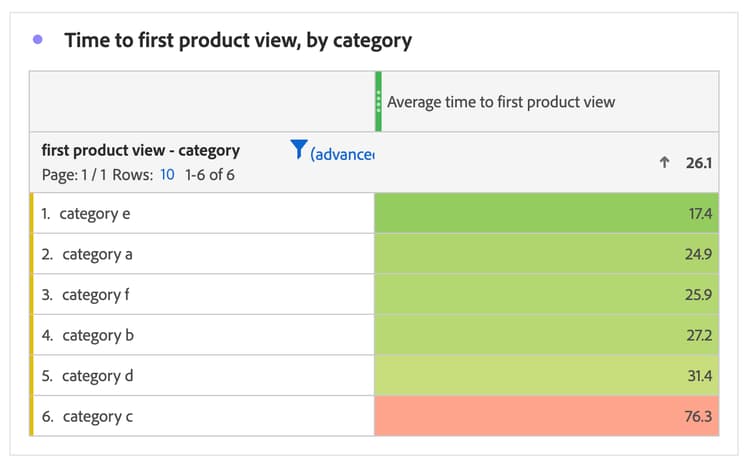
Image 1: Example of a Freeform table visualizing the average time by product category.
In our analysis, the friction points become immediately obvious.
-
The winner: category E is performing exceptionally well, with users reaching a product in just 17.4 seconds.
-
The bottleneck: category C is in the red zone, taking users an average of 76.2 seconds to find a product—nearly 3x the site average.
We didn't just count sessions; we measured velocity. The Product Team now knows exactly where to focus their optimization efforts (Category C) and where to look for UX best practices (Category E)—all based on data that was already sitting in the system.
Why this matters: The "Time to Product View" is just one example. This same logic applies to cross-channel questions, like measuring the time between an Email Open and a Site Visit, or a Call Center Interaction and a Return.
This agility allows us to be true partners to our business stakeholders. We stop being the "No, but..." team and start being the "Yes, and..." team.
If you are already using CJA, I’d love to hear: what "impossible" metrics have you built using Derived Fields. And if you haven't made the switch yet, what backlog of questions could you finally answer with retroactive data?
The technical how-to: building the "Time to Action" metric
For those ready to build this in your own CJA sandbox, here is the blueprint.
Because the Date Math function requires two existing fields to calculate the difference, we will build this in three steps:
-
Create a "Helper Field" for the Start Time.
-
Create a "Helper Field" for the End Time.
-
Create the final "Time Difference" field.
Step 1: Create the "Session Start" helper field In the Derived Field builder, add a Case When function named Session Start timestamp. We use this function to capture the timestamp only when the session begins.
- Function: Case When
- Condition: If [Session Starts] [Exists]
- Value: Then [Timestamp], Otherwise [No Value]
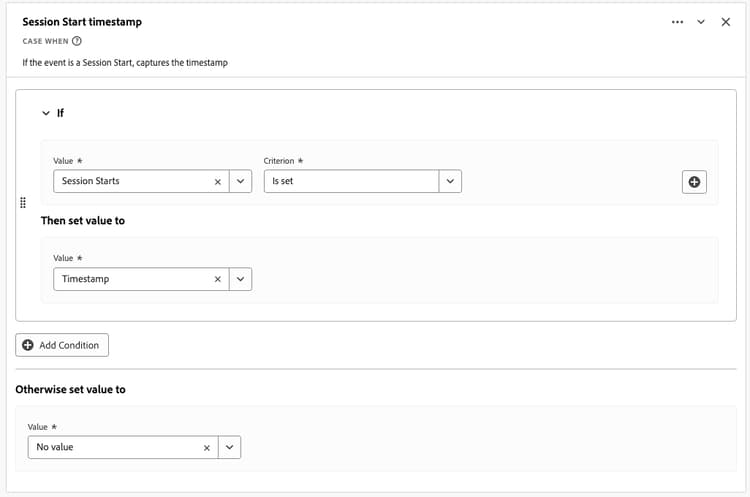
Image 2: Case When function to capture Session Start timestamp.
Step 2: Create the "Product View" helper field. Next, add a second Case When function named Product View Timestamp. We use this function to capture the timestamp only when a Product View occurs.
- Function: Case When
- Condition: If [Commerce.ProductViews] [Exists]
- Value: Then [Timestamp], Otherwise [No Value]
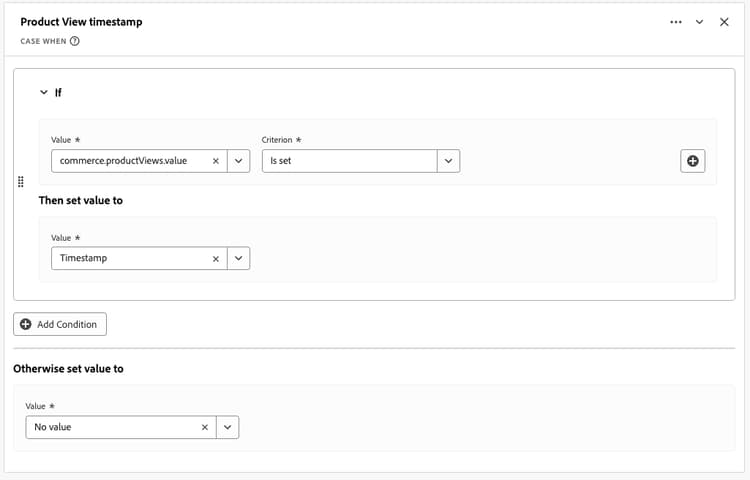
Image 3: Case When function to capture Product View timestamps.
Step 3: The Date Math configuration Now, add your final function, Date Math, named "Time to Product View"). We use this function to calculate the difference between the two timestamp fields we just created.
- Scope: Session
- Value 1 (Start): Session Start Timestamp (Set to: Return First Value)
- Value 2 (End): Product View Timestamp (Set to: Return First Value)
- Output Granularity: Seconds
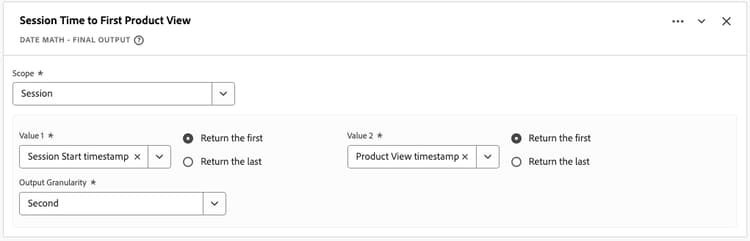
Image 4: Date Math function to calculate the time from the Session Start timestamp to the first Product View timestamp, in seconds, limited to a Session scope.
Step 4: Bucketing (optional but recommended) The output of Step 2 will be a raw number (for example, 43, 12, 190) when added to the Data View as a dimension. To make this analysis reader-friendly, click on the new dimension inside your Data View to open the Component Settings. From there, you can bucket the values into logical ranges like "less than 10," "10–19,” “20-29," etc.
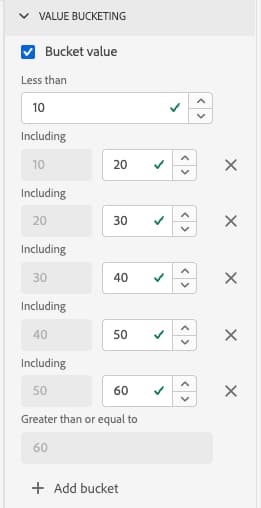
Image 5: Bucketing the dimension values into logical ranges.
Bonus: Visualizing as an average The derived field built returns the total seconds. To see the average time in a table, create a Calculated Metric.
-
Add the data: Drag your new "Time to Product View" derived field into the date view as a metric. (Note: By default, this sums the total time, which isn't useful yet).
-
Create the denominator: We need to divide by the correct number of sessions. Create a quick segment named "Sessions with Product View" (Logic: Sessions where Product View exists).
-
Build the metric: Open the Calculated Metric Builder and use this formula:
-
Time to Product View (Derived Field)] / [Sessions (filtered by your new segment)]
-
Why this matters: We filter the denominator so we only divide by sessions that actually had a Product View. If we divided by all sessions, the average would be artificially low.
-
-
Set the polarity: In the metric settings, set "Show upward trend as" to Bad (Red). We want to reward speed!
Bonus 2: Isolating the "First" category as shown in the first image of this article, I broke down the data by the First Product View Category seen in the session. Here is how to build that specific dimension:
Create the Field: In the derived field builder, add a Case When function named Product View Category.
-
Condition: If [Commerce.ProductViews] [Exists]
-
Value: Then [Product Category], Otherwise [No Value]
Configure in Data View: Add this new dimension to your Data View and configure the component settings to ensure it captures the first value and applies it to the whole session:
-
Allocation: Original
-
Expiration: Session
Conclusion: From "can we?" to "what if?"
The true power of Customer Journey Analytics isn't just about the specific metrics that are built today. It is about the shift in mindset. We are moving away from an era where our questions were limited by our implementation, and into an era where our curiosity is the only boundary.
Whether you're measuring the time from an Email Click to a Purchase or from Funnel Start to Funnel Complete, the logic is the same. Define the start, define the end, and let the derived field do the math.
I am excited to see what "impossible" questions you unlock with this feature. If you have questions about this setup or want to share the retroactive metrics you've built, let’s continue the conversation in the Adobe Analytics Community forums.