Learn how to build free, automated click and conversion heatmaps in Adobe Analytics using custom tagging, calculated metrics, and Report Builder. Find out how to turn raw click and conversion data into clear, refreshable visual overlays that are easy to share with stakeholders.
Create your own free and automated HeatMap
Do you ever get questions like these from stakeholders? And wouldn't it be great to have a clean, easy visual to show them with your insights?

The dream scenario
This is an excellent example of what you can build for your stakeholders.
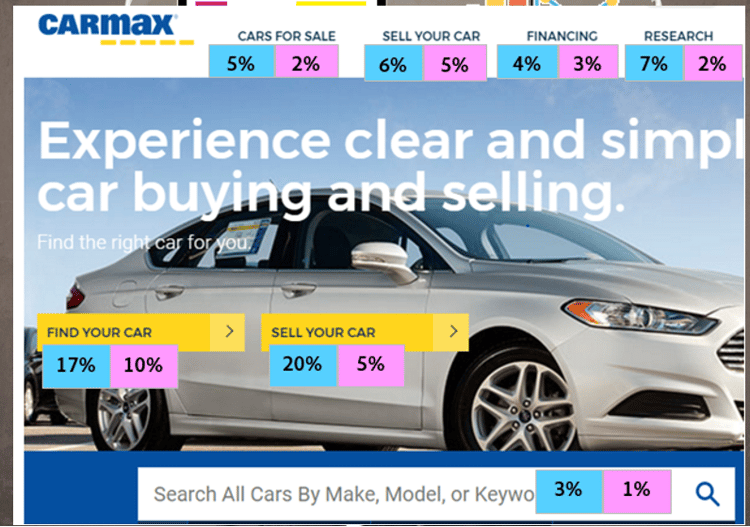
The reality is that building out your own heatmap takes numerous time and manual effort, or you can pay for a tool that does this.
You can do this yourself by creating your own free and automated click overlay using ReportBuilder and Adobe Tags.
Below are eight steps to help you accomplish this. Steps 1-4 focus on creating a Click Overlay, while steps 5-8 focus on creating a Conversion Overlay.
Step 1 - Click Overlay: Implementation
Before you can create a click overlay, you need to capture detailed click interaction data in Adobe Analytics. In this step, configure props that identify where clicks occur, what visitors clicked, and where those links appear on the page.
Configure four props for click tracking by adding them to links through an Event-Based Rule in DTM.
-
Prop 1 = Pagename
- [link the page is clicked from, like “Homepage”]
-
Prop 2 = Link Name
- [actual text of link, like “Cars for Sale”]
-
Prop 3 = Link Position
- [like “Header” or “Header Flyout”, used to differentiate links with the same name on the same page]
-
Prop 4 = Concatenate props like this to get a unique view of the click: Pagename | Link Name | Link Position
Step 2 - Click Overlay: Create ReportBuilder requests
After tracking is configured, create Report Builder requests to pull the page-level metrics and click interaction data needed for your overlay visualizations.
For all requests:
-
Put the start date in cell B1.
-
Use a fixed date range if possible.
-
Put the end date in cell B2.
-
Use a rolling date if appropriate.
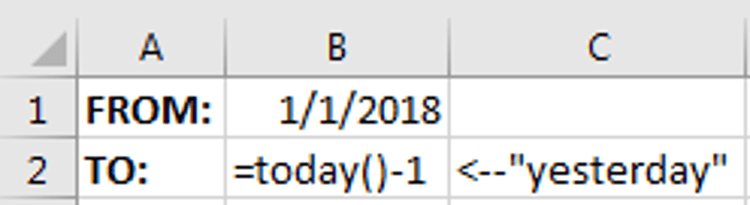
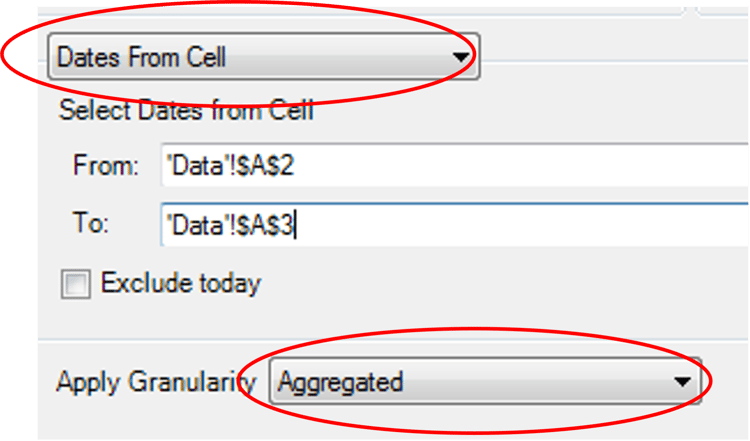
1st ReportBuilder request
Identify a high-volume or high-importance page that you want to build an overlay for and pull in these metrics:
-
Pageviews
-
Visits
-
Unique visitors
2nd ReportBuilder request
Pull all prop4 values on that page
-
Use same date cells (B1 and B2)
-
Metric: Instances
Configure the request using the following settings:
- Filter prop:
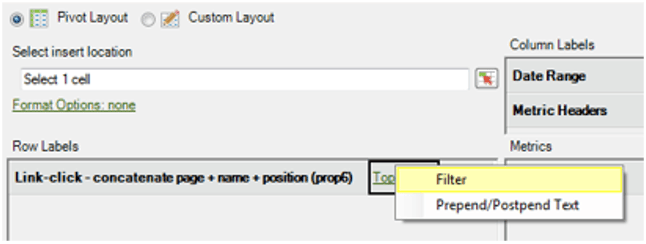
2. Select Specific > From List > Add
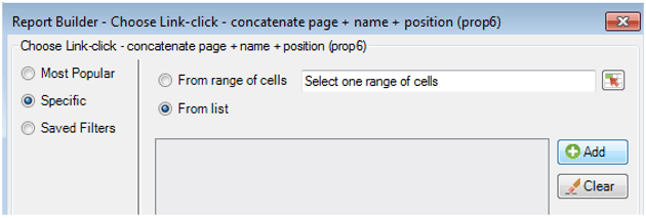
3. Select items in order of how they appear on the page; make sure “Preserve order shown below” is checked
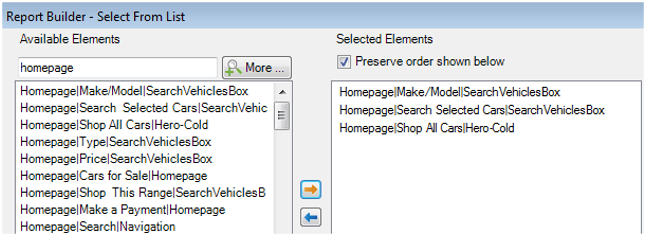
Step 3 - Click Overlay: Click data calculations
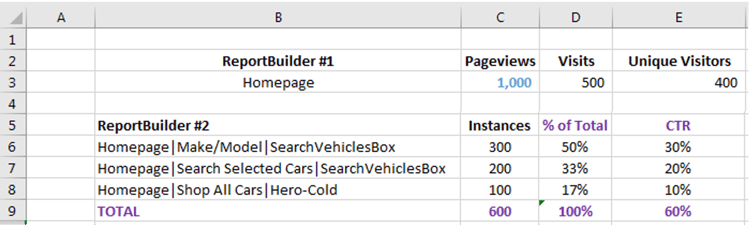
Once the data is available in Excel, calculate engagement metrics such as percentage of total clicks and click-through rate (CTR) to better understand user interaction patterns.
- Sum up the total instances & divide each link by total to get % of Total Clicks
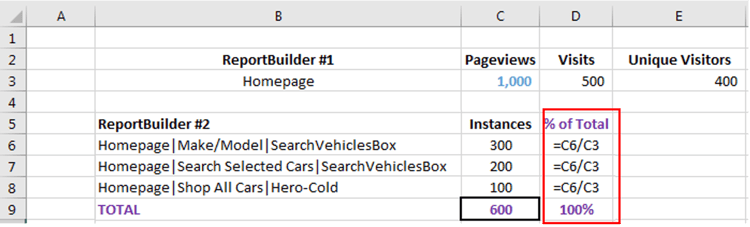
- Divide instances by pageviews for each link to get CTR
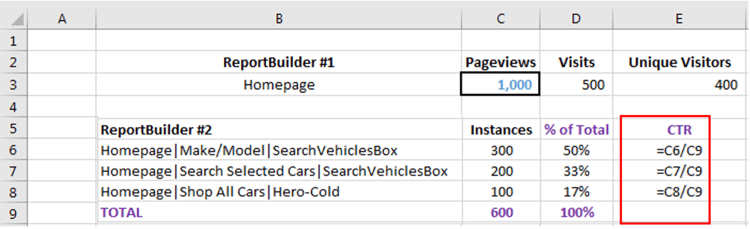
- Final output
Step 4 - Click Overlay: Build the visual
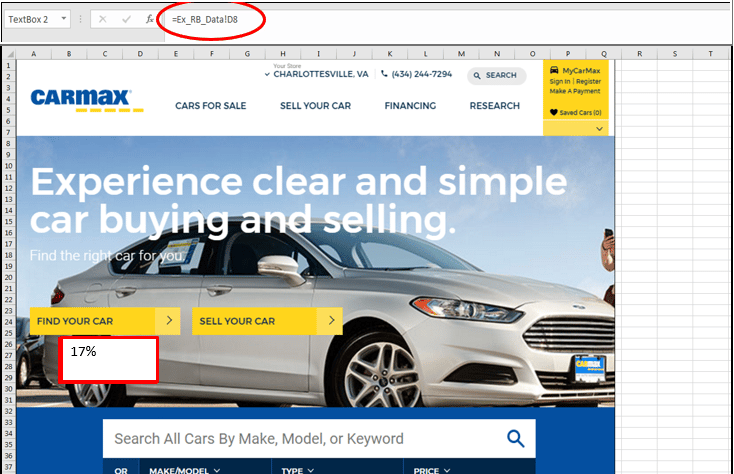
With the calculations complete, you can create a visual overlay by mapping the metrics directly onto a screenshot of the page. This allows stakeholders to quickly interpret click behavior visually.
-
Take a screenshot of the page.
-
Insert a text box.
-
Link the text box to a cell.
-
Review the resulting visualization.
Add other metrics and format
-
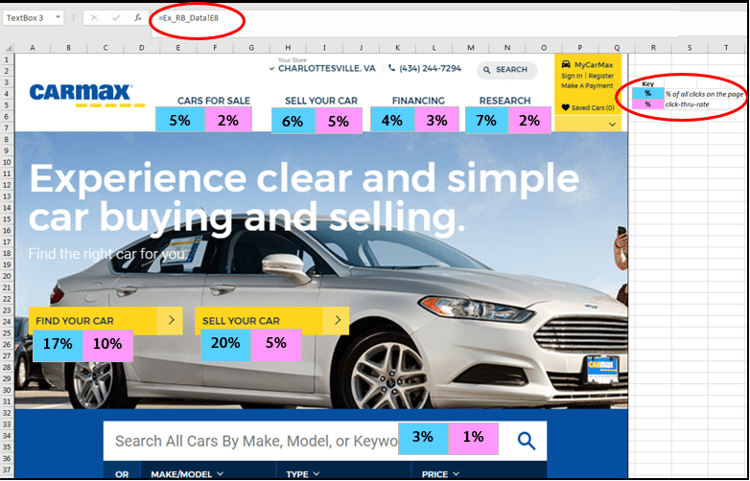
Add in a linked text-box for CTR metric
-
Format text boxes & add color legend
-
Copy and paste to other links & change cells in formula bar
-
Final Product
Now, take it one step further and create a conversion overlay.
Step 5 - Conversion Overlay: Configure conversion tracking
The previous implementation focused on tracking clicks for overlay reporting. In this section, you’ll configure conversion attribution so you can visualize which calls to action drive KPI outcomes such as searches, leads, or revenue.
-
Set up 1 (or more) eVar(s) for places where customers “start” KPI
-
Example – KPI = Searches
-
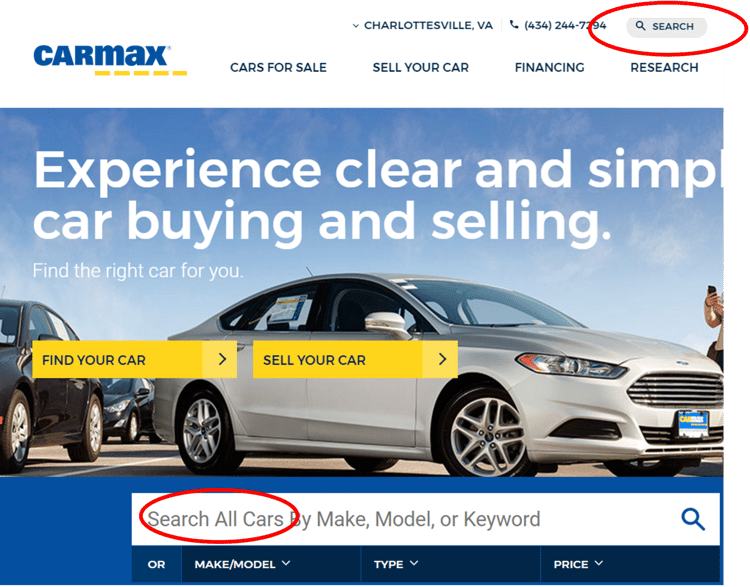
Tag every CTA on the site/page where someone could start a search and put that into an eVar
-
Uniquely identify each CTA
Examples:
- Homepage – Free-Text Search Box
- Header – Free-Text Search Box
Step 6 - Conversion Overlay: Create the conversion report builder request
Next, create a Report Builder request that pulls the conversion metrics associated with each tracked CTA or interaction point.
-
Pull conversion eVar values on that page
-
Use same date cells (B1 and B2)
-
Metrics:
-
Visits
-
Unique Visitors
-
All conversion events that you want (like leads, sales, revenue, etc.)
-
- Filter eVar
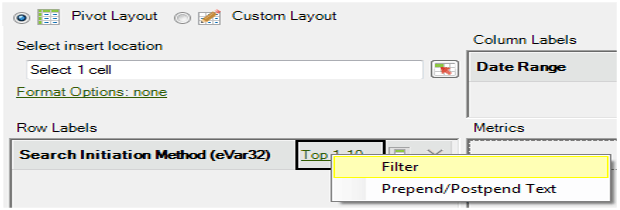
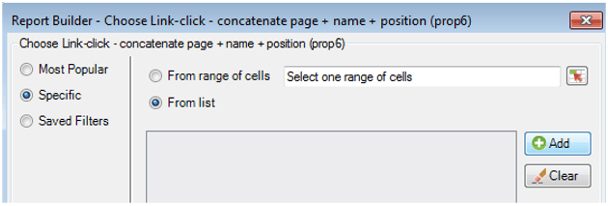
- Specific > From List > Add
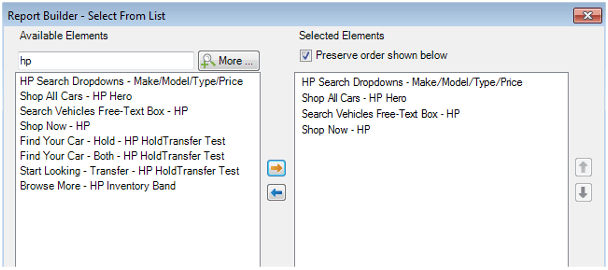
- Select items in order of how the appear on the page; make sure “Preserve order is shown
Step 7 - Conversion Overlay: Conversion calculations
After retrieving the conversion data, calculate contribution and conversion rates to understand which page elements drive the highest business impact.
- Sum up the total for all metrics and divide each metric on each CTA by the total to get the % of Total Conversions

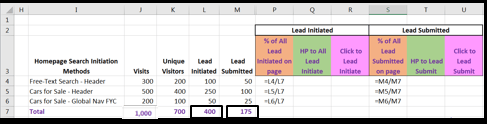
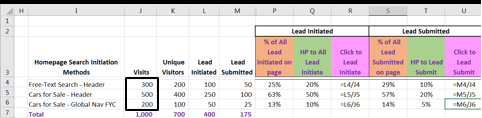
- Divide each metric on each CTA by visits on page from the 1st ReportBuilder Request in Tip #1 to get % Conversion from Page
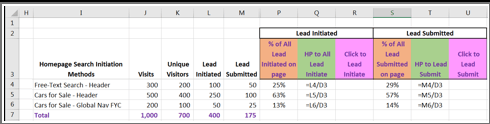
- Divide each metric on each CTA by visits for each CTA in this ReportBuilder Request to get % Conversion from Click
Step 8 - Conversion Overlay: Build the visual
Finally, create a visual conversion overlay that displays KPI performance directly on the page layout, making it easier to communicate conversion insights to stakeholders.
-
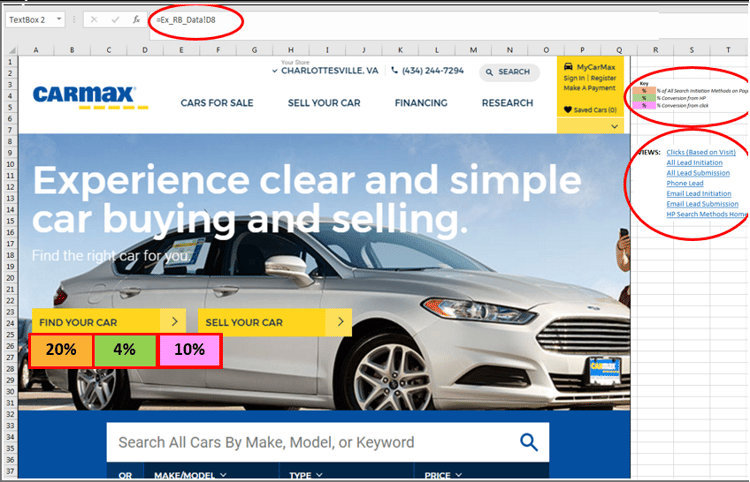
Take a screenshot
-
Link text boxes to conversion data
-
Format text-boxes and add color legend
-
Create one Excel sheet per metric – add hyperlinks to other sheets
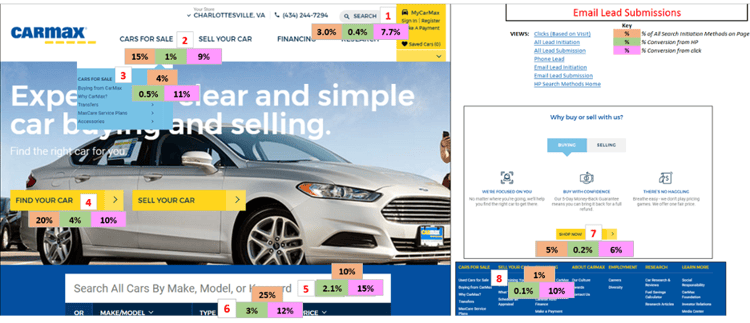
Final output:
Final tips
-
Schedule to be delivered to stakeholders
-
Create an overlay on a geographical map if applicable
-
Use conditional formatting to create a heat-map
-
Make different versions for other common dates, like MTD, QTD, etc.
-
Make different versions like these by adding segments to ReportBuilder requests:
-
New vs. return visitors
-
Mobile vs. desktop
-
Traffic source
-