In this article, we’ll walk through how to reach your target email audience using Smart Lists, breaking down each of the available logic options within Marketo Engage.
Step 0: Thoroughly review the request for the email send including the audience criteria
Before we get into Marketo Engage, we should always take a minute to read through the campaign request to make sure we understand what is being requested and then determine whether or not it can be accomplished given the data and technology at your disposal.
In the case of the email audience, it is important to determine up front whether the audience requested is a simple audience or a complex audience.
- Simple Audience = Single audience with fewer fields and data points as well as more straightforward combinations of those fields and data points
- Complex Audience = Multiple audience buckets or many different fields and data points with an intricate combination of those fields and data points
Step 1: Building the Email Blast (i.e. how your email will be sent)
Before we tackle the audience, we need to set up the program that will house the email send and audience list. Typically, there are two ways to send an email in Marketo Engage:
- Using an Email Program
- Using a Smart Campaign nested inside a Default Program
Your choice here will mostly be based on the program templates available to you within your instance, how your program channel tags are configured, and how similar campaigns have previously been built with your instance.
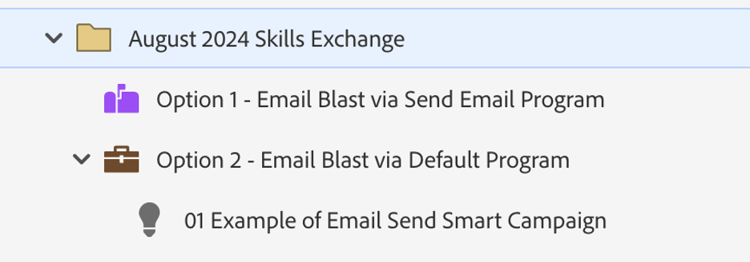
Step 2: Selecting the Audience Location (i.e. where your email audience will be live)
Once you’ve got your Email Program built, it’s time to decide where your audience will be built. This is where understanding whether you have a simple audience or a complex audience comes into play.
A simple audience (single audience with fewer fields) can be built:
- Within the Smart List tab of the Email Send Program
- Within the Smart List tab of the Send Smart Campaign in the Default Program
On the other hand, a complex audience (multiple audiences and many fields) must be built within a separate Smart List that is then referenced in the Smart List tab of either the Email Send Program or the Send Smart Campaign in the Default Program.
This is done because a complex audience often requires more iterations and testing and this is much easier to manage in an independent Smart List.
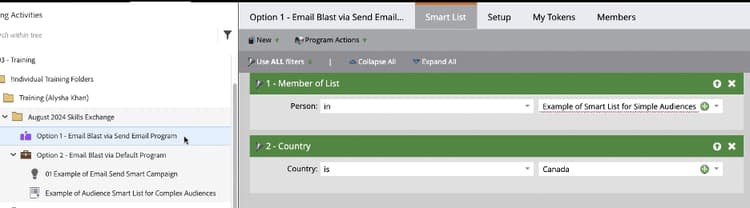
Step 3: Building the Audience Logic (i.e. who your email will be sent to)
In order to understand logic in Marketo Engage, it is helpful to to think of logic as having 4 levels. When building a simple audience (single audience with fewer fields), you’ll typically use 3 levels:
- Level 1 - Smart List Filter Operators
- Level 2 - Types of Filters
- Level 3 - Filter Constraint Operators
When building a complex audience (multiple audiences and many fields), you’ll then need to leverage an additional level:
- Level 4 - Member of Smart List
Level 1 - Smart List Filter Operators
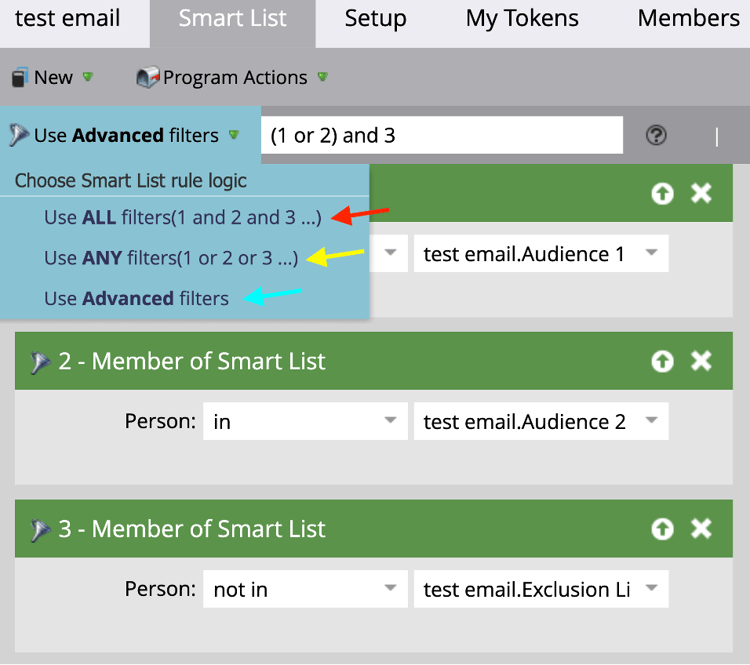
All Smart Lists allow you to select the rule logic that will be applied to that Smart List. This drop down contains 3 options:
-
ALL Filters = AND logic (red arrow)
- This means that a record must meet the criteria set forth by ALL the filters in your smart list in order to be included
-
ANY Filters = OR logic (yellow arrow)
- This means that a record can meet ANY of the criteria set forth by the filters in your smart list in order to be included
- Advanced = Allows you to use AND & OR together with parentheses (blue arrow)
Smart Lists default to ALL rule logic and it’s often easiest to bring in all your filters (as we will explain below) and then come back and adjust this rule logic once you know what filters you are working with and the outcome you want to achieve.
Level 2 - Types of Filters
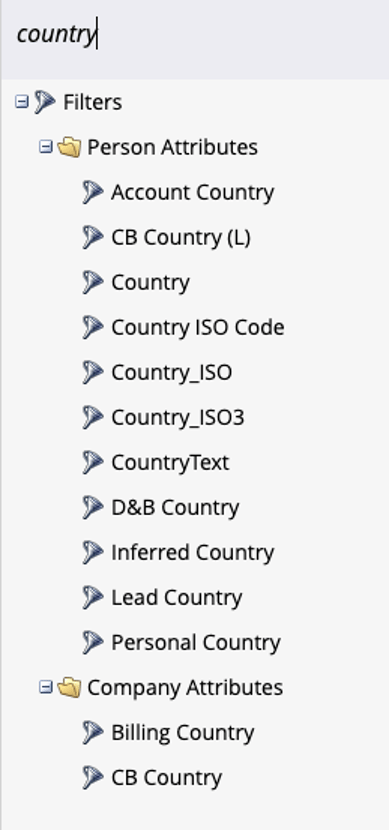
Filters are the criteria we will use to define our audience. As you scroll through the Filters tree, you’ll notice many different folders containing a wide variety of options, from fields synced from SFDC to custom Marketo Engage filters.
Here, selecting the right filter is crucial. Experience League documentation can help you understand the Marketo Engage data fields and working with your counterparts in Sales Operations and SFDC admins can help you understand the SFDC fields.
After all, when there are more than a dozen options just for “Country,” it’s critical to make sure you are always selecting the right filter to build the audience you want.
Additionally, as you’re perusing the Filters menu, you've probably noticed an Inactivity folder that contains the opposite version of filters found elsewhere in the tree.
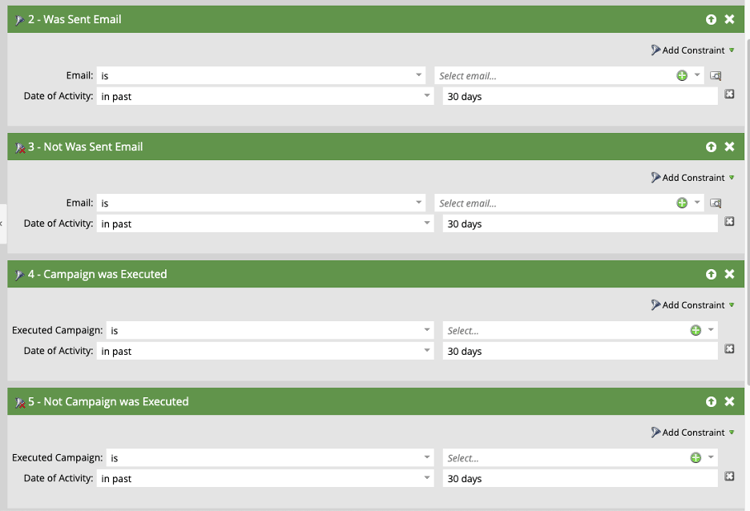
Several filters and triggers have two, opposite versions:
- WAS and WAS NOT
- XYZ and NOT XYZ
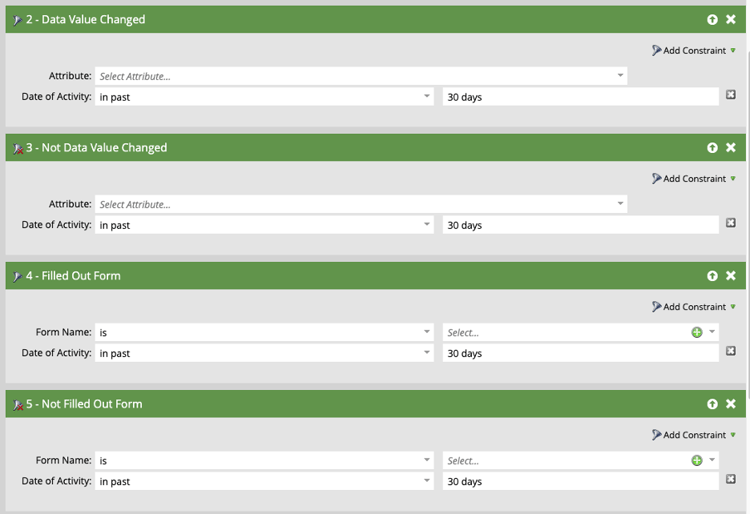
Again, it is crucial to use Experience League documentation to understand the differences between these filters and make sure you are selecting the right one.
Level 3 - Filter Constraint Operators
Once you’ve selected the right filter to drag over, it’s time to configure the filter. Every filter has an operator (red arrow in screenshot below) that lets you further describe how that filter will operate. The available operators are different for each type of field.
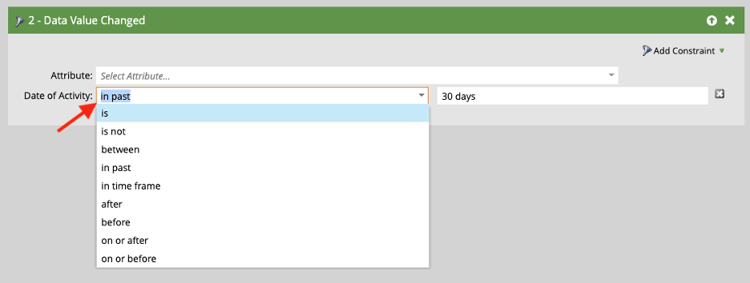
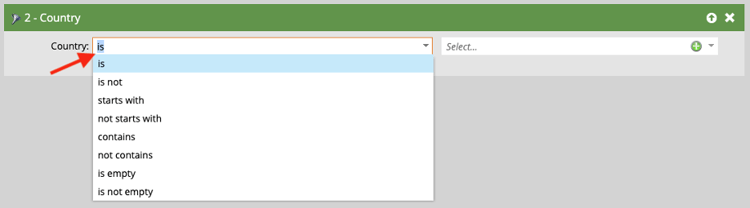
To understand what each operate means, reference the Smart List Filter Operators Glossary.
Level 4 - Member of Smart List
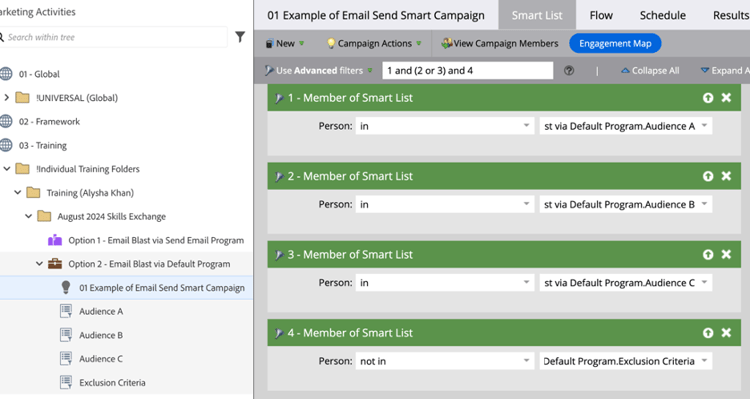
The first three levels of logic will help you build a simple audience (single audience with fewer fields) in the Smart List tab of either the Email Send Program or the Send Smart Campaign in the Default Program.
But if you have a complex audience (multiple audiences and many fields), it is best practice to build out each audience bucket in their own smart list and then reference all the smart lists in the Smart List tab of either the Email Send Program or the Send Smart Campaign in the Default Program.
However, in using this approach, another level of logic is created: Member of Smart List is or Member of Smart List is not. Depending on the type of smart lists you are creating (inclusionary lists vs exclusionary lists), make sure you select the right filter constraint operator.
Step 4: QA the Audience (i.e. double checking you’ve got the right contacts)
Once you’ve finished pulling in all the filters, adjusting the filter constraint operators, and updating the rule logic, it’s time to QA your audience to make sure you’ve got the contacts you intended to.
The first QA step is run your list and then see what the count is. Depending on where you built your list, there are a few different places the count will show up.
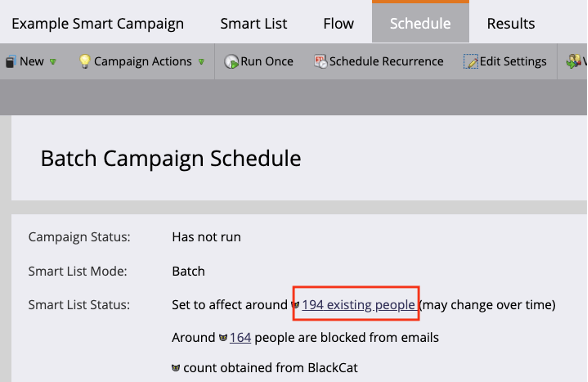
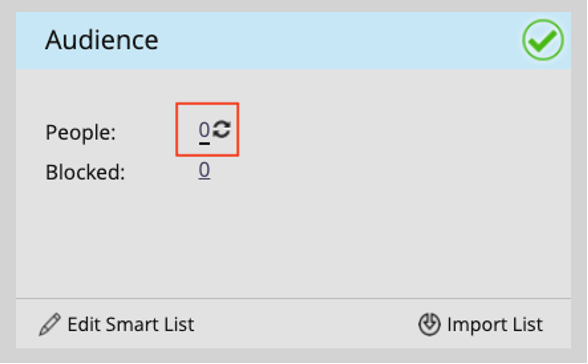
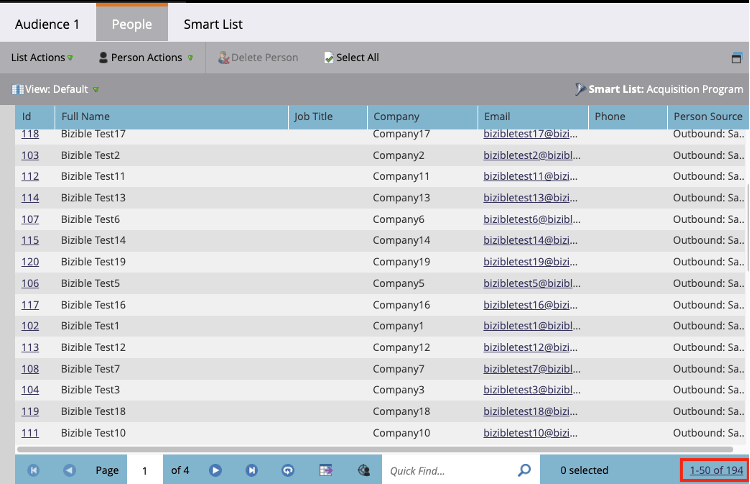
When reviewing the count, the goal is to make sure the count is within the ballpark of what you expect. If an audience size is expected to be in the hundreds, you don’t want to see an audience in the thousands or double digits. If the audience size differs greatly for your mental ballpark, that’s a good sign to dig in further.
The next step of QA is to spot check the records to make sure they have the field values you want them to have. To do this, open up the smart list and then create a View or Edit Default View that has the same fields as the filters you pulled in. Run the smart list and then scan through the records to make sure the contacts have the values you expect. If you find any oddballs that snuck in, that’s a sign to go adjust your filters and constraint operators and run the smart list again.
Once the audience size is right and contacts are passing QA, it’s time to finish your email build and schedule that campaign.