Learn how Manav Padhariya and Michael Schenck moved from monolithic, rule-based product discovery to AI-driven recommendations powered by Adobe Sensei, turning a catalog of 20,000 visually similar rugs into a personalized shopping experience that activates in seconds, with no re-index required.
Designing systems that don't just look smooth in the background, but actually drive revenue and improve customer experience — that's the work. And one of the things that keeps coming up — on the technical side and on the merchant side — is that traditional commerce platforms miss the soul of the product.
Think about a complex artisan textile, a handmade rug with intricate patterns and designs knotted in richly colored yarn inch by inch. Nobody categorizes those in their mind using text or spreadsheets. The reaction is to the color patterns, the geometric flow, the texture. That is exactly how customers shop for premium brands. And for a catalog like Jaipur Living's — 20,000 unique, highly visual SKUs that can look fairly similar to each other — the gap between how the platform understood products and how customers actually found them was the core problem to solve. This is the story of how that got approached — and what to do differently from day one.
Why keyword search fails visual catalogs
Customers are no longer just comparing your site with competitor brands. They are comparing the experience and intelligence of your site with the algorithms of Netflix, Spotify, or Instagram. They expect the platform to instantly know them.
Jaipur Living has a great social media team that does excellent work on Instagram and Pinterest driving traffic to the site. When those visitors arrive with the intent of finding the specific rug they saw in a social ad or surfaced through an LLM search, the goal is to surface that product as quickly as possible, as frictionlessly as possible. The discovery process needs to be seamless nowadays — especially with the rise of agentic shopping and LLMs. Consumers are doing much more of the discovery process outside of the website now, so when they hit the site, they are already in a very intentful stage.
The complexity of the catalog makes that hard. Many of the rugs, to be honest, look fairly similar. Some of the attributes are a little subjective — what is a "modern contemporary rug" or a "traditional rug" may mean something different to one person than to the average user. Power users are design experts with 20 or 30 years in the business. They may think about that in a completely different way than a normal consumer would. So, it makes it tricky to tag all of these products with the proper filters and attributes and make those items discoverable.
With a fairly large catalog, utilizing the traditional monolithic core for search and filtering does take a while — the search engine and filters have to work through that whole product catalog to find potential matches. And users report frustration trying to find similar items when those items are out of stock.
Business problem: A massive, highly visual catalog of artisan rugs where traditional keyword search fails — because customers buy based on vibe and color, not just product details.
-
Complexity of selling 20,000 unique, visual SKUs across many similar items
-
The business cost of a slow site and manual merchandising
-
Discovery is expected to be quick and intuitive
-
Users report frustration trying to find similar items when those items are out of stock
-
Discovery through filters can be slow, frustrating, and not intuitive
-
Product attribution can be very subjective, making discovery through specific attribute filtering nearly impossible
That last point — out of stock — became a real pain point called out by the customer service and sales team, especially with recent tariffs and inventory issues. When a user finds a rug they really like and it's out of stock, the goal is to surface rugs that are very, very close to that product immediately. That use case is where visual similarity really earns its place.
What Adobe Sensei actually does differently
This is where Adobe Sensei changed the game. It doesn't just read the tags or the data. It analyzes the actual images. It understands that a modern geometric rug might share the vibe with specific other products, even if the text description has zero overlapping words.
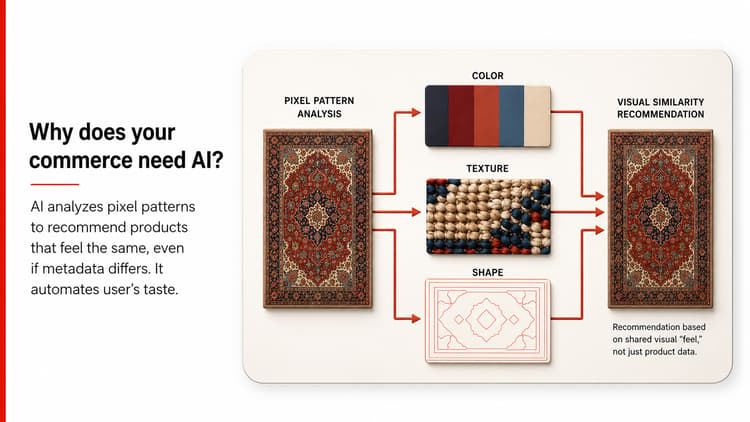
By doing this, the solution stops acting like a filter filling the cart and starts acting like a personalized shopping assistant for the customer visiting the store. It automates the taste of customers. Customers buy items that look good together, not items that share the same background text.
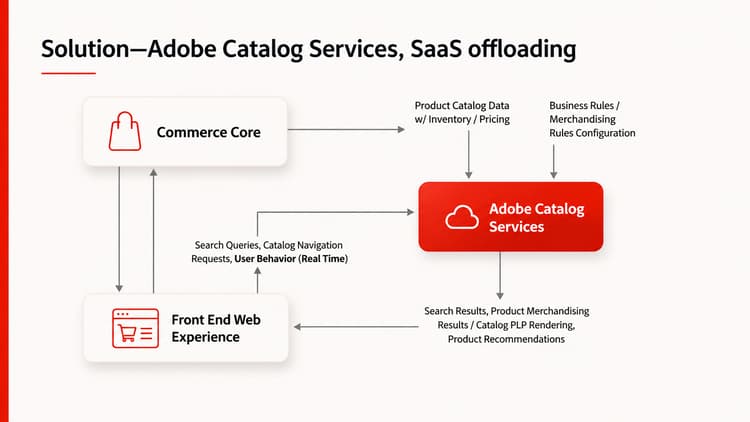
Sensei stacks the product catalog and combines it with the live behavioral stream coming from the storefront. It understands the customer experience on the fly, processing millions of data points using its internal machine learning algorithms to figure out exactly the right product to show that customer the next time they visit. Behavioral data is tracked across sessions — so a non-logged-in user who comes to the site one day and comes back the next day that tracks as long as they haven't cleared their browser cache. Information on customers' journeys and shopping behavior starts coming in immediately.
The architecture: Why Catalog Services changes everything
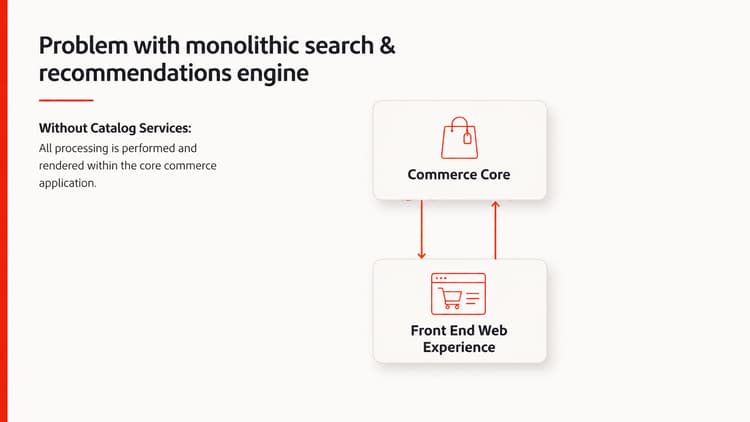
The problem with a monolithic search and recommendation engine is that it processes data in a single way, monolithically. It renders information to the core platform only. So when a customer wants to search for a product or find a particular filter, it will directly query to the core platform. For enterprise stores, which come with a heavily complex catalog, traditional search and recommendation logic creates massive friction.
By pushing the product catalog data into the Catalog Sync Service, it offloads numerous complexity and the platform can render results really instantly, because it gets the data directly from the SaaS service.
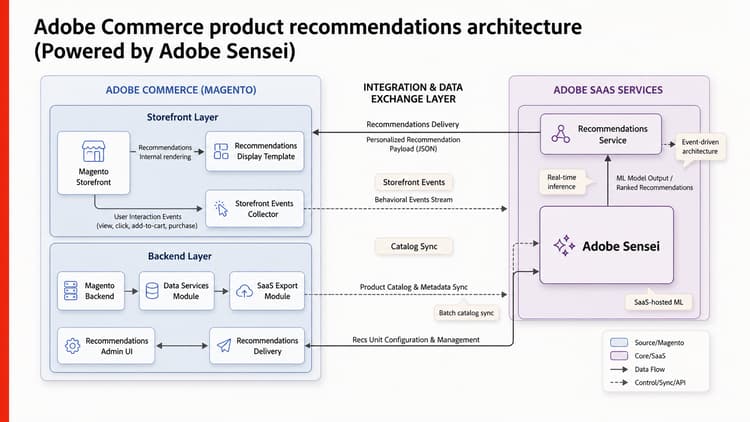
With that context, the next step is walking through the Adobe Commerce product recommendation architecture, powered by Adobe Sensei.
Installation and initial configuration
In your particular Adobe Commerce environment, product recommendations may not be installed. Either you can create a ticket or your technical team can follow these steps. Once installed and you look at the admin menu, you find there is a blank page and there are no recommendations created.
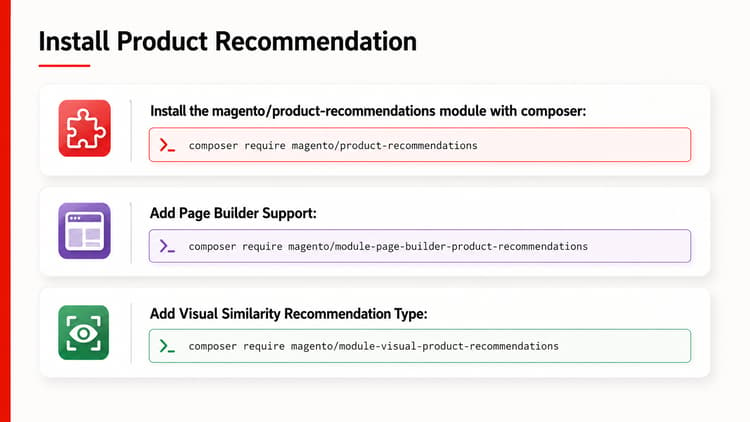
If you already have Live Search and Catalog Services enabled, all you need to do is install the product recommendations extension and you're basically set up and ready to go. But I want to be clear about what "ready to go" means in practice: installation is straightforward, but data must fully sync before recommendations work, module versions must align, and readiness indicators can take hours or days depending on catalog size.
After installation
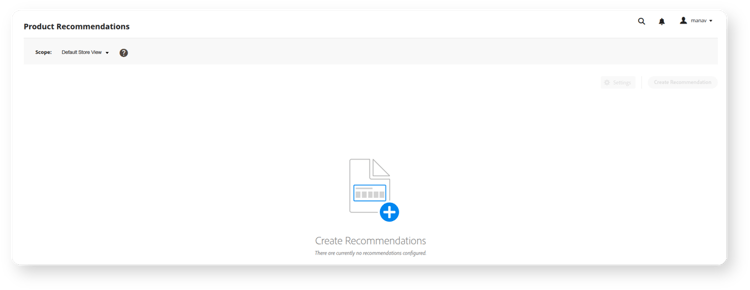
To configure the catalog data sync service, you need to get the keys for the product recommendation and Adobe Sensei SaaS integrations from your Adobe Commerce account.
Configure Catalog Services
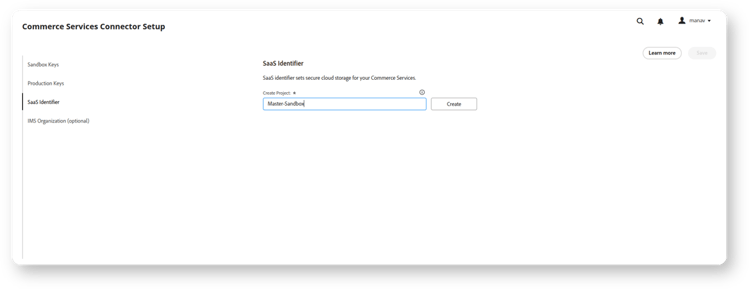
Once you add those sandbox keys and production keys, you can define the project name and start initiating your SaaS Identifier project. Once that is synchronized, it is ready to work and the data are ready to use for Adobe Sensei and the product recommendation engine in the storefront.
Synchronize Catalog Services
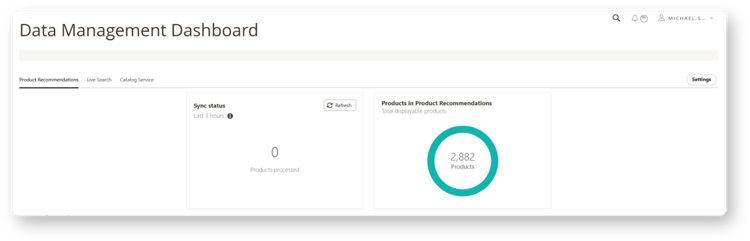
If you are not using Live Search or Catalog Service and you want to use product recommendations that can also be done. You just need to synchronize the data and you must have the Adobe Sensei keys, which come with the Adobe Commerce Cloud provisioning. You can use the product recommendation engine only without Live Search but it will definitely create the personalized experience and AI recommendations.
Creating and configuring a recommendation
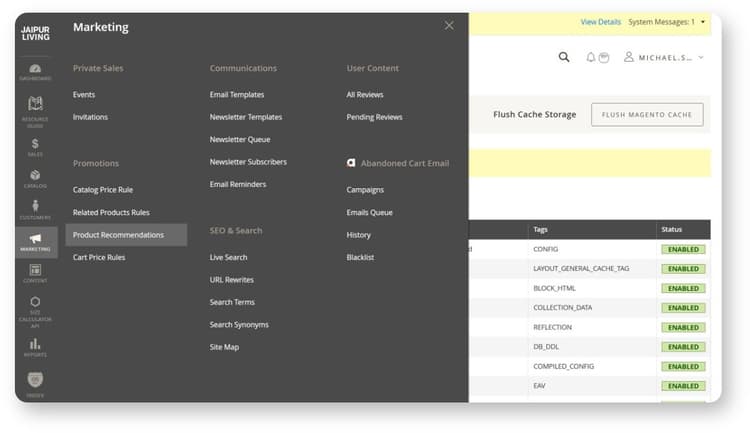
To get to the product recommendation screen, go to the Marketing menu and under Promotions, hit the Product Recommendations button.
The Jaipur Living admin panel shows that the Marketing menu has expanded. Under the Promotions section, Product Recommendations are highlighted. Other visible items in the menu include Catalog Price Rule, Related Products Rules, Cart Price Rules, Live Search, and URL Rewrites.
Manage product recommendation
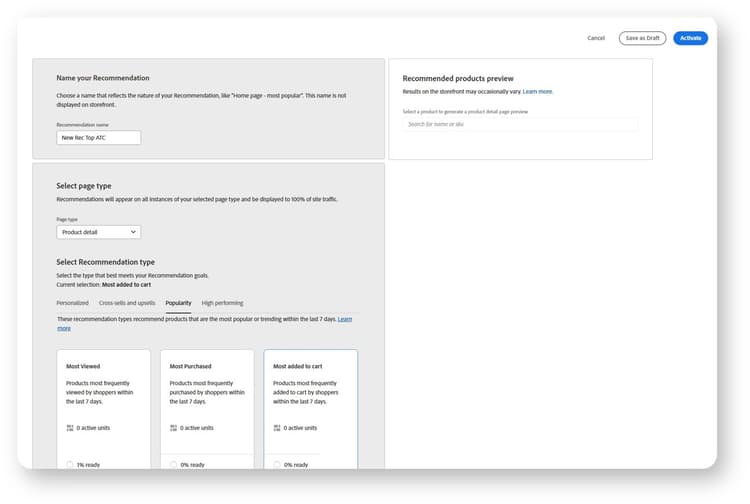
Once you hit that new recommendation button, you are presented with a screen where you can name your recommendation, decide which page type it is on, and choose the recommendation type.
Create a product recommendation
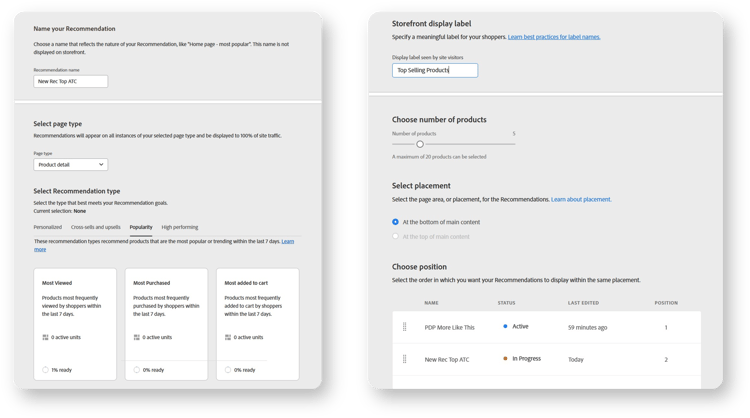
There are a few different recommendation type categories.
Personalized recommendations are based on user session data — if customers are looking at mostly handwoven blue rugs, product recommendations is going to move to showing more handwoven blue rugs to that specific user during that session, because that is what the AI would be determining is their intent. There are also popular items, most trending, most clicked, highest add to cart, and then cross-sell and up-sell. That's where you can find visual similarity.
If you can see at the very bottom of those cards for the recommendation type, there is a percentage readiness. When you first select visual similarity or some of the personalization, sometimes it takes some time for Catalog Services and Adobe Sensei to process the whole product catalog. Visual similarity specifically, if you have a large catalog like mine, it can actually take almost a day or two for it to go through.
Cross-sells and up-sells here have nothing to do with the cross-sells and up-sells manually set-up per item in admin — Sensei is doing the research on its own. They don't override each other. If you're already using cross-sells on your PDP, these product recommendations don't override them. So, those will still be there unless you want to hide them and replace them with product recommendations.
Inclusions and exclusions: Where strategy gets specific
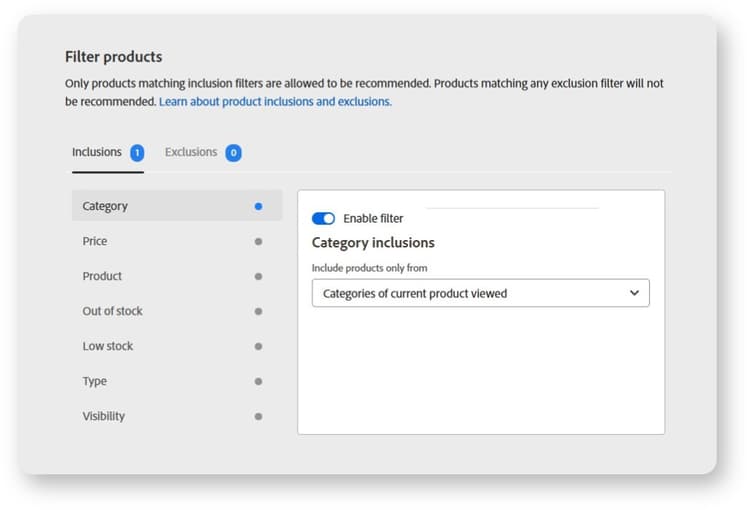
Inclusions Similar Category
Exclusions: lower price, out of stock, low stock
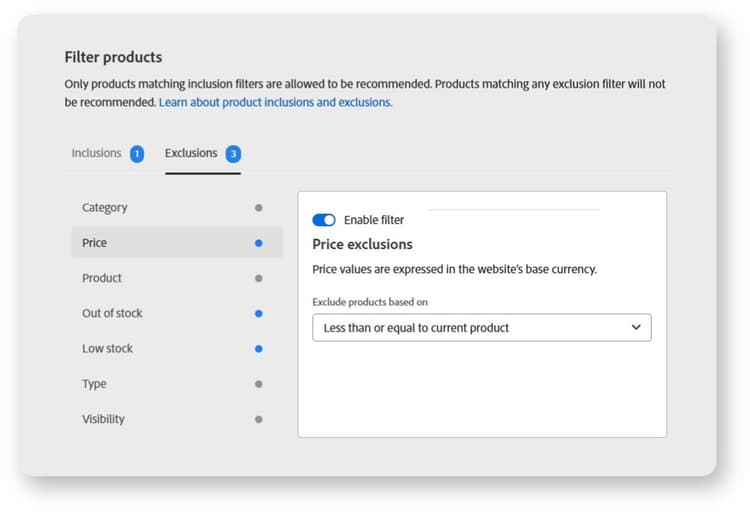
For the PDP similar styles unit, the goal is to show hand-knotted rugs only when a customer is looking at hand-knotted rugs — so a category inclusion scoped to the current product viewed is the right move. On price, the catalog spans some products in the $8,000 to $10,000 range and others in the $200 to $300 range. Especially when looking at visual similarity, the last thing to want is a customer who has been sold on the quality of a hand-knotted rug — deep in that purchase journey — suddenly seeing a $300 rug that looks very close in visual similarity and ending up purchasing that instead. So an inclusion is set that allows items maybe 10 to 20% lower in price, with anything higher being fine.
On the exclusion side, pillows should not appear to a customer in a high-intent journey phase for a rug. There is also a category for sale or last-call items — those get excluded. And the main exclusion is out of stock and low stock. For low stock, a threshold can be set in the main site configuration. Four or five units work well as a starting point, but depending on how fast the inventory turns, that number can be adjusted accordingly.
Activating and seeing it live
Once all configuration steps are done and readiness reaches 100%, hit the blue Activate button in the upper right corner. A green success message confirms that the recommendation is now active.
New recommendations activated
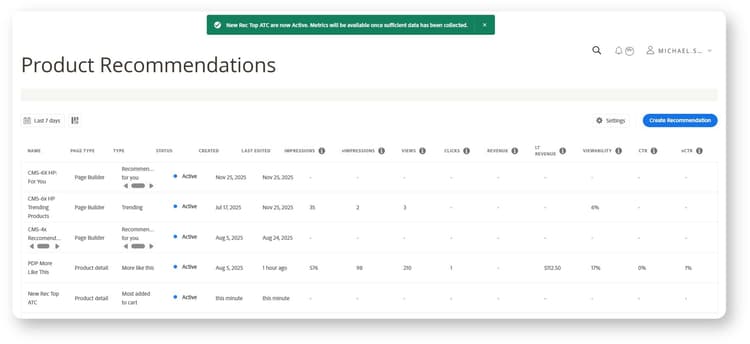
That recommendation will immediately — within seconds, typically — show up on your front end. There's no re-index needed, there's no cache refresh needed. It just automatically goes up because it's pulling from Catalog Services.
That's really great for merchandisers and practitioners. To run a test, address an issue with a specific recommendation, or respond to a last-minute promotion, changes can be made really quickly. No dev team involvement required.
Backup recommendations and the cold start problem
Let's say a new visitor is coming to the site. Recommendations like "Recommended For You" or "Viewed This, Bought That" are personalized recommendation types that require some behavioral customer data. So, the solution has a backup plan in place.
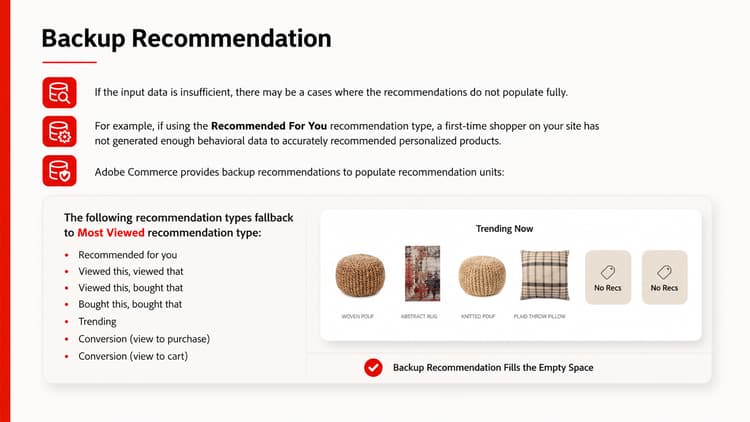
If the system realizes it doesn't have enough highly specified data, it instantly falls back to the universal and strategically strong product catalog data called Most Viewed. So, the customer never sees any error loading, any spinner, or any awkward gap in the page. The space is always filled with compiled inventory.
Customizing the display layer
The layout can be customized. The good thing about product recommendations is that it is also available for the Commerce Storefront, Commerce Cloud, and Commerce Optimizer. It has built-in APIs and GraphQL to handle all the experiences.
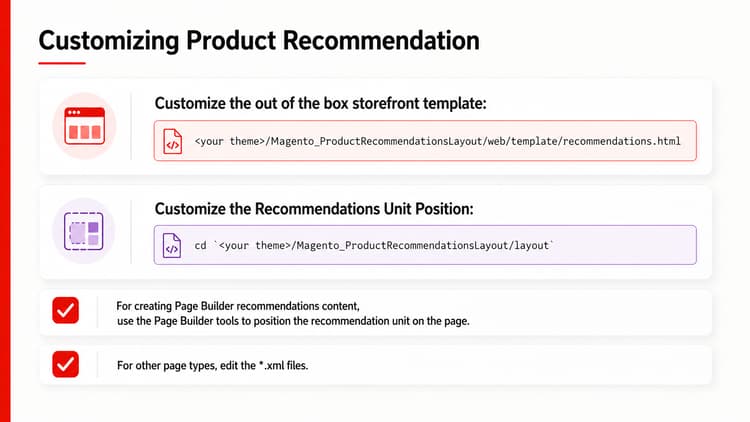
Custom attributes can also be supported. The engine understands custom data or custom attributes. If you want to add a custom filter to understand the dynamic filter, or protect specific experiences, that can be done — it may require some configuration.
Recommendation strategy by page type
Now, for what all new adopters really need — the strategy for the pages to maximize conversions. The architecture design breaks down into three parts: Homepage, PDP, and Cart.
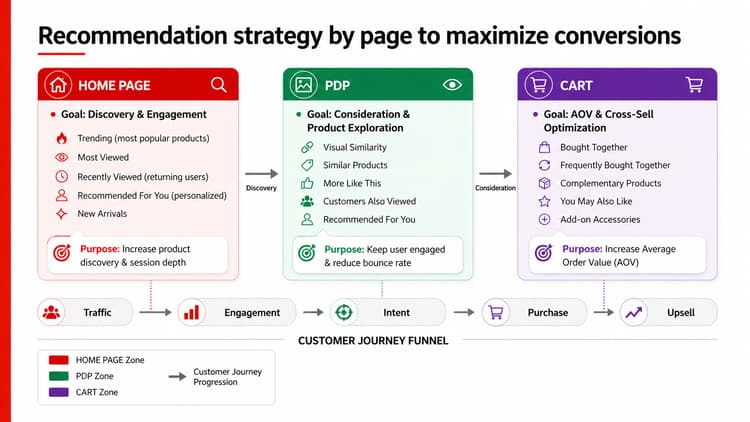
When a customer visits the homepage, the goal is always discovery and engagement. Most Viewed, Trending, or Recently Viewed work well there for logged-in customers. Personalized items like "Recommended For You" are a strong fit, and newly arrived products can be added to the homepage with the purpose of increasing product discovery and getting customers to go deeper in the session.
On the PDP, the goal always needs to be about consideration of other products and exploration. Visual similarity, similar products, products that customers also viewed, and "Recommended For You" all work well there — keeping customers engaged with the site and reducing bounce rate.
Once a customer has added something to the cart, the goal is always to increase AOV and cross-sell. Sliders like "Bought Together" or "Frequently Bought Together" fit well here, or in some cases "Complementary Products." For Jaipur Living specifically, specific rug pads are surfaced to a user in the shopping cart once they have selected a rug.
How to
Step 1. Install the extensions.
Run composer require magento/product-recommendations for the core module and magento/module-visual-product-recommendations for visual similarity. Add magento/module-page-builder-product-recommendations only if Page Builder is being used to place recommendations in CMS blocks or landing pages — this module is optional. (Adobe Commerce Cloud / PaaS. For SaaS storefront implementations, connect with your Adobe representative to confirm the appropriate provisioning path.)
Step 2. Configure Catalog Services and initiate the data sync.
In the Commerce Services Connector Setup, add sandbox and production API keys from your Adobe Commerce account, name the SaaS Identifier project, and confirm that the product catalog is syncing in the Data Management Dashboard. Note that Catalog Service syncs product attribute metadata and variants — inventory and pricing are not stored in Catalog Service and are resolved separately at query time. Watch the sync count stabilize before proceeding.
Step 3. Create your first recommendation immediately, even before activating it.
As soon as the extension is installed, set up a few recommendations — including visual similarity — and start that syncing process going. Processing time for large catalogs can range from several hours to one to two days. The more data that the system has, the better the results are. Note that behavioral data collection for types like "Recommended For You" or "Trending" requires the recommendation to be in an active state on a live storefront — drafts collect catalog readiness, not behavioral signals.
Q&A highlights
Q: If the front end uses a headless platform (ScandiWeb), is there additional development needed, and would it be per page or per recommendation placement?
A: If on Adobe Commerce Cloud and capable of having product recommendations, the approach is to adapt the APIs that come from product recommendations and have that API inside the headless platform. Product Recommendations is built in a way that supports both traditional and headless systems. Some additional front-end development is required to adapt the GraphQL queries and APIs, but no additional backend compatibility development is needed.
Q: Is the extension paid or is it included with the license?
A: Product Recommendations are included with Adobe Commerce Cloud (PaaS) and Adobe Commerce as a Cloud Service (SaaS). It is not available with Magento Open Source. Some legacy contracts may require enabling SaaS services separately.
Q: Do cross-sells and up-sells in Product Recommendations interact with manually configured cross-sells set-up per item in admin?
A: Sensei conducts its own research independently — Product Recommendations units do not read from or modify Commerce's native cross-sell/up-sell assignments. They don't override each other. If cross-sells are already in use on a PDP, those will still be there unless there's a deliberate choice to hide them and replace them with product recommendations. Sensei computes its own dynamic suggestions independently, native assignments stay manual, and both can be used concurrently on the site.
Q: Is it possible to create new custom attributes that a recommendation placement would leverage?
A: It may require some configuration, but the engine understands custom data and custom attributes — adding a custom filter can be done. To be precise about what that means in practice: custom attributes must be synced via the Catalog SaaS export and must be of a supported data type — string, boolean, or numeric. Complex types are not supported. Filtering options are also limited to what the inclusion/exclusion UI exposes, so custom ML logic or scoring rules cannot be added. But if the attribute meets those conditions, it is possible.
Q: If product images are hosted in Scene7, would visual similarity still work?
A: Catalog Service does not pull images directly from Scene7 — it syncs product metadata including image URLs, not the binary image assets themselves. For this to work, Commerce needs to be referencing Scene7 images using publicly accessible absolute URLs in the product catalog. If those URLs are present in the product record, Catalog Service picks them up, and visual similarity can process them. If they are not referenced there — if Scene7 is serving them outside the Commerce product record — then a custom ingestion pipeline or AEM Assets integration may be required. Confirm the image URL configuration before assuming visual similarity works with an existing Scene7 setup.
Q: Can recommended products be tailored to traffic source or UTMs? Can this be integrated with GA4?
A: That can be done. Along with product recommendations or any Catalog Service, Live Search, or Adobe Sensei service, that integration is possible. It may require some backend customization to get GA4 configured and handle UTM parameters on the fly.
Key takeaways
-
The discovery gap for visual catalogs is not a text problem — it is a similarity problem. Keyword search and attribute filters cannot capture the vibe, color, and aesthetic feel that drives purchase decisions for highly visual products. That is the specific gap Product Recommendations addresses.
-
Adobe Sensei processes images in the SaaS environment using deep-learning embeddings, not on the merchant site. Visual similarity requires Catalog Service enabled, successful image sync, and the visual product recommendations module — readiness can take hours to two days for large catalogs.
-
Behavioral tracking is anonymized and session-scoped. Product Recommendations does not use PII. Guest user behavioral context persists via cookies and does not carry across devices or survive cookie expiration.
-
"Plug and play" means that installation is simple — not that it's instant. Catalog sync must complete, readiness indicators must reach 100%, and module versions must be align before recommendations work on the storefront.
-
Inclusions and exclusions are the most important strategic levers. Price floors, category scoping, and out-of-stock exclusions determine whether recommendations support or undermine the purchase journey. Over-filtering can break even the fallback system.
-
Product Recommendations and native cross-sell/up-sell assignments are fully independent systems. Sensei does not read from or writes to Commerce's native product associations. Both can coexist; neither influences the other.r.
What I'd do differently today
The recommendation is this: as soon as the extension is installed, go ahead and set up a few product recommendations — including one with visual similarity — and start that syncing process going. Sensei is not going to start collecting data until that specific recommendation type is activated. So to jump in and start testing things quickly, create one of those recommendation types even without activating it on the site, just so that it starts processing data. The more data it has, the more time it's running, the better the results are going to be.
Actionable next steps
-
Confirm your licensing and SaaS Connector access. Log in to your Adobe Commerce admin and check whether the Adobe Commerce SaaS Connector options are visible under Stores → Configuration → Services. If not visible, contact your Adobe account manager to confirm whether Catalog Services are provisioned. Note that Product Recommendations are included with Adobe Commerce Cloud (PaaS) and ACCS (SaaS) — not Magento Open Source.
-
Install the correct Composer packages for your use case. The core module (magento/product-recommendations) and visual similarity module (magento/module-visual-product-recommendations) are the essential installs. Add the Page Builder module only if you are placing recommendations in CMS blocks via Page Builder. Then configure your API keys in the Commerce Services Connector, create your SaaS Identifier project, and verify that catalog sync is running in the Data Management Dashboard. (Adobe Commerce Cloud / PaaS. For SaaS storefronts, confirm the provisioning path with your Adobe rep.)
-
Create your Visual Similarity recommendation immediately — don't wait to activate. The catalog image processing pipeline can take hours to two days for large visual catalogs. Create the recommendation now (Save as Draft is fine) so processing begins. If you want behavioral data to start collecting for personalization types, activate those in production as early as possible, even before placing the block visibly in the page.
-
Define your inclusion and exclusion strategy before configuring any recommendation. At minimum, decide: (a) your price floor threshold for PDP similarity recommendations, (b) which categories to exclude from recommendations on high-intent pages, and (c) your low stock threshold. Be careful not to over-filter — overly restrictive rules can prevent even the fallback Most Viewed type from populating.
-
Build your recommendation strategy by page using the Homepage → PDP → Cart funnel framework. Homepage goal is discovery and engagement (Most Viewed, Trending, New Arrivals). PDP goal is consideration and reduced bounce (Visual Similarity, More Like This, Customers Also Viewed). Cart goal is AOV increase (Bought Together, Frequently Bought Together, complementary add-ons).
-
Use the at-a-glance analytics dashboard to run A/B tests before committing to a placement. Once recommendations are live, the dashboard gives you impressions, views, clicks, revenue, lifetime revenue, and CTR per recommendation. Test two configurations in the same slot before pushing the winner to full audience — and account for the fact that behavioral types need time to accumulate data before CTR and revenue figures become statistically meaningful.