Choosing the wrong data collection architecture for Adobe Analytics on mobile locks your team into painful rework later. This article walks through the key SDK decisions, implementation patterns, and trade-offs practitioners need to get right from the start, whether you’re building on React Native, Android, or iOS.
Introduction: The architecture decision that shapes everything
If you’ve been working with Adobe Analytics on mobile apps for any length of time, you’ve probably hit that moment where someone asks: “Should we just use the old SDK or do we migrate to AEP?” If you’re building a brand-new React Native app today, that question has already been answered for you, just not by you.
Adobe ended support for the ACP-prefixed SDK libraries on August 31, 2023. If your team is building in React Native, Flutter or Xamarin, the legacy approach is off the table. The only supported path is the Adobe Experience Platform (AEP) Mobile SDK.
Why this decision matters more than most teams realize
For teams starting with the AEP Mobile SDK, the most important early question is: “How should we structure app payloads so Adobe Analytics works quickly today, while preserving flexibility for Customer Journey Analytics (CJA), RTCDP or broader AEP tomorrow?” Your architecture choice directly affects:
In practice, your architecture choice directly affects:
-
Developer experience - how much Adobe-specific knowledge your app team actually needs
-
Adobe Analytics implementation speed - how quickly you can get AA live and reporting
-
App release complexity - whether future mapping changes require a new app deployment or just a config update
-
Schema governance - how clean and maintainable your implementation stays over time
-
Future CJA / RTCDP readiness - whether today's implementation becomes tomorrow's rework
-
Data portability - whether your payload can evolve beyond Adobe Analytics
The big reality is that Adobe gives you multiple valid implementation paths and the best option genuinely depends on your end goal. Before a single line of tracking code is written, your team needs to have an honest conversation about:
-
AA-only - Are you solely focused on Adobe Analytics for now?
-
AA + CJA / RTCDP - Are Customer Journey Analytics, Real-Time CDP or broader AEP on the roadmap?
-
Speed vs governance - Do you need to ship fast or is long-term data governance the priority?
-
Developer simplicity vs platform maturity - Do developers need a natural data layer pattern or is XDM fluency realistic?
This article is the guide I wish had existed when I started working through this implementation. It covers the full picture: why the architecture decision matters, how to set things up correctly on React Native Android and iOS, how to structure your XDM payloads for both immediate Adobe Analytics wins and long-term CJA and RTCDP readiness and how to validate everything with Adobe Assurance before your team ships.
Part 1: Why the Old SDK is gone and what replaced it
The end of ACP SDK support
Since April 2023, Apple has required all App Store submissions to be built with Xcode 14.1 or later. The ACP-based SDK extensions were built with older Xcode versions and became incompatible with iOS and iPadOS. Adobe officially ended support on August 31, 2023 for:
-
ACP iOS SDK
-
React Native for ACP
-
Flutter for ACP
-
Cordova - Not supported, no migration path
-
Xamarin - Not supported, no migration path
The official migration guidance is documented at Adobe's SDK End of Support page. It contains the migration matrix for each deprecated SDK - worth bookmarking.
The Version history that matters
Adobe's mobile SDK has gone through three major generations, and knowing which era you're in changes everything about how you implement:
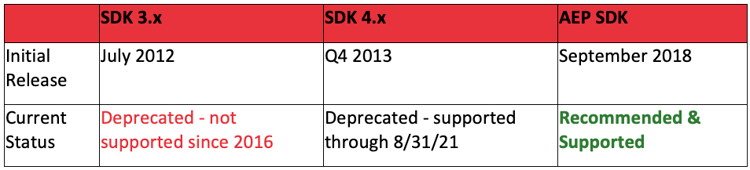
The full version comparison is documented in the AEP Mobile SDK Getting Started guide.
The critical react native clarification
Even with the newer AEP-prefixed libraries in React Native, the standalone Analytics extension is not supported. React Native apps must route Analytics data through the Edge Network, using either:
-
Edge Bridge extension — preserves existing trackState/trackAction calls
-
Edge Network extension — uses Edge.sendEvent() with XDM payloads
See the Current SDK Versions for React Native for the current state of what's supported and what's not.
What this means practically: React Native apps must route Analytics data through the Edge Network, using either the Edge Bridge extension (which preserves your trackState/trackAction calls) or the full Edge Network extension (which uses Edge.sendEvent with XDM).
Part 2: Three ways to send data - choosing your architecture
Approach 1: Edge network extension (full XDM)
The most modern and future-proof approach. Your app sends events using Edge.sendEvent() with an XDM-structured payload through the Edge Network to Analytics via your configured Datastream.
API: Edge.sendEvent()
Extensions needed: Edge Network + Identity for Edge Network
XDM transform: Client-side
CJA/RTCDP ready: Yes
Platform support: iOS, Android, tvOS, Flutter, React Native
Approach 2: Edge bridge extension (migration-friendly)
If your team already has trackState and trackAction calls baked into the app and can’t afford a full rewrite, Edge Bridge intercepts those calls. It forwards the data through the Edge Network to Analytics — no XDM restructuring required on the app side.
API: MobileCore.trackAction() / MobileCore.trackState()
Extensions needed: Edge Bridge + Edge Network + Identity for Edge Network
XDM transform: Not required for Analytics
(server-side Data Prep if needed for other services)
CJA/RTCDP ready: Yes (with Data Prep mapping)
Platform support: iOS, Android, tvOS, Flutter, React Native
Approach 3: Direct Analytics extension (legacy - limited platform support)
The traditional approach that maps directly to Adobe Analytics without going through the Edge Network. Still supported on iOS, Android and tvOS — but NOT supported on Flutter or React Native.
API: MobileCore.trackAction() / MobileCore.trackState()
Extensions needed: Analytics extension + Identity for Experience Cloud ID Service
Platform support: iOS Android, tvOS ONLY - NOT Flutter, NOT React Native
The full extensions comparison is available in Adobe's Analytics implementation overview for the AEP Mobile SDK.
Part 3: The architecture decision that matters most
Legacy trackState/trackAction vs modern Edge.sendEvent
In the old SDK world, the method call itself told Adobe what kind of hit to send:
// Legacy - method call determines hit type:
trackState("Home", { "app.membershipTier": "gold" }) // → page view hit
trackAction("Login", { "app.loginStatus": "logged_in" }) // → custom link hit
// Then context data flows through Processing Rules:
app.membershipTier → eVar##
app.loginStatus → eVar##
In the new AEP world with Edge.sendEvent(), Adobe no longer cares which function you called. It cares about the structure of your XDM payload:
// Modern AEP - payload structure determines hit type:
Edge.sendEvent() + ExperienceEvent / XDM / data object / Datastream / Data Prep
// Screen view equivalent (replaces trackState):
xdm.web.webPageDetails.name → sets the screen/page name
// Interaction equivalent (replaces trackAction):
xdm.web.webInteraction.name → sets the interaction name
xdm.web.webInteraction.type → "other" for in-app interactions
XDM vs Data Object vs Context Data: Choosing the right pattern
Unmapped XDM + context data: move fast without waiting on schema
Developers send custom fields inside XDM namespaces (xdm.app.*, xdm.user.*), and Adobe automatically forwards any field that doesn’t map to an Analytics variable as a context data variable (a.x.*). Your Analytics team then maps those keys via Processing Rules or Data Prep — with zero app releases required.
// Developer sends (no formal schema needed upfront):
xdm.app.contentSection = "travel"
xdm.user.sessionType = "authenticated"
// Adobe auto-forwards unmapped fields as context data:
a.x.app.contentsection → available in Processing Rules
a.x.user.sessiontype → available in Processing Rules
// Processing Rules / Data Prep maps them:
a.x.user.sessiontype → eVar##
Benefits:
-
Minimal upfront schema definition needed
-
Familiar migration path for AA teams
-
Fast to deploy — ship the app, map variables later
Watch out for:
-
Less governance — context variable names can sprawl quickly
-
Processing Rules management becomes heavier over time
-
32 KB context data payload limit applies
-
Transitional in nature — not the cleanest architecture for CJA/RTCDP long-term
Friendly XDM + Data Prep: built for CJA and RTCDP readiness
Developers send business-readable field names inside custom XDM namespaces. The Analytics team maps those clean, meaningful names to Analytics variables in Data Prep, no Processing Rules required, and the same data is already structured for CJA and RTCDP when they come online.
// Developer sends (business-readable, inside XDM namespaces):
xdm.user.sessionType = "authenticated"
xdm.app.membershipTier = "gold"
xdm.app.screenName = "home-screen"
// Data Prep maps them to Analytics variables:
xdm.user.sessionType → eVar##
xdm.app.membershipTier → eVar##
Benefits:
-
Developer-friendly - no eVar education required in app code
-
Business-readable field names throughout the entire pipeline
-
AA-ready now, CJA and RTCDP-ready later with no architecture rework
-
Better governance - your schema becomes the contract
-
No Analytics variable numbers ever appear in app code
Watch out for:
-
Requiring more upfront planning and naming governance
-
Custom XDM namespaces need to be agreed upon and documented across teams
Data object: when deployment speed takes priority
The most natural approach for developers from a web data layer background. Two sub-variants: direct Analytics variable mapping via the __adobe.analytics namespace, or freeform business-named keys mapped via Data Prep (recommended).
{
"data": {
"__adobe": {
"analytics": {
"eVar7": "gold",
"events": "event3"
}
}
}
Freeform variant - business-named keys, mapped via Data Prep (recommended over the direct variant):
{
"data": {
"membershipTier": "gold",
"sessionType": "authenticated"
}
// Data Prep maps: data.membershipTier → eVar##
Benefits:
-
Most developer-natural mirrors a standard website data layer pattern
-
No XDM education required for app developers
-
AA-first speed — fastest path to data landing in Adobe Analytics
Watch out for:
-
Less CJA / RTCDP native — data object fields don’t automatically structure for CJA
-
Weaker governance compared to a proper XDM schema approach
Key context data rule: what Adobe does with unmapped XDM fields
Adobe is explicit: “If using the XDM object, all fields that don’t map to an Adobe Analytics variable are automatically included as context data variables.” This is why many AA-first teams can move quickly without waiting for perfect schema design. Send the data now, map the variables when you’re ready.
Technical limits to plan around:
-
Max context data payload: 32 KB
-
Nested objects flatten automatically: xdm.app.section.name becomes a.x.app.section.name
-
Array elements are indexed: a.x.array.0, a.x.objectarray.0.field1
The Golden Rule: Business meaning first, variables later
Regardless of which pattern you choose, institutionalize this principle from day one:
Developers should always send business meaning. Never use Analytics variable names.
// Wrong — app code is coupled to Analytics variable numbers:
"eVar7": "gold"
// Right — app code expresses business meaning:
"membershipTier": "gold"
// The Analytics team maps it — without touching app code:
membershipTier → eVar## (in Data Prep or Processing Rules)
When the Analytics team reassigns variable numbers, and they will, nothing in your app code needs to change. The mapping lives in Data Prep or Processing Rules, completely decoupled from your release cycle.
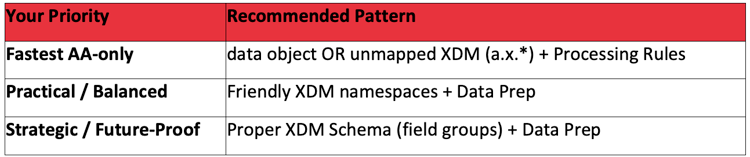
Architecture decision guide
Part 4: Setting up Adobe Analytics in a React Native App
Step 1: Install the required Packages
The React Native AEP SDK requires version 0.60.0 or later:
npm install @adobe/react-native-aepcore
npm install @adobe/react-native-aepedge
npm install @adobe/react-native-aepedgebridge
npm install @adobe/react-native-aepedgeidentity
npm install @adobe/react-native-aepedgeconsent
Always check developer.adobe.com/client-sdks/home/current-sdk-versions/#react-native — versions move quickly. Starting from AEP React Native 7.x, JavaScript-layer initialization is sufficient; no native-platform initialization is needed.
Step 2: Initialize the SDK
import { MobileCore, LogLevel } from "@adobe/react-native-aepcore";
import { Edge } from "@adobe/react-native-aepedge";
import { EdgeBridge } from "@adobe/react-native-aepedgebridge";
MobileCore.setLogLevel(LogLevel.VERBOSE);
MobileCore.initializeWithAppId("your-environment-id-here");
// Or with options:
MobileCore.initialize({ appId: "your-environment-id-here", lifecycleAutomaticTrackingEnabled: true });
Step 3: Lifecycle tracking
Wire lifecycle events into your app’s foreground/background transitions:
// On app foreground:
MobileCore.lifecycleStart({});
// On app background:
MobileCore.lifecyclePause();
Step 4: Tracking screen views and interactions
For the Edge Bridge approach (preserving trackState/trackAction):
// Screen view:
MobileCore.trackState("Home Screen", {
"app.section": "home", "user.sessionType": "authenticated"
});
// User interaction:
MobileCore.trackAction("Search Submitted", {
"search.term": "business travel", "search.resultCount": "12"
});
For the full Edge.sendEvent() approach (XDM-native):
import { Edge, ExperienceEvent } from "@adobe/react-native-aepedge";
const xdmData = {
eventType: "web.webPageDetails.pageViews",
web: { webPageDetails: { name: "home-screen", siteSection: "home" } },
user: { sessionType: "authenticated" }
};
Edge.sendEvent(new ExperienceEvent(xdmData));
Step 5: Identity management
import { Identity } from "@adobe/react-native-aepedgeidentity";
// Sync a customer identifier:
Identity.syncIdentifiers({
"customerid": { id: "user-abc-123", authState: "authenticated" }
});
// Retrieve the ECID:
Identity.getExperienceCloudId().then(ecid => console.log("ECID:", ecid));
Part 5: Setting up Adobe Analytics in an Android app
Step 1: Add gradle dependencies
Using the BOM is strongly recommended. It keeps all AEP extensions version-aligned automatically:
implementation platform("com.adobe.marketing.mobile3.+")
implementation "com.adobe.marketing.mobile:core"
implementation "com.adobe.marketing.mobile:edgeidentity"
implementation "com.adobe.marketing.mobile:edgeconsent"
implementation "com.adobe.marketing.mobile:identity"
implementation "com.adobe.marketing.mobile:lifecycle"
implementation "com.adobe.marketing.mobile:edge"
implementation "com.adobe.marketing.mobile:assurance"
Step 2: Initialize the SDK
In your Application class’s onCreate() method, MobileCore.initialize() automatically registers extensions and handles lifecycle tracking:
MobileCore.setLogLevel(LoggingMode.DEBUG);
MobileCore.initialize(this, "your-environment-id-here");
Use different environment IDs for development, staging and production. Remove verbose logging before shipping to production.
Step 3: App permissions
Add these to AndroidManifest.xml:
<uses-permission android:name="android.permission.INTERNET" />
<uses-permission android:name="android.permission.ACCESS_NETWORK_STATE" />
Step 4: Lifecycle and tracking events
// Lifecycle in each Activity:
public void onResume() {
MobileCore.setApplication(getApplication());
MobileCore.lifecycleStart(null);
}
public void onPause() { MobileCore.lifecyclePause(); }
// Page view (screen view):
xdmData.put("eventType", "web.webPageDetails.pageViews");
// xdm.web.webPageDetails.name, siteSection, etc.
ExperienceEvent event = new ExperienceEvent.Builder().setXdmSchema(xdmData).build();
Edge.sendEvent(event, null);
Part 6: Setting Up Adobe Analytics in an iOS App (Swift)
Step 1: Add dependencies
For CocoaPods
use_frameworks!
pod "AEPCore", "~> 5.0"
pod "AEPEdge", "~> 5.0"
pod "AEPEdgeIdentity", "~> 5.0"
pod "AEPEdgeConsent", "~> 5.0"
pod "AEPAssurance", "~> 5.0"
pod "AEPLifecycle", "~> 5.0"
pod "AEPIdentity", "~> 5.0"
Step 2: Initialize the SDK
In your Application class’s onCreate() method, MobileCore.initialize() automatically registers extensions and handles lifecycle tracking:
MobileCore.setLogLevel(LoggingMode.DEBUG);
MobileCore.initialize(this, "your-environment-id-here");
For Swift Package Manager, see developer.adobe.com/client-sdks/resources/manage-spm-dependencies/.
Step 2: Initialize in AppDelegate
import AEPCore, AEPEdge, AEPEdgeIdentity, AEPEdgeConsent
import AEPIdentity, AEPLifecycle, AEPAssurance
MobileCore.setLogLevel(.debug)
MobileCore.initialize(appId: "your-environment-id-here")
Step 3: Lifecycle and tracking events (iOS)
// Lifecycle calls:
func applicationWillEnterForeground(_ application: UIApplication) {
MobileCore.lifecycleStart(additionalContextData: nil)
}
func applicationDidEnterBackground(_ application: UIApplication) {
MobileCore.lifecyclePause()
}
// Guard against background launches counting as sessions:
if application.applicationState != .background {
MobileCore.lifecycleStart(additionalContextData: nil)
}
// Screen view:
var xdmData: [String: Any] = [
"eventType": "web.webPageDetails.pageViews",
"web": ["webPageDetails": ["name": "home-screen", "siteSection": "home"]]
]
Edge.sendEvent(experienceEvent: ExperienceEvent(xdm: xdmData))
Part 7: Backend setup — schemas, datastreams & mobile property
Step 1: Create an XDM schema
In Adobe Experience Platform, navigate to Data Management > Schemas. Create a schema using the XDM Experience Event class and add these field groups:
-
AEP Mobile Lifecycle Details (app install, launch, crash, upgrade metrics)
-
Adobe Experience Edge Autofilled Environment Details (device, OS, network metadata)
-
Any custom field groups for your business-specific data
Step 2: Create a dataset and configure a datastream
Create a dataset from your schema (use a clear naming convention that distinguishes it from web datasets, e.g. “Mobile App Events — Production”). Then in the Data Collection UI, create a Datastream and configure services:
-
Add Service: Adobe Experience Platform — enable the toggle and select your Event Dataset
-
If routing to Adobe Analytics, add that as a separate service with your Report Suite ID
Full Datastreams configuration guide: experienceleague.adobe.com/en/docs/experience-platform/datastreams/overview.
Step 3: Create a mobile property in Adobe Tags
In the Data Collection UI, create a new Tags property with the Mobile platform selected. Install these extensions:
-
Mobile Core (configure your Experience Cloud Org ID here)
-
Identity for Edge Network
-
Consent + Edge Network
-
Edge Bridge (if using the trackState/trackAction preservation approach)
-
Adobe Experience Platform Assurance
After configuring extensions, publish through the library workflow (Development → Staging → Production). Each environment generates its own Environment ID. This is what you pass to MobileCore.initialize() in your app code.
Part 8: Validating your implementation with Adobe Assurance
Adobe Assurance (formerly Project Griffon) lets you see every event that fires from the app, inspect the full payload and confirm data is reaching Analytics correctly, all without touching production.
Setting up an assurance session
Go to experience.adobe.com/assurance and log in. Click Create Session, give the session a name and enter your app’s Base URL (e.g. myapp://). Scan the QR code or open the app via link, enter the PIN in the session dialog and tap Connect.
What to look for during validation
-
web.webPageDetails.name — populated on every screen view event
-
eventType — “web.webPageDetails.pageViews” for screen views; “web.webInteraction.linkClicks” for interactions
-
ECID — consistent across events in the same session
-
Lifecycle metrics — fire on first launch and resume events
-
Custom XDM fields — your business-specific fields appear exactly as sent
If data isn’t appearing in Analytics reports, Assurance is the fastest way to determine whether the issue is in the app (event not firing, wrong payload) or backend configuration (Datastream misconfigured, Processing Rules not applied).
Part 9: Hybrid app considerations — webviews and ECID stitching
If your app includes webviews, pass the ECID through to the webview URL so Analytics ties those sessions to the same visitor as the native app. Without this, Analytics sees them as separate visitors, inflating visitor counts and breaking any funnel analysis spanning both surfaces.
// Android:
Identity.appendVisitorInfoForURL("https://your-site.com/page", url -> {
webView.loadUrl(url);
});
// iOS (Swift):
Identity.appendTo(url: URL(string: "https://your-site.com/page")!) { url, error in
webView.load(URLRequest(url: url!))
}
Part 10: Common questions from the field
Can I reuse the same Report Suite as my previous app?
Yes, but consider the implications. The new implementation may fire different lifecycle events and hit types. Running both implementations against the same Report Suite simultaneously will produce messy data during the transition. The cleanest approach is a separate Report Suite for the new implementation until the migration is complete.
Do I need to define all custom fields in XDM schema upfront?
Not necessarily for AA-only implementations — unmapped XDM fields pass through as context data (a.x.*). But if CJA or RTCDP is on the roadmap, schema governance from the start saves significant rework. At minimum, define your key business dimensions as custom field groups even if not every field maps immediately.
What’s the difference between Identity for Edge Network and Identity for Experience Cloud ID Service?
They serve different purposes and should NOT be mixed. Use Identity for Edge Network (AEPEdgeIdentity) when routing through the Edge Network extension. Use Identity for Experience Cloud ID Service (AEPIdentity) with the direct Analytics extension.
When should I use Data Prep vs Processing Rules?
Data Prep is the more modern, scalable approach for new implementations. It configures field mappings in the Datastream before data reaches Analytics, supports transformations and conditional logic, and is essential for CJA and RTCDP. Processing Rules remain useful for simple mapping scenarios and are still fully supported.
How do I validate that context data is reaching Analytics?
Assurance is your first port of call — it shows the raw payload including all context data keys. For end-to-end validation, use the Processing Rules UI to preview incoming context data variable values. Real-time reports can confirm whether hits are landing.
Summary: Key decisions and where to focus
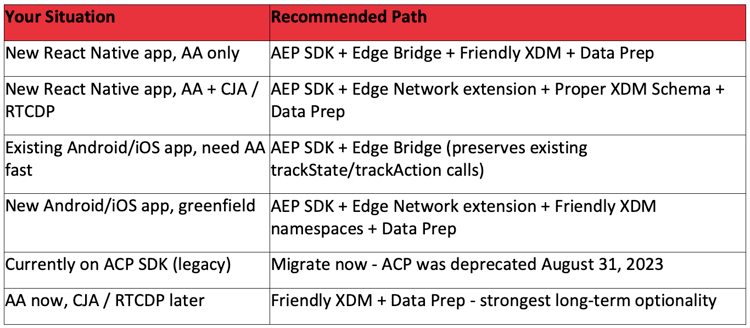
The AEP Mobile SDK is well thought out once you understand the mental model shift from the old hit-based paradigm to the XDM event paradigm. The hardest part isn’t the code... It’s the architecture conversation that needs to happen before the code.
Take the time to get the backend setup right (schemas, datastreams, mobile property), validate everything with Assurance before you ship, and your team will thank you six months from now when the Analytics data is clean, the mappings are easy to maintain, and the path to CJA is already paved.