Learn how to use Adobe Analytics Alerts for proactive monitoring, enabling teams to detect significant changes in key metrics in real time and respond quickly to issues that could impact performance, revenue, or customer experience.
What are Alerts and why do they matter?
The holiday season is one of the most critical times for businesses. With increased traffic, promotional campaigns, and heightened customer expectations, sudden shifts in key metrics can directly impact your bottom line.
This is where Alerts in Adobe Analytics come to your rescue. Alerts in Adobe Analytics act as your virtual watchdog, notifying you of significant changes in your data.
Here’s why they’re essential:
-
Real-time monitoring: Stay informed about unexpected spikes or dips in metrics like page views, conversions, or revenue.
-
Faster decision-making: Respond quickly to anomalies before they escalate into bigger problems.
-
Holiday-specific benefits: Monitor campaign performance, inventory levels, and user behavior during high-traffic periods like Black Friday and Cyber Monday.
How can you set up Alerts in Adobe Analytics?
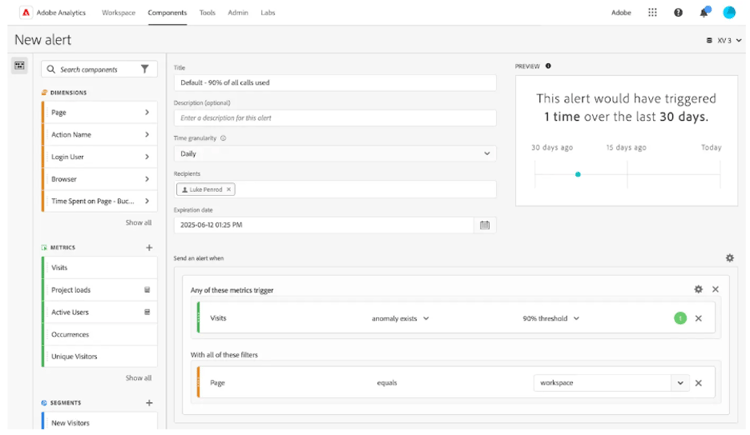
Follow these steps to create effective alerts that keep you informed:
Step 1: Access Alerts
-
Log in to Adobe Analytics and navigate to the Components section in the top menu.
-
Select Alerts from the dropdown.
Step 2: Create a new Alert
-
Click on the ‘Create’ button to define a new alert.
-
Choose a name and a description for the alert to keep it organized.
Step 3: Set conditions
-
Select the metric you want to track (e.g., revenue, cart additions, or bounce rate).
-
Define the conditions that will trigger the alert. For example: Revenue drops by more than 20% compared to the same time last week. Conversion rate increases by 30% in a single day.
-
Specify the time range (e.g., hourly, daily, or weekly).
Step 4: Add recipients
-
Enter the email addresses of team members who should receive the alerts.
-
Customize the notification message for better clarity.
Step 5: Test and activate
-
Test your alert setup by simulating a data change.
-
Once satisfied, activate the alert to start receiving notifications.
What are best practices for Alerts?
-
Prioritize key metrics: Focus on metrics that directly impact your goals, such as revenue, conversion rates, or average order value.
-
Avoid overloading with Alerts: Too many alerts can lead to fatigue and ignored notifications. Be selective.
-
Set thresholds thoughtfully: Use historical data to define realistic thresholds for triggering alerts.
-
Review regularly: As business priorities change, update your alert conditions to stay relevant.
-
Combine with Segments: Apply alerts to specific audience segments, such as new customers or mobile users, for deeper insights.
Alerts: A use case
Use case: Monitoring conversion rate during a holiday campaign
Scenario
Imagine you're an eCommerce manager running a Black Friday campaign. You’ve invested heavily in ads, offering discounts to drive traffic and boost sales. During such a critical period, tracking your conversion rate (the percentage of visitors who complete a purchase) is crucial.
Without alerts, you might notice an issue only after manually checking reports, which could be hours or even days too late. This delay could result in significant revenue loss.
How Alerts help
Using Adobe Analytics Alerts, you can set up a notification to monitor conversion rate fluctuations in real time.
Step-by-Step Example
1. Define the metric
In this case, you want to monitor the conversion rate metric, which represents the ratio of purchases to website visits.
2. Set the Alert condition
Let’s assume:
-
Your average conversion rate during a campaign is 5%.
-
You want to be alerted if the conversion rate falls below 3% for more than 30 minutes.
3. Specify the time-range
Choose a real-time or hourly monitoring period, as time is critical during campaigns.
4. Add notification recipients
Assign team members, such as marketing managers or developers, to receive the alert. This ensures that the right people can investigate and resolve the issue promptly.
5. Activate the Alert
Once you test and activate the alert, Adobe Analytics begins monitoring the conversion rate for deviations in real-time.
Alerts in action
On Black Friday, your alert triggers because the conversion rate suddenly drops to 2.5%.
Immediate Response
-
The alert is sent to your email and mobile.
-
Your team quickly investigates and finds that the checkout page is experiencing a technical glitch, preventing users from completing purchases.
Outcome
By acting promptly:
-
You fix the issue within 15 minutes.
-
The conversion rate returns to 5%.
-
You prevent an estimated loss of thousands in revenue during peak traffic hours.
Key Benefits of Alerts in This Use Case
-
Real-Time Problem Solving: Alerts enable immediate action, minimizing downtime.
-
Prevent Revenue Loss: Quick responses help avoid significant financial impacts.
-
Team Collaboration: Alerts ensure that the right stakeholders are informed and can work together efficiently.
-
Enhanced Customer Experience: Resolving issues promptly prevents negative experiences that could damage your brand.
Alerts in Adobe Analytics act as your safety net, ensuring you never miss critical changes during high-stakes periods like holiday campaigns. By implementing smart alerts, you can safeguard your revenue, optimize operations, and deliver a seamless customer experience.
Ready to dive deeper into Alerts?
Now that you've learned more about Alerts and why they're useful, jump into Adobe's documentation to learn how to create your Alerts. This step-by-step document will tell you everything you need to know to ensure you maximize the benefits of using Alerts in Adobe Analytics.