Workfront for executives
Learn how Workfront can help you manage work in your organization.
As an executive, Adobe Workfront can:
- Keep you informed about the progress of work you’re concerned about through reports and dashboards
- Give you an easy way to communicate with project stakeholders using updates
- Give you an easy way to make a work request
- Give you an easy way to see items awaiting your approval
Reports and Dashboards
Reports
Reports in Workfront are the backbone to making better decisions, faster. You can see them everywhere you go–in the projects area, the people area, or on a task landing page.
Leaders and executives can navigate to the report area to view custom reports with specific information. To increase visibility to the most important reports, Workfront uses dashboards.
Dashboards
By using a dashboard, leaders can view and quickly drill down into any part of the work their organization is currently working on.The dashboard is simply a collection of reports that provide information leaders may need to see on a regular basis. Dashboards are completely customizable so anyone using Workfront can see work that matters to them.
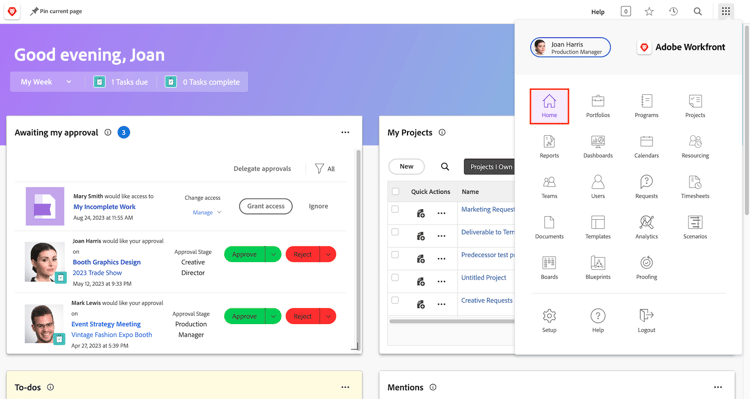
Click Dashboards from the Main menu icon in the upper-right corner to access the Dashboards area.
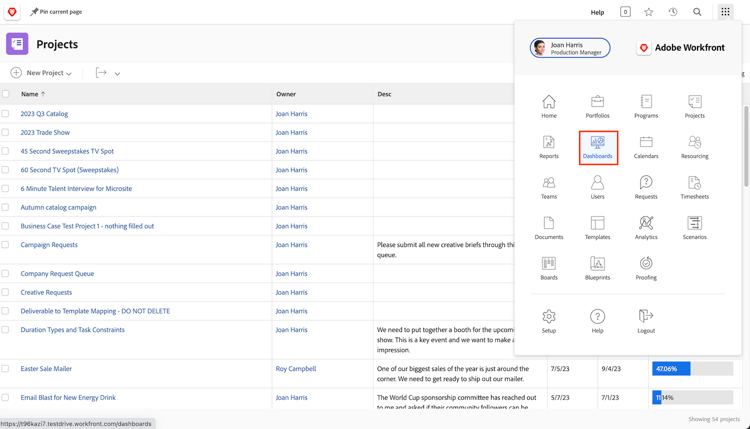
Leaders can access the different dashboards available to them from the left panel navigation.
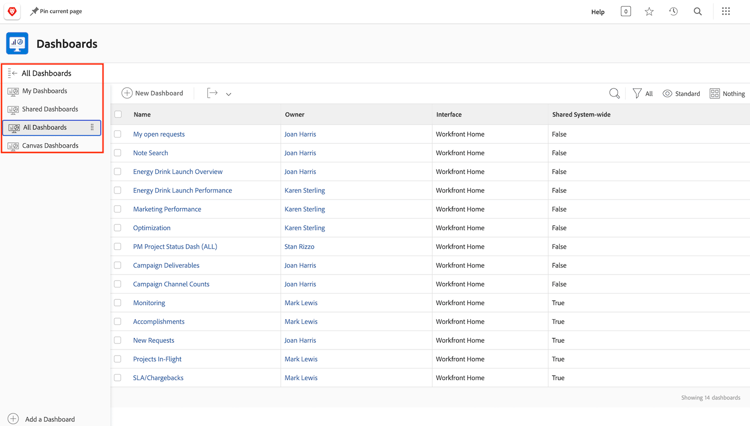
- All Dashboards: Displays the dashboards that you or other users have created, and which you have permissions to at least view.
- My Dashboards: Displays the dashboards that you have built.
- Shared Dashboards: Displays the dashboards that have been created by other users and shared with you.
With a dashboard, leaders are able to review things like “Costs, Revenues & Budgets,” for important projects and open issues their teams are dealing with. They can also see projects that are at risk, as well as a list of items that need executive approval.
Reports in Workfront can help drive accountability for your employees. The key to leveraging reports is to establish a clear workflow for the way your organization is using them. Make sure everyone has a clear understanding of which reports are being used to measure success.
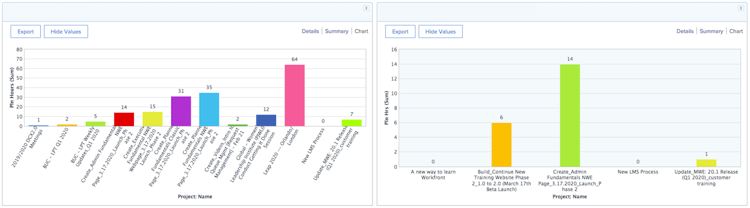
Example of reports in a Dashboard in Workfront
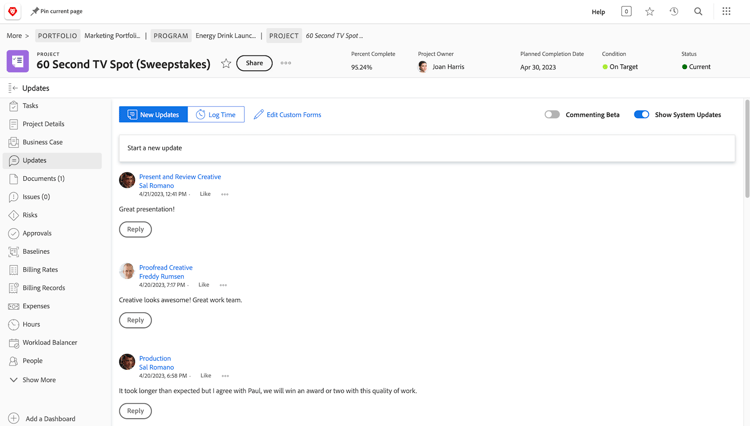
Communicate with project stakeholders using updates
Communicate with the project team within the project itself so all project communications will be easily accessible.
Make a request
At many organizations, the first step in kicking off a new project, developing a new product, or creating a deliverable is making a request in Workfront. You can track the progress on the request and provide additional information when needed.
In this video, you will learn how to:
- Navigate to the request area
- Make a request
- View your submitted requests
Items awaiting your approval
In Home you can easily find items awaiting your approval.