Dot node (also Portal)
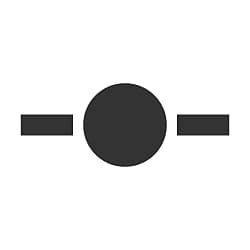
The Dot node is a helper that lets you simplify and clean up graphs by rerouting and grouping connections. It is especially useful for graphs with many long connections running over other connections or nodes.
A pair of Dot nodes can be used as portals to hide a connection going over a long distance, or in places where routing the connection would be challenging.
Creating Dot nodes
Dot nodes may be added in any graph type, in any of the following ways:
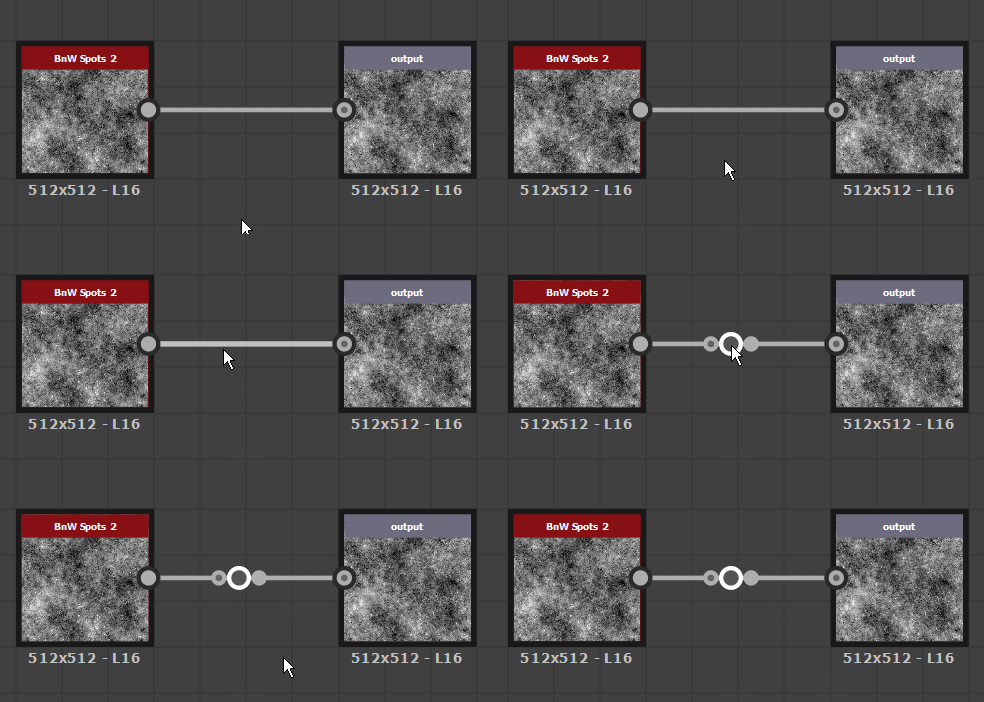
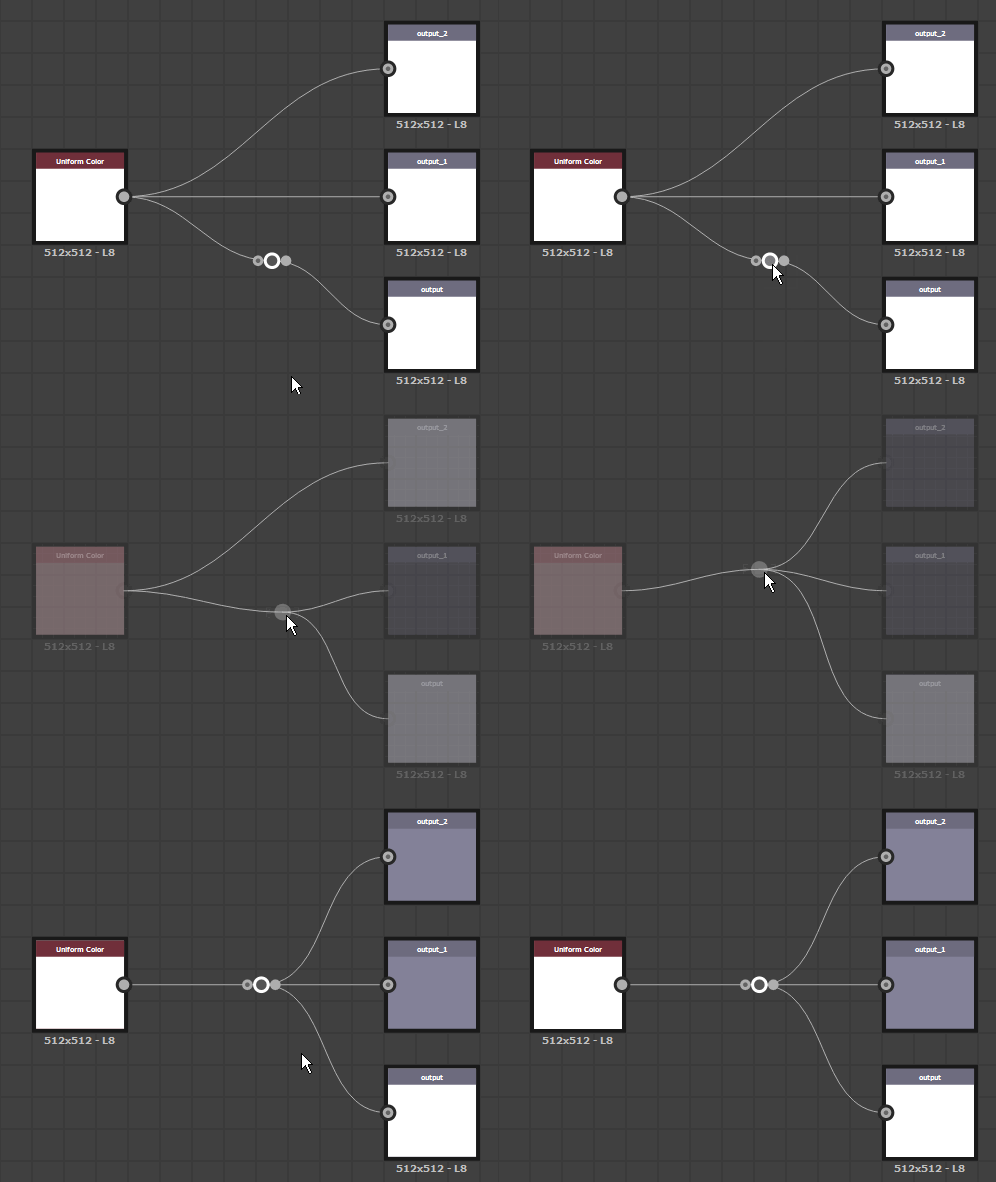
Hold the Alt key while hovering a connection to display the Dot node preview, then click LMB to add a Dot node on the connection at that location.
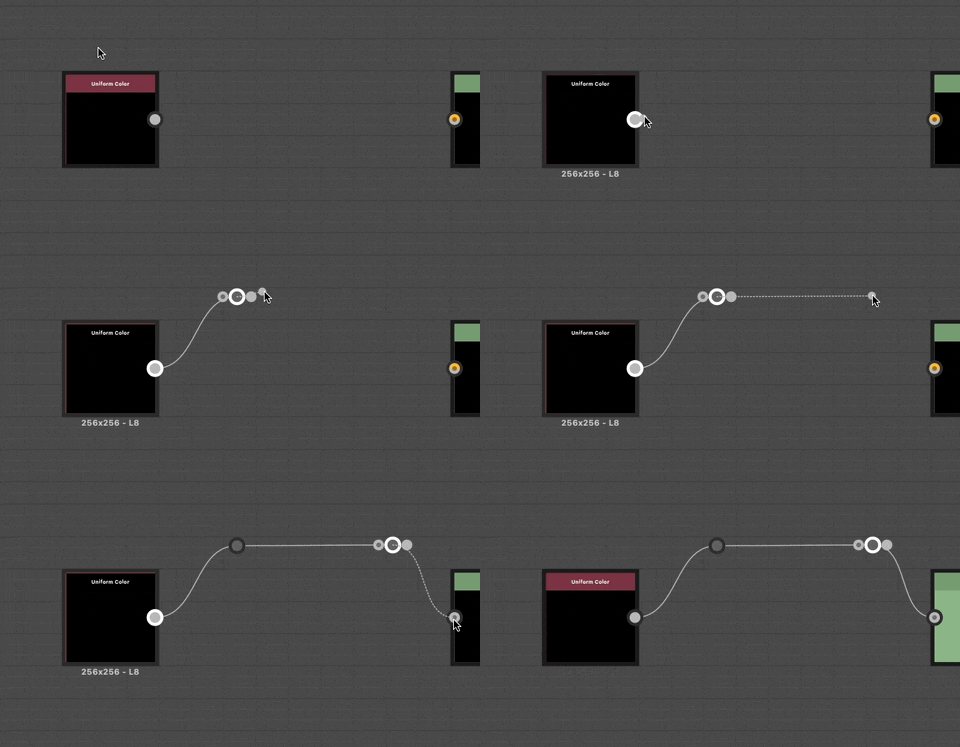
Press the Alt key while dragging a new connection from a node connector to insert a Dot node at that location.
You may continue dragging the new connection and repeat the operation to route that connection how you like.
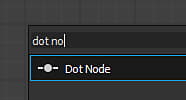
Press Spacebar to display the Node menu, then select the ‘Dot’ item or type ‘dot’ in the search field to surface the item and find it more quickly.
Merging links
Press ALT and move a Dot node over links to merge multiple node connections together.
Portals
Creating portals
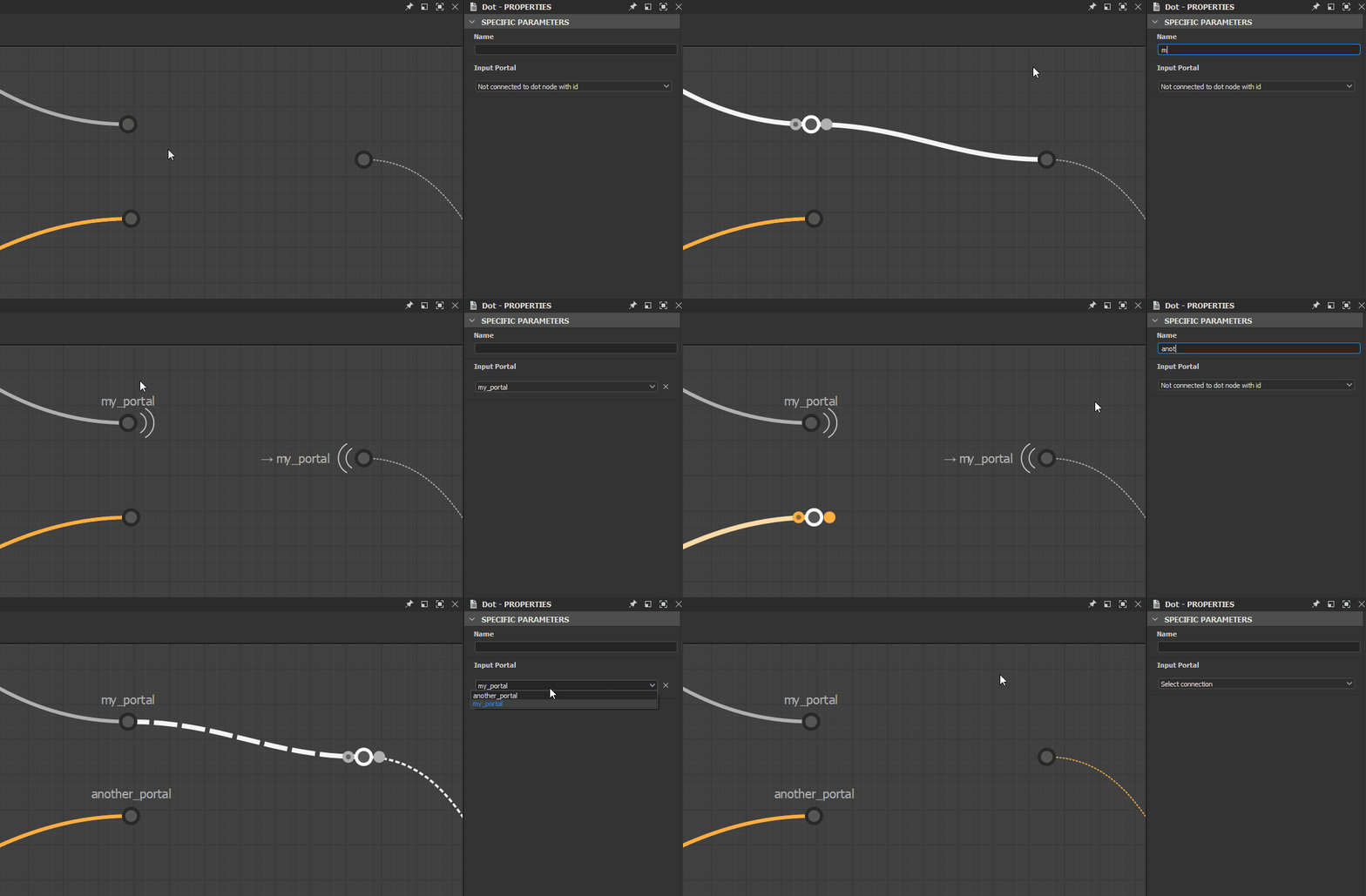
A portal is automatically created between two Dot nodes – a transmitter and a receiver – when the transmitter Dot node is named. Naming a Dot node is done by setting a unique identifier in its Name property.
When one or more named Dot nodes exist in a graph, any Dot node can be connected to it as a receiver by:
- Creating a link between the receiver’s input and a transmitter’s output;
- Selecting the transmitter’s name in the receiver’s Input Portal property.
Duplicating or copying receivers preserves their connection to the transmitter as a portal.
Identifying portals
Dot nodes used as portals have a wireless signal icon placed next to the connector used as a portal.
Selecting any Dot node used as a portal displays its hidden connections to other portals as a dashed line.
Deleting portals
A portal is deleted when the transmitter’s Name is cleared, or when the hidden connection is deleted by:
- Selecting a portal, then selecting the hidden connection and deleting it;
- Selecting the receiver and pressing the X button next to the Input Portal drop down in the Properties.
Check out this tutorial about Dot nodes as portals: