Application does not start
This page lists common causes for Substance 3D Designer failing to start correctly, and offers troubleshooting steps for each, grouped by operating system:
Designer 15.0 and higher

Versions 15.0 and higher of Designer fail to start on systems with both an integrated GPU (iGPU) and a discrete GPU (dGPU).

Update the iGPU’s graphics drivers. You can find the latest drivers here: Intel | AMD
Windows 10/11
Substance 3D Designer fails to start on systems using Windows 10 or Windows 11.
Older versions of Designer may fail to start on Windows 10 or Windows 11 because of an outdated libeay32.dll library used in the license validation process.
You may try to replace the library with an updated version, such as the one distributed here (select the file for 32-bit Windows), by following these steps:
- Locate the
libeay32.dllfile in Designer’s installation directory - Back up the file in a safe location if you need to restore it in the future
- Replace the file by the updated version
- Start Designer
Windows 7/8/8.1
Substance 3D Designer fails to start on systems using Windows 7, Windows 8 or Windows 8.1.
As part of the version 11.3.0 update, we upgraded multiple librairies, tools and SDKs which broke compatibility with versions of Windows lower than Windows 10.
We strongly recommend upgrading to Windows 10, as Microsoft itself does not support previous versions of Windows anymore for mainstream use (see here and here). Thus, the continued use of these versions presents a security issue.
If upgrading to Windows 10 is not possible, do not update your installation of Designer past version 11.2.2.
Linux
Crash when closing the Home screen and displaying the main window.
Designer fails to load Python components because it loads the system’s libffi.so library instead of its own.
To make sure Designer loads its own library, use this command at Designer’s installation directory, replacing %command% with your command to run Designer:
LD_PRELOAD=./plugins/pythonsdk/lib/python3.11/lib-dynload/libffi.so.6 %command%
Please note the Python version number depends on the version of Designer being run:
- Lower than 14.0.0: python3.9
- Lower than 12.1.0: python3.7
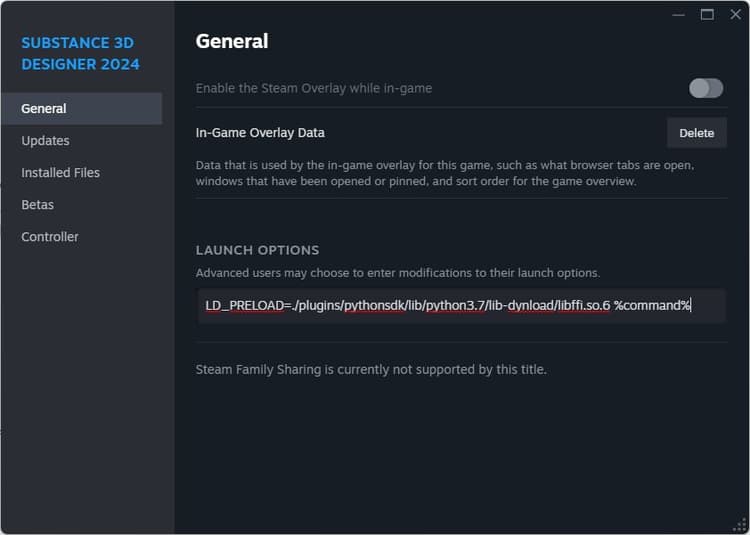
Linux users starting Designer from Steam may set the LD_PRELOAD command in Designer’s launch options, as shown below.
Once this is done, Designer may be started from Steam normally for all future sessions.
The Steam edition of Designer fails to start with and produces no error message.
You can acquire error messages by logging the Steam application instead.
As recommended here, completely close Steam then run the following command from a terminal (or create a shortcut for this command):
steam 2>&1 | tee /path/to/logfile
The <b>xcb</b> plugin cannot be loaded. The following message is displayed in the command line:
qt.qpa.plugin: Could not load the Qt platform plugin "xcb" in "" even though it was found.

This application failed to start because no Qt platform plugin could be initialized. Reinstalling the application may fix this problem.


Available platform plugins are: minimal, offscreen, xcb.


Aborted (core dumped)
Some required packages are missing. Run the following command from Designer’s installation directory :
ldd libQt5XcbQpa.so.5
Check the printed list for any packages reported as not found, then run the following command for each of these missing packages:
apt-get install <package-name>
E.g.
apt-get install libxcb-xinput0
This error is raised when starting Designer:
error while loading shared libraries: libcrypt.so.1: cannot open shared object file: No such file or directory
A system library loaded by Designer is incompatible with Designer’s own libcrypto.so.1.1 library.
Remove the libcrypto.so.1.1 library from Designer’s installation directory, so that the system’s library is used instead.
Substance 3D Designer fails to start on systems using Arch-based distributions of Linux.
Try installing progl (part of the AMDGPU-PRO drivers) and start Designer through it. You may do this by using the progl prefix in the application launch command:
progl <designer-application-path>
Be mindful that progl may be unstable. This should therefore be attempted as a last resort.