PBR Render
In: Material Filters/PBR Utilities
Complex
Description
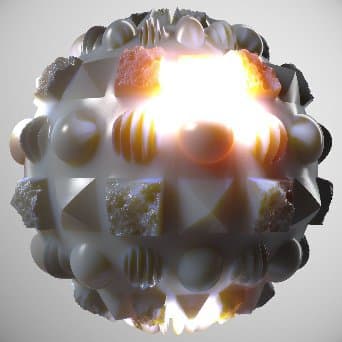
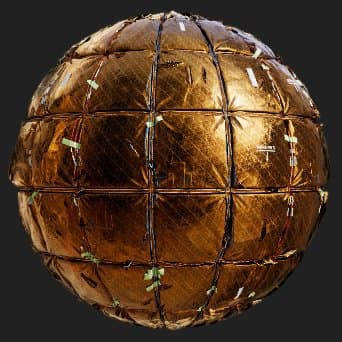
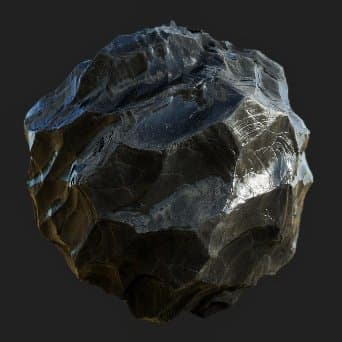
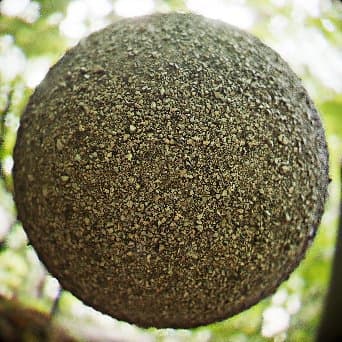
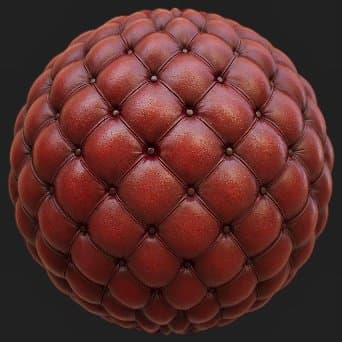
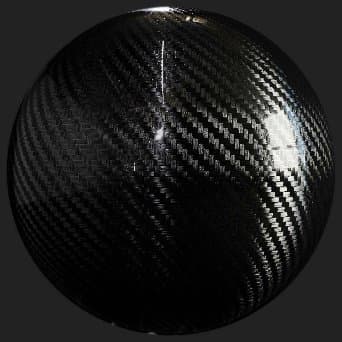
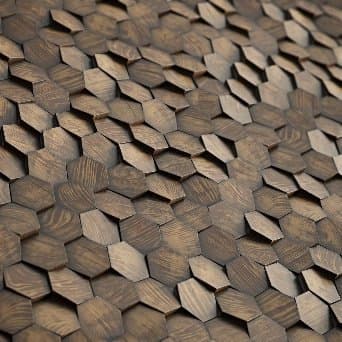
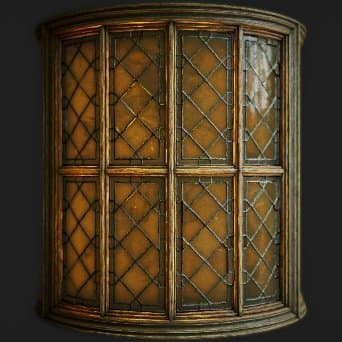
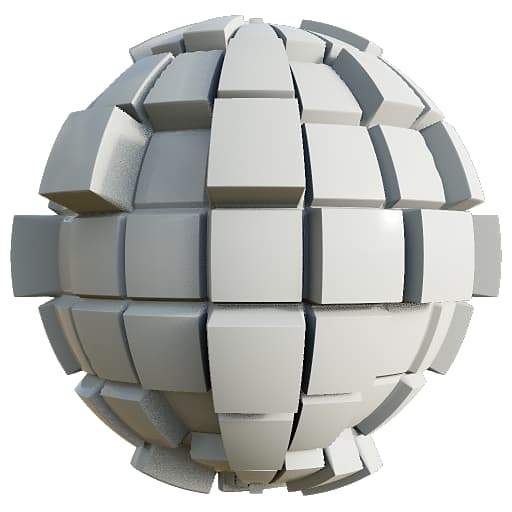
Renders a PBR material onto a sphere, plane or cylinder using Image Based Lighting (IBL).This is a render-engine inside a node, which can be very useful for generating thumbnails, previews or 2D assets. It is not a render like the 3D view, but an actual texture being generated in your graph.
This node requires at least a full PBR material to be plugged in. Ideally you make use of Link Creation Modes to connect the material to PBR Render. Additionally, you will need a spherically-unwrapped HDRI environment for the render to calculate lighting from. Materials for testing can be found under PBR Materials, Environment maps can be found under 3D View in the library.
Inputs
-
Material channel inputs
Multiple material inputs are used to render the material on the geometry:- Base Color
- Normal
- Emissive
- Roughness
- Metallic
- Specular Level
- Height
- Ambient Occlusion
- Opacity Mask
- Anisotropy Level
- Anisotropy Angle
- Translucency
- Scattering Distance Scale
-
Lens Dirt Map: Grayscale InputCustom map for dirt on lens, that appears when lens flares are visible.
-
Lens Aperture Map: Grayscale InputCan be used to override Bokeh, out-of-focus shape. The more contrasted, the more visible it is. Keep in mind only a circle within the texture is sampled, so any shape has to fit within a circle.
-
Background input: Color input
Custom map used as background when the Background Mode parameter is set to Backgroud Input -
Environment Map: Color InputEnviroment map used to calculate lighting. Must be spherically-mapped and in HDR.
Outputs
- Beauty
The final render - Raw Irradiance
The irradiance data of the final render
Alpha: Opacity map - Raw Specular
The specular data of the final render
Alpha: Specular shadow map - Normal World Space
The world space normals data of the final render
Alpha: World space height map - Normal Tangent Space
The tangent space normals data of the final render
Alpha: Tangent space height map - UVs
The UV data of the final render
Alpha: Opacity map
Parameters
-
Shape: Sphere, Plane, Cylinder
Sets the shape used for rendering. Custom shapes are not possible. -
Displacement Intensity: 0.0 - 0.5Set the intensity of displacement from height.
-
Environment Rotation: 0.0 - 1.0
Rotates the lighting environment. Pre-rotates compared to moving the camera. -
Background Mode: Color, Environment, Ambient, Background Input
Set what is shown in the background. Color is a solid color, Environment is the map you plugged in with an optional blur. Ambient is a very blurred version of the environment. -
Background Color: (Color value)
Only available when Background mode is set to Color. -
Environment Background Blur: 0.0 - 1.0
Only available when Background mode is set to Environment. -
Shape
- Scale: 0.0 - 2.0
Set the scale for the Sphere. - Plane Size: 0.0 - 1.0
Set the scale for the Plane. - Cylinder Radius: 0.0 - 1.0
Set the radius for the Cylinder. - Cylinder Length: 0.0 - 1.0
Set the length for the Cylinder. - Rotation: 0.0 - 1.0
Rotates shape without rotating lighting. - Rotation Direction: 0.0 - 1.0
Sets the axis of rotation in 2D. - Rotation Around Direction: 0.0 - 1.0
Spins shape on the rotation axis. - Shape Position: -1.0 - 1.0
Moves shapes. - UV Tiling: 1.0 - 6.0
Sets the amount of UV-Tiling. - Sphere UV Scale: 0.0 - 4.0
Sets the scale of UV’s on the Sphere. - Plane UV Scale: 1.0 - 4.0
Sets the scale of UV’s on the Plane. - Cylinder UV Scale: 1.0 - 6.0
Sets the scale of UV’s on the Cylinder. - UV Offset: 0.0 - 1.0
Offsets UV’s - Tilt UVs: False/True
Tilts UV’s by 45 degrees for the Sphere.
- Scale: 0.0 - 2.0
-
Camera
- Exposure: -4.0 - 4.0
Set camera exposure. - Tone Mapper: Linear, ACES, Filmic Hejl
Set which tone mapping solution to use for the final image. - Camera Mode: Perspective, Orthographic
Switch camera between two projection modes. - Field of View: 0.01 - 100.0
Set camera FOV angle. - Distance: 0.0 - 4.0
Set the distance of the camera from the object center. - Vignette Intensity: 0.0 - 1.0
Set intensity of vignette effect. - Vignette Radius: 0.0 - 1.0
Set radius of the vignette effect. - Screen Position:
Moves the camera around the object, can be changed with a gizmo in the 2D view as well.
- Exposure: -4.0 - 4.0
-
Depth of Field
- Aperture Radius : 0.0 - 0.1Sets radius of the aperture. Higher values mean out-of-focus areas get blurrier (bokeh).
- Aperture Blades: 3 - 9
Sets the shape of the bokeh blur. - Aperture Ring: 0.0 - 1.0
Adds an inner gradient to the bokeh shape. - Aperture Difraction: 0.0 - 2.0
Adds chromatic aberration to the bokeh. - Swirly Bokeh: 0.0 - 1.0
Adds a swirl or spinning type of effect to out-of-focus bokeh blur areas. - Focus Mode: Auto, Point
Set if focus is pre-determined or user-set. Point focus lets you move a point in the 2D view to determine the focus distance. - Focus Point:
If focus is set to Point, this lets you move that point. has a 2D view gizmo. - Focus Offset: -0.5 - 0.5
If focus is set to Auto, allows you to shift it back and forth. - Use Custom Aperture Map: False/True
Overrides Aperture settings above and use Aperture map input to determine the bokeh shape. Requires an input.
-
Post Effects
- Enable Post Effects: False/True
Toggles all post-effects in the final render. - Bloom Intensity : 0.0 - 2.0Sets strength of the bloom effect.
- Bloom Threshold : 0.0 - 2.0Sets low threshold for bloom to appear.
- Bloom Chroma Shift : 0.0 - 1.0
- Lens Halo Intensity : 0.0 - 1.0Sets intensity for the lens halo effect.
- Lens Flares Intensity : 0.0 - 1.0Sets intensity for the lens flare. Make sure the light from your environment background is in view to properly see this effect.
- Lens Dirt Intensity : 0.0 - 1.0Sets effect of lens dirt map on the Lens flares.
- Enable Post Effects: False/True
-
Render Settings
- Diffuse Quality: 16 Samples, 32 Samples, 64 Samples, 128 Samples
Switch between quality levels for the diffuse map. - Diffuse Emissive Mulitplier: 0.0 - 1.0
Controls how much the emissive parts are contributing to the irradiance. - Diffuse Shadow Intensity: 0.0 - 1.0
Controls the intensity of the diffuse shadows. - Specular Dithering: 0.0 - 1.0
Set the amount of dithering for the specular. - Specular Shadow Multiplier: 0.0 - 1.0
Controls the intensity of shadows in the specular reflections. - Opacity Mode Dithered Alpha test, Simple Alpha Blend
Controls the method of applying transparency. The Simple Alpha Blend mode is most visible on uniform backgrounds. - Ambient Occlusion Intensity: 0.0 - 1.0
Sets the intensity of ambient occlusion shadows.
- Diffuse Quality: 16 Samples, 32 Samples, 64 Samples, 128 Samples
-
Material Adjustements
- Recompute Normals: False/True
Normals will be recomputed from the height map according to the displacement intensity. - Normal Format: DirectX, OpenGL
Switch between different Normal Map formats (inverts the green channel) - Dielectric F0 Input: Constant Value, Specular Level input
Set what drives F0 values. Specular Level input means it will be driven by an input map. - Dielectric F0: 0.0 - 0.08
If Constant Value is chosen for Dielectric F0 Input, this slider lets you set the global value.
- Recompute Normals: False/True
-
Clear Coat
- Enable Clear Coat: False/True
Enables an additional, simple clear coat layer on top of the input material. - Clear Coat Weight: 0.0 - 1.0
Sets intensity or strength of the clearcoat layer. - Clear Coat Specular Level: 0.0 - 1.0
Sets the roughness of the clearcoat layer. - Inherit Normal from Base Layer: False/TrueSet if clearcoat ignores or uses normals from the base material.
- Enable Clear Coat: False/True
-
Emissive
- Enable Emissive Lighting True/FalseToggles the diffuse contribution of emissive lighting.
- Emissive Intensity: 0.0 - 10.0
Sets global multiplier for the emissive map.
-
Subsurface Scattering
- Enable Subsurface Scattering True/False
Toggles subsurface scattering in the final render.
Note: Subsurface scattering requires the Translucency input value be higher than 0.0 - Scattering Distance 0.0 - 1.0
Adjusts the maximum distance of the scattering effect.
Note: This value is multipled against the Scattering Distance Scale input value per color channel. - Red Shift 0.0 - 1.0
Adjusts the intensity of the Red shift effect in the scattering. - Rayleigh 0.0 - 1.0
Adjusts the intensity of the Rayleigh effect in the scattering.
- Enable Subsurface Scattering True/False
Example Images
All images were generated directly inside of Designer, in the 2D viewport, using materials from the Substance 3D assets library.