Blending modes
The Blend node offers the following blending modes:
Copy
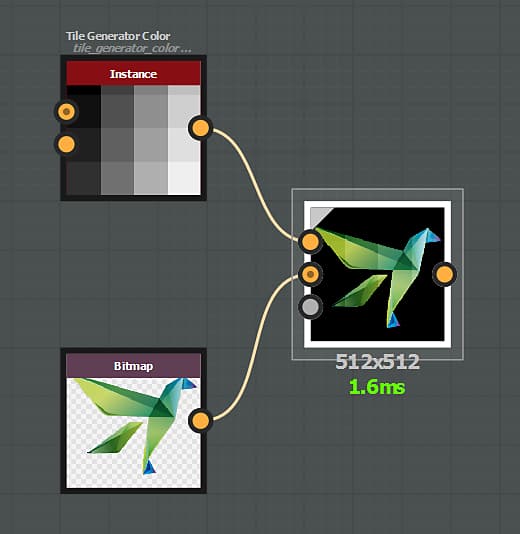
The Copy blending mode will just place the foreground on top of the background.
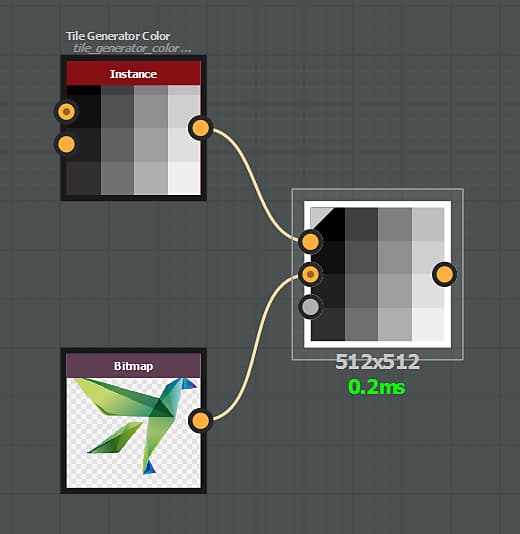
For color images, the alpha channel is taken into account by default in the opacity.
This can be changed by using the ‘Alpha blending’ parameter.
Add (Linear dodge)
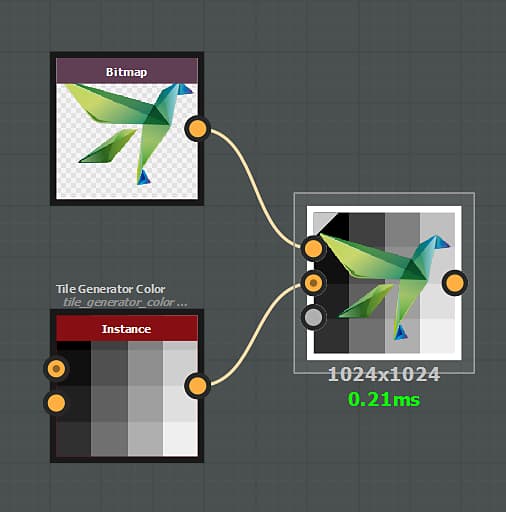
The Add blending mode will add the foreground input value to each corresponding pixel in the background.
Subtract
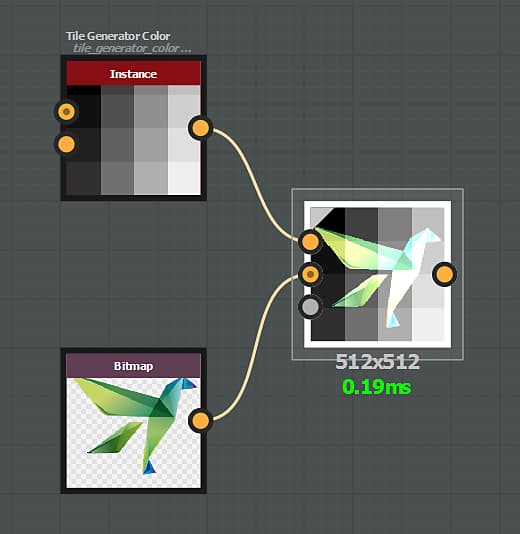
The Substract blending mode will substract the foreground input value from each corresponding pixel in the background.
If the result of the substraction is lower than 0, the value is capped to 0, resulting pure black.
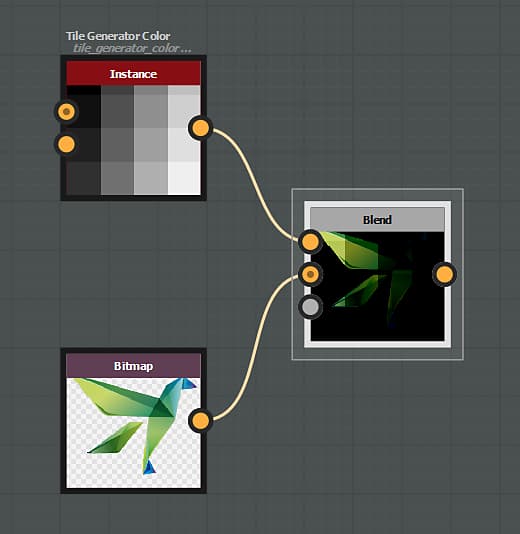
Multiply
The Multiply blending mode will multiply the background input value by each corresponding pixel in the foreground.
As the value of each pixel is comprised between 0 and 1, the result is always equal or lower (darker) compared to the original.
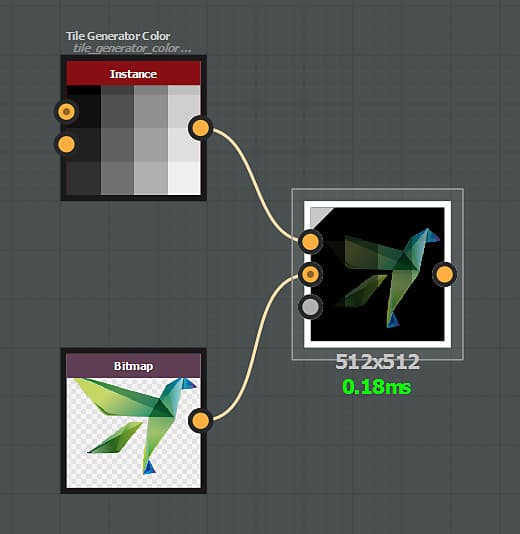
Add sub
The Add Sub blending mode works as following:
- Foreground pixels with a value higher than 0.5 are added to their respective background pixels.
- Foreground pixels with a value lower than 0.5 are substracted from their respective background pixels.
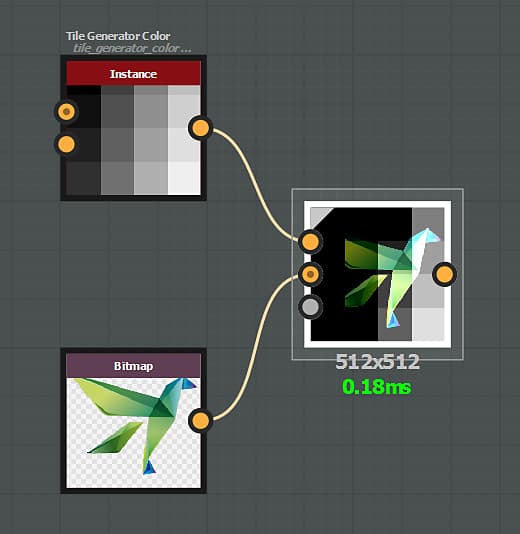
Max (Lighten)
The Max Blending mode will pick the higher value between the background and the foreground.
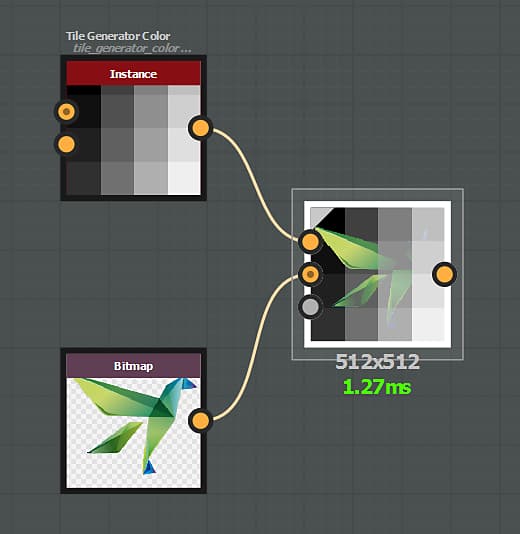
Min (Darken)
The Min Blending mode will pick the lower value between the background and the foreground.
Switch
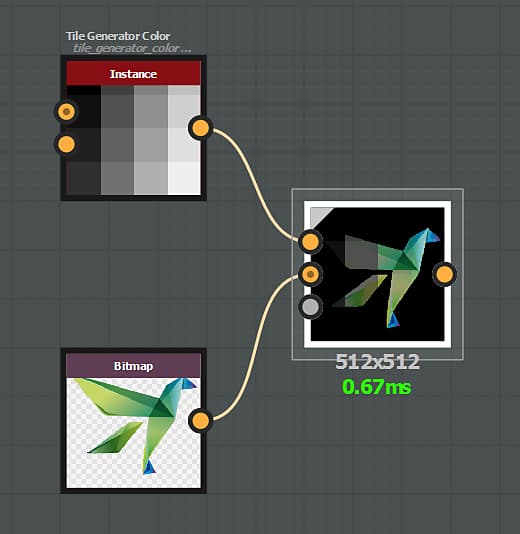
The Switch blending mode is similar to the Copy mode, with one crucial difference:
- ‘Opacity’ set to 0: The stream of nodes connected to the ‘Foreground’ input won’t be computed.
- ‘Opacity’ set to 1: The stream of nodes connected to the ‘Background’ input won’t be computed.
Therefore, this mode may be used to improve the performances of your graph.
The Switch and Switch grayscale nodes are setup to use the blend nodes in these specific configurations.
Divide
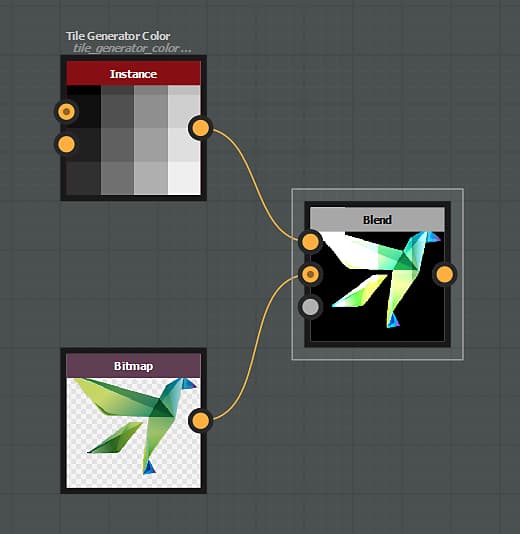
The Divide blending mode will divide the background input pixels value by each corresponding pixel in the foreground.
Overlay
The Overlay blending mode combines Multiply and Screen blend modes:
-
- If the value of the lower layer pixel is below 0.5, then a Multiply type blending is applied
- If the value of the lower layer pixel is above 0.5, then a Screen type blending is applied
Screen
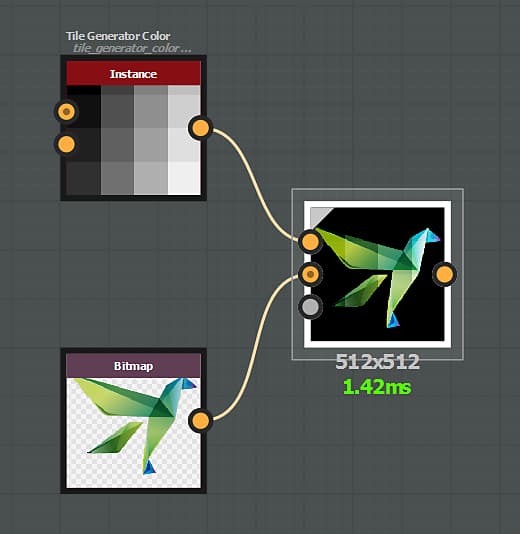
With Screen blend mode the values of the pixels in the two inputs are inverted, multiplied, and then inverted again.
The result is the opposite effect to multiply and is always equal or higher (brighter) compared to the original.
Soft light
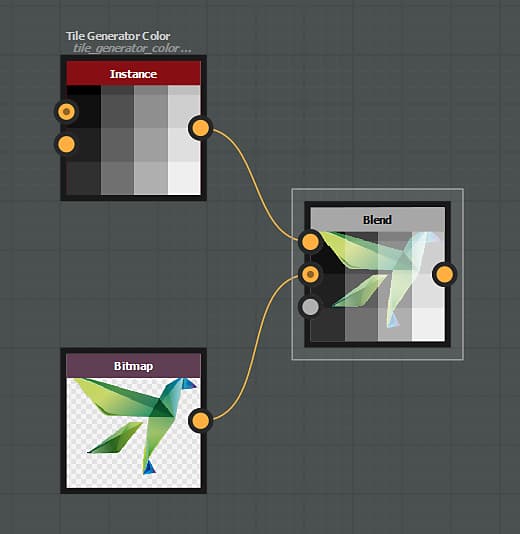
The Soft Light blend mode creates a subtle lighter or darker result depending on the brightness of the foreground color.
Blend colors that are more than 50% brightness will lighten the background pixels and colors that are less than 50% brightness will darken the background pixels.