Configure Amazon S3 for audience sourcing
Learn how to configure and connect your Amazon S3 storage in the Adobe Real-Time CDP Collaboration UI to source audience data for activation and overlap analysis.
See the Configure AWS permissions for audience sourcing guide for step-by-step setup instructions.
Overview overview
Use this workflow to source and manage first-party audiences directly from Amazon S3. After configuration, Collaboration automatically sources audiences from your S3 bucket and makes them available for insights and activation.
Audiences sourced through S3 follow the same governance and data handling rules as those sourced from Adobe Experience Platform.
Prerequisites prerequisites
Before configuring your S3 data connection, ensure the following:
-
You have access to an active Amazon S3 bucket containing audience files that conform to the Audience Sourcing Specification (v1.1).
-
You have created an IAM role in AWS that grants Adobe permission to access your bucket using the assumed role method (not access/secret keys). See Configure AWS permissions for audience sourcing for detailed instructions. The IAM role must include the following permissions:
ListBucketGetBucketLocationGetObject
-
You have the following values ready:
- IAM role Amazon Resource Name (ARN)
- S3 bucket name
- Folder path (the directory prefix containing your audience files)
Configure your Amazon S3 connection configure-aws-s3-connection
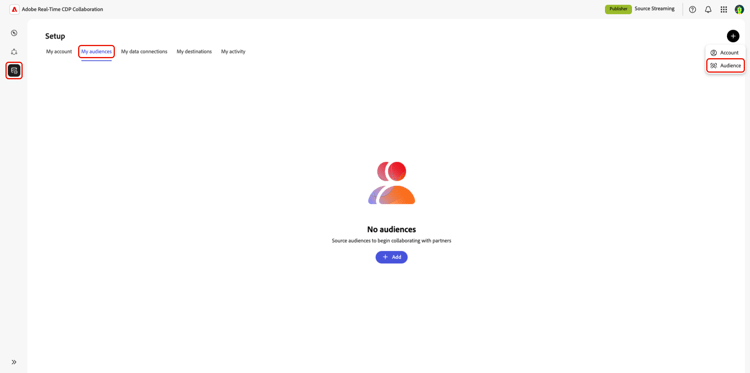
From the My audiences tab within the Setup workspace, select the add icon (

If this is your first audience, you may also select the Add option.
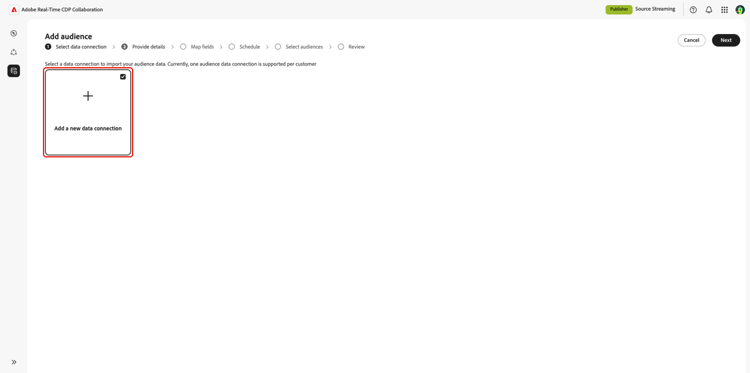
The Add audience workflow appears. Select Add a new data connection and then select Next.
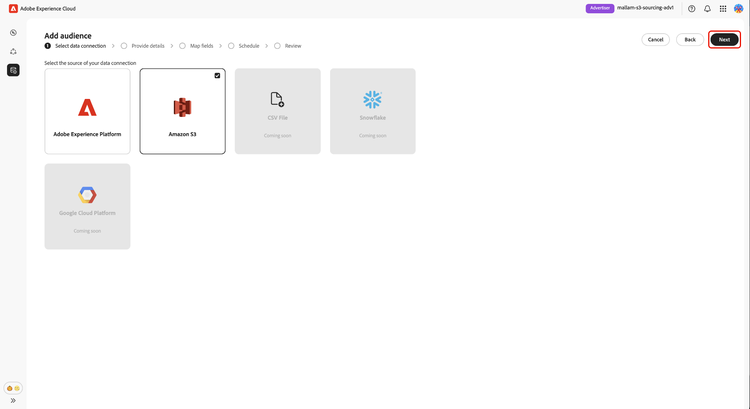
Select Amazon S3 as the data connection select-aws-s3
Select Amazon S3 as a data connection, followed by Next.
Review audience file requirements review-audience-requirements
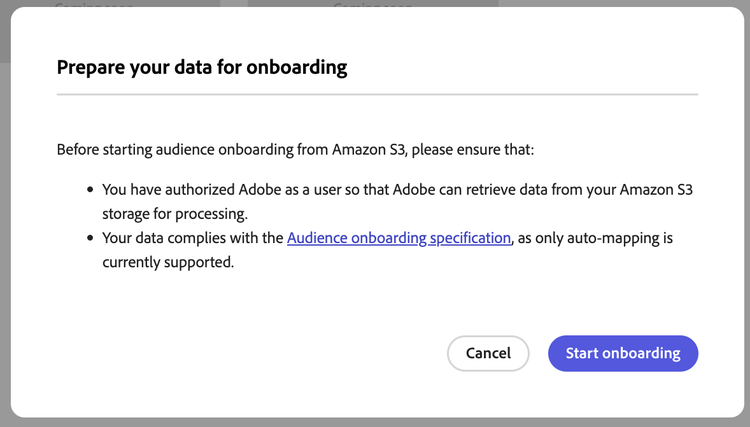
A dialog appears that explains how your audience files must be structured. Use the link to the Audience Sourcing Specification to learn how to format and structure audience data from Amazon S3 for Collaboration to read it correctly.
Your audience files must comply with the Audience Sourcing Specification. The match keys are automatically mapped based on the required format.
Key considerations include:
- Files must be in CSV format, using commas as delimiters and pipes (
|) for multiple values. - If uploading multiple files, ensure all files contain identical columns.
- Each audience record must include an
AUDIENCE_IDand at least on match key, such asHASHED_EMAIL_SHA_256,HASHED_PHONE_SHA_256,HASHED_IPV4_SHA_256,CRM_ID,LOYALTY_ID, orADFIXUS_ID. - Data refreshes occur every 1–6 days based on your selection during the sourcing setup in Collaboration.
Authenticate your S3 connection authenticate-s3-connection
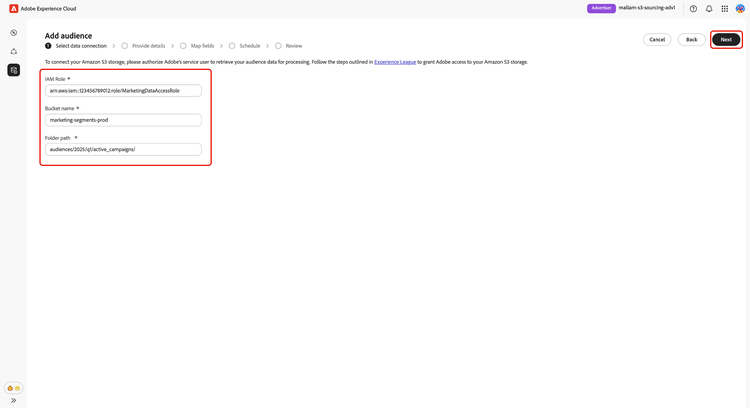
Next, provide your Amazon S3 credentials to connect your S3 bucket to Collaboration.
Follow the steps outlined in Configure AWS permissions for audience sourcing to grant Adobe access to your
Amazon S3 storage. Once complete, input your values into the following UI fields:
- IAM Role
- S3 Bucket Name
- Folder Path
Confirm consent acknowledgment confirm-consent
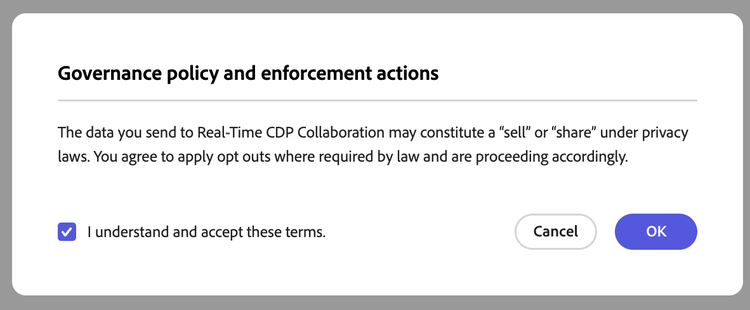
You must then acknowledge that consent opt-outs have been removed before proceeding. Check the confirmation box followed by OK to confirm.
Validate authentication results validate-authentication
After connecting, the system validates your credentials and displays one of the following messages:
Provide connection details provide-connection-details
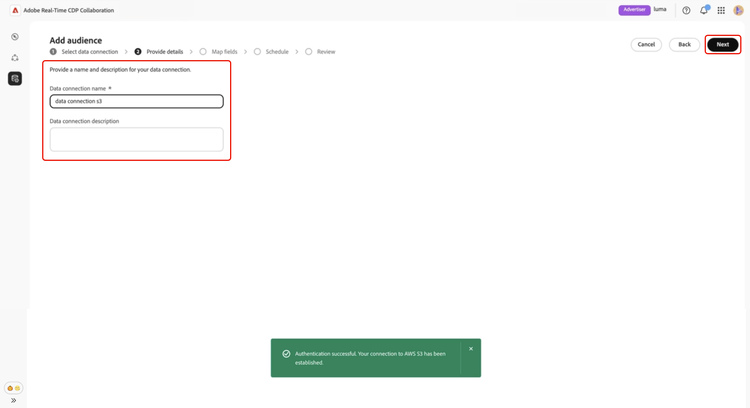
Enter a descriptive name and optional description for your S3 data connection. Input your values into the following UI fields:
- Data connection name (required)
- Data connection description (optional)
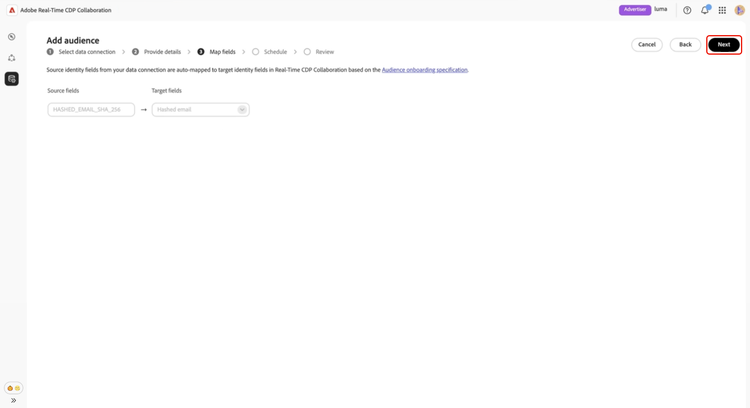
Review auto-mapped identity fields auto-mapped-fields
The Mapping screen is read-only. You cannot add, delete, or apply transformations. Collaboration automatically maps source identity fields from your audience files to target fields based on the Audience Sourcing Specification.
Visually confirm the mapped fields and select Next to continue.
Schedule refresh frequency and date range schedule-refresh
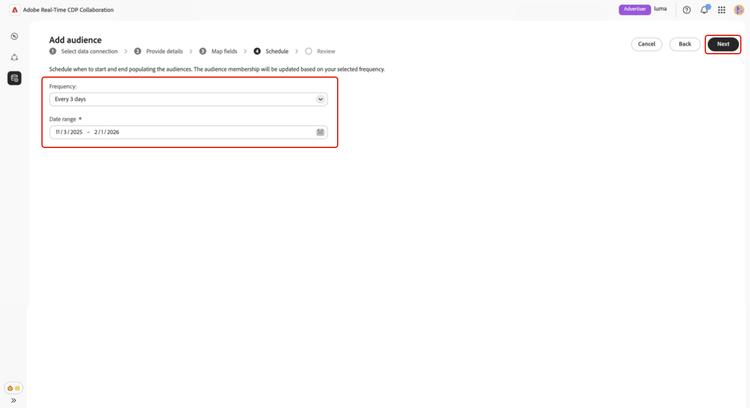
The Schedule view appears. Use the dropdown menu to select a refresh frequency between one and six days, then set the active date range. Use the calendar icon to specify start and end dates.
Review and complete the connection review-and-complete
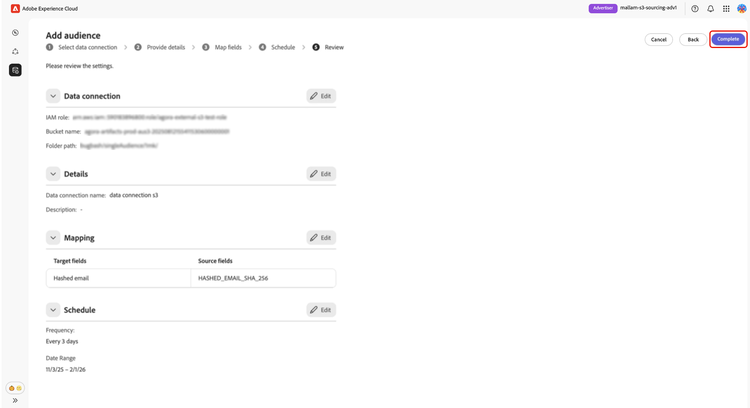
Finally, review your configuration settings in the summary screen. This view contains a summary of the following sections:
- Data connection: Displays the IAM role, S3 bucket name, and folder path you configured.
- Details: Shows the name and optional description of your data connection to help identify it later.
- Mapping: Lists how the source fields from your uploaded audience files (for example,
HASHED_EMAIL) map to target fields used in Collaboration (for example, Hashed email). - Schedule: Summarizes how often the connection refreshes audience data and the active date range for sourcing.
Select the pencil icon if you need to edit a section. Select Complete to confirm all sections.
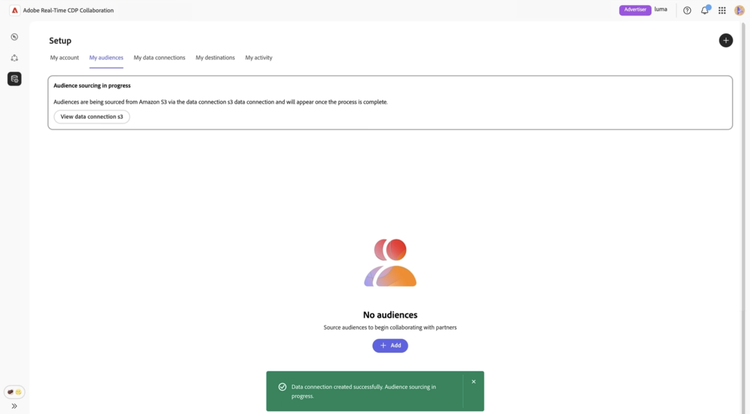
A dialog confirmation appears stating that the data connection was created successfully and that audience sourcing in progress.
Review sourced audiences review-sourced-audiences
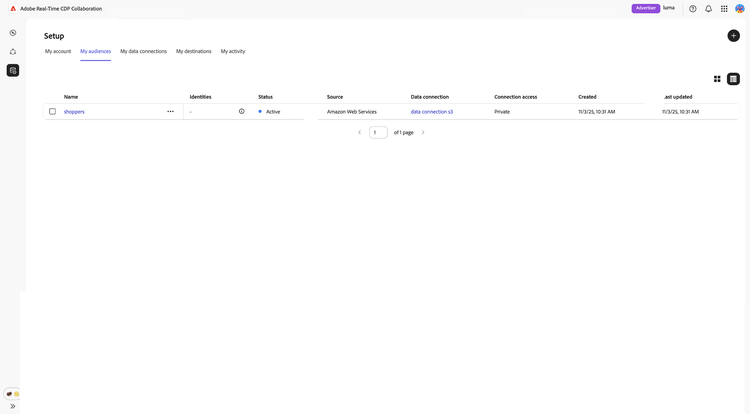
After completing the configuration, Collaboration begins sourcing audiences from your S3 bucket. Audiences sourced through an Amazon S3 bucket appear in the My Audiences tab and have the same functionality and information as audiences sourced from Experience Platform.
If audience sourcing is in progress, a banner appears at the top of the screen. Individual audiences appear only after sourcing completes.
Once the S3 audiences are sourced, your list of available audiences are provided in a tabulated or card view.
When in grid view or table view, select a row item or View audience to see an overview of a specific audience. It displays the audience’s status, source, and data connection name, along with detailed panels for:
Identities: Shows the total identity count and breakdown once data becomes available.
Categories: Lists any tags used for organizing or filtering the audience.
Connection access: Indicates whether the audience is private, public, or shared with specific collaborators.
Metadata visibility: Defines what audience information (such as identity count, overlap percentage, and index) is visible to collaborators.
Use this view to confirm audience configuration and visibility settings before using the audience in collaboration projects.
See the View audiences dashboard documentation to learn more.
View your S3 data connection view-s3-connection
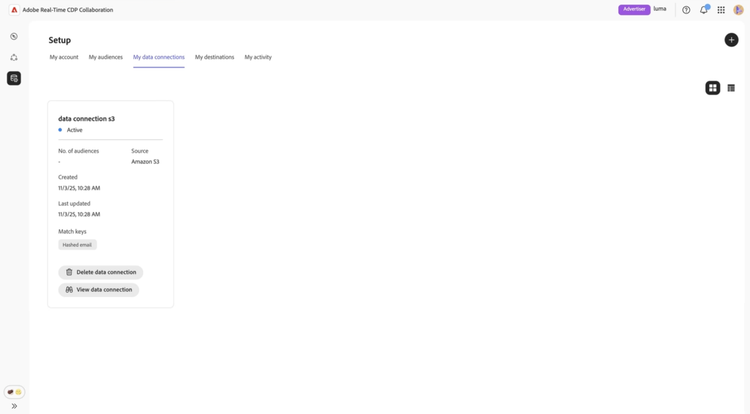
Your newly added Amazon S3 connection is immediately available in the My data connections tab. The audience source is displayed as Amazon S3.
Your S3 data connection includes the same functionality and details as other audience data connections, except that you cannot add or edit audiences directly from this view.
Next steps next-steps
You have now successfully configured and connected your Amazon S3 storage as a data source in Collaboration. By completing this workflow, you enabled secure sourcing of first-party audience data for activation and overlap analysis.
After sourcing completes, your audiences appear in the My audiences workspace, ready for collaboration and activation. For detailed management options, see the source and manage audiences documentation.