Adobe Marketing Campaign Analytics is the evolution and rebranding of Adobe Mix Modeler. Some of the Experience League content might still refer to Mix Modeler instead of Marketing Campaign Analytics.
Use the Adobe Admin Console to manage Marketing Campaign Analytics products and users.
For Marketing Campaign Analytics to function properly, you must set the correct permissions.
In the Adobe Experience Cloud UI:
-
Select Permissions from the left rail, underneath ADMINISTRATION.
-
Select

-
Select an existing role, or create a role using Create role (for example, Marketing Campaign Analytics). If you select an existing role, select

-
Ensure you have selected one or more sandboxes for the role.
-
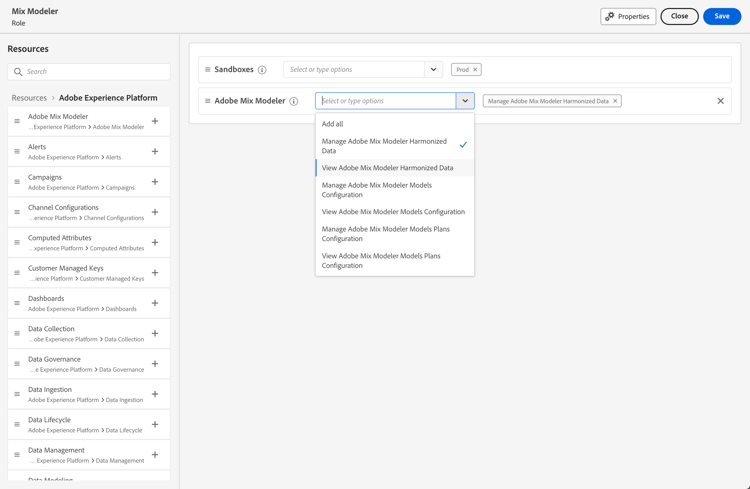
Add the Adobe Marketing Campaign Analytics resource to the list of resources for the role.
-
Ensure you select the correct Adobe Marketing Campaign Analytics permissions for the role you are configuring. You can select one or more of the following roles:
-
View Adobe Marketing Campaign Analytics Harmonized Data
-
Manage Adobe Marketing Campaign Analytics Harmonized Data
-
View Adobe Marketing Campaign Analytics Models Configuration
-
Manage Adobe Marketing Campaign Analytics Models Configuration
-
View Adobe Marketing Campaign Analytics Plans Configuration
-
Manage Adobe Marketing Campaign Analytics Plans Configuration
-
-
Ensure you select additional permissions for the role. For example, to view or manage datasets and schemas, you would select:
-
Data Management: select the relevant options: View Datasets or Manage Datasets.
-
Data Modeling: select the relevant options: Manage Schemas or View Schemas.
Select Save to save the permissions.
-
-
In Details within Role, add the appropriate Users or User groups to provide users access to Marketing Campaign Analytics.