Retrieve your API keys
Before configuring your CDN, retrieve your Edge Optimize API keys from Adobe Brand Visibility UI. You need a production API key for live traffic. Optionally, you can also retrieve a staging API key to test routing on a staging hostname first.
Production API key
-
Go to Brands Management and click the CDN label.

-
Locate the Deploy optimizations to AI agents section. Click the Enable button.

-
In the confirmation dialog, select Enable.

-
Select View details. In the Deploy optimizations details dialog, copy the Production API key (use Copy next to the field).
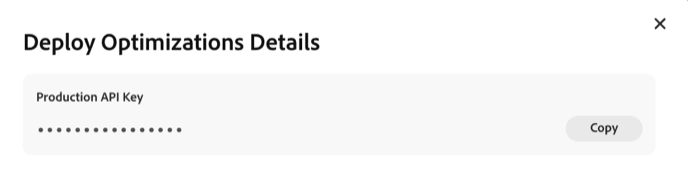
note NOTE The dialog may show that setup is not complete. This is expected until routing is verified — you can still copy the API key so your IT or CDN team can finish the configuration.
If you require any help with the above steps, reach out to your Adobe account team or abv-at-edge@adobe.com.
Staging API key (optional)
To validate the routing in a lower environment before enabling production routing, you can configure a staging hostname.
Requirements
- The staging hostname must be on the same registrable domain as production (for example,
https://staging.example.comwhen production ishttps://www.example.com). - Only one staging domain per site. After it is saved, it cannot be changed without contacting Adobe.
Steps
-
Go to Brands Management and click the CDN label.
-
Under Deploy optimizations to AI agents, select Add stage domain (or Stage domain if a staging domain is already configured).
-
Enter the full staging URL including
https://and select Set Domain. -
Copy the staging API key from the confirmation dialog.

Deploy the same routing rules on your staging environment using the staging API key.
If you need help, contact abv-at-edge@adobe.com.
Next steps
After retrieving your API keys, return to your CDN setup guide to configure routing.