Access control
Adobe Brand Visibility supports basic access control, based on user personas. This capability is available only to paying customers and is enabled upon request. It is not available for trial customers.
Product-assigned users product-assigned-users
If you are assigned to the product, you have the same capabilities as a standard organizational user, in addition to the following permissions:
- Write access in Customer Configuration for prompts, categories, topics, and related settings.
- Deploy Optimize at Edge optimizations and manage suggestions.
- Manage Google Search Console configurations.
- Manage Optimize at Edge and CDN configurations.
- Onboard a new site.
Organizational users organizational-users
Organizational users are standard users who are not assigned to the product. If you are an organizational user, you have read-only access to the Adobe Brand Visibility dashboards and related views. The following restrictions apply.
Customer Configuration customer-configuration-restrictions
-
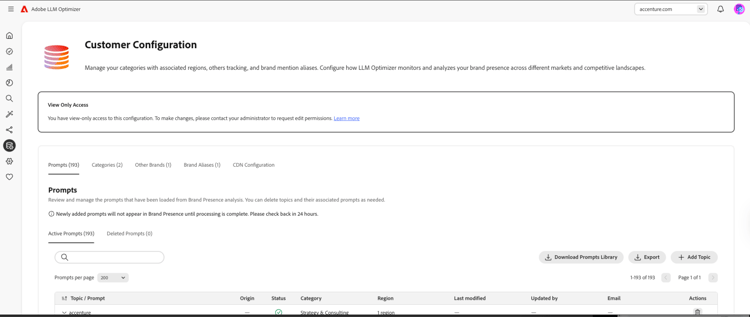
Upload Prompts is disabled.
-
Managing and editing prompts, categories, topics, and region is disabled.
CDN configuration (Customer Configuration) cdn-configuration-restrictions
-
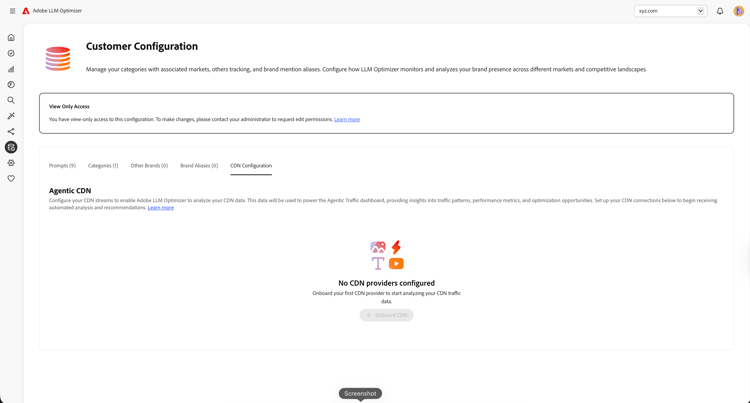
Onboard CDN is disabled (read-only users cannot add a CDN provider).
-
Delete CDN is disabled (read-only users cannot remove an existing CDN configuration).
-
The Submit button in the CDN onboard dialog is disabled (read-only users cannot complete CDN setup).
Brand Presence — data insights brand-presence-restrictions
-
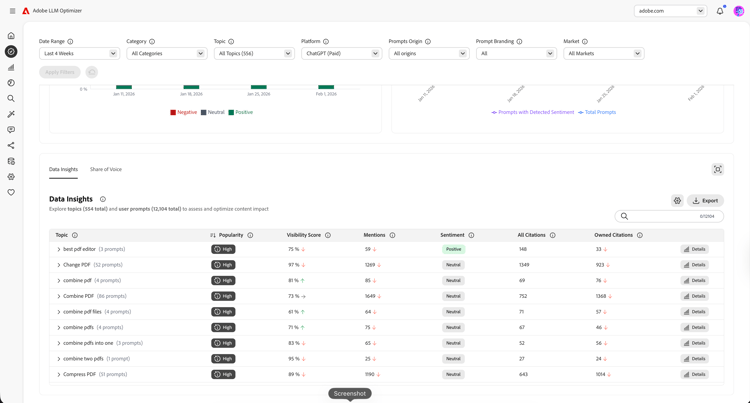
The Delete buttons next to topics are hidden (read-only users cannot remove topics from tracking).
-
The Delete buttons next to prompts are hidden (read-only users cannot remove prompts from tracking).
Agentic Traffic opportunities (error-page opportunities) agentic-opportunities
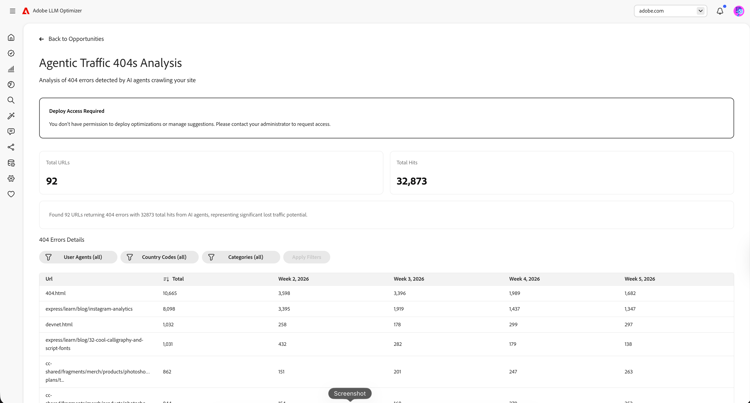
For opportunities such as 404, 403, and 503 error pages:
-
Deploy Optimization is hidden.
-
An informational alert explains that deploy access is required.
Other opportunity pages other-opportunities
Read-only behavior also applies to opportunity types such as:
- Table of contents
- Summarization
- Readability
- Prerender
- Headings
- FAQ
- Missing structured data
- Generic patch opportunity
For these pages:
-
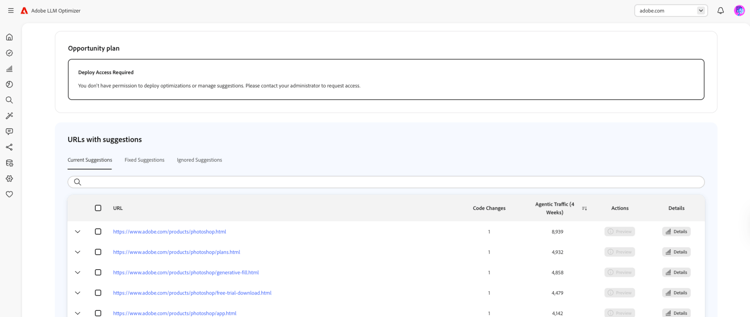
Deploy Optimization is hidden when the user does not have deploy access.
-
An inline alert explains that deploy access is required. The message is similar to: Deploy Access Required — You don’t have permission to deploy optimizations or manage suggestions. Please contact your administrator to request access.
-
The sticky bottom bar with deploy actions is hidden.

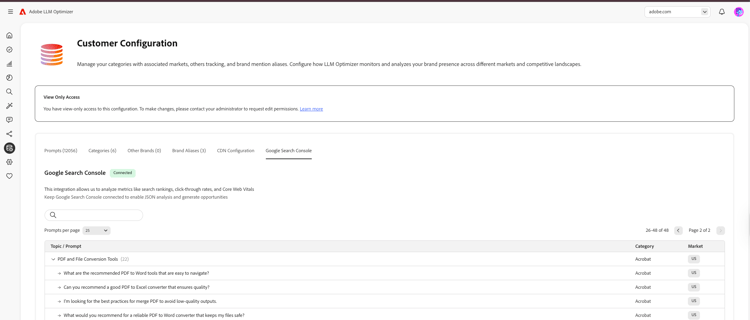
Google Search Console prompt configuration gsc-restrictions
-
Manage and connect actions are disabled or hidden.
-
The actions column used to add prompts is hidden.
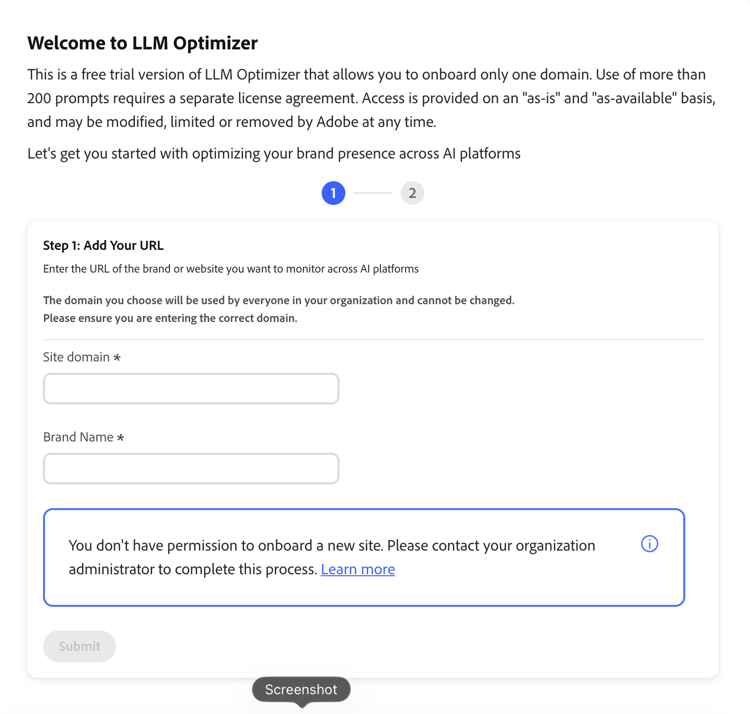
Onboard a new site onboarding-restrictions
-
Onboarding a new site is disabled for users without access control.
Assign the product to a user or group assign-product
A system administrator for your organization can use the Adobe Admin Console to assign Adobe Brand Visibility to a user or group.
- Sign in to the Adobe Admin Console with an account that has administrative rights for your organization.
- Assign the Adobe Brand Visibility product profile (or your organization’s equivalent product entitlement) to the user or group that should receive product-assigned capabilities.
For detailed steps, see Managing products in the Admin Console and Manage user groups.