Log Forwarding: Imperva log-forwarding-imperva
This guide explains how to forward CDN logs from Imperva to Adobe’s S3 bucket for agentic traffic data collection. You will use the Adobe Brand Visibility CDN configuration page to onboard to Adobe Brand Visibility. After the onboarding process is complete, follow the steps provided on this page to configure log forwarding from the Imperva web console.
Step 1: Onboard in Adobe Brand Visibility step-1
On the Adobe Brand Visibility page https://abv.adobe.com/:
-
Go to Brands Management.
-
Click the CDN label.

-
Click Get Started.
-
Next to Activate AI Traffic Insights, click Configure.

-
Select Imperva (BYOCDN).

-
Click Onboard.
Step 2: Configure log forwarding in Imperva step-2
On the Imperva console:
-
Log in to your Imperva account at https://my.imperva.com.
-
In the sidebar, go to Logs > Log Setup (or Log Integration).
-
Select Amazon S3 ARN as the connection type (log destination).
-
Enter the following:
table 0-row-3 1-row-3 2-row-3 Field Description Note Connection name A descriptive name for the connection (for example, Production S3 logs). You can rename the default. Path The location of the folder where log files will be stored. Use the format <Amazon S3 bucket name>/<log folder>. For example:MyBucket/MyImpervaLogFolder.Amazon S3 bucket nameis the Bucket Name from the Adobe Brand Visibility configuration page.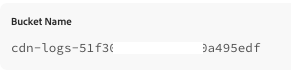

-
Click Test connection. Imperva runs a full test in which a test file (no real data) is sent to the designated folder and then removed when the transfer is complete.
- Available — storage details are valid; you can configure logs to use this connection.
- Undefined — either the required details are missing or the test failed.
-
Click Save to store the configuration.
-
Configure log options (log types, log level, format, compression) and Log Levels. You can get the values from the Adobe Brand Visibility configuration page.
table 0-row-2 1-row-2 2-row-2 3-row-2 4-row-2 5-row-2 6-row-2 Field Note Log integration mode 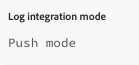
Delivery method 
Log types 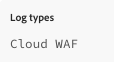
Log level 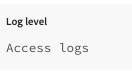
Format 
Compress logs 