Log Forwarding: Fastly log-forwarding-fastly
This page explains how to forward CDN logs from Fastly to Adobe’s S3 bucket for agentic traffic data collection. You will use the Adobe Brand Visibility CDN configuration page to onboard to Adobe Brand Visibility. After the onboarding process is complete, follow the steps provided on this page to configure log forwarding in the the Fastly web console.
Step 1: Onboard in Adobe Brand Visibility step-1
On the Adobe Brand Visibility page https://abv.adobe.com/:
-
Go to Brands Management.
-
Click the CDN label.

-
Click Get Started.
-
Next to Activate AI Traffic Insights, click Configure.

-
Select Fastly (BYOCDN).

-
Click Onboard.
Step 2: Create an S3 endpoint in Fastly step-2
To create an S3 endpoint, on the Fastly Control Panel:
- In the Fastly dashboard, go to CDN services (not Compute services).
- In the Amazon Web Services S3 area, click Create endpoint.
- Fill out the Create an Amazon S3 endpoint fields:
%Y-%m-%dT%H:%M:%S.000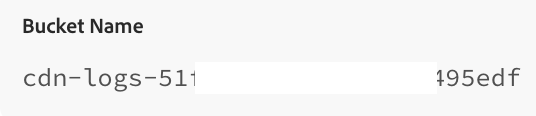
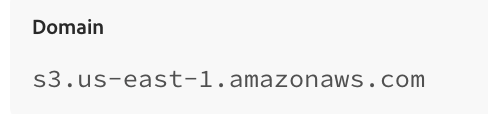
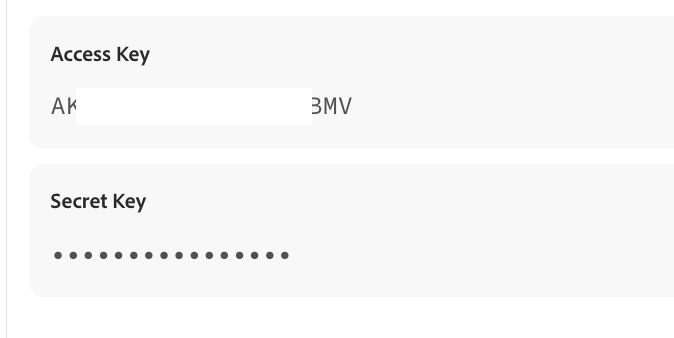
300Log format string:
{ "timestamp": "%{strftime(\{"%Y-%m-%dT%H:%M:%S%z"\}, time.start)}V", "host": "%{if(req.http.Fastly-Orig-Host, req.http.Fastly-Orig-Host, req.http.Host)}V", "url": "%{json.escape(req.url)}V", "request_method": "%{json.escape(req.method)}V", "request_referer": "%{json.escape(req.http.referer)}V", "request_user_agent": "%{json.escape(req.http.User-Agent)}V", "response_status": %{resp.status}V, "response_content_type": "%{json.escape(resp.http.Content-Type)}V", "client_country_code": "%{client.geo.country_name}V", "time_to_first_byte": "%{time.to_first_byte}V" }
After you complete the steps above, click Advanced options and set:

After setting the advanced options:
- Click Create to create the endpoint.
- From the Activate menu, select Activate on Production to deploy.
Example log entry example
Presented below is an example format string for sending data to Amazon S3:
{
  "timestamp": "2026-02-10T05:05:36+0000",
  "host": "example.com",
  "url": "/my/path",
  "request_method": "GET",
  "request_referer": "https://example.com/my/other/path",
  "request_user_agent": "Mozilla/5.0 (iPhone; CPU iPhone OS 13_2_3 like Mac OS X) AppleWebKit/605.1.15 (KHTML, like Gecko) Version/13.0.3 Mobile/15E148 Safari/604.1",
  "response_status": 200,
  "response_content_type": "text/css; charset=utf-8",
  "client_country_code": "argentina",
  "time_to_first_byte": "0.138"
}