Log Forwarding: CloudFront log-forwarding-cloudfront
This page explains how to forward CDN logs from CloudFront to Adobe’s S3 bucket for agentic traffic data collection. You will use the LLM Optimizer CDN configuration page to onboard to LLM Optimizer. After the onboarding process is complete, follow the steps provided on this page to configure log forwarding in the CloudFront dashboard console.
Step 1: Onboard in LLM Optimizer step-1
On the LLM Optimizer page https://llmo.now/:
-
Go to the Customer Configuration Dashboard.
-
Click the CDN Configuration tab.
-
Click Get Started.
-
Next to Activate AI Traffic Insights, click Configure.

-
Enter your AWS Account ID.
-
Select CloudFront (BYOCDN).

-
Click Onboard.
Step 2: Enable standard logging (CloudFront console) step-2
To enable standard logging, from the AWS Management console:
-
Access the CloudFront console and update an existing distribution.
-
Open the Logging tab.
-
Choose Add, then select the service to receive logs, in this case Amazon S3.
-
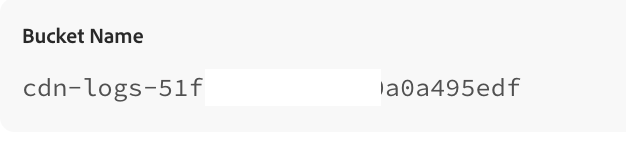
For Destination, select or create the resource. Enter the bucket name, you can copy the value from the LLM Optimizer CDN configuration page.
-
Configure Additional settings:
-
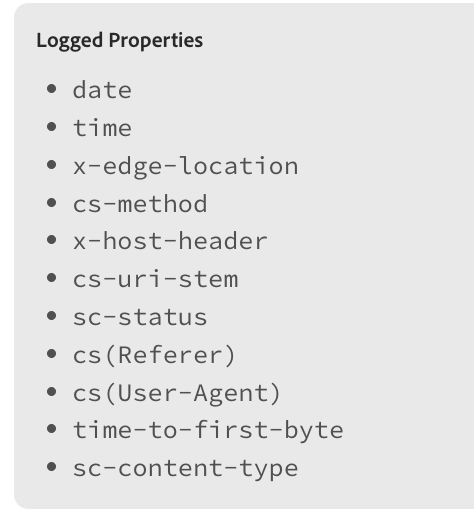
Field selection — choose the log file fields. See the required fields on the LLM Optimizer CDN configuration page.
-
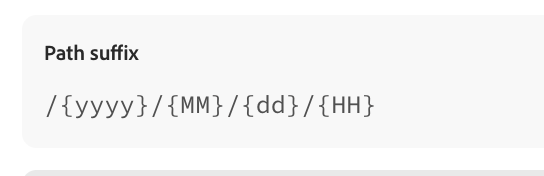
Partitioning — copy the path suffix from the LLM Optimizer configuration page.
-
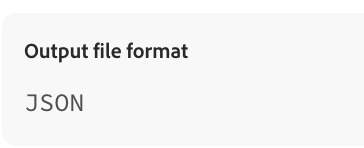
Output format — the format should be JSON.
-
-
Complete the steps to update or create the distribution.
-
On the Logs page, confirm that Enabled appears next to the distribution.
Enable standard logging for cross-account delivery cross-account
The source account (with the CloudFront distribution) sends access logs to the destination account (the S3 bucket shown in the LLM Optimizer CDN configuration page). Both accounts must have the right permissions.
For example: the source account 111111111111 sends logs to an S3 bucket in destination account 222222222222. You can use the AWS Commad Line Interface.
arn:aws:logs:us-east-1:222222222222:delivery-destination:cloudfront-delivery-destination) with the value of the Delivery destination ARN from the LLM Optimizer configuration page.

Configure the source account source-account
Next, you need to configure the source account:
-
Create a delivery source - replace the name and distribution ARN:
code language-bash aws logs put-delivery-source --name s3-cf-delivery \ --resource-arn arn:aws:cloudfront::111111111111:distribution/E1TR1RHV123ABC \ --log-type ACCESS_LOGS -
Create the delivery - link source to destination; use the destination ARN from the “Configure the destination account” step:
code language-bash aws logs create-delivery --delivery-source-name s3-cf-delivery \ --delivery-destination-arn arn:aws:logs:us-east-1:222222222222:delivery-destination:cloudfront-delivery-destination -
Verify:
- In the source account: CloudFront console > your distribution > Logging tab. Under Type you should see the S3 cross-account log delivery.
- In the destination account: S3 console > bucket. You should see the prefix (for example,
MyLogPrefix) and the logs in that folder.