Log Forwarding: Akamai log-forwarding-akamai
This page explains how to forward CDN logs from Akamai to Adobe’s S3 bucket for agentic traffic data collection. You will use the Adobe Brand Visibility CDN configuration page to onboard to Adobe Brand Visibility. After the onboarding process is complete, follow the steps provided on this page to configure log forwarding in the Akamai Control Panel.
Step 1: Onboard in Adobe Brand Visibility step-1
On the Adobe Brand Visibility page https://abv.adobe.com/:
-
Go to Brands Management.
-
Click the CDN label.

-
Click Get Started.
-
Next to Activate AI Traffic Insights, click Configure.

-
Select Akamai (BYOCDN).

-
Click Onboard.
Step 2: Create a stream in Akamai step-2
On the Akamai control panel https://control.akamai.com/ follow the steps from the official Akamai documentation to create a stream.
Step 3: Choose data parameters step-3
After creating the stream, on the Akamai control panel, click Next to continue to Data sets tab. Follow the steps from the official Akamai documentation to choose the data parameters. The following fields from the Adobe Brand Visibility configuration will be needed:
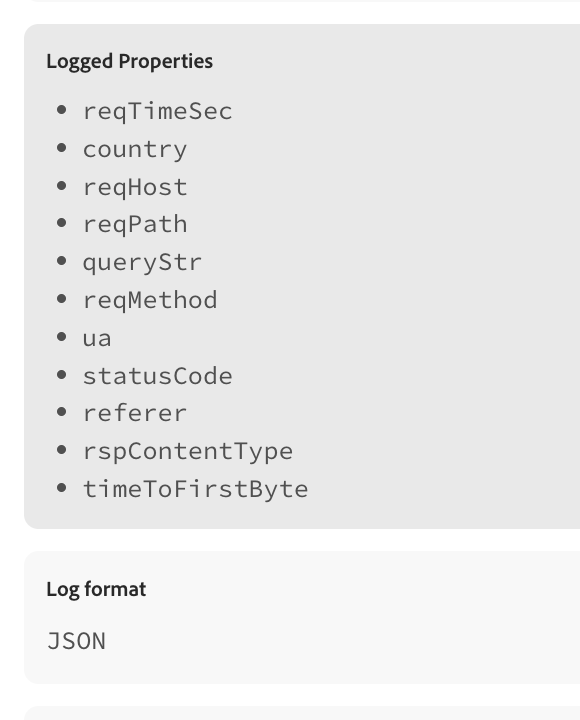
The mapping should be as follows:
- Log Information
reqTimeSec -> Request time - Geo Data
country -> Country/Region - Message exchange data
reqHost -> Request host
reqPath -> Request path
queryStr -> Query string (optional)
reqMethod -> Request method
ua -> User-Agent
statusCode -> HTTP status code
rspContentType -> Response Content-Type - Request header data
referer -> Referer - Network performance data
timeToFirstByte -> Time to first byte
queryStr parameter is optional. You can omit it if the query string includes PII information.The Akamai data set fields (including IDs) are as follows:
1100, # reqTimeSec -> Request time
2012, # country -> Country/Region
1011, # reqHost -> Request host
1013, # reqPath -> Request path
2009, # queryStr -> Query string (optional)
1012, # reqMethod -> Request method
1017, # ua -> User-Agent
1008, # statusCode -> HTTP status code
1032, # referer -> Referer
1016, # rspContentType -> Response Content-Type
2025 # timeToFirstByte -> Time to first byte
Step 4: Configure destination step-4
After creating the data streams and choosing the parameters you need to configure the destination. To configure the destination, follow these steps:
-
In Destination, select S3.
-
In Name, enter a human-readable description for the destination.
-
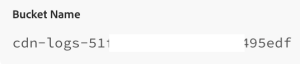
In Bucket, copy the Bucket Name from the Adobe Brand Visibility configuration page.
-
In Folder path, copy the Path from the Adobe Brand Visibility configuration page.

-
In Region, copy the Region from the Adobe Brand Visibility configuration page.
-
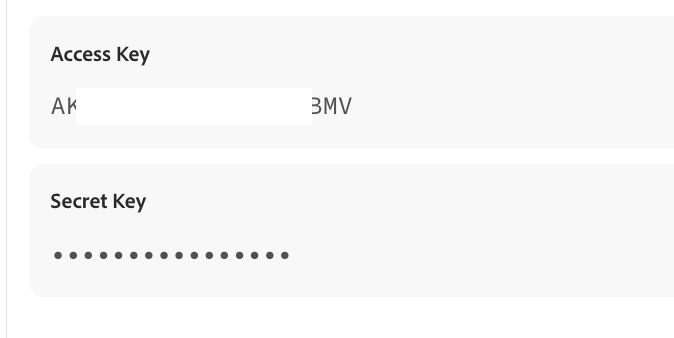
In Access key ID and Secret access key, copy both values from the Adobe Brand Visibility configuration page.
-
Click Validate & Save to validate the connection to the destination, and save the details you provided. As part of this validation process, the system uses the provided access key identifier and secret access key to create a verification file in your S3 folder, with a timestamp in the filename in the
Akamai_access_verification_[TimeStamp].txtformat. You can only see this file if the validation process is successful and you have access to the Amazon S3 bucket and folder you are trying to send logs to. -
In the Delivery options menu, edit the Filename field as follows:
a. Change the prefix. Copy the value from the Adobe Brand Visibility configuration page under Log file prefix:
code language-none {%Y}-{%m}-{%d}T{%H}:{%M}:{%S}.000b. Change the suffix. Copy the value from the Adobe Brand Visibility configuration page under Log file suffix.
-
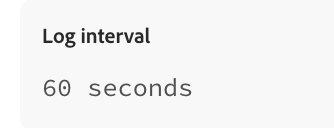
Change the Push frequency. Copy the value from the Adobe Brand Visibility configuration page under Log Interval.
-
Click Next to complete the process.
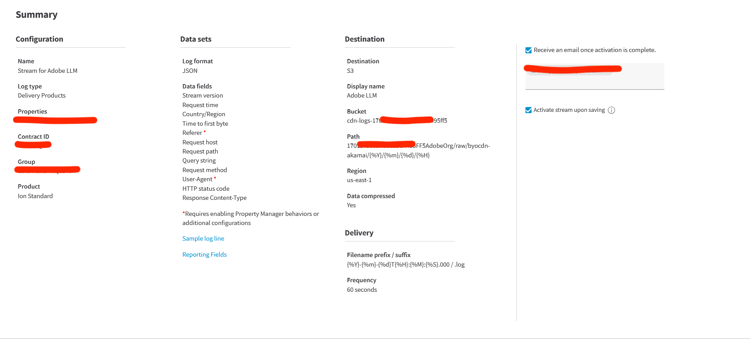
Before final validation, the configuration should look similar to this example: