Add Relevant FAQs
The Add Relevant FAQs opportunity identifies high-traffic pages that lack structured Q&A content that AI agents often rely on when generating responses. It introduces relevant, intent-aligned FAQ content grounded in your existing page material. This helps agents match user questions to your content more directly.
For each affected URL, you can review AI-generated FAQ suggestions, then deploy them with Optimize at Edge so agentic traffic receives clearer Q&A context with no Content Management system (CMS) changes required.
How it fixes the problem
Fixes are applied using Optimize at Edge, which:
- Serves a pre-rendered HTML snapshot to AI agents.
- Enriches the page with FAQ content in the HTML they retrieve.
- Works at the CDN layer (no CMS changes).
- Is AI-only —no impact on human visitors or SEO bots.
- Deploys in minutes and is fully reversible from the Adobe Brand Visibility interface.
How it works
Adobe Brand Visibility identifies high-traffic pages where Q&A content is missing or thin, based on your brand’s prompt set. Affected URLs appear in the URLs with suggestions table on the Current Suggestions tab, where you can expand a row to inspect each recommendation.
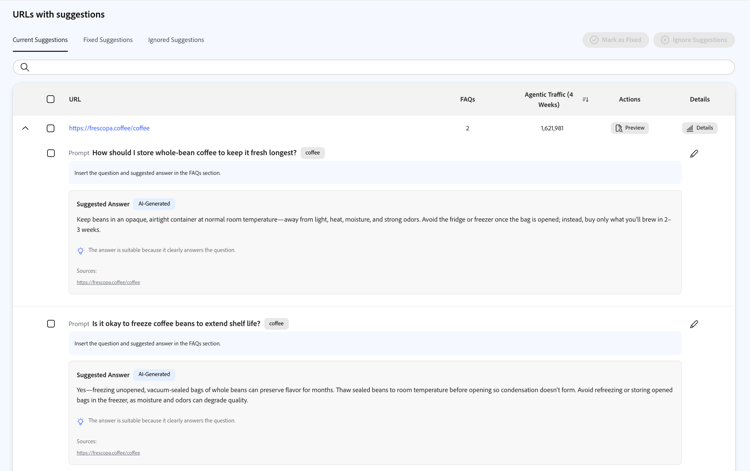
The URLs with suggestions table lists pages where FAQs would help AI-driven discovery. Suggestions are organized into Current Suggestions, Fixed Suggestions, and Ignored Suggestions. For each URL you can:
- Expand the row to view the proposed FAQ content for that page.
- Preview the before and after comparison for agentic traffic.
- Mark as Fixed if you addressed the opportunity outside Adobe Brand Visibility.
- Ignore suggestions that are not relevant.
Each expanded entry lists the FAQ prompts, AI-generated suggested answers, brief reasoning and sources tied to the page. The table also shows how many FAQs are suggested per URL and Agentic traffic (4weeks) to help you prioritize.
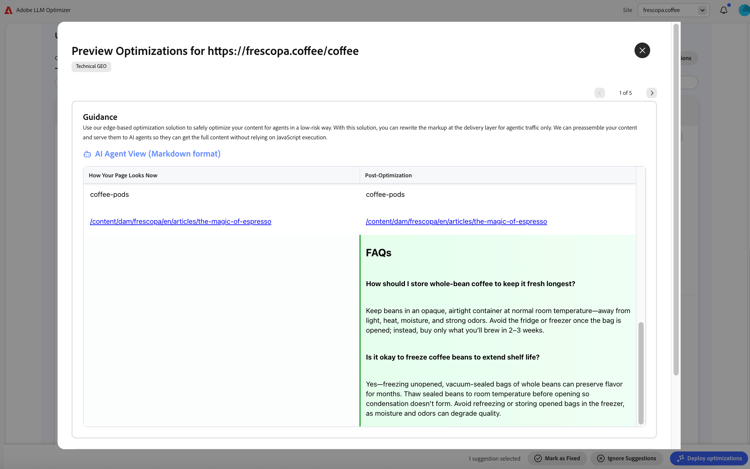
Click Preview on a row to open the optimization preview. It compares how your page looks now for agentic traffic with the post-optimization view (for example, the new FAQs block).
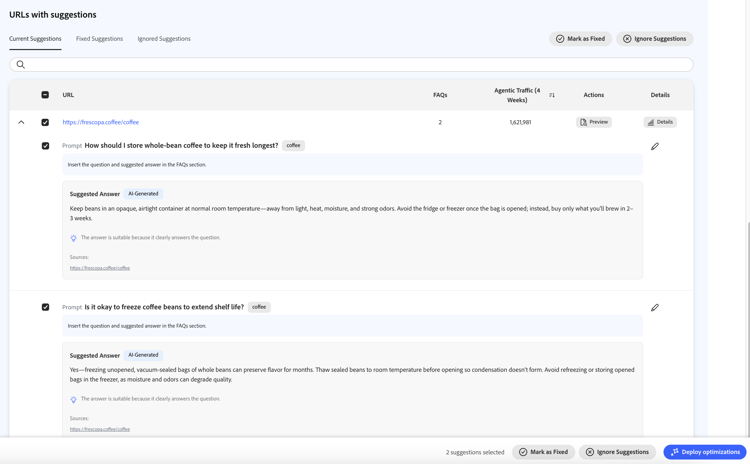
Select the FAQ suggestions you want to ship using the row checkboxes. The footer shows how many are selected and provides Mark as Fixed, Ignore Suggestions, and Deploy optimizations.
Deploying the optimization
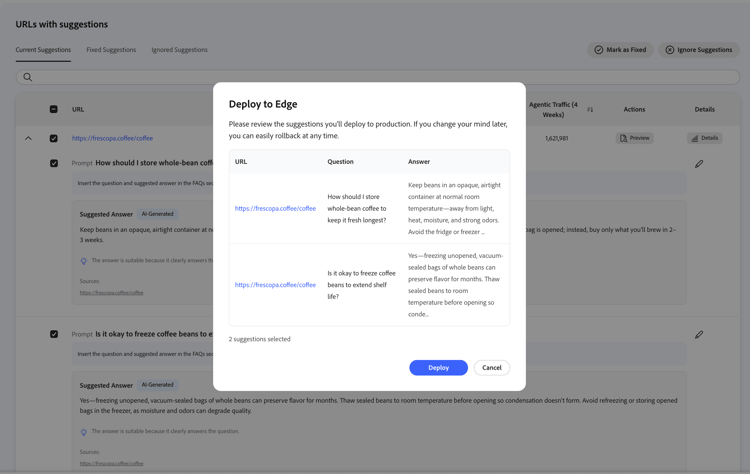
When you are ready to publish at the edge, click Deploy optimizations. A Deploy to Edge dialog lists the URLs, questions and answers you are about to push. Review the list, then choose either Deploy or Cancel.
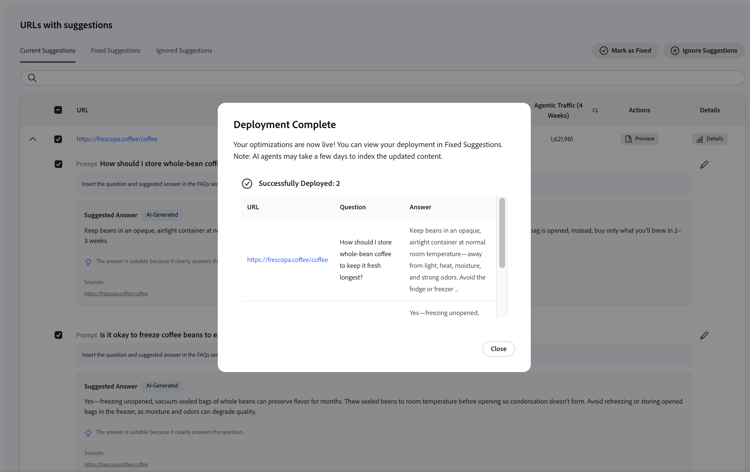
After a successful deploy, Deployment Complete confirms how many optimizations went live. Close the dialog and open Fixed Suggestions to verify status.
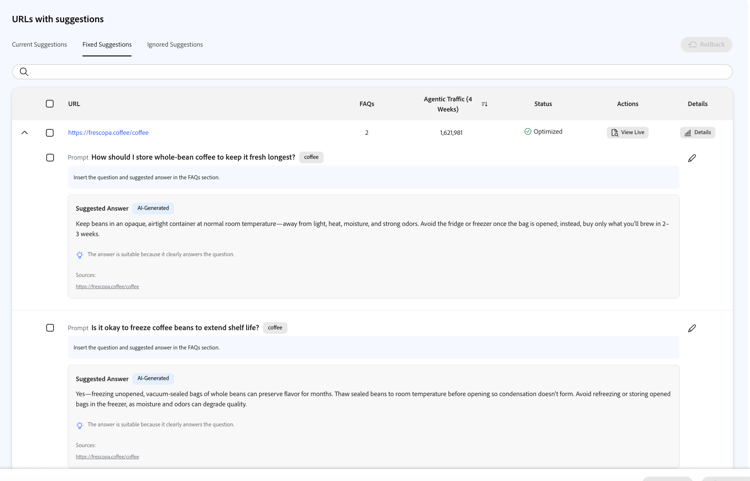
Fixed Suggestions and View Live
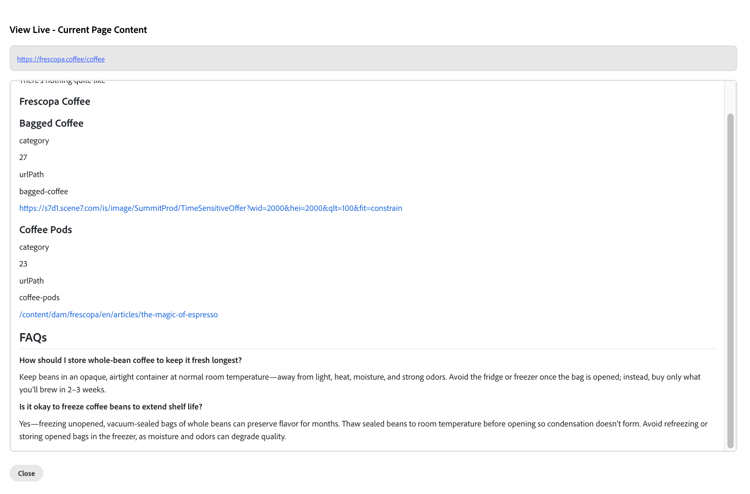
On Fixed Suggestions, deployed URLs show Optimized in the status column. Expand a row to review the live FAQ content, use Details for analytics or click View Live to open a read-only view of current page content as served for verification (including the injected FAQs section).
The View Live window shows the page structure and FAQ copy as presented in that check.
Rollback
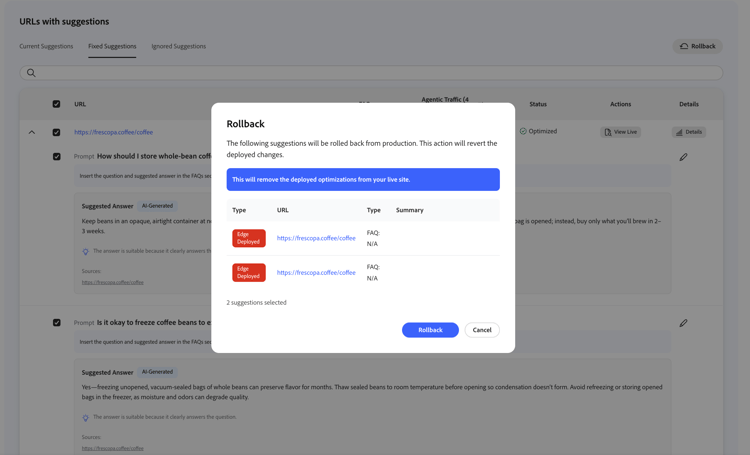
If you change your mind, you can roll back any deployed optimization. From the Fixed Suggestions view, you can select the optimized rows you want to revert, then click Rollback in the header.
The Rollback dialog lists the suggestions that will be rolled back, with a short warning that deployed optimizations will be reverted. Confirm the list, then click Rollback or Cancel.
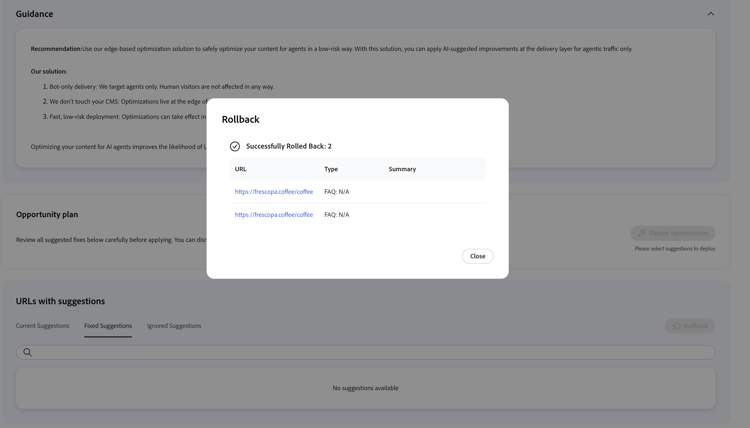
When the operation finishes, a Successfully Rolled Back summary appears; close it to return to the dashboard.
Try it in the demo
Explore the Add Relevant FAQs workflow in the Frescopa demo.