Photoshop plugin for GenStudio for Performance Marketing
The GenStudio for Performance Marketing Photoshop plugin adds a panel to Adobe Photoshop that lets you generate on-brand content.
This page describes how to install and configure the plugin, and how to use it.
Features of this plugin include:
- Log in to a GenStudio for Performance Marketing instance with an Adobe ID
- Map GenStudio for Performance Marketing content-generation fields to text layers in a Photoshop document
- Specify a brand, product, persona, and text prompt for generating content
- Optionally, add an image to replace your template image
- Preview generated on-brand content variations
- Apply generated content to mapped layers in the current document
- Create on-brand content translations
- Export generated Experiences to GenStudio for Performance Marketing
Install the plugin
Follow these instructions to install the plugin.
Prerequisites
- Creative Cloud desktop application
- Photoshop, minimum version 25.6.0
Installation steps
- Download and update the plugin from the Creative Cloud Marketplace in Adobe Exchange.
- Search for GenStudio Plugin for Photoshop in Adobe Exchange.
- Follow the prompts to install the plugin.
Uninstall the plugin
- Launch the Creative Cloud desktop application.
- Click the Plugins option.
- Click the ellipsis, (…), on the GenStudio for Creative Cloud card for options.
- Choose Uninstall.
Create a template
To generate content you need a GenStudio for Performance Marketing template created from your Photoshop document.
To create a GenStudio-ready template:
- Open a document in Photoshop.
- Identify a text layer for generated content.
- Rename the layer with the field name convention format:
{<name_of_generated_field>}. For example,{body},{headline},{cta}. - Rename layers for all fields required by the channel intended for the template type.
{on_image_text}, {image}{headline}, {introductory_text}, {cta}, {website_url}{on_image_text}, {image}{body}, {headline}, {cta}, {website_url}, {display_link}{body}, {image}{headline}, {cta}, {website_url}Note that multiple layers can share the same field designation, but each layer can only specify one field. For example, if there are multiple artboards in the document:
- You can specify a
{headline}layer in each artboard. - You can specify multiple
{headline}layers in a single artboard. - You cannot specify that a single layer receives both the
{headline}and the{cta}field names.
Template size requirements
Meta templates
For Instagram and Facebook posts:
- Width: 1080 px (fixed)
- Height: 1080 px or 1350 px
For Instagram and Facebook stories:
- Width: 1080 px (fixed)
- Height: 1920 px
The plugin decides the chrome of the generated experience based on the height of the template.
Display templates
There is no fixed size requirement. Display templates support any size.
LinkedIn templates
- Width: 1200 px (fixed)
- Height: 1200 px, 628 px, 2292 px, 1800 px, or 1500 px
The document is now ready to be used with the plugin.
Generate new content
- Open Photoshop.
- Open a GenStudio-ready template document that you have created (see instructions above) or use the GenStudio for Performance Marketing starter template:
branding-template-acrobat-handlebars.psd. - Open the plugin panel at Plugins > GenStudio.
- Click the Login button. If prompted for permission to open a URL, optionally check Remember my choice, then click Allow.
- Use the web browser to log in with a profile that has access to GenStudio for Performance Marketing.
- Select the channel (Meta, LinkedIn, or Display) that applies to the template you have opened.
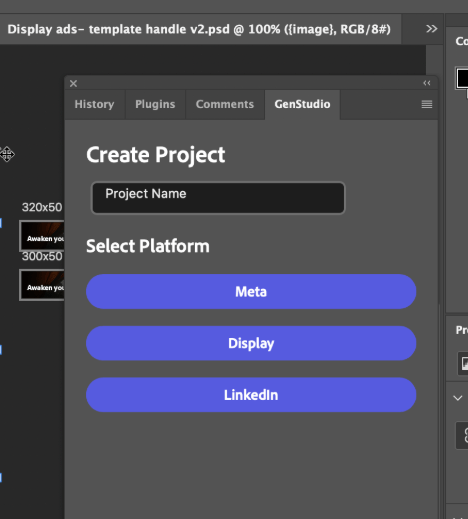
- Select the Brand, Persona, and Product context for the content generation.
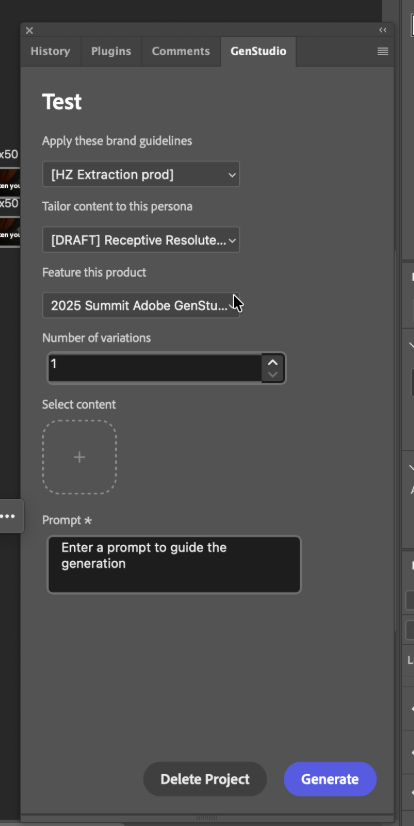
- Select the number of variations to be produced.
- Use the button under Select Content to browse and choose images from your assets. The 40 most recently added assets appear first, and you can search for other assets. Selected images are automatically resized to fit your templates.
- Provide a text prompt for the content in the Text Prompt box.
- Click the Generate button. Variations appear on cards in the plugin panel.
New documents are added to your Photoshop workspace with generated content applied to the template fields. These documents are named with a numbered variation suffix.
Translate content
Users can translate content to supported languages after copy generation.
- Click Translate after generating ad copy with the plugin.
- Select one or more languages for the translation.
- Click the Translate button.
New documents are added to your Photoshop workspace with generated content applied to the template fields. These documents are named with a numbered variation suffix.
Export experiences to GenStudio
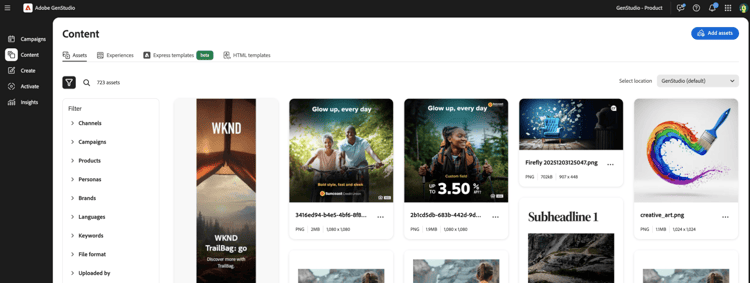
Users can select export after content generation or translation. Exported experiences populate in the content section of GenStudio for Performance Marketing.
Troubleshooting
Consider these best practices and tips if text or images are not being replaced in generated variations.
Mapped fields
If text or images are not being replaced, confirm fields are mapped correctly with curly brackets {} (not parentheses ()).
Confirm fonts are available
A text field’s font must be available on your machine for replacement to occur during generation. Confirm that all fonts used in the file are available on your machine, especially if the file was created on someone else’s machine.
Field mapping exceptions
Certain channels only support the replacement of specific fields. For example:
- Meta and LinkedIn ads replace headline, body, and introductory text in the surrounding chrome, not in the ad itself. Consider mapping text on the image as
on_image_text.