Figma plugin for GenStudio for Performance Marketing
The GenStudio for Performance Marketing Figma plugin adds a new panel to the Figma application that lets you generate on-brand content.
Find and install the plugin from the Figma community marketplace.
This page describes how to configure and use the plugin.
Features of this plugin include:
- Map Figma text elements to GenStudio for Performance Marketing fields, such as
headline,body,on_image_text, and more. - Generate new on-brand Meta, LinkedIn, or Display ad Experiences based on a brand, persona, product, and text prompt.
- Create Experiences directly in the Figma document by replacing the text in mapped Figma elements with values generated by GenStudio for Performance Marketing.
- Rephrase, shorten, lengthen, or translate existing content based on a prompt.
- Translate generated Experiences into multiple languages.
- Export generated Experiences to a local source as flattened images.
- Export generated Experiences to GenStudio for Performance Marketing.
- Use plugin options that adapt to the selected elements in the Figma canvas.
Create a template
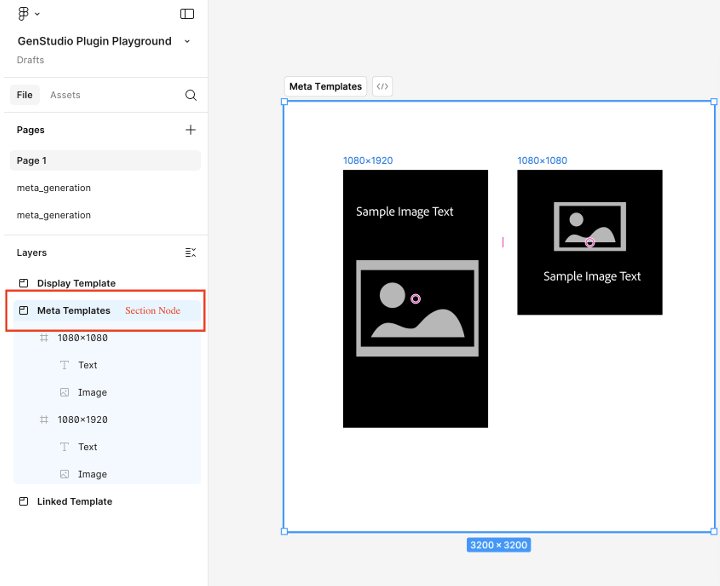
The plugin requires the first two levels of your Figma document to follow this convention:
- Section - This represents the parent project, which can contain multiple templates.
- Frame - This represents a template within a project. The template can be filled with text, images, components, and other elements.
Meta templates
These template sizes are supported:
For Instagram or Facebook posts:
- Width: 1080 px (fixed)
- Height: 1080 px or 1350 px
For Instagram or Facebook stories:
- Width: 1080 px (fixed)
- Height: 1920 px
The plugin decides the chrome of the generated experience based on the height of the template.
Display templates
There is no fixed size requirement. Display templates support any size.
LinkedIn templates
- Width: 1200 px (fixed)
- Height: 1200 px, 628 px, 2292 px, 1800 px, or 1500 px
Field role mapping
The plugin needs to understand the different elements of your template, like headline, body text, or image.
Meta field roles include:
- Image
- Image text
- CTA
- Body text
- Headline
- Website URL
- Display link
- Manual fields
See how some of these field roles are mapped below.
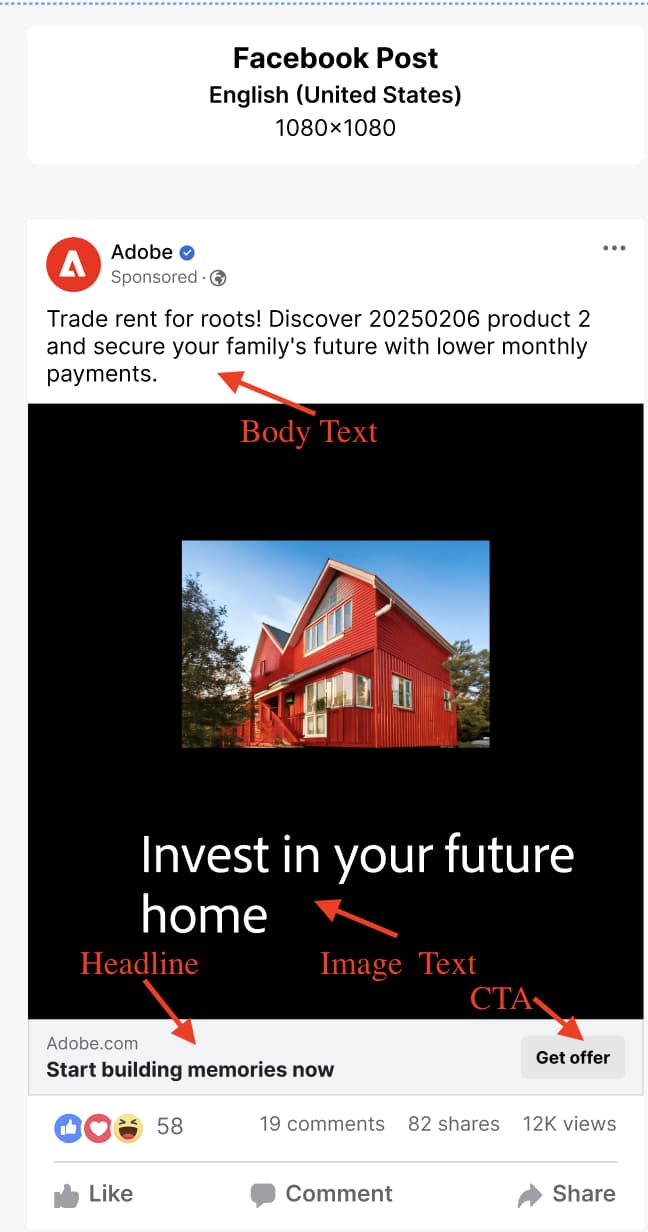
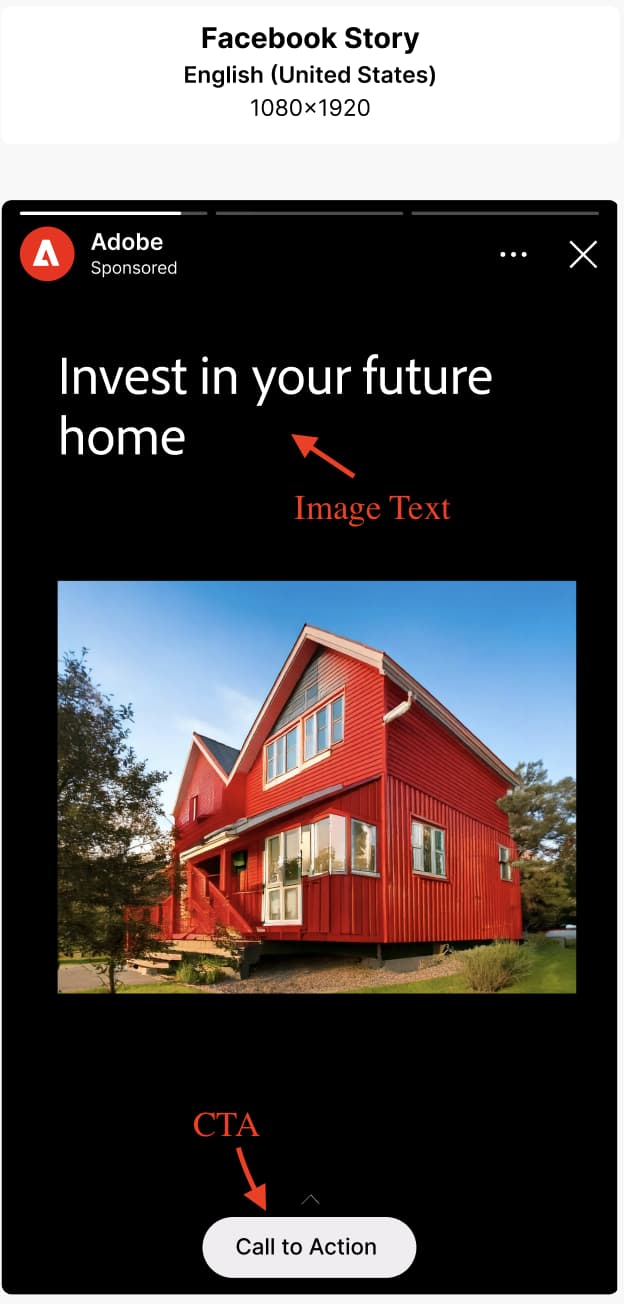
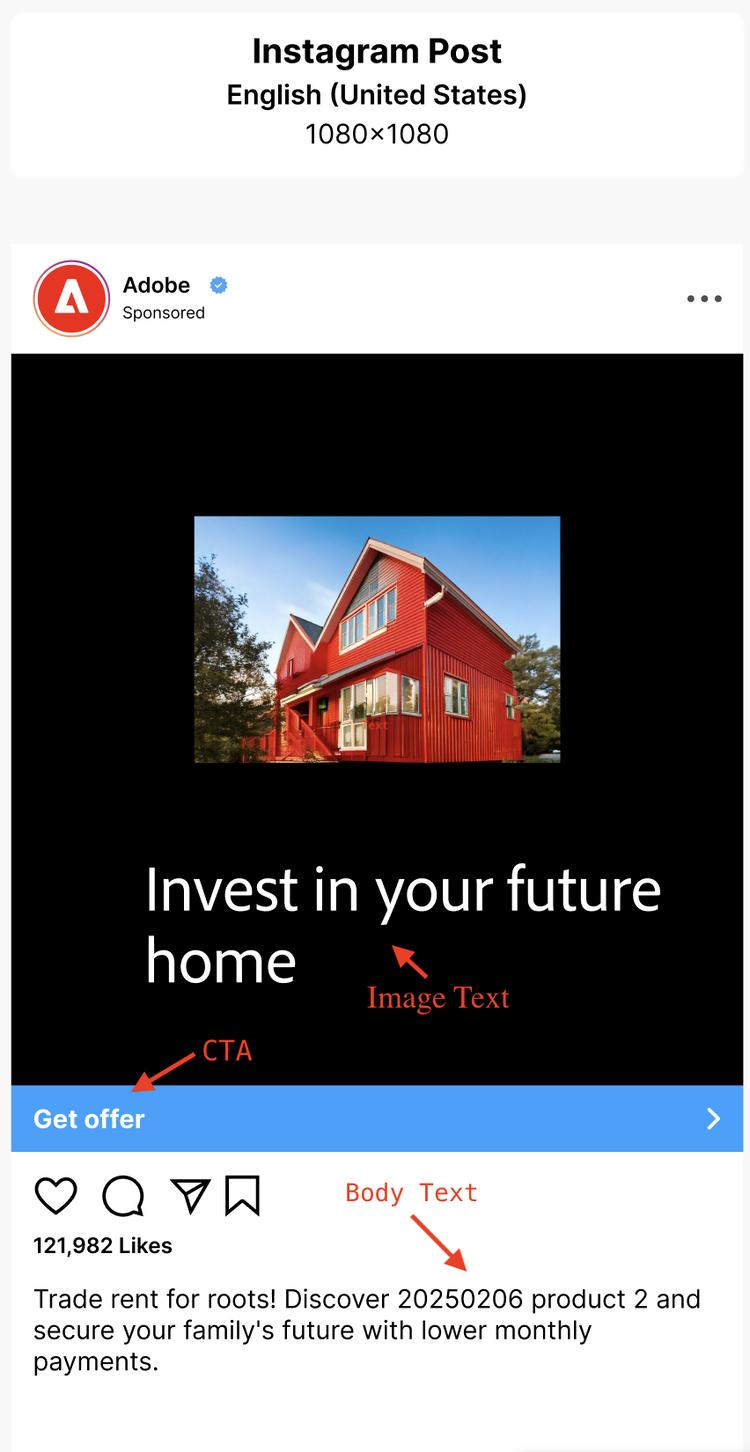
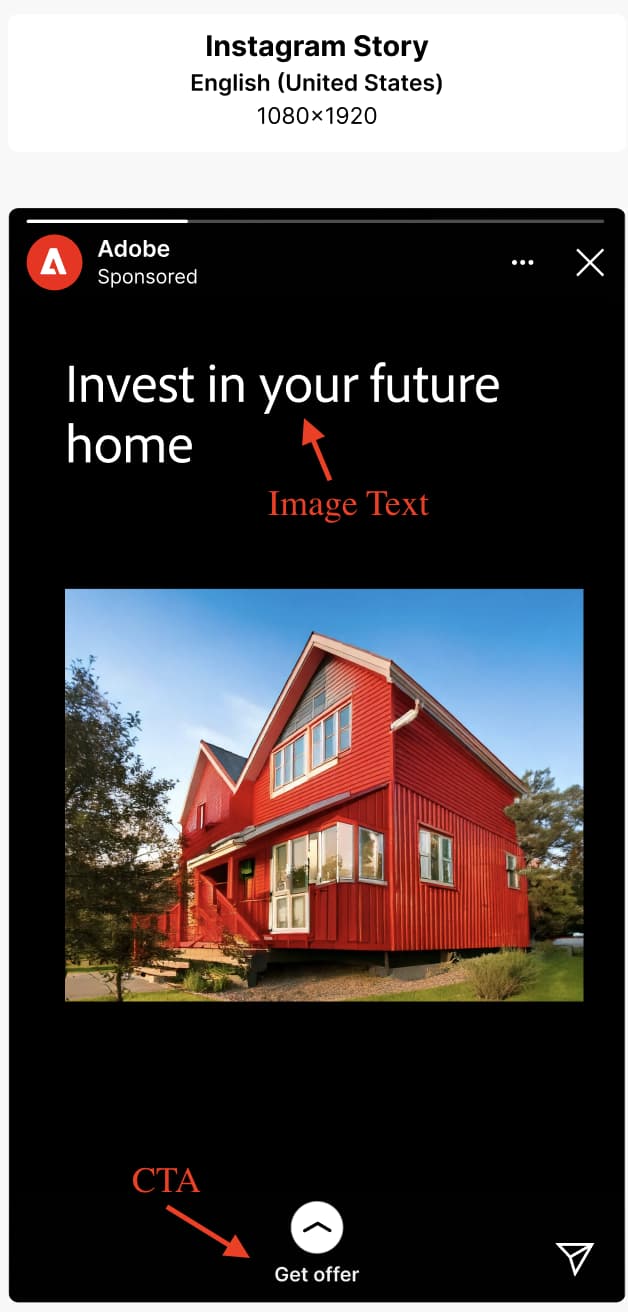
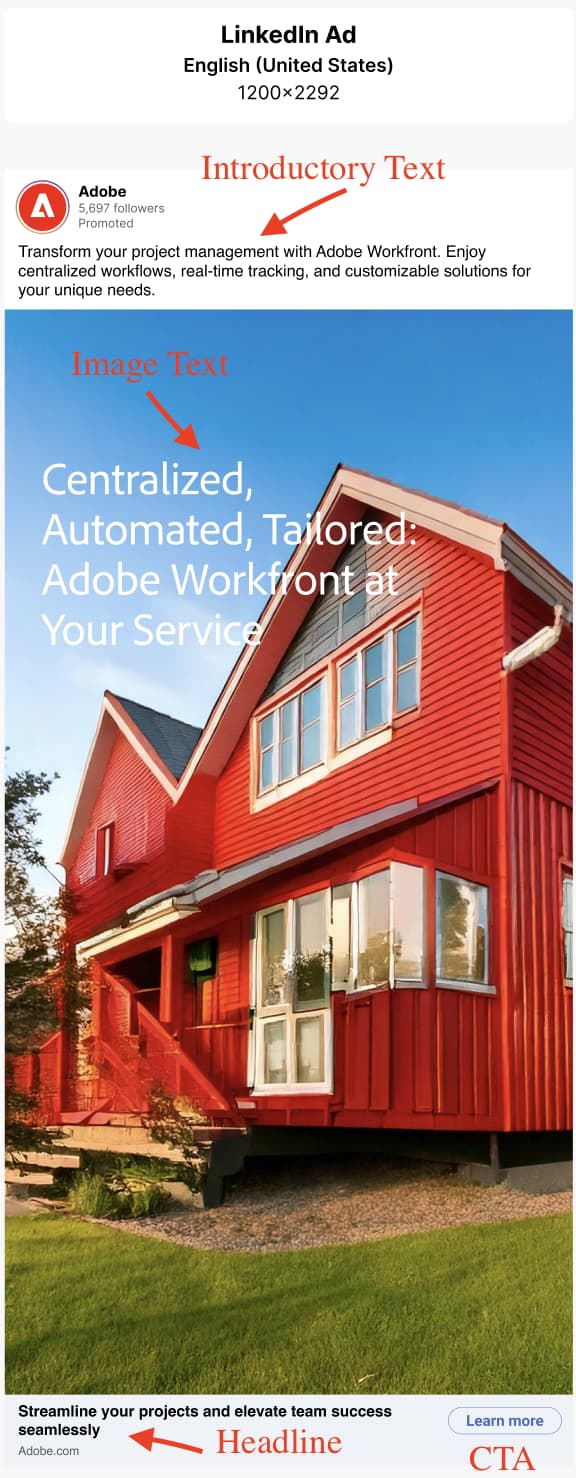
LinkedIn field roles include:
- Image
- Introductory text
- Image text
- Headline
- CTA
- Website URL
- Manual fields
See how some of these field roles are mapped below.
The plugin remembers these mappings to use for generated content. A field role can be mapped to multiple template elements. Manual fields are for elements that you would like to preserve text edibility but won’t be marked for generation.
image field role to at least one image element in your template.To assign element roles:
- Select an element in your template (text, image, and so on).
- Use the dropdown menu to assign a role.
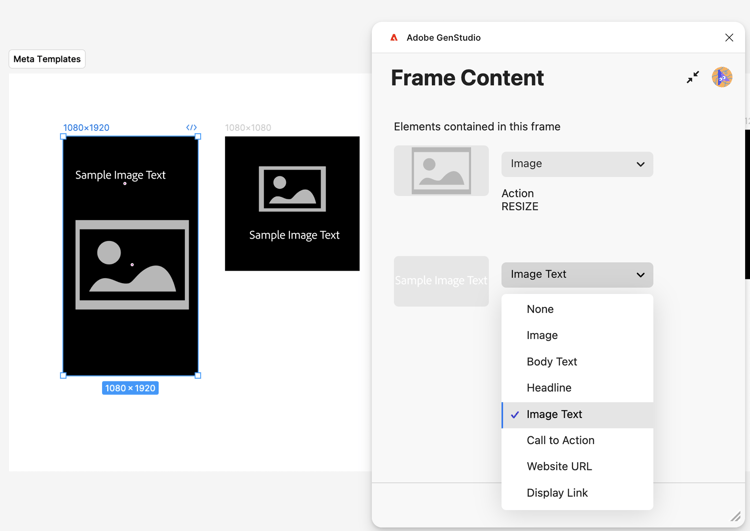
Certain channels only support the replacement of specific fields. For example:
- Meta and LinkedIn ads replace headline, body, and introductory text in the surrounding chrome, not in the ad itself. Consider mapping text on the image as
on_image_text.
Generate new content
Use GenStudio for Performance Marketing AI to generate or make variations to elements in Figma templates.
- If you use the GenStudio Plugin Playground or already prepared templates, select the section node that contains your ad templates. You can do this from the Layers panel or by clicking directly on the section in the canvas.
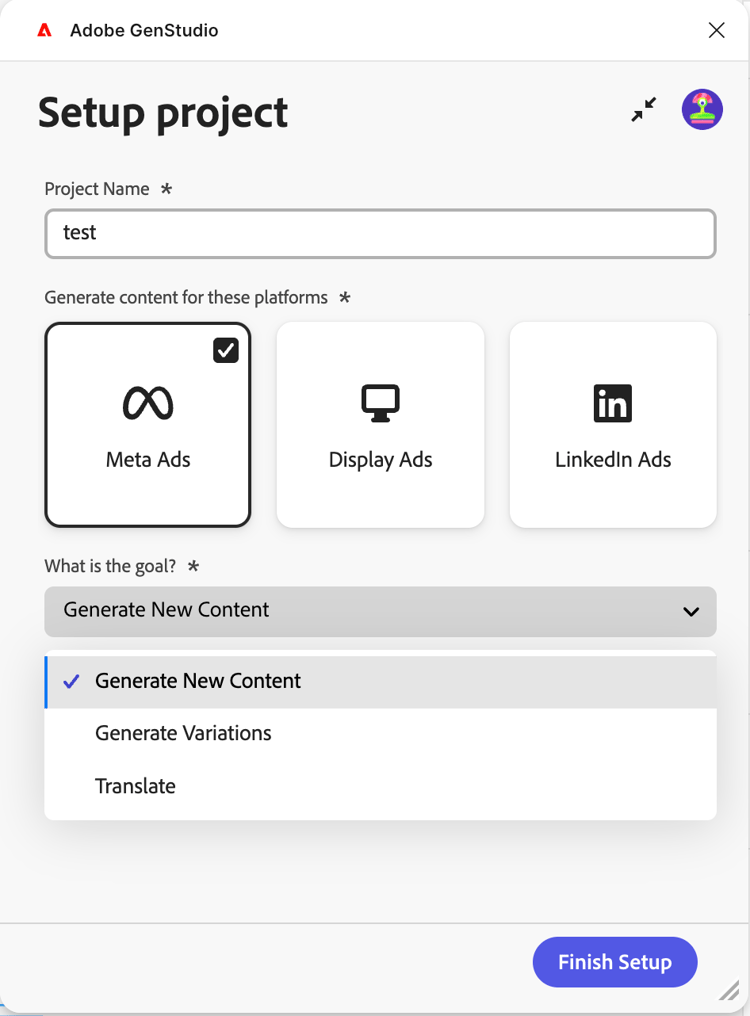
- In the plugin window, enter a project name for the variations, choose a platform for the content, and fill out the other required information. Then click the Finish Setup button.
- Select the Brand, Persona, and Product to use for the content generation.
- Select the number of variations to be produced (up to eight).
- Use the button under Select Content to browse and choose images from your assets. The 40 most recently added assets appear first, and you can search for other assets. Selected images are automatically resized to fit your templates.
- Enter a text prompt. Each field in the Fields list has the Action option set to Generate for new content.
- Map all the field roles. See Field role mapping.
- Click the Generate button.
Translate or generate ad copy variations from existing content
Use GenStudio for Performance Marketing AI to generate ad copy variations or translate Figma templates.
- Select the section node that contains your ad templates. You can do this from the Layers panel or by clicking directly on the section in the canvas.
- In the plugin window, enter a project name for the variations and choose a platform for the content.
- In What is the goal?, select Generate Variations or Translate, then click the Finish Setup button.
- Select the Brand, Persona, and Product to use for the content generation.
- Select the number of variations to be produced.
- Use the button under Select Content to browse and choose images from your assets. The 40 most recently added assets appear first, and you can search for other assets. Selected images are automatically resized to fit your templates.
- Enter a text prompt. Each field in the Fields list has the Action option set to Generate for new content.
- Map all the field roles. See Field role mapping.
- Select each field type to generate variations or translate in the panel on the left side of the plugin, and paste the initial content into each Initial Content box.
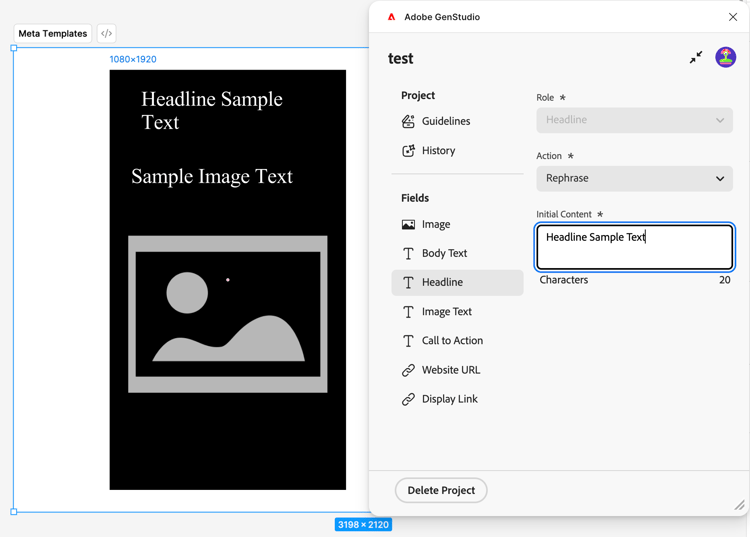
- Click the Generate button.
Translate content after generation
- Select a generation that you want to translate.
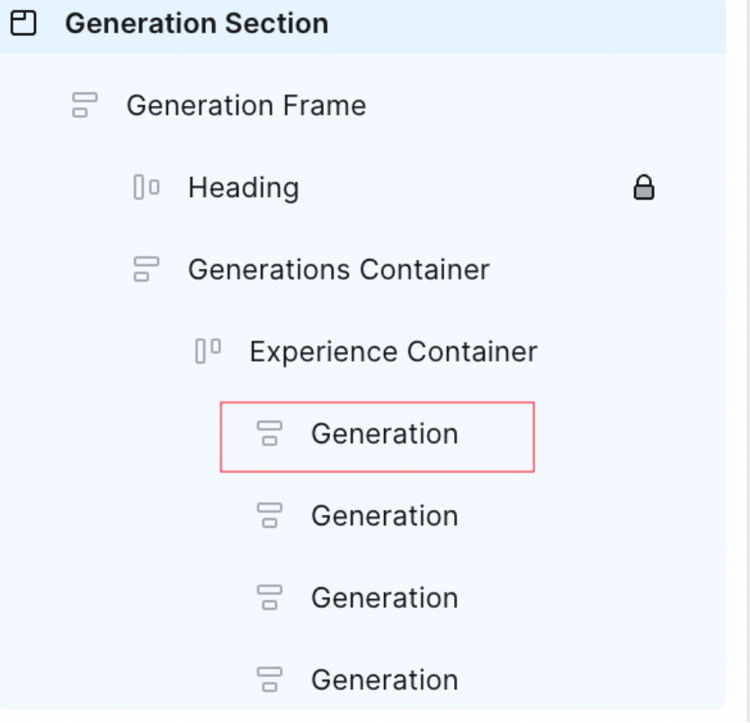
- Choose Translation, then click Translate.
- Select your target language or languages.
- Click Select.
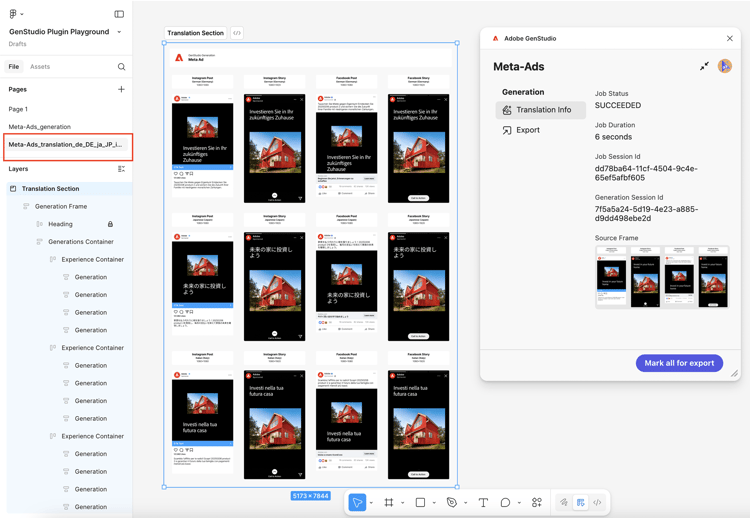
Translation results include:
- A new page appears with translated content.
- Each translation shows the target language or locale.
- Original content remains unchanged in the original page.
Other actions on content fields after generation
When you’re editing existing content in a field, useful options appear in the plugin panel.

Options include:
- Change the Value to alter text directly. Changing this content automatically applies to all selected variations.
- The AI can perform many Action options, including:
After selecting an Action option, regenerate content with the Regenerate button.
Export experiences
Variations can be exported from Figma as GenStudio for Performance Marketing Experiences.
-
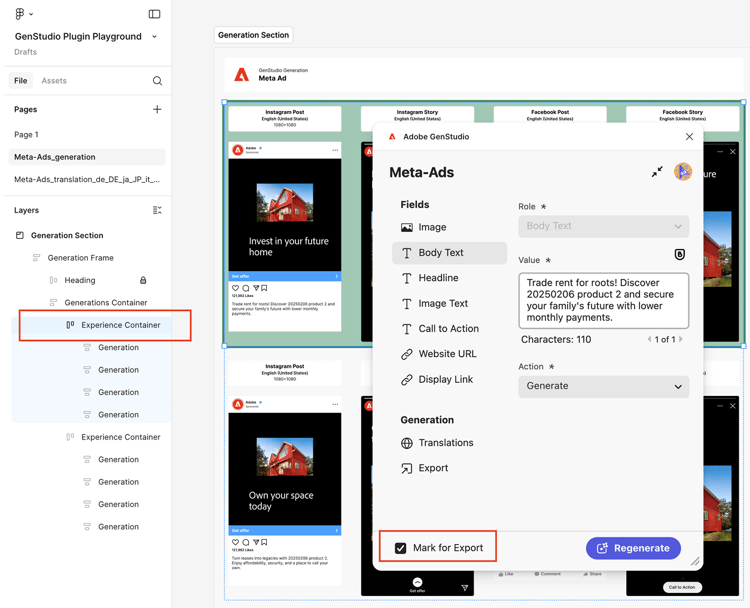
Select the content to be exported in the Figma canvas by doing one of the following:
- Select the generation section in the canvas, then click Mark all for Export in the plugin panel.
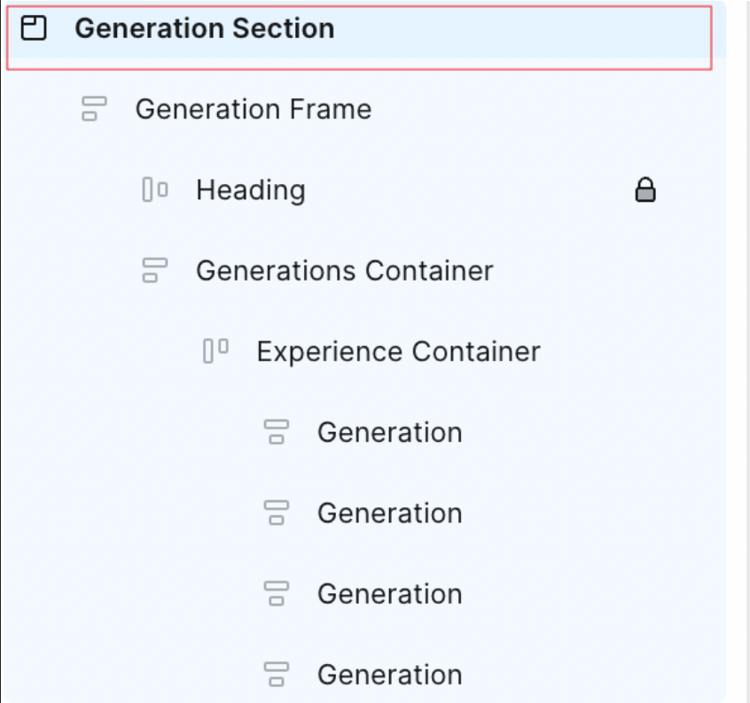
- Select an individual generation in the canvas, then click Mark for Export in the plugin panel.
- Select the generation section in the canvas, then click Mark all for Export in the plugin panel.
-
Select the Export item from the sidebar menu.
-
Select a destination.
-
Click Export to export the content.
A ZIP file is created in the plugin panel, or a link to Open in GenStudio appears. Use the ZIP link to choose where to save the file, or select Open in GenStudio.
Convert Figma frames to Photoshop
You can use the Figma plugin to convert a Figma frame, multiple frames, or an entire document to Photoshop format and export it for use with GenStudio Photoshop. Currently, only major properties such as visibility, font size, and basic layer attributes are supported during conversion. Features such as strikethrough, superscript, subscript, opacity as percentages, gradients, and similar advanced properties are not yet supported.
The plugin supports the following Figma layer types for conversion:
- Frame
- Group
- Instance
- Text
- Vector
- Image
When you convert to PSD, supported layers map to Photoshop as follows:
- Figma frames are converted into Photoshop layer groups.
- Nested frames become nested groups.
- Frame dimensions become the PSD artboard or group bounds (depending on selection).
- Figma groups convert directly into Photoshop layer groups.
- Layer hierarchy and stacking order are preserved.
- Components and instances are flattened into standard Photoshop layer groups. Component metadata and variant logic are not preserved.
- All child layers remain inside the group.
- Figma text layers convert into editable Photoshop text layers.
- Text hierarchy and positioning are preserved.
- Figma vector layers convert into Photoshop shape layers.
- Paths are preserved when possible.
- Complex vectors may be rasterized if unsupported effects are applied.
- Figma image layers convert into Photoshop raster layers.
- Image scaling and positioning are preserved.
How to convert frames
To convert frames:
-
Open the Firefly Enterprise and GenStudio plugin in Figma and click the Export tab in the plugin UI.
-
On the canvas, select the frame or frames to export. You can choose a single frame or multiple frames.
note NOTE Frames cannot be within a section during conversion. Select frames that are not nested inside a section node. -
To migrate the selected frame(s), do one of the following:
- Click Export to export the converted file to a chosen location, or
- Click Transfer to Photoshop to cache the converted file for immediate use in GenStudio Photoshop.

-
Next, share your Figma file link. The plugin needs a Figma file URL to complete the conversion. Add the URL for your document.
- In Figma, click Share in the upper-right corner of the canvas.
- In Share this file, click Copy link.
- Paste the copied link into the Figma File link field in the GenStudio for Performance Marketing plugin dialog. This needs to be done FOR EACH FILE:

- Click Submit.
-
A pop-up will appear asking for access to read the contents and metadata of your file. This only needs to be done once for all files. Click Allow access. The plugin will read the selected frames in Figma and convert them to a JSON document, an intermediary format for the file data.

-
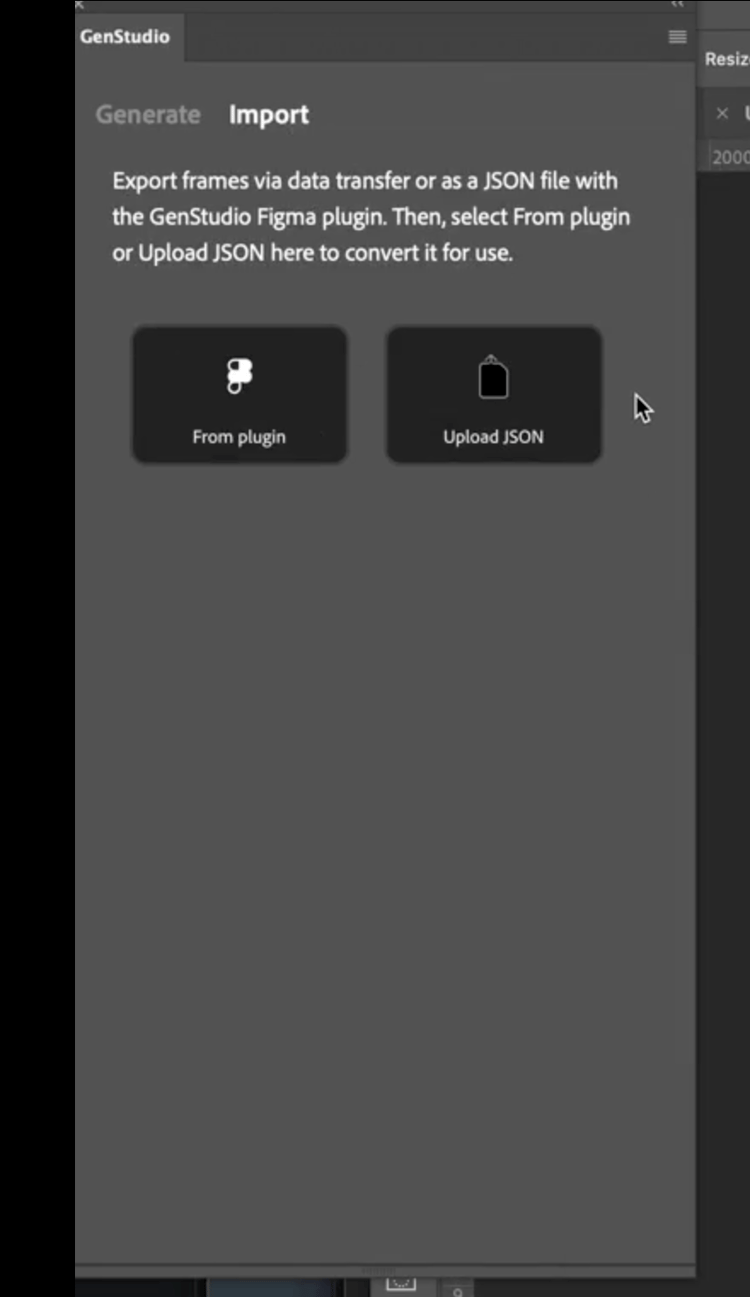
In Photoshop, open GenStudio Photoshop and click the Import tab.
-
To select the converted file(s) do one of the following steps :
- Click From Plugin to choose a file converted with Transfer to GenStudio Photoshop from the cached files list, or
- Click Upload JSON to browse to and select the JSON file to upload.
-
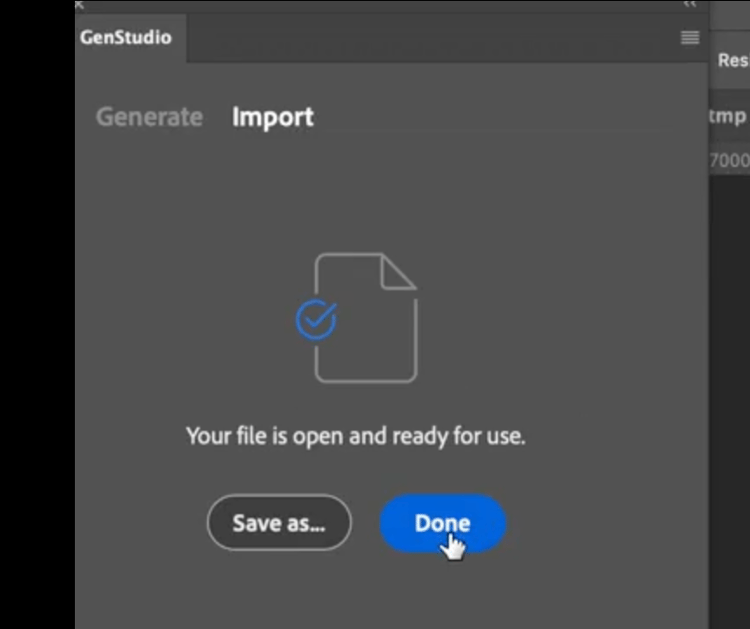
GenStudio Photoshop converts the information from the JSON document into an open Photoshop document.
-
Click Done. The new file opens in Photoshop and is ready to use. Or click Save As… to choose a location to save the file.
Generation history
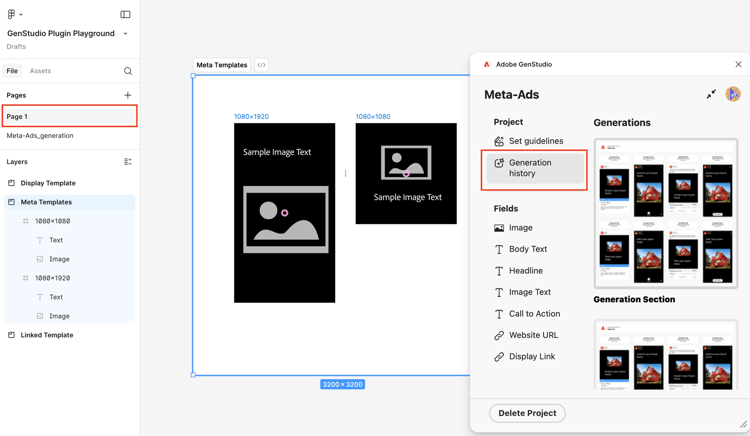
The plugin maintains a history of changes for each field. On the template page, choose Generation history in the plugin sidebar.
Troubleshooting
Consider these best practices and tips if text or images are not being replaced in generated variations.
Mapped fields
If text or images are not being replaced, check that fields have been mapped to GenStudio field roles in the plugin UI. See Field role mapping.
Confirm fonts are available
A text field’s font must be available on your machine for replacement to occur during generation. Confirm that all fonts used in the file are available on your machine, especially if the file was created on someone else’s machine.
Consider field role support
Certain channels only support replacement in specific fields. Be aware of exceptions for field role mapping.