Experience Selector MFE in Salesforce
This topic explains how customers and implementers can deploy and run the GenStudio for Performance Marketing Experience Selector micro frontend (MFE) in a Salesforce org. It covers administrator steps (no code), developer steps (deploy and configure), and security-related settings such as Content Security Policy (CSP).
For generic MFE integration options, configuration properties, and framework examples, see GenStudio Experience Selector MFE.
What this integration does
The Lightning Web Component (LWC) sfgsmfe loads Adobe’s Experience Selector UMD bundle and renders it in a <dialog> so users can pick an experience from GenStudio for Performance Marketing.
The integration can also:
- Preview and decode: Show the selected payload as JSON, decoded HTML, and a sanitized HTML preview inside the LWC.
- Email templates (optional): A Create Email Template flow in Salesforce can call Apex (
EmailTemplateController.createEmailTemplate) to insert anEmailTemplaterecord (HTML, subject, and folder).
The Experience Selector script for GenStudio for Performance Marketing is loaded from Adobe’s hosted URL on experience.adobe.com, not from a Salesforce Static Resource in the typical implementation.
Prerequisites
-
Salesforce org: A sandbox or production org where you can deploy metadata and use Lightning App Builder.
-
Salesforce CLI: The Salesforce CLI (
sf) is installed and authenticated, for example:code language-bash sf org login web --alias <your-org-alias> -
Permissions: Users who create email templates need access to the target email template folder and rights to create templates according to your org policies. Apex runs
with sharing. -
Adobe / GenStudio: Your Adobe IMS organization ID and SUSI
clientIdmust match your Adobe configuration (see Configure integration values). -
Browser / CSP: Salesforce must allow loading scripts from
https://experience.adobe.com(see Configure content security policy and Adobe URL).
Deploy the package (developer)
The project uses Salesforce DX layout; the default package directory is force-app.
-
From your project root, deploy source to the target org:
code language-bash sf project deploy start --source-dir force-app --target-org <your-org-alias> -
Confirm that deployment completes without errors.
force-app/main/default/lwc/sfgsmfe— LWC bundle (HTML, JS, CSS, meta).force-app/main/default/classes/EmailTemplateController.cls— Apex for template creation.
The repo may also contain Static Resources (reactApp, sfgsmfe_react). The current GenStudio for Performance Marketing loader in sfgsmfe.js uses the Adobe CDN URL for standalone.js; those Static Resources are not required for that load path unless you change the implementation.
Add the component to a Lightning page (admin)
The sfgsmfe component is exposed for:
- Lightning app pages
- Home pages
- Record pages
- Tabs (via a Lightning page on a custom tab)
To add the component:
- In Setup, open App Manager.
- Create a New Lightning App (or open an existing app you want to extend).
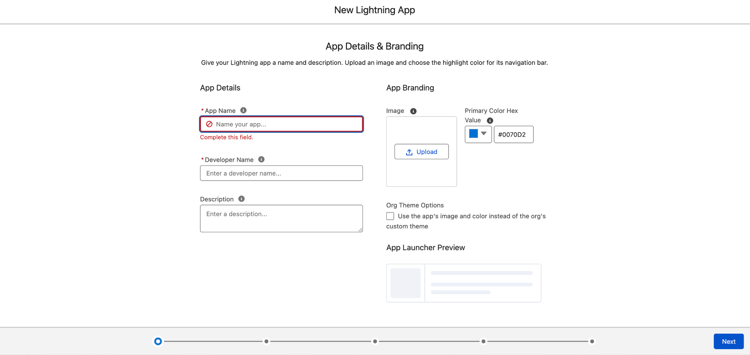
- Open the app and select Edit.

- Create a New Page (or edit an existing Lightning page).
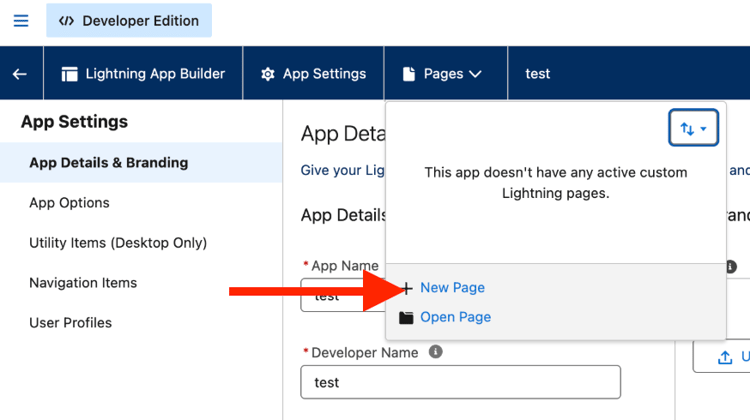
- In Lightning App Builder, drag the sfgsmfe component onto the layout.
- Save, Activate, and assign the page to the correct Lightning app, profiles, and app visibility so intended users can open it.
Configure content security policy and Adobe URL
The LWC injects a <script> tag whose src points at Adobe’s UMD bundle, for example:
https://experience.adobe.com/solutions/GenStudio-experience-selector-mfe/static-assets/resources/@genstudio/experience-selector/umd/standalone.js
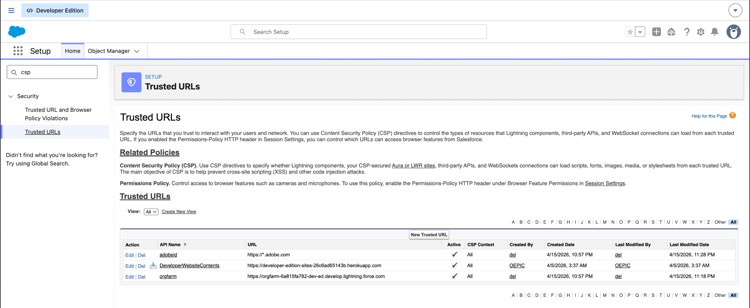
You must configure Salesforce so this origin is permitted for script loading according to your org’s CSP and Lightning security settings.
If the script fails to load:
- Open the browser developer tools.
- Check the Console and Network tabs for blocked requests or CSP violations.
- Add or adjust Trusted URLs (and any related settings for your Salesforce release) for
https://experience.adobe.com, following current Salesforce documentation for Lightning.
Configure integration values (developer / implementation)
Several values are set in the LWC JavaScript for sfgsmfe. Customers typically replace these per environment.
folderId00l...) for email templates where new templates are created. Required for Apex; the folder must exist and be accessible to the running user.imsOrgGenStudioExperienceSelector.renderExperienceSelectorWithSUSI.susiConfig.clientIdscript.srcstandalone.js bundle; update if Adobe publishes a new path.Email template creation maps GenStudio fields to the template (for example, subject from experienceFields). Adjust mappings in the LWC if your content model differs.
For details on renderExperienceSelectorWithSUSI and related options, see Configuration properties in the Experience Selector MFE topic.
Apex: EmailTemplateController
EmailTemplateController.createEmailTemplate typically:
- Validates the template name, folder ID, and non-empty HTML.
- Creates an
EmailTemplatewithTemplateType = 'custom',HtmlValue,Subject,Body, and folder assignment. - Surfaces errors to the LWC through
AuraHandledException.
Operational tips:
- Respect DeveloperName uniqueness and naming rules in the org.
- Confirm the folder ID and that the user can create
EmailTemplaterecords in that folder. - Use Salesforce debug logs when DML fails to capture the exact error.
Validation checklist
Confirm the items in this list after deployment and configuration for a confident validation of the integration:
- Deployment completes without errors.
- Users can open the Lightning page that contains
sfgsmfeand see the Experience Selector UI. - The component does not show a load error; the Network tab returns HTTP 200 for
standalone.js. - Select a GenStudio Experience opens the selector and selection callbacks run.
- Create Email Template succeeds when you use that flow, and the template appears under the configured folder in Setup.