Marketo for GenStudio
Organizations that use Marketo Engage and GenStudio for Performance Marketing in the same IMS organization can install the Marketo for GenStudio app from Adobe Exchange. After a system administrator approves the app and completes deployment, authors can choose Marketo templates while creating email experiences in GenStudio, next to templates uploaded directly to Content.
This topic is for administrators who install the app, gather credentials from Marketo, and deploy the app in Exchange. For how AJO and Marketo template syntax works with GenStudio, see Templates from AJO and Marketo.
Prerequisites
- Marketo Engage must be provisioned in the organization where you deploy the extension.
- Users who deploy the application need Marketo credentials. To create and retrieve those credentials, you must have Marketo Product Admin access (the Admin area must be available when you open Marketo).
Install the app from Adobe Exchange
- Open Adobe Exchange and go to CX Enterprise.
- Open the Marketo for GenStudio listing.
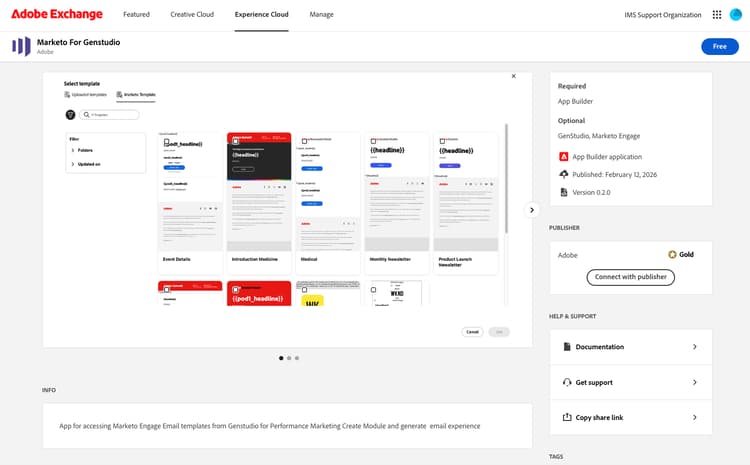
- Select Free to request the app for your organization.
- After your organization reviews and approves the request, continue with Get Marketo credentials and Deploy the application from Exchange.
Get Marketo credentials
You use credentials from your Marketo instance (not the Adobe Developer Console). Collect the following credentials using the steps below before you deploy in Exchange.
Create an API-only user (optional if you reuse an existing API user)
- In Marketo, go to Admin.
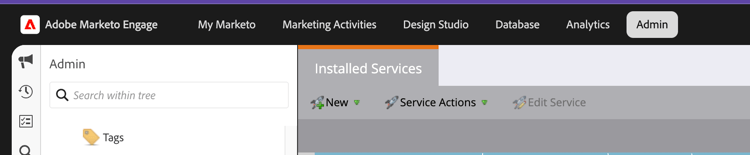
- Under Security, open Users & Roles and go to the Roles tab.
- Create a new role or edit an existing role, with the following permissions added: Access API and Access Design Studio.
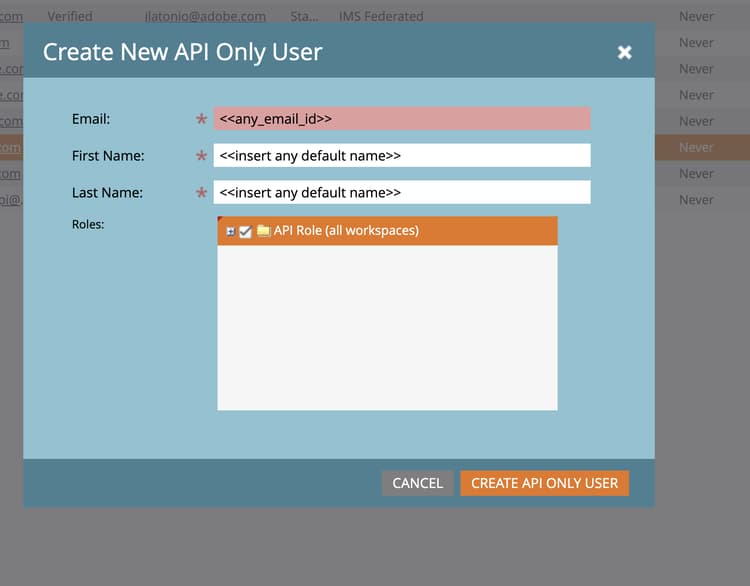
- For a new API user, click Create API Only User (use a unique email for each API user).
- Select the checkbox for Roles and assign the new role you created. If you already have an API user you want to use, skip to Create or select a LaunchPoint service.
Create or select a LaunchPoint service
- In Admin, under Integration, open LaunchPoint.
- Click Create to create a new Service (or use an existing custom service).
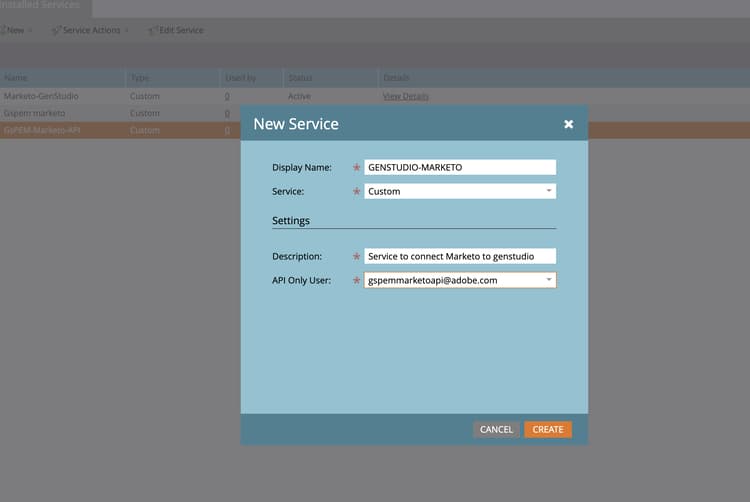
- For your service, click View Details and copy the Client ID and Client Secret. You will enter these in Adobe Exchange Configuration.
Note your Marketo REST API base URL
- In Admin, under Integration, open Web Services.
- Find the REST API endpoint. Copy only the base URL (host), in the form
https://###-XXX-###.mktorest.com. Do not include path segments such as/restor/identity. This value is unique per Marketo instance.
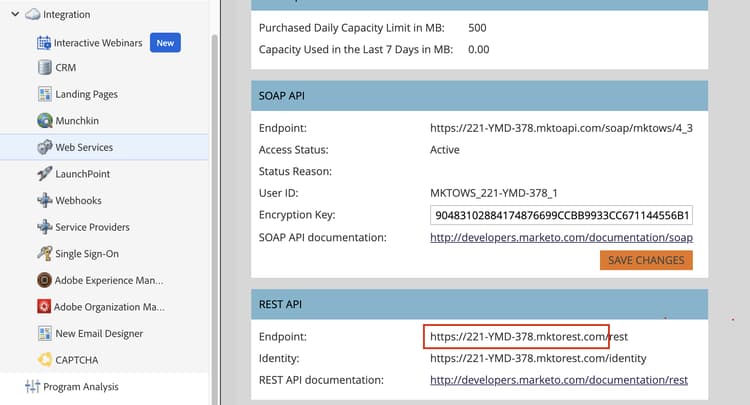
You will also need the Marketo Engage Identity URL that your Exchange deployment screen requests, alongside the REST base URL and the Client ID and Client Secret from LaunchPoint.
Deploy the application from Exchange
To make the extension available in GenStudio, deploy the app from Adobe Exchange.
- Return to Adobe Exchange.
- Select Manage and open the Marketo for GenStudio app (for example under App Builder applications or your organization’s managed apps).
- Under Environments, choose an existing environment from the dropdown or select Add Environment to create one.
- Open Configuration for the selected environment.
- Enter the Client ID and Client Secret from LaunchPoint, the Marketo Engage Identity URL, and the Marketo Engage REST API Base URL (the base host from Web Services)for both the Marketo Engage Identity URL and Marketo Engage REST API Base URL.
- Click Deploy. When deployment succeeds, the action changes to Undeploy.
Update configuration
To change configuration values for an environment, Undeploy first, update the fields, then Deploy again.
Workspace configuration (optional)
You may skip this step if you intend to use the default workspace. By default, the Workspace ID and Template List Page Size fields are preconfigured.
However, if you need to fetch templates from a different workspace:
- In Marketo, navigate to Admin → Security → Workspaces & Partitions.
- The Workspace ID column is hidden by default. To enable it, right-click on the header row (where column names are displayed).
- Select Columns.
- Enable ID from the list.
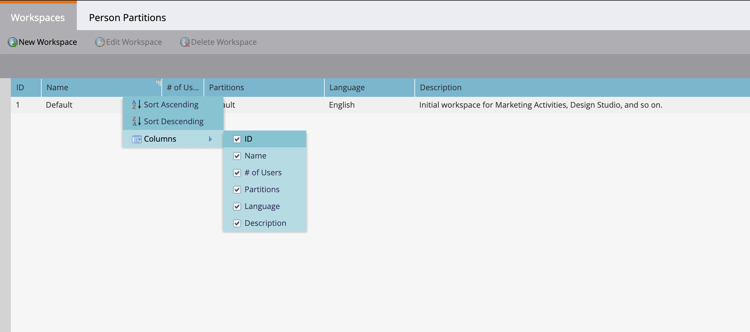
Once visible, use the appropriate Workspace ID for your configuration.
Access Marketo templates in GenStudio
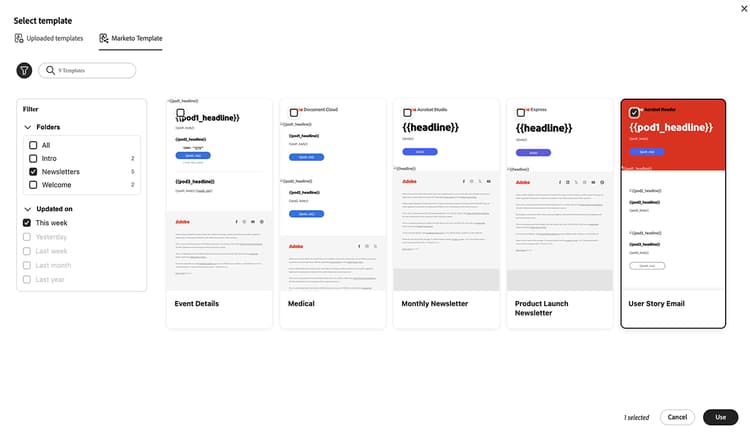
After Marketo for GenStudio is installed and configured, a Marketo Templates tab appears when you create an Email experience in GenStudio. Use that tab to browse templates from Marketo Engage.
Troubleshooting
Marketo Templates tab is not visible
- Confirm the app is Approved in Exchange and the environment is deployed with valid Client ID, Client Secret, and Marketo base URLs.
- Ask your administrator to verify Marketo Product Admin access was used when creating credentials.
Templates do not load
- Reload the page or sign out and back in to GenStudio.
- In the browser developer tools Network panel, look for failed API calls to your Marketo instance and verify the REST base URL matches Web Services in Marketo (no extra path after the host).
“No templates found” error
If the extension installs successfully and the Marketo Templates tab is visible but displays “No templates found,” the issue may be caused by the application exceeding size limits while rendering templates, leading to a crash.
To resolve this:
- Undeploy the application from Exchange.
- Reduce the template list page size (for example, set it to 1 or 2).
- Redeploy the application.