Journey Optimizer for GenStudio
Organizations that use Adobe Journey Optimizer (AJO) and GenStudio for Performance Marketing in the same IMS organization can install the Journey Optimizer for GenStudio app from Adobe Exchange. After a system administrator approves the app and completes deployment, authors can choose AJO content templates while creating email experiences in GenStudio, next to templates uploaded directly to Content.
This topic is for administrators and developers who install the app, create OAuth credentials in the Adobe Developer Console, and map technical-account permissions in Adobe Experience Platform. For how AJO and Marketo template syntax works with GenStudio, see Templates from AJO and Marketo.
Prerequisites
- AJO must be provisioned in the organization where you deploy the extension.
- Users who author templates in AJO need permission to create and edit content templates in Journey Optimizer, as your organization defines.
- Email templates in AJO must include field placeholders (handlebars) where generated content should appear. A template can be selected without those fields, but experience generation fails if the placeholders GenStudio for Performance Marketing expects are missing. See Customize a template and Recognized field names.
Install the app from Adobe Exchange
- Open Adobe Exchange and go to CX Enterprise.
- Open the Journey Optimizer for GenStudio listing.
- Select Free to request the app for your organization.
- After your organization reviews and approves the request, continue with Create OAuth credentials in Adobe Developer Console and Deploy the application from Exchange.
Create OAuth credentials in Adobe Developer Console
Create a project in the Adobe Developer Console that provides OAuth credentials for the Journey Optimizer API. You will need values such as Client ID, Client Secret, Org ID, and Scope when you configure the app in Exchange.
- Sign in to the Adobe Developer Console and create a new project.
- Add the Adobe Journey Optimizer (AJO) API to the project by clicking Add API and selecting Adobe Journey Optimizer from the CX Enterprise product APIs list.
- Generate credentials in the project workspace and copy Client ID, Client Secret, Org ID, Scope, and any other values your deployment flow asks for. Store them securely for the next section.
Deploy the application from Exchange
Open the app in Manage and add an environment
- Return to Adobe Exchange.
- Select Manage and open App Builder applications (or your organization’s path to managed apps).
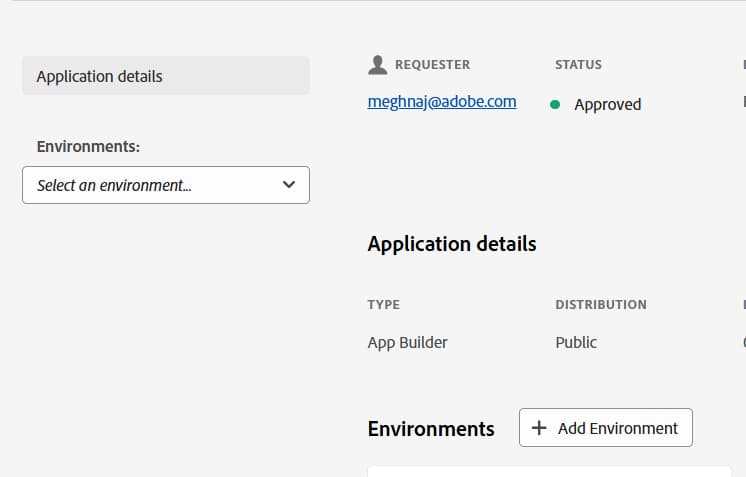
- Select Journey Optimizer for GenStudio and confirm the app is Approved.
- Under Environments, choose an existing environment from the Environments: dropdown or select Add Environment to create one.
- In the selected environment, select Configuration.
- On the Configuration tab, find AJO Credentials.
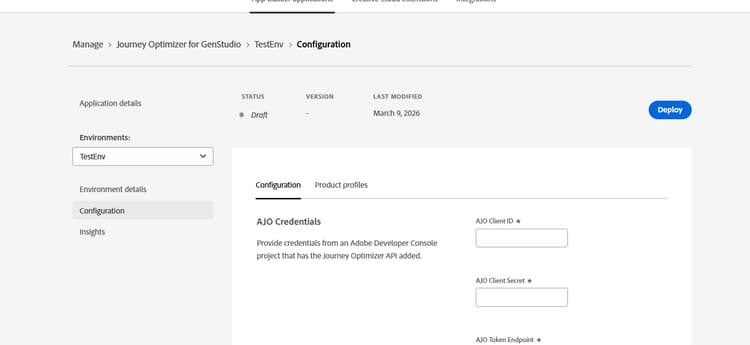
- Enter the credentials from the Developer Console project that has the Journey Optimizer API added (for example, AJO Client ID, AJO Client Secret, and AJO Token Endpoint and any other required fields).
- Enter the sandbox name in all lowercase (for example,
prod). - Click Deploy. When deployment finishes, the status shows as deployed. The button text will change to Undeploy.
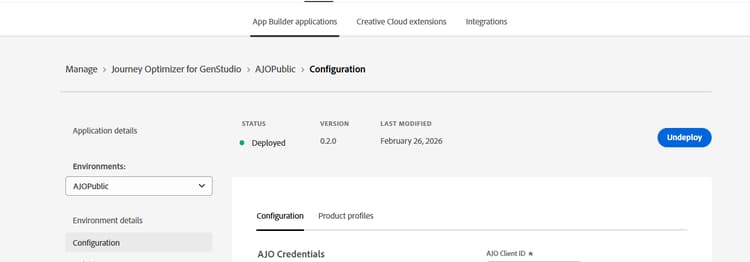
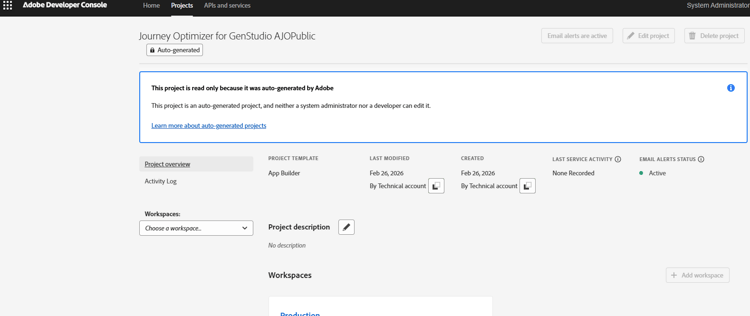
After deployment, the Adobe Developer Console includes a new auto-generated project named Journey Optimizer for GenStudio <Your_Environment_Name> with AJO and Adobe Runtime APIs. This project is read-only and cannot be edited or deleted.
Update configuration
To change configuration variables for an environment, Undeploy first, update values, then Deploy again so changes take effect.
You can create multiple environments in Exchange (for example, one per sandbox). Each deployment can surface as a separate experience in GenStudio when your organization uses multiple sandboxes.
Map permissions for the technical account
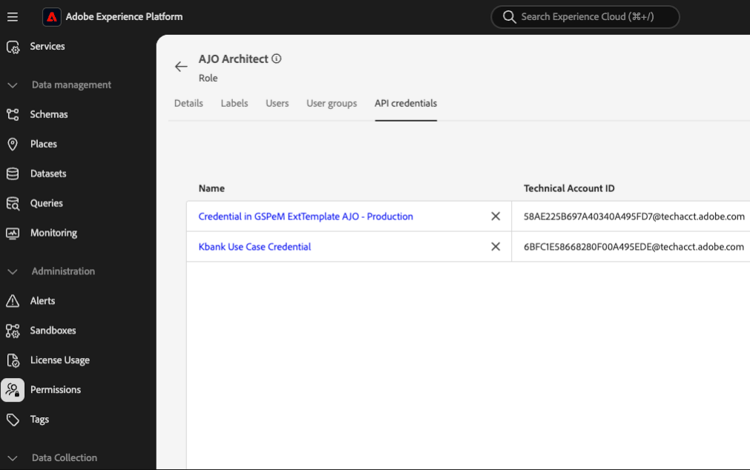
Users can see the AJO extension in GenStudio without full Adobe Experience Platform access. For API calls (for example, loading templates), the technical account tied to the OAuth credentials must be granted Journey Optimizer permissions in Adobe Experience Platform > Permissions. The exact role names and permission sets depend on your organization.
View the extension under Journey Administrator in AJO Permissions > Roles and add the API credentials from the Developer Console project, the same credentials you used when deploying from Exchange.
See also (Journey Optimizer access control):
Access AJO templates in GenStudio
After deployment and permission mapping:
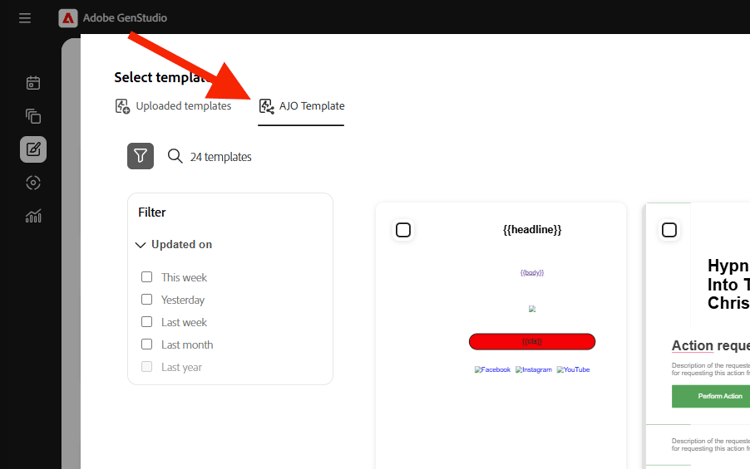
- Open Create in GenStudio for Performance Marketing and start an Email experience.
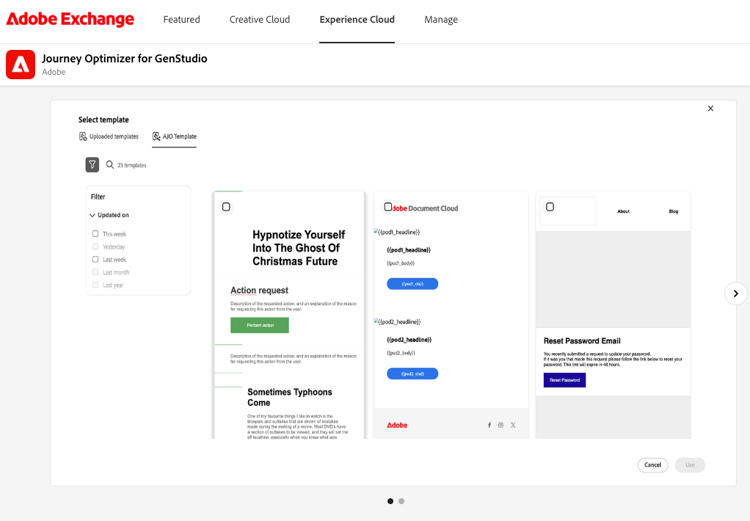
- In Select template, open the AJO Template tab beside Uploaded templates to browse templates from Journey Optimizer.
Troubleshooting
AJO Templates tab is not visible
- Confirm the values entered in Exchange Configuration are correct, including Client ID, Client Secret, Scope, and Sandbox.
- Ensure the sandbox name is lowercase (for example,
prod). - When installing from Exchange, use the Client ID as described in Create OAuth credentials.
AJO Templates tab is visible but no templates appear
- Reload the page or open the AJO Template tab again.
- In the browser Network tools, inspect the
get-templatesrequest. If it returns 403 Forbidden, the technical account is not assigned to a role or group with the required Journey Optimizer permissions. Update mappings in Adobe Experience Platform Permissions and in AJO Permissions as your organization requires.