Enrich Adobe Experience Platform audiences with external data connect-aep-fac
Adobe Experience Platform allows seamless integration of audiences from the Audience Portal with your external databases using the Adobe Federated Audience Composition destination. With this integration, you can leverage existing audiences into compositions and enrich or refine them using data from your external databases to create new audiences.
To do so, you need to setup a new connection in Adobe Experience Platform to the Adobe Federated Audience Composition destination. You can use a scheduler to send a given audience at regular frequencies, select specific attributes to include, such as IDs for data reconciliation. If you have applied governance and privacy policies to your audience, they will be kept and sent back to the audience portal once the audience has been updated.
For instance, let’s say you are storing purchase information in your data warehouse and have an Adobe Experience Platform audience targeting customers interested in a specific product within the last two months. Using the Federated Audience Composition destination, you can:
- Refine the audience based on purchase information. For example, you can filter the audience to target customers who have made a purchase of more than $150 only.
- Enrich the audience with fields related to purchases such as the product name and the quantity purchased.
Activate audience to destination activate
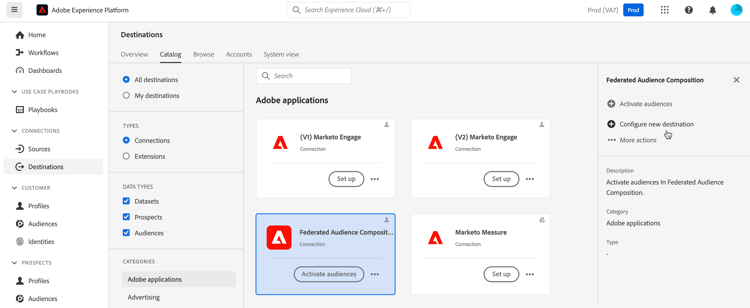
Within the Adobe Experience Platform Destinations catalog, select the Federated Audience Composition destination. In the right pane, select Configure new destination.
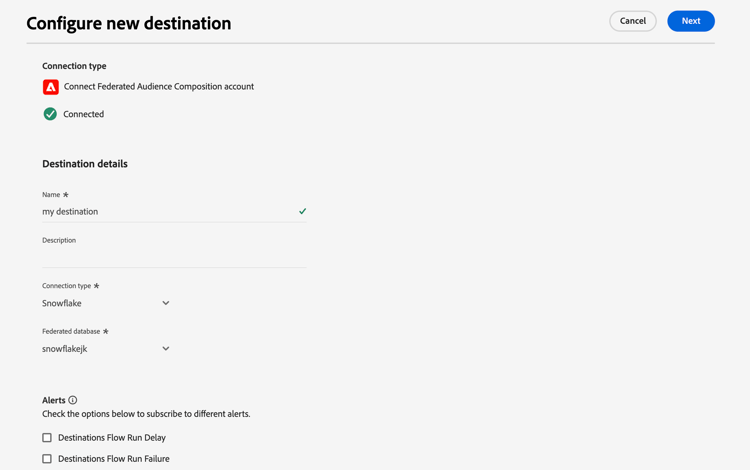
The Configure new destination page appears. On this page, you can configure details of your destination, including the name, description, connection type, and federated database.
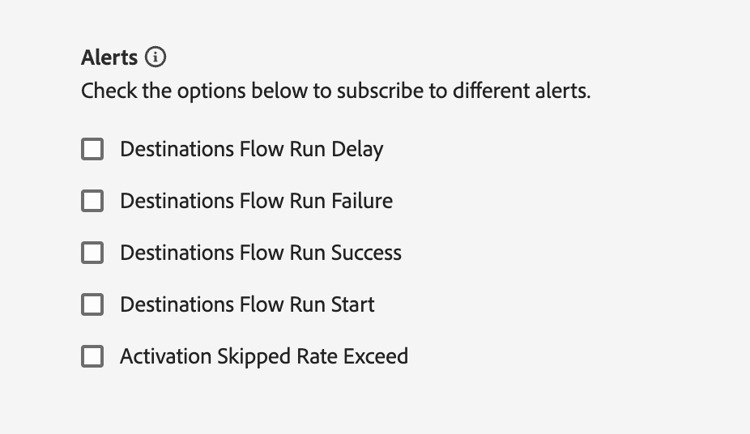
In the Alerts section, you can enable alerts to receive notifications on the status of the dataflow to your destination. These include alerts for dataflow run delays, run failures, run successes, run starts, and activation skips.
For more information on alerts, read the Adobe Experience Platform documentation about subscribing to destinations alerts using the UI.
Once you’ve finished configuring the details of your destination, select Next. The Governance policy & enforcement actions step appears. On this page, you can define your data governance policies and ensure that the data used is compliant when audiences are sent and active.
When you finish selecting the desired marketing actions for the destination, select Create.
The new connection to the destination is created. You can now activate audiences to send over to the destination. Choose the destination you want to activate the audiences to, followed by Next.
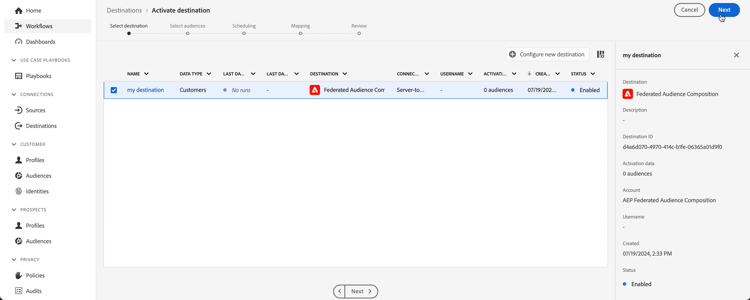
The Scheduling step is displayed. You can select the desired audiences that you want to activate to the destination. To set up a schedule, select

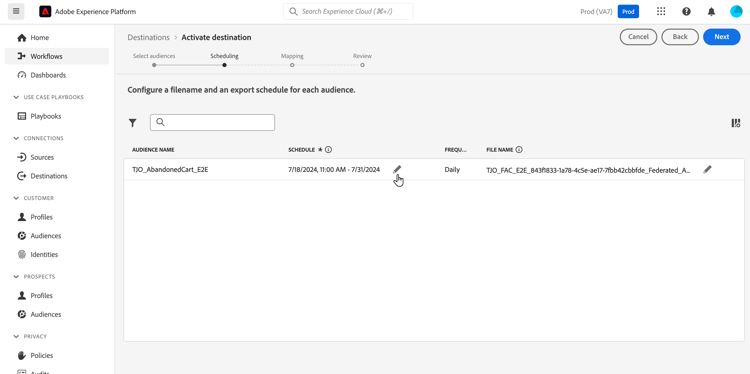
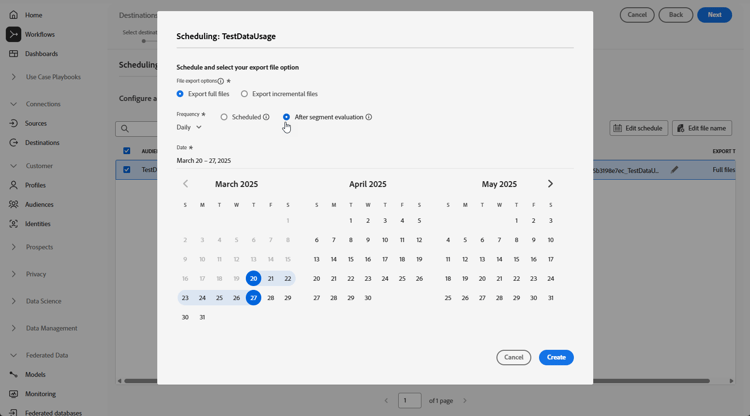
The Scheduling popover appears. On this popover, you can define your file export options, frequency, and set up your schedule.
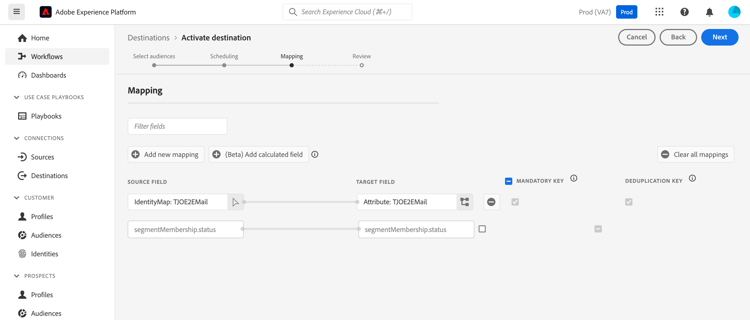
In the Mapping step, select which attribute and identity fields to export for your audience(s).
For more information, read the mapping section in the Adobe Experience Platform documentation.
Review the destination configuration and audience settings, then select Finish.
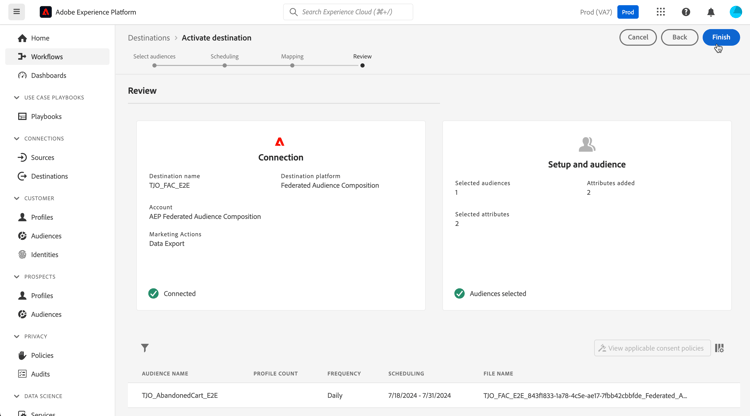
The selected audiences are now activated for the new connection. You can add more audiences to send with this connection by navigating back to the Activate audiences page. You cannot remove audiences once they are activated.