Personalization configuration settings personalization
This configuration section allows you to determine how you want to hide certain parts of the page while personalized content is loaded. When configured correctly, these settings ensure that your visitors see the right personalized content.
- Log in to experience.adobe.com using your Adobe ID credentials.
- Navigate to Data Collection > Tags.
- Select the desired tag property.
- Navigate to Extensions, then select Configure on the Adobe Experience Platform Web SDK card.
- Scroll down to the Personalization section.
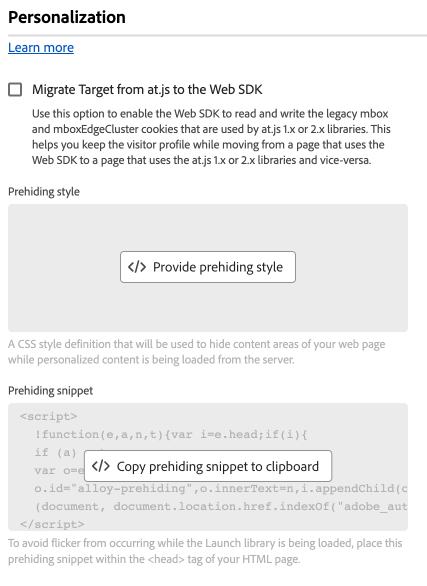
The following options are available:
Migrate Target from at.js to the Web SDK**
Use this option to allow the Web SDK to read and write the legacy mbox and mboxEdgeCluster cookies that are used by the at.js 1.x or 2.x libraries. This setting helps keep visitor profiles intact while moving between pages using the Web SDK or at.js on the same website. If you do not have at.js implemented anywhere on your site, you do not need to enable this checkbox. The JavaScript library equivalent to this checkbox is targetMigrationEnabled.
When enabling this option, make sure that you also enable overrideMboxEdgeServer in targetGlobalSettings().
Prehiding style prehiding-style
The prehiding style editor allows you to define custom CSS rules to hide specific sections of a page. When the page is loaded, the Web SDK uses this style to hide the sections which need to be personalized, retrieves the personalization, then un-hides the personalized page sections. This workflow allows visitors see personalized content without seeing the personalization retrieval process load in or flicker. The JavaScript library equivalent to this code editor is prehidingStyle.
Prehiding snippet prehiding-snippet
This section is not a direct configuration setting, but rather a convenient location where you can obtain implementation code. Implement this prehiding snippet within the <head> tag on your site to hide the desired content while the Web SDK library loads.
Enable personalization storage
A checkbox that allows the Web SDK to store personalization events. in the browser’s local storage. It is valuable when you want to keep track of which experiences that the visitor has seen across page loads.
Auto click collection for Adobe Journey Optimizer
A drop-down menu that determines when the Web SDK automatically collects clicks on content returned from Adobe Journey Optimizer.
- Always: Collect all interactions with propositions.
- Decorated elements only: Only collect interactions on elements with
data-aep-click-labelordata-aep-click-tokenHTML attributes. - Never: Do not collect interactions with propositions.
The JavaScript library equivalent to this drop-down menu is autoCollectPropositionInteractions.AJO. Its default value is Always.
Auto click collection for Adobe Target
A drop-down menu that determines when the Web SDK automatically collects clicks on content returned from Adobe Target.
- Always: Collect all interactions with propositions.
- Decorated elements only: Only collect interactions on elements with
data-aep-click-labelordata-aep-click-tokenHTML attributes. - Never: Do not collect interactions with propositions.
The JavaScript library equivalent to this drop-down menu is autoCollectPropositionInteractions.TGT. Its default value is Never.