Snap Pixel extension overview
Snap Pixel is a JavaScript-based analytics tool that empowers you to capture valuable user interactions on your website. Important visitors actions, such as purchases, sign-ups, or other conversions, are automatically sent to your Ads Manager, enabling you to measure and optimize the performance of your ads, campaigns, conversion paths, and more.
The Snap Pixel tag extension allows you to integrate Snap Pixel functionality directly into your client-side tag libraries. This documentation outlines how to install the extension and implement its features within your tag management rules.
The Snap Pixel tag extension streamlines the integration of Snap Pixel functionality into your existing client-side tag libraries. This documentation outlines how to install the extension and configure its features within your tag management rules.
Prerequisites prerequisites
To use the extension, you will need a valid Snap account with access to Ads Manager. You must create a new Snap Pixel and copy its Pixel ID to configure the extension for your account. If you have an existing Snap Pixel, you can simply use its ID.
It is recommend to use Snap Pixel alongside the Snap Conversions API to send the same events from both the client side and server side. This approach can help recover events that may not be captured by the Snap Pixel alone. Refer to the Snap Conversions API extension for event forwarding for steps on how to integrate it in your server-side implementations. Please note that your organization must have access to event forwarding in order to use the server-side extension.
Install the extension install
To install the Snap Pixel extension, navigate to the Data Collection UI or Experience Platform UI and select Tags from the left navigation. From here, select a property to add the extension to, or create a new property instead.
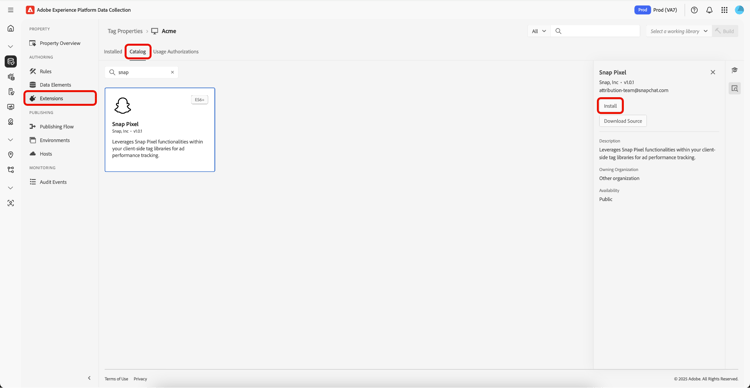
Once you have selected or created the desired property, select Extensions in the left navigation, then select the Catalog tab. Search for the Snap Pixel card, then select Install.
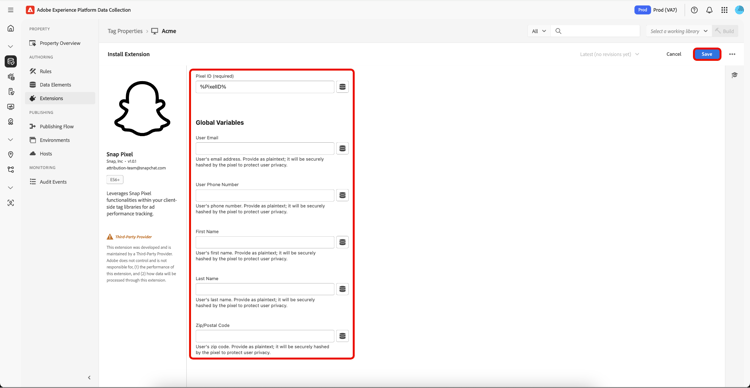
In the configuration view that appears, you must provide the Pixel ID you copied earlier to link the extension to your account. You can paste the ID directly into the input, or you can select an existing data element instead.
When finished, select Save.
The extension is installed and you can now employ its various actions in your tag rules.
Configure a tag rule rule
Snap Pixel supports a set of predefined standard events, each with specific contexts and accepted parameters. The rule actions available in the Snap Pixel extension align with these event types, making it simple to categorize and configure events being sent to Snap based on their type.
For demonstration purposes, this section shows how to build a rule that sends a purchase events to Snap.
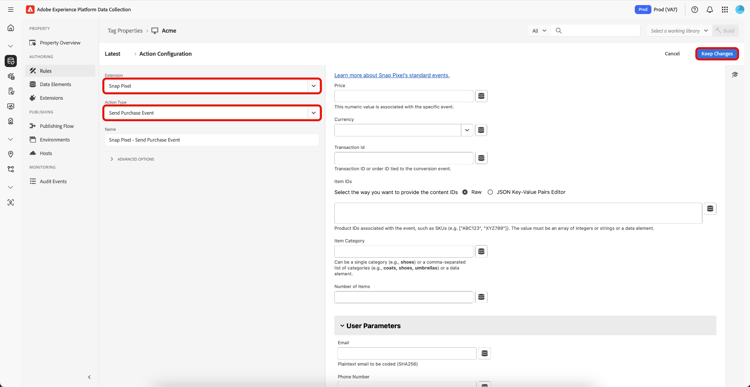
To begin, create a new tag rule and define the conditions as needed. When setting up the rule’s actions, choose Snap Pixel as the extension, then select Send Purchase Event as the action type.
Once you’ve finished configuring the Send Purchase Event action, select Keep Changes to add it to your rule setup.
When you’re satisfied with the overall rule configuration, select Save to Library.
To apply your updates, publish a new tag build to enable the changes to the library.
Confirm that Snap is receiving data confirm
Once your updated build has been deployed to your website, you can verify that data is being sent as expected by triggering conversion events in your browser and checking they apear in Snap Events Manager.
Next steps next-steps
This guide covers how to send data to Snap using the Snap Pixel tag extension. If you also plan to send server-side events to Snap, you can proceed to install and configure the Snap Conversions API event forwarding extension.