Tags extension management
Adobe Experience Platform allows you to manage Owned extensions. You can upload new extensions, deploy new versions, and release them to either private or public availability.
Manage an extension manage-extension
After you have prepared your extension package locally, use Extension Management in the Data Collection UI to upload it, validate the package, and release versions through Development, Private, and Public availability. You can then install the extension on a property and use it for testing.
Upload an extension upload-extension
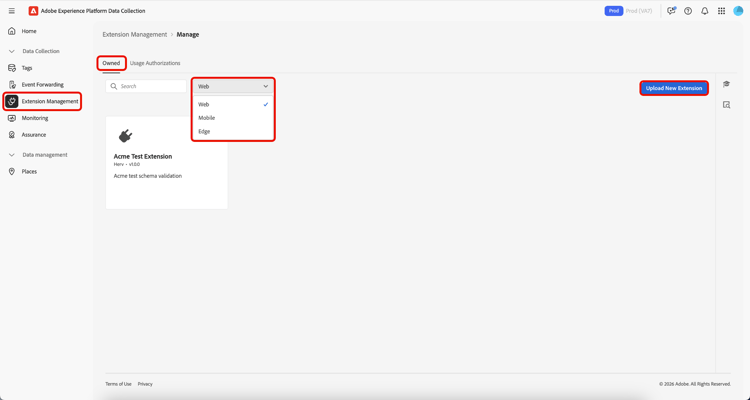
To upload an extension, navigate to the Data Collection UI and select Extension Management from the left navigation. From here, select the Owned tab. This tab shows any extensions owned by you or your organization. They are separated by platform, and you can see what extensions you have on each platform (Web, Mobile, and Edge) using the dropdown. Select Upload New Extension.
On the Upload New Extension page, select Select Extension Folder, navigate to the folder that contains your extension, select the folder, then select Upload.
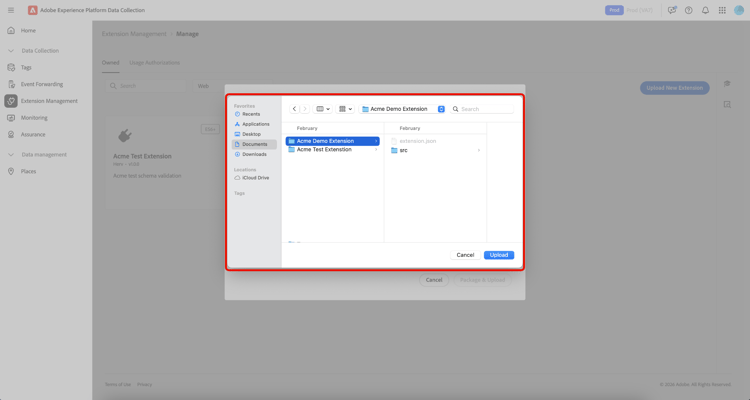
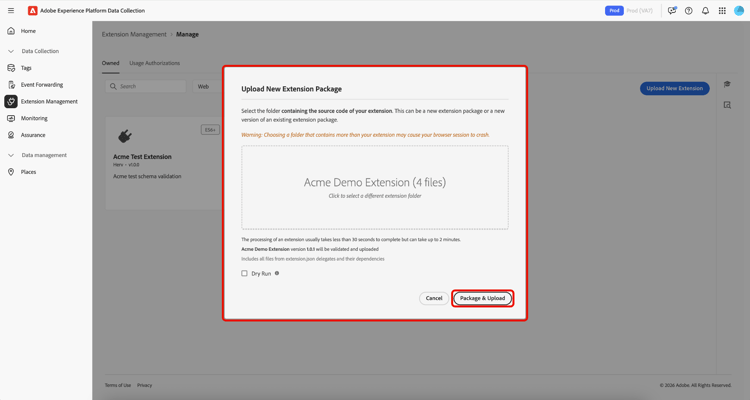
Confirm the number of files that will be uploaded by selecting Upload.
The number of files that will be uploaded is displayed including the extension name, and version. You have the option to perform a Dry Run which will download a zip file to your local machine for inspection. Select Validate & Upload.
Confirmation your extension has successfully been uploaded and processed is displayed along with your Extension Package ID. Select Close to return to the Owned tab where your extension is displayed.
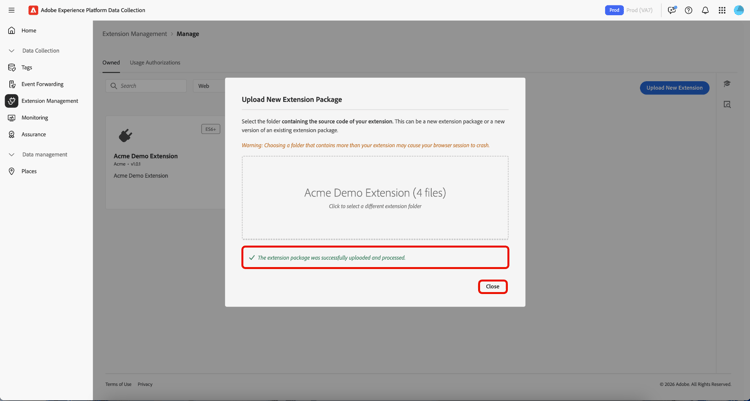
You are returned to the Owned tab where your updloaded extension is displayed.
Release an extension release-extension
To release the extension to be privately available, select your extension to display the information panel on the right. Here you can see the following details of the extension:
- Version - Shows the latest version and the state it is currently in. You can use the dropdown menu to view the version history of the extension.
- Actions - Allows you to Upload New Version of the extension and Release To Private.
- Extension Package ID - Displayed at the bottom. This will change depending on the version selected.
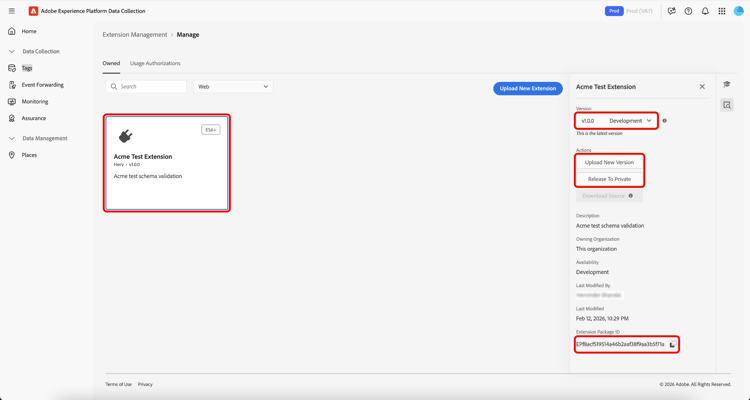
Select Release To Private, then select Release To Private again to confirm the release.
Confirmation is received once the extension has successfully been released to Private availibility. The updated availability can be seen in the right panel.
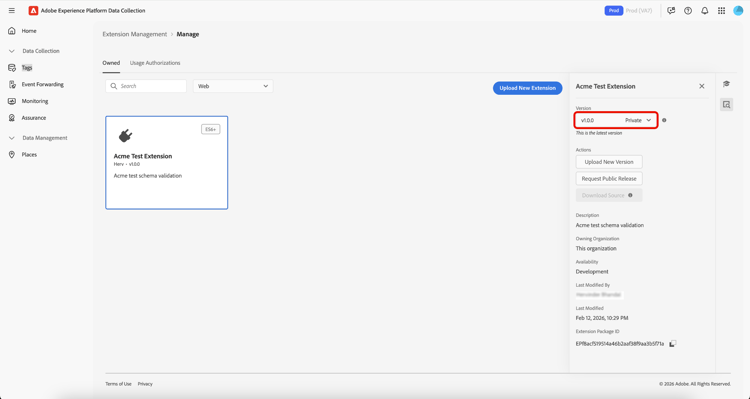
To release the extension to Public availability, select Request Public Release from the right panel.
The Release Extension Package screen provides details that will be required on the request form, with an option to copy the details. Select Go To Request Form.
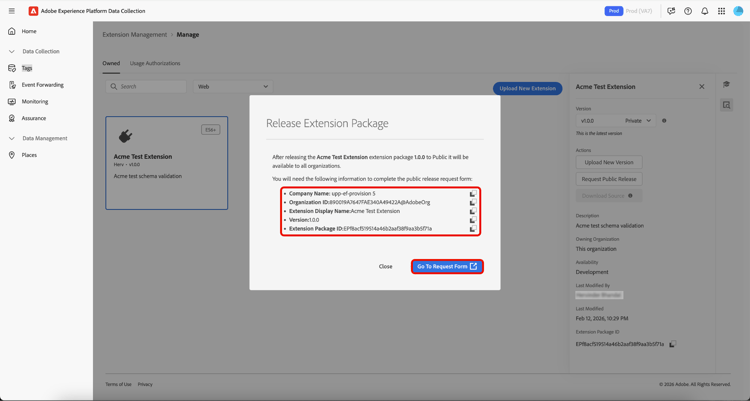
A new brower tab is opened containing the request form. Copy and paste the information from the Release Extension Package screen into the relevant fields. Submit the completed form for review. You will be notified once the extension has been made public.
Share extension packages with other organizations share-extension
Usage Authorizations is a powerful feature that you can use to securely share private extension packages with trusted partners without making them publicly available in the extension catalog. Use this feature to create a secure bridge between organizations, allowing you to leverage each other’s custom extension code while maintaining privacy and control over your proprietary solutions.
Organizations often develop specialized extensions tailored to their unique business requirements. These extensions may contain proprietary logic, custom integrations, or sensitive configurations that shouldn’t be made publicly available. Usage authorizations solve this challenge by enabling:
- Selective sharing: Share private extensions only with trusted partner organizations.
- Maintained privacy: Keep sensitive extension code out of the public catalog.
- Collaborative development: Enable trusted partners to benefit from your custom solutions.
- Controlled access: Maintain full control over who can access and use your private extensions.
The sharing process involves two key participants:
- Sharing organization: The organization that owns and shares the private extension package
- Receiving organization: The trusted organization that gains access to the shared extension
When a private version is shared, the receiving organization gains access to that specific version, creating a direct connection between the two organizations. If a newer version is later made private, it will also be available to the receiving organization without requiring any additional steps on their part.
Create an extension package usage authorization package-usage-authorization
To share an extension, navigate to the Data Collection UI and select Extension Management from the left navigation. From here, select the Usage Authorizations tab.
Here, you see a list of existing shared authorizations organized into two categories:
- Shared with this org: Extensions that other organizations have shared with you.
- Shared with other orgs: Extensions that you have shared with other organizations.
Select Add Authorization.
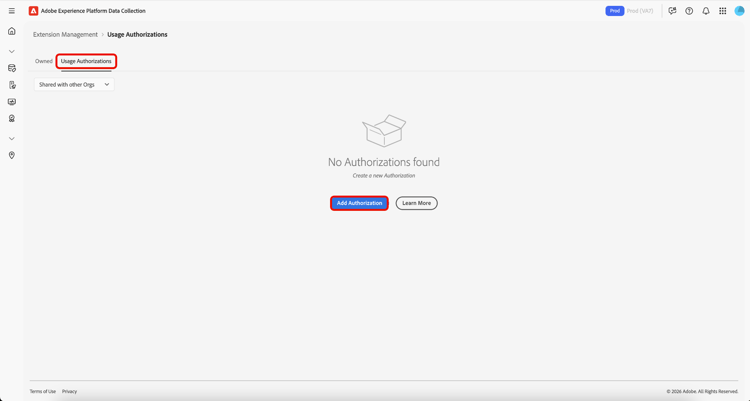
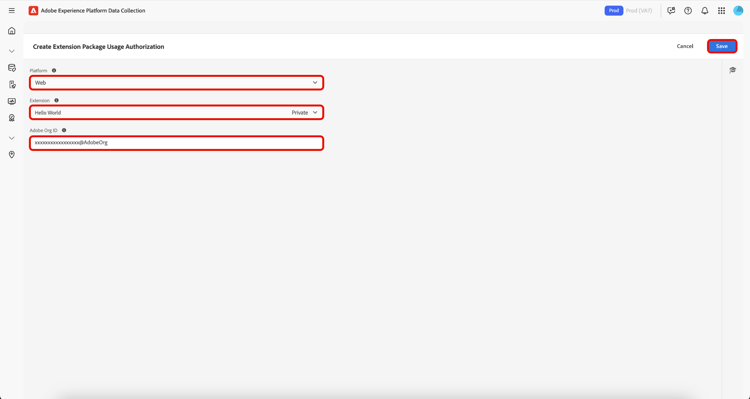
Organization ID the Organization’s owner. Organizations cannot be searched by name.Select the Platform for which you want to authorize an extension from the dropdown. You can share Web, Mobile, and Edge extensions.
Next, select the Extension you want to share from your available extensions in the dropdown. The list displays extensions owned by your organization along with their availability status. Extensions whose latest version is in Development availability will not appear in this list.
Next, enter the receiving organization’s ID, then select Save.
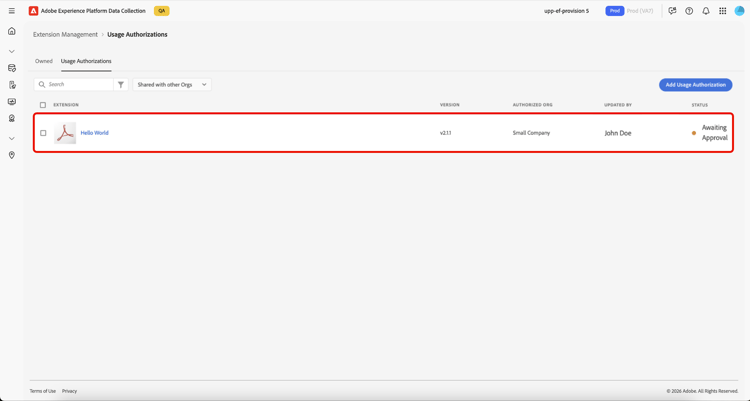
You are returned to the Usage Authorizations tab where you can see the extension in your Shared with other orgs list. The status will show Awaiting Approval until the receiving organization approves the authorization, at which point it will be updated to Approved.
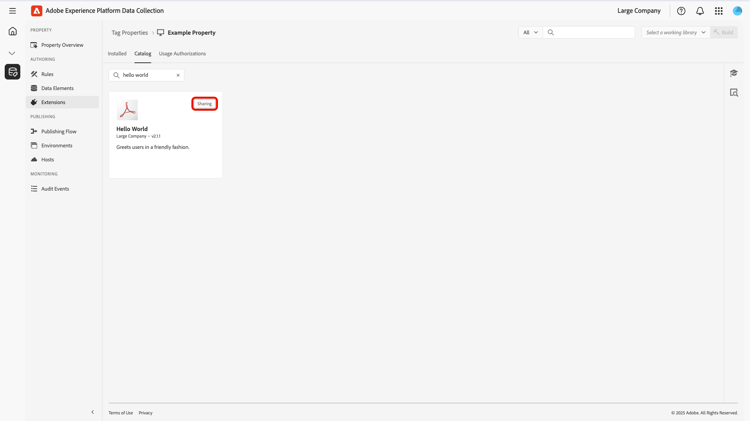
When an authorization is active, the shared extension displays a Sharing badge in the catalog indicating it is being shared with other organizations.
Authorize and manage shared extensions manage-shared-extension
To authorize a shared extension for your organization, navigate to the Data Collection UI and select Extension Management from the left navigation, then select the Usage Authorizations tab.
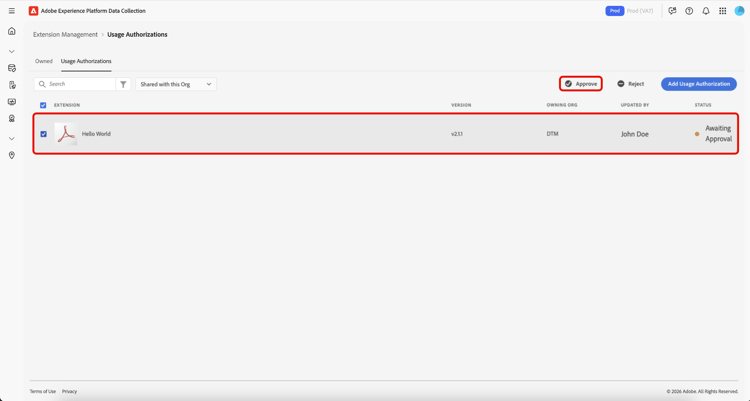
You can see a list of shared extensions including those Awaiting Approval in the Shared with this org section. Select the extension you want to approve, then select Approve.
Select OK in the Authorization Usages dialog.
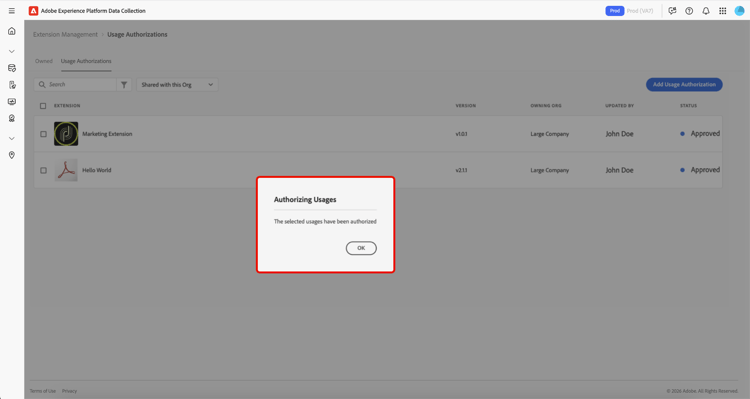
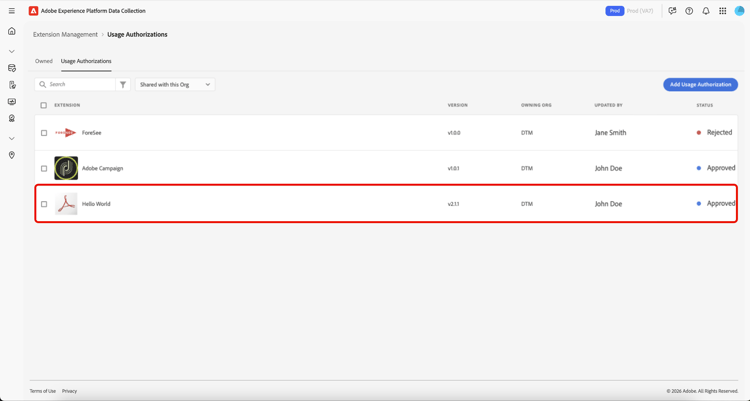
You are returned to the Usage Authorizations tab where you can see the extension now shows an Approved status.
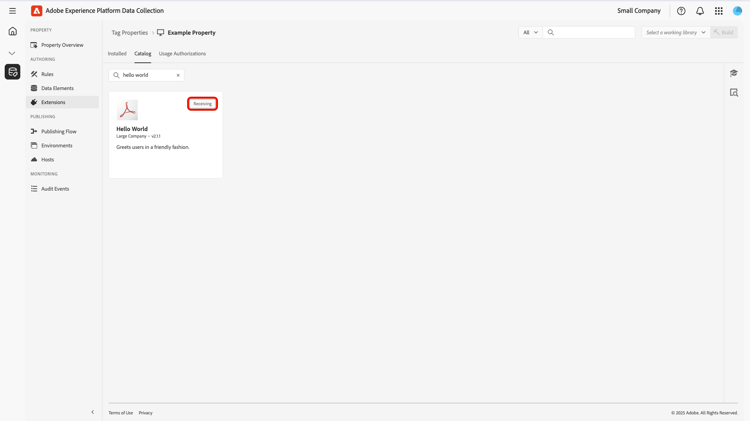
Once the authorization is approved, the extension is available in your catalog and can be installed and used like any other extension. The shared extension displays a Receiving badge indicating it is an extension that is shared with you by another organization.
Revoking authorizations revoke-authorization
As the owning organization, you can delete an authorization at any point, regardless of its current status (Awaiting approval, Rejected, or Approved).
If your extension was never made public:
- Any private version the receiving organization already installed will continue to appear in their installed extensions list.
- If the receiving organization never installed your extension, it will no longer appear anywhere in their interface.
If your extension was made public:
- Any private version the receiving organization installed will remain visible in their installed extensions list.
- If they never installed your private version, they will still see the latest public version in their catalog and can install it.
- They can also downgrade from your private version to the latest available public version if desired.
When you revoke an authorization, the receiving organization retains certain rights to protect their existing implementations:
- Continued use: The receiving organization can keep using any private version they’ve already installed, even after you revoke access.
- Build protection: If the receiving organization installed your private v1.0.0 and you later release a private v1.0.1, they won’t see the newer version but can continue building with v1.0.0 without disruption.
- Future upgrades: If you later make your extension public (for example, releasing v2.0.0 publicly), the receiving organization can upgrade from their private v1.0.0 directly to the new public v2.0.0.
Next steps next-steps
This document demonstrated how to use the shared extension feature within Experience Platform. For information on extension development, see the extension development user guide.
For a high-level overview of extension development in Experience Platform, refer to the overview documentation.