Event Forwarding guided setup overview
- Use it as the start of a brand new implementation.
- Take advantage of it as a reference implementation that you can examine to see how it has been configured and then replicate in your current production implementations.
The guided setup feature helps you get set up with ease and efficiency. This tool automates multiple steps that are performed in Adobe tags and event forwarding, significantly reducing the setup time.
This setup can auto-install extensions. This hybrid implementation is recommended by Meta to collect and forward event conversions server-side. The guided setup feature is designed to help you get started with an event forwarding implementation and is not intended to deliver an end to end, fully functional implementation that accommodates all use cases.
Get started with guided setup guided-setup
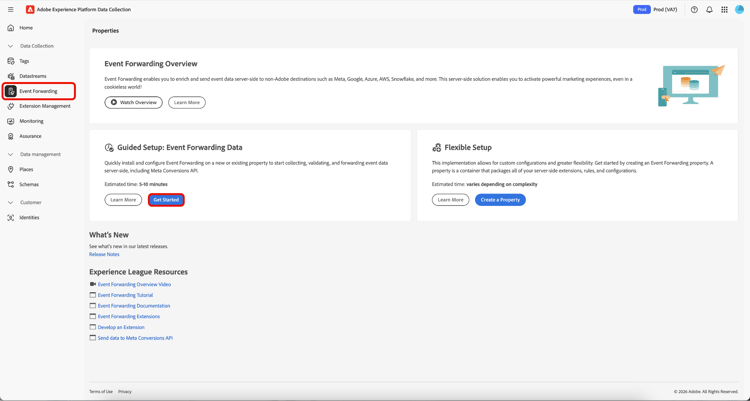
To get started with the feature, select Get Started in the Event Forwarding Data Collections UI.
Create a new tags property new-property
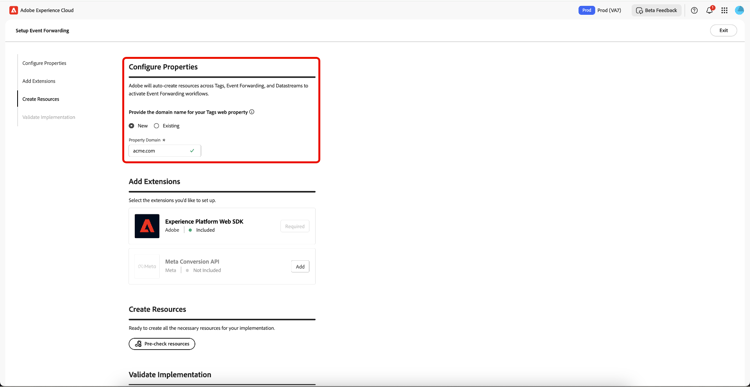
In the Configure Properties section, select New and enter the new Property Domain details.
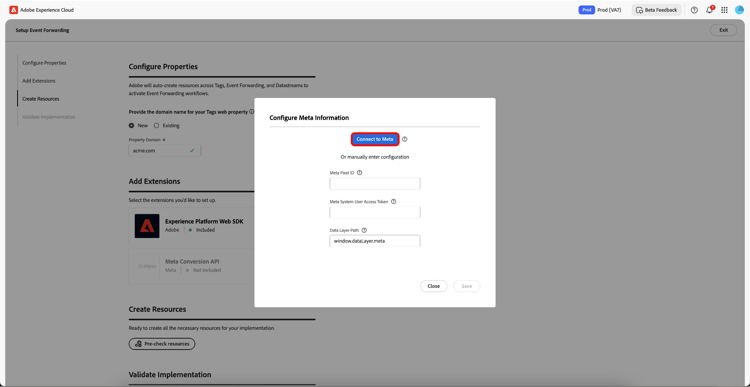
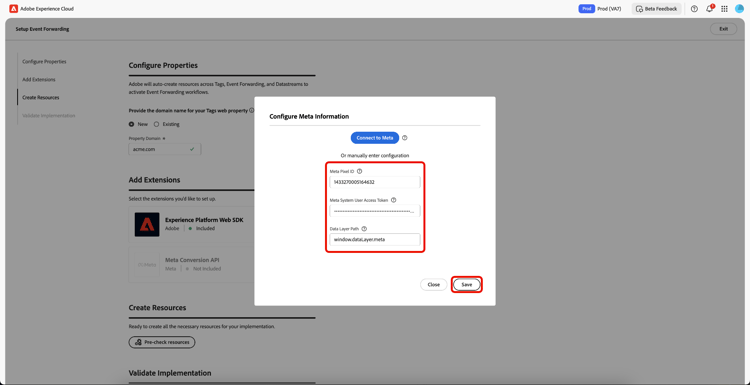
Select Add for the Meta Conversion API in the Add Extensions section. In the Configure Meta Information page, you have the option to manually enter your Meta Pixel ID, Meta System User Access Token, and Data Layer Path, or you can use the Connect to Meta option.
Connect to Meta using your credentials meta-credentials
Select Connect to Meta, then enter your Meta credentials and select Log in, then select Next.
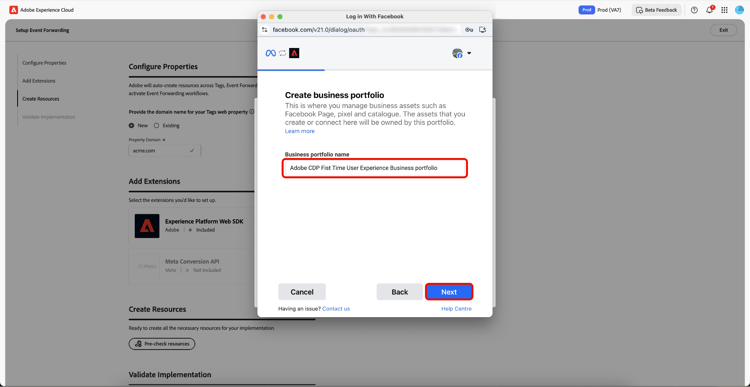
You will now be requested to Create business portfolio. Enter the Business portfolio name and select Next.
Select your business portfolio from the list, then select Next. You can see the settings for Business Portfolio, Ad Account, and Meta Pixel. Select Continue to confirm settings, then select Next.
Allow a few minutes for the setup process to complete, then select Done.
Your Meta Pixel ID, Meta System User Access Token, and Data Layer Path will be automatically populated. Select Save.
Create resources for your new tags property create-resources
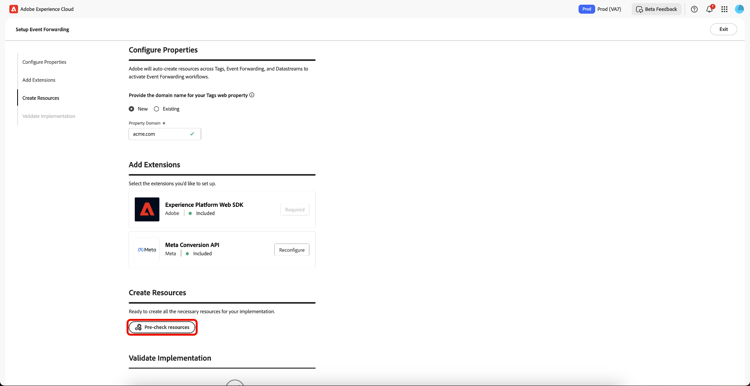
In the Create Resources section, select Pre-check resources to check you organization and properties for collisions or existing necessary resources for your implementation.
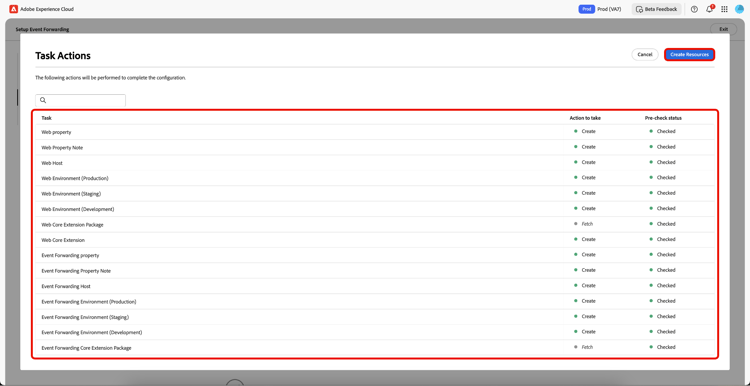
The Task Actions page displays a list of tasks and actions. Select Create Resources to create these tasks.
Allow a few minutes for the required rules, data elements, extensions, libraries, SDKs, and so on to finish installing. The Create Resources section provides links to the properties and resources created.
Validate your implementation validate-implementation
The Validate Implementation section provides the embed link you can use on your website. Start Validation runs the test in your current browser session on this guided setup page. If validation succeeds here, the same implementation should work when you deploy the embed link on your site.
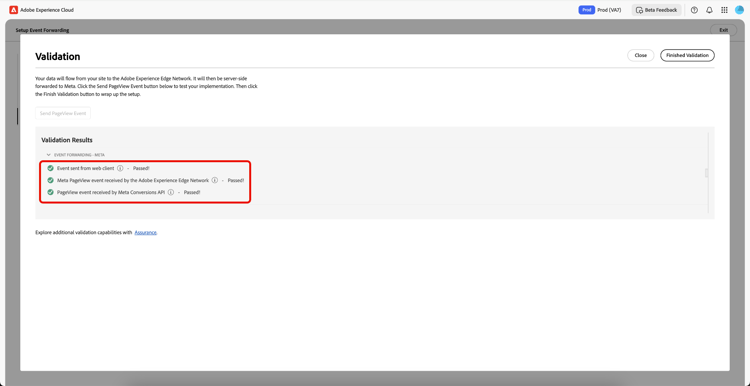
Select Send PageView Event to send a test event through the Adobe Experience Platform Edge Network. It is then server-side forwarded to Meta. Select Finished Validation to complete the setup.
Use an existing tags property existing-property
In the Configure Properties section, select Existing, then select your tags property from the drop-down menu. The system attempts to find the event forwarding property that’s already attached to this property through the datastreams. You can now continue to reconfigure the Meta Conversion API, then pre-check and create resources.
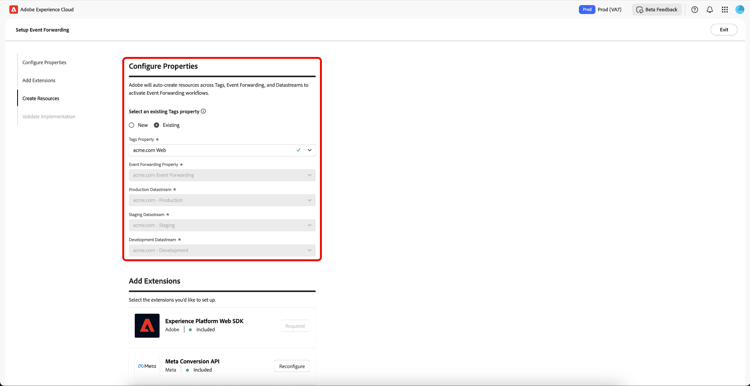
If the selected tags property is not connected to an event forwarding property or if datastreams are missing, they will be automatically created.
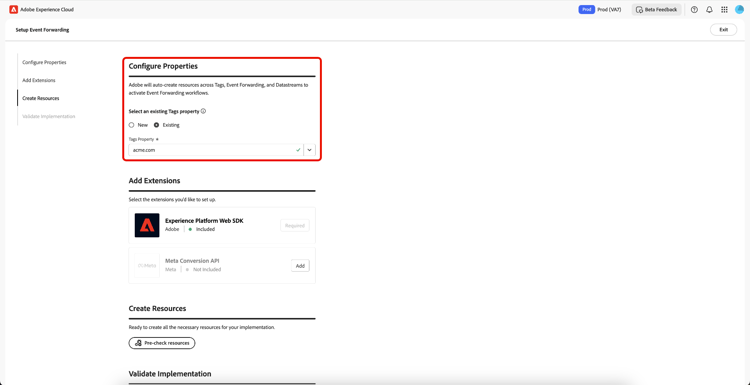
To configure your Meta Conversion API follow the process highlighted above in the Connect to Meta using your credentials.
Now that you have generated Meta Pixel ID, Meta System User Access Token, and Data Layer Path, select Pre-Check resources to create the event forwarding workflow.
Since you are using an existing tags property, the setup process differs slightly from the new property workflow. You can see the system will skip the creation of the web property, host, and environment since these already exist. Finally, select Create Resources to create the tasks that are not yet available.
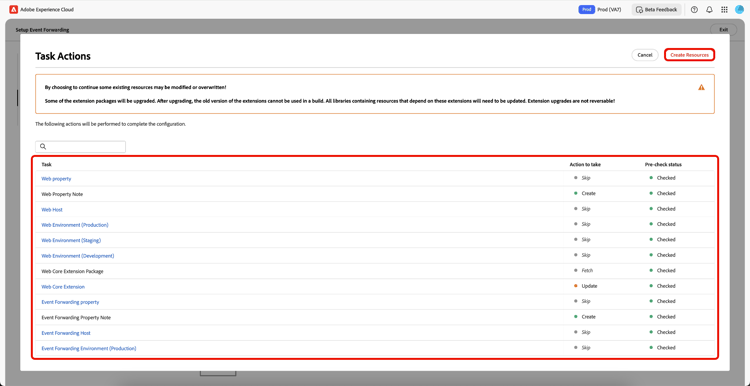
Allow a few minutes for the required rules, data elements, extensions, libraries, SDKs, and so on to finish installing. The Create Resources section provides links to the properties and resources created.
The Validate Implementation section provides the embed link you can use on your website. Start Validation runs the test in your current browser session on this guided setup page. If validation succeeds here, the same implementation should work when you deploy the embed link on your site.
Select Send PageView Event to send a test event through the Adobe Experience Platform Edge Network. It is then server-side forwarded to Meta. Select Finished Validation to complete the setup.
Next steps next-steps
This guide covered how to use the guided setup tool to create and configure properties for the Meta Conversions API.
See the Meta documentation on best practices for the Conversions API for more guidance on how to effectively implement your integration. For more general information on tags and event forwarding in Adobe Experience Cloud, refer to the tags overview.