Sites Optimizer trial
Get started with Sites Optimizer using this trial for existing AEM Sites customers (Edge Delivery Services, Cloud Services and Managed Services). Your domain data is already pre-onboarded, so you can begin optimizing right away. The video below walks you through the trial experience and shows you how to get started.
- It is built on AEM Sites (Edge Delivery Services, Cloud Service, or Managed Services).
- It is a production site, not a development, QA, staging, author, or preview environment.
- It is publicly accessible and not behind a login.
- It uses AEM Sites frontend delivery. Headless delivery is not currently supported.
Start your trial now!
Follow these steps to get started with your trial:
- Log in using your AEM Sites IMS org ID to www.sitesoptimizer.live.
- View key metrics such as page views, load time, and engagement rate, along with your top optimization opportunities prioritized by impact.
- Explore the three available opportunity types: broken backlinks, Core Web Vitals, and missing alt text.
- For each opportunity, review up to three identified issues. Use AI-generated suggestions and deploy optimizations directly into your AEM environment when ready.
- Unlock more opportunities by upgrading to the full license at any time.
What is available in the trial
The following is included in the trial:
-
Three opportunity types: broken backlinks, Core Web Vitals and missing alt text.
-
Up to three issues per opportunity each month.
-
Full workflow per issue: auto-identify, auto-suggest and auto-optimize.
- Auto-identify — Detects issues across your site using multiple data sources.
- Auto-suggest — Provides prescriptive, AI-generated recommendations for each issue.
- Auto-optimize — After approval, deploy fixes directly into your authoring environment. Updates follow your existing workflows, allowing your team to review and publish through AEM.
Allow Sites Optimizer to access your site
Sites Optimizer scans your site to identify optimization opportunities. If your site sits behind a firewall, content delivery network (CDN), or other security configuration that blocks unrecognized clients, the scanner can’t reach your pages. When this happens, onboarding shows an Action required message that Sites Optimizer can’t access your website, and scanning is paused until you allow access.
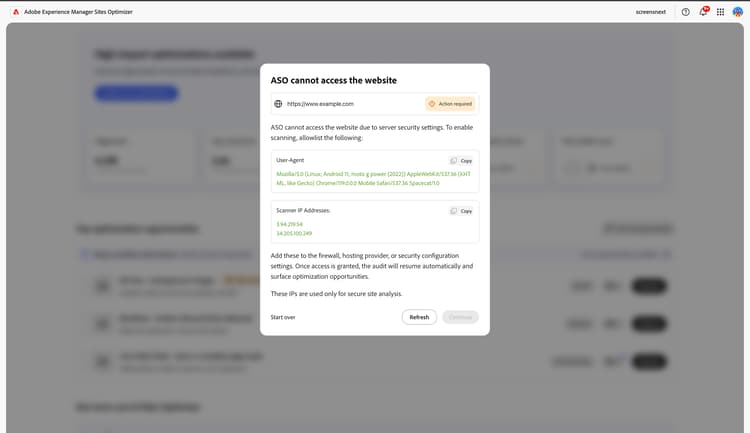
To let the scanner through, allowlist both of the following in your firewall, hosting provider, or security configuration. For AEM Cloud Service sites, add an allow rule for the scanner to your CDN traffic filter rules in Cloud Manager, which can match on both the User-Agent and IP address. If you restrict access using Cloud Manager IP allow lists, add the scanner’s IP addresses to the applied allow list as well.
- User-Agent — The scanner identifies itself with a User-Agent that contains the token
Spacecat/1.0. Allowlist this token, ideally as a “contains” match, so it keeps working even if the full User-Agent string changes. - Scanner IP addresses — Allowlist the scanner’s outbound IP addresses.
The onboarding screen displays the exact User-Agent and IP addresses to allowlist, each with a Copy button, so you can copy the current values directly into your configuration.
After you allowlist the scanner, select Refresh on the onboarding screen. Once access is granted, scanning resumes automatically and surfaces your optimization opportunities.
Enable auto-fix for Edge Delivery trial sites
Learn how trial customers enable the Deploy to author action for auto-fix suggestions on Edge Delivery Services (EDS) sites authored in Google Drive or SharePoint.
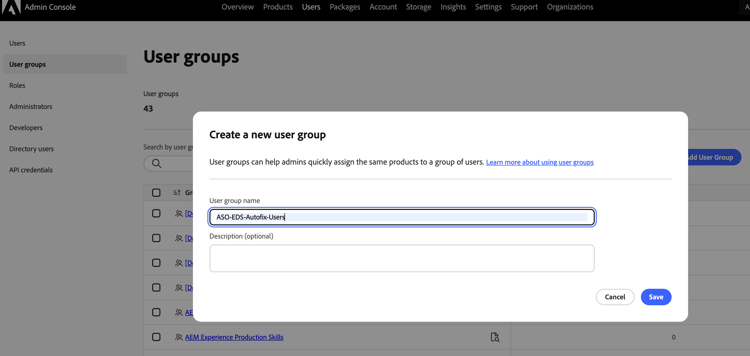
Trial customers must be part of the ASO-EDS-Autofix-Users IMS group. If the group doesn’t exist, your organization’s Admin can create it and add you.
-
Sign in to the Adobe Admin Console.
-
Select Users > User groups.
-
Select Add User Group.
-
For User group name, enter exactly:
code language-none ASO-EDS-Autofix-Usersnote important IMPORTANT The group name must match exactly, including capitalization. It is matched case-sensitively, so a different spelling or casing (for example, ASO-EDS-Autofix-users) does not work. Don’t rename the group after you create it. -
Select Save.
-
Open the new group and select Add users.
-
Enter the email address or username of each person who should be able to deploy auto-fixes, then select Save.
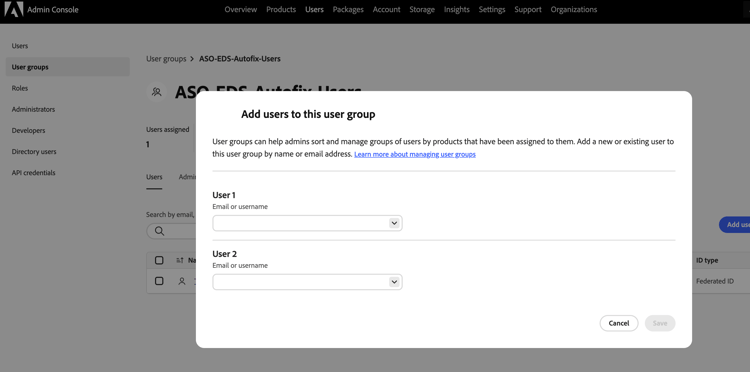
If you’re a member of the group, the Deploy to author button is enabled. If you’re not yet a member, Deploy to author is disabled with a tooltip asking you to contact your administrator to add you to the group. After your Admin adds you to the group, sign out and sign back in to Sites Optimizer so your session picks up the new group membership.
Frequently asked questions
Read the following for answers to frequently asked questions about the AEM Sites Optimizer trial.
ASO-EDS-Autofix-Users, and that it was created in the same organization the site belongs to.Spacecat/1.0 token) and IP addresses in your security configuration, or, for AEM Cloud Service sites, in the Cloud Manager CDN allow lists. Then select Refresh. See Allow Sites Optimizer to access your site.
Learn about the core web vitals opportunity and how to use it to improve traffic acquisition.

Learn about the missing alt text opportunity and how to use it to improve engagement on your website.
Learn about the broken backlinks opportunity and how to use it to improve traffic acquisition.