Repository modernization

Learn about repository modernization, mutable and immutable content, package structure and the repository modernizer CLI tool.

Transcript
Hello everyone, my name is Varun Mitra and welcome to the video. In this particular lesson we are going to talk about repository modernization. In this particular lesson we are going to talk about mutable vs immutable content, package structure for AEM cloud services project and repository modernizer tool and introduction to AIO CLI. So let’s get started by talking about content separation. Content separation is one of the underlying principles of AEM as a cloud service. Content separation mandates segregation of mutable and immutable code and content. This content separation is necessary to achieve zero downtime for customer deployments and AEM updates. As we discussed in the previous slide, cloud services architecture mandates complete separation of content into mutable and immutable code and content. Immutable content cannot be changed during runtime and is baked into the docker image used to create AEM author and publish notes. This ensures that the newly created notes have identical code and configurations. Since immutable content cannot be changed during runtime, as such code and configuration changes can be done by running Cloud Manager deployment pipelines. Code and content present within the slash lips and slash apps directory is considered immutable content. Mutable content on the contrary and as the name suggests can be modified during runtime and this includes the content present within slash content, golf, bar, etc, oak index system and temp directories. Mutable content can be added or modified as a part of normal authoring activities or through package manager or through source control via deployment pipelines. So let’s just also quickly review the package structure that was necessary for AEM as a cloud service project. Since this image could be a bit blurry, I’m going to quickly switch over to my web browser and open this particular image. So as you can see, this is the project structure that is required for an AEM as a cloud service project. We’re going to start from the very top. At the very top you have your JavaScript and CSS code. This particular code is present within your ui.frontend directory and is usually compiled into AEM client libraries which are then embedded within your ui.apps project. You also have your code folder which contains your OSGI code which is compiled into a bundle.chart which is directly embedded into the all package. Now next we have got the ui.apps directory. This particular directory contains your apps code and your oak index definition. This also contains your component definition and hdl scripts, JavaScript and CSS via client libraries, overlay of slash clips, fallback context-aware configuration and ACLs that are defined within the apps directory. Next you have the ui.config folder which contains all OSGI configurations and repository initialization configuration scripts. Then you are going to have your content directory that is slash content and slash com which is baked into your ui.content folder. This ui.content folder contains all content and configurations. The content package contains all the node definitions that are not part of ui.apps or ui.config package or in other words anything that is not present within the apps or oak index directories. Common elements of ui.content package includes your context-aware configuration, slash com, slash content directories, your DAGI taxonomies and legacy etc nodes. Last but not the least you have the all package. All package is a container package that only contains the deployable artifacts that is your OSGI bundle, your ui.config, your ui.apps and ui.content packages. All package should not have its own code and content. Moving back to the slide deck, so that is how the package structure for a typical AEM as a cloud service project is defined. Moving on to the next slide. Now we are going to also talk about the repository modulizer. If you are migrating from on-prem AEM or Adobe Valis services you might want to transform your code base so that it adheres to the new cloud service compliant package structure. Repository modulizer tool can help reduce the project restructuring effort by separating code and content into mutable and immutable packages. Repository modulizer is a part of AIO CLI plugin and can be installed as a load.js application. Repository modulizer creates a ui.apps package that deploys to the apps directory and contains all the immutable code and configuration. A ui.content package that deploys to runtime, writable or mutable area of content repository. This package can contain content within slash content, con or home directory. And finally an all package that acts as a container for ui.apps and ui.content sub-packages. So let’s go ahead and do a quick hands-on on repository modulizer and AIO CLI plugin. I am going to navigate over to my terminal window. So the first step for using AIO CLI plugin is to install it using node.js. Now we need to have node.js configured on your system. So I’m going to quickly go ahead and do that. I’m going to first and foremost install the AIO CLI plugin. It will take a few minutes to install it at my end. On Mac I’m doing a sudo. On Windows you can just open up your command prompt as an administrator to install the AIO CLI plugin for all users. This process takes a few minutes and we’ll wait for order to finish execution. As you can see this particular plugin has successfully installed at my end. Now the next thing that we are going to do is we are going to install the AEM cloud service migration plugin within the AIO CLI. Now AIO CLI plugin is a container plugin. It contains various other plugins that can be installed. So AEM cloud migration plugin happens to be one such plugin. So let me quickly install it and then we will go ahead and review what this plugin can do. Again this might take a few seconds to install. So this AEM cloud service migration plugin actually contains several plugins within that. So this is the documentation page for AEM cloud service migration. Now over here you can verify how you can install this particular plugin and what are the different conversion tools available for that. You can see it contains dispatcher converter that is primarily used for converting your on-prem or ams configuration into the dispatcher configuration compliant with cloud services. You have the repository modernizer tool that we are going to use, the index converter tool and similarly you also have the workflow migrator tool. Read about these tools and see how you can leverage them within your own project. Now the way this particular repository modernizer tool works is it makes use of a YAML or a computation file. Once you go through the documentation for these different plugins you will see that this particular tool requires a YAML file. The sample YAML file is available right over here. The sample YAML file needs to be present on your file system or within your computer. Now on Mac or on a Linux based operating system this happens to be the file and on Windows this is the path where this particular file is present. If you do not see this path existing on your file system you can go ahead and create it on your own and place the file at that particular path. Since I am on a Mac operating system I can quickly go ahead and open up this particular file. So let me quickly do that. Open up this particular file. So this is the path for Mac operating system. I can click on go and it will open up this particular file at my. Now with this file I am going to quickly also load up within my Visual Studio core. You can open it up in any notepad or in any editor of your choice. So let me quickly open it up over here. So this is my YAML file which contains the configuration for my repository modernize. As you can see it also contains the configuration for dispatcher converter as well as the index converter. So same file can be used for running different tools. We are interested in the repository modernize. So now what you need to do is you need to provide the group ID, the bearing form path, the artifact ID etc of your existing project. So we already have one such existing project on our own. Let me open up that particular project. So this is my weekend legacy project. Now this might look like any other project at your end. So I am going to run the repository modernize tool on this project. So what this tool will do is it will make sure my oak index definitions are correctly aligned with UI.apps. It will also take care of my UI.content directory. Make sure it only contains the mutable content. It will also make sure that an all folder is created which contains all the sub packages necessary for cloud services. So that’s what my repository modernizer tool will do. Now in order for my tool to function correctly, it needs to have the correct group ID, the path, app title, version information etc. Now keep in mind this tool will generate a new project for you. In order to have a project that compiles and works correctly, you need to provide the correct group ID. So this group ID is specified at every level within your Maven project. You need to pay close attention so that this value matches whatever value is there on your existing project. So let me open up the parent form.xml over here and get the group ID that is defined in here and place it within my repository modernizer. Yeah, we’ll find. So I can change the group ID over here to the correct value. The next thing that you need to worry about is the parent form. The parent form, the absolute path of parent form should be provided in here, which I’ve already done. Similarly, the artifact ID for your project should also be provided in here. So I can just get the artifact ID that is defined in here. The app title and the version information similarly needs to be grabbed right from here. So I can get the version information and place it in at the correct path. You can change the version information based on your own project requirement. Now all folder needs to be generated afresh and such you can provide it a suitable name. I’ve simply provided it am-vcken.org and a suitable title and version information. Next comes your project paths. You need to make sure that your project path is appropriately provided. I provided an absolute project path leading to my am-guides-vcken-legacy folder. Similarly, I’ve also provided the path for my content packages, which happens to be ui.apps.ui.content, the related path for my filter or XML and ng-ci-content folder. And I’ve also provided the correct artifact ID that would be applied to my target project. So I once again provided am-guides-vcken, a suitable app title over here, a suitable app ID and a correct version information. Finally, you need to provide where your code bundle resides. And this concludes the configuration changes that are required to put in here. Just make sure to match this information with your existing project. Otherwise, this will result in a lot of name and errors, which you will have to manually go ahead and run. So this is all done. I can now go ahead and run my repository model. So make sure to run them at a suitable path. Since you have defined these configuration at a global location, you can run this particular tool at any directory of your choice. So I’m going to simply run it in the same directory where my current project resides. It will take a few minutes to finish execution. Since I ran it already quite a few times today, as such execution was quite fast. You can see that it has created this target directory wherein your result.log resides. This contains the results for this particular tool as in when it ran. If there were errors, you would have seen over here. If your YAML was not formatted correctly, it would have shown you some errors within these logs. Similarly, you have a markdown file which contains the information about things that were changed, things that were created, that is folder that were created, version information, so on and so forth. You can review it at your own pace to learn more about this tool. Finally, you have the final product right over here. You can see that it created an all project. It created, it removed the O So what I’m going to do is I’m going to simply load up this project within my Visual Studio code. You can choose any code editor of your choice. So let me quickly go ahead and do that. So this is my project that I have opened up and you can see that it contains the period form file and this particular form file should have all the dependencies and the resulting dependency should have also have been applied in my child project as well. I can see that the correct AEM Uber jar is available to me. Similarly, the all folder also has a form.xml file and you will see that it contains all of the sub packages that are provided over here as a dependency. I can see an error straight away. I can see that the code project does not have a version information attached to it. So let me add that up so that we do not run into an error later on. So let me quickly go ahead and provide this information in here. Now another thing which I can think of is, is the presence of this UI.app.structure folder. This structure folder is not required for deployment on your cloud purposes. So I’m going to remove a reference for this UI.app.structure from my UI.app.structure period form file. So I can quickly remove this dependency as I know this is going to throw an error at a later point. This is not required on your AEM as a cloud services project. So having it here will only lead to more problems when we build this up. Another thing which I know can throw an error, particularly with my Maven version is this analyze project. So I’m going to quickly go ahead and comment this out from my parent form file. Once we have done this, we’ll quickly go ahead and build up our project. I will quickly go ahead and remove it from here. And I will save my changes. Now with these changes done, I should be able to easily compile this particular project. So let me quickly clear out my command prompt and quickly navigate to my weekend legacy directory. And I’m going to run my Maven command that is mvn clean install. This should simply go ahead and compile this project up. And if there are errors, we’ll see them over here. All right, I see a few errors being logged in here. And you can see that these are plain Java errors. And they are being thrown because of a difference between the current API and the older code base that we are using. So you can see that the response status for Java is throwing an error with the WCMUSE class. As you might be aware, the WCMUSE class was deprecated. And instead of this, we now use WCMUSE project. We can go ahead and modify our code base so as to get rid of this error. So you can quickly go ahead and do that. This is pretty straightforward. You can just locate the file where this error is being thrown. I know offhand that the class we use is WCMUSE project. And I can quickly add that up here. Clean my changes and run the command again. So this way, you can quickly go ahead and rectify any Java related errors that you might run into. And this way, you can quickly go ahead and take care of any Java related problems that might occur when you run this repository modelizer too. Now keep in mind the key over here is using the correct YAML file. If your YAML file is structured correctly, you will not run into any Maven related issues. You might run into smaller problems as we are right now, but they are very, very easy to rectify. So the next error that you can see points to my code.code.models. Complaints that it doesn’t exist when in actuality that it does. I can either try to rectify that by doing an ambient cleaning, as sometimes your precompiled classes or your precompiled HTML code can throw this error. Or I can try doing a simple fix at my end. Now this is a very straightforward error to fix. It is just that an existing Java package is not getting picked up by your front end. So what I can do is I can quickly go to my UI.apps and I can see and I can verify the pom.xml file over here. I can see that the pom.xml does not contain a reference to my code package, which I can quite easily add in over here. So I can either go to my code package and grab the dependency from here. So let me quickly do that from my all package. I can take the code package dependency and simply add it to my UI.apps. And hopefully that should be sufficient in getting rid of this error. So you might run into a few issues and they are very, very easy to fix and you can take care of that quite easily. As you can see, a new error is now being thrown, which talks about particular package doesn’t exist. So you can now go ahead and verify if this particular package is actually missing from your pom.xml file or if you need to use a new package. Since you are modernizing your code, it is quite likely that you will run into these different problems. And the solution to these problems is quite easy and it should not take quite a long time. So I’m going to end the video at this point. You guys can go ahead and try this out on the weekend legacy project. You should be able to fix all of these errors very, very easily. It will provide you with a finished code base at the end. So you can compare it against the existing code base that you ran this particular command on and with the new and finished project and see what changes you have to do. But I would suggest you to follow the main prompts and fix these errors on your own. Once you fix these errors on your own, this will give you an idea of how to approach this on an actual project. So we just saw how you can use a repository modernizer to install it at your end using AI or CLI, run it against your existing code base and arrive at a modernized project that is combined with cloud services. We also saw how you can fix most of the Maven issues and how you can go around updating your pom.xml to add more dependencies. This particular tool will require some time as such, give yourself enough time and go through the Maven prompts to fix all of the errors that are generated. So in the end, I’m going to quickly review what we covered in this particular session. So we talked about mutable versus immutable content and how you can structure your repository so that the mutable content folder or the mutable path is completely separated from the mutable. Next, we talked about the package structure. And finally, we talked about repository modernizer tool that allows you to implement the package structure within your existing project. Thank you very much for watching this video and have a great day.

Repository Modernizer Tool

Repository Modernizer

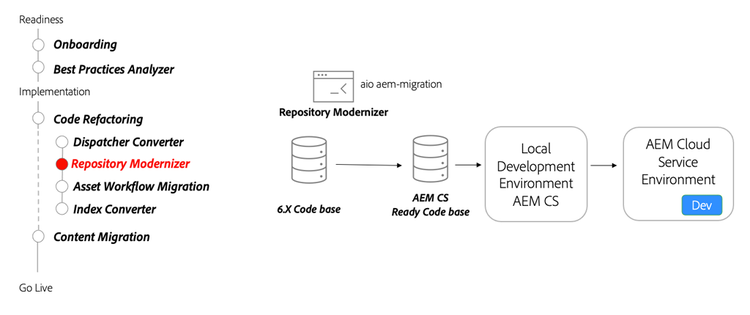
As part of refactoring your code base, use the Repository Modernizer tool to restructure a 6.x code base to a more modern structure.

Key activities

  • Use the Adobe I/O Repository Modernizer tool to restructure a project to match the expected structure of an AEM as a Cloud Service project.
  • Manually adjust and fix any build errors in the updated code base.
  • Set up a local development environment and deploy the updated code base. Iterate until the project is in a stable state.
  • Deploy the updated code base to an AEM as a Cloud Service development environment and continue to validate.
recommendation-more-help
4859a77c-7971-4ac9-8f5c-4260823c6f69