Set up AEM Edge Functions on AEM as a Cloud Service
Learn how to set up AEM Edge Functions on AEM as a Cloud Service environment.
This tutorial covers CLI installation, AEM site deployment, project setup from the boilerplate template, CDN configuration, and deployment of a working endpoint on AEM as a Cloud Service.
This tutorial uses the WKND Sites project as the demo site. You can follow the same steps with your own site and environment.
What you’ll build
AEM Edge Functions are JavaScript modules that run on Adobe CDN at the edge, not on your AEM origin. You deploy one AEM Edge Function named my-edge-function with two routes:
/hello-worldreturns a greeting from the edge/weatherdetects the visitor’s location at the edge, calls the Open-Meteo API, and returns the current temperature for their city
During development, you test your AEM Edge Function locally with the dev server. Then you copy CDN configuration into your AEM site project, deploy through Cloud Manager or an RDE, push the AEM Edge Function (JavaScript module) to Adobe CDN, and verify both endpoints in a browser or with curl.
The high-level steps:
- Install Adobe CLI and AEM Edge Functions plugin
- Deploy your AEM site to an RDE or Dev environment
- Set up AEM Edge Functions on your AEM as a Cloud Service environment
- Create the AEM Edge Functions project from the boilerplate template
- Clone, review, and run the AEM Edge Functions project locally
- Review, manage, and deploy CDN configuration
- Build and deploy AEM Edge Functions to Adobe CDN
- Verify the endpoint is working
Prerequisites
Ensure the following are in place before starting.
- Node.js and npm installed locally
- A GitHub account to create a project from the boilerplate template
- Access to an AEM as a Cloud Service environment with Cloud Manager Deployment Manager role, or AEM Administrator Product Profile on the author instance
- The WKND Sites project or your own AEM site project cloned locally
Step 1: Install CLI and plugins
Install or update the Adobe aio CLI, the AEM Edge Functions and RDE plugins.
For a fresh install, run the following commands:
| code language-bash |
|---|
|
Update the Adobe CLI and installed plugins:
| code language-bash |
|---|
|
For example, the output should look like the following screenshot:

Step 2: Deploy your AEM site
Before you set up AEM Edge Functions, deploy your AEM site to a target environment. If your site is already deployed, verify it is accessible and skip to Step 3.
- From the root of the WKND or your own site project, run the following commands to set up and deploy the site to the RDE:
| code language-bash |
|---|
|
- Verify the site is accessible at
https://publish-pXXXXX-eYYYYY.adobeaemcloud.com/.
For a complete walkthrough, see Rapid Development Environment.
-
Deploy the WKND or your own site to the Dev environment using the Full Stack pipeline in Cloud Manager.
-
Verify the site is accessible at
https://publish-pXXXXX-eYYYYY.adobeaemcloud.com/.
For a complete walkthrough, see Full-stack pipelines.
Step 3: Set up AEM Edge Functions on your environment
The AEM Edge Functions must be set up on the AEM as a Cloud Service environment. It allows you to deploy code and config files to Adobe CDN so you can invoke the routes supported by AEM Edge Functions from JavaScript code in your site.
Run the following command from the root of the WKND (or your own) AEM project:
$ aio aem edge-functions setup
If you are not already logged in to Adobe IMS, the command triggers login flow. The setup process prompts for program, environment, site type, and ADC project config details. The setup details are stored in the .aio file, it provides the context for the AEM Edge Functions CLI commands hereafter.
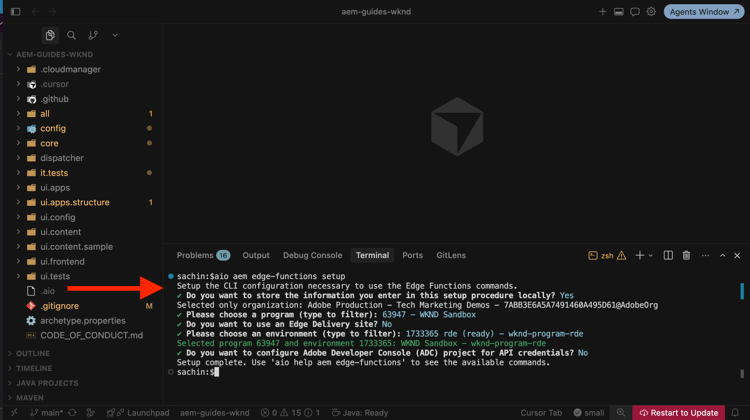
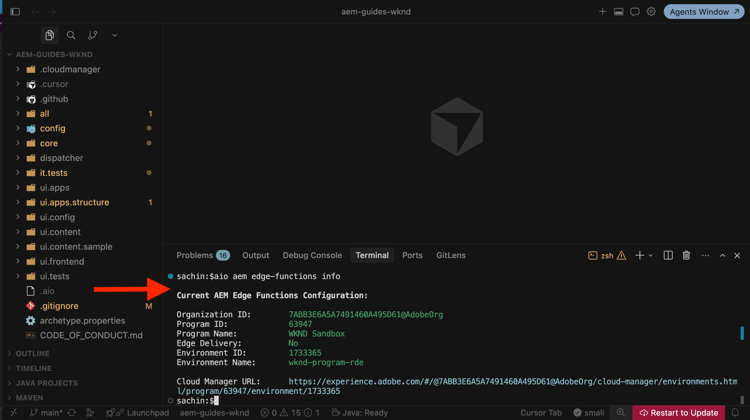
Use the following command to review the AEM Edge Functions setup details:
$ aio aem edge-functions info
The output should look like the following:
Step 4: Create AEM Edge Functions project
Create the AEM Edge Functions project from the aem-edge-functions-boilerplate GitHub template. The boilerplate includes the files and configuration you need to get started.
-
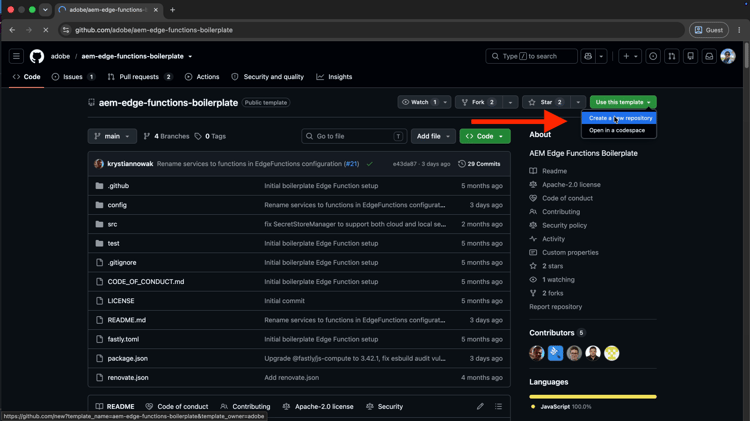
Navigate to aem-edge-functions-boilerplate on GitHub.
-
In the top-right corner, select Use this template > Create a new repository.
-
Provide the repository name (for example,
wknd-edge-functions), add a description, set visibility to Private, and select Create repository.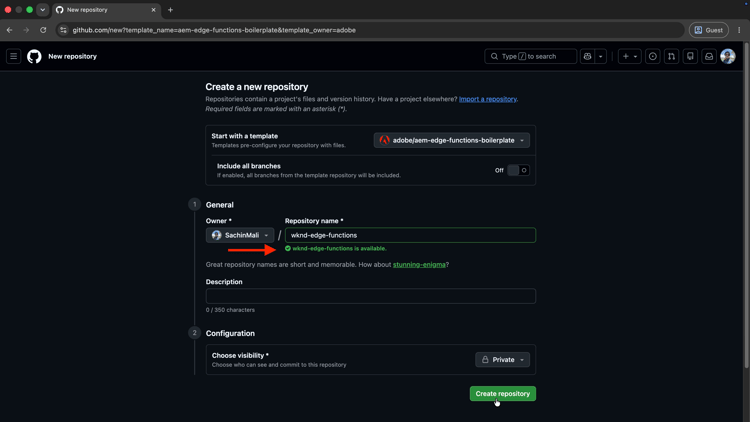
Step 5: Clone, review, and run AEM Edge Functions project
Clone the AEM Edge Functions project
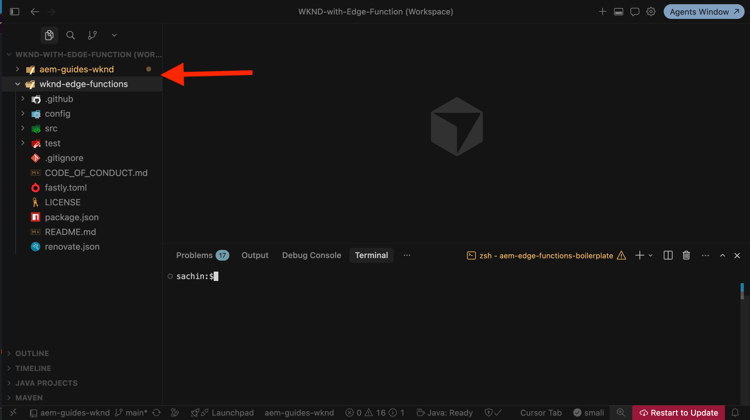
Clone the repository you created in Step 4, then open it alongside the WKND (or your own) project in your IDE. Most editors support workspaces or multi-root views that let you work in both projects at the same time.
# Clone the repository
$ git clone https://github.com/<your-org>/<your-project-name>.git
For example, open the WKND Sites project and WKND AEM Edge Functions project in a single IDE workspace:
Review the AEM Edge Functions project
Before making changes or deploying the AEM Edge Functions project, review the key files that define the AEM Edge Functions contract.
-
package.jsoncontains the project dependencies. Note the@fastly/js-computedependency. For more information, see JavaScript on the Compute platform. -
src/index.jsis the function entry point and contains the main logic for the project. It uses Fastly Compute’saddEventListener("fetch", ...)pattern. All incoming requests flow through thehandleRequestfunction, where you add route matching logic. For example, the following code is from the boilerplate:code language-js // src/index.js addEventListener("fetch", (event) => event.respondWith(handleRequest(event))); async function handleRequest(event) { const req = event.request; const url = new URL(req.url); let finalResponse; try { // Route matching logic if (url.pathname === "/" && req.method === "GET") { finalResponse = new Response("Hello World from the edge!", { status: 200 }); } else if (url.pathname === "/hello-world" && req.method === "GET") { finalResponse = new Response("Hello World from the edge!", { status: 200 }); } else if (url.pathname === "/weather" && req.method === "GET") { finalResponse = await weatherHandler(req, event.client); } else { finalResponse = response.notFound(); } } catch (err) { finalResponse = new Response("Internal Server Error", { status: 500 }); } return finalResponse; }A single AEM Edge Function can handle multiple routes through the
ifstatements inhandleRequest. -
fastly.tomlconfigures the local development server. For more information, see the Fastly.toml reference. -
config/contains the config files for the AEM Edge Function service and CDN routing rules. Deploy these files to your AEM as a Cloud Service environment using the Cloud Manager config pipeline. Step 6 covers that process.
Review the remaining project files such as test/, src/lib/, and README.md to understand the full setup.
Run the AEM Edge Functions project locally
To iterate quickly, you can run the AEM Edge Functions project locally. From the AEM Edge Functions project directory, install dependencies and start the local development server:
# Navigate to the project directory (replace with your project name)
$ cd wknd-edge-functions

# Install dependencies
$ npm install

# Start the local development server
$ aio aem edge-functions serve
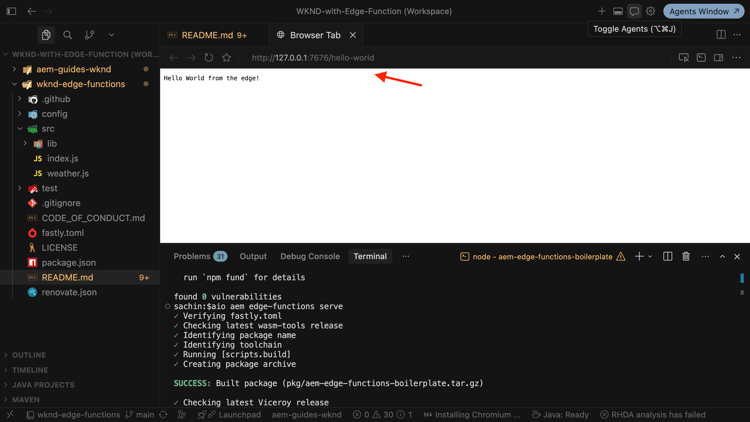
The server starts at http://127.0.0.1:7676.
For example, the output should look like the following screenshot:
Step 6: Review and deploy CDN configuration
The AEM Edge Functions project includes CDN configuration files in the config/ directory. Review them before you copy them into your AEM site project.
Review CDN configuration
Review the CDN configuration files in the config/ directory of the AEM Edge Functions project.
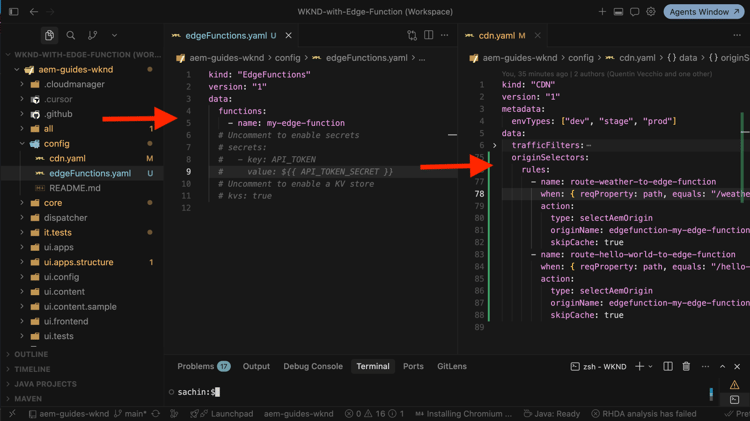
config/edgeFunctions.yamldeclares the AEM Edge Function service. For example, the following code is from the WKND AEM Edge Functions project:
kind: "EdgeFunctions"
version: "1"
data:
  functions:
    - name: my-edge-function
For more information on supported properties, see edgeFunctions.yaml reference.
config/cdn.yamldeclares the CDN routing rules that direct traffic to the AEM Edge Function service. For example, the following code is from the WKND AEM Edge Functions project:
kind: 'CDN'
version: '1'
data:
  requestTransformations:
    rules:
      # The /weather response depends on the caller's IP-based geolocation. Fold the
      # client IP into the cache key (as an `ip` query parameter) so the response can be
      # cached per client instead of opting out of caching with skipCache.
      - name: add-client-ip-to-weather
        when: { reqProperty: path, equals: "/weather" }
        actions:
          - type: set
            queryParam: ip
            value: { reqProperty: clientIp }
  originSelectors:
    rules:
      - name: route-weather-to-edge-function
        when: { reqProperty: path, equals: "/weather" }
        action:
          type: selectAemOrigin
          originName: edgefunction-my-edge-function
      - name: route-hello-world-to-edge-function
        when: { reqProperty: path, equals: "/hello-world" }
        action:
          type: selectAemOrigin
          originName: edgefunction-my-edge-function
Key call outs:
- The
originNamemust follow the patternedgefunction-<edge-function-name>, where<edge-function-name>is the name of the AEM Edge Function declared inedgeFunctions.yaml. - The
typemust beselectAemOrigin. - Responses are cached at the CDN according to their
Cache-Controlheaders — these routes intentionally do not setskipCache: true./hello-worldis static and cached directly;/weathervaries by the caller’s IP-based location, so the request transformation folds the client IP into the cache key (anipquery parameter) to keep it cacheable per client. See Caching in AEM Edge Functions.
For more information, see Origin selectors. Note that the cdn.yaml file also supports traffic filter rules, request and response transformation, and other CDN features. For more information, see Configuring traffic at the CDN.
Manage CDN configuration
Keep all CDN configuration in your AEM site project’s config/ directory, as your site may already include WAF rules, traffic filters, and other settings in cdn.yaml. This keeps all CDN configuration in one place.
-
Copy
edgeFunctions.yamlfrom the AEM Edge Functions project to the AEM site project’sconfig/directory. -
Merge the
originSelectorssection from the AEM Edge Functions project’scdn.yamlinto your AEM site project’scdn.yaml.
For example, the CDN config files in the WKND site project look like this:
Deploy CDN configuration
Finally, deploy the CDN configuration to your AEM as a Cloud Service environment.
For RDE environments, run the following command from the root of the WKND (or your own) AEM project:
| code language-bash |
|---|
|
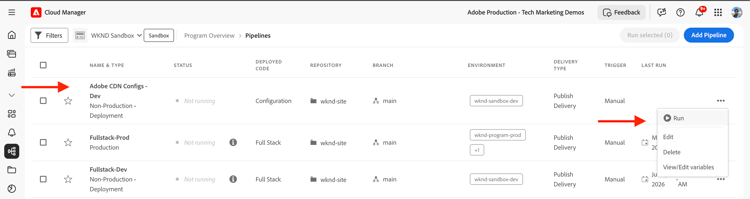
For Dev environments, commit the config files and run the config pipeline in Cloud Manager:
-
Commit and push the config files to the Cloud Manager Git repository.
-
Navigate to Pipelines in Cloud Manager and run the config pipeline for your environment.
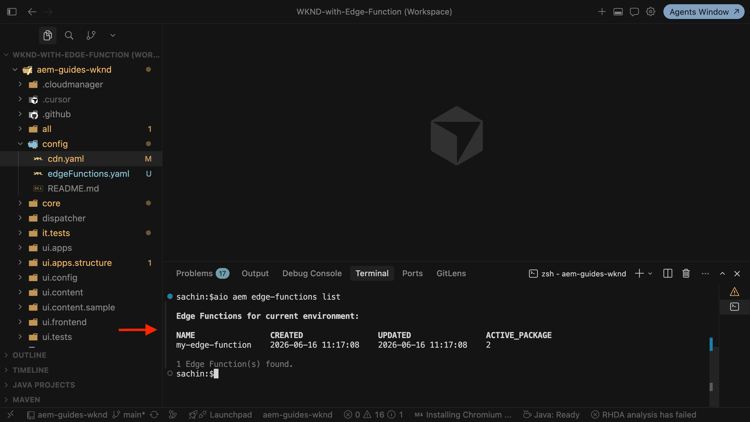
Verify the configuration was deployed successfully:
$ aio aem edge-functions list
The output should list my-edge-function (or whatever name you declared in edgeFunctions.yaml).
Step 7: Build and deploy AEM Edge Functions project
Build and deploy the AEM Edge Functions project using following commands, the commands use the context stored in the .aio file.
# Navigate to the AEM Edge Functions project directory (replace with your project name)
$ cd wknd-edge-functions

# Review to make sure you are deploying to the correct AEM as a Cloud Service environment
$ aio aem edge-functions info

# Build the project
$ aio aem edge-functions build

# Deploy to Adobe CDN
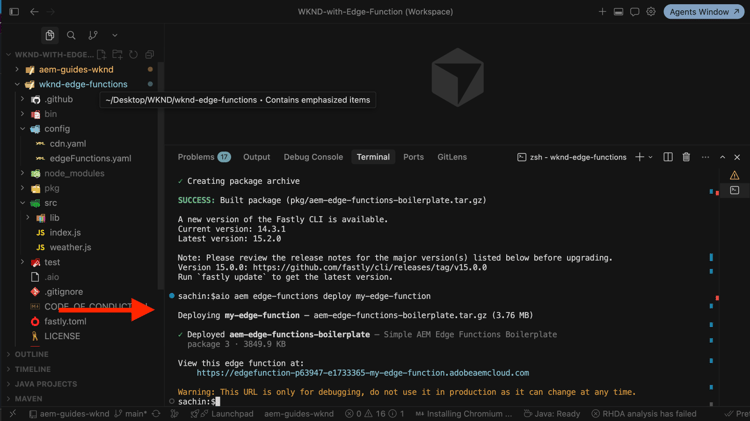
$ aio aem edge-functions deploy my-edge-function
The name passed to deploy must match the name declared in config/edgeFunctions.yaml. Also you must be part of the AEM Administrator - author product profile on the author instance.
For example, the output should look like the following screenshot:
Step 8: Verify the endpoint
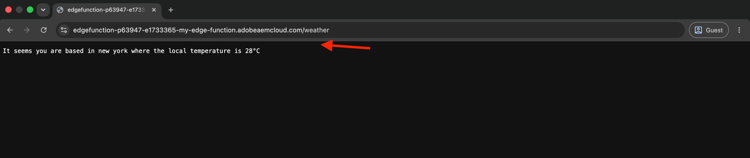
Verify the deployed endpoints in a browser or with curl:
curl https://edgefunction-pXXXXX-eYYYYY-my-edge-function.adobeaemcloud.com/hello-world
curl https://edgefunction-pXXXXX-eYYYYY-my-edge-function.adobeaemcloud.com/weather
Replace pXXXXX and eYYYYY with your Cloud Manager program and environment IDs.
For example, the responses look like the following screenshot:
edgefunction-pXXXXX-eYYYYY-<edge-function-name>.adobeaemcloud.com domain is available for debugging only and is not guaranteed to be stable. In production, requests reach the AEM Edge Function through your site’s domain via the CDN routing rules in cdn.yaml.In real-world scenarios, use AEM Edge Functions for server-side logic at the CDN and call them from your site through the routed paths defined in cdn.yaml. See the AEM Edge Functions product documentation for advanced configuration.
Summary
You’ve successfully set up AEM Edge Functions on your AEM as a Cloud Service environment, created a project from the boilerplate template, cloned it, reviewed the project files, run it locally, reviewed and deployed the CDN configuration, built and deployed the project, and verified the endpoint.