Programmatic asset upload to AEM as a Cloud Service
Learn how to upload assets to AEM as a Cloud Service environment using the client application that uses the aem-upload Node.js library.
What you learn
In this tutorial, you learn:
- How to use the direct binary upload approach to upload assets to AEM as a Cloud Service environment (RDE, Dev, Stage, Prod) using the aem-upload Node.js library.
- How to configure and run the aem-asset-upload-sample application to upload assets to AEM as a Cloud Service environment.
- Review the sample application code and understand the implementation details.
- Understand the best practices for programmatic asset upload to AEM as a Cloud Service environment.
Understanding the direct binary upload approach
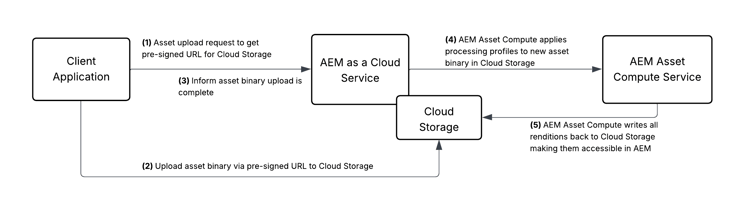
The direct binary upload approach lets you upload files from your source system directly to cloud storage in AEM as a Cloud Service environment using a presigned URL. It eliminates the need to route binary data through AEM’s Java processes, resulting in faster uploads and reduced server load.
Before running the sample application, let’s understand direct binary upload flow.
In direct binary upload flow, the binary data is uploaded directly to cloud storage with presigned URLs. The AEM as a Cloud Service is responsible for lightweight processing like generating the presigned URLs and notifying AEM Asset Compute Serviceabout the upload completion. The following logical flow diagram illustrates the direct binary upload flow.
The aem-upload library
The aem-upload Node.js library abstracts the implementation details of the direct binary upload approach. It provides two classes to orchestrate the upload process:
- FileSystemUpload - Use it when uploading files from the local file system, including support for directory structures
- DirectBinaryUpload - Use it for more fine-grained control over the binary upload process, such as uploading from streams or buffers
Sample application
Use the aem-asset-upload-sample application to learn the programmatic asset upload process. The sample application demonstrates the use of both FileSystemUpload and DirectBinaryUpload classes from the aem-upload library.
Prerequisites
Before running the sample application, ensure you have the following prerequisites:
- AEM as a Cloud Service author environment such as Rapid Development Environment (RDE), Dev environment, etc.
- Node.js (latest LTS version)
- Basic understanding of Node.js and npm
Download the sample application
-
Download the aem-asset-upload-sample application zip file and extract it.
code language-bash $ unzip aem-asset-upload-sample.zip -
Open the extracted folder in your favorite code editor.
code language-bash $ cd aem-asset-upload-sample $ code . -
Using the code editor terminal, install the dependencies.
code language-bash $ npm install
Configure the sample application
Before running the sample application, you must configure it with necessary AEM as a Cloud Service environment details like AEM Author URL, authentication method and asset folder path.
There are multiple authentication methods supported by the aem-upload Node.js library. The following table summarizes the supported authentication methods and their purpose.
To configure the sample application, follow the steps below:
-
Copy the
env.examplefile to.envfile.code language-bash $ cp env.example .env -
Open the
.envfile and update theAEM_URLenvironment variable with the AEM as a Cloud Service author URL. -
Choose the authentication method from the following options and update the corresponding environment variables.
To use basic authentication, you need to create a user in AEM as a Cloud Service environment.
-
Log in to your AEM as a Cloud Service environment.
-
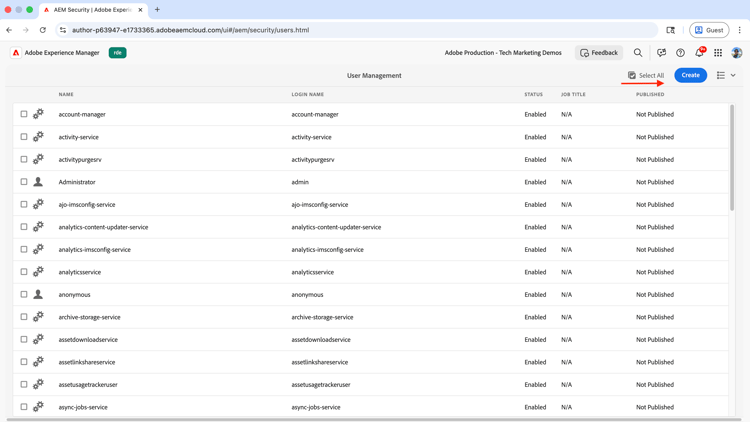
Navigate to the Tools > Security > Users and click the Create button.
-
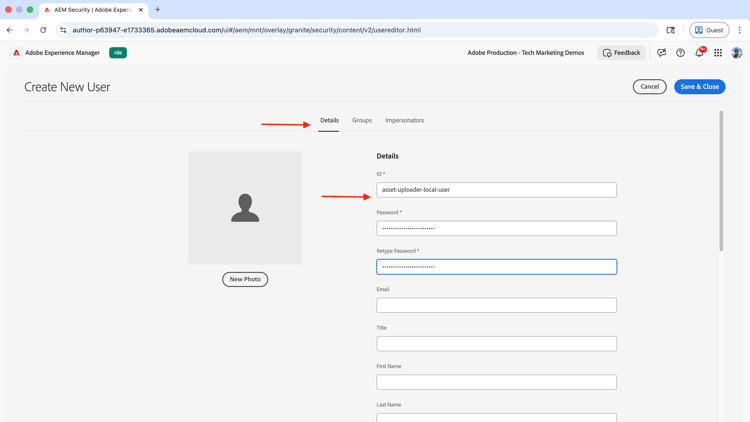
Enter the user details
-
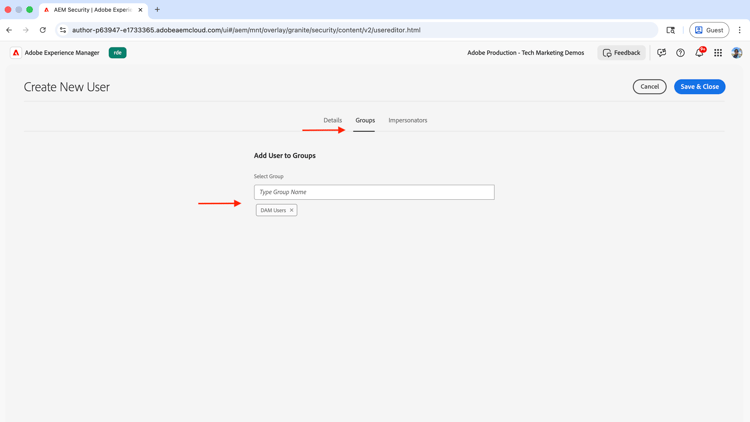
In the Groups tab, add the DAM Users group. Click the Save and Close button.
-
Update the
AEM_USERNAMEandAEM_PASSWORDenvironment variables with the username and password of the created user.
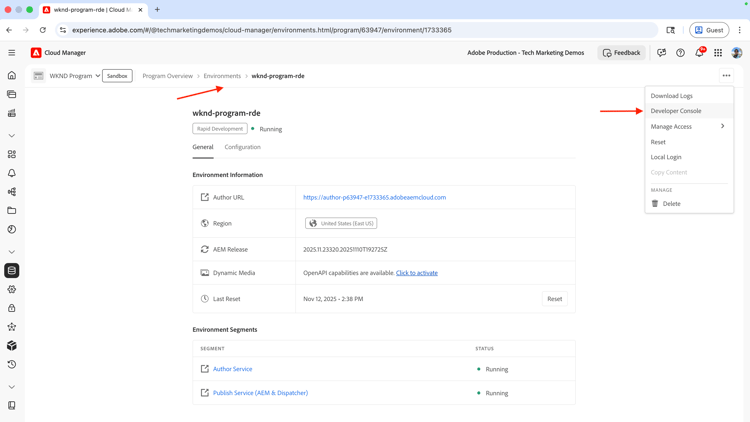
To get the local development token, you need to use the AEM Developer Console. The generated token is of JSON Web Token (JWT) type.
-
Log in to Adobe Cloud Manager and navigate to the desired Environment details page. Click the “…” and select Developer Console.
-
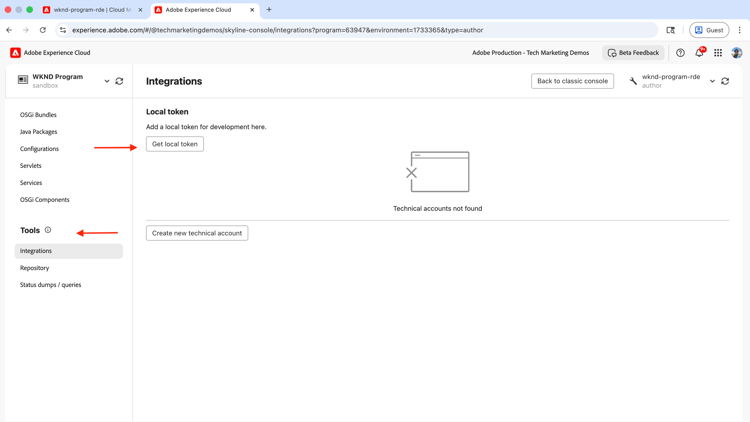
Log in to the AEM Developer Console and use the New Console button to switch to the newer console.
-
From the Tools section, select Integrations and click the Get local token button.
-
Copy the token value and update the
AEM_BEARER_TOKENenvironment variable with the token value.
Note that the local development token is valid for 24 hours and is issued for the user who generated the token.
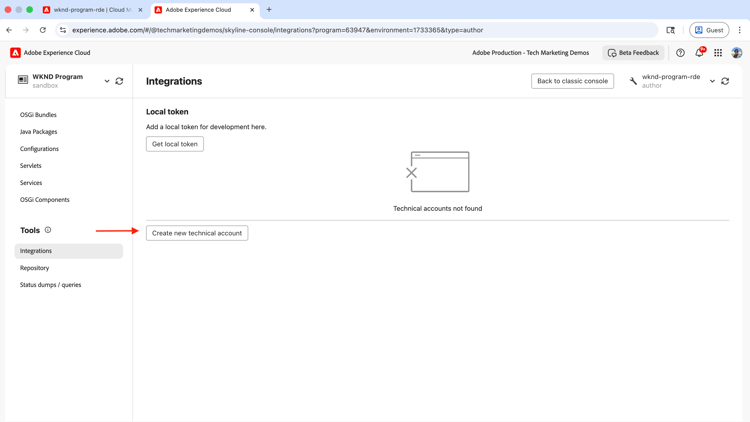
To get the service credentials, you need to use the AEM Developer Console. It is used to generate the token of JSON Web Token (JWT) type using the jwt-auth npm module.
-
Log in to Adobe Cloud Manager and navigate to the desired Environment details page. Click the “…” and select Developer Console.
-
Log in to the AEM Developer Console and use the New Console button to switch to the newer console.
-
From the Tools section, select Integrations and click the Create new technical account button.
-
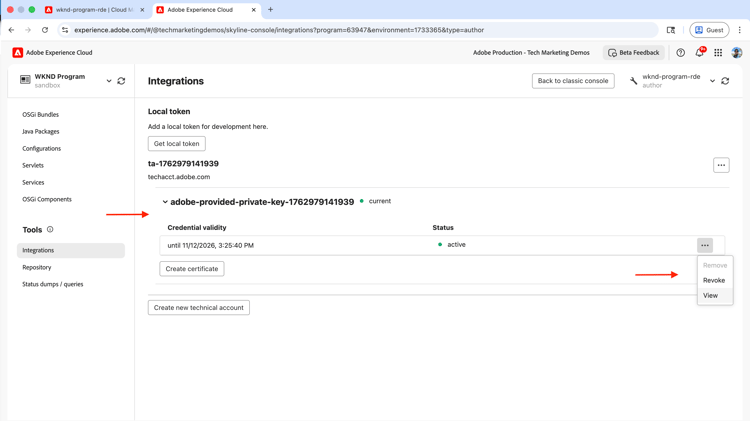
Click the View option to copy the service credentials JSON.
-
Create a
service-credentials.jsonfile in the root of the sample application and paste the service credentials JSON into the file. -
Update the
AEM_SERVICE_CREDENTIALS_FILEenvironment variable with the path to the service-credentials.json file. -
Make sure that the service credential user has the necessary permissions to upload assets to AEM as a Cloud Service environment. For more information, see Configure access in AEM page.
Here is complete sample .env file with all three authentication methods configured.
# AEM Environment Configuration
# Copy this file to .env and fill in your AEM as a Cloud Service details

# AEM as a Cloud Service Author URL (without trailing slash)
# Example: https://author-p12345-e67890.adobeaemcloud.com
AEM_URL=https://author-p63947-e1733365.adobeaemcloud.com

# Upload Configuration
# Target folder in AEM DAM where assets will be uploaded
TARGET_FOLDER=/content/dam

# DirectBinaryUpload Remote URLs (required for DirectBinaryUpload example)
# URLs for remote files to upload in the DirectBinaryUpload example
# These demonstrate uploading from remote sources (URLs, CDNs, APIs)
REMOTE_FILE_URL_1=https://placehold.co/600x400/red/white?text=Adobe+Experience+Manager+Assets

################################################################
# Authentication - Choose one of the following methods:
################################################################

# Method 1: Service Credentials (RECOMMENDED for production)
# Download service credentials JSON from AEM Developer Console and save it locally
# Then provide the path to the file here
AEM_SERVICE_CREDENTIALS_FILE=./service-credentials.json

# Method 2: Bearer Token Authentication (for manual testing)
AEM_BEARER_TOKEN=eyJhbGciOiJSUzI1NiIsIng1dSI6Imltc19uYTEta2V5LWF0LTEuY2VyIiwia2lkIjoiaW1zX25hM....fsdf-Rgt5hm_8FHutTyNQnkj1x1SUs5OkqUfJaGBaKBKdqQ

# Method 3: Basic Authentication (for development/testing only)
AEM_USERNAME=asset-uploader-local-user
AEM_PASSWORD=asset-uploader-local-user

# Optional: Enable detailed logging
DEBUG=false
Run the sample application
The sample application showcases three different ways to upload sample assets to AEM as a Cloud Service environment.
- FileSystemUpload - Upload files from a local file system with directory structure support and auto-folder creation
- DirectBinaryUpload - Uploads a remote file. The file binary is buffered in memory before uploading to AEM as a Cloud Service environment.
- Batch Upload - Uploads multiple files from a local file system in batches with automatic retry logic and error recovery. Behind the scenes, it uses the
FileSystemUploadclass to upload files from the local file system.
To be uploaded assets are located in the sample-assets folder and contains img, video and doc sub-folders each containing a few sample assets.
- To run the sample application, use the following command:
$ npm start
- Enter the desired option number from the following choices:
╔════════════════════════════════════════════════════════════╗
║      AEM Asset Upload Sample Application                   ║
║      Demonstrating @adobe/aem-upload library               ║
╚════════════════════════════════════════════════════════════╝

Choose an upload method:

1. FileSystemUpload - Upload files from local filesystem with auto-folder creation
2. DirectBinaryUpload - Upload from remote URLs/streams to AEM
3. Batch Upload - Upload multiple files in batches with retry logic
4. Exit
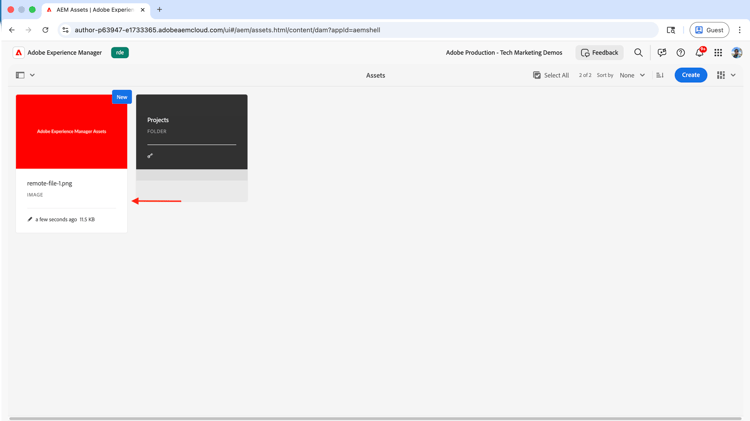
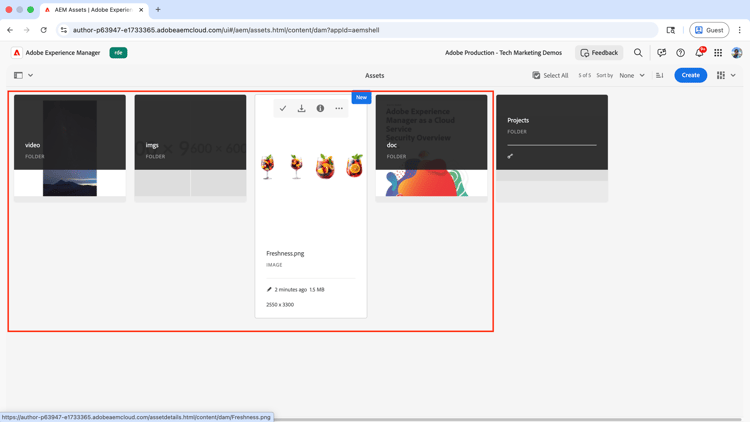
The following tabs show the sample application run, its output and uploaded assets in AEM as a Cloud Service environment for each upload method.
- The sample application output for
FileSystemUploadoption:
| code language-bash |
|---|
|
-
Assets uploaded using
FileSystemUploadoption in AEM as a Cloud Service environment: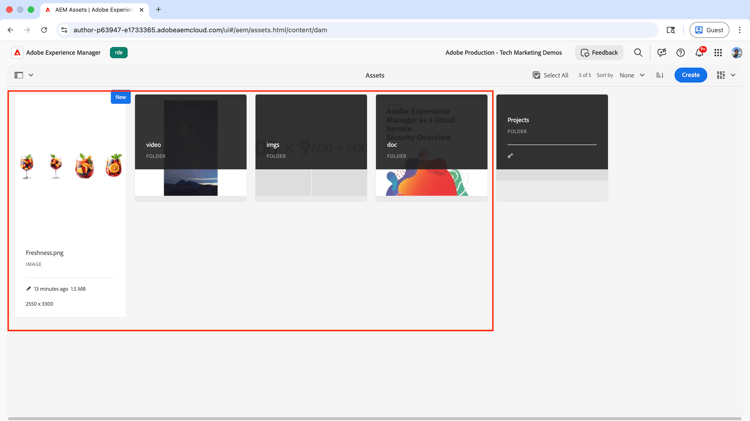
- The sample application output for
DirectBinaryUploadoption:
| code language-bash |
|---|
|
- Assets uploaded using
DirectBinaryUploadoption in AEM as a Cloud Service environment:
- The sample application output for
Batch Uploadoption:
| code language-bash |
|---|
|
- Assets uploaded using
Batch Uploadoption in AEM as a Cloud Service environment:
Review the sample application code
The main entry point of the sample application is the index.js file. It contains the promptUser function that prompts the user for a choice and executes the selected example.
/**
 * Prompts user for choice and executes the selected example
 */
function promptUser() {
  rl.question(chalk.bold('Enter your choice (1-4): '), async (answer) => {
    console.log('');

    try {
      switch (answer.trim()) {
        case '1':
          console.log(chalk.bold.green('\n▶ Running FileSystemUpload Example...\n'));
          await filesystemUpload.main();
          break;

        case '2':
          console.log(chalk.bold.green('\n▶ Running DirectBinaryUpload Example...\n'));
          await directBinaryUpload.main();
          break;

        case '3':
          console.log(chalk.bold.green('\n▶ Running Batch Upload Example...\n'));
          await batchUpload.main();
          break;

        case '4':
          rl.close();
          return;

        default:
          console.log(chalk.red('\n✗ Invalid choice. Please enter 1, 2, 3, or 4.\n'));
      }

      // After example completes, ask if user wants to continue
      rl.question(chalk.bold('\nPress Enter to return to menu or Ctrl+C to exit...'), () => {
        displayMenu();
        promptUser();
      });

    } catch (error) {
      console.error(chalk.red('\n✗ Error:'), error.message);
      rl.question(chalk.bold('\nPress Enter to return to menu...'), () => {
        displayMenu();
        promptUser();
      });
    }
  });
}
For complete code, please refer to the index.js file from the sample application.
The following tabs show the implementation details of each upload method.
The FileSystemUpload class is used to upload files from the local file system with directory structure support and auto-folder creation.
| code language-javascript |
|---|
|
For complete code, please refer to the examples/filesystem-upload.js file from the sample application.
The DirectBinaryUpload class is used to upload a remote file to AEM as a Cloud Service environment.
| code language-javascript |
|---|
|
For complete code, please refer to the examples/direct-binary-upload.js file from the sample application.
It splits the files into batches and uploads them in batches with automatic retry logic and error recovery. Behind the scenes, it uses the FileSystemUpload class to upload files from the local file system.
| code language-javascript |
|---|
|
For complete code, please refer to the examples/batch-upload.js file from the sample application.
Also, the README.md file from the sample application contains the detailed documentation for the sample application.
Best practices
-
Choose the right authentication method:
Use service credentials for production environments, Local development token and Basic authentication for development/testing only. Make sure that the service credential user has the necessary permissions to upload assets to AEM as a Cloud Service environment. -
Choose the right upload method:
Use FileSystemUpload for local files with automatic folder creation, DirectBinaryUpload for streams/buffers/remote URLs with fine-grained control, and Batch Upload pattern for production environments with 1000+ files requiring retry logic. -
Structure DirectBinaryUpload file objects correctly
Use the blob property (not buffer) with required fields: { fileName, fileSize, blob: buffer, targetFolder } and remember that DirectBinaryUpload does NOT auto-create folders. -
Sample application as a reference:
The sample application is a good reference for the implementation details of the programmatic asset upload process. You can use it as a starting point for your own implementation.