Manage output generation process
Adobe Experience Manager Guides allows you to monitor and manage output generation tasks for your DITA maps. You can view the status of output generation tasks, cancel ongoing tasks, and remove outdated entries from the output generation history.
Once you initiate an output generation task for a map or regenerate selected topics, Experience Manager Guides sends the task to the output generation queue. The status of the task is updated as the output generation process progresses.
You can view and manage output generation tasks using the Output history tab in the Editor or the OUTPUTS tab in the Assets UI.
View and manage output generation tasks from the Editor
You can view and manage output generation tasks directly from the Output history tab in the Map console.
Open the DITA map in the Map console and generate the output using any of the output presets available in Experience Manager Guides. Switch to the Output history tab to view the status of the output generation task and other details, as shown below:

For each output generation task, you can view the following information:
- Preset: Name of the output preset used to generate the output.
- Preset type: Output preset type used for output generation.
- Status: Current status of the output generation task, such as Waiting, Executing, Finished, Failed, Post-publishing, or Cancelled.
- Generated on: Date and time when the output was generated.
- Duration: Time taken to generate the output.
- Generated by: Name of the user who initiated the output generation task.
You can also cancel an ongoing output generation task. To cancel an ongoing task, hover over the task row and select Cancel generation.

Once the task is cancelled, the Cancelled label is displayed in the Status column.
For completed output generation tasks, hover over the task row to access the following actions, depending on the task status:

- Open output: View the generated ouput in a new tab.
- View logs: Access the output generation logs to review the publishing details and troubleshoot errors or warnings.
- Delete output history: Remove the selected task from the output generation history without deleting the generated output.
You can also use the following options to work with the output generation history:
-
Search: Use the search field to find specific output generation tasks in the history.
-
Download CSV: Select Download CSV to download the output generation history in CSV format.
-
Resize column: Select the dropdown next to a column name and select Resize column to adjust the column width.
-
Filter: Apply filters based on the output preset type, task status, and date and time range to narrow down the output generation history.
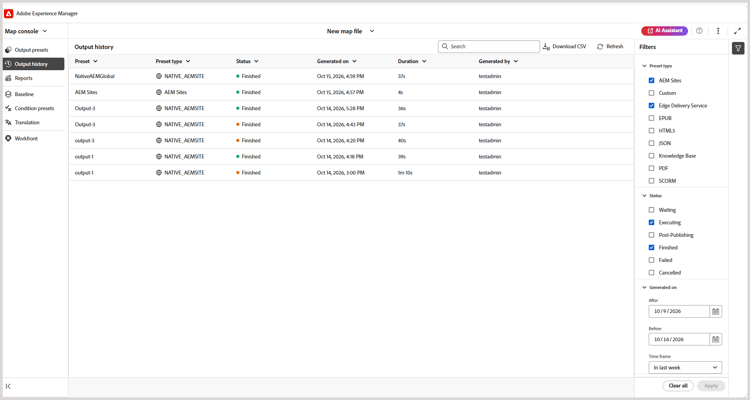
Also, the color-coded icons indicate the status of each task: green for successful tasks, orange for tasks completed with messages, and red for failed tasks. This helps you quickly identify tasks that require attention.
View and manage output generation tasks from the Assets UI
Using Assets AI, you can perform the following actions on the generated output:
View the status of the output generation task
Once you initiate the output generation task for a map or regenerate selected topics, Experience Manager Guides sends this task to the output generation queue. This queue is updated in real time, showing the status of each output generation task in the queue.
-
In the Assets UI, navigate to and open the map file for which you want to check the output generation status.
-
Select OUTPUTS.

The Outputs page is divided into two parts:
-
Queued Outputs:
Lists the outputs that are either waiting to be generated or are under generation process. The queued or in progress tasks are shown with a blue color icon before the preset name. You can also find the output generation setting or preset used for the queued task, the type, user who initiated the task, time since when the task is queued, and the current status.
Select the link to access the Publish Dashboard and view the current running status. A list of all active publishing tasks is available in the Publish Dashboard. The Queued Outputs and the Publish Dashboardlink are displayed only when there are outputs that are either waiting to be generated or are under generation process. They don’t appear when the output tasks have been completed.For more details on Publish Dashboard, view Manage publish tasks using the Publish Dashboard.
-
Generated Outputs
Lists the output tasks that have been completed. Again, the information shown here is similar to the Queued Outputs section with a few differences. You have new set of information in the form of output result icon and the output generation time.
In this list, you could have tasks that have executed successfully, tasks that have executed with message, or failed tasks. The successful tasks are shown with green color icon, the tasks with a message have an orange color icon, and the failed tasks are shown with red color icon.
For all the tasks, the publishing process creates a log file (logs.txt) that can be accessed by selecting the link in the Generated At column. For tasks that have failed or have messages, you can check the log file, which is explained in the section View and check the log file.
note NOTE When you select the link of the generated PDF output, you are asked to download the PDF.
-
Cancel an output generation task
Experience Manager Guides gives publishers a simple and easy way to cancel any ongoing publishing task. As a publisher, you can cancel an ongoing publishing task from the DITA map console or the Publish Dashboard.
Perform the following steps to cancel an output generation task from the DITA map console:
-
In the Assets UI, navigate to and open the map file for which you want to cancel an ongoing output generation task.
-
Select OUTPUTS.
-
In the Queued Outputs list, hover the pointer over a task that you want to cancel.
-
Select the Cancel This Job icon.

-
Select Yes on the Confirm Cancellation message prompt.

If the task has not yet started, the cancel command is executed on the task. For a task that is being canceled, the Status is set to Canceling.
Once the task is successfully canceled, it is moved to the Generated Outputs list with a Cancelled status. When you hover over the canceled task, it shows the name of the user who has canceled the task. In the following screenshot, the HTML5 task is canceled.

Delete an output task
When you generate multiple outputs for a DITA map, over a period of time the Generated Outputs list for such a map becomes very long. As a publisher you can clean the output history of any map file by removing the outdated tasks from the Generated Outputs list. Note that the output is not removed from the system, only the entry of the generated output is removed from the Generated Outputs list.
Perform the following steps to remove an output task from the Generated Output list:
-
In the Assets UI, navigate to and open the map file from which you want to delete the tasks.
-
Select OUTPUTS.
-
In the Generated Outputs list, hover the pointer over a task that you want to delete.
-
Select the delete icon.

-
Select Yes on the Confirm Delete message prompt.
The task is deleted from the Generated Outputs list.