Configure Content Security Policy (CSP) for SCORM preview
Experience Manager Guides SCORM preview is managed through a dedicated environment variable that governs the Content Security Policy (CSP) applied to the preview experience. After the setting is enabled, Administrators can extend it by adding additional trusted sources. These sources can include scripts, styles, fonts, images, media, frames, and more required for SCORM packages to load and render previews correctly in Experience Manager Guides.
This article explains how to add and configure the environment variable in Cloud Manager, breaks down what each field in the JSON value does, and shows how to update the value later if your needs change.
Configuration fields
The variable GUIDES_SCORM_PREVIEW_CONFIG accepts JSON object as its value. Each value controls a specific aspect of the CSP applied during SCORM preview:
CSP_ENABLEDtrue) or off (false) for the SCORM preview.ALLOW_UNSAFE_EVALeval() and similar unsafe JavaScript evaluation methods when set to true.ADDITIONAL_SCRIPT_SRCADDITIONAL_STYLE_SRCADDITIONAL_FONT_SRCADDITIONAL_FRAME_SRC<iframe> elements.ADDITIONAL_IMG_SRCADDITIONAL_MEDIA_SRCADDITIONAL_WORKER_SRCADDITIONAL_CONNECT_SRCADDITIONAL_MANIFEST_SRCADDITIONAL_OBJECT_SRC<object>, <embed>, or <applet>.Default values for configuration fields
{
  "CSP_ENABLED": true,
  "ALLOW_UNSAFE_EVAL": false,
  "ADDITIONAL_STYLE_SRC": ["https://fonts.googleapis.com"],
  "ADDITIONAL_FONT_SRC": ["https://fonts.gstatic.com"],
  "ADDITIONAL_FRAME_SRC": ["https://www.youtube-nocookie.com", "https://www.youtube.com"],
  "ADDITIONAL_SCRIPT_SRC": [],
  "ADDITIONAL_WORKER_SRC": [],
  "ADDITIONAL_IMG_SRC": [],
  "ADDITIONAL_MEDIA_SRC": [],
  "ADDITIONAL_CONNECT_SRC": [],
  "ADDITIONAL_MANIFEST_SRC": [],
  "ADDITIONAL_OBJECT_SRC": []
}
Depending on your needs, you don’t have to populate every value; leave any source type as an empty array if you don’t need to allow additional origins for it.
"CSP_ENABLED": false in the JSON value.Add the variable in Cloud Manager
-
Log in to Cloud Manager and select the environment where you want to apply the configuration.
-
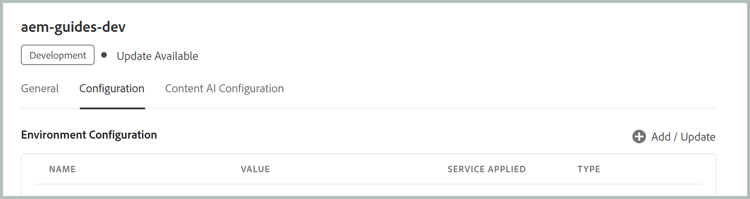
Navigate to the environment’s Configuration tab.
-
Select Add/Update to add an environment variable.
-
Enter the name of the variable (
GUIDES_SCORM_PREVIEW_CONFIG) in the Name field.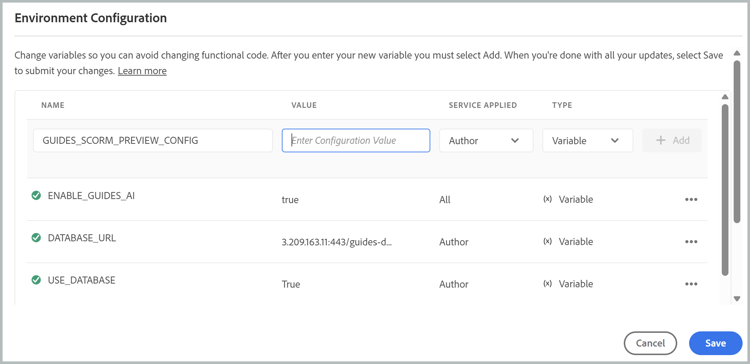
-
Enter your complete JSON configuration, including the source allow-lists your course needs, into the Value field.
-
Select the Service Applied to choose whether the variable should apply to Author, Publish, or both. For Experience Manager Guides authoring, select Author.
-
Select Variable in the Type field.
-
Select Add.
-
Select Save.
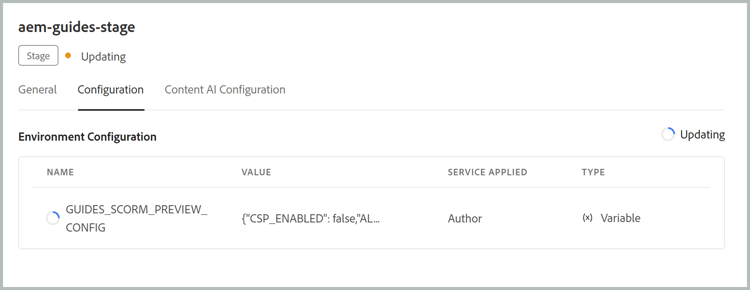
Once you save, Cloud Manager applies the configuration to the selected environment. This typically takes 10–12 minutes to propagate, so allow time for the update to complete. Once it finishes, the new configuration will be active for SCORM preview on that environment.
Update the variable values
If your requirements change, you can revisit the GUIDES_SCORM_PREVIEW_CONFIG variable at any time from the same Configuration tab in Cloud Manager. Locate the existing variable and select its Add/Update option to open it for editing, and then revise the value as needed.