Support for Schematron files
“Schematron” refers to a rule-based validation language used to define tests for an XML file. The Editor supports Schematron files. You can import the Schematron files and also edit them in the Editor. Using a Schematron file you can define certain rules and then validate them for a DITA topic or a map.
Import Schematron files
Perform the following steps to import the Schematron files:
- Navigate to the required folder (where you want to upload the files) in Repository.
- Select the Options icon to open the context menu and choose Upload assets.
- In the Upload assets dialog, you can change the destination folder in the Select Asset Folder field.
- Select Choose Files and browse to select the Schematron files. You can select one or more Schematron files and then select Upload.
Validate a DITA topic or map with Schematron
After importing Schematron files, you can edit them in the Editor. You can use the Schematron files to validate the topics or a DITA map. For example, you can create the following rules for a DITA map or topic:
- A title is defined for a DITA map.
- A short description of a certain length has been added.
- There should be at least one topicref in the map.
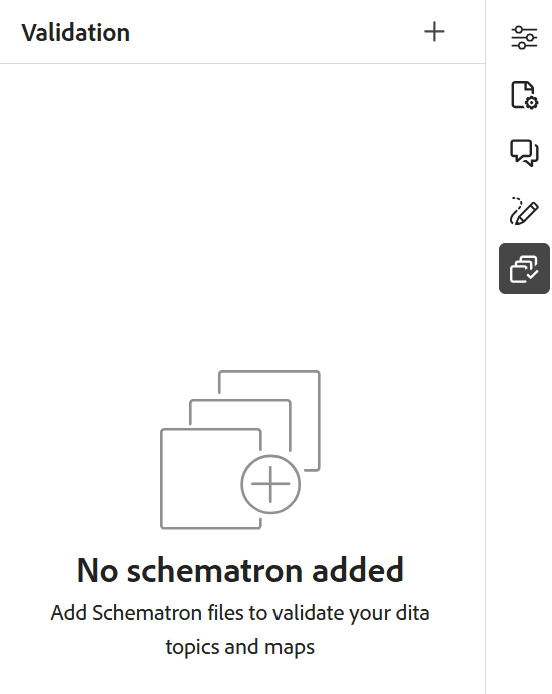
When you open a topic in the Editor, a Schematron Validation panel appears in the right. Perform the following steps to add and validate a topic or map with a Schematron file:
-
Select the Schematron icon, to open the Schematron panel.
-
Use Add Schematron File to add Schematron files.
note NOTE When an invalid Schematron file is added, an error message is displayed in the Validation panel: 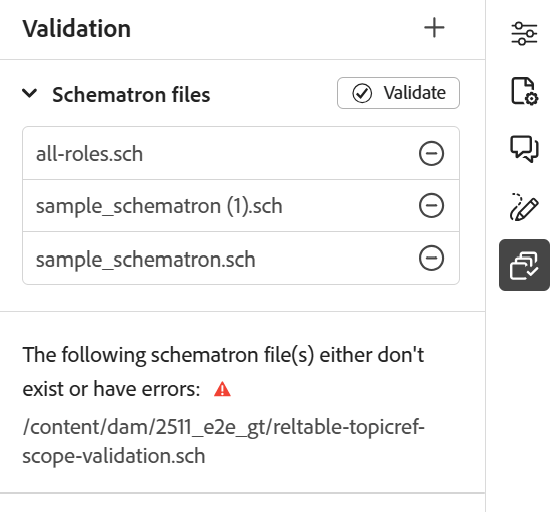
-
If the Schematron file has no errors, it is added and listed in the Validation panel. An error message is displayed for the Schematron file containing errors.
note NOTE You can use the cross icon near the Schematron file name to remove it. -
Select Validate to validate the topic with the added Schematron files.
- If the topic breaks no rules, the validation success message is displayed for the file.
- If the topic breaks a rule, for example, if it doesn’t contain a title and is validated for the above given Schematron, it displays a validation error.
note NOTE Validation results are displayed based on the role attribute defined in the Schematron file. For more details, view Understanding validation results and severity levels. -
Select the error message to highlight the element containing the error in the opened topic/map.
The Schematron support in the Editor helps you in validating the files against a set of rules and maintaining consistency and correctness across the topics.
Understanding validation results and severity levels
Validation results are displayed based on the role attribute defined in the Schematron file. Issues are categorized as Fatal, Error, Warn, or Info, with a visible count for each category in the Validation panel.
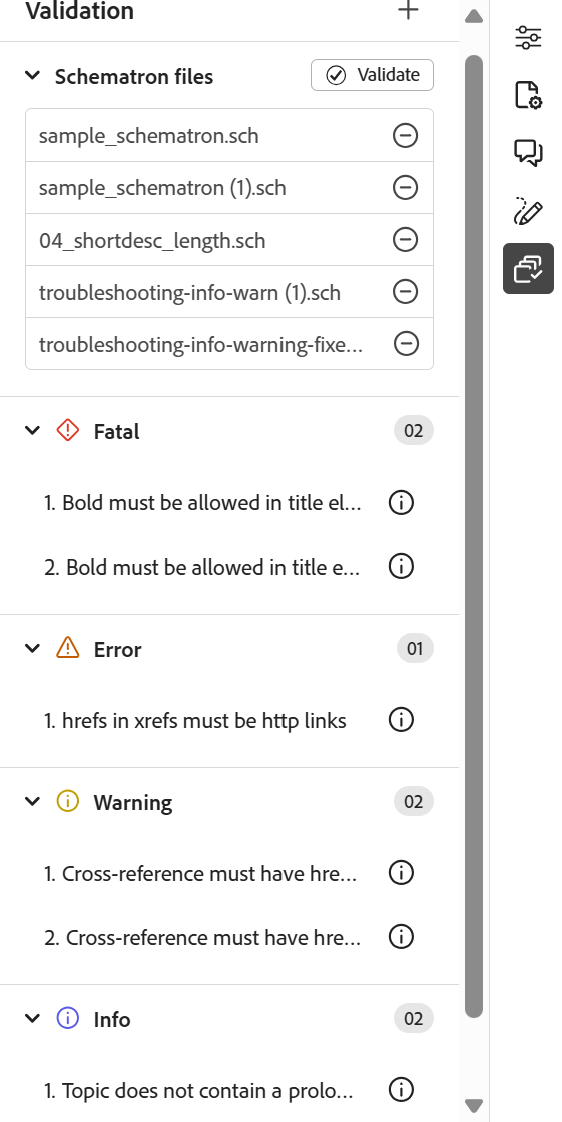
To determine the severity of an issue, the case-sensitive value of the role attribute defined in the corresponding Schematron file is evaluated.
The following snippet shows the supported role attribute values defined in a Schematron rule:
<sch:assert role="error" test="@id">Element must have an ID.</sch:assert><sch:report role="info" test="not(@alt)">Image should have an alt attribute.</sch:report><sch:assert role= "fatal" test="b"> Bold must be there in <sch:name/> element</sch:assert><sch:assert role= "warn" test="b"> Recommended formatting is missing in <sch:name/> element</sch:assert>
If the role attribute is not specified, or if an unsupported value is used, the issue is categorized as Error in the Validation panel. This behavior also applies to existing Schematron files that do not define a role attribute; in such cases, all issues are grouped under Error.
File save scenarios
Saving a file depends on the Run validation check before saving the file setting in Workspace settings:
- When enabled, you are not allowed to save the file until the
FatalorErrorlevel issues are not resolved. - When disabled, the validation checks are not performed and the files can be saved even if
FatalorErrorlevel issues are present.
Use assert and report statements to check for rules schematron-assert-report
Experience Manager Guides also supports the assert and report statements in Schematron. These statements help you validate your DITA topics.
Assert statement
An assert statement generates a message when a test statement evaluates to false. For example, if you want your title to be bold, you can define an assert statement for it.
<sch:rule context="title">
    <sch:assert test = "b"> Title should be bold </sch:assert>
  </sch:rule>
When you validate your DITA topics with the Schematron, you get a message for the topics where the title is not bold.
Report statement
A report statement generates a message when a test statement evaluates to true. For example, if you want the short description to be less than or equal to 150 characters, you can define a report statement to check the topics where the short description is more than 150 characters.
When you validate your DITA topics with the Schematron, you get a complete report of the rules where the report statement evaluates to true. So, you get a message for the topics where the short description is more than 150 characters.
<sch:rule context="shortdesc">
<sch:let name="characters" value="string-length(.)"/>
<sch:report test="$characters > 150">
The short description has <sch:value-of select="$characters"/> characters. It should contain more than 150 characters.
</sch:report>
</sch:rule>
Use Regex expressions schematron-regex-espressions
You can also use Regex expressions to define a rule with matches() function and then perform validation using the Schematron file.
For example, you can use it to display a message if the title contains only one word.
<assert test="not(matches(.,'^\w+$'))">
No one word titles.
</assert>
Define abstract patterns schematron-abstract-patterns
Experience Manager Guides also supports abstract patterns in Schematron. You can define generic abstract patterns reuse these abstract patterns. You can create placeholder parameters that specify the actual pattern.
Using abstract patterns can simplify your Schematron schema by reducing the duplication of rules and making it easier to manage and update your validation logic. It can also make your schema easier to understand, as you can define complex validation logic in a single abstract pattern that can be reused throughout the schema.
For example, the following XML code creates an abstract pattern and then the actual pattern refers to it using the id.
<sch:pattern abstract="true" id="LimitNoOfWords">
<sch:rule context="$parentElement">
<sch:let name="words" value="string-length(.)"/>
<sch:assert test="$words < $maxWords">
You have <sch:value-of select="$words"/> letters. This should be lesser than <sch:value-of select="$maxWords"/>.
</sch:assert>
<sch:assert test="$words > $minWords">
You have <sch:value-of select="$words"/> letters. This should be greater than <sch:value-of select="$minWords"/>.
</sch:assert>
</sch:rule>
</sch:pattern>
<sch:pattern is-a="LimitNoOfWords" id="extend-LimitNoOfWords">
<sch:param name="parentElement" value="title"/>
<param name="minWords" value="1"/>
<param name="maxWords" value="8"/>
</sch:pattern>
Define rules using text-node context
You can define a Schematron rule with a text-node context, for example context="//text()", so that the rule evaluates against text nodes directly instead of requiring you to enumerate every possible DITA element that can contain that text.
For example, the following rule flags straight quotation marks anywhere in the topic text:
<sch:pattern id="quotation-marks-straight-v2">
<sch:rule context="//text()">
<sch:report role="info" test="contains(., '"')">Please use typographic quotes instead of straight quotes.</sch:report>
</sch:rule>
</sch:pattern>
When this rule matches, the validation result points to the exact text node that triggered it, rather than only the enclosing element.
Rules that use an explicit element context, for example context="//p", continue to work as before, and you can still use either approach depending on how precise you want the match and the error location to be.