Configure output generation settings id181AI0B0E30
AEM Guides comes with a lot of configuration options for you to customize the output generation process. This topic covers all configurations and customizations that would help you set up your output generation process.
Configure the Baseline tab on the DITA map dashboard id223MD0D0YRM
The following tabs provide instructions to hide the Baseline tab on the DITA map dashboard based on your Experience Manager Guides setup: Cloud Service or On-Premise.
- Use the instructions given in Configuration overrides to create the configuration file.
- In the configuration file, provide the following (property) details to configure the baseline tab on the map dashboard.
| table 0-row-3 1-row-3 | ||
|---|---|---|
| PID | Property Key | Property Value |
com.adobe.fmdita.config.ConfigManager |
hide.tabs.baseline |
Boolean(true/false).Default value: true |
| note |
|---|
| NOTE |
| This configuration is enabled by default and the Baseline tab is not available on the map dashboard. |
-
Open the Adobe Experience Manager Web Console Configuration page.
The default URL to access the configuration page is:
code language-http http://<server name>:<port>/system/console/configMgr -
Search for and click on the com.adobe.fmdita.config.ConfigManager bundle.
-
Select the Hide Baseline Tab option.
-
Click Save.
| note |
|---|
| NOTE |
| This configuration is disabled by default and the Baseline tab is available on the map dashboard. |
Configure blended publishing within an existing AEM Site id1691I0V0MGR
If you have an AEM Site that contains DITA content, you can configure your AEM Site output to publish DITA content to a predefined location within your site. For example, in the following screenshot of an AEM Site page, the ditacontent node is reserved to store DITA content:
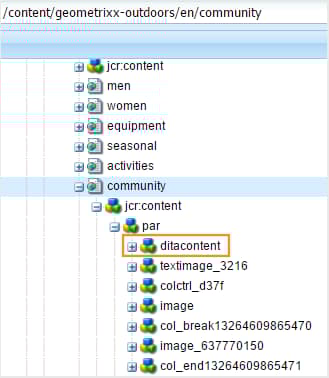
The remaining nodes in the page are authored directly from the AEM Site editor. Configuring the publish setting to publish DITA content to a predefined location ensures that none of your existing non-DITA content gets modified by the AEM Guides publishing process.
You need to perform the following configurations on your existing site to allow publishing of DITA content to a predefined node:
-
Configure your site’s template properties
-
Add nodes in your site to publish DITA content
The following tabs provide instructions to configure your existing site’s template properties based on your Experience Manager Guides setup: Cloud Service or On-Premise.
-
Use the Package Manager to download /libs/fmdita/config/templates/default file.
note NOTE Do not make any customizations in the default configuration files available in the libsnode. You must create an overlay of thelibsnode in theappsnode and update the required files in theappsnode only. -
Add the following properties:
table 0-row-3 1-row-3 2-row-3 Property name Type Value topicContentNodeString Specify the node name where you would like to publish the DITA content. For example, the default node where AEM Guides publishes DITA content is: jcr:content/contentnodetopicHeadNodeString Specify the node name where you would like to store the metadata information of your DITA content. For example, the default node where AEM Guides stores metadata information is: jcr:content/headnode
Next time when you publish any DITA content using your site’s template configurations, the content gets published into the nodes specified in the topicContentNode and topicHeadNode properties.
-
Log into AEM and open the CRXDE Lite mode.
-
Navigate to your site’s template configuration node. For example, AEM Guides stores the default template configurations in the following node:
/libs/fmdita/config/templates/defaultnote NOTE Do not make any customizations in the default configuration files available in the libsnode. You must create an overlay of thelibsnode in theappsnode and update the required files in theappsnode only. -
Add the following properties:
table 0-row-3 1-row-3 2-row-3 Property name Type Value topicContentNodeString Specify the node name where you would like to publish the DITA content. For example, the default node where AEM Guides publishes DITA content is: jcr:content/contentnodetopicHeadNodeString Specify the node name where you would like to store the metadata information of your DITA content. For example, the default node where AEM Guides stores metadata information is: jcr:content/headnode
The following screenshot shows the properties added in the default template node of AEM Guides:
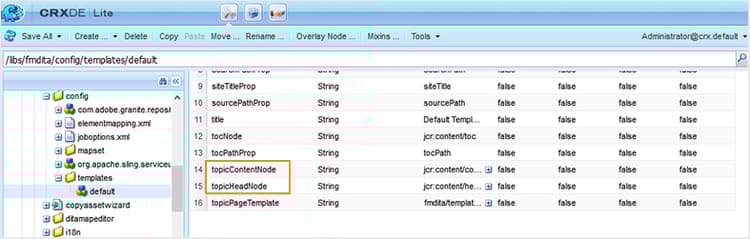
Next time when you publish any DITA content using your site’s template configurations, the content gets published into the nodes specified in the topicContentNode and topicHeadNode properties.
However, for existing sites, you must manually add the topicContentNode and topicHeadNode nodes.
Perform the following steps to add the required nodes to your existing site:
-
Log into AEM and open the CRXDE Lite mode.
-
Locate
jcr:contentwithin your site node. -
Add
topicContentNodeandtopicHeadNodenodes with the same name that you specified in the site’s template configurations.
Configure Base Output Location for publishing
The following tabs provide instructions to configure the base output location based on your Experience Manager Guides setup: Cloud Service or On-Premise.
-
Use the instructions given in Configuration overrides to create the configuration file.
-
In the configuration file, provide the following (property) details to configure the base output location:
table 0-row-3 1-row-3 PID Property Key Property Value com.adobe.fmdita.config.ConfigManagerbase.output.pathDefault value: “/content/dam/fmdita-outputs”
-
Open the Adobe Experience Manager Web Console Configuration page.
The default URL to access the configuration page is:
code language-http http://<server name>:<port>/system/console/configMgr -
Search for and select the com.adobe.fmdita.config.ConfigManager bundle.
-
Update the property Base Output Location to specify the default path in the AEM repository where the PDF will be saved after publishing. Additionally, if an invalid path is entered, it will automatically revert to the default path:
/content/dam/fmdita-outputs. -
Click Save.
Use metadata in publishing output through DITA-OT id191LF0U0TY4
AEM Guides provides a way to pass custom metadata while publishing output using DITA-OT. As an administrator and a Publisher you would need to perform the following tasks to configure and use custom metadata in the published output:
-
As an administrator, add the required metadata in the system so that it is made available on the Properties page of the DITA map.
-
As an administrator, add the custom metadata in the metadata list so that it shows up in the DITA map console.
-
As a Publisher, configure and add the custom metadata with the DITA map and generate the required output.
To add the required metadata in the system, perform the following steps:
-
Log into Adobe Experience Manager as an administrator.
-
Click on the Adobe Experience Manager link at the top and choose Tools.
-
Select Assets from the list of tools.
-
Click on the Metadata Schemas tile.
The Metadata Schema Forms page is displayed.
-
Select the default form from the list.
note NOTE The properties displayed on the Properties page for a DITA map are taken from this form. -
Click Edit.
-
Add the custom metadata that you want to use in your published outputs. For example, we will add audience metadata using the following steps:
-
From the Build Form components list, drag-and-drop Single Line Text component onto the form.
-
Select the new field to open the Settings of the field.
-
In the Field Label, enter the metadata name— Audience.
-
In the Map to Property setting, specify ./jcr:content/metadata/<name of the metadata>. For our example, we will set it to ./jcr:content/metadata/audience.
Using these steps, add all required metadata parameters.
-
-
Click Save.
The new parameter now shows up on the Properties page for all DITA maps.
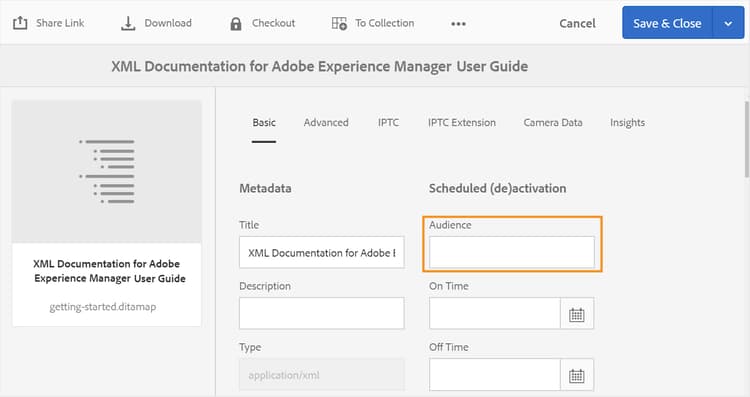
Next, you need to make the custom metadata available in the DITA map console. The following tabs provide instructions to make the custom metadata available on the DITA map dash board based on your Experience Manager Guides setup: Cloud Service or On-Premise.
-
Use the package manager to access the metadataList file available at the following location in your Cloud Manager’s Git repository:
/libs/fmdita/config/metadataList
note NOTE The metadataList file contains a list of properties that are shown in the Properties drop-down list of a DITA map in the map dashboard. By default, there are four properties listed in this file— docstate, dc:language, dc:description, and dc:title. -
Add the custom metadata that you have added in the Metadata Schema Forms page. For our example, add audience parameter to the end of the default list.
-
Log into AEM and open the CRXDE Lite mode.
-
Access the metadataList file available at the following location:
/libs/fmdita/config/metadataList
note NOTE The metadataList file contains a list of properties that are shown in the Properties drop-down list of a DITA map in the map dashboard. By default, there are four properties listed in this file— docstate, dc:language, dc:description, and dc:title. -
Add the custom metadata that you have added in the Metadata Schema Forms page. For our example, add audience parameter to the end of the default list.
-
Click Save All.
Now the custom metadata will show up in the DITA map console’s Properties drop-down list.
Lastly, as a Publisher, you need to include the custom metadata in the published output. To process the custom metadata while generating the output, perform the following steps:
-
In the Assets UI, navigate to the DITA map that you want to publish.
-
Select the DITA map file and open its properties page.
-
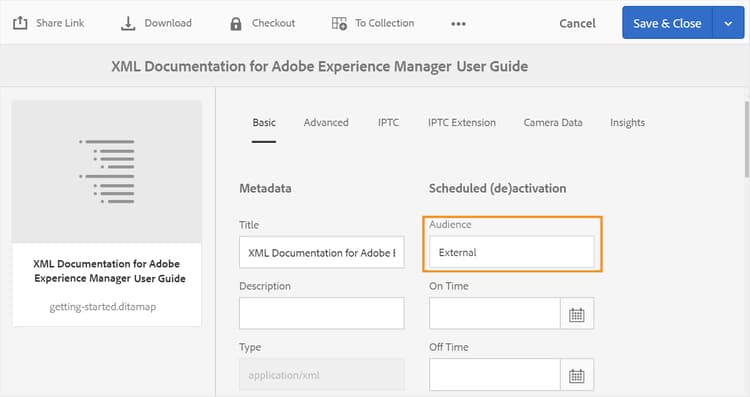
On the Properties page, specify the value for the custom metadata. For our example, we have specified a value of External for the audience parameter.
-
Click Save & Close.
-
Click on the DITA map file to open the DITA map console.
-
In the Output Presets tab, select the output preset that you want to use to generate the output.
-
Click Edit.
-
From the Properties drop-down list, select the properties that you want to pass on to the publishing process.
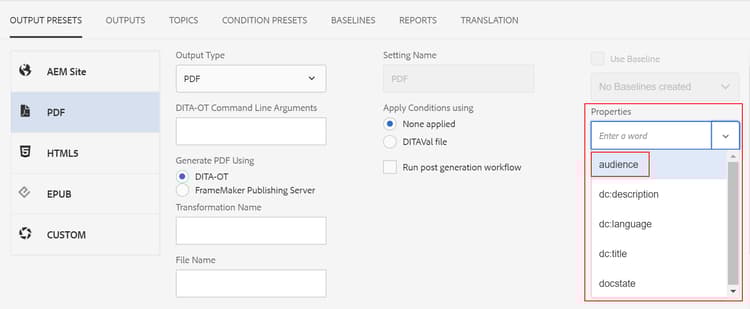
The selected properties/metadata are passed on to the publishing process and are made available in the final output.
Validate metadata passing to the DITA-OT for processing (only for Cloud Service)
In order to validate the metadata values passed to the DITA-OT, local environment using a cloud ready jar can be used. Since we can’t access local file system on cloud, only way to validate metadata file is via cloud ready jar.
-
File name: metadata.xml
-
File location: crx-quickstart/profiles/ditamaps/<ditamap-1234>
To access metadata.xml:
- Login to the server location where AEM instance is running.
- Migrate to crx-quickstart/profiles/ditamaps/<newly-created-directory-name>/metadata.xml.
-
Sample file format:
metadata.xml
code language-xml <?xml version="1.0" encoding="UTF-8" standalone="no"?> <root> <Path id="/absolutePath/sampleMap.ditamap"> <metadata> <meta isArray="false" key="dc:description">This is a file</meta> <meta isArray="false" key="dc:title">Myfile</meta> <meta isArray="true" key="multivalueText">One;Two;Three</meta> </metadata> </Path> <Path id="/absolutePath/sampleTopic.dita"> <metadata> <meta isArray="false" key="dc:description">description for the accountability</meta> <meta isArray="false" key="dc:title">accountability title</meta> <meta isArray="true" key="multivalueText">value1</meta> </metadata> </Path> </root> -
isArray: A Boolean attribute that defines whether the metadata is a multi-value (Array) or not. The values are delimited by a semicolon.
-
Path id: Absolute path to the file stored under the temp directory.
Configure the DITA-OT command line argument field to accept root map metadata (only for Cloud Service)
To use the DITA-OT command line argument field to pass root map metadata, perform the following steps:
- Use the instructions given in Configuration overrides to create the configuration file.
- In the configuration file, provide the following (property) details to configure the DITA-OT command line argument field in the Preset:
com.adobe.fmdita.config.ConfigManagerpass.metadata.args.cmd.linetrue/false).Default value: true- Setting the property value to true enables the DITA-OT command line functionality, allowing you to pass the metadata through DITA-OT command line.
- Setting the property value to false disables the DITA-OT command line functionality. You can then, use the Property field in the Preset to pass the metadata.
Customize DITA map console id188HC08M0CZ
AEM Guides gives you the flexibility of extending the capabilities of the DITA map console. For example, if you have a set of reports that are different from what is available in the AEM Guides, you can add such reports to the map console. To customize the map console, you need to create an AEM Client Library (or ClientLib) that will contain the code to perform the functionality that you need.
AEM Guides provides the apps.fmdita.dashboard-extn category for customizing map console. Whenever the map console is loaded, the functionality created under the apps.fmdita.dashboard-extn category gets executed and loaded.
Handle image rendition during output generation id177BF0G0VY4
AEM comes with a set of default workflows and media handles to process assets. In AEM, there are pre-defined workflows to handle asset processing for the most common MIME types. Typically, for every image that you upload, AEM creates multiple renditions of the same in binary format. These renditions may be of different size, with a different resolution, with an added watermark, or some other changed characteristic. For more information about how AEM handles assets, see Processing Assets Using Media Handlers and Workflows in AEM documentation.
AEM Guides allows you to configure which image rendition to use at the time of generating output for your documents. For example, you can choose from one of the default image renditions or create one and use the same to publish your documents. Image rendition mapping for publishing your documents is stored in the /libs/fmdita/config/ **renditionmap.xml** file. A snippet of renditionmap.xml file is as follows:
renditionmap.xml file in the apps folder for all customizations.<renditionmap>
<mapelement>
<mimetype>image/png</mimetype>
<rendition output="AEMSITE">cq5dam.web.1280.1280.jpeg</rendition>
<rendition output="PDF">original</rendition>
<rendition output="HTML5">cq5dam.web.1280.1280.jpeg</rendition>
<rendition output="HTML5" outputName="ditahtml5">cq5dam.thumbnail.319.319.png</rendition>
<rendition output="EPUB">cq5dam.web.1280.1280.jpeg</rendition>
<rendition output="CUSTOM">cq5dam.web.1280.1280.jpeg</rendition>
</mapelement>
...
</renditionmap>
The mimetype element specifies the MIME type of the file format. The rendition output element specifies the type of output format and the name of rendition (for example, cq5dam.web.1280.1280.jpeg) that should be used for publishing the specified output. You can specify the image renditions to use for all supported output formats - AEMSITE, PDF, HTML5, EPUB, and CUSTOM.
If you want to specify different image renditions for an output preset, you can use the outputName attribute, with its value set to the title of the preset, to define custom renditions for specific output presets under the same output type. This is useful when you need different image sizes or formats for different publishing scenarios.
For example:
<renditionmap>
   <mapelement>
      <mimetype>image/png</mimetype>

      <rendition output="HTML5">cq5dam.web.1280.1280.jpeg</rendition>
      <rendition output="HTML5" outputName="ditahtml5">cq5dam.thumbnail.319.319.png</rendition>

   </mapelement>
...
</renditionmap>
In the above renditions, when the outputName attribute is set to ditahtml5(preset title), the ditahtml5 preset uses the thumbnail image cq5dam.thumbnail.319.319.png. If the outputName attribute is not specified, all HTML5 outputs use the larger image cq5dam.web.1280.1280.jpeg.
If the specified rendition is not present, then AEM Guides publishing process first looks for the web rendition of the given image. If even the web rendition is not found, then the original rendition of the image is used.
Configure auto-purging period for output history id19AAI070V8Q
When you generate an output, the output gets created along with the output logs. For large DITA maps, these logs can take a large amount of space in your repository. By default, the logs are stored at the following location in the repository:
/var/dxml/metadata/outputHistory
Over a period of time, the collective size of all log files could run into GBs. AEM Guides allows you to configure a time period to keep these log files in the repository. After the specified time period, the logs along with output generation history are deleted from the repository.
Configuring the history purging feature impacts the output generation for all DITA maps in the repository. In the Outputs tab of a DITA map, the history is purged after the specified number of days and at the time specified in the setting.
The following tabs provide instructions to set a day and time to purge output history and logs based on your Experience Manager Guides setup: Cloud Service or On-Premise.
Use the instructions given in Configuration overrides to create the configuration file. In the configuration file, provide the following (property) details to set a day and time to purge output history and logs:
| table 0-row-3 1-row-3 2-row-3 | ||
|---|---|---|
| PID | Property Key | Property Value |
com.adobe.fmdita.config.ConfigManager|output.history.purgeperiod |
Specify the number of days after which the output history along with output logs are purged. If you want to disable this feature, then set this property to 0.Everyday at the specified time the purging process is executed on outputs generated before the number of days specified in this property. | Default value: 5 |
output.history.purgetime |
Specify the time when the purging process is initiated. | Default value: 0:00 (or 12:00 midnight) |
-
Open the Adobe Experience Manager Web Console Configuration page.
The default URL to access the configuration page is:
code language-http http://<server name>:<port>/system/console/configMgr -
Search for and click on the com.adobe.fmdita.config.ConfigManager bundle.
-
In the Output History Purging Period property, specify the number of days after which the output history along with output logs are purged. By default, it is set to 5 days. If you want to disable this feature, then set this property to 0.
-
In the Output History Purging Time property, specify the time when the purging process is initiated. By default, it is set to 0:00 (or 12:00 midnight). Everyday at this time, the purging process is executed on outputs generated before the number of days specified in the Output History Purging Period property.
note NOTE By default, the purging feature is executed every midnight on outputs older than 5 days. -
Click Save.
Change the recently generated outputs list limit id1679JH0H0O2
You can change the maximum number of generated outputs that are displayed in the Outputs tab for a DITA map.
Use the instructions given in Configuration overrides to create the configuration file. In the configuration file, provide the following (property) details to change the number of outputs to display in the list:
| table 0-row-3 1-row-3 | ||
|---|---|---|
| PID | Property Key | Property Value |
com.adobe.fmdita.config.ConfigManager |
output.historylimit |
Integer value. Default value: 25 |
com.adobe.fmdita.config.ConfigManager bundle.Output generation performance optimization (only for On-Premise) id176LB050VUI
AEM Guides allows you to configure the output generation processes pool size that controls the number of output generation processes that run concurrently. By default, the process pool size is set to number of processing cores available in your system plus one. You might want to change this value to 1 in case you want sequential publishing. In this case, the first publishing task gets executed and the next publishing task is stored in the publishing queue.
To change the output generation processing pool size, update the Generation Pool Size setting in the com.adobe.fmdita.publish.manager.PublishThreadManagerImpl bundle.
Configure FrameMaker Publishing Server (only for On-Premise) id1678G0Z0TN6
You can use FrameMaker Publishing Server (FMPS) to generate output for your DITA content. Configuring FMPS will allow you to generate output in multiple formats supported by FMPS.
To configure AEM Guides to use FMPS, update the following properties of the com.adobe.fmdita.config.ConfigManager bundle in the Web Console.
- FMPS 2019 and earlier: IP address or the domain name
- FMPS 2020:
http://<fmps_ip>:<port> (http://192.168.1.101:7000)- FMPS 2019 and earlier:
http://<fmps_ip>:<port>/fmserver/v1/- FMPS 2020: 2020
- FMPS 2019 and earlier: 2019 or 2017
Default value: 300 seconds (5 minutes)
http://<server-name>:<port>/.